Each of the sections below provides a brief overview of a key HubSpot marketing use-case that is enabled using CloudFiles. Each section also links to other articles that cover features in detail. Here is a quick summary of what all is covered in this article -
- Sharing collateral on web - Various ways of tracking analytics & collecting leads when sharing collateral thorugh website, forms, social media, ads etc...
- Sending bulk emails - Personalizing file, folder & dataroom sharing link to collect analytics integrated with HubSpot.
- Lead segmentation & scoring - Using lists, workflows & properties for segmentation, scoring & other marketing analytics.
- Custom reporting dashboard - Using CloudFiles' File View Custom Object to create custom reports & dashboards in HubSpot.
- Improving sales team consumption - Various strategies to get Sales team to use centralized content and collect reportable analytics.
Sharing Collateral on Web
HubSpot provides various tools to build web pages and landing pages. Marketers often need to share individual and groups of files through various web-based channels. These channels can include website, landing pages, behind form walls, social media, ads etc... In this section we talk about how CloudFiles can help with these specific use cases.
Creating links for your collateral
Use the CloudFiles WebApp Dashboard to manage your content library. You can create single or multiple links for individual pieces or groups of collateral using the file, folder, dataroom sharing capabities of CloudFiles. Once you have created these links, you can configure different settings on these. Once the links are ready, you can host them on your website, either as hyperlinks or embedded.
Refer to the Doc Sharing From Dashboard Quickstart for detailed steps and screenshots on how to use the CloudFiles WebApp Dashboard as a HubSpot marketer. Check the article on File and Folder Sharing Article for various link creation and sharing options.
Sharing Anonymous collateral on website
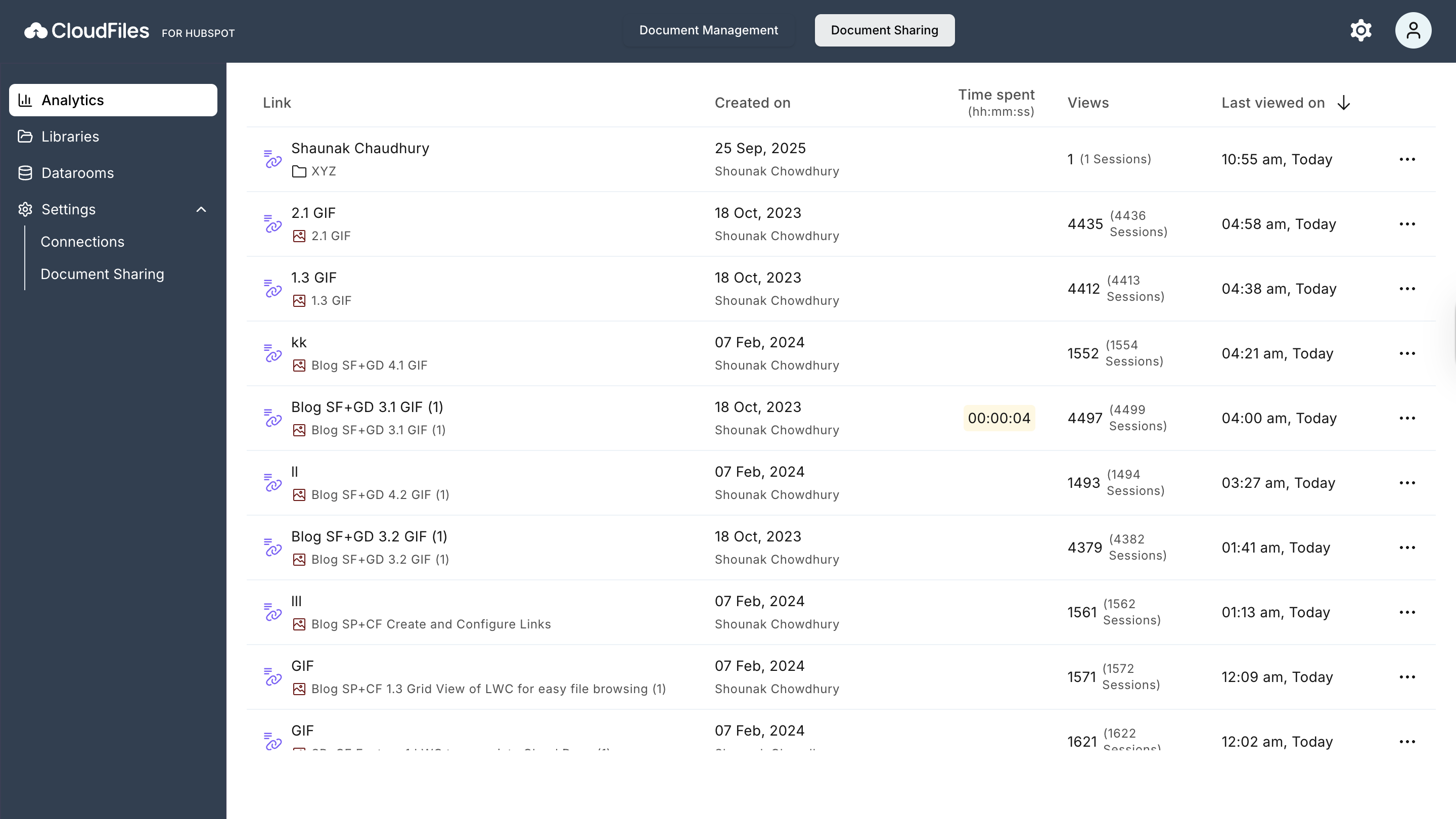
By default the links you create for your files are ungated. Ungated Links which do not have any email gating enabled will be directly accesible with a simple click. You can use the holistic analytics available in the CloudFiles dashboard to figure out drop points and optimize your content.
Your clients are directed to CloudFiles' proprietary file viewer when they open the links. This file viewer can show files, folders as well as datarooms. Check out article on Collect anonymous analytics on documents for more details. For details on what type of analytics is collected, check the article on Understanding Engagement Metrics and Drill-Down Analytics.
Sharing Gated collateral using Email Wall
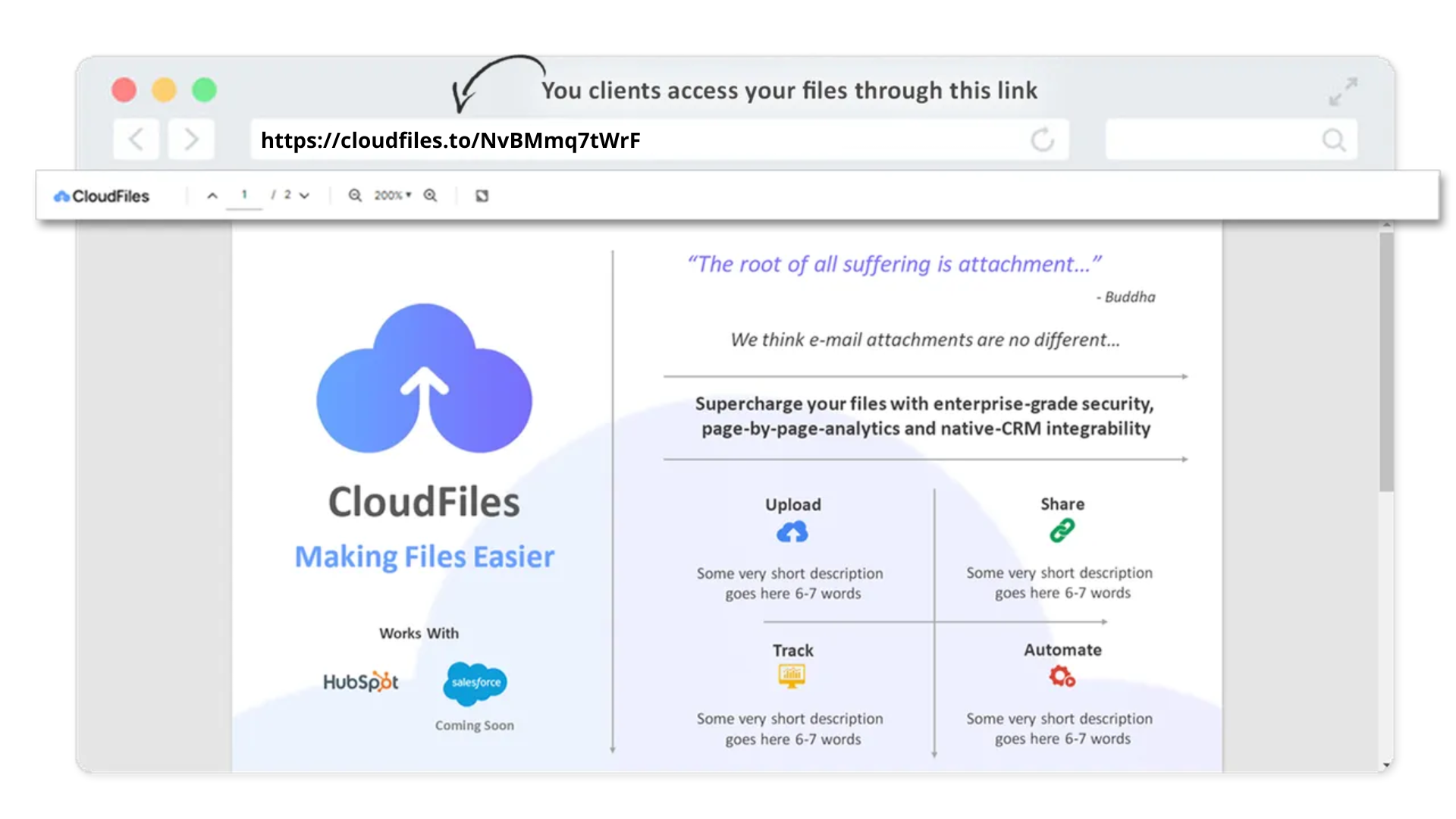
You can put an email wall before the CloudFiles links. You can also enable email authentication using an OTP. Additionally, you can define an allow or block list of domains & emails to restrict access. You can read more about it in the link security settings article.
Whenever a gated link is accessed, any analytics associated to it is pushed into your HubSpot and associated with the right contact. If the contact does not exists, CloudFiles creates one for you. You can check more about this in Auto Create Contacts from File Views.
Sharing Gated collateral using HubSpot Forms
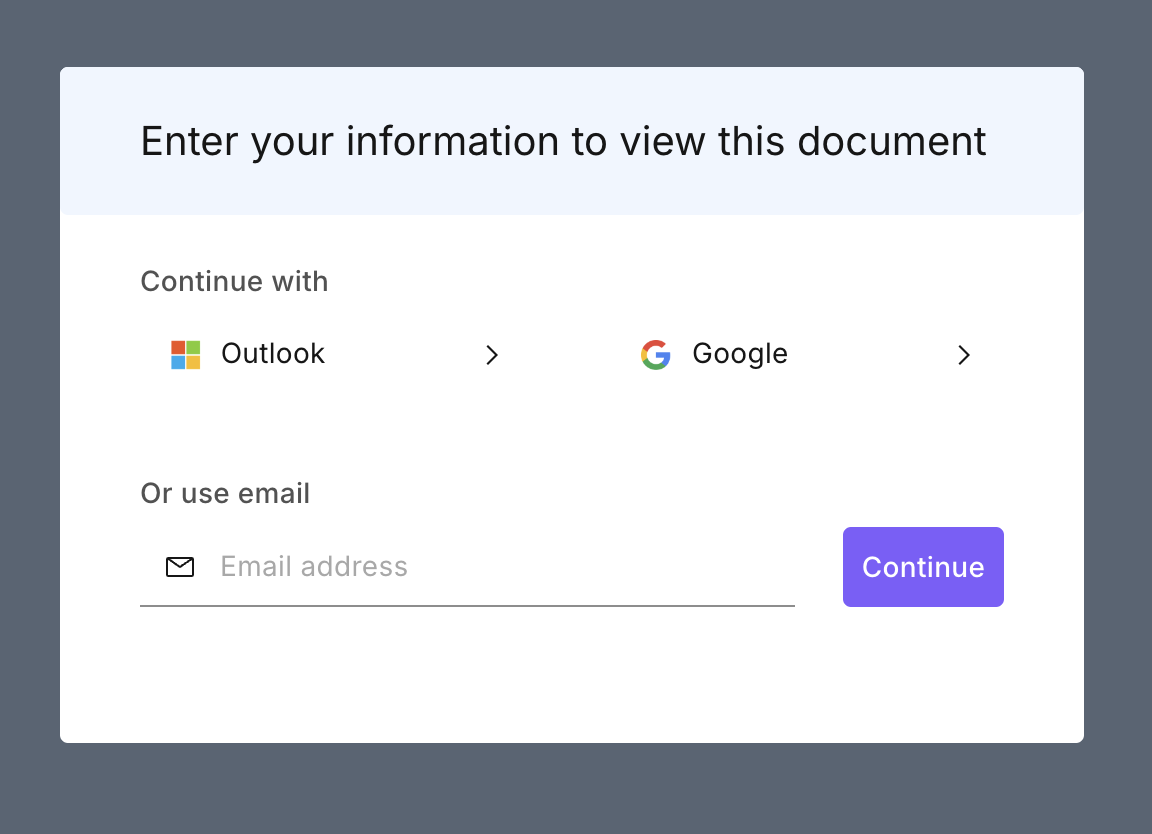
Instead of using the CloudFiles email wall (which is only capable of collecting emails), you can use HubSpot forms as well to collect detailed analytics on your collateral.
Simply create a form and collect email in it. Then, once the form is filled, simply re-direct the person to a gated or ungated link. CloudFiles provides HubSpot cookie integration such that it reads the viewer information in your HubSpot cookie. If the email is available in the cookie, CloudFiles email wall is not shown. The analytics is still pushed to the right HubSpot contact.
Note that the above feature is available on white-labelled links only. Moreover, your website should be hosted on HubSpot for this to work. You can read more about this feature here.
Social Media & Ads
You can use similar strategies as outlined in the sections above to collect analytics from content pieces shared using Social and Ads. Use CloudFiles links to share the collateral and use appropriate security settings to collect analytics and push it to HubSpot.
Sending Files in Bulk Emails
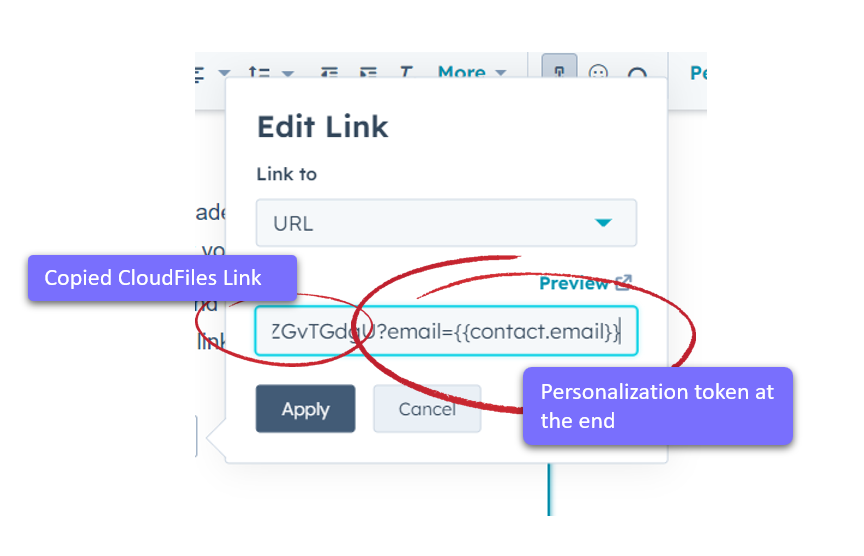
If you are sending out mass marketing emails, the best way is to create one file, folder or dataroom link per campaign / audience. Then use this link in your marketing email template. In HubSpot you can add a personalization parameter to the end of the link. This way, any analytics collected is automatically pushed into HubSpot and associated to the HubSpot contact.
Refer to our tutorial on E-mail Attachment Tracking for more information.
Lead Segmentation & Scoring
Use HubSpot Segments (previously HubSpot Lists) along with CloudFiles filters to create lists of contacts who have viewed your collateral. Use various filter parameters to create refined lists and use in your nurturing processes.
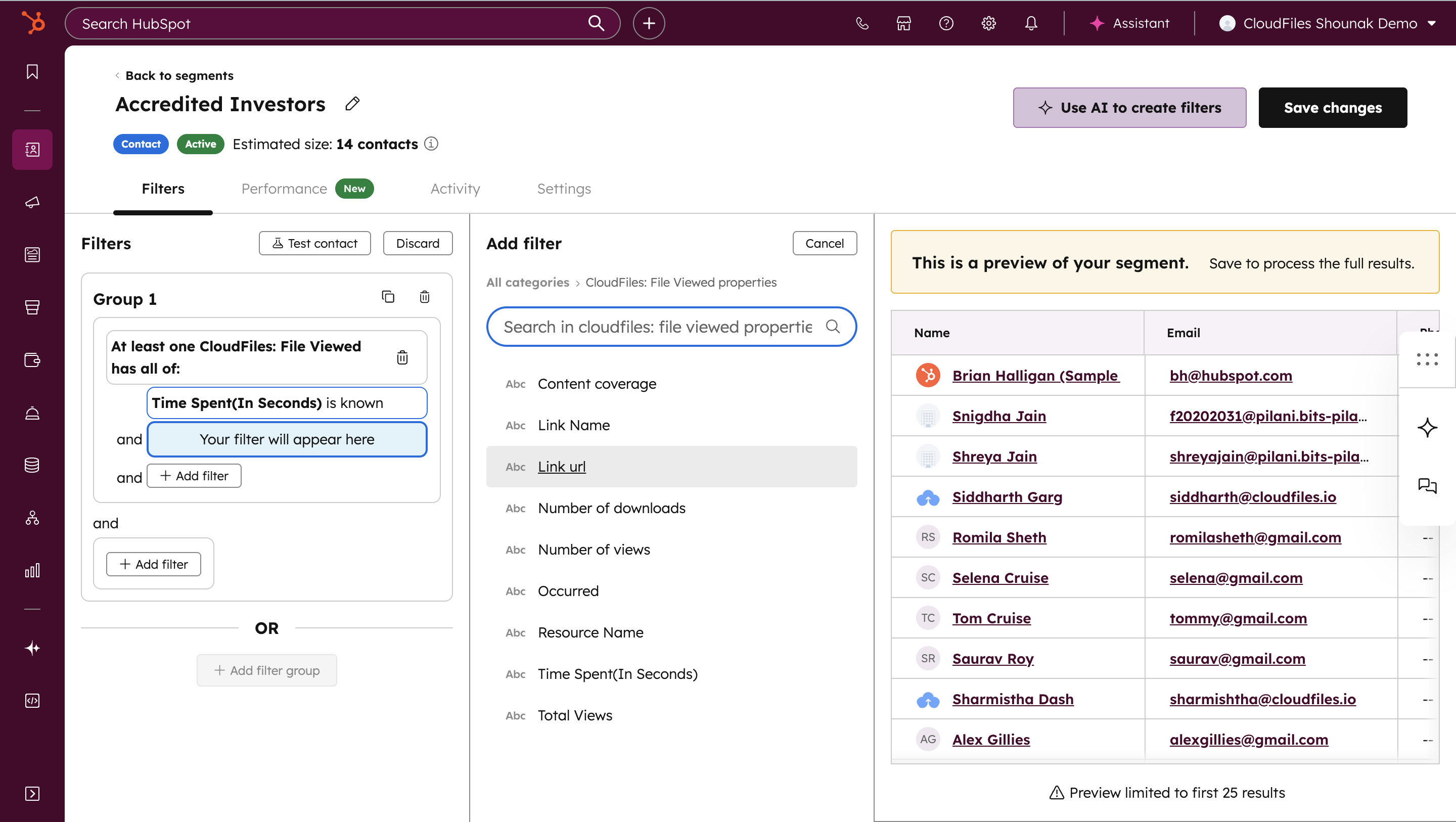
The above filters also available as triggers in workflows. Thus, you can create workflows with custom scoring logics and trigger them when views happen on CloudFiles documents. This also enables you to create notifications for sales teams and various other automated processes.
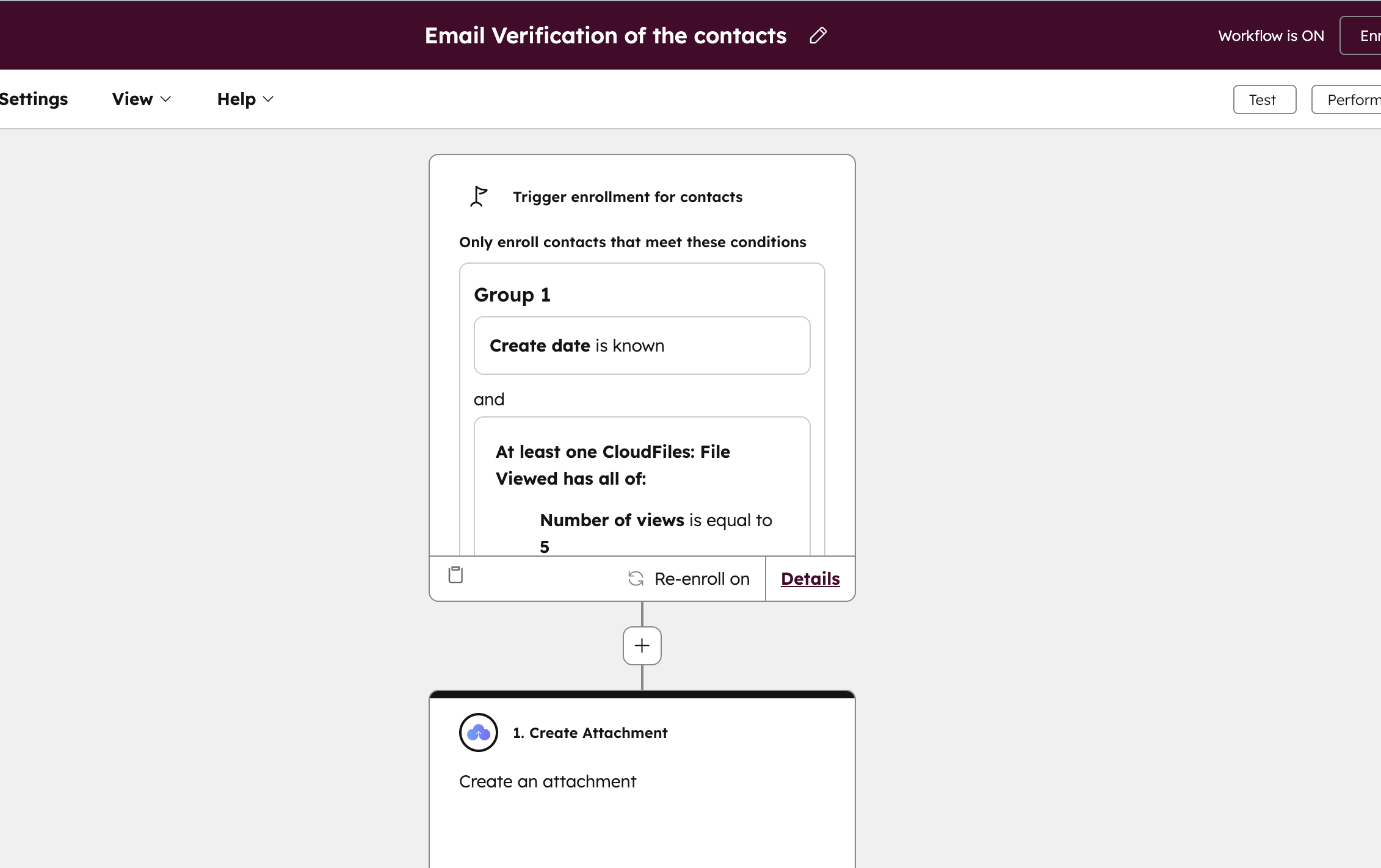
You can use other things, such as data proeprties that CloudFiles maintains on deals, tickets, contacts & companies as triggers as well. Check the section on Workflow Triggers & List Filters for more details.
Reporting & Dashboarding
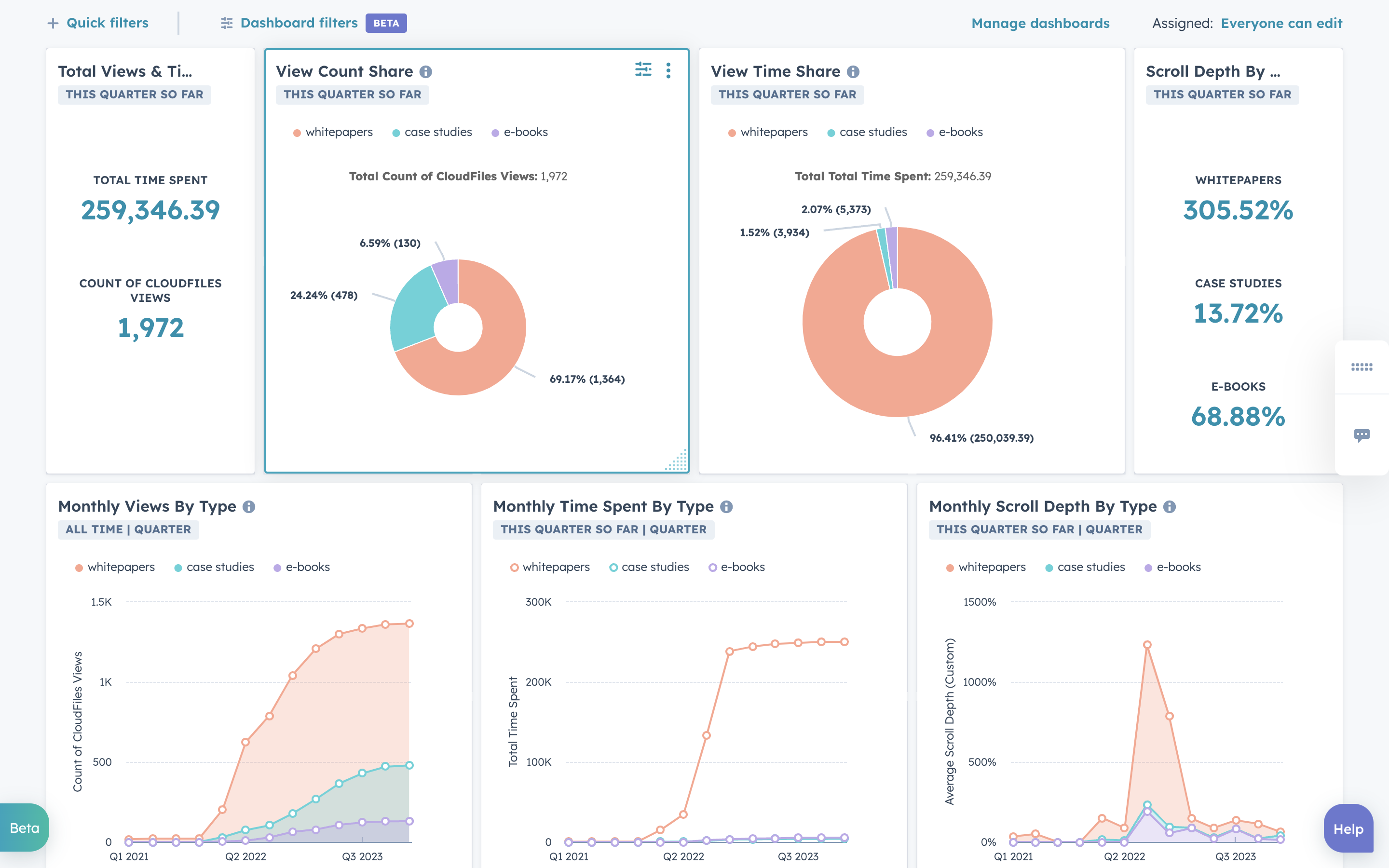
CloudFiles analytics can be pushed into HubSpot as a custom object called "CloudFiles File View" object. You can use the properties such as view time, scroll depth, email etc... to create custom reports and dashboards in HubSpot. We have a tutorial on how to create such dashboards at Custom File Analytics Dashboard.
Improving Sales & Service Team Consumption
Many a times marketing teams want to maintain a centralized content repository & need sales teams to share collateral from that centralized location. On top of that, if sharing can be done in a way such that analytics can be reported on the content consumption, it would be great for validation. CloudFiles offers certain features to enable marketing teams to do just that.
Sales & service users most often use HubSpot records, such as deals, tickets, contacts and companies for their day to day tasks. For giving access to sharing functionalities on HubSpot records, refer to our quick on Doc Sharing From Records Quickstart.
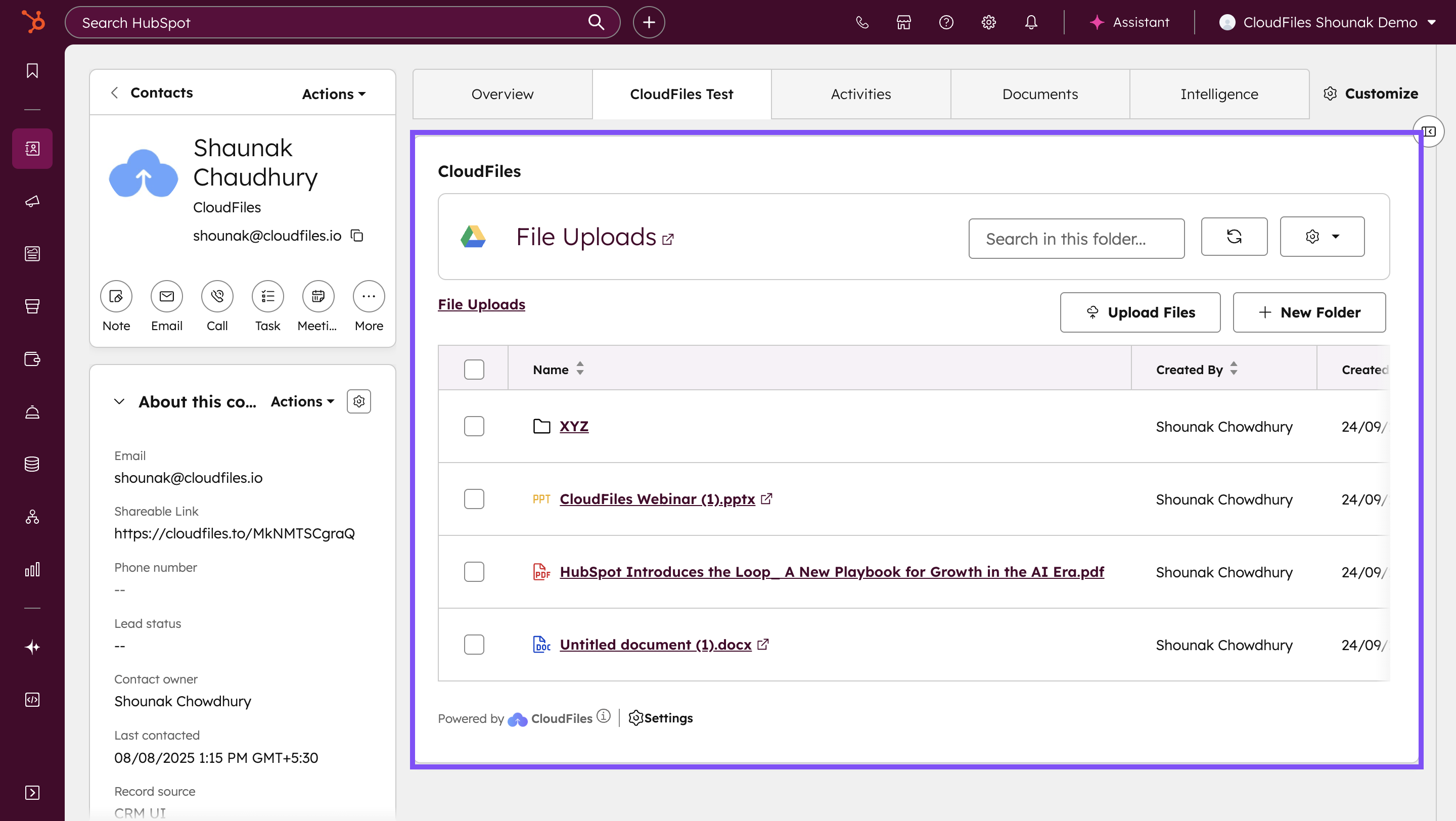
If sales teams are using sequences in HubSpot to automate email follow-ups, CloudFiles sharing links can be used in those emails along with personalization parameters as demonstrated in the bulk emails section above.
If sales users instead prefer to copy paste the links on an ad-hoc basic, personalized record links can be provided as demonstarted in the File Portals for Sales & Service teams.
They can also enable various security settings on the links as described in Send secure collaterals using Email Verification. Additionally, you can provide sales teams with Automated Internal Notifications to reduce their turnaround times.
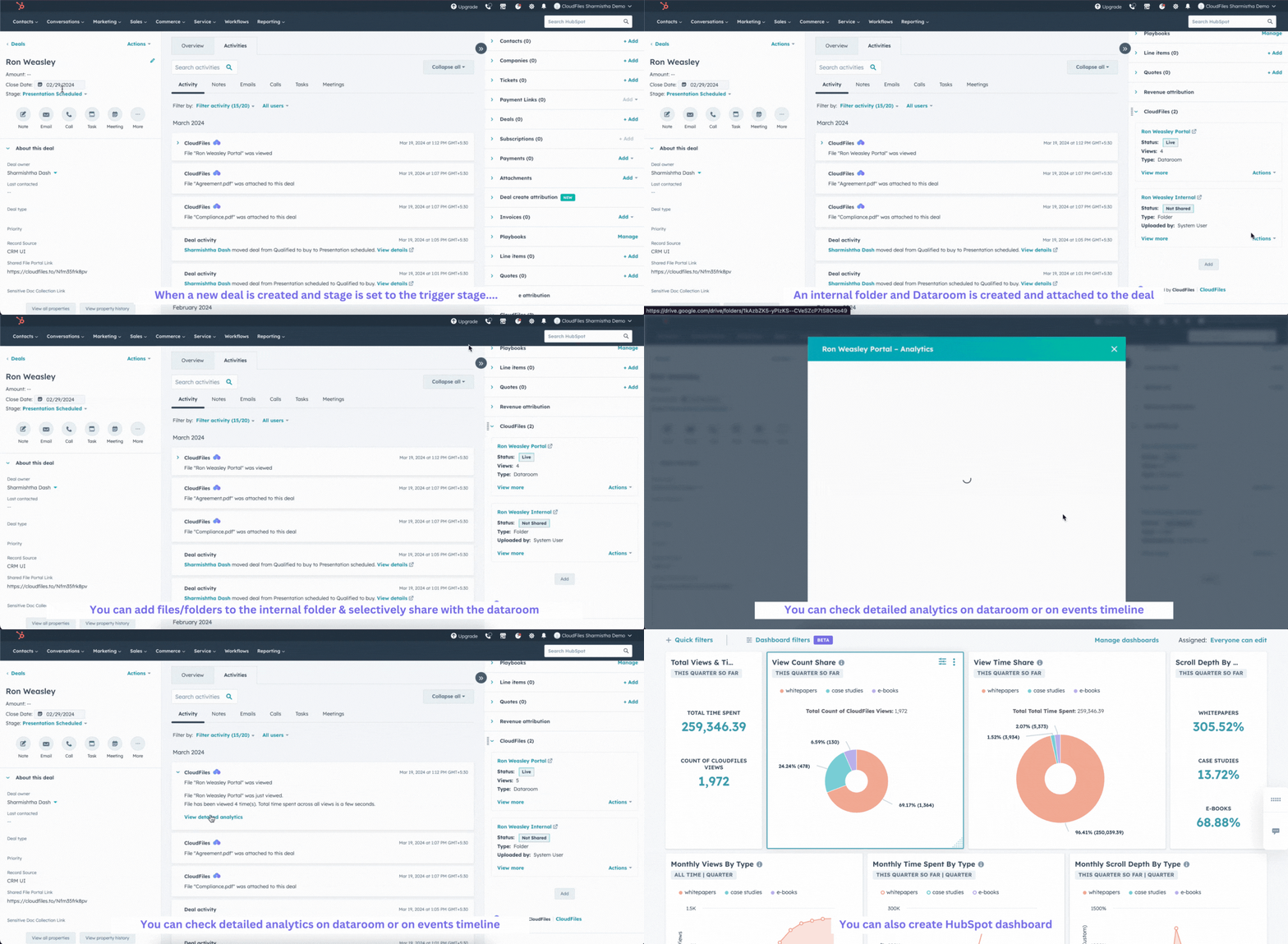
Lastly, a great strategy for sharing only personalized material is to create an explicit sharing folder for each of the records as part of a larger folder hierarchy. Selective Sub-Folder Sharing tutorial shows how to do this.
What Next?
You can go back to the Quick Starts article and check out our other quick starts on sales / service users, or the product wise quick starts. You can also go to the Features section explore the features in detail or head over to the Tutorials section to learn how to build various use cases using CloudFiles.