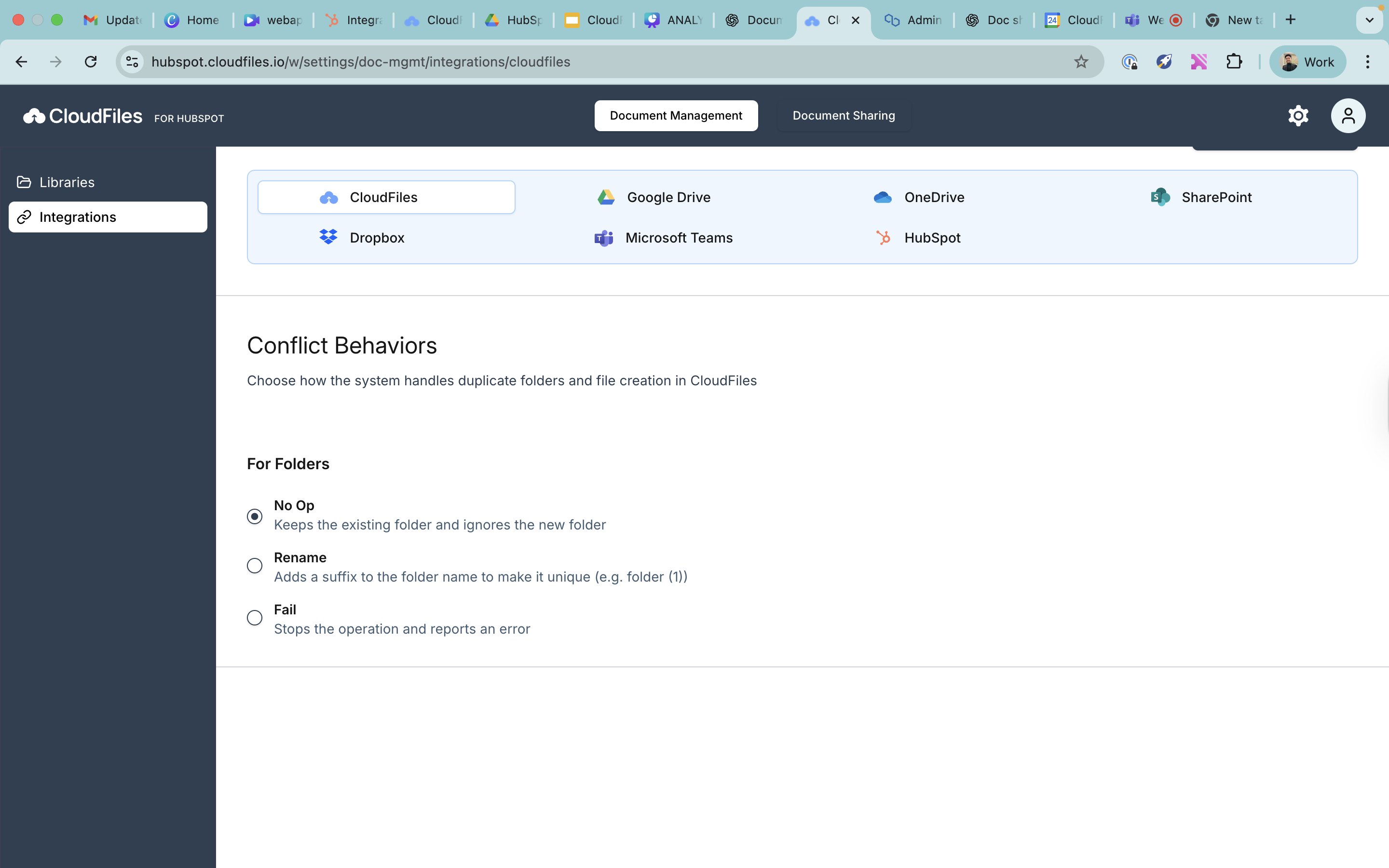
Integrations
The Integrations section shows the cloud storage that CloudFiles supports. From here, you can connect storage like Google Drive, SharePoint, OneDrive, Dropbox, Box, Microsoft Teams, HubSpot, and CloudFiles itself.
Each connected storage is linked to an integration or system user. This account is further used by CloudFiles to run automations such as folder creation and organisation. Once connected, you will see:
- Connected by – the user who connected the account.
- Connected on – the date of connection. You can also disconnect an account from here if needed.
To know more about integration users and how to connect them, refer to What is an Integration/System user?
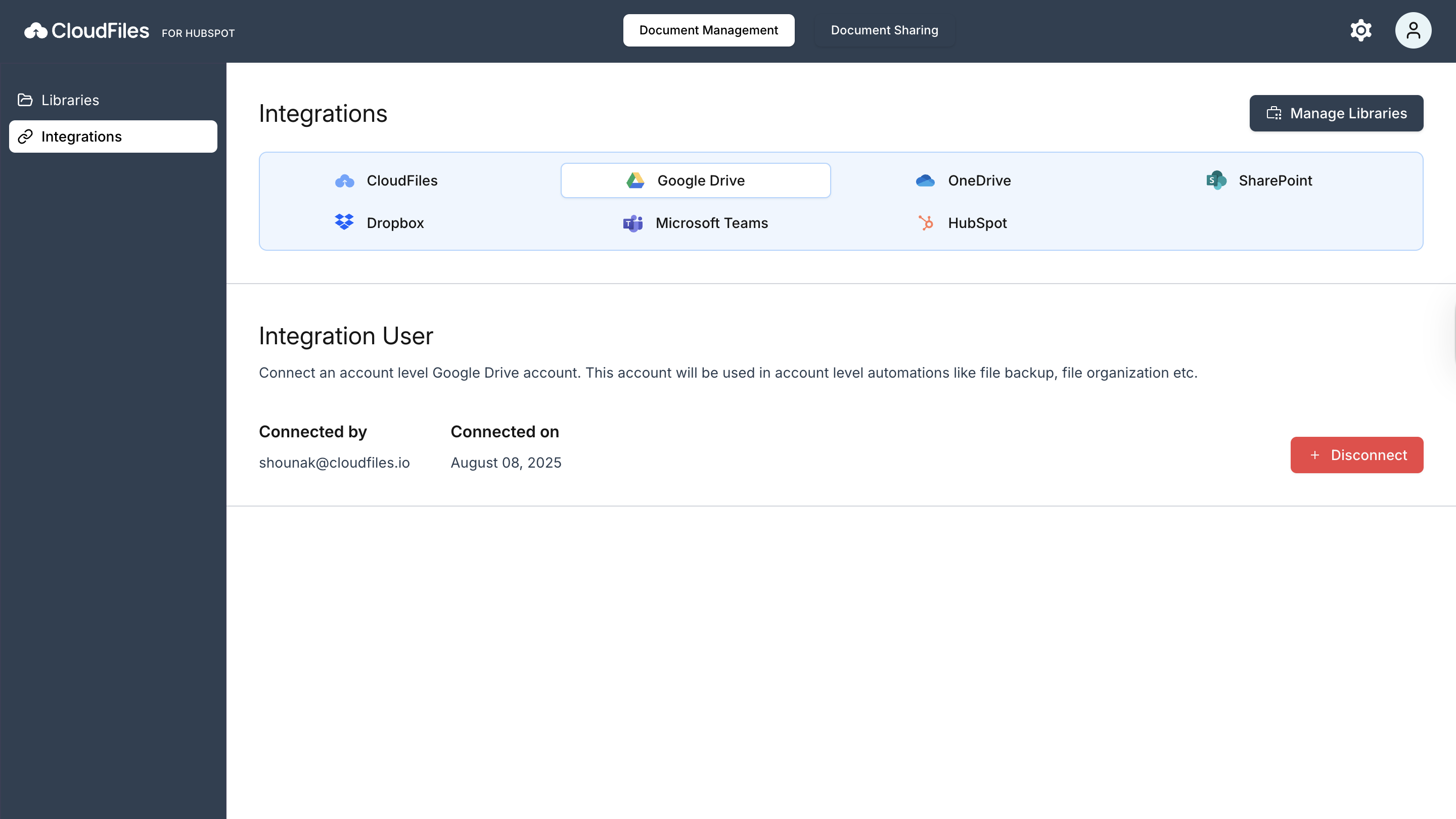
Manage Libraries
You can select which libraries to make available. Multiple libraries can be enabled. Each connected storage is associated with an integration user, the account CloudFiles uses to perform various automations.
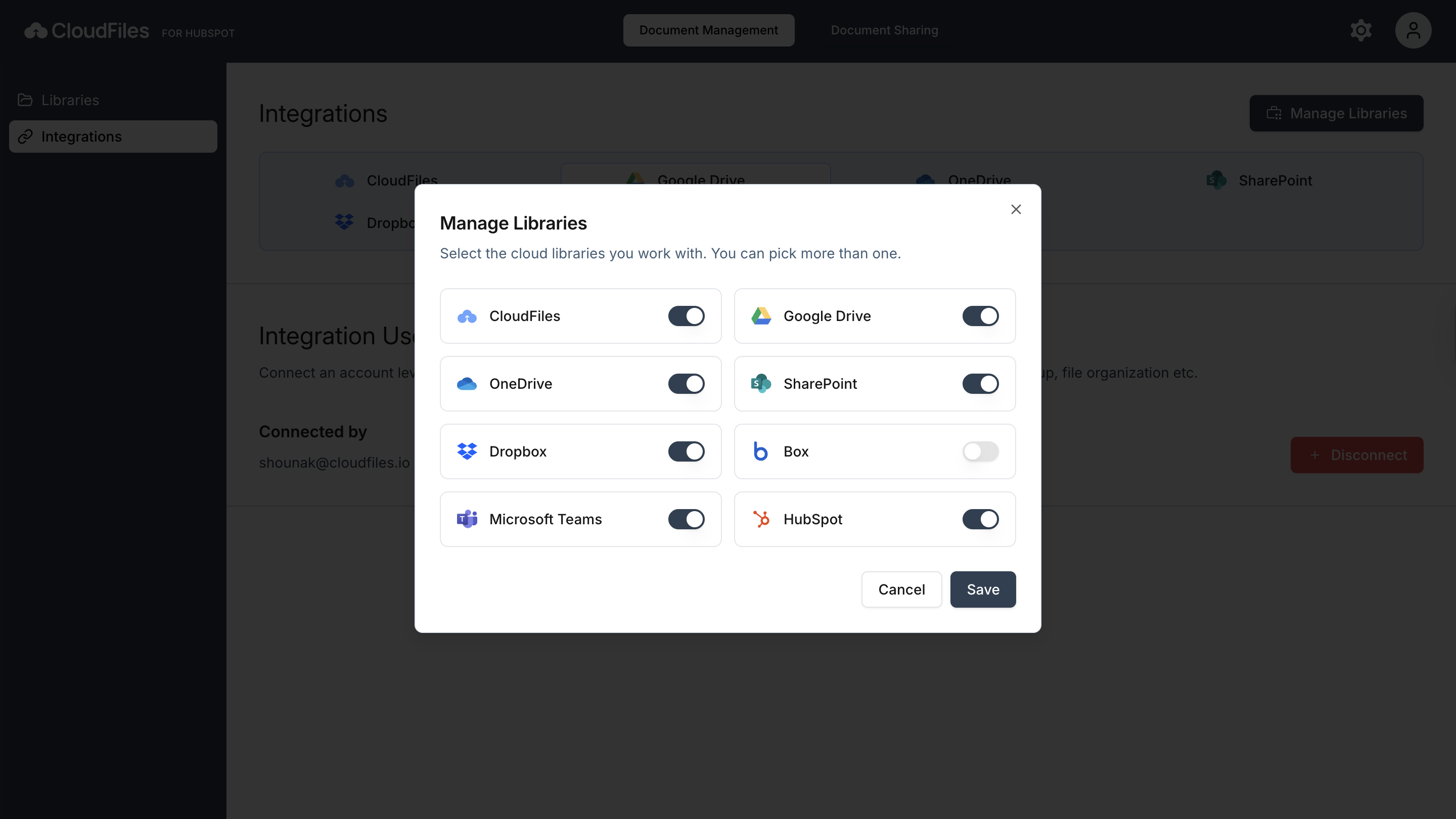
Conflict Behaviours
Conflict behaviours define how CloudFiles handles duplicate files and folders when running automations such as file/folder creation, backup, or organisation. These settings depend on the storage platform you have connected and are divided into two categories: File Conflict Behaviour and Folder Conflict Behaviour.
File Conflict Behaviour
This setting controls what happens when CloudFiles tries to create or upload a file that already exists in the same location. Depending on the platform, CloudFiles may allow you to rename the new file to make it unique, replace the existing file with the new one, keep the existing file unchanged, or stop the process with an error.
Folder Conflict Behaviour
This setting determines how CloudFiles reacts when a folder with the same name already exists. Similar to files, the system may either create a uniquely named folder, keep the existing one unchanged, or stop the operation entirely.
How Storage Platforms Handle Conflicts?
CloudFiles supports four behaviours across different platforms: Rename, Replace, No Op, and Fail.
- Rename adds a suffix such as “(1)” to create a unique file or folder name and is supported on all major platforms, including CloudFiles, Google Drive, Dropbox, SharePoint, OneDrive, Box, and Microsoft Teams.
- Replace overwrites an existing file and is supported only for files on platforms that allow overwriting, specifically OneDrive, SharePoint, and Microsoft Teams.
- No Op skips creation and keeps the existing item unchanged, and is available across all platforms.
- Fail stops the action entirely and reports an error, and is also supported wherever the platform allows error-based conflict handling.
Folder conflict handling follows a similar pattern, with most platforms supporting Rename, No Op, and Fail, while Replace is not available for folders on any platform.