Before you begin
Experience Cloud is an add-on to CloudFiles Document Management. CloudFiles enables it for your account, so it cannot be switched on from the admin panel.
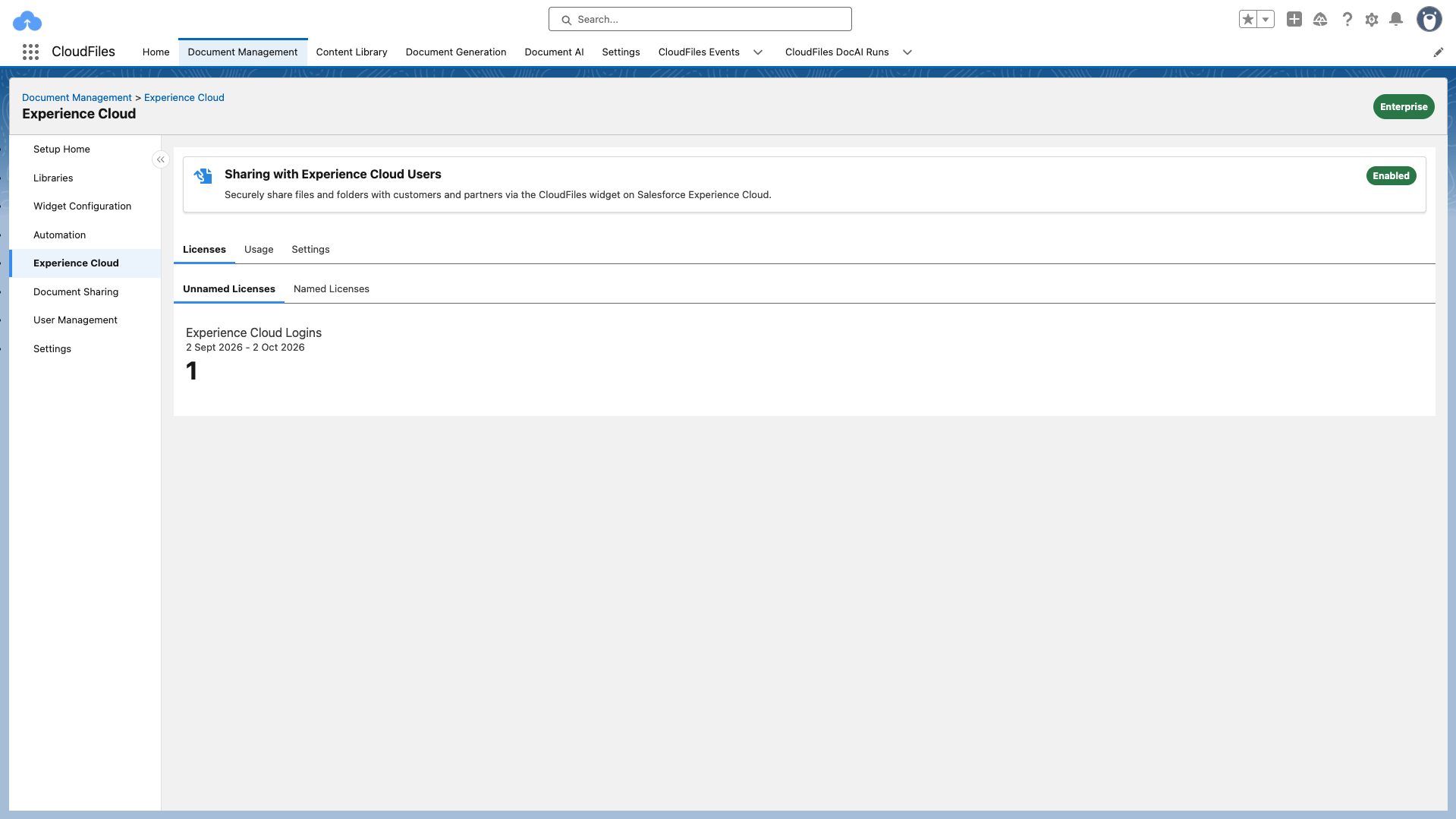
To check that it is enabled, open the CloudFiles app, select Document Management, then select Experience Cloud. The Sharing with Experience Cloud Users card shows an Enabled badge. If it shows Available as Add-On, contact your CloudFiles account manager.
License types
CloudFiles offers two Experience Cloud license types. Your plan can include either one or both.
| Named license | Unnamed (login-based) license | |
|---|---|---|
| What it covers | A specific Experience Cloud user, identified by email | Any Experience Cloud user who logs in |
| How it is counted | One seat per named user | One unique login per user per day |
| Limit | Number of seats in your plan | Monthly login allowance in your plan |
| Best for | Users who access the portal regularly | Users who log in occasionally or unpredictably |
CloudFiles Experience Cloud licenses work with all Salesforce Experience Cloud license types, including Customer Community, Customer Community Plus, Partner Relationship Management and External Apps.
Named licenses
Named licenses are managed in the CloudFiles app under Document Management > Experience Cloud, on the Licenses tab, in the Named Licenses sub-tab.
CloudFiles does not create named users automatically when someone opens the CloudFiles widget on your Experience Cloud site. A user who has not been added as a named user is counted as an unnamed login.
How unnamed logins are counted
Unnamed licenses do not need to be assigned to individual users. CloudFiles counts each Experience Cloud user once per day, however many times they log in. For example, a user who logs in 12 times in a day uses one login. The count resets at the start of each day.
Experience Cloud Logins shows the dates of the current month and the number of unique logins so far.
Review usage over time
Total number of active users shows the total for the selected period, and the chart shows the number of active Experience Cloud users in each interval.
What happens if you exceed your allowance
Your users keep access. If your named users or unnamed logins go over your plan's allowance significantly and consistently, month after month, the CloudFiles team will reach out to your billing contact about an upgrade.
Licenses are org-specific
Experience Cloud licenses belong to the Salesforce org they were provisioned in. If you move to a new org, the licenses must be assigned there. Your automations and Flows can be moved with change sets or your usual deployment process.