User Management
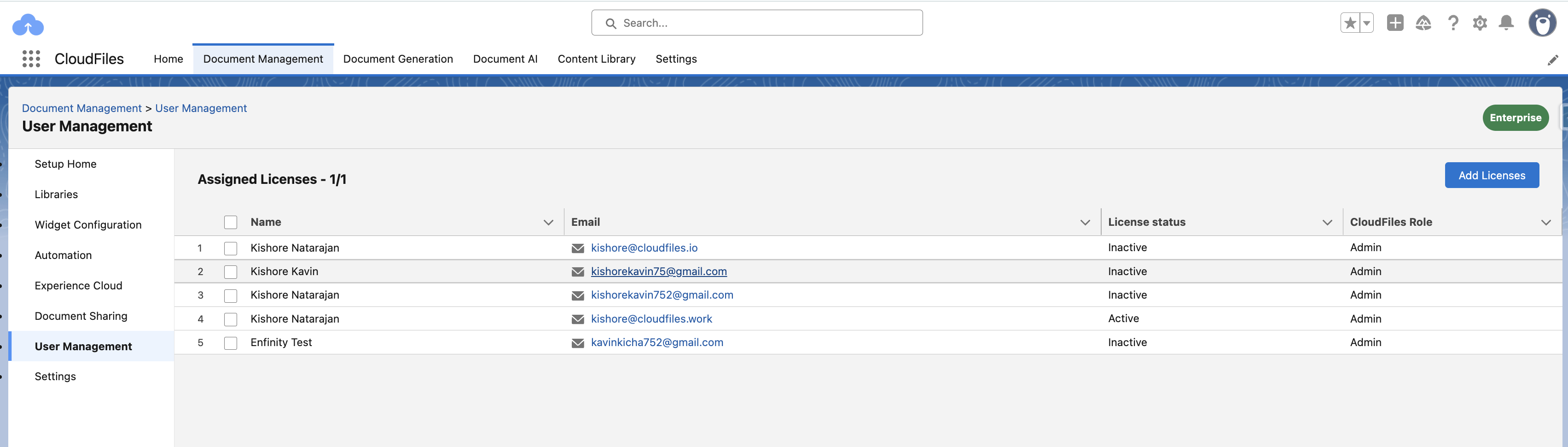
The User Management section allows admins to view and manage CloudFiles licenses assigned to Salesforce users. This page provides an overview of all users who have access to the Document Sharing Add-On and their current license status.
From this view, admins can:
- See all users assigned a DocMan license along with their name and email.
- Check license status (Active or Inactive) for each user.
- View CloudFiles Roles, such as Admin or User.
- Add Licenses to additional users using the Add Licenses button.
This section helps administrators ensure that the right users have access to CloudFiles Doc-Sharing features and that licenses are assigned efficiently across the organization.
Branding Setting
Branding settings allow you to customize the appearance of your shared links and document viewer. You can add your company website to fetch its favicon, upload your company logo to replace the CloudFiles default branding, and configure a custom domain (CNAME) for a fully white-labeled sharing experience. These options ensure that all shared links and file viewers reflect your organization’s identity.
Link Defaults
Link Defaults let you define how newly created sharing links should behave by default. Admins can set defaults for link status, download permissions, expiry rules, notification preferences, security requirements, and Auto Sync behavior. These settings ensure consistent link behavior across the organization while still allowing users to adjust options on individual links when needed.
Compliance
Compliance settings allow you to define the privacy and consent requirements shown to end users before they access shared documents. These settings help organizations meet legal or regulatory needs by displaying consent notices, privacy policy links, and IP tracking within the viewer. Once configured, these compliance rules apply automatically to all CloudFiles shared links.
Viewer Customization
Viewer Customization settings let you control how users sign in and how the CloudFiles viewer appears. You can enable preferred login methods, such as Email, Google, or Microsoft and set the default viewer theme to Light or Dark. These options help deliver a consistent and branded viewing experience for your users.