Enable Sharing
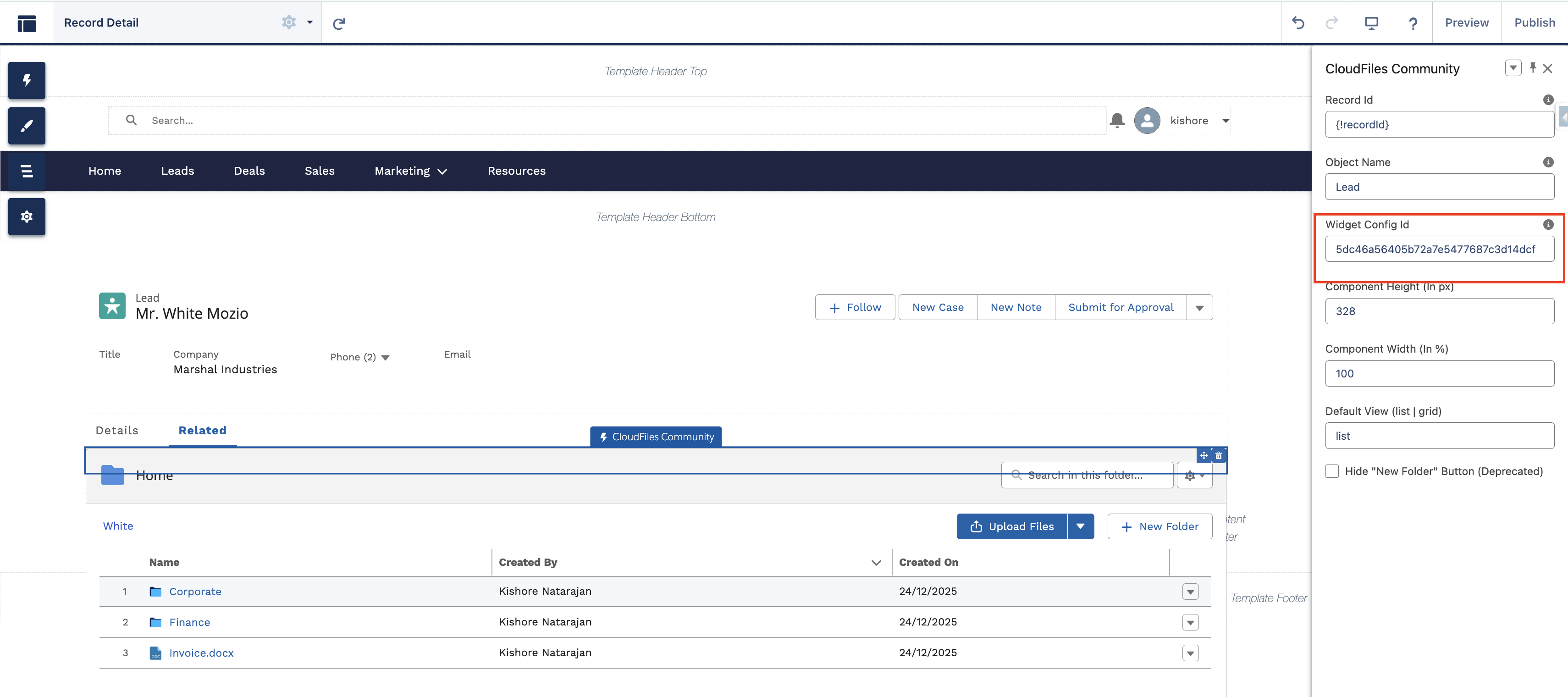
To allow Experience Cloud users to access CloudFiles content on an Experience Cloud site, you must first enable Experience Cloud sharing in the CloudFiles app. This activates the Experience Cloud integration and makes shared files and folders available to external users based on their site access, permissions, and record visibility. Once enabled, you can share files using default sharing, the record widget, content libraries, or automation.
- Go to the CloudFiles app
- Select Document Management
- Open Experience Cloud
- Turn on Enable sharing with Experience Cloud Users.
Usage Monitoring
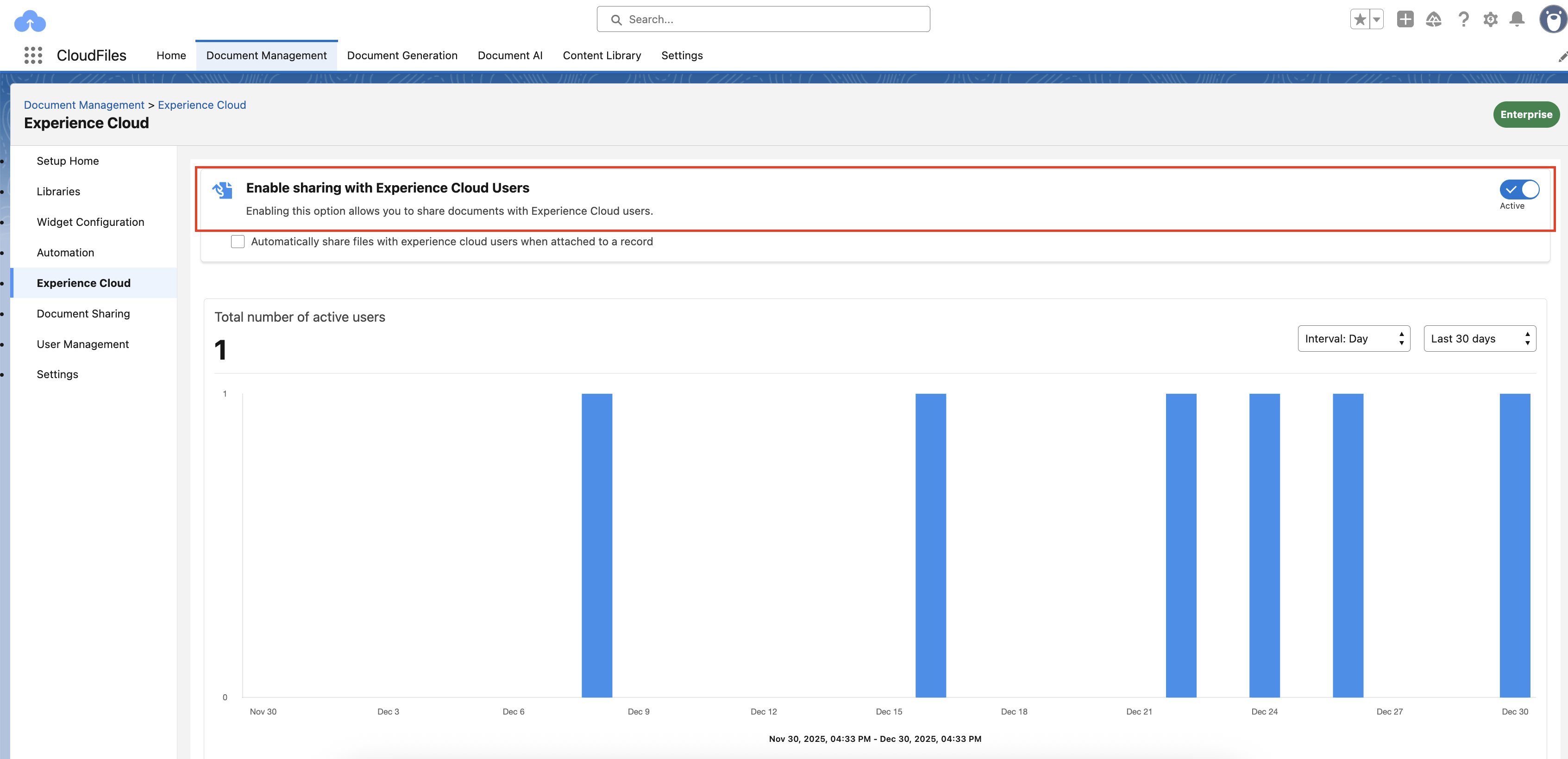
The Experience Cloud setup page includes usage monitoring to help administrators track external user activity and adoption over time.
Monitor Active Users:
The Total number of active users section shows the number of Experience Cloud users who accessed CloudFiles during the selected time period. The chart provides a visual view of activity trends and helps monitor usage patterns.
You can adjust the monitoring view using the following filters:
- Interval to control how activity is grouped (for example, Day)
- Date range to change the reporting period (for example, Last 30 days)
Add Widget to Experience Cloud
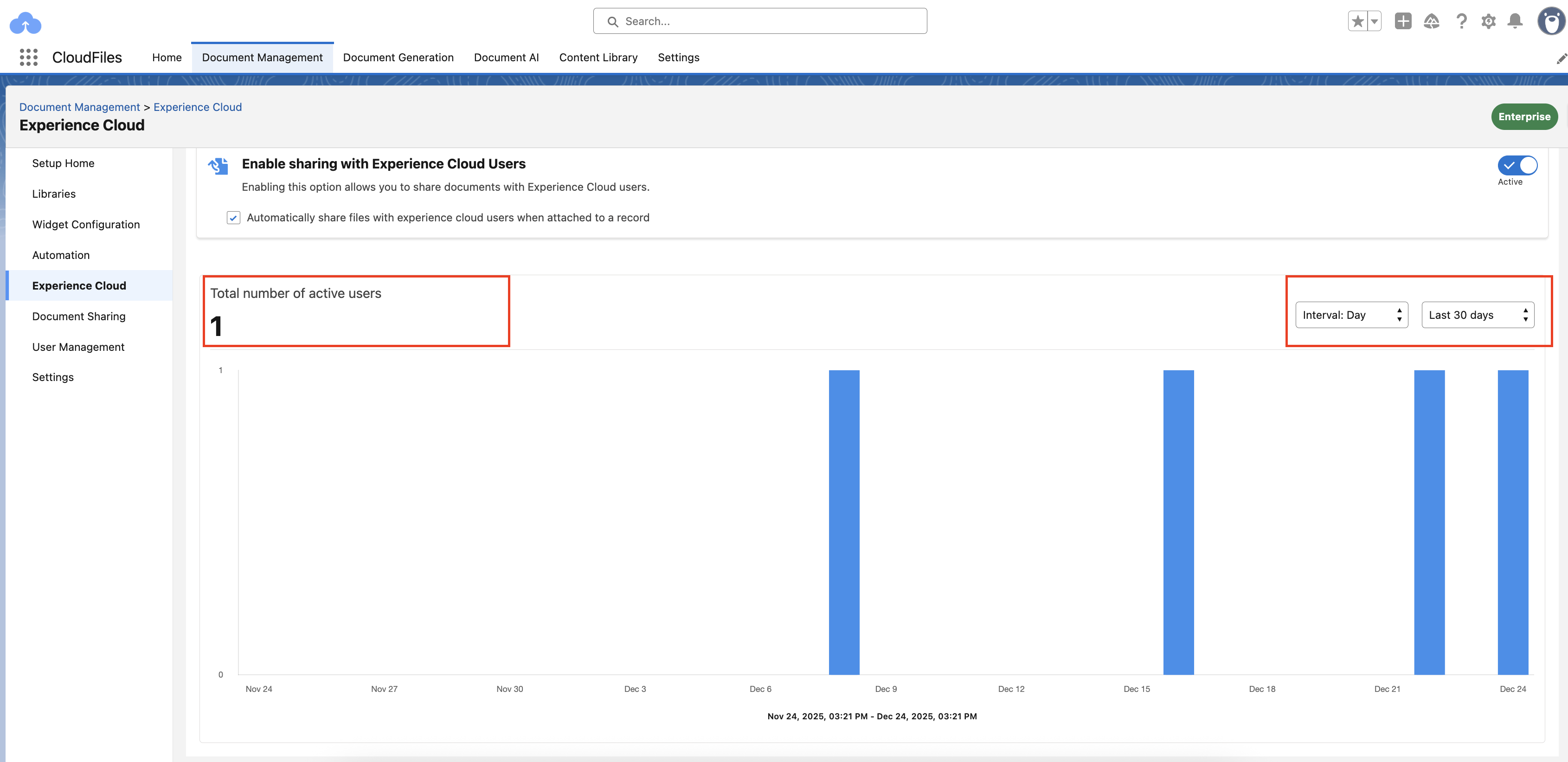
The CloudFiles widget is a Lightning web component that displays files and folders within an Experience Cloud site. The content shown is determined by the page contex specifically, the Record Id and Object API Name provided in the widget configuration.
For example, on a record page, the widget displays files and folders related to the specified Salesforce record. On a home or custom page, the widget displays content based on the configured user or object context. The available actions depend on the selected widget configuration and the permissions assigned to the Experience Cloud user.
For detailed steps on adding the widget to different pages, refer toAdd Widget to Experience Cloud.
Widget Actions
In the CloudFiles Community widget, external users who are assigned the CloudFiles External User permission set in Salesforce can perform actions such as uploading and downloading files, creating folders, deleting items (if allowed), generating shareable links, and viewing analytics.
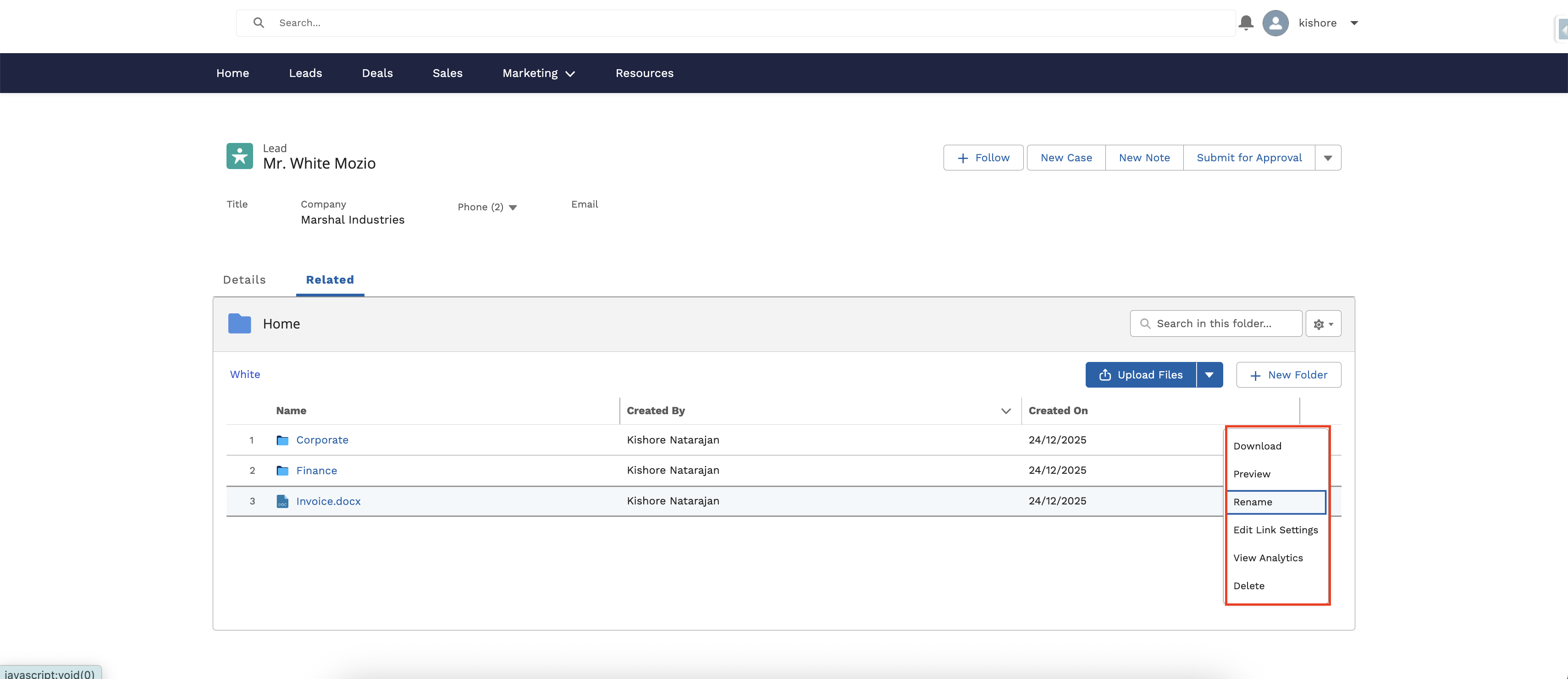
The operations available to users depend on the CloudFiles permission set assigned to them and the widget configuration. Refer to Permissions to understand how this permission set works and how to customize it.
Widget Configuration
Widget Configuration controls how the CloudFiles Experience Cloud widget behaves and what external users can see or do. You can manage visible columns, available actions (such as upload, download, or create folder), and optional restrictions such as supported file types or upload limits. These settings work together with the CloudFiles External User permission set to define the overall widget experience. Refer to Experience Cloud Widget Guide to setup and configure the widget.