Overview
The App Card connects your external storage platforms with HubSpot records. It integrates with storage such as Google Drive, SharePoint, OneDrive, Box, Dropbox, and AWS S3. The App Card appears in an existing or newly created tab in the middle section of a HubSpot record. Once configured, the App Card displays linked files and folders and allows users to perform file and folder operations directly within HubSpot.
Refer to the image below for a visual overview of the options and features available within the CloudFiles App Card.
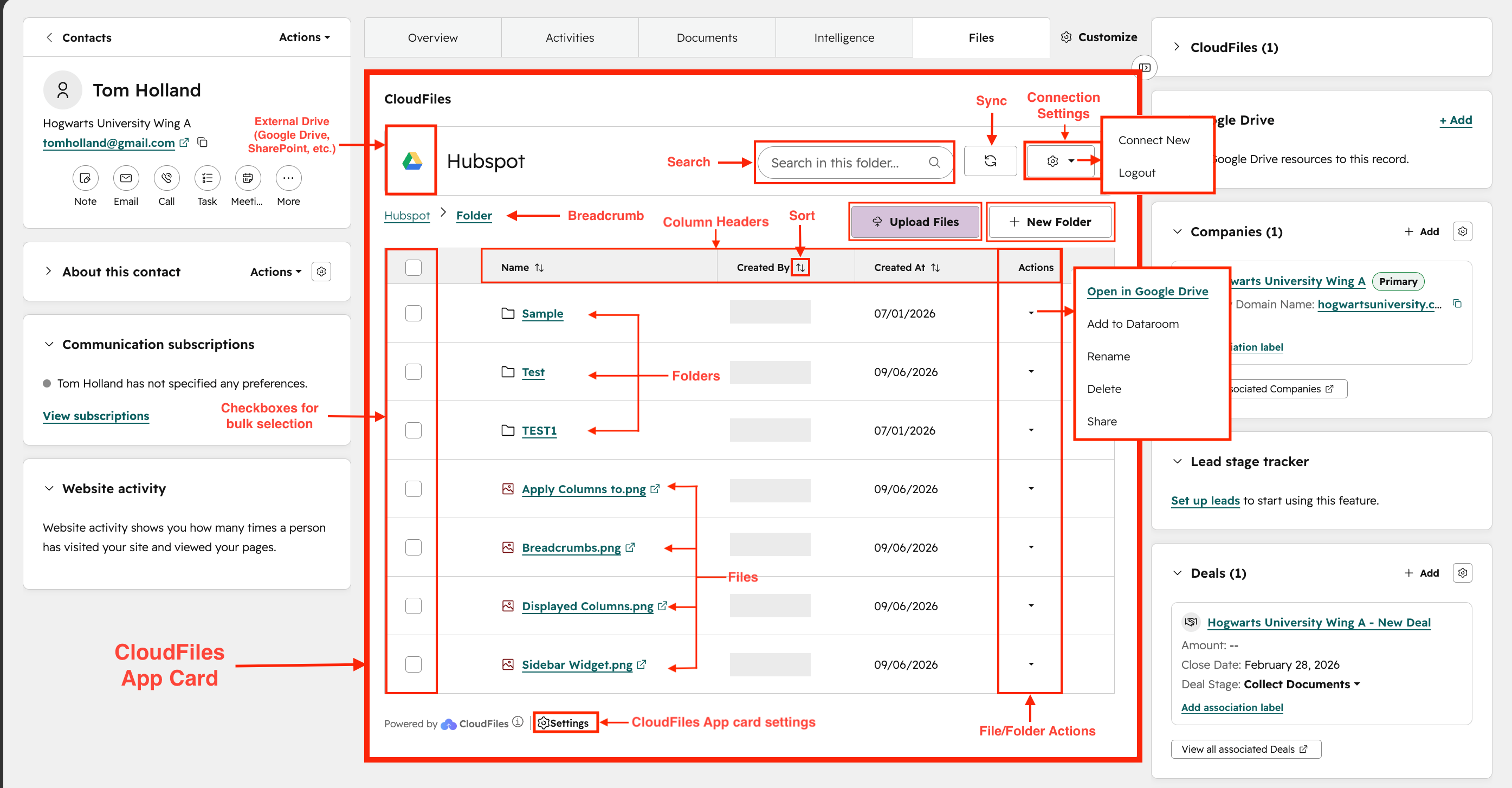
This article explains the key functions and features of the App Card, including:
- Content Library – Covers how to connect and link files and folders to a HubSpot record, and how linked content is displayed in the App Card.
- Explorer Navigation – Explains how users browse linked folders, use breadcrumbs, and search within the current folder.
- Managing Files and Folders – Describes how linked content is organised, sorted, and managed, including uploading files, creating folders, and performing file and folder actions.
- App Card Settings and Controls – Covers syncing content, managing connection settings, and accessing app-level settings for administrators.
Prerequisites
Before exploring the features of the CloudFiles App Card, complete the required configuration steps below.
- CloudFiles must be installed and connected to your HubSpot account. If not, refer to the Installation guide for CloudFiles HubSpot Integration .
- At least one storage platform (e.g. Google Drive, SharePoint) must be connected to CloudFiles.
- The CloudFiles CRM card must be added to the relevant HubSpot record layout. See how to set up Doc Management Quickstart .
Content Explorer
The Content Explorer is the main area of the CloudFiles HubSpot App Card, where users can view and manage files or folders connected to a HubSpot record. It provides options to browse content, search within folders, perform file and folder actions, and manage library-level controls.
Initial State
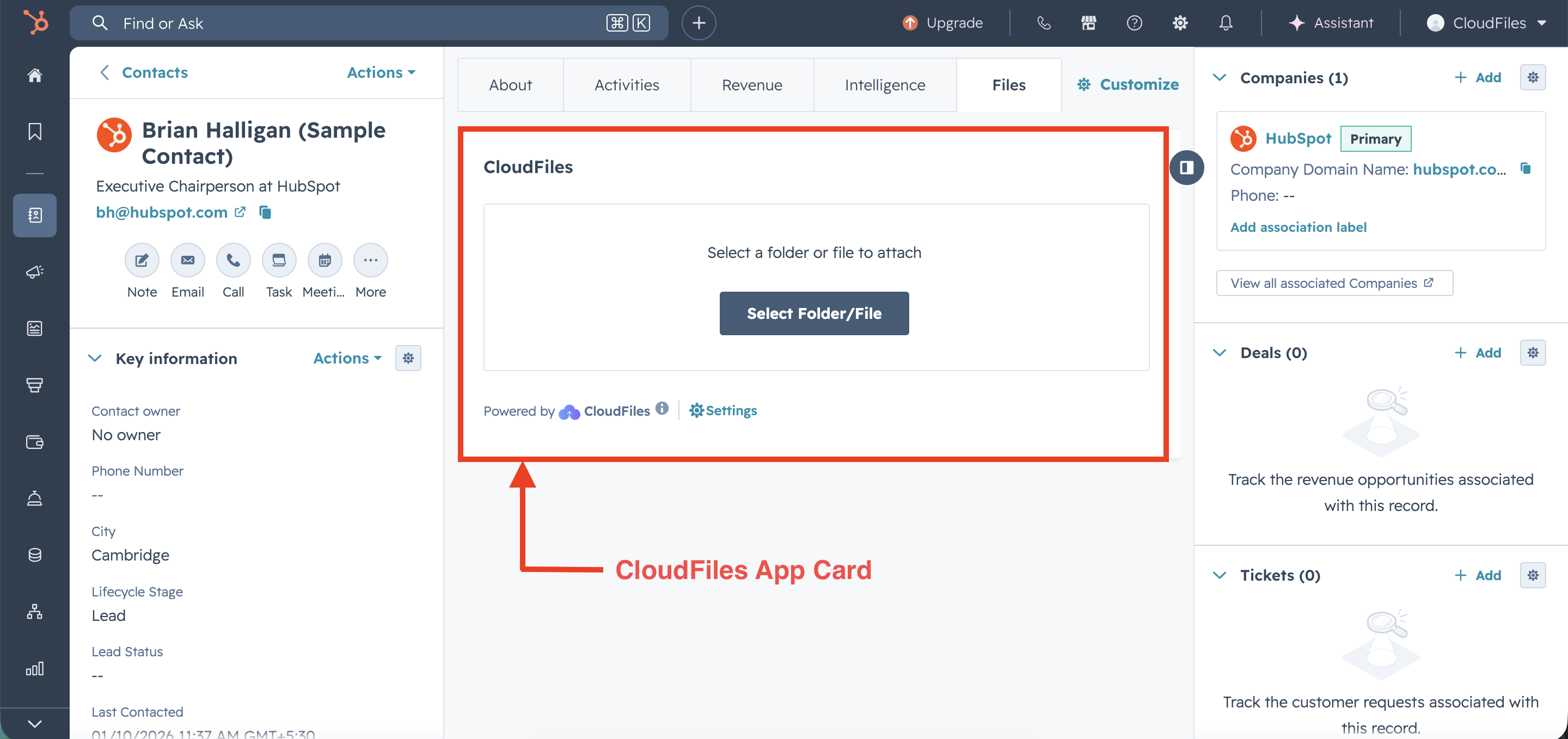
The initial or empty state appears when no files or folders are currently linked or displayed in the CloudFiles App Card. This state helps users understand that there is no content available yet and guides them toward adding or connecting content. When the Content Library is empty, users can click the 'Select Folder/File' button to connect with folders and files. This is typically the starting point before files or folders are added to the HubSpot record.
Linking Files and Folders
CloudFiles supports three connection types.
- Connecting a single file makes only that file accessible in the Content Library.
- Connecting a folder brings in its full contents, including subfolders and files.
- Connecting multiple items lets users link a mix of files and folders from the same or different storage locations.
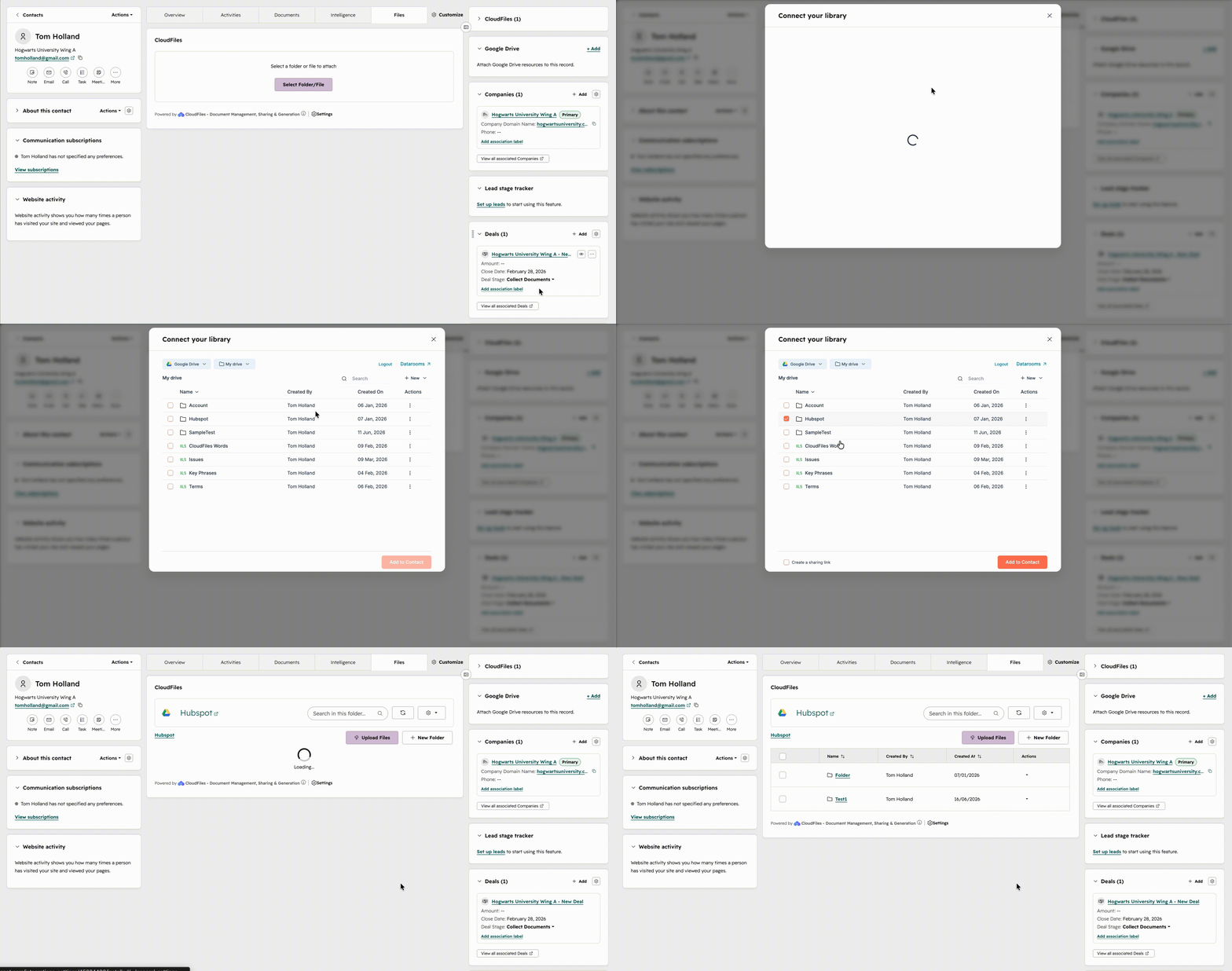
To link content, users can click the Select Folder/File button in the App Card. This opens a window where users can select their external storage platform and browse its library. Users can check the boxes next to the files or folders they want to connect and confirm the selection. The linked content then appears in the Content Library.
For detailed setup instructions, refer to Adding an App Card on the Record Page.
Viewing Linked Content
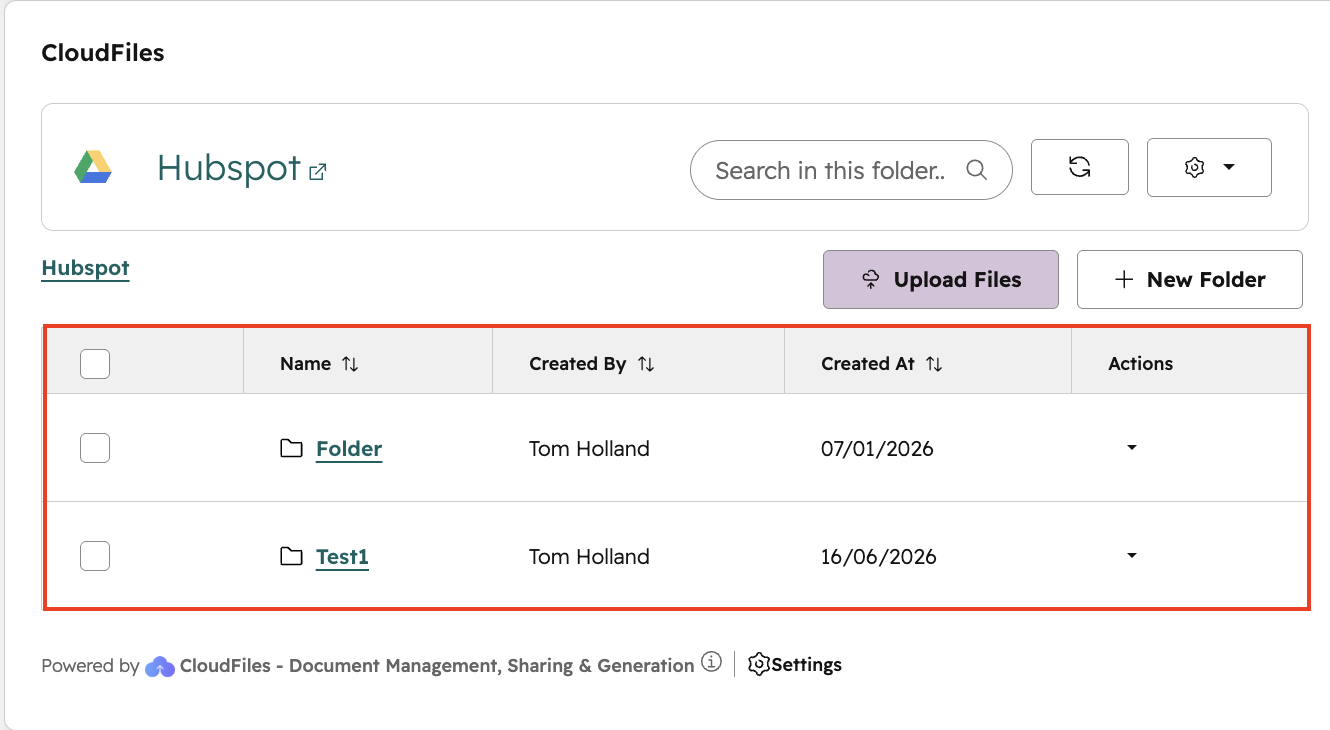
Linked files and folders are displayed in the Content Library after they have been associated with the HubSpot record. The displayed content depends on what has been linked to the record and the user's permissions in the connected storage platform.
Explorer Navigation
This section explains how users move through folders linked to the CloudFiles App Card. Navigation tools such as breadcrumbs and search help users locate files and folders within the connected library without leaving the HubSpot record.
Breadcrumbs
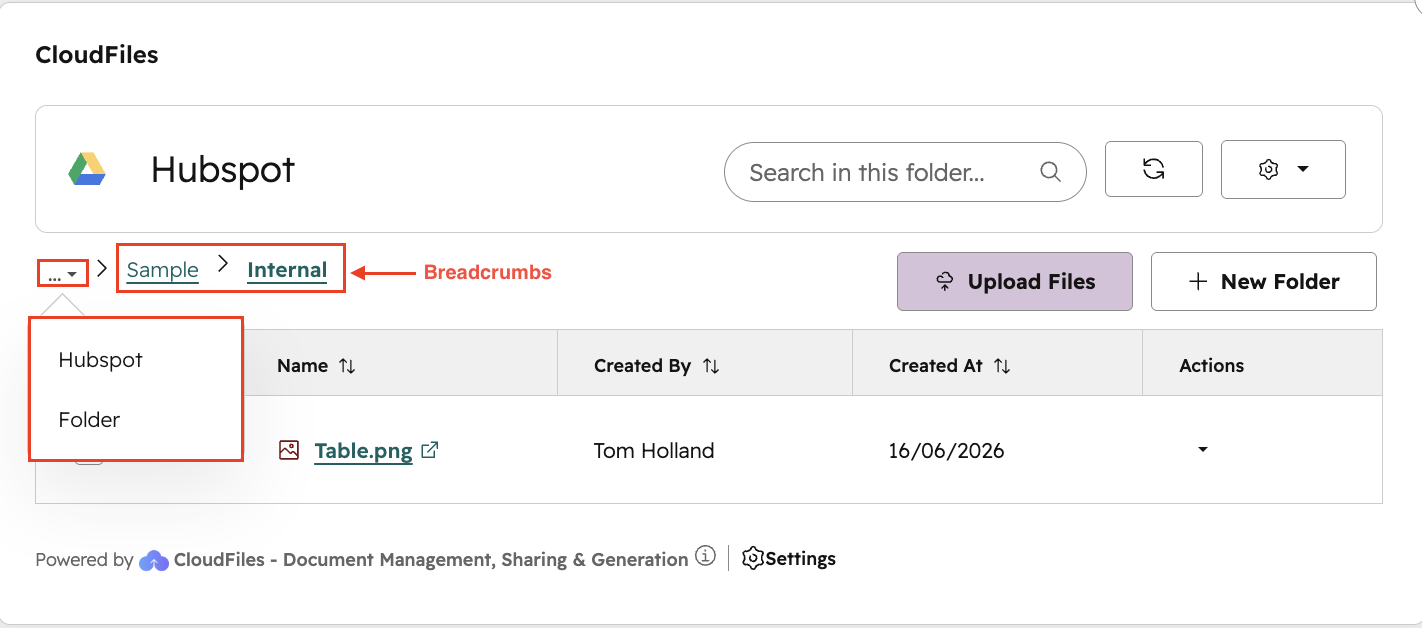
As a user navigates into subfolders within the App Card, a breadcrumb trail appears at the top of the card. Each breadcrumb segment represents one level of the folder hierarchy, starting from the linked root folder. Clicking any breadcrumb segment navigates back to that level.
When the folder path is long, intermediate segments are collapsed and represented by a ... icon. Clicking the ...icon reveals the hidden segments, allowing the user to jump to any intermediate folder. Breadcrumbs do not appear when the user is at the root of the linked folder or when only files (not folders) are associated with the record.
Browsing
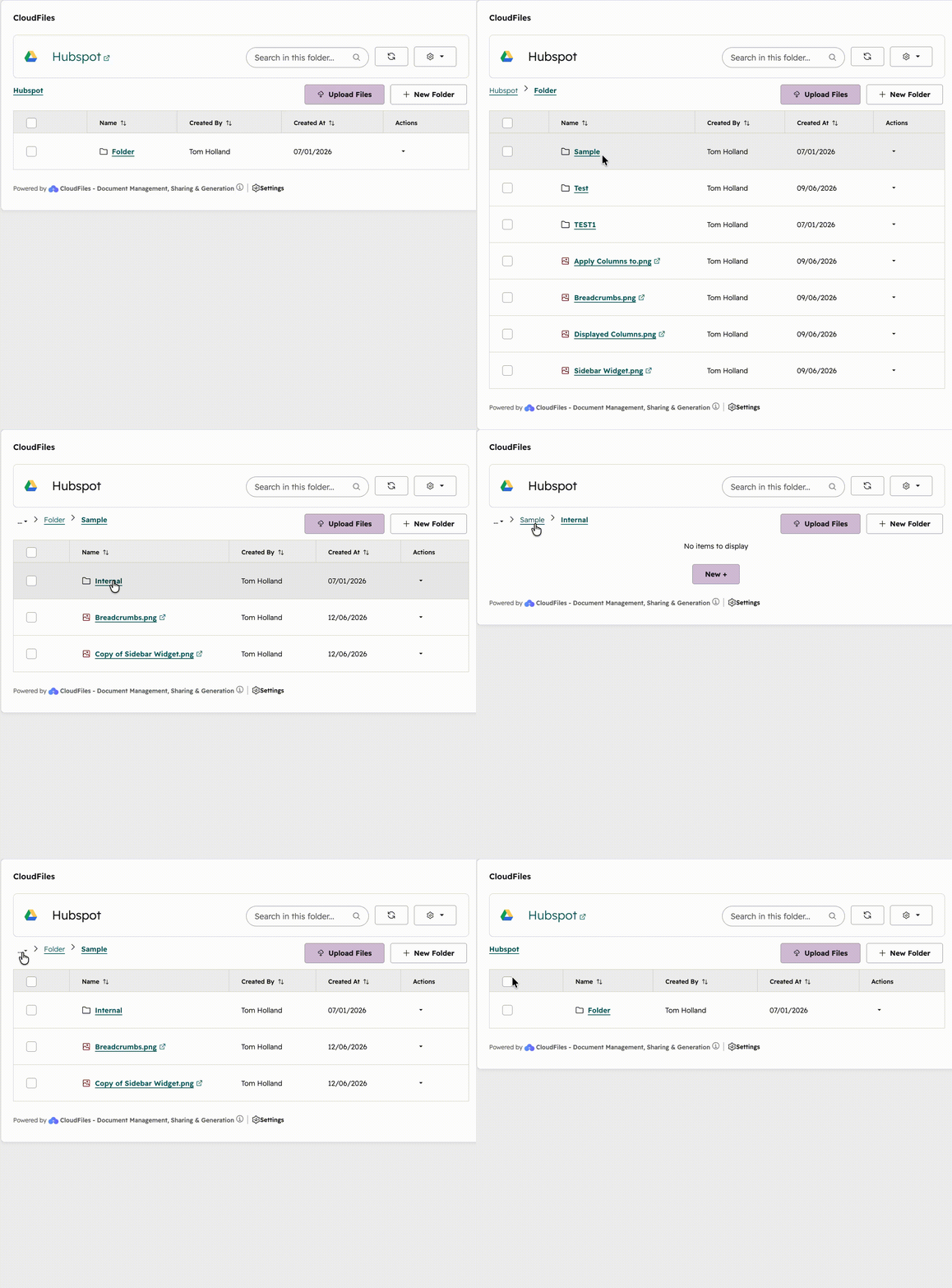
Users can browse linked folders directly from the CloudFiles App Card. Selecting a folder opens its contents, including any files and subfolders. The breadcrumb section shows the current folder path and helps users move back through the folder hierarchy. Users can select a previous folder in the breadcrumb path to return to that level, or use the ... menu to view hidden parent folders and navigate directly to the required folder.
When a file is selected, it opens the file preview in a new browser tab. Users can also use the file’s Actions context menu for previewing the file.
Search
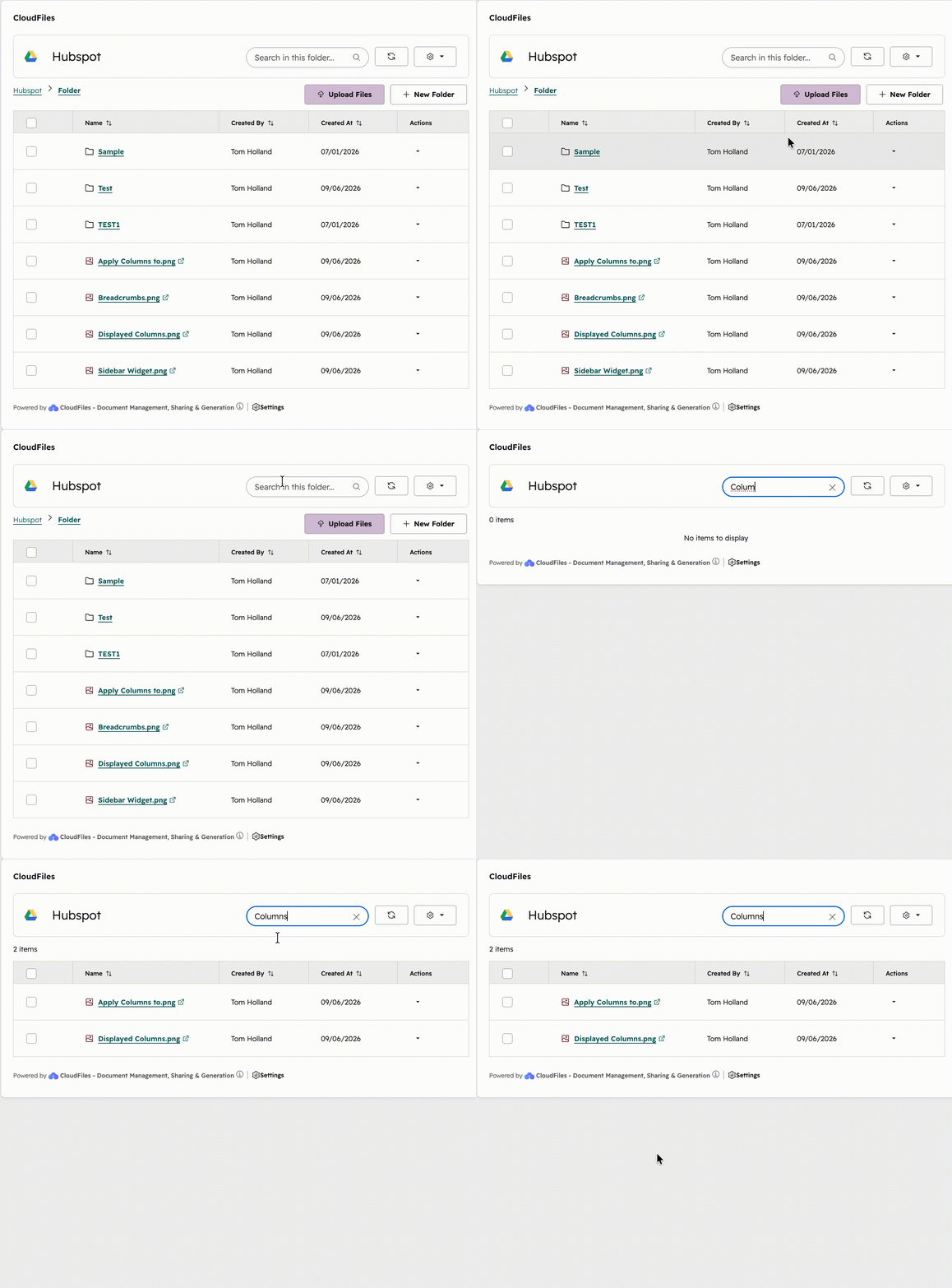
The Search bar in the CloudFiles HubSpot App Card helps users quickly find files and folders when working with multiple items in the current folder. Enter a file name, folder name, or keyword to view matching results. Search applies only to the folder currently being viewed and does not include items inside nested folders.
Managing Files and Folders
The Content Library is the main area of the CloudFiles App Card where users view and manage files and folders linked to a HubSpot record. It organises connected content into a sortable table, supports bulk selection, and provides file and folder actions, all without leaving HubSpot.
File and Folder Table
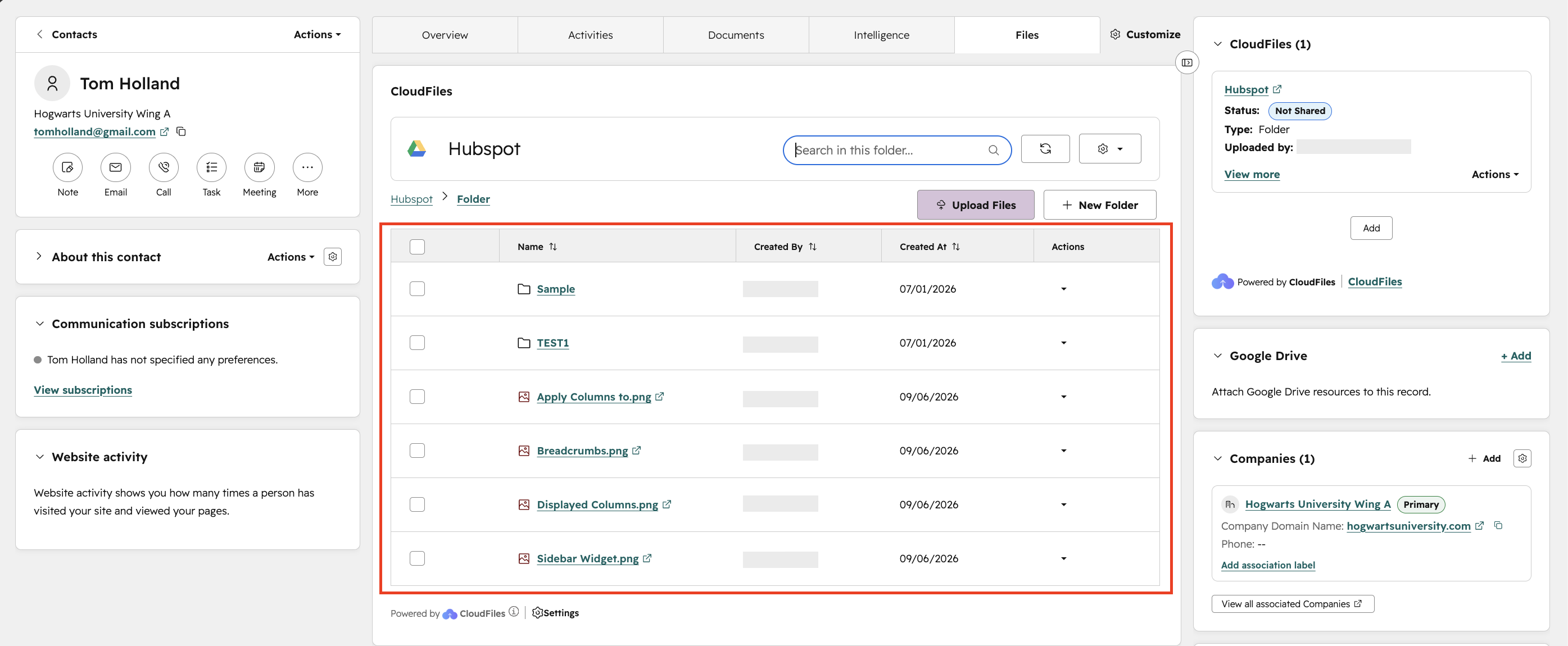
The file and folder table organises linked content into rows and columns. Each row represents a file or folder, making it easy for users to review available content at a glance. The table includes key details such as the item name, creator, creation date, and available actions. This layout helps users identify the correct file or folder before opening or managing it.
Sorting
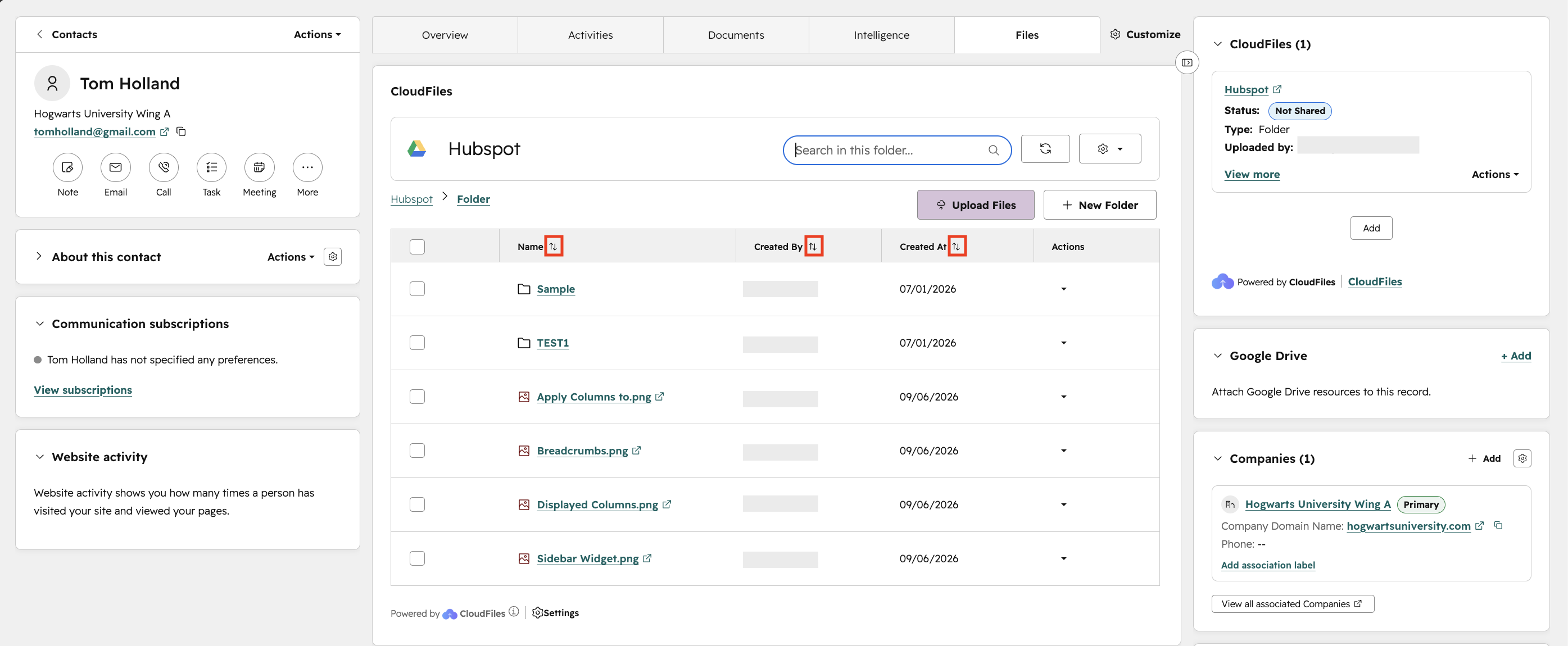
Sorting controls appear as toggle arrows beside sortable column headers in the Content Library. The sorting behaviour depends on the column type. Text-based columns, such as Name and Created By, organise items alphabetically, while date-based columns, such as Created At, organise items by creation date.
The toggle arrows allow users to switch the display order for the selected column. Sorting only changes how items are arranged in the App Card and does not modify file names, folder structure, ownership, or content in the connected storage platform.
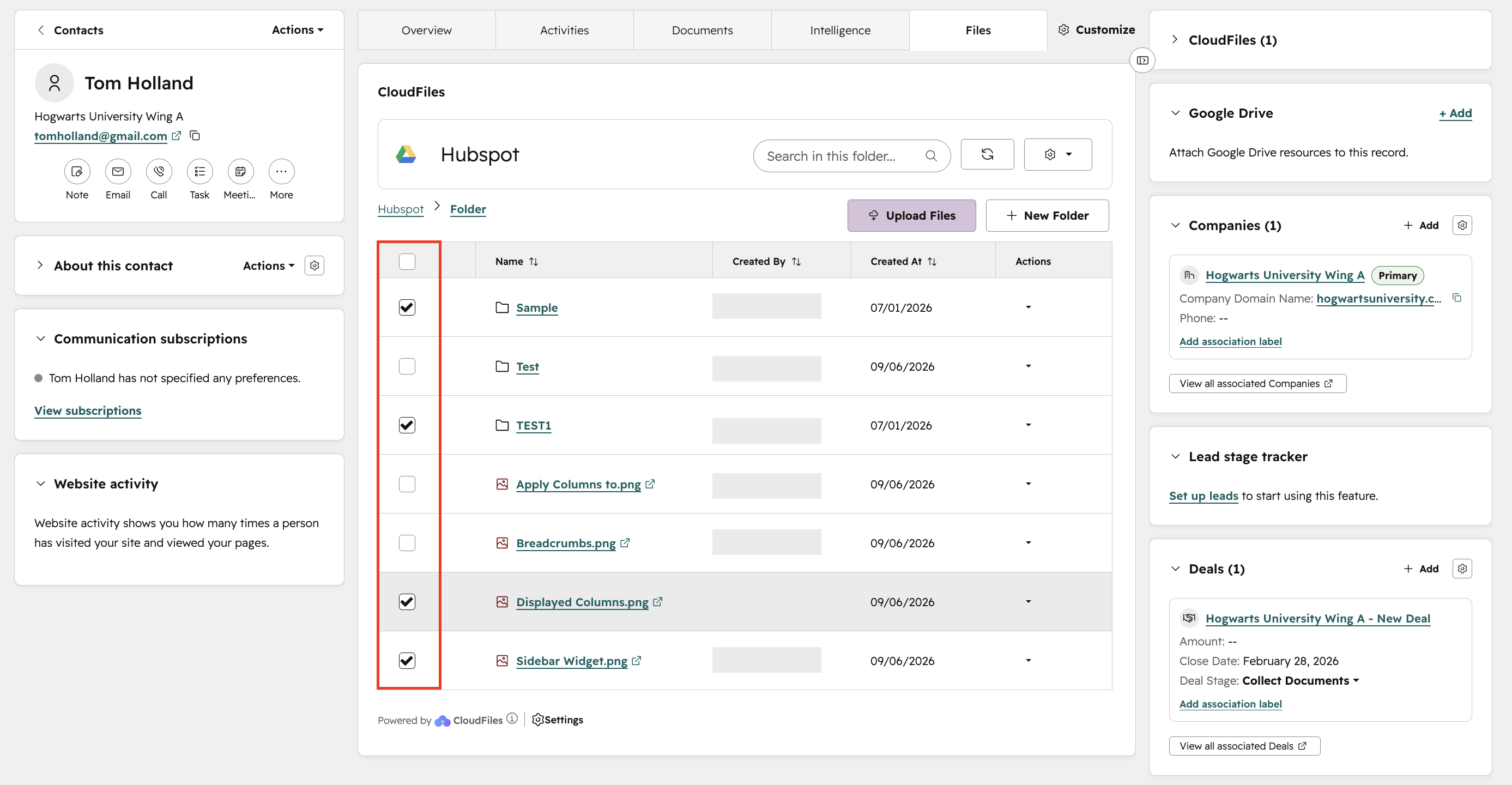
Bulk Selection
Checkboxes appear next to files and folders in the Content Library. Users can select one or more items by clicking the checkbox beside each row. This is useful when working with multiple files or folders in the same location where bulk selection is required. Actions such as bulk download, bulk add to dataroom etc... are support by the CloudFiles App Card.
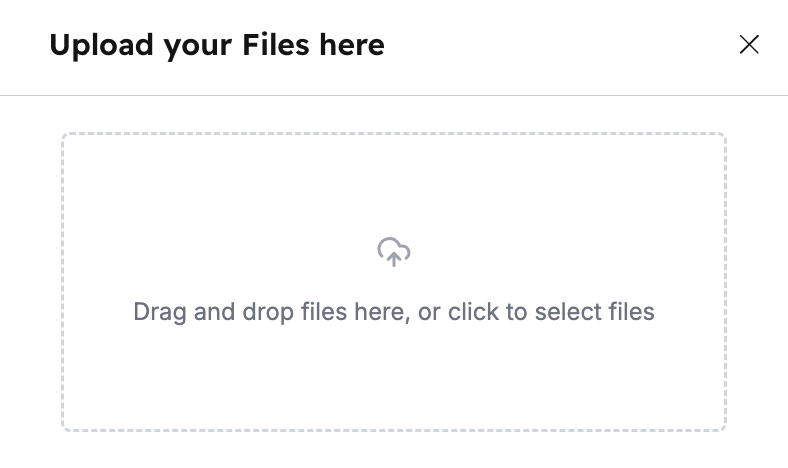
Upload Files
The Upload Files button adds files to the current directory in the App Card, where they appear within the existing library structure.
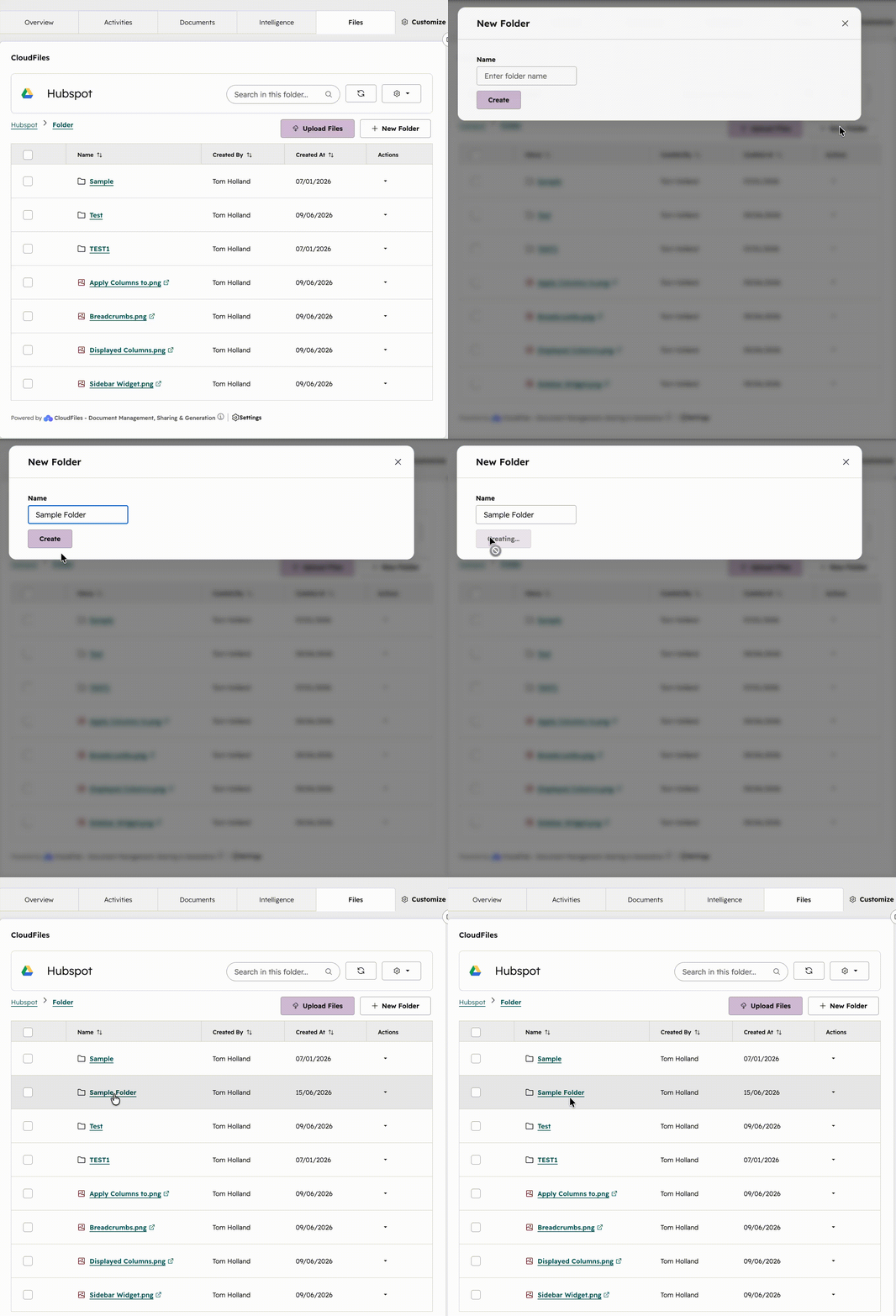
New Folder
The New Folder button allows users to create a folder within the current directory. The folder appears in the App Card as part of the existing library structure.
File and Folder Actions
After files and folders are linked to the App Card, users can manage the connected content directly from within CloudFiles. These actions help users access, organise, share, and control linked items efficiently, while keeping the App Card synchronised with the connected external storage location.
Folder Options
The Actions column appears on the right side of each folder row. It includes a dropdown arrow that opens the context menu for that specific item.
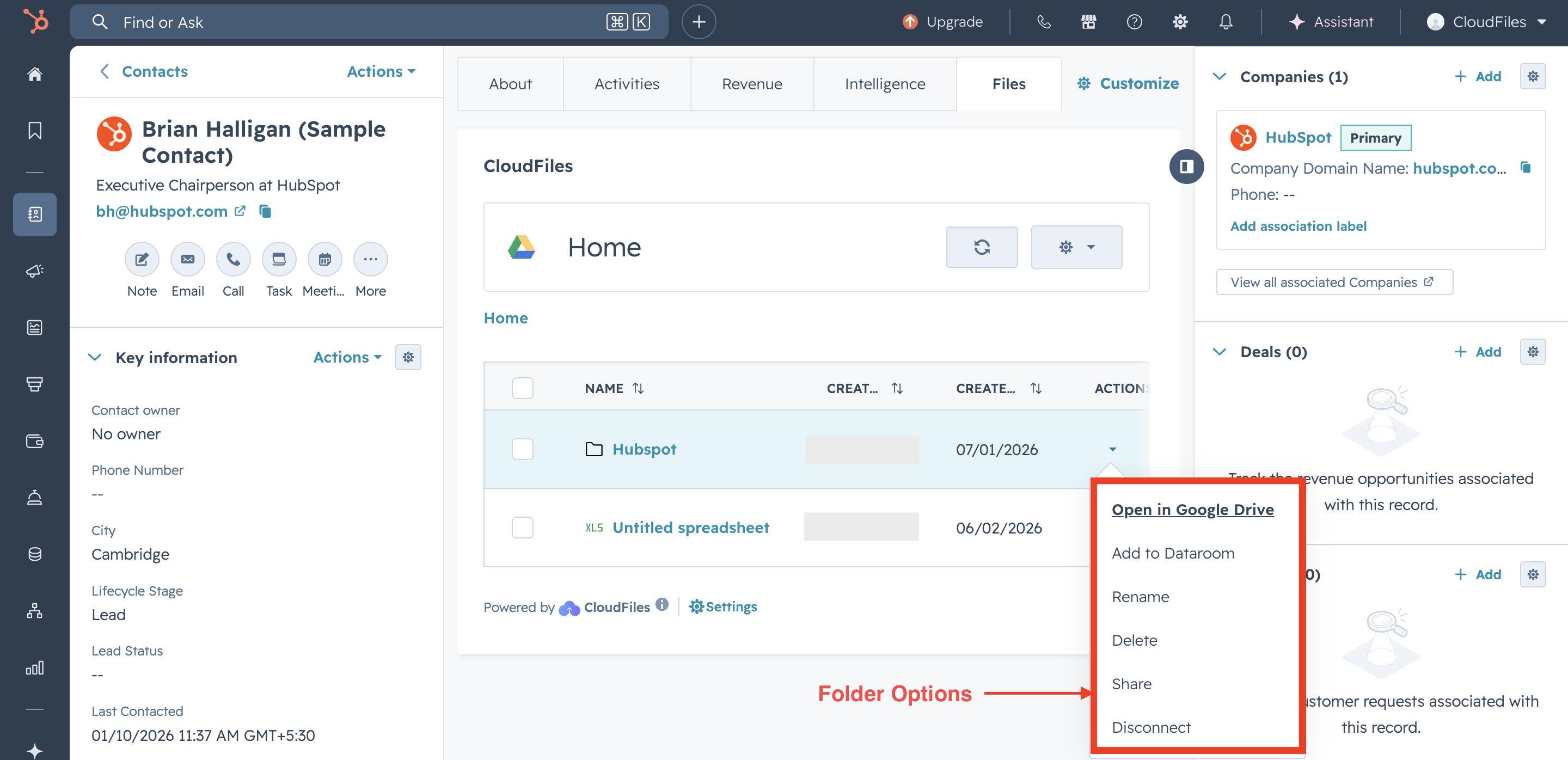
The folder context menu displays the actions available for that folder, such as opening, sharing, renaming, deleting, adding to a Dataroom, or disconnecting it.
- Open in Drive- Opens the folder contents in the connected external storage platform, such as Google Drive, SharePoint, OneDrive, Box, Dropbox, or AWS S3.
- Add to Dataroom- Adds the folder contents to a secure Dataroom, allowing users to share files in a controlled environment and track advanced sharing analytics.
- Rename- Allows users to change the name of the folder
- Delete- Removes the folder from the CloudFiles App Card and deletes it from the connected external storage platform.
- Share- Allows users to share a folder with others.
- Disconnect- Removes the folder from the CloudFiles App Card without deleting it from the connected external storage platform.
For more details, refer to Folder Operations.
File Options
For files, the Actions column appears on the right side of each file row. The dropdown arrow in this column opens the context menu for that specific file.
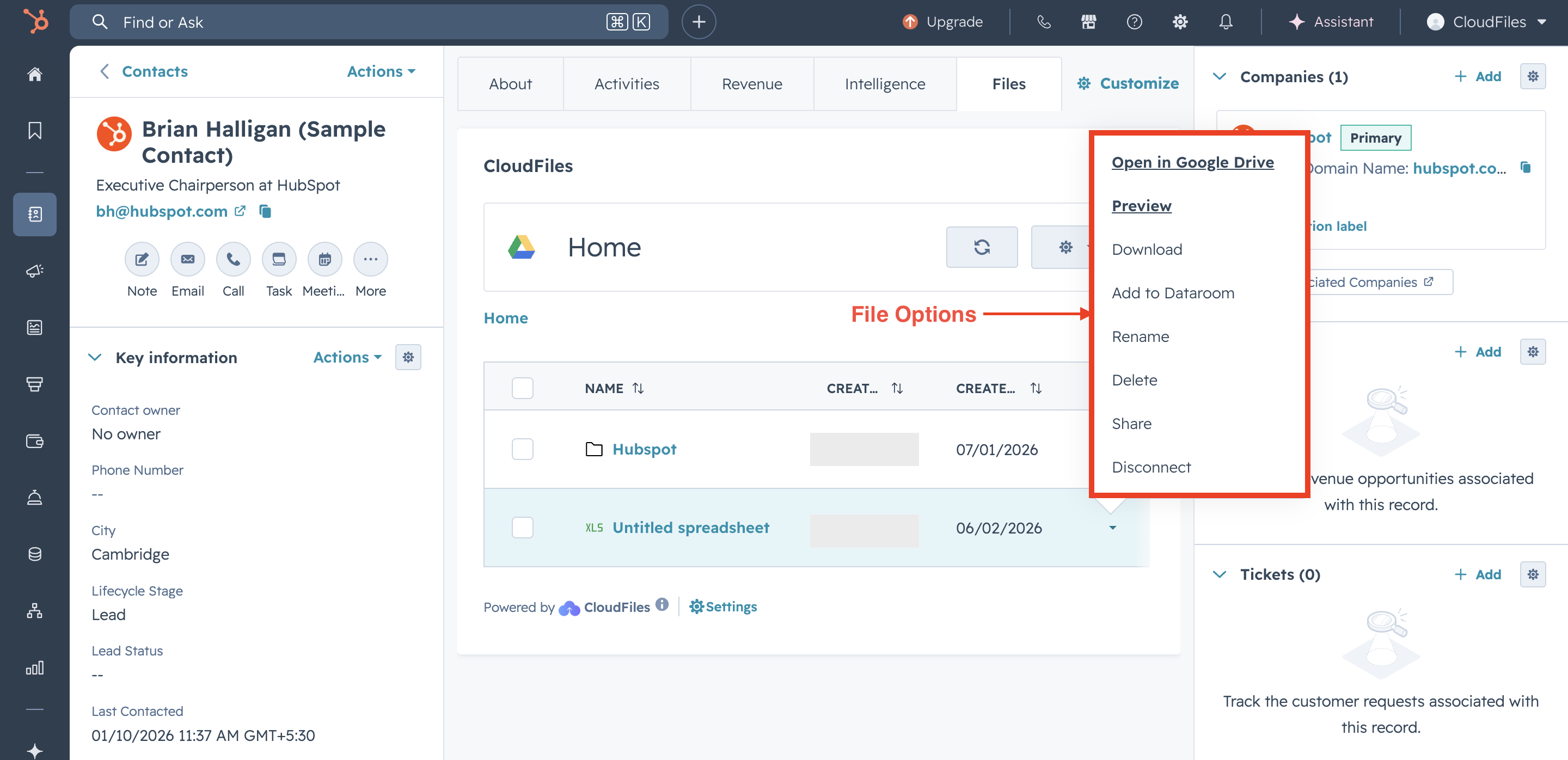
The file context menu displays the actions available for that file, such as opening, previewing, downloading, sharing, renaming, deleting, adding to a Dataroom, or disconnecting it.
- Open in Drive- Opens the file path in the connected external storage platform, such as Google Drive, SharePoint, OneDrive, Box, Dropbox, or AWS S3.
- Preview- Allows users to view the file content without opening it directly in the external storage platform.
- Download- Allows users to download the file locally.
- Add to Dataroom- Adds the file to a secure Dataroom, allowing users to share files in a controlled environment and track advanced sharing analytics.
- Rename- Allows users to change the name of the file
- Delete- Removes the file from the CloudFiles App Card and deletes it from the connected external storage platform.
- Share- Allows users to share a file with others.
- Disconnect- Removes the file from the CloudFiles App Card without deleting it from the connected external storage platform.
For more details, refer to File Operations.
App Card Settings and Controls
The App Card Controls provide options for managing the CloudFiles App Card directly in HubSpot. These include syncing the latest content from the connected storage platform, managing connection settings, and accessing app-level settings for administrators.
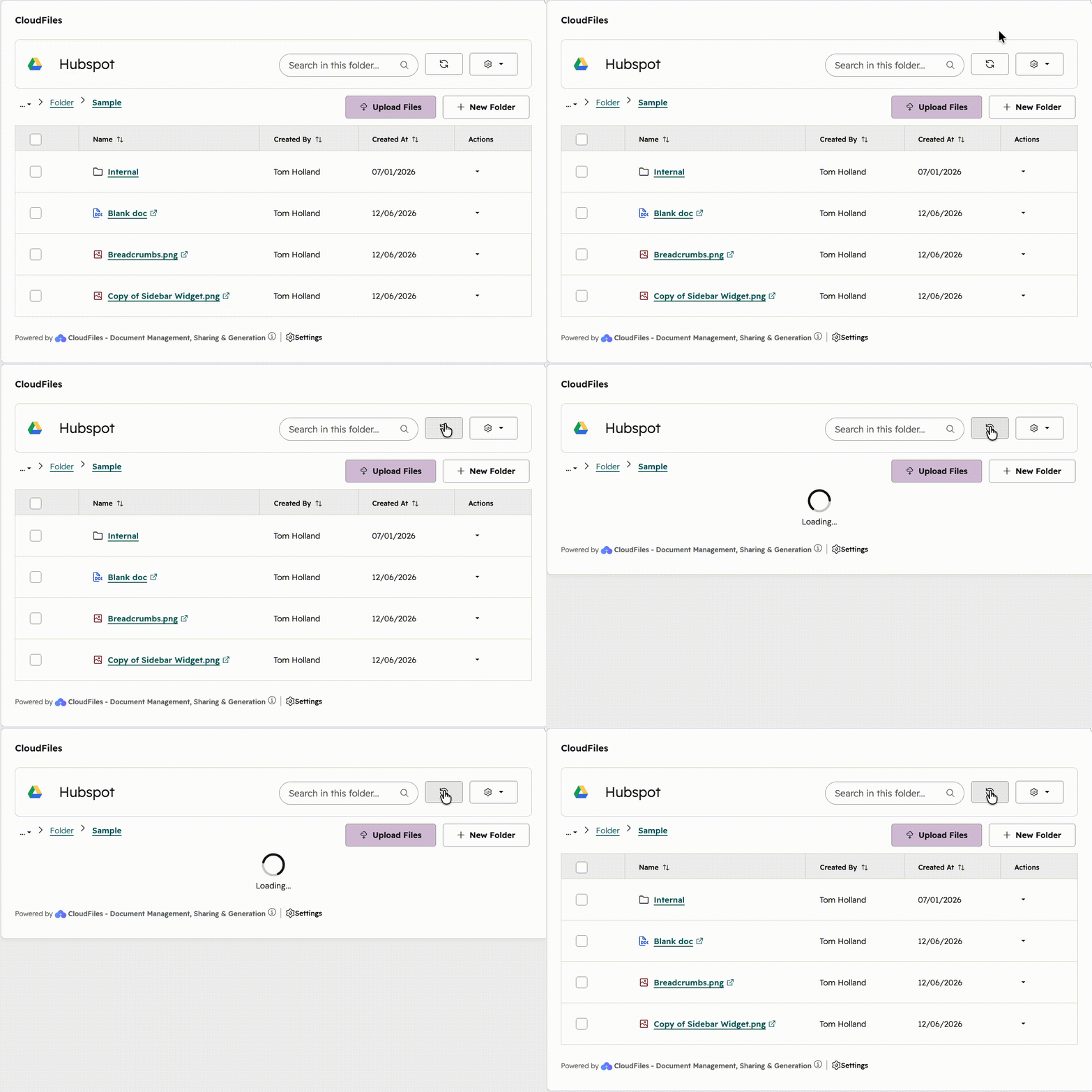
Sync
The Sync button manually refreshes the CloudFiles App Card to load the latest files and folders from the connected storage location. It's important to note that CloudFiles always gets the latest content whenever the widget refreshes (e.g. on page refresh). The Sync button is an additional option users can use to refresh the view immediately while working on live files.
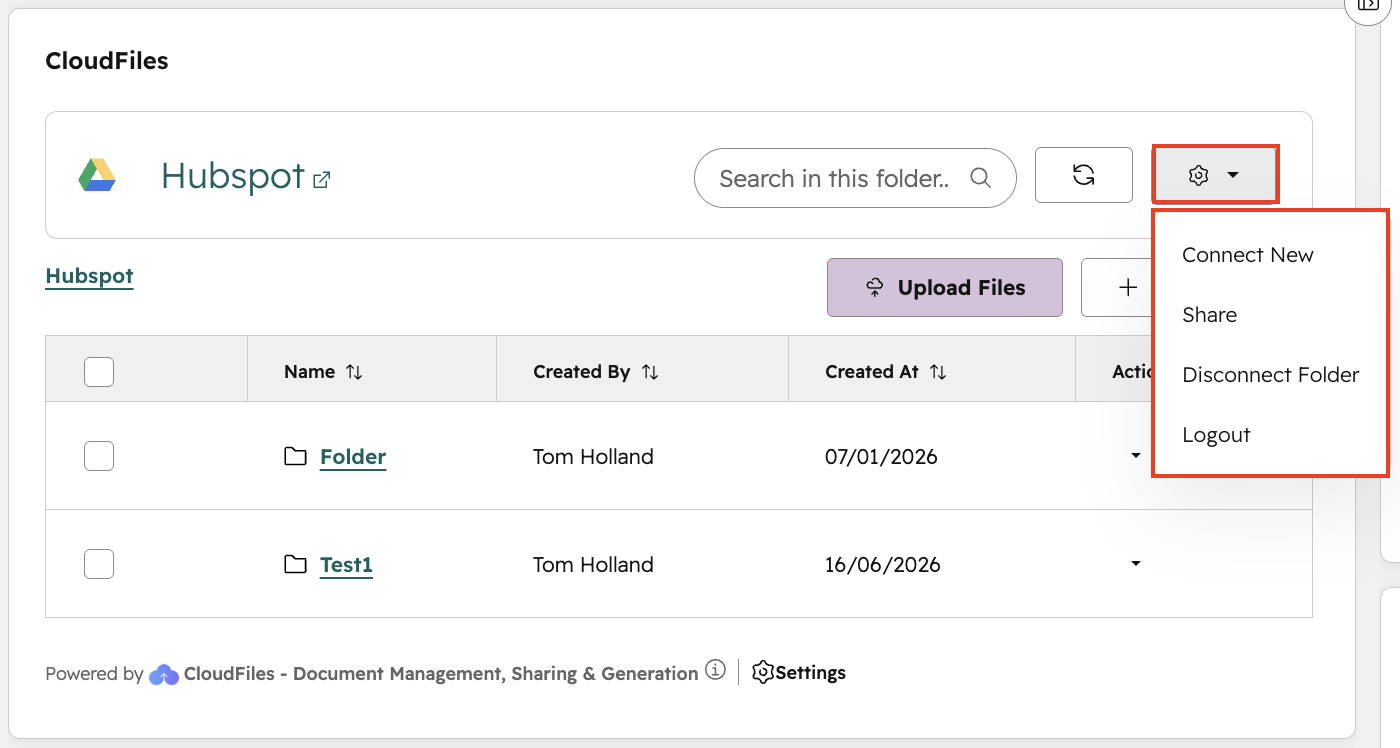
Connection Settings
The gear icon in the top-right corner of the App Card opens a dropdown menu with widget-level actions for managing connections and session access.
- Connect New- Adds another CloudFiles folder or file to the HubSpot record. Use this when you need to link additional files or create a new connection.
- Logout- Use this when you want to end the active session, switch to another CloudFiles account, or reconnect with different credentials.
- Share - Allows users to share folders with others. Users can generate a shareable link or choose sharing settings based on the available permissions. Note that this option is only available when the user is in the root folder.
- Disconnect Folder - Removes all folders from the CloudFiles App Card without deleting it from the connected external storage platform. Note that this option is only present when the user is in the root folder.
App card settings
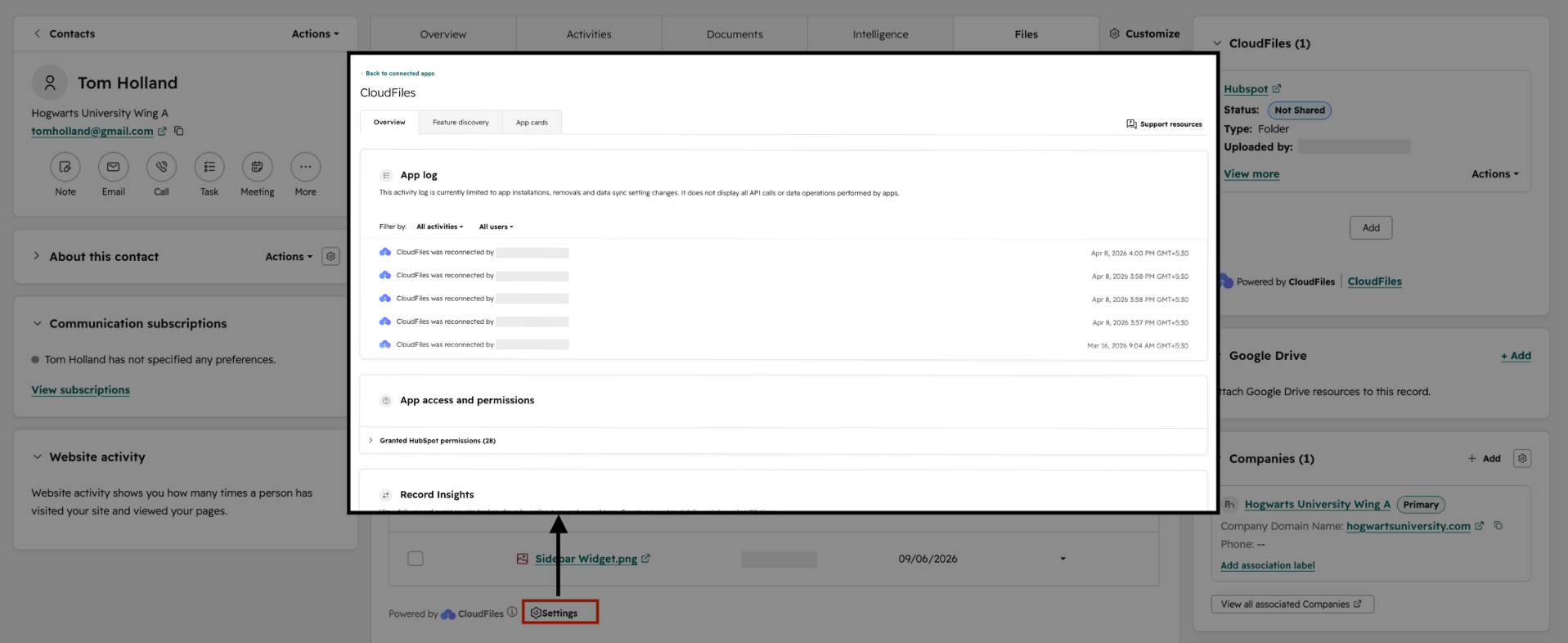
The settings icon at the bottom of the CloudFiles App Card opens a window where users can manage and review the CloudFiles HubSpot app. From here, administrators can view the App Log, manage App permissions and access, and review Record insights. These options help administrators monitor app activity, troubleshoot issues, and manage how CloudFiles interacts with HubSpot records.
The App Card provides a way to link to and manage external files and folders within HubSpot records. It supports quick navigation, synchronisation, and file management actions without requiring users to leave the HubSpot interface.