To white-label your CloudFiles Document Viewer with your company website and custom domain, you'll need to purchase an Enterprise license. This process involves the following steps:
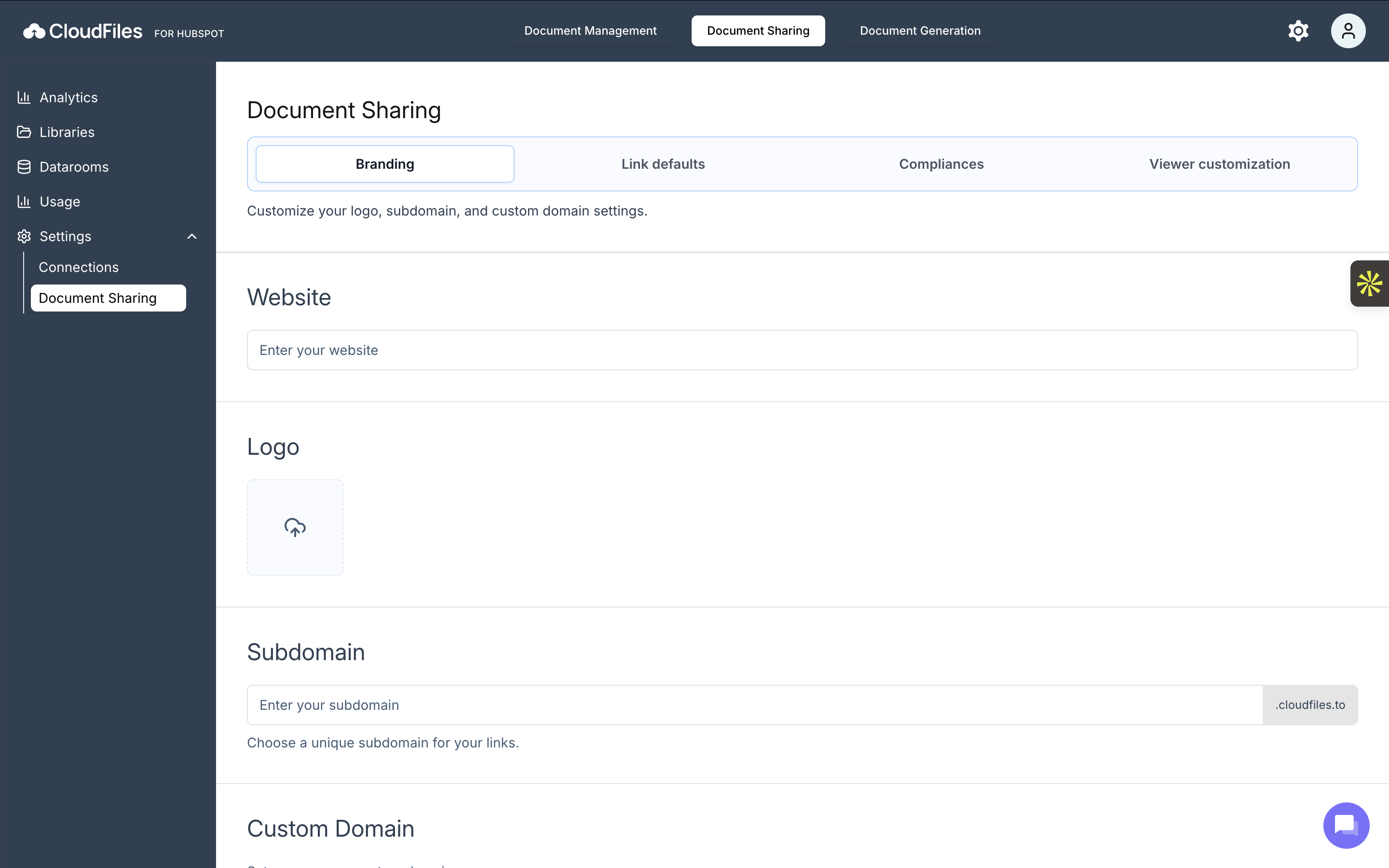
Accessing the Branding settings page
In order to set your custom branding & domain, you need to be logged in with your admin account. This is detailed in the steps given below -
- Go to https://app.cloudfiles.io and sign in with your admin email.
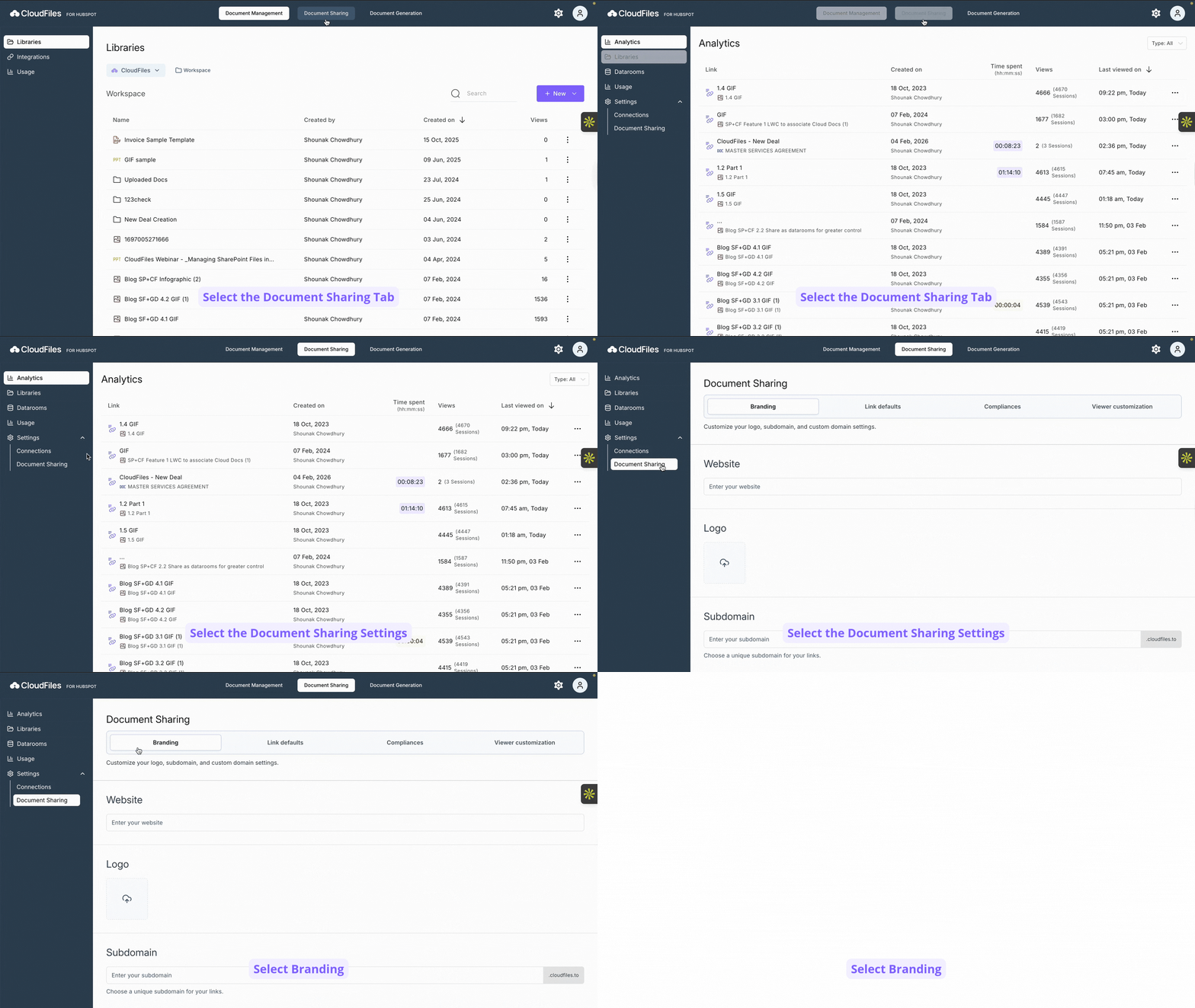
- Click the Document Sharing tab on the top navigation bar.
- From the left sidebar, open Settings and select Document Sharing.
- Select branding among the tabs.
Follow the steps shown in the GIF to set up your custom branding and domain.
Adding Website
Add your company website here; this is used to fetch the favicon displayed in the links. This setting allows you to display your website’s favicon on all shared CloudFiles links. If no favicon is added, CloudFiles will use its default icon.

Adding Logo
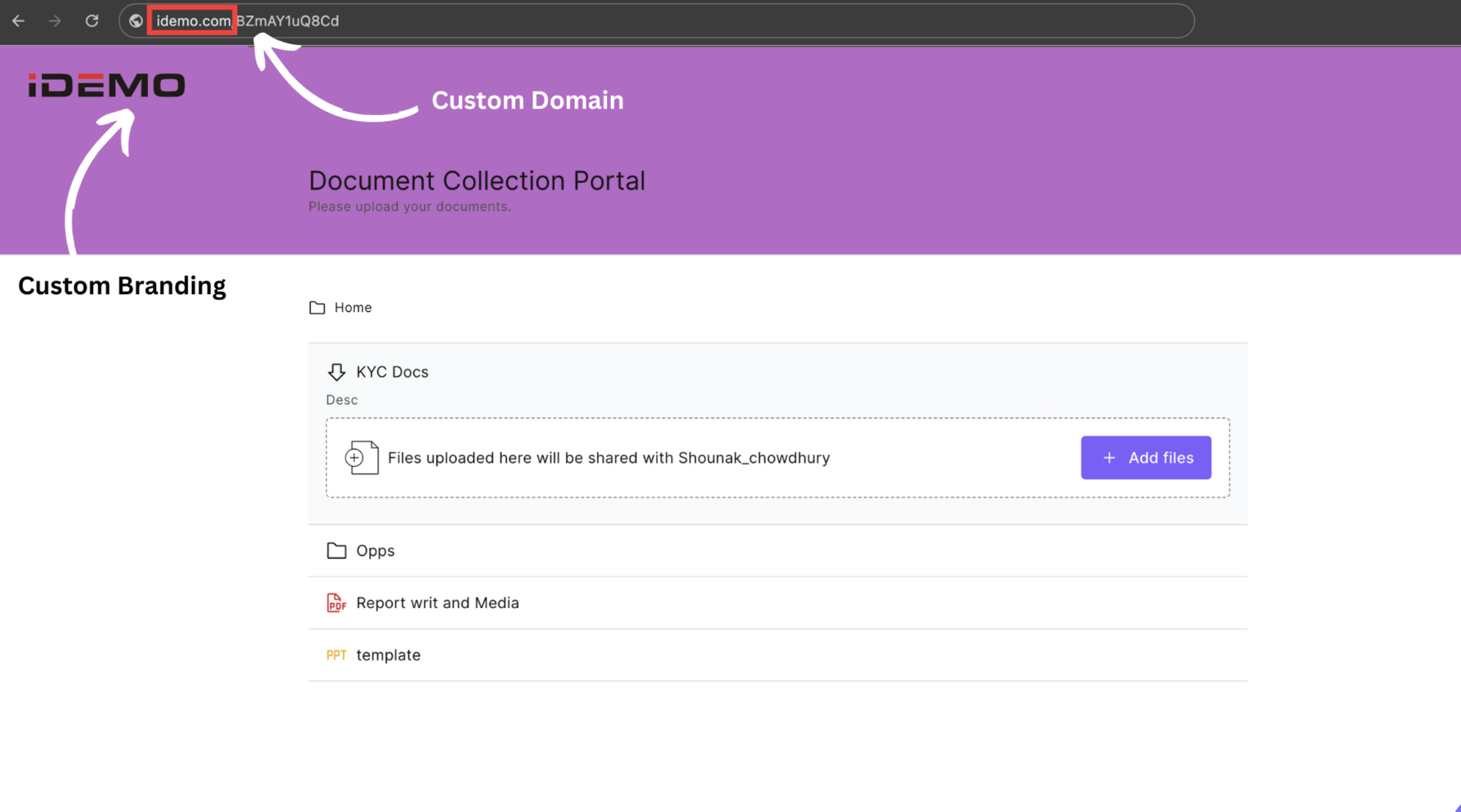
This setting allows you to display your own logo on shared links, replacing the default CloudFiles logo. The example below shows how your logo will appear in the top left of the viewer.
Once you have followed these steps, your CloudFiles previews & links should start showing your favicon & logo. Even your old links would update.
For example, if your logo is "iDEMO" and your domain is "idemo.com," so, once you've completed the steps, they will appear as follows:
Adding Subdomain
Create a unique CloudFiles subdomain to brand your shared links. Enter your preferred name to generate links such as yourname.cloudfiles.to.

Adding Custom Domain
In order to add your custom domain, you first need to map CloudFiles with your DNS provider. This process is called CNAME mapping and is usually handled by IT teams in large organizations. Although the steps may change based on the DNS provider, here are the main steps to be followed. If you are not the IT admin, it is best to get them involved so they can easily understand and implement these
- Go to your DNS provider where yourdomain.com DNS is purchased from.
- Open the DNS settings
- Create a new record with type CNAME
- For that record, host = the subdomain name you want. This can be anything that you like, for example - docs, files etc.
- For value, add cname.cloudfiles.io
- For TTL select 5 minutes. Your new sub-domain will become accessible after this much time.
Once the CNAME Mapping is done, you can add the custom domain through the setting provided in the Branding section. Follow the steps below in order to do the same.
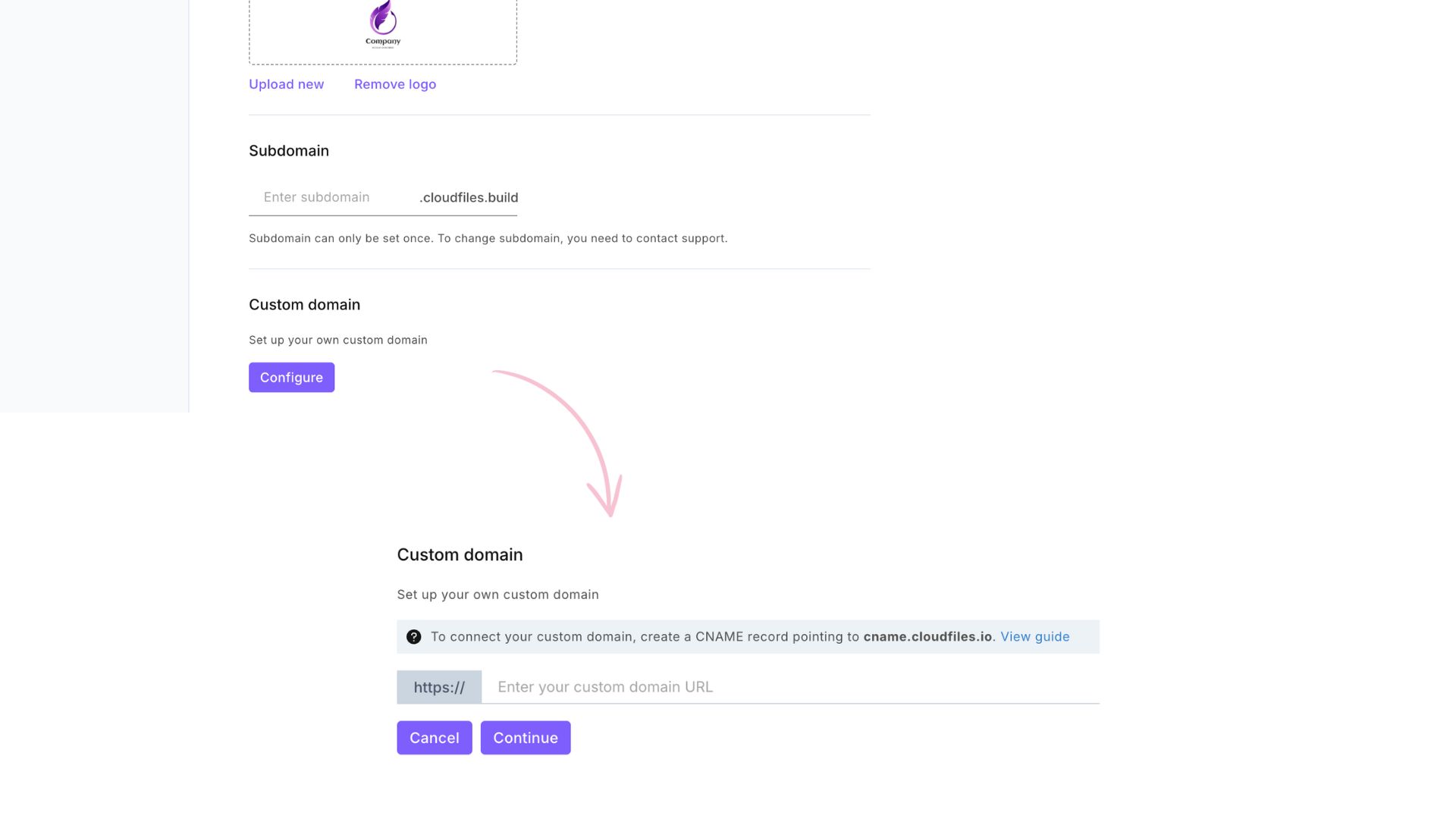
- Click on the Configure button to initiate the process, this will result in prompting a input to add your custom domain, click Continue once you have added the domain. Refer to the image given below for further explanation.
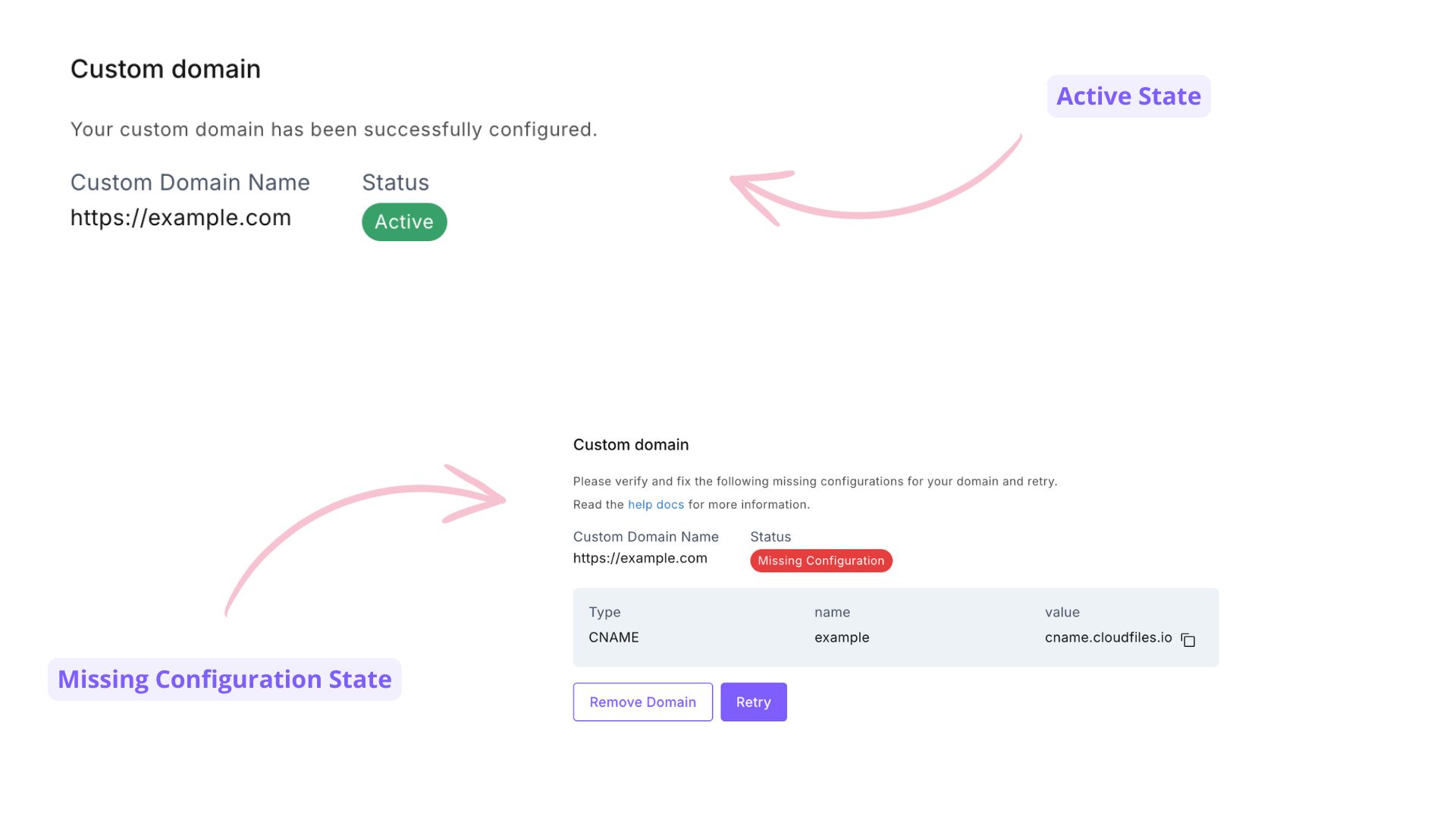
- Once you have clicked "Continue", the system will attempt to configure your domain. If the domain is successfully configured you will see "Active" state. You may get "Missing Configuration" state otherwise, as shown in the image below.
Once you have configured everything, click on the "Update" button.
How does custom domain affect current links?
After the CNAME mapping is completed on our side, your links will update. Your old links will continue to work but won't redirect to the new links. CloudFiles keeps the link slug same but replaces the prefix. E.g. https://cloudfiles/slug will become https://docs.yourdomain.come/slug