This article explains the following -
- Configuring the App Card: In this section, you’ll learn how to add the CloudFiles App card to your HubSpot records.
- Linking a Folder to the Card: In this section, we’ll guide you through connecting specific folders or files to the App card for access.
- Working with Linked Folders: In this section, you’ll discover the operations you can perform on connected files and folders directly within the card.
- Unlinking the Folder: In this section, we’ll explain how to disconnect a folder or file from the CloudFiles App Card while keeping it safe in your storage library.
Now, let’s get into each section in detail.
1 - Configuring the Card
The CloudFiles App Card allows you to easily manage and share files directly within your HubSpot records. Follow these simple steps to integrate the widget into your HubSpot:
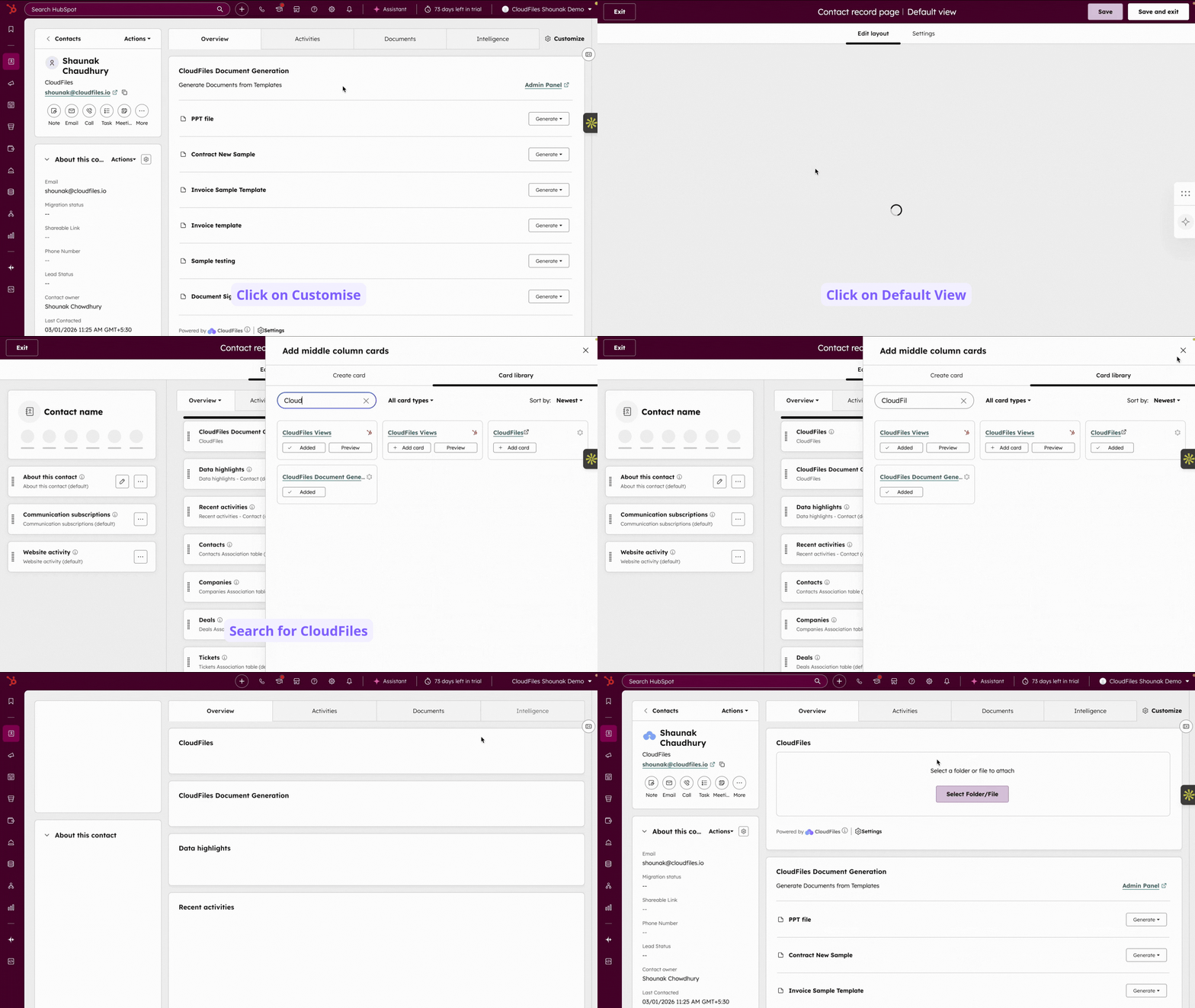
- Navigate to any HubSpot record and click on "Customise view" located in the top-right corner.
- From the menu, select "Default view".
- Click the "+" button to create a new tab or add the widget to the existing tab.
- Assign a name to the tab if any. For example, you can name it "CloudFiles" for easy identification.
- Click on the "+" button again to open the Card Library and select CloudFiles.
- Next, click on "Add Card" to add the widget to the existing/ new tab.
Follow the steps given below in the GIF:
2 - Linking a folder to the App Card
Once you've set up the card, the next step is to link it to a folder. This will allow you to access and manage specific files or folders directly within your HubSpot records. Follow these simple steps to complete the process:
- Open the HubSpot record where you want to link the folder.
- Locate the CloudFiles Tab that you added in the previous step or in the existing tab.
- Click on "Select Folder/File."
- A dialogue box will appear. Here, you can browse and select the desired library, folder, or file you want to link.
- Select the folder or file, and the contents will instantly start appearing in your card.
Follow the steps given in the GIF:

By linking a folder to the card, you can quickly view and access its contents, streamlining your workflow and improving productivity. With everything in one place, managing files within HubSpot becomes much more efficient.
3 - Working with linked folders
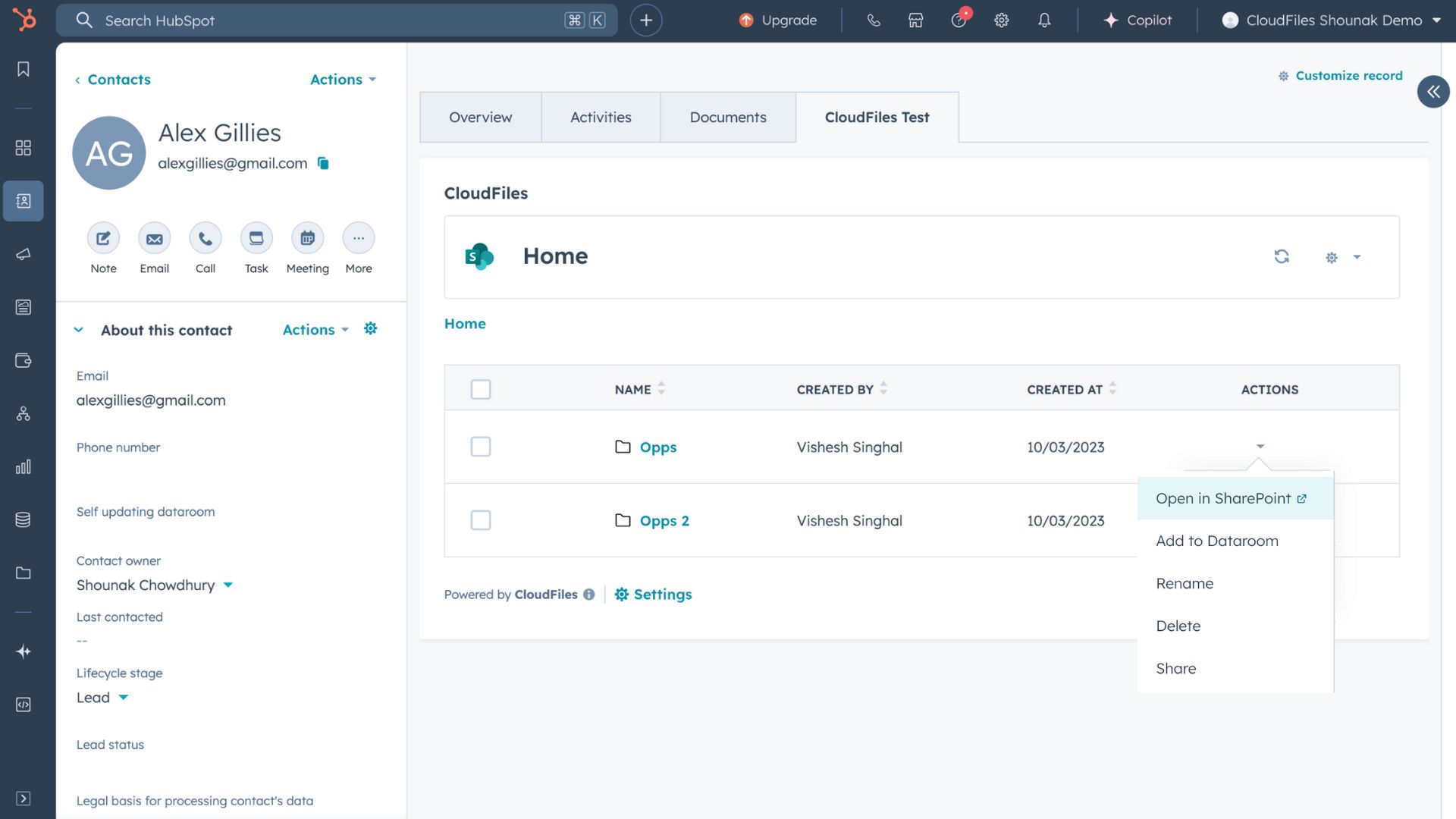
Linked folders in the widget are designed to be user-friendly and efficient. Once a folder is connected, you can perform various actions directly from the app card to manage your files and folders effectively. Here's an overview of the available options:
For linked folders, you will have the following options:
- Open in Google Drive/SharePoint/Other Storage Library: Quickly open the folder in your connected storage service.
- Share: Generate a shareable link to access all the contents of any folder as a whole.
- Rename: Change the name of the folder as needed.
- Delete: Permanently remove the folder from the linked storage.
- Add to Dataroom: Directly add the folder to the dataroom.
- Disconnect: Unlink the folder from the card while keeping it intact in your storage library.
For individual files, you can access the following options:
- Open in Google Drive/SharePoint/Other Storage Library: Open the file in your storage provider for additional actions.
- Download: Save a local copy of the file to your device.
- Preview: View the file without downloading it.
- Share: Create a shareable link for any file.
- Rename: Edit the file name directly from the widget.
- Replace: Swap the current file with another while maintaining the folder structure.
- Add to Dataroom: Directly add the file to the dataroom.
- Move: Change the file's location within the storage library.
- Delete: Permanently remove the file from the linked storage.
- Disconnect: Unlink the file from the app card while keeping it intact in your storage library.
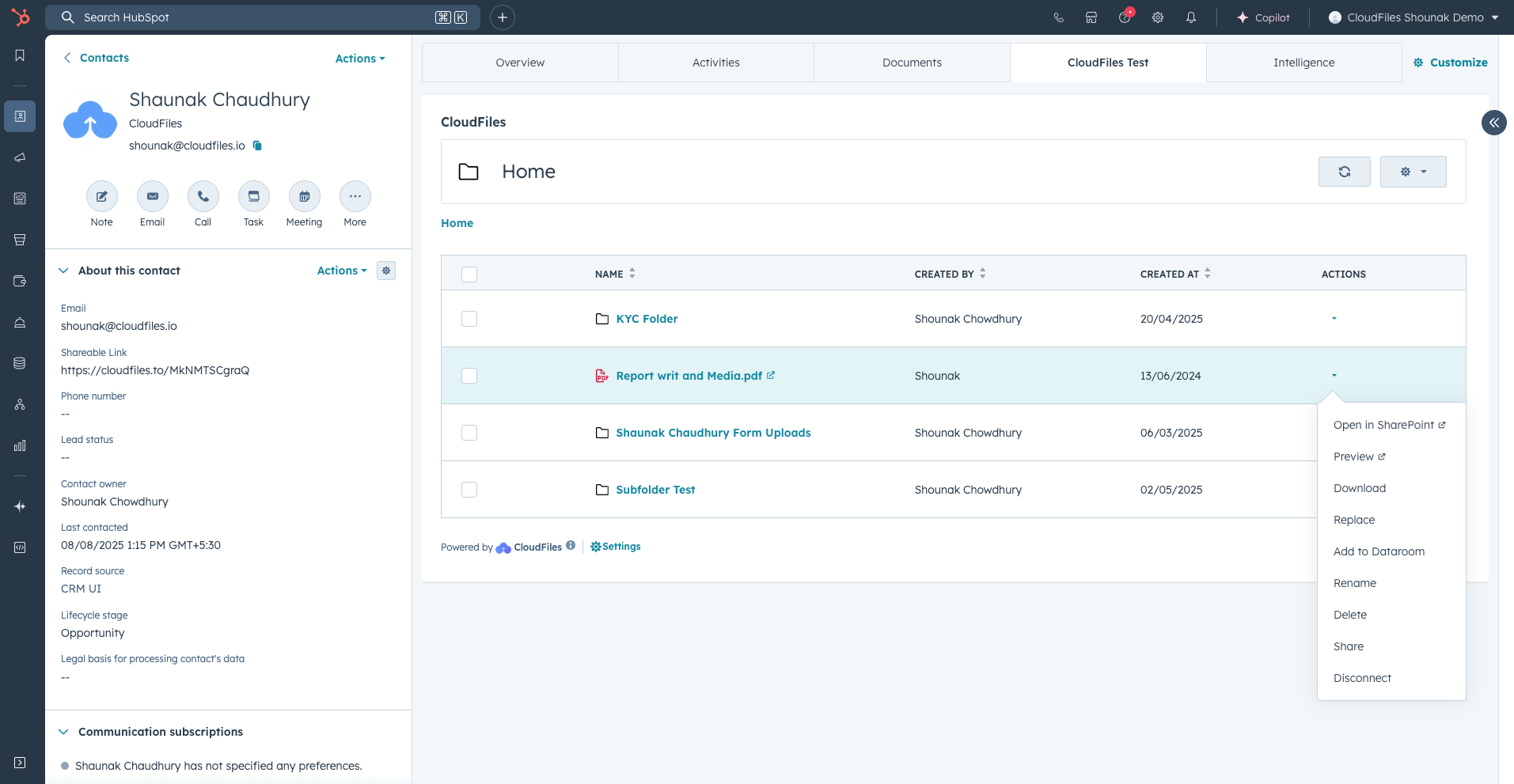
With these options, you can manage your files and folders within the A.
4 - Unlinking the folder
If you no longer need a folder or file linked to the widget, you can easily unlink it. Follow these steps to disconnect:
- Navigate to the App Card or open the connected folder within the card.
- Locate the "Disconnect" button.
- Click on the button to unlink the folder or file.
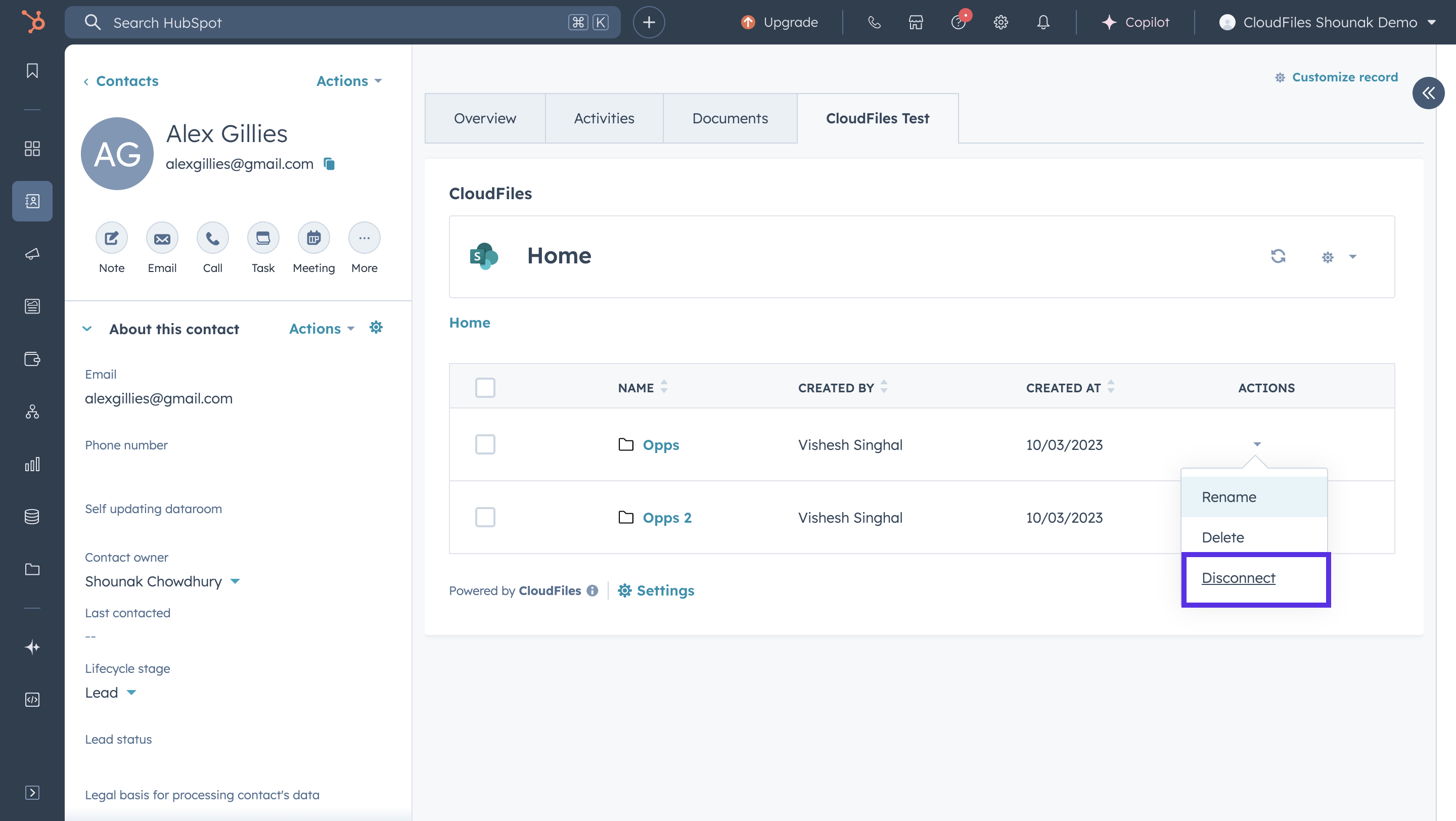
Once unlinked, the folder or file will no longer appear in the app card, but it will remain intact in your storage library.
More resources on CloudFiles - HubSpot Integration
If you’re looking to learn more about using CloudFiles with HubSpot, there’s a wealth of articles and videos available to guide you. CloudFiles offers powerful features and integrations that simplify document sharing and automation.
In addition to folder creation and connection, as demonstrated above, you can:
- Share files securely with clients and team members.
- Enable advanced security features like password protection or email verification.
- Collect detailed analytics on shared files, including views and engagement.
- Use flow components to fully automate document-related processes, saving time and effort.
These features ensure an efficient workflow, making CloudFiles an essential tool for managing documents within HubSpot.