Each action is explained with its purpose, configuration, outputs, and examples to show how it can be used in real scenarios.
Create Dataroom Action
This action is used to create a secure dataroom (a shareable file portal) directly from a HubSpot workflow. A dataroom lets you organise files and folders from connected cloud storage, share them via a single link, and collect documents from external users using file request blocks.
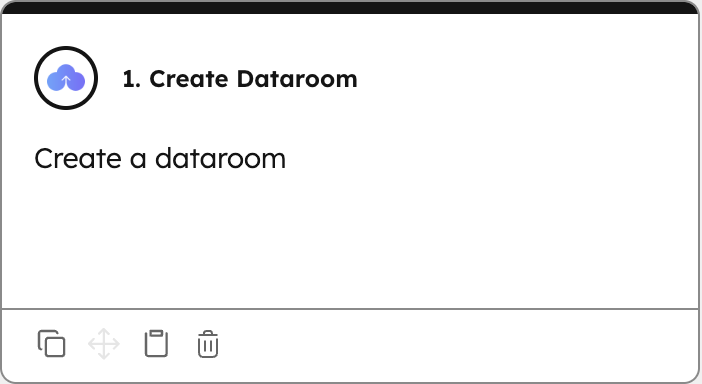
Configuration:
- Enter the name of the dataroom, which appears as the title of the dataroom.
- Optionally provide a description to give more context about the dataroom.
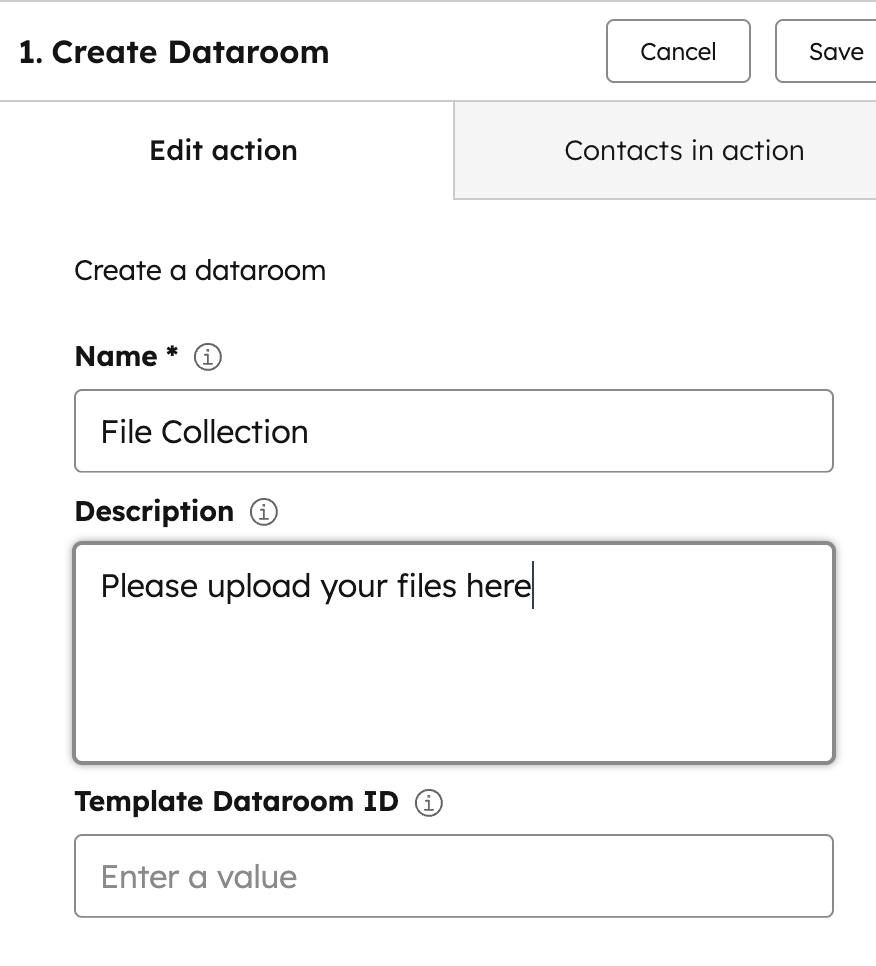
Output:
The action returns a dataroom ID, which can be used in subsequent steps (for example, attaching the dataroom to the record or adding content).
Example:
A service team wants to collect compliance documents from new clients. When a deal reaches the “Pending Compliance” stage in HubSpot, the workflow automatically creates a dataroom named “Client Compliance Upload Portal” and attaches it to the deal record. This dataroom link can be shared with the client so they can upload required files securely (e.g., signed contracts and certificates). Once documents are uploaded, they can be stored in the desired f
To learn more about this action, read the full article on Create Dataroom Action.
Add to Dataroom Action
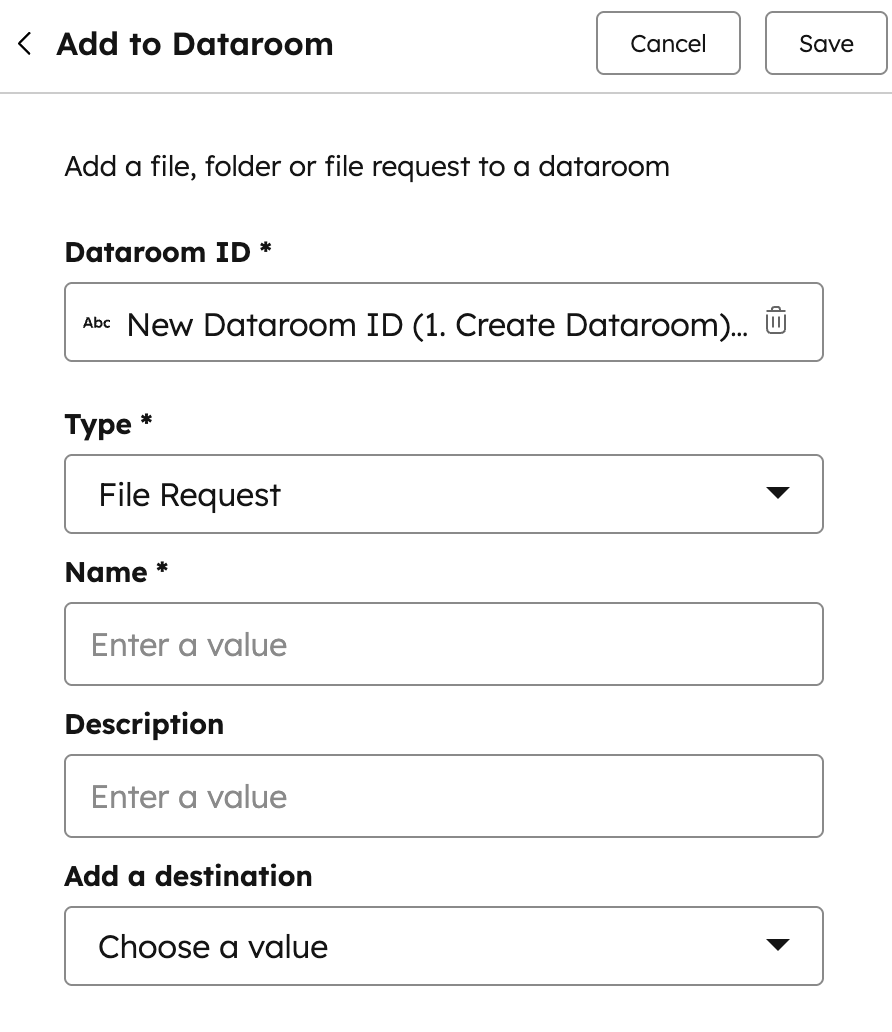
This action is used to add files, folders, or file request blocks to an existing dataroom from a HubSpot workflow. It allows you to populate a dataroom with relevant documents from connected cloud storage or collect files from external users in one secure place.
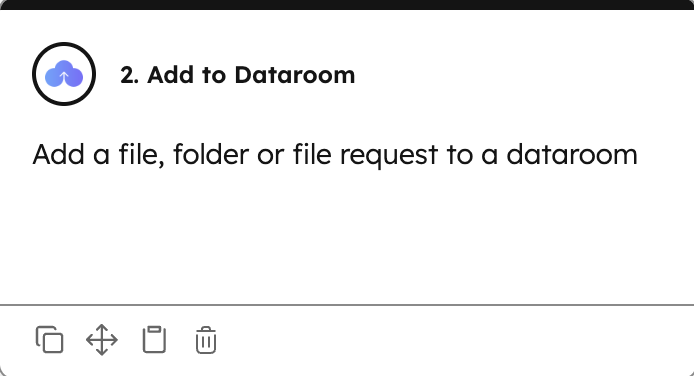
Configuration:
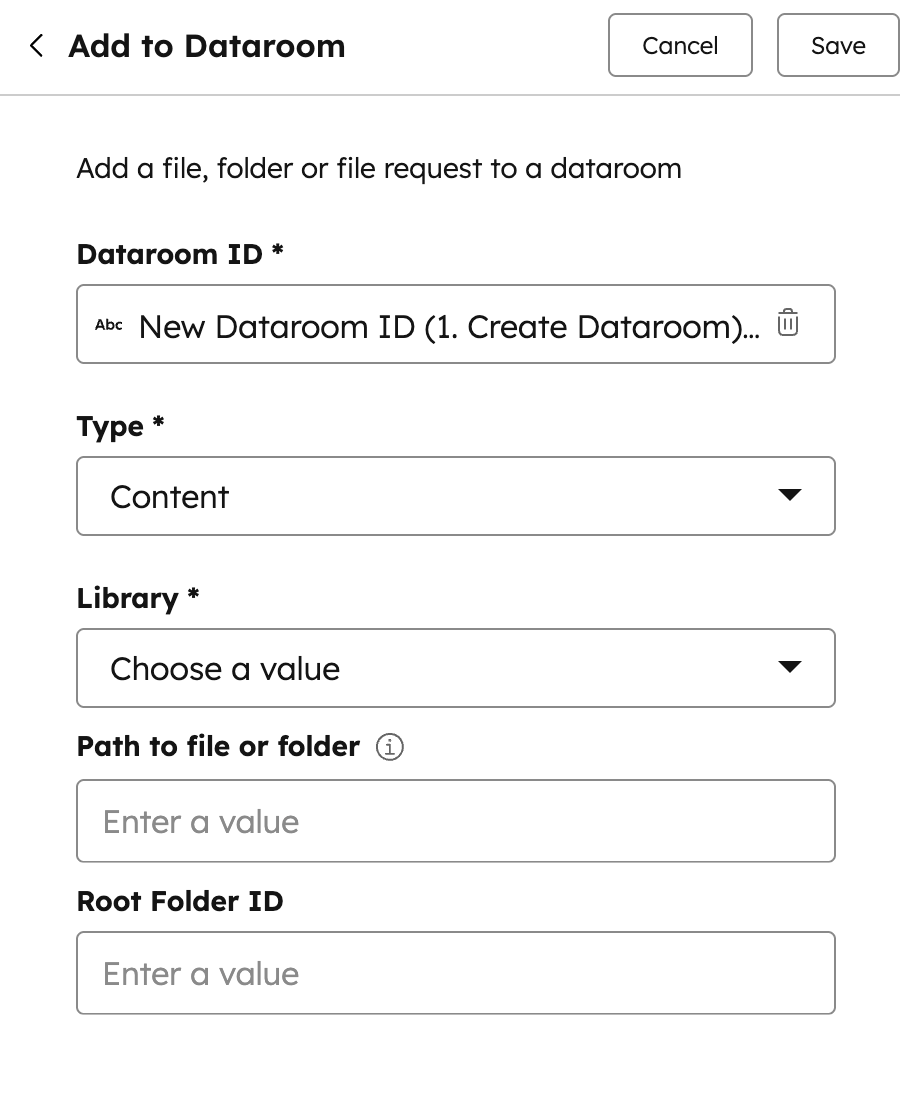
- Provide the Dataroom ID where the content should be added. This is usually obtained from a previous Create Dataroom action.
- Choose whether you want to add existing content (files or folders) or a file request block.
- If adding content, select the storage library and provide the path to the file or folder you want to include. If required, specify the Drive ID for storage systems like Google Drive or SharePoint.
- If adding a file request block, enter a name and optional description, and define where uploaded files should be stored.
Output:
The action returns a status message, either success or failure, indicating whether the content or file request block was added to the dataroom successfully.
Example:
A customer success team uses a dataroom to manage onboarding documents for new clients. When a deal moves to the “Onboarding” stage in HubSpot, the workflow automatically adds a Getting Started Guide.pdf and a Product Documentation folder to the dataroom. A file request block titled “Upload Signed Contract” is also added so customers can securely upload their documents directly to the correct storage location.
To learn more about this action, read the full article on Add to Dataroom Action
Delete Dataroom Action
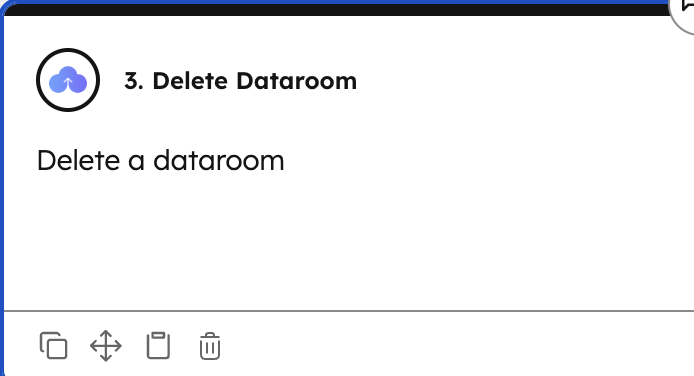
This action is used to delete an existing dataroom through a HubSpot workflow. When executed, it removes the dataroom and any files that were received but not already transferred to external cloud storage. Files that have been moved or synced to connected storage are not deleted by this action.
Configuration:
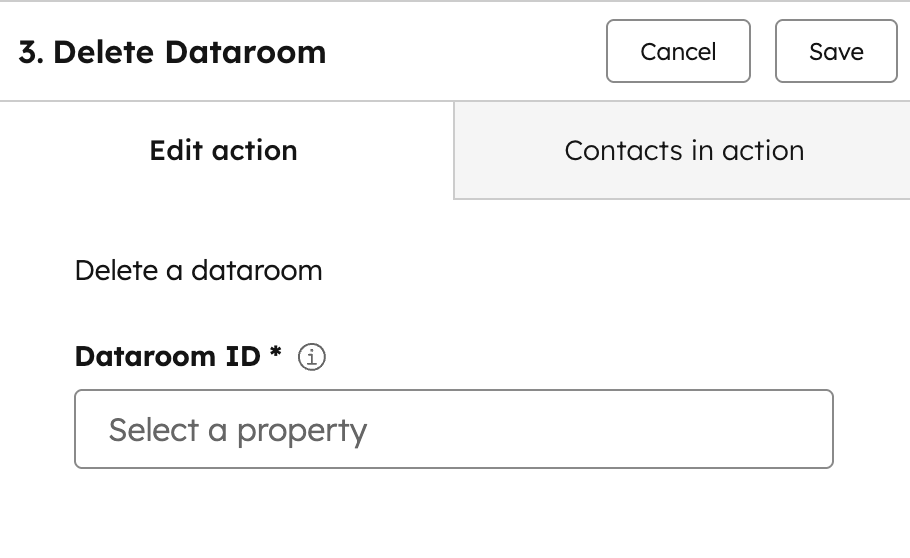
- Provide the Dataroom ID of the dataroom you want to delete, which is typically obtained from a previous Create Dataroom action, Get Attachment Details action, or stored in a record property.
Output:
The action returns a status message, either success or failure, depending on whether the dataroom was deleted successfully.
Example:
A support operations team wants to automatically clean up datarooms when a deal is marked “Closed–Lost.” A workflow uses the stored Dataroom ID associated with the deal to trigger the Delete Dataroom action. When the deal stage changes, the workflow runs this action and removes the associated dataroom, ensuring that temporary file portals are closed and unused spaces are removed without manual work.
To learn more about this action, read the full article on Delete Dataroom Action .
Get Attachment Details Action
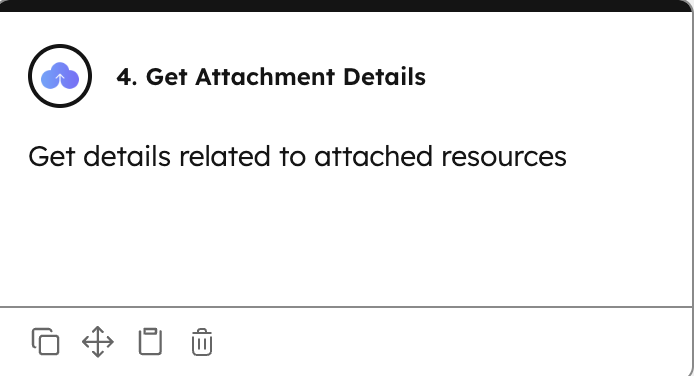
This action is used to retrieve detailed information about one or more attachments that are already associated with a HubSpot record. Attachments are files, folders, or datarooms linked to a record and shown in the App card or as tiles in the sidebar widget. The returned details can then be used in automations and downstream actions.
Configuration:
- Choose whether to fetch details for only the latest attachment or for all attachments associated with the triggering record.
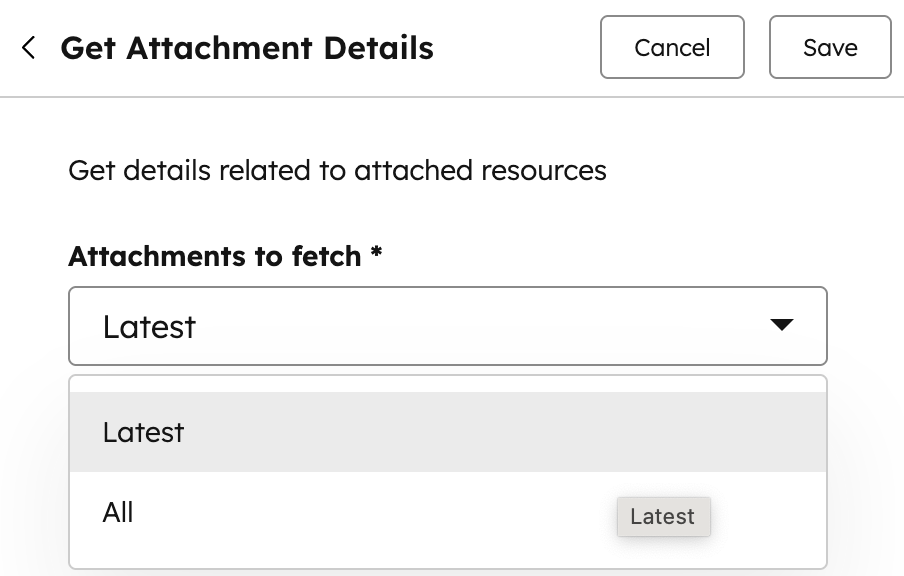
Output:
This action returns multiple values that can be used in later steps of your workflow, including:
- Action Status — success or failure.
- Attachment ID — internal ID for the attachment.
- URL Slug — the slug of the generated CloudFiles URL.
- URL — the complete CloudFiles link.
- Cloud Storage URL — the link to the file/folder in cloud storage.
- Resource ID — internal ID of the file, folder, or dataroom associated with the attachment.
- Name — name of the associated resource (with extension for files).
- Type — whether the resource is a file, folder, or dataroom.
- Status — status of the attached resource.
Example:
A sales operations team wants to automate a follow-up email that includes a link to an important document already attached to a deal. When a deal enters the “Negotiation” stage, the workflow uses this action to fetch details of the latest attachment on the deal record. The returned URL is then used to generate a personalised email with the correct document link, ensuring that prospects always receive the most relevant attachment.
To learn more about this action, read the full article on Get Attachment Details Action
Get Resource Property Action
This action is used to retrieve the external URL and various metadata for a specific file or folder stored in your connected cloud storage (e.g., Google Drive, SharePoint, OneDrive, Box, Dropbox) directly from a HubSpot workflow.
Configuration:
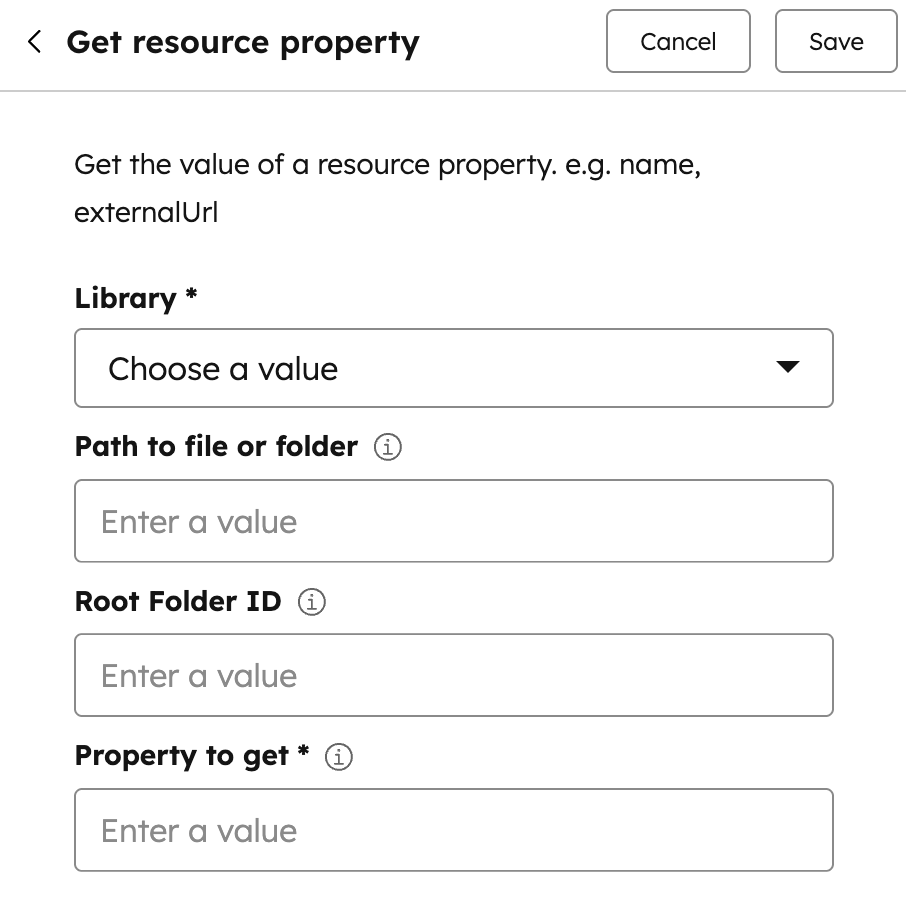
- Specify the Library where the file or folder is stored (e.g., SharePoint, Google Drive, Dropbox).
- Provide the Path to Resource -> the full slash-separated path to the file or folder in the cloud storage.
- Choose the Property to Get -> the name of the resource attribute you want to retrieve (e.g., externalUrl, name, size, date).
Output:
The action returns multiple values, including:
- Action Status — success or failure.
- Value — the property retrieved in the format requested (string, number, Boolean, date/time).
Example:
A sales operations team wants to include a publicly shareable link to an important contract stored in Google Drive in a deal record. In a workflow triggered when a deal reaches “Contract Sent,” the Get Resource Property action pulls the externalUrl of the contract file. The returned URL is then written into a deal custom property and used in automated follow-up emails so that customers always receive the correct link without manual lookups.
To learn more about this action, read the full article on Get Resource Property Action
Move HubSpot Files Action
This action is used to move files uploaded to HubSpot (for example, via forms or record attachments) into a connected cloud storage system such as Google Drive, SharePoint, OneDrive, Box, or Dropbox. It helps you automatically organise HubSpot files into structured folders outside HubSpot.
Configuration:
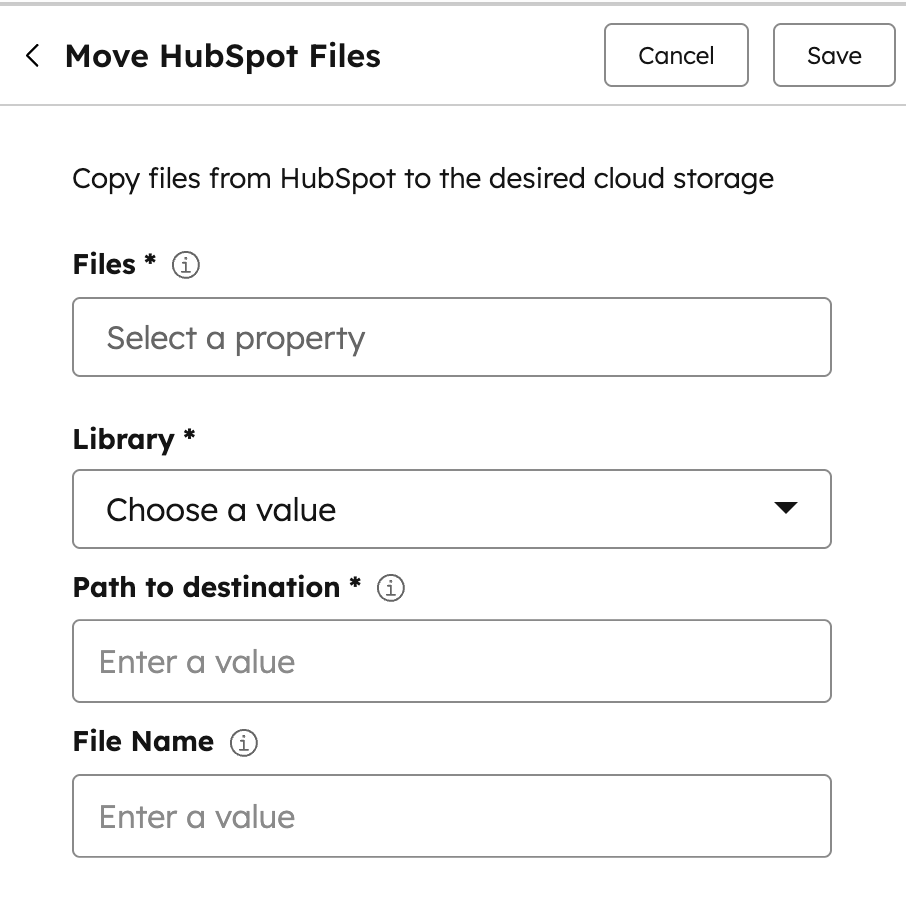
- Select the HubSpot file property that contains the file link(s) you want to move (commonly a form upload property).
- Choose the destination storage library where the files should be moved.
- Provide the destination folder path in the selected storage, using a slash-separated format.
Optionally provide a file name to rename the file during the move. If left empty, the original file name is retained.
Output:
The action returns a status message indicating success or failure, along with the final file name and the full path where the file was moved.
Example:
A marketing team collects documents through a HubSpot form. When a form submission is received, a workflow automatically moves the uploaded file from HubSpot into a deal-specific folder in SharePoint. The file is renamed using the record name (for example, “Nimbus Corp – NDA.pdf”), ensuring all submitted documents are stored in the correct location without manual downloads or uploads.
To learn more about this action, read the full article on Move HubSpot Files Action
Share Attachment Action
This action is used to generate a secure, shareable CloudFiles link for an attachment (file, folder, or dataroom) associated with or linked to a HubSpot record. It allows you to programmatically share attachments through workflows without manually creating links.
Configuration:
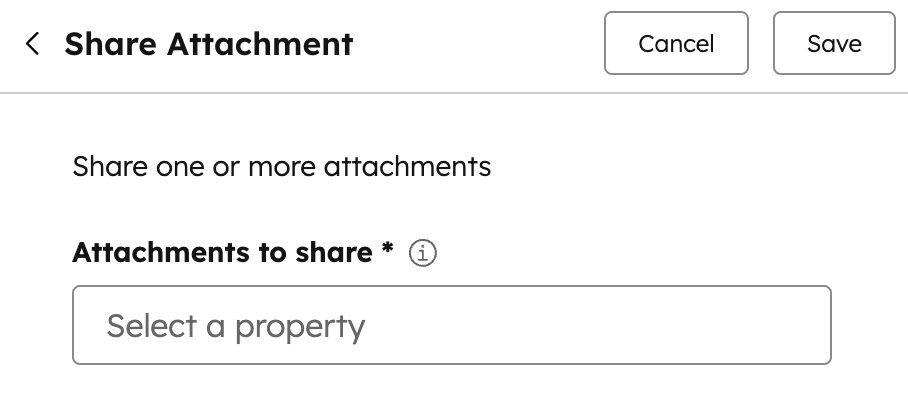
- Provide the Attachment ID of the file, folder, or dataroom you want to share.
- This ID is typically obtained from a previous action, such as Create Attachment Action or Get Attachment Details Action .
Output:
The action returns a status message along with a CloudFiles share link, including both the full URL or the URL slug. These values can be used in subsequent workflow actions or communications.
Example:
A support team attaches a troubleshooting guide to a HubSpot ticket via the App Card or the sidebar widget. When the ticket owner updates the ticket status to “Waiting on Customer,” a workflow automatically generates a CloudFiles share link for the attachment and sends it to the customer. This ensures the customer always receives the correct support document without agents manually creating links.
To learn more about this action, read the full article on Share Attachment Action.
Update Link Settings Action
This action is used to update the access and security settings of existing CloudFiles share links (for files, folders, or datarooms) through a HubSpot workflow. It allows you to automatically control who can view a link, how long it remains active, and what actions viewers are allowed to take.
Configuration:
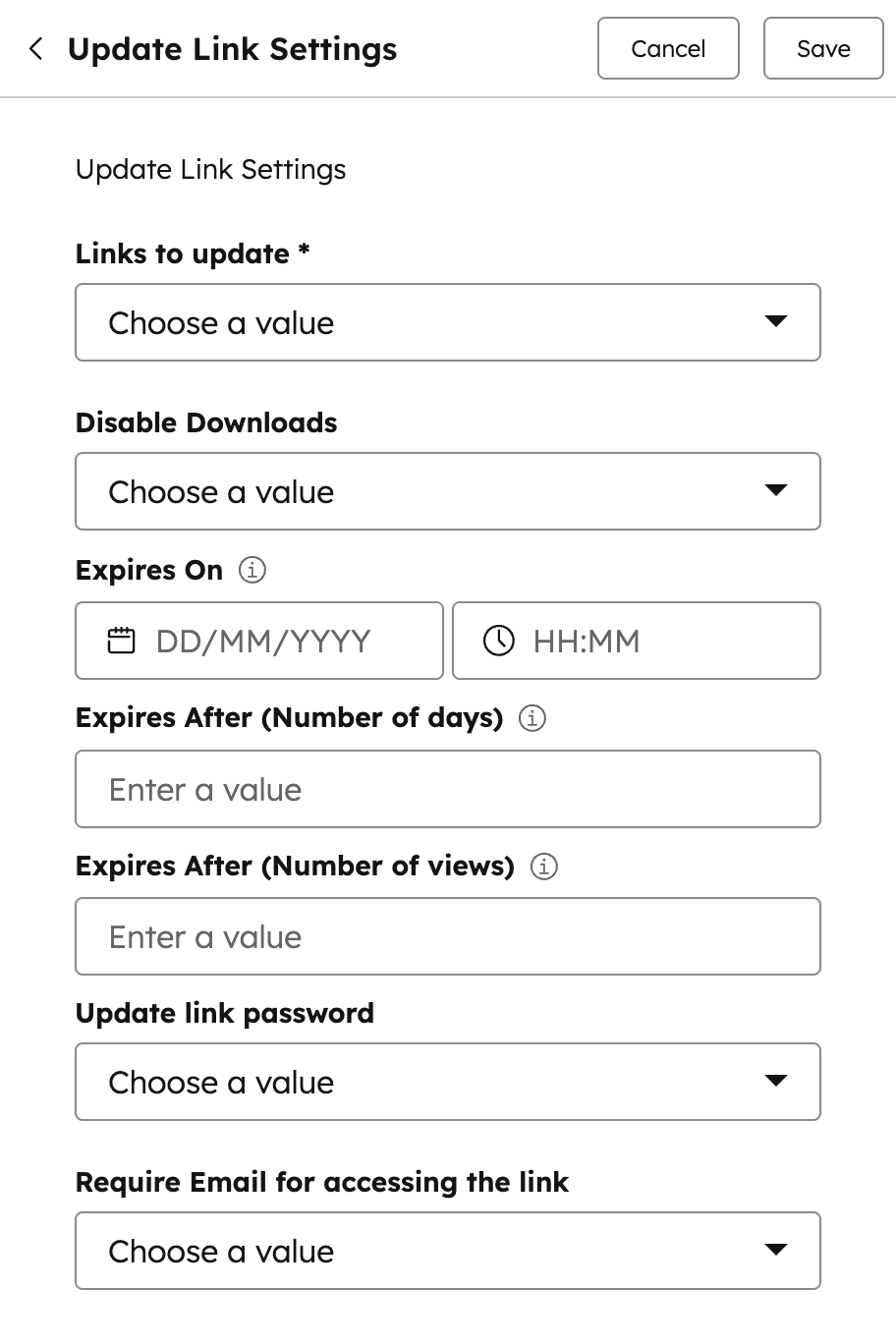
Choose whether the settings should be applied to the latest shared link or to all links associated with the record.
Enable or disable download and print access for the shared resource.
Set an expiry condition based on a specific date or a maximum number of views.
Optionally require viewers to enter and verify their email address before accessing the link.
Optionally restrict access by allowing only specific email addresses or domains.
Output:
The action returns a status message indicating whether the link settings were updated successfully.
Example:
A customer success team shares onboarding documents with new customers using CloudFiles links. When a "welcome email is sent" from HubSpot, a workflow automatically updates the link settings to require email verification and limit the link to 10 views. This ensures only the intended recipient can access the documents and prevents links from being reused or forwarded.
To learn more about this action, read the full article on Update Link Settings Action
Update Resource Permissions Action
This action is used to update who can access a file or folder stored in your connected cloud storage directly from a HubSpot workflow. It allows you to automatically grant or remove access for specific users and control whether they can view or edit the resource.
Configuration:
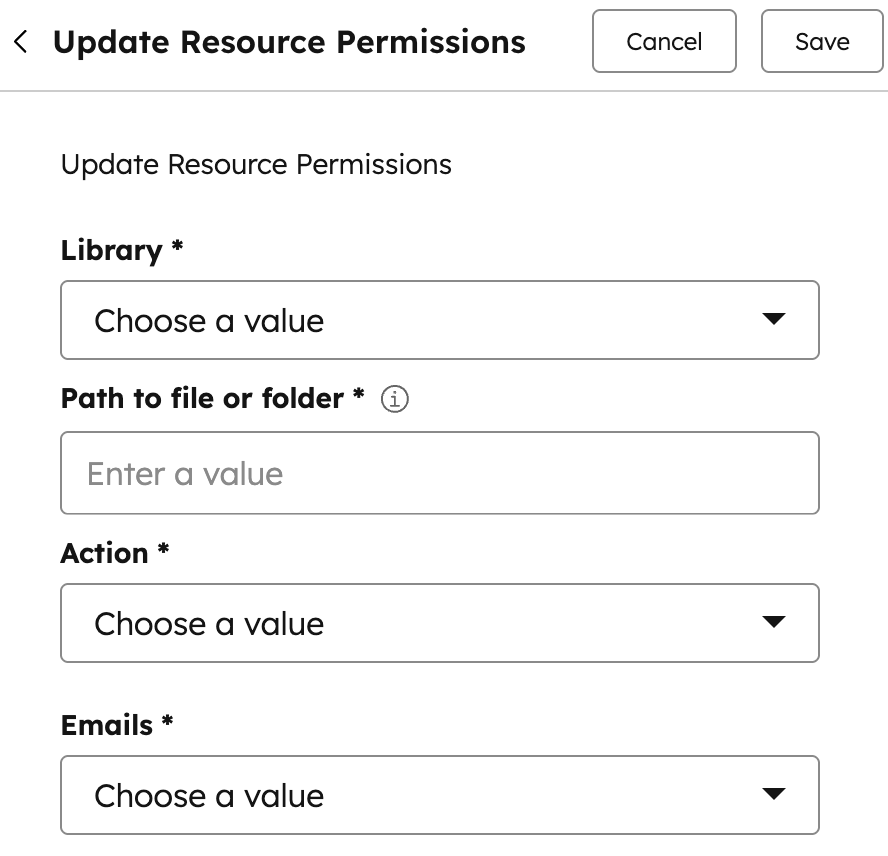
- Select the storage library where the file or folder is located.
- Provide the full path to the file or folder whose permissions you want to update.
- Choose whether you want to grant access or revoke access.
- If granting access, select the permission level (view or edit).
- Enter one or more email addresses whose access should be updated. Tokens and record-based emails can be used.
Output:
The action returns a status message indicating whether the permissions were updated successfully.
Example:
A customer success team maintains a shared onboarding folder in SharePoint for each customer. When a new stakeholder email is added to the account record, a workflow automatically grants view access to the folder for the new contact. At the same time, access for removed stakeholders can be revoked, ensuring that only the right people have access to customer documents at all times.
To learn more about this action, read the full article on Update Resource Permissions Action .