Introduction
A Record Single Variable contains an entire record and all of the field values on that record. Creating a Record Single Variable is like retrieving an Object Record with conditions set on the fields. For example, to create a PO document, you may need to include billing details from the Company associated with the Deal or identify a specific Contact such as the primary decision-maker or signing authority based on certain criteria. In such scenarios, a Record Single Variable can be used to retrieve the relevant Company or Contact record and make its fields available for use within the document template.
To create a Record Single Variable, follow the steps below -
- Click 'Resources'; the Resource Manager opens up.
- In the 'Create New Resource' pane, select Resource type from the drop-down as 'Record Single Variable'.
- Enter a Label and the API Name will automatically populate.
- Select the Object and association label
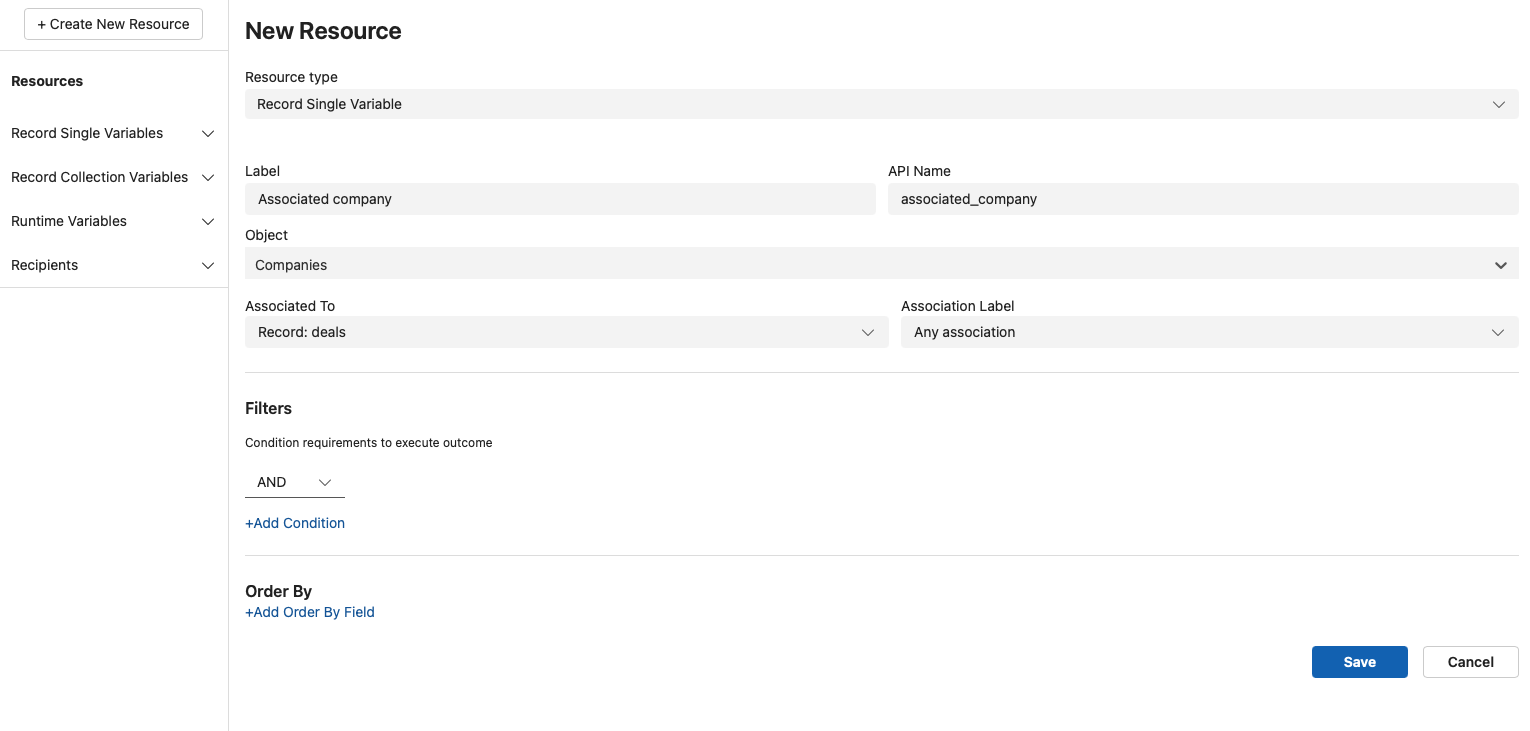
Filters (Optional)
To further determine which records are retrieved within an association label, you must define filter conditions. These conditions are used to compare values from the selected object and determine if a record meets the required logic to proceed.
Begin by selecting the main operator that controls how multiple conditions will be evaluated:
- AND: All conditions must be true
- OR: At least one condition must be true
- Custom: Allows for advanced expressions (e.g., (1 AND 2) OR 3)
Once the main operator is set, define one or more filter conditions. Each condition includes:
- A Field from the selected object
- A comparison Operator
- A Value to compare against
Click + Add Condition to include additional filter rows. The overall filter logic follows the main operator you selected (AND/OR/Custom)
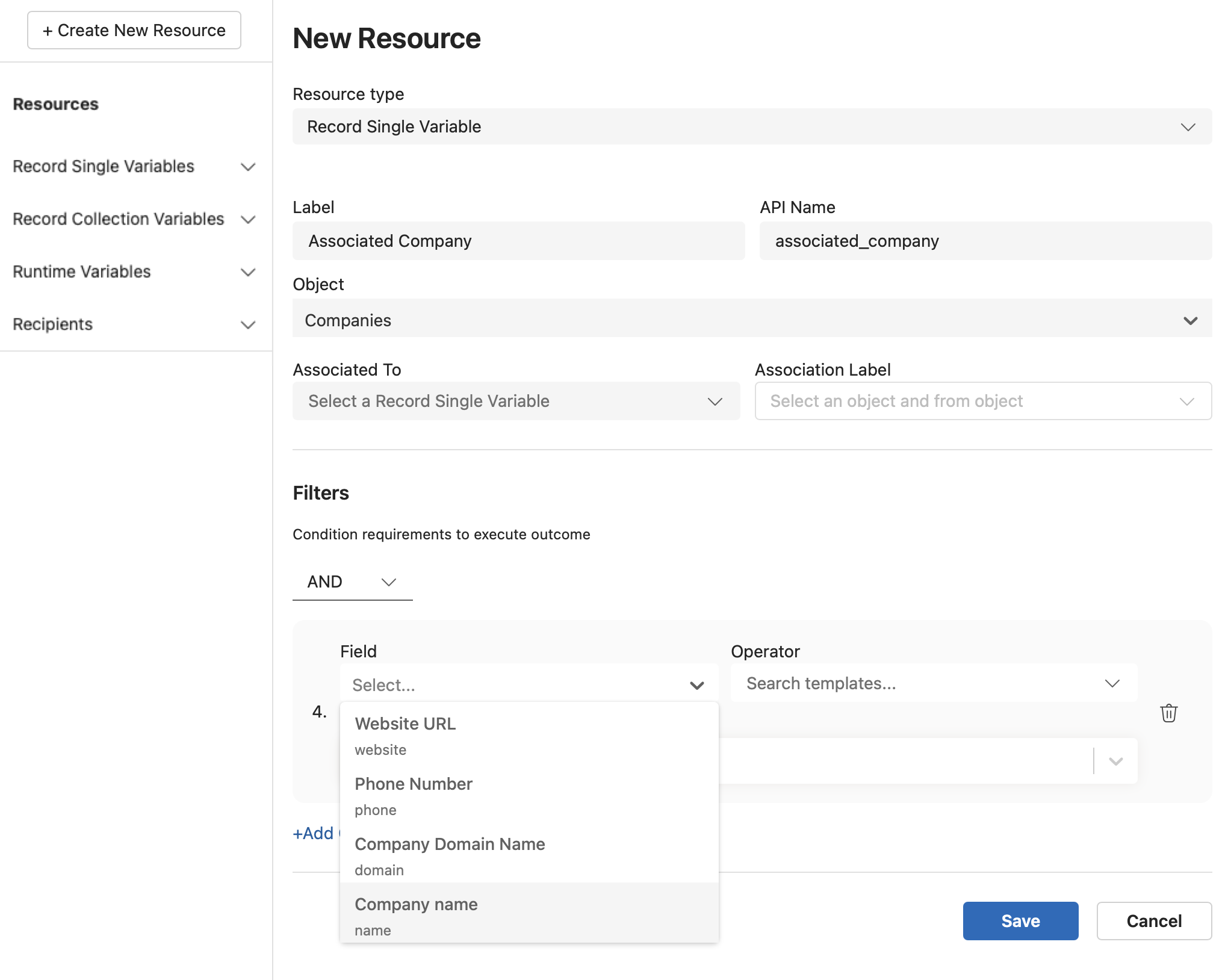
Add Conditions
Field
The Field dropdown allows you to select a specific field from the chosen object to filter or identify a record based on matching criteria. (e.g., Email, FirstName, Status, Custom_Field__c)
Operator
Choose a logical operator from the dropdown:
- Equals: Matches records with a field exactly equal to the specified value (e.g., for String, Picklist, Number, Boolean).
- Not Equals: Matches records where the field does not equal the given value(e.g., for String, Picklist, Number, Boolean).
- Greater Than: Matches records where the field value is numerically greater (e.g., for Integer, Decimals, Currency).
- Greater Than or Equals: Matches records where the value is greater than or exactly equal (e.g., for Integer, Decimals, Currency).
- Less Than: Matches records with a value lower than the specified input (e.g., for Integer, Decimals, Currency).
- Less Than or Equals: Matches records with a value that is less than or exactly equal (e.g., for Integer, Decimals, Currency).
- In: Matches records where the field value is one of multiple specified values (e.g., for Picklist, Multi-Select Picklist).
- Not In: Excludes records that match any of the specified values (e.g., for Picklist, Multi-Select Picklist).
- Like: Matches records based on partial text (e.g., for Text, Email, URL).
Value
The Value field is used to specify what the selected Field should be compared against. This can take multiple forms, depending on your use case:
- Global Variables: Field value from the same object record ({!$Record.Id}).
- Record (Single) Variables: Field value from related records.
- Global Constants: A direct input like the following:
- {$GlobalConstant.False} - Boolean false
- {$GlobalConstant.True} - Boolean true
- {$GlobalConstant.EmptyString} - Represents a blank or empty value
- {$GlobalConstant.CurrentTime} - Dynamically inserts the exact timestamp when the Document is generated
- Collection Variable: Record Collection Variable are now supported as filter values when using the IN or NOT IN operators, allowing records to be matched dynamically.