HubSpot's permission framework, enhanced by CloudFiles integration, offers robust control over file access:
- User-based permissions ensure only appropriate users can view cloud-linked files.
- Real-time updates keep permissions in sync across systems.
- Automated permissions help manage and update access settings automatically.
- License management determines who can use the CloudFiles features at all.
Let's explore each permission in detail.
1. User-Based Permission
When a user accesses files via the CloudFiles Content library in HubSpot, the access is enforced based on that user's HubSpot login and role. This is your first level of permission control: users only see files or widgets they are permitted to, per their HubSpot user permissions and any assigned CloudFiles license.
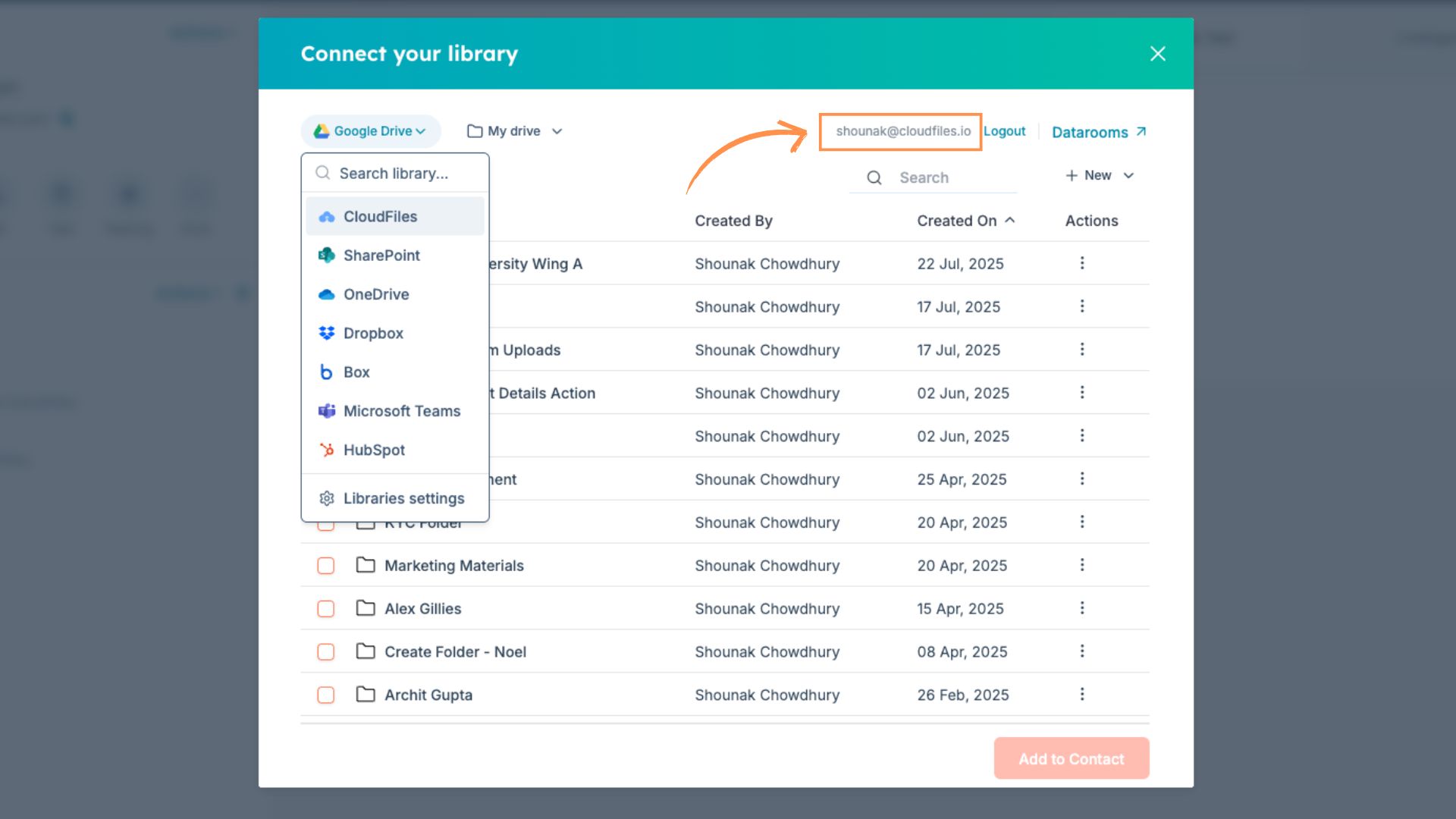
HubSpot's permission system, based on roles and permission sets, dictates what CRM objects, tools, content, and file assets a user can view, edit, or manage. Meanwhile, CloudFiles licenses decide whether a user can see the CloudFiles App Card, so access to the file interface depends on having a license.
2. Real-Time Permission Handling
Changes in permissions within your external cloud library (e.g., Google Drive, SharePoint, OneDrive, etc) are reflected immediately via CloudFiles. The integration provides 2-way live sync. Edits or access changes made externally appear in HubSpot without delay.
3. Automated Permission Handling
CloudFiles supports automated permission updates via HubSpot workflows through the "Update Resource Permission" action. This action can be added to a workflow and triggered by specific conditions, such as a change in deal stage, to manage file or folder access without manual intervention.
When configuring the action, you can:
- Select the external library (Google Drive, SharePoint, Box, or Dropbox).
- Specify the path to the resource (folder path or file name).
- Choose the action: grant to give access or revoke to remove access.
- If granting access, define the permission type (read or write).
- Enter one or more email addresses, use contact emails from the HubSpot record, or allow access to everyone.
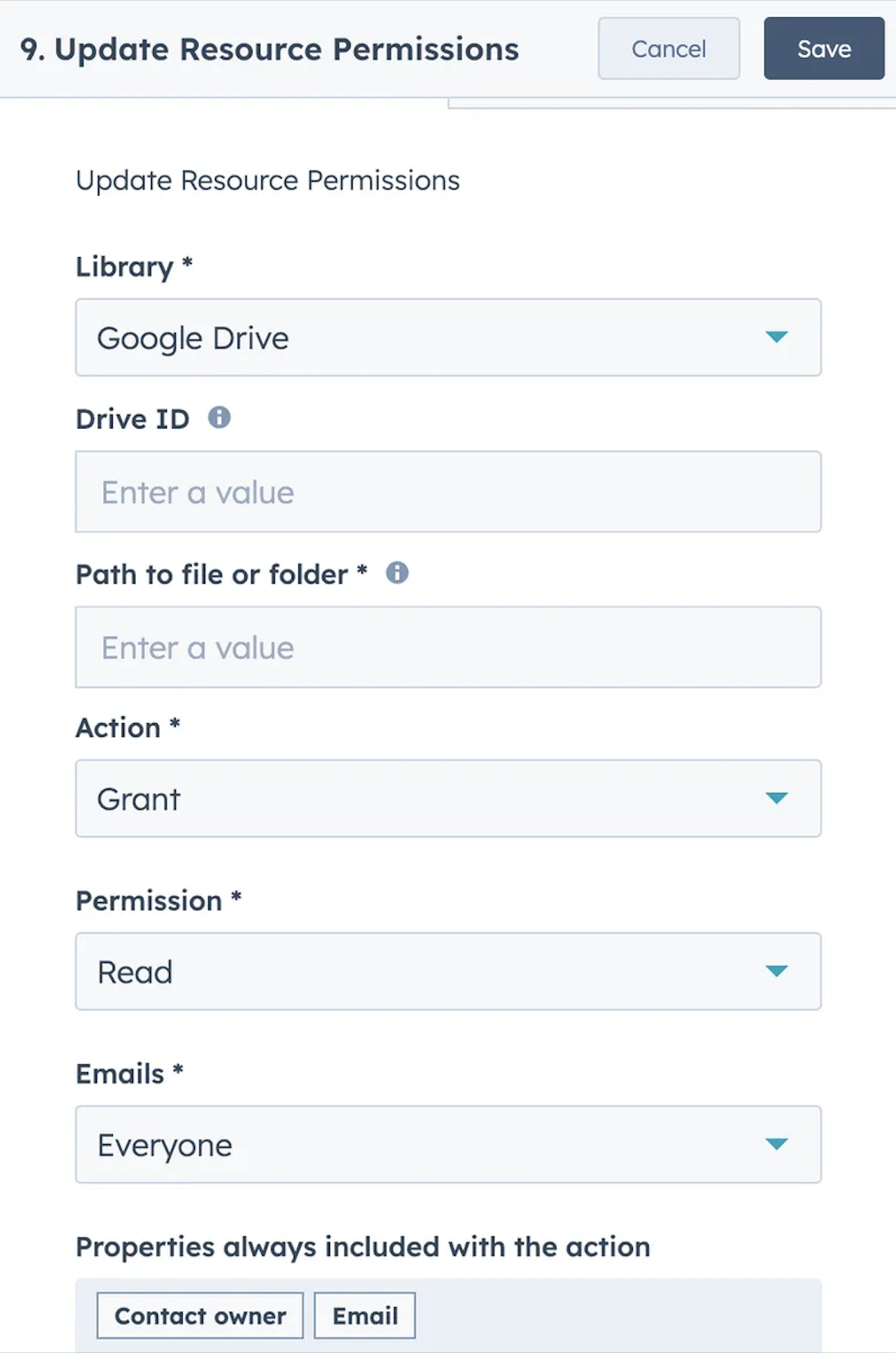
For example, when a deal moves to "Contract Signed," a workflow can revoke access from previous collaborators and grant read access to the new deal owner automatically. The action also returns a status indicating whether the permission update succeeded or failed, allowing you to verify the process.
For more details, see the article on Update Resource Permissions Action.
4. CloudFiles License Assignment
Only users with an assigned CloudFiles license can access the CloudFiles App Card in HubSpot and view or manage associated files. Licenses can be assigned automatically when a user first interacts with the widget (if seats are available) or manually by an admin through the CloudFiles web app. Admins can also invite new users, assign roles (User or Admin), and change roles as needed.
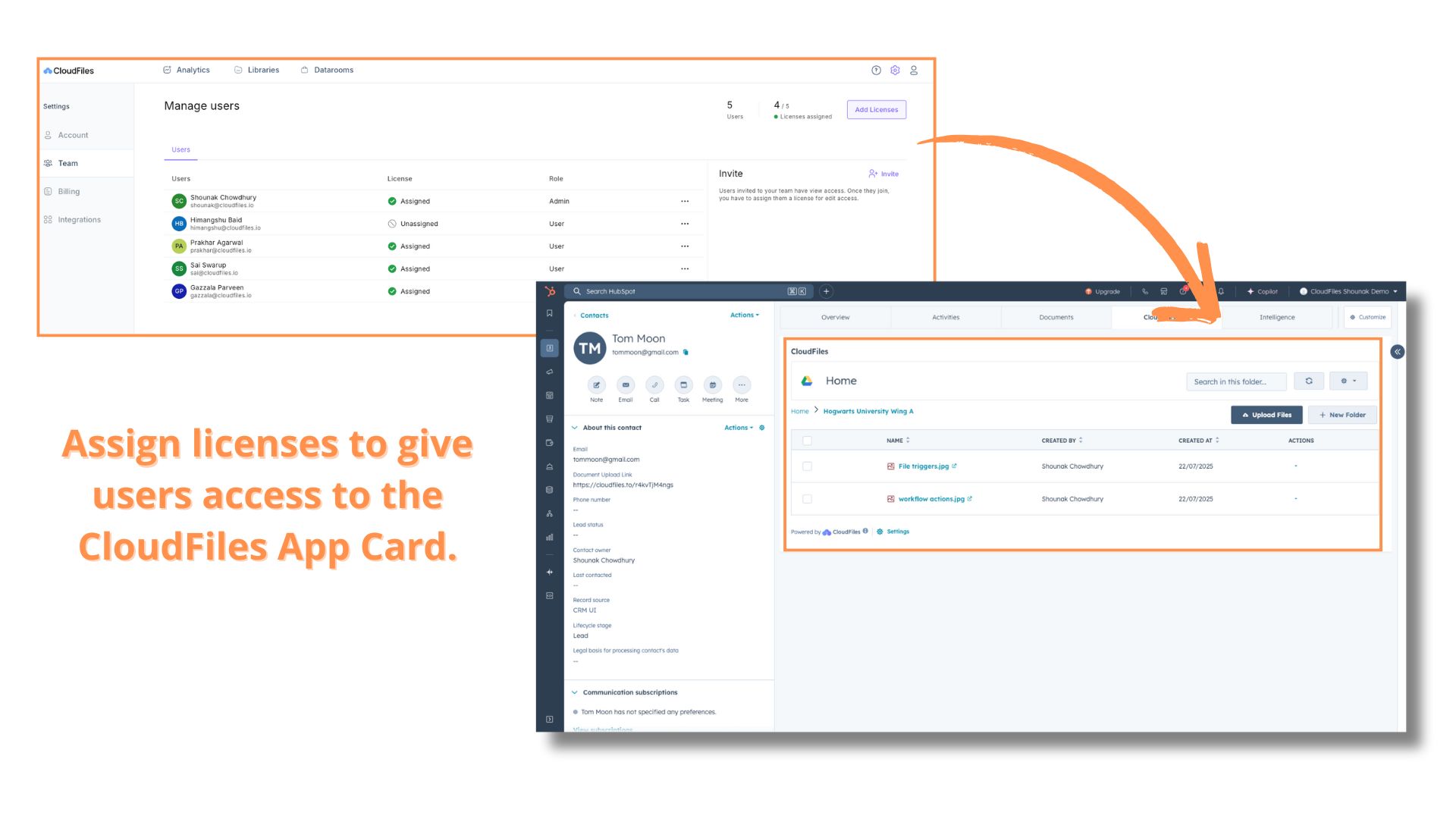
If a user without a license tries to use the widget, they will see an error stating that a license is required. This can be resolved by an admin assigning a license in the CloudFiles web app.
For detailed steps on assigning licenses, inviting users, and managing roles, see: Managing Licenses and Roles in CloudFiles and Inviting Users and Managing Licenses in the CloudFiles App .