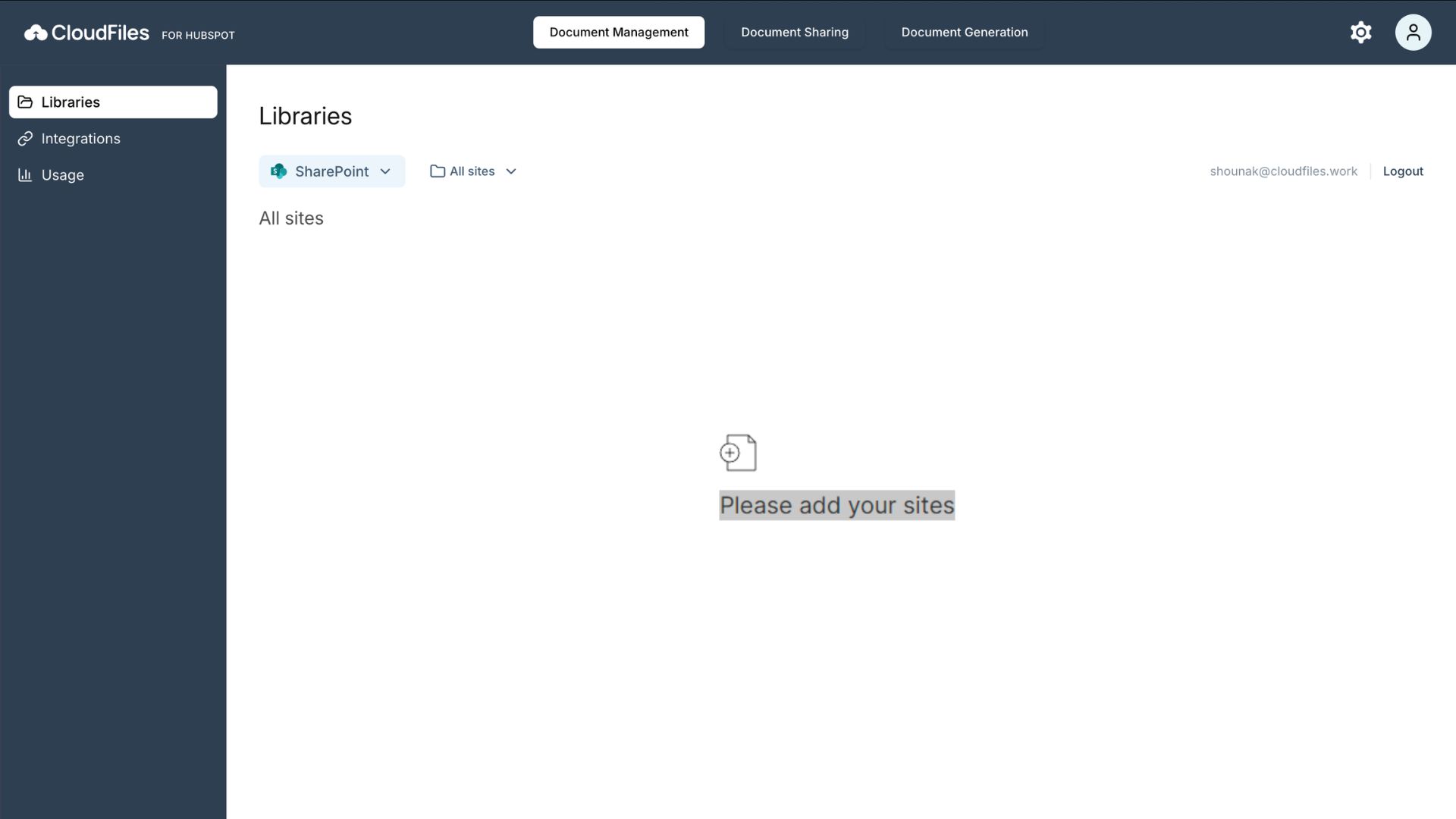
Let us look into these options -
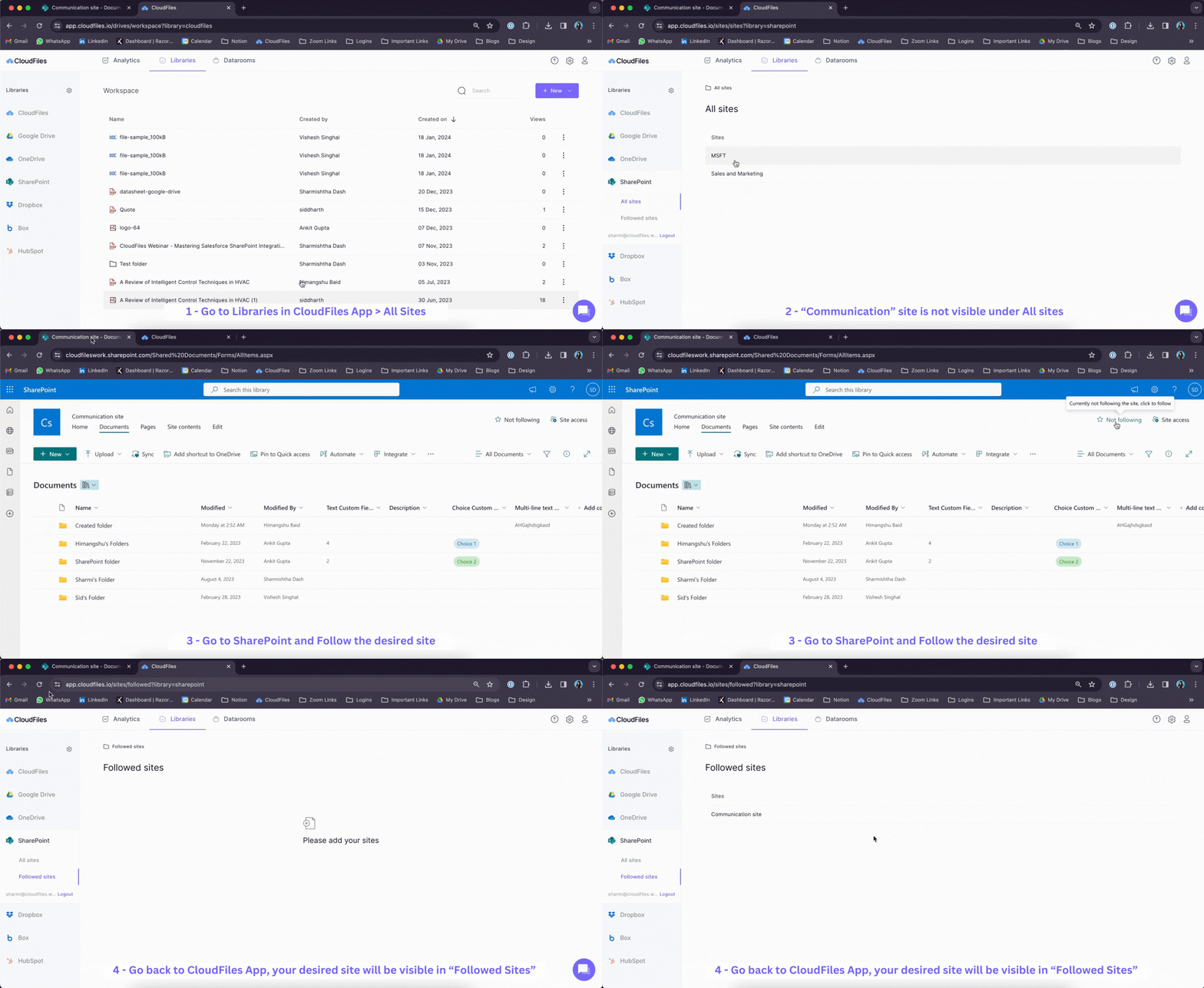
Follow the SharePoint Site
Go to SharePoint and follow the site. Come back to the CloudFiles app and use the followed sites from the dropdown. Followed sites usually work better than the All Sites APIs provided by SharePoint.
Ensure correct SharePoint Login
Make sure you are logged in to CloudFiles with the correct SharePoint login. Consider opening HubSpot in incognito mode, then navigate to CloudFiles > Content Library > Log out from SharePoint and log back in. This ensures that you are logged in with the correct SharePoint user.
Additionally, you can try opening SharePoint in a new tab and ensure that you are logged in with the correct SharePoint user. Sometimes, an O365 user gets logged in instead of the correct SharePoint user, which might create issues.
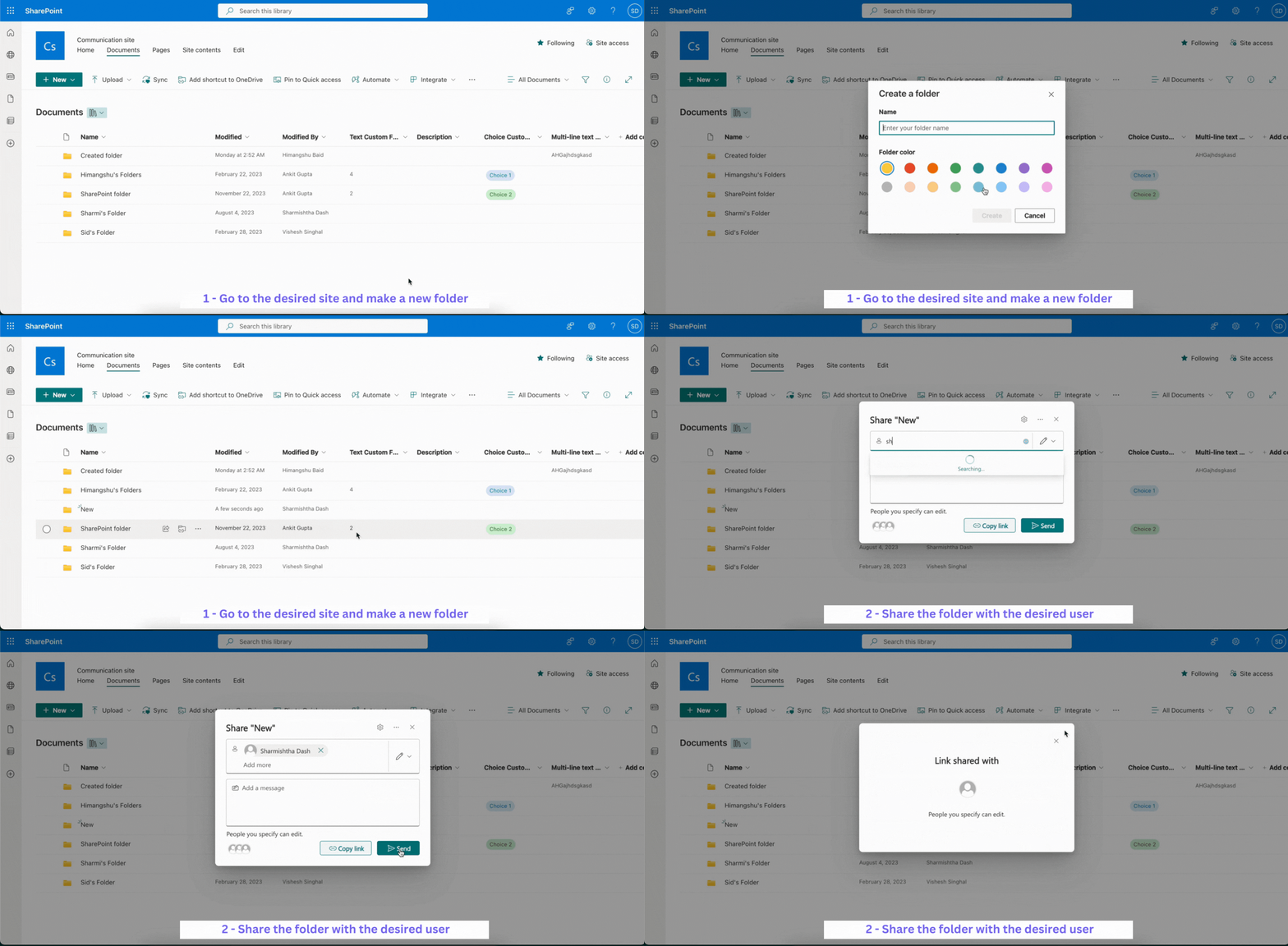
Add Share Permissions for Desired User
Sometimes, creating a folder from SharePoint and explicitly adding share permissions for the desired user will solve the issue. Make sure you have at least 1 folder inside of the site and try adding share permissions explicitly for your user in to it.
Ensure Access to Folders / Sites
Make sure you have access to the folders / sites in SharePoint. Open the SharePoint App and make sure you are seeing SharePoint folders & site there.
In case the problem persists, please chat with us or write to us. We will get back to you as soon as possible.