This article walks you through how to connect external storage accounts in CloudFiles, including Google Drive, SharePoint, and OneDrive.
Supported Storage Platforms
CloudFiles supports integration with multiple external storage providers, including:
- Google Drive
- SharePoint
- OneDrive
- Dropbox
- Box
- HubSpot
- Microsoft Teams
You can connect one or more of these storage platforms based on your requirements. The connection process is similar across all supported providers.
Accessing the Libraries Section
To begin connecting a storage account:
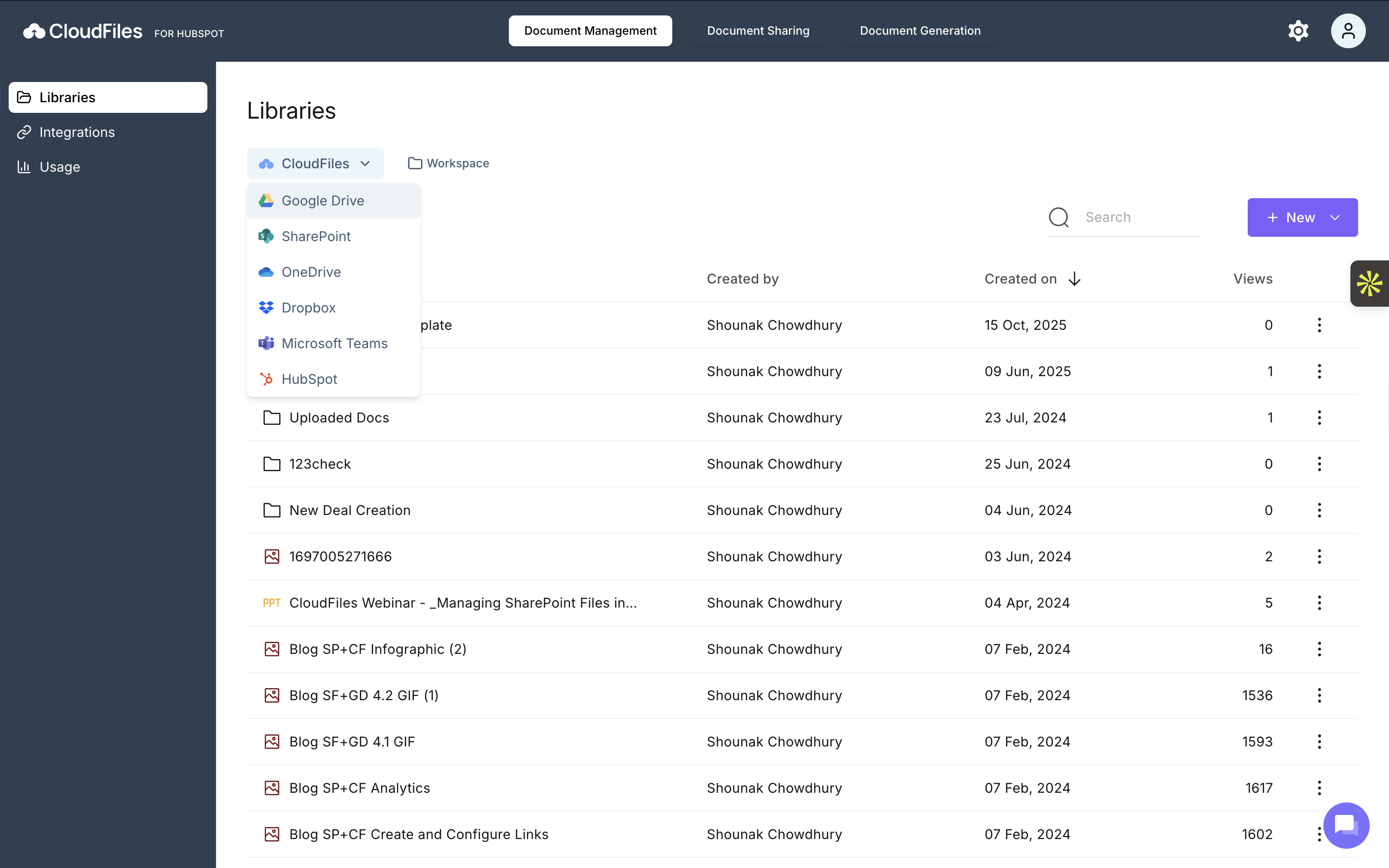
- From the left-hand sidebar in CloudFiles, navigate to Document Management → Libraries.
- Click on the CloudFiles tab under Libraries.
- You will see a list of available storage platforms that can be integrated with HubSpot.
- Select the storage platform you want to connect and follow the corresponding steps.
Steps to Connect Google Drive
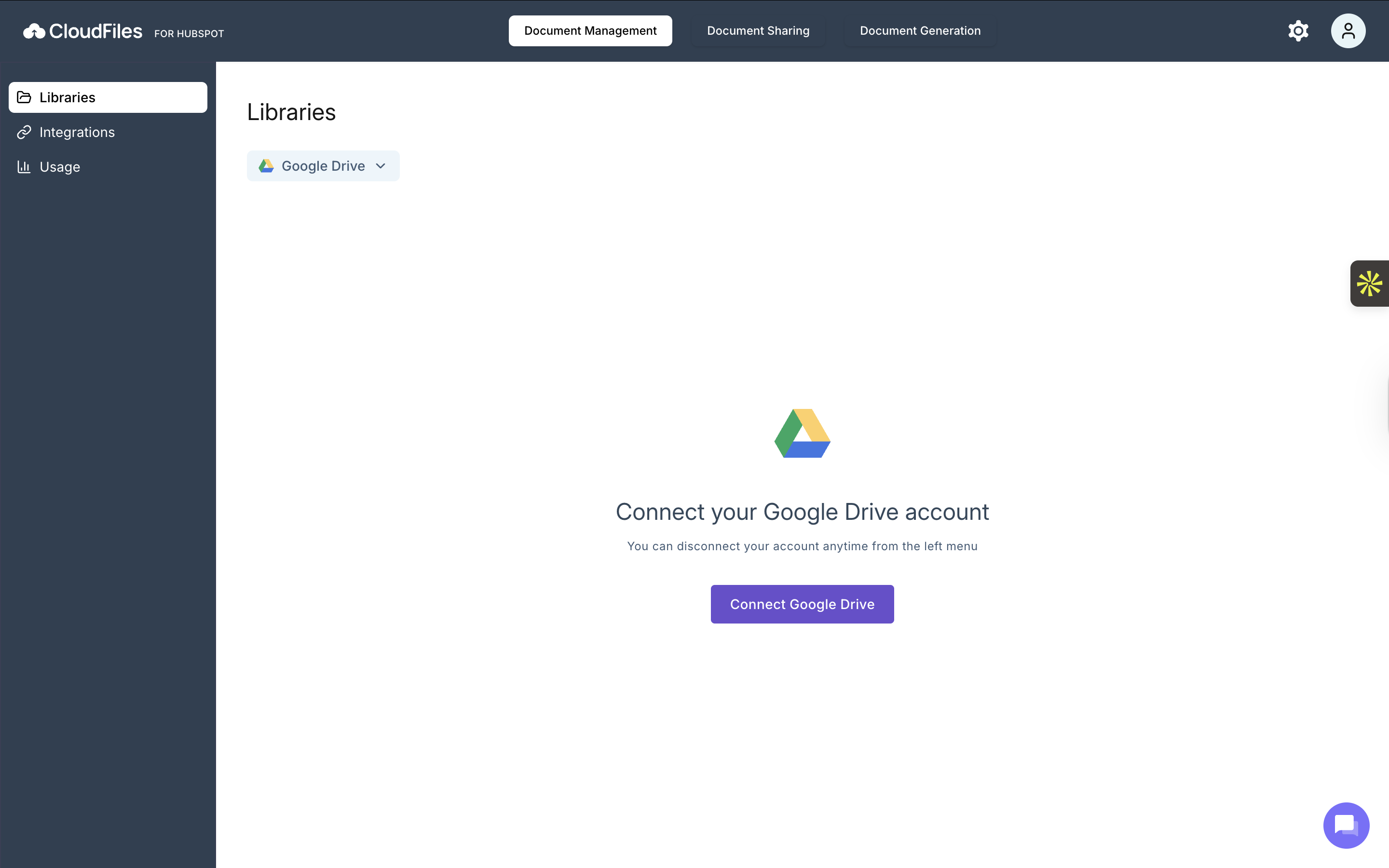
- Go to "Document Management → Libraries" from the left menu.
- Select Google Drive as the library source.
- Click Connect Google Drive.
- On the Google sign-in screen, choose the Google account you want to connect to CloudFiles.
- Review the sign-in confirmation and click Continue.
- On the permissions screen, review the access CloudFiles is requesting.
- Click Allow to grant access to your Google Drive.
- Once connected, you’ll be redirected back to CloudFiles.
Your Google Drive folders will now be visible under My Drive.
Steps to Connect SharePoint
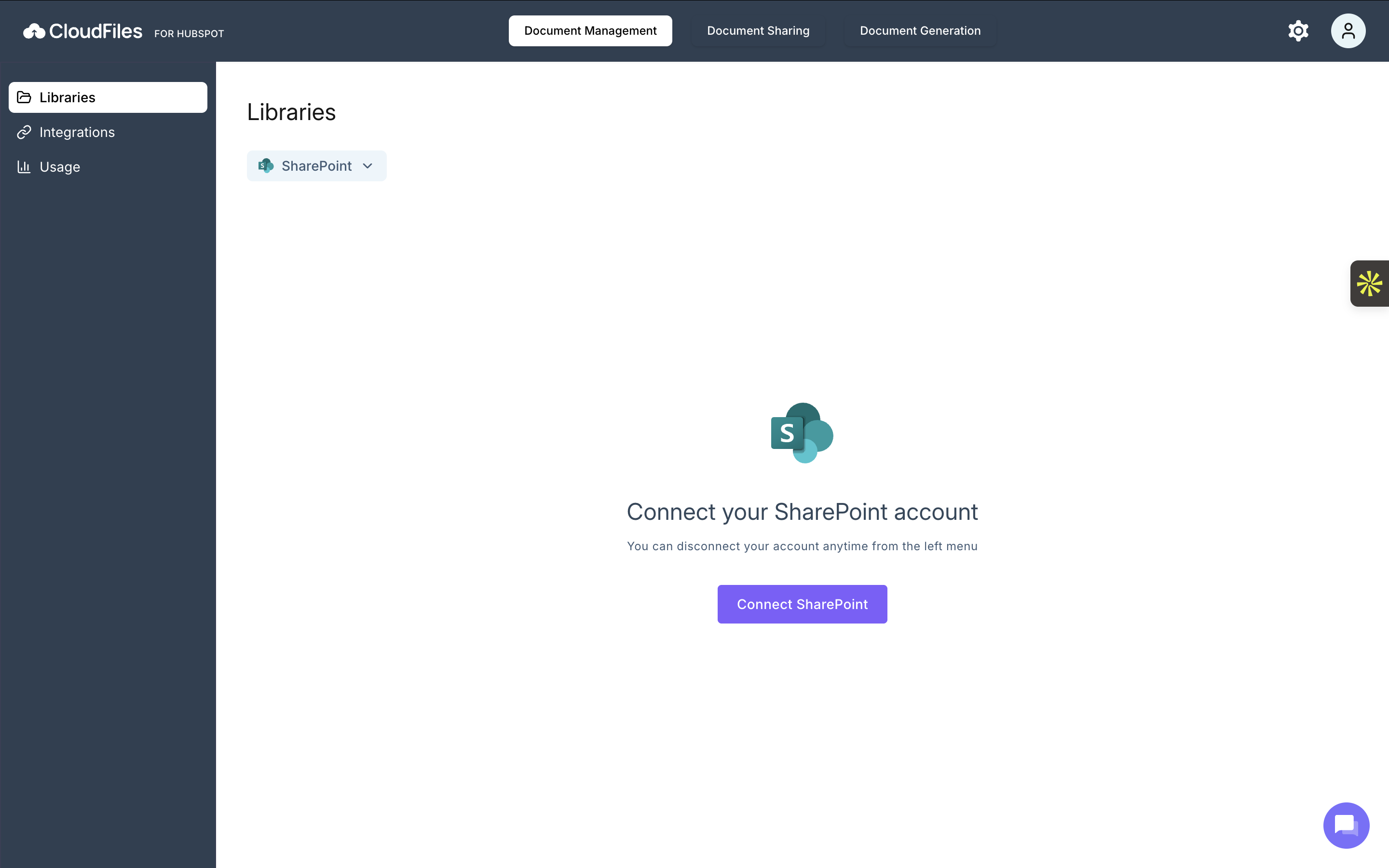
- Go to Document Management → Libraries from the left menu.
- Select SharePoint as the library source.
- Click Connect SharePoint.
- On the Microsoft sign-in screen, choose the account you want to connect to CloudFiles.
- Enter your credentials and password.
- After successful authentication, you’ll be redirected back to CloudFiles.
Your SharePoint folders will appear under All Sites and Followed Sites in the Libraries section.
Steps to Connect OneDrive
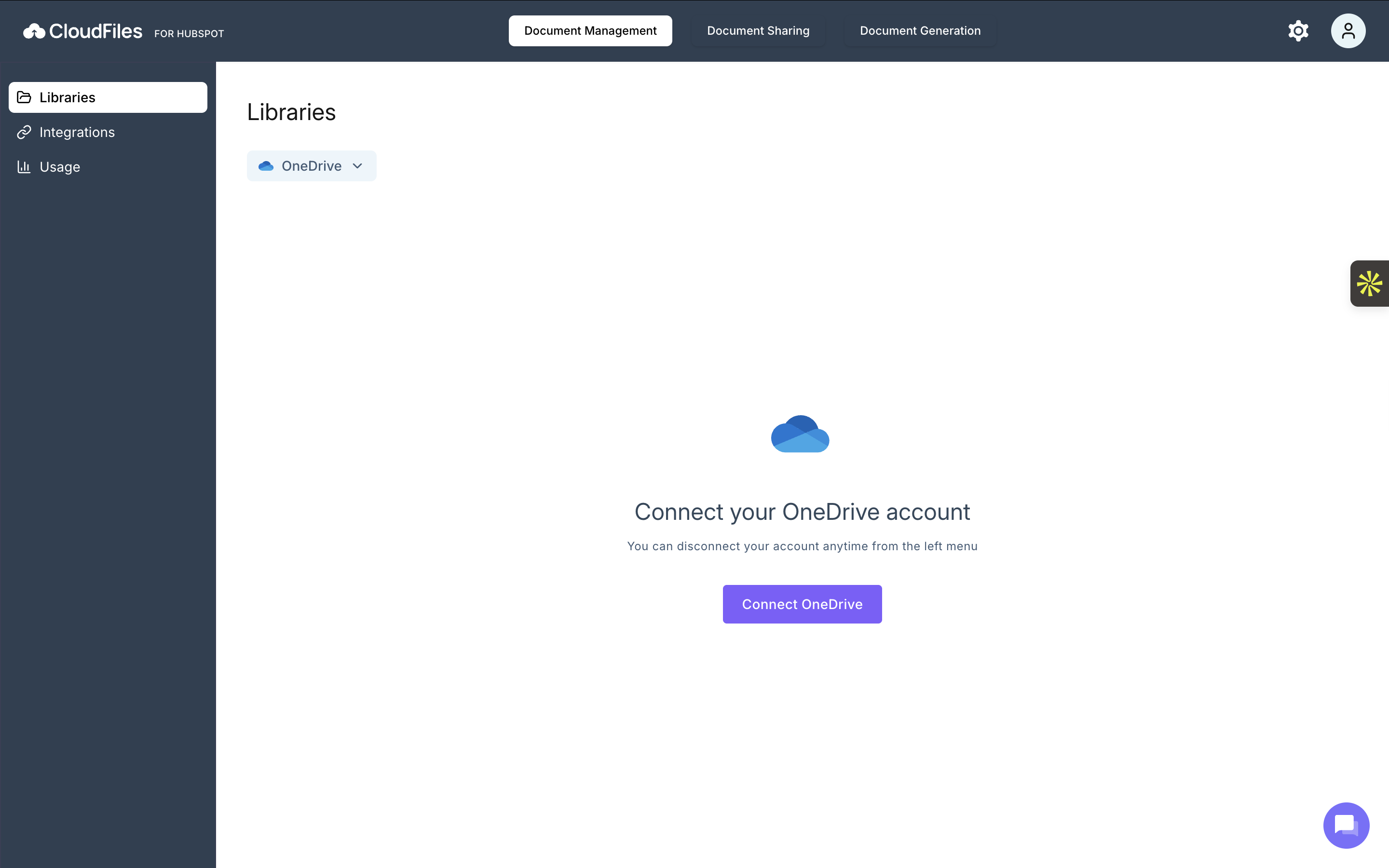
- Go to Document Management → Libraries from the left menu.
- Select OneDrive as the library source.
- Click Connect OneDrive.
- On the Microsoft sign-in screen, choose the account you want to connect to CloudFiles.
- Enter your credentials and password.
- Once the connection is complete, you’ll be redirected back to CloudFiles.
Your OneDrive folders will now be available under All Files.
By connecting external storage accounts to CloudFiles, you can centralize document access directly within HubSpot and streamline your document management process. You can follow similar steps to connect other supported storage platforms such as Dropbox, HubSpot, and Microsoft Teams.
Once connected, all your files remain accessible from the Libraries section, making it easier to manage documents across multiple storage providers from a single interface.