This article explains the following sections:
- Access Controls – Explains how link availability and viewer access are managed.
- Download Settings – Describes how downloading shared content can be allowed or restricted.
- Expiry Settings – Explains how and when links expire based on time or views.
- Notification settings - are also available to control when the link owner is informed about link views.
- Security Settings – Describes authentication, password protection, and access restrictions.
Access Controls
Access to a shared file or folder is controlled using the Online toggle available in the Get Link modal. When a link is set to Online, the link is active and can be accessed by anyone who has the URL, subject to the security settings applied. When the link is set to Offline, the link is immediately disabled and cannot be accessed, even if the URL is shared.

The Get Link modal also provides options to copy the link and preview it before sharing. These actions do not affect access permissions but allow users to validate link behaviour.

Download Settings
The Download settings control whether recipients are allowed to download the shared file or files within a folder.

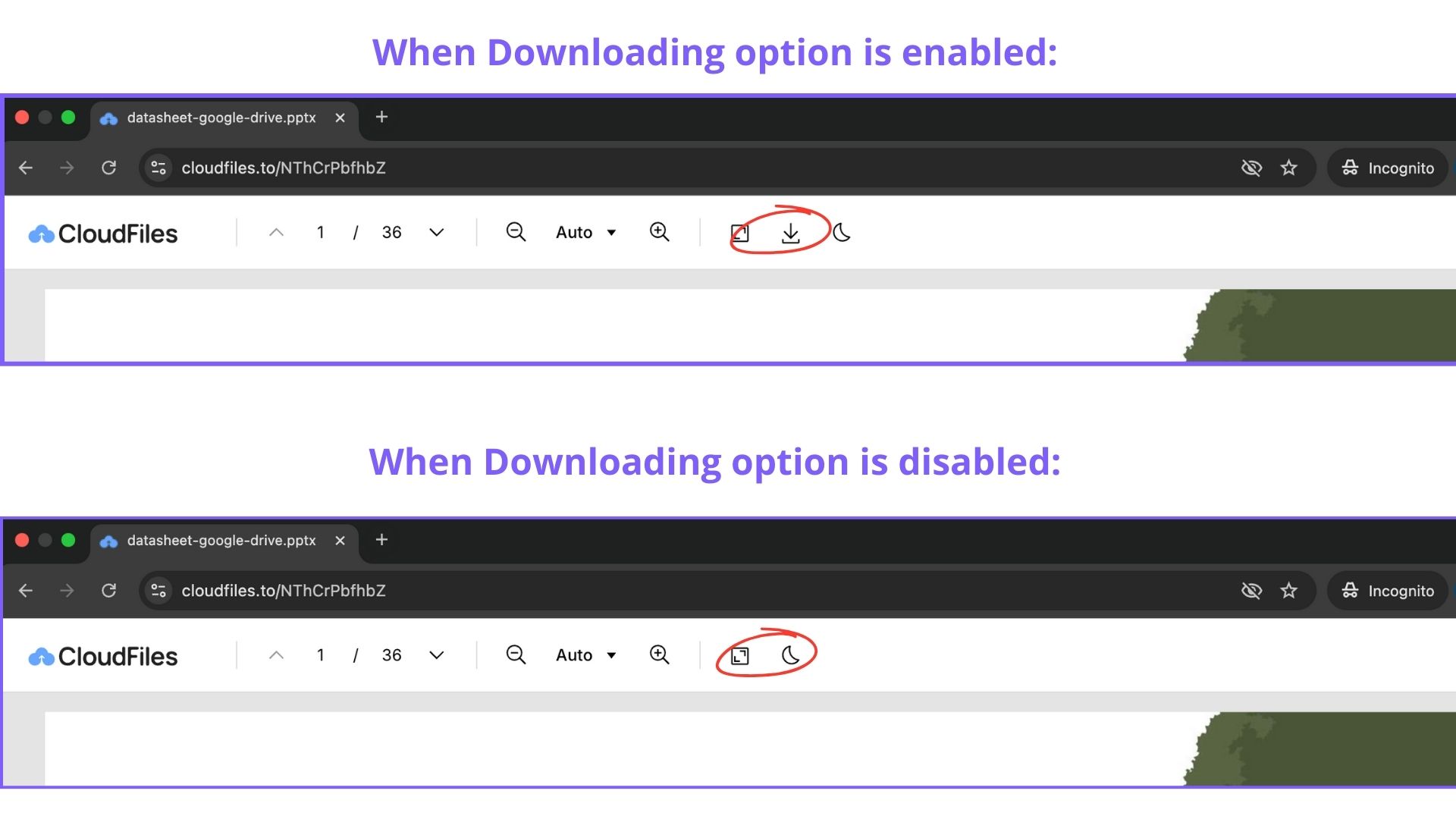
When downloading is enabled, recipients can download the file directly from the CloudFiles viewer. For folder links, downloading applies to individual files based on the same setting. When downloading is disabled, recipients can only view the content in the CloudFiles viewer. Download buttons are hidden, and files cannot be saved locally through the viewer. Download restrictions are enforced consistently across all supported file types.
Expiry Settings
Expiry settings define when a shared link should stop working automatically. Links can expire based on a specific date and time or after a defined number of views. When both conditions are configured, the link expires as soon as the first limit is reached.
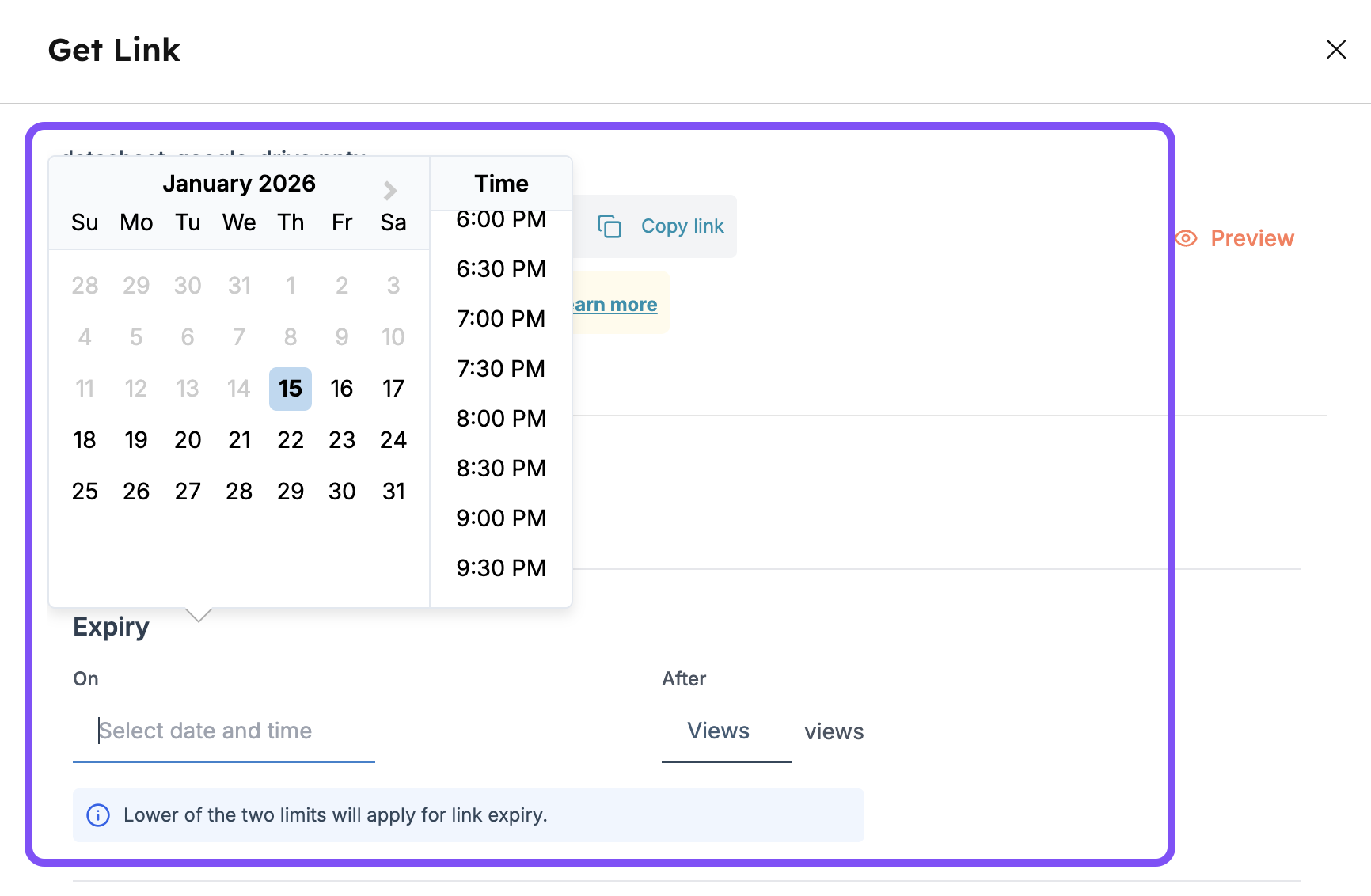
Once a link expires, it becomes inaccessible and behaves the same as a link that has been set offline. Expired links can be reactivated by updating the expiry settings. Expiry settings apply equally to file and folder links.
Notification Settings
Notification settings control when the link owner is notified about link activity. Users can choose to receive notifications only when a link is viewed for the first time, receive notifications for every view, or disable notifications entirely.

These settings apply to both file and folder links and do not affect link access or security behaviour. Notifications are informational and are intended to provide visibility into link engagement.
Security Settings
Security settings are configured from the Security tab in the Get Link modal and provide additional control over who can access the shared content.
- Password protection allows the link to be secured with a password. Recipients must enter the correct password before accessing the content.
To enable password protection on a link:
- Select the file, folder, or data room you want to protect from the App card/sidebar widget, then click Share.
- Go to the Security tab in the Get Link modal.
- Turn on the "Protect with password" option, enter the password you want to use, and save.
Once set, anyone opening the link will be prompted to enter this password before they can view the content. The password can be updated or removed at any time, even after the link has already been shared.

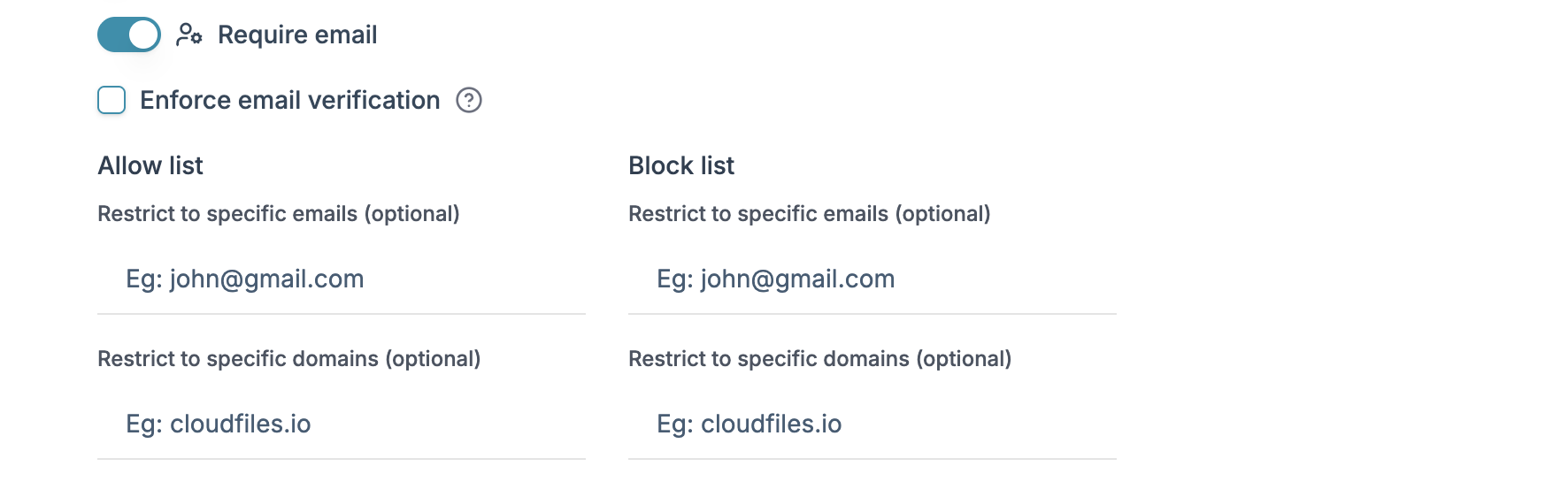
- Email-based access restricts link access to verified email addresses. When enabled, recipients must enter their email address before viewing the content. Email verification can be enforced to ensure access is granted only after verification.
Allow and block lists can be used to explicitly permit or deny access to specific email addresses or email domains. These restrictions apply even if the user has the correct link and password.
- CloudFiles also supports restricting access based on HubSpot contact lists. When enabled, only contacts included in the selected HubSpot list can access the link.

All security settings apply immediately and affect both existing and future link access.