Introduction
The Insert Field action allows you to insert any HubSpot property into your Excel template as placeholder and fetches relevant data when the file is generated. You can insert data from the following sources:
- Master Object: The HubSpot record selected at the start of template creation including all its properties.
- Record Variable: Holds a record and its field values, created by selecting an object type and setting conditions.
Steps to insert a field
- Select Insert Field from the Select Action drop-down menu.
- Choose the desired field from the drop-down menu.
- Master Object fields are listed under "Record" (Global Variables).
- Record Variables appear under "Variable".
- Click Insert to place the field at the cursor's location in the work area. You can also copy and paste inserted fields as needed.
Formatting Options
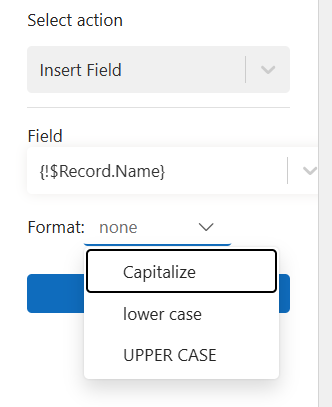
Text: You can choose to capitalize (first letter in uppercase), use lowercase, or uppercase for the text.
Font: All inserted fields can be formatted like regular text in Word, including changes to font, size, and style.
Date Formatting: You can format dates as Short (08/23/2024), Medium (Aug 23 2024), Long (August 23, 2024), or Full (Friday, August 23, 2024).
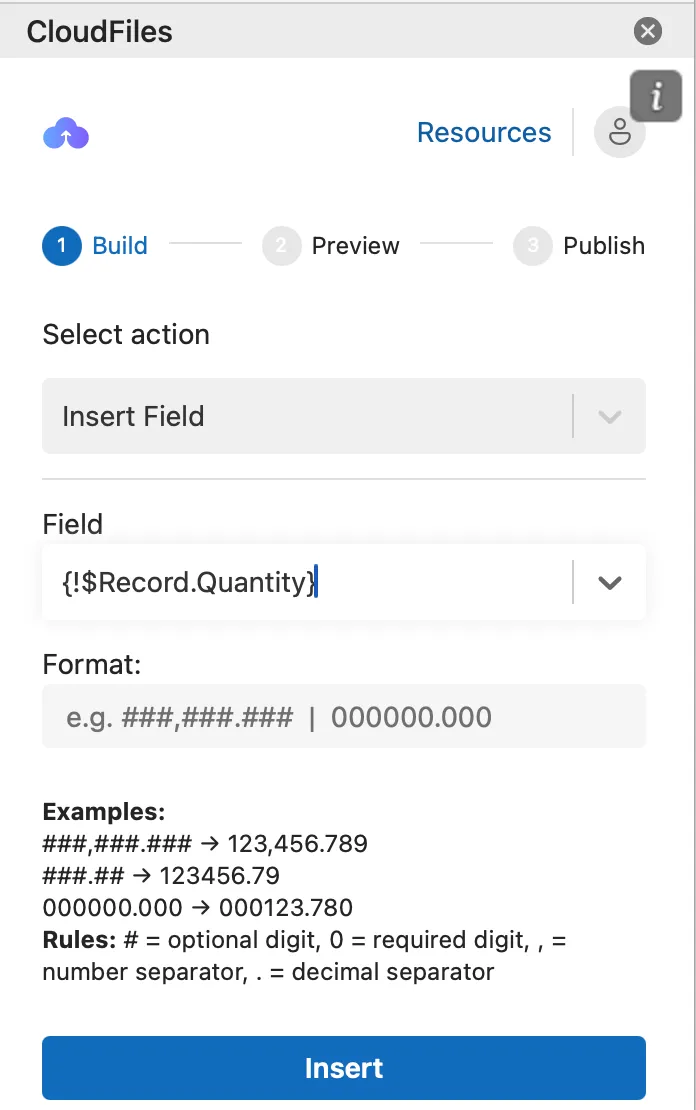
Number Formatting: For number fields (like int or double), you can apply custom formats:
- # – shows digit only if present (e.g., ###,###.### → 1,234.56)
- 0 – always shows digit, even if zero (e.g., 000,000.000 → 001,234.560)
- , – thousands separator
- . – decimal separator