Steps to Install
CloudFiles is available on the app marketplace and can be installed using the standard app installation process. In order to install the app, you only need to follow some quick steps -
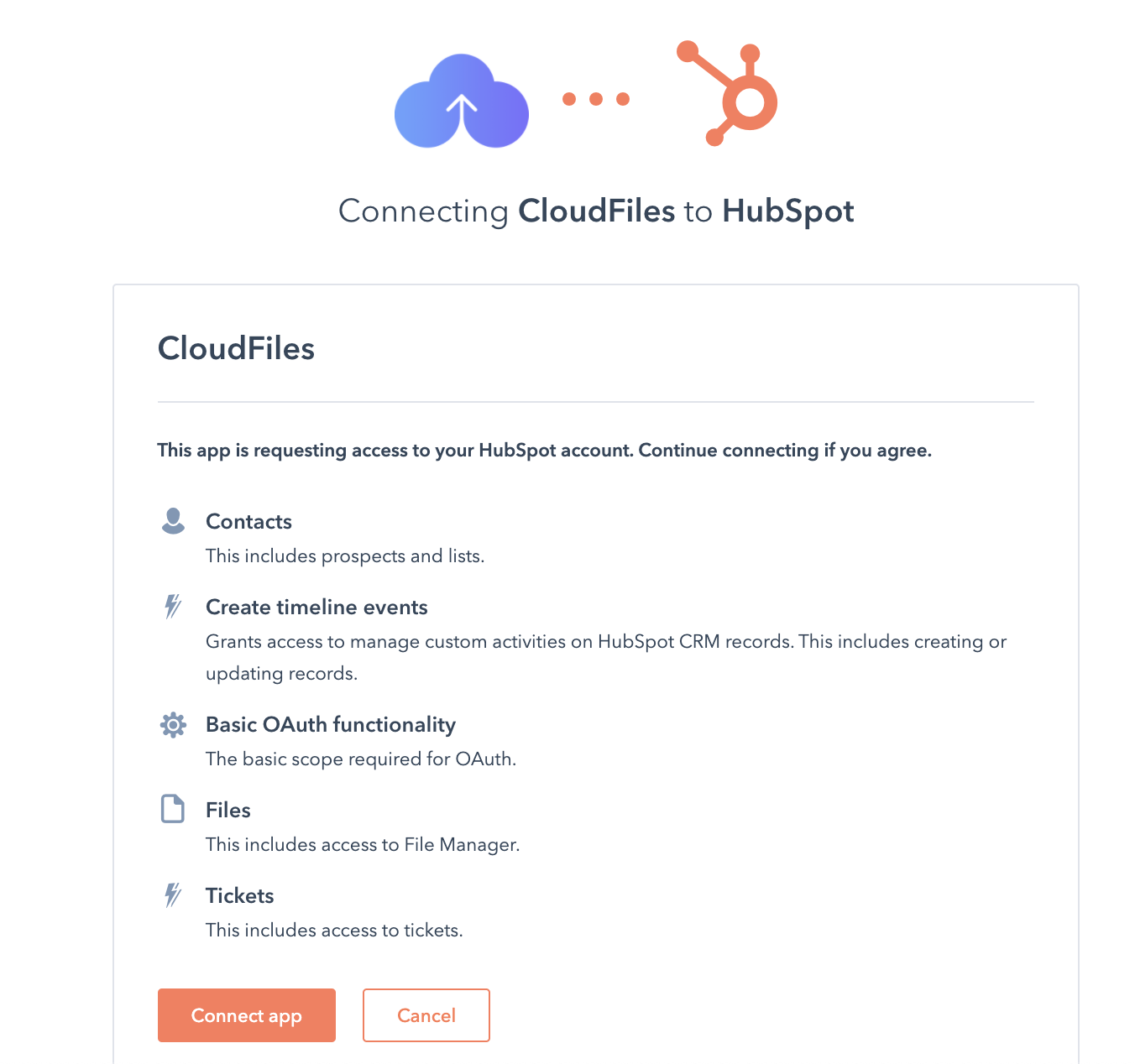
Now that CloudFiles is installed in your HubSpot, you can start using it. To get started quickly, we provide various quick start guides that talk about incrementally advanced features. Refer to these guides in sequence to become a HubSpot - CloudFiles integration expert.
Quick Starts By Product
These articles talk about various CloudFiles product capabilities with detailed screenshots.
- Doc Management Quickstart: Using cloudfiles as a connector to external storages such as Google Drive, SharePoint etc...
- Doc Sharing Quickstart: Using CloudFiles for file sharing and analytics in HubSpot by creating sharing links, configuring security settings, and tracking file performance.
- Doc Generation Quickstart: Generate one-click on-brand documents with templates created in native microsoft / google editors.
- Doc Automations Quickstart: This articles details CloudFiles' automation capabilities using workflow actions, segment filters, triggers etc...
Quick Starts By Role
These articles talk about various CloudFiles capabilities in context of specific types of HubSpot users.
- CMS & Marketing Users Quick Start: This article covers how CloudFiles enahances marketing tasks such as hosting files on website, sending in bulk emails, behind HubSpot forms etc...
- Sales & Service Users Quick Start: This article covers how CloudFiles enhances sales & service functions such as managing files from records, sharing as portals, collecting files etc...
- Admin Quick Start: This quick start talks about the various settings that the CloudFiles Admin has control over.
Once you are done with these, you can also go to the Features section explore the features in detail or head over to the Tutorials section to learn how to build various use cases using CloudFiles.
To talk to us, you can email us at support@cloudfiles.io or chat with us using the chat bubble at the bottom right of the screen.