Introduction
You can insert a table into a Microsoft Word template using data from HubSpot records. These records are stored as a Collection Variable Resource, which allows you to retrieve and display structured data within the document.
- Select the Action:
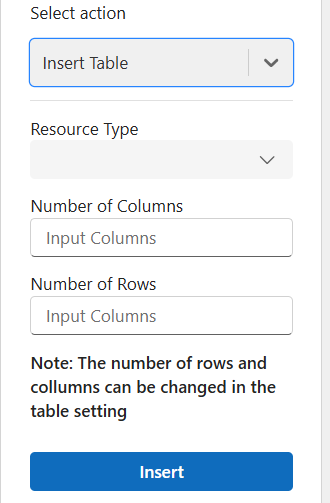
- In the "Select Action" dropdown, choose "Insert Table."
- Choose a Record Collection Variable:
- In the "Resource Type" field, select a Record Collection Variable Resource.
- Ensure that a Collection variable resource is created before inserting the table.
- Only one collection variable is supported per table. Multiple collection variables are not currently supported.
- Define Table Structure:
- Set the resource type as a collection.
- Specify the number of columns and rows required.
- You can define or later modify the number of rows and columns using the built-in table editing tools
- Insert Fields and Manage Rows:
- Insert relevant fields into the table. You can insert multiple fields into the same cell.
- To create dynamic rows, set them as data rows by placing the cursor in any cell of the required row and click the Make Data Row option that appears under the Insert Table action.
Data rows repeat themselves for the selected collection. For example, the first row represents the first Line item, the second row represents the second Line item and so on.
- While using the Insert Field action, the created Record Collection Variable is only available when you enter the Data row.
- Fields, conditions, and links can only be inserted within a designated Data Row
By following these steps, you can dynamically insert and manage tables based on record collections.
You can customize and format the table using standard Word formatting options, including font styles, alignment, borders, and shading.
Go to 2:56 to see the Insert Table action being used to create a PO template in Microsoft Word.