Introduction
The DocuSign integration feature enables you to automatically send generated documents for e-signature directly via DocuSign, using predefined form fields and recipient mappings. In addition to signature capture, the integration also supports Date Signed and Text fields, allowing you to collect signing timestamps and custom input from recipients during the signing process.
This functionality works in combination with two key additions to your document generation configuration:
- Recipient Resource – This defines the recipient of the generated PDF. It includes the recipient’s name, email and determines who receives the DocuSign request.
- Insert Form Field Action – This allows you to insert DocuSign form fields directly into the Word document template, including Signature, Date Signed and Text fields.
- Date Signed Field - Automatically captures and displays the signing date.
- Text Field - Enables recipients to enter custom text during document signing.
Each field is linked to a specific recipient and defines where input is captured during signing.
Prerequisite
Before using this feature, ensure your DocuSign account is connected to CloudFiles.
Navigate to CloudFiles web app → Document generation tab → Integrations section and connect your DocuSign account. This step is mandatory for all DocuSign-related functionality to work correctly.
How to Use This Feature
Follow these steps to configure recipients and signature fields -
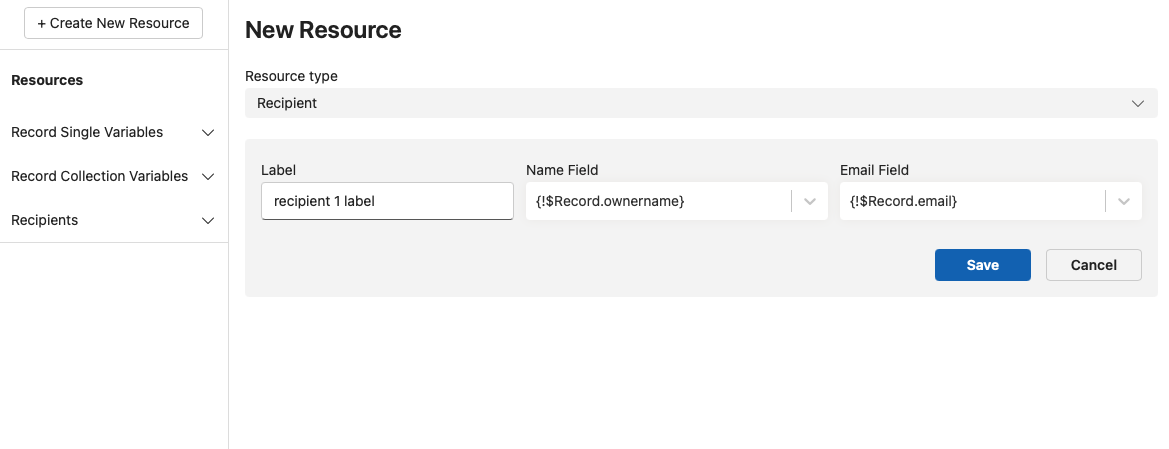
1 - Create a Recipient Resource
Start by adding a new recipient resource. This resource should include all relevant recipient details, especially the email address to which the DocuSign request will be sent.
2 - Insert a Form Field Action
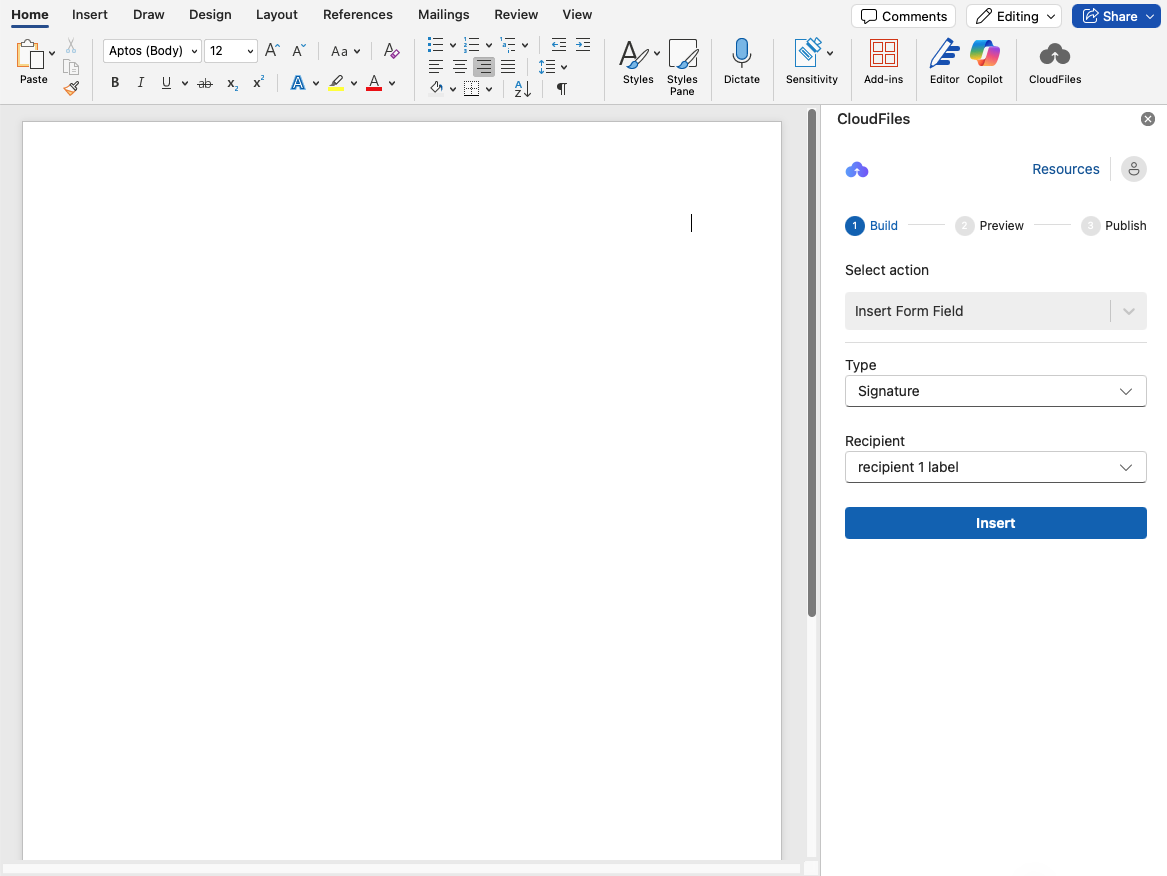
- Open your Word template in the document generation configuration.
- From the Insert Form Field Action dropdown, select the Signature field type.
- Choose the intended Recipient to whom this signature is assigned. This ensures that when the document is sent, the correct person receives the email and is prompted to sign.
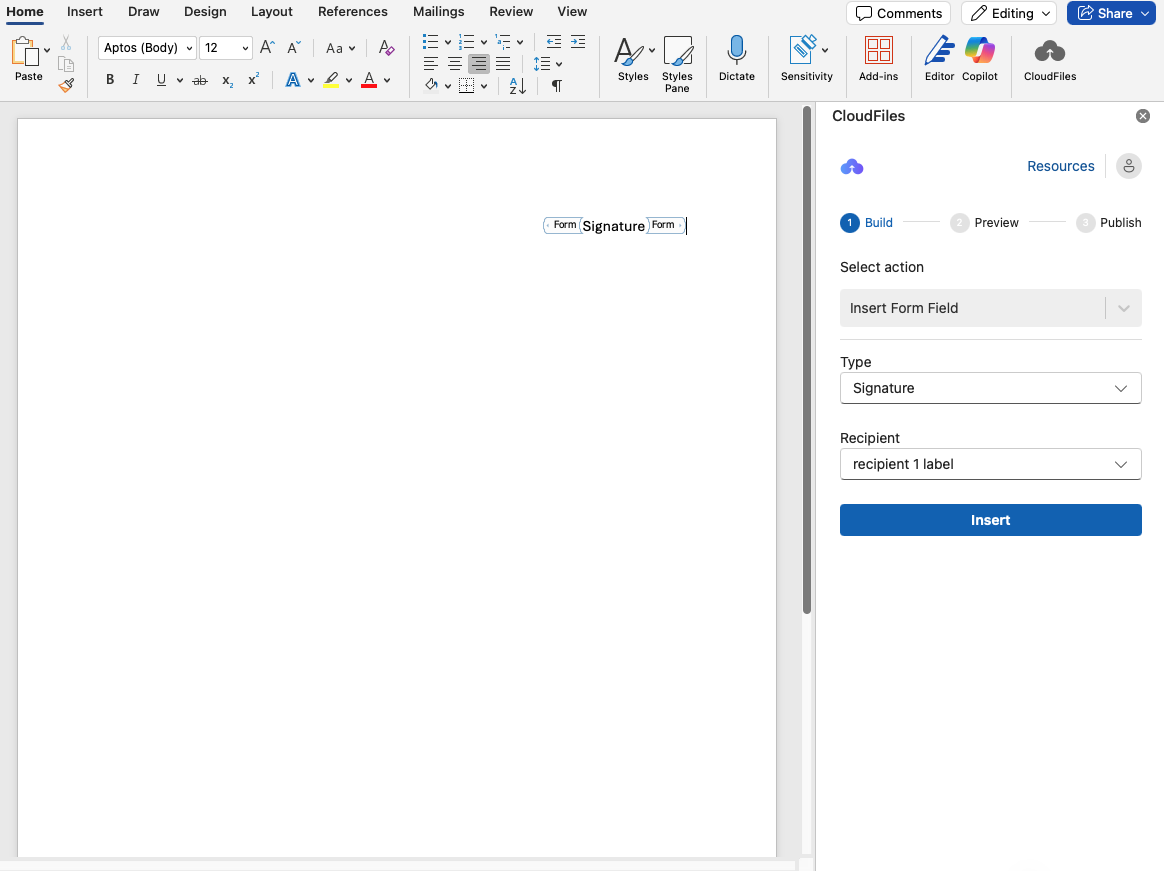
3 - Visual Placement of Signature Field
Once inserted, a placeholder form field with the word "signature" will appear in your document. This field marks the approximate location where the DocuSign signature box will appear.
4- Form Fields for Text and Date signed
Similarly, Insert placeholder form fields for Text and Date signed
Field Behavior During Signing:
- Date Signed Field: Automatically populated when the recipient signs the document in DocuSign, showing the exact signing timestamp.
- Text Field: Presents an input box where recipients can enter custom text as part of the signing process.
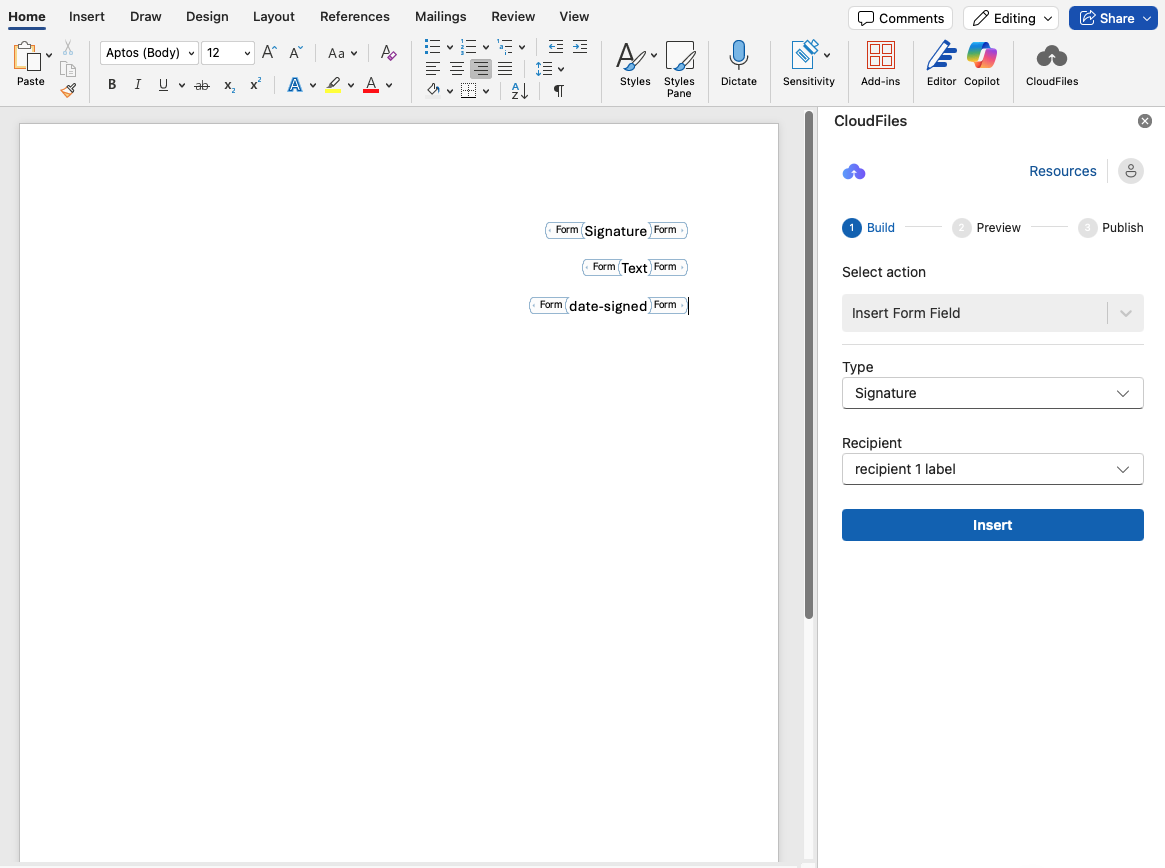
The actual rendering may vary slightly, We recommend testing different positions to ensure fields appear in optimal locations for your specific template layout.
5 - Triggering DocuSign
When you generate a preview or finalize the document, a call is made to DocuSign. The system will:
- Generate the PDF.
- Send an email to the designated recipient with the PDF attached for signature.
- You can use multiple Date Signed and Text fields in the same document but each field must be assigned to a specific recipient
- You can assign signature fields to multiple recipients in the same document.
- Coming Soon: The signing order feature (to define who signs first, second, etc.)