Link Default Settings define how newly created CloudFiles links behave by default. These settings are available under the Link Default tab from the Document Sharing settings of the Document Sharing Product Tab. These settings help you control access, security, and viewer interactions across all shared documents in your workspace. Link Settings are grouped into two categories:
- General: General Settings determine the default behaviour and interaction rules for your links.
- Security: Security Settings define the protection and access requirements for newly created links.
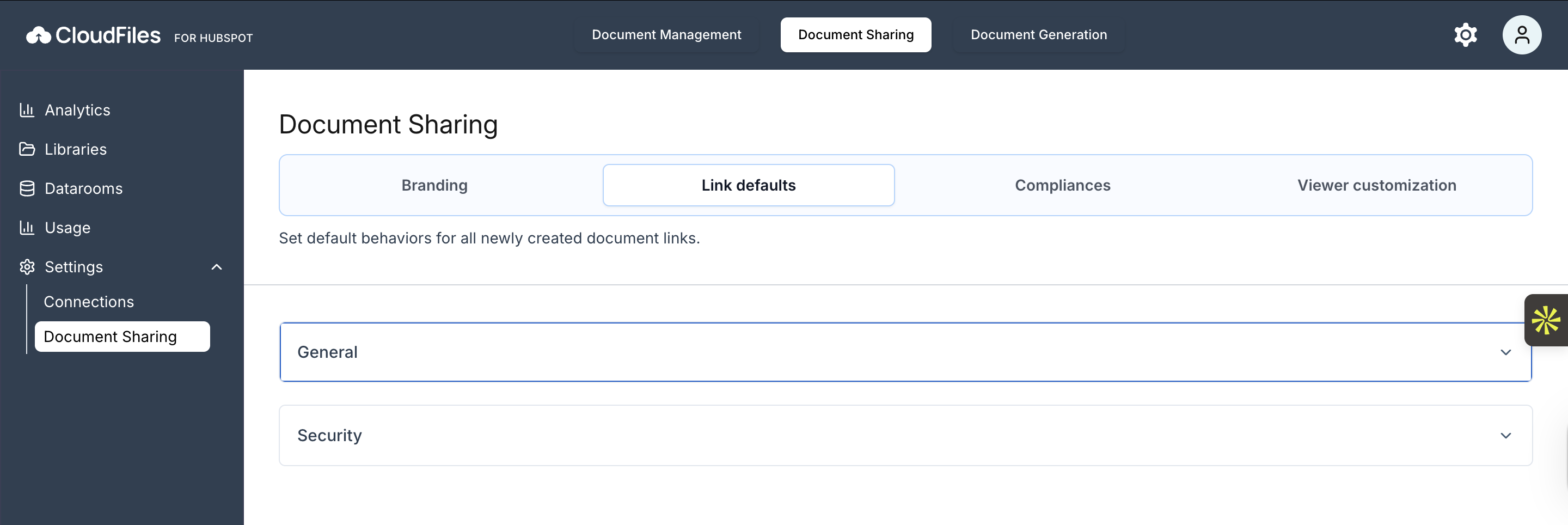
General Settings
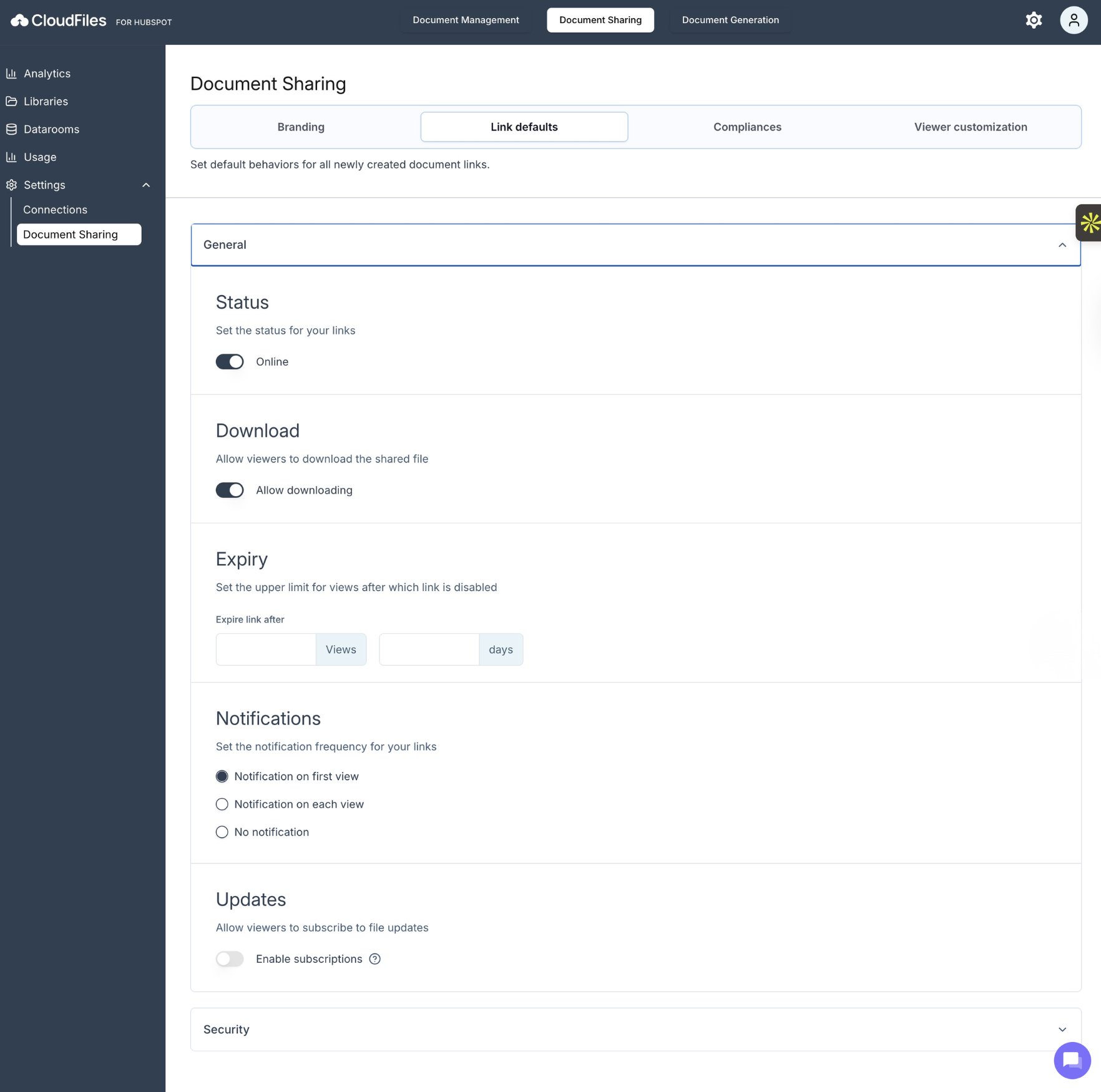
General Settings control the basic behaviour of your links and how recipients can interact with shared files.
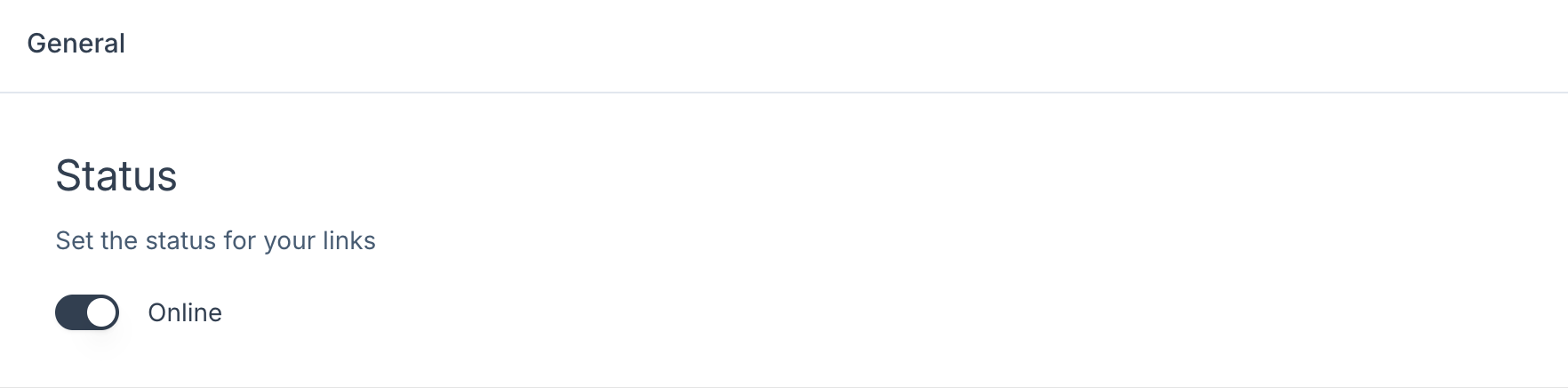
Status
This option allows you to set the default availability of all newly generated links. When the status is set to Online, the link is active and accessible to viewers immediately upon creation. Turning it offline prevents access until you manually enable it.
Download
This setting determines whether viewers are allowed to download the file from the shared link. When downloading is enabled, recipients can save a local copy. If disabled, the file can only be viewed through the CloudFiles viewer, providing an extra layer of control and security.

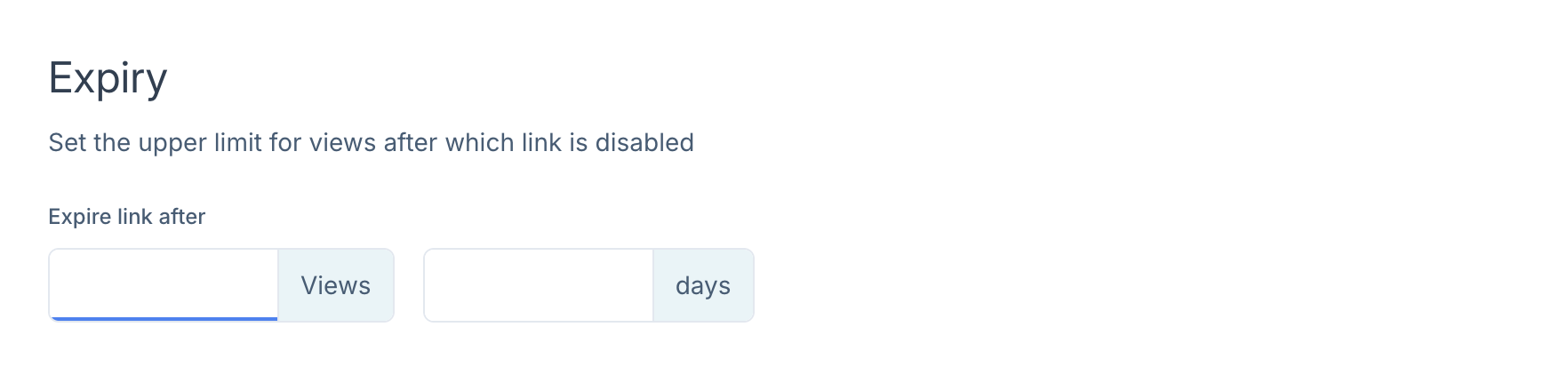
Expiry
Expiry lets you set an automatic limit on how long a link remains accessible. You can choose to disable a link after a specific number of views or after a certain number of days. Once the limit is reached, CloudFiles automatically disables the link to prevent further access.
Notifications
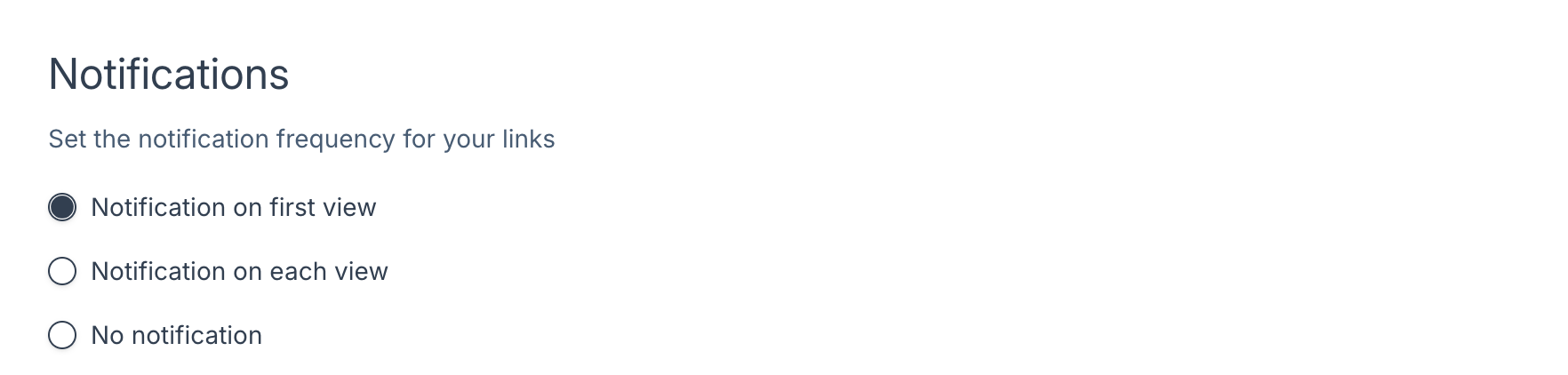
This setting controls how often you are notified about viewer activity. You can choose to receive a notification on the first view, a notification on every view, or no notifications at all. This helps you stay informed about engagement without overwhelming your inbox.
Updates
This option allows viewers to subscribe to updates on the file. When enabled, anyone accessing the link can opt in to receive notifications whenever the shared file is updated or replaced. This is useful for documents that change frequently or require ongoing recipient awareness.

Security Settings
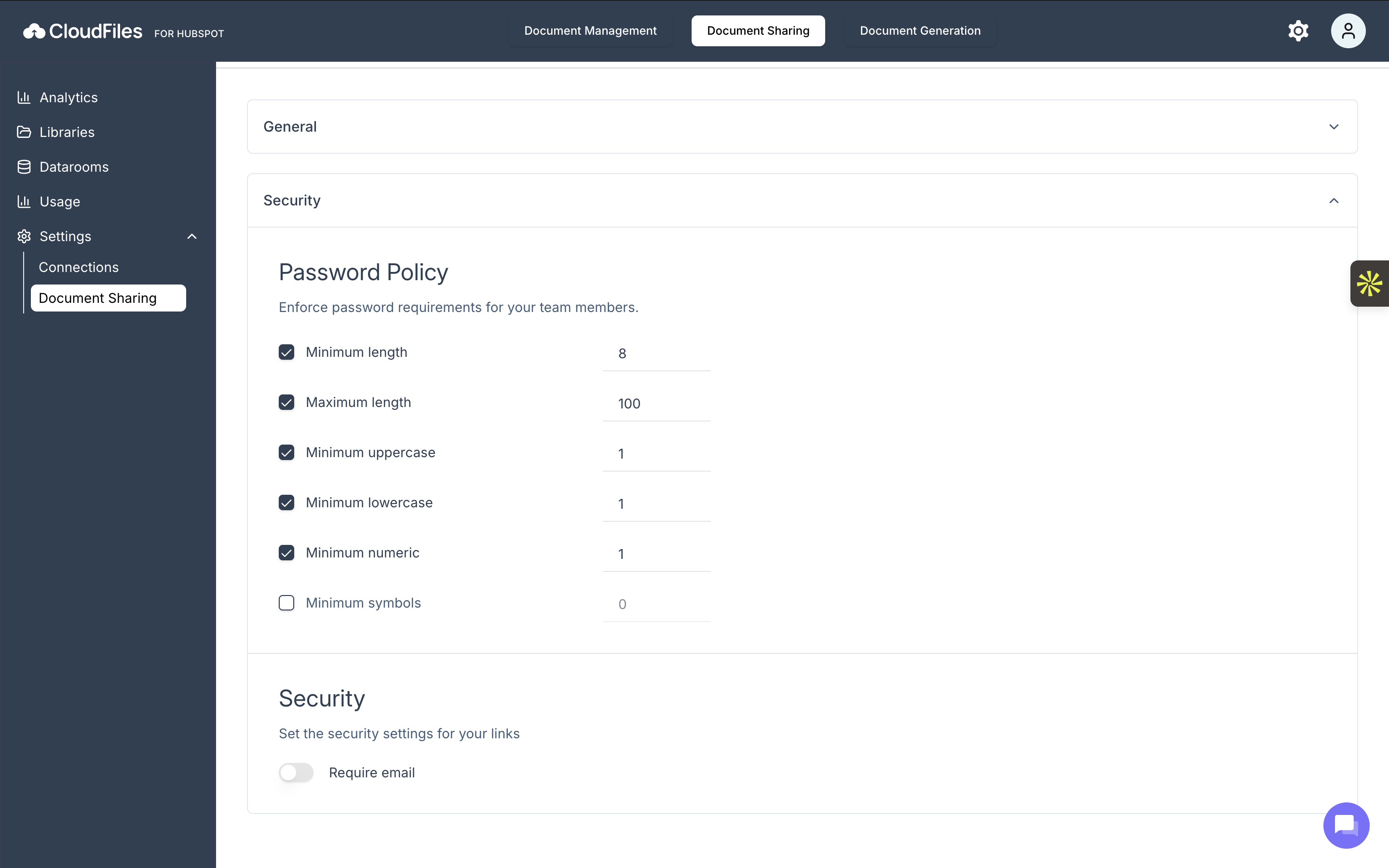
Security Settings help enforce access policies and safeguard sensitive documents shared through CloudFiles links.
Password Policy
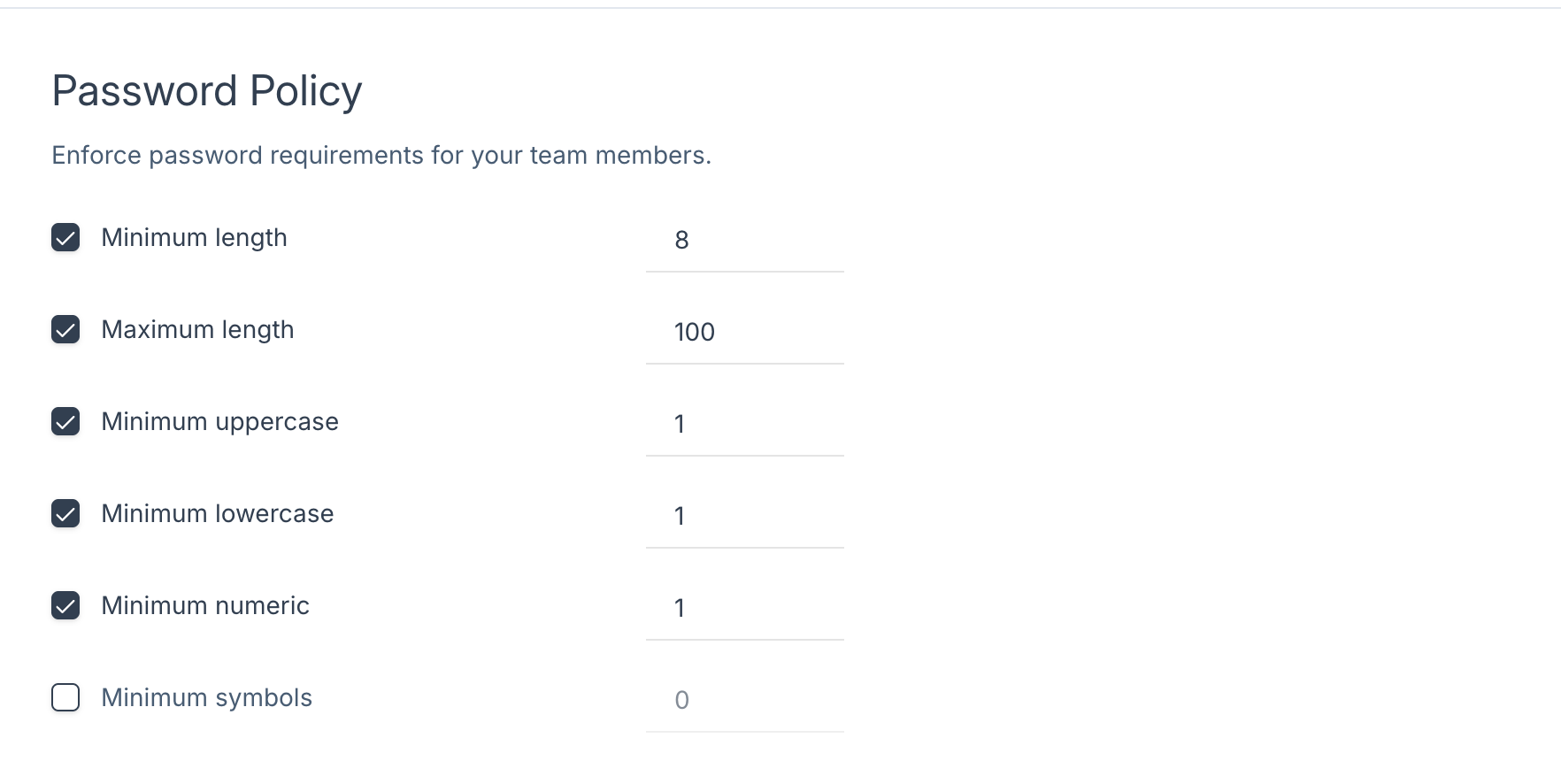
This section defines the password requirements for your team members when they create password-protected links. You can enforce rules such as minimum and maximum password length, required uppercase characters, lowercase characters, numbers, and symbols. These policies ensure that all link passwords meet your organisation’s security standards.
Require Email
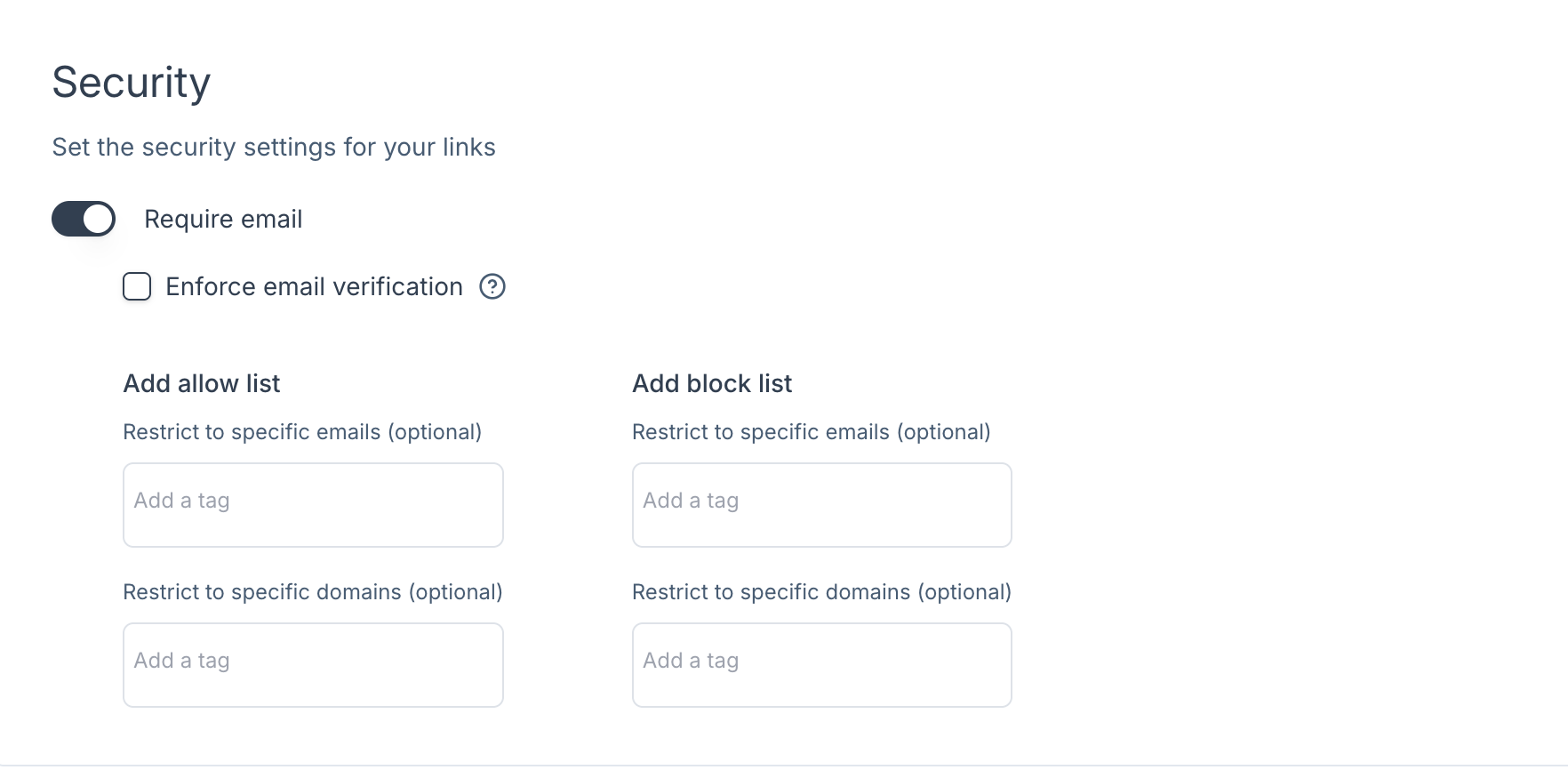
Determines whether viewers must enter their email address before opening the link. CloudFiles offers three ways to require an email address before someone can access a shared file. These options help improve accountability, track engagement, and control who can view your documents.
Email Collection (Soft Gated Link)
With soft-validation, your client will need to enter an email address to access the file. Please note that this email is not verified by CloudFiles (that's why the name soft-validation). If you require email verification, refer to the Hard Validation feature below.
Email Authentication (Hard Gated Link)
With hard-validation, your client will need to enter and verify an email address to access the file. Verification can be done in a number of ways. Client can either login through Google or Microsoft account or they can get a one-time verification code on their email.
Restrict Access to List of Emails / Domains
With email access control you can create a list of email ids, that can or cannot access your documents. Along with this you can also block access to email ids from viewing your document. This applies equally well to complete domains as well.
Once you have configured everything, click on the "Update" button.