Each CloudFiles product has its own license configuration, and changes made under Document Sharing apply only to sharing-related functionality.
CloudFiles also supports Partner Seats, allowing organizations to invite external implementation partners or HubSpot agencies with limited, dedicated access.
Accessing Document Sharing License Management
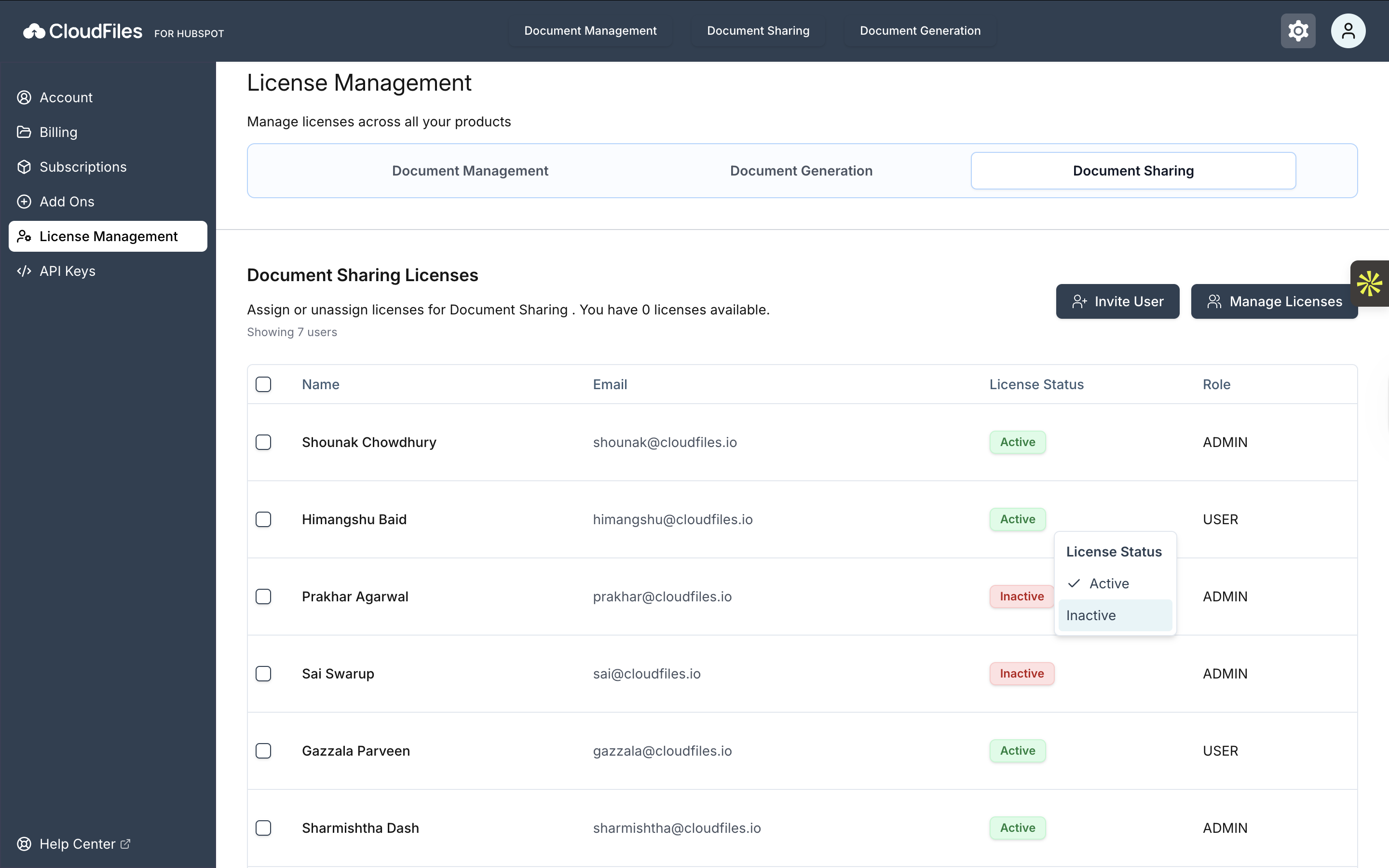
Document Sharing licenses can be managed from Settings → License Management in CloudFiles. At the top of the page, select the Document Sharing tab to view licenses specific to this product. The Document Sharing Licenses page provides a centralised view of license availability and user access.
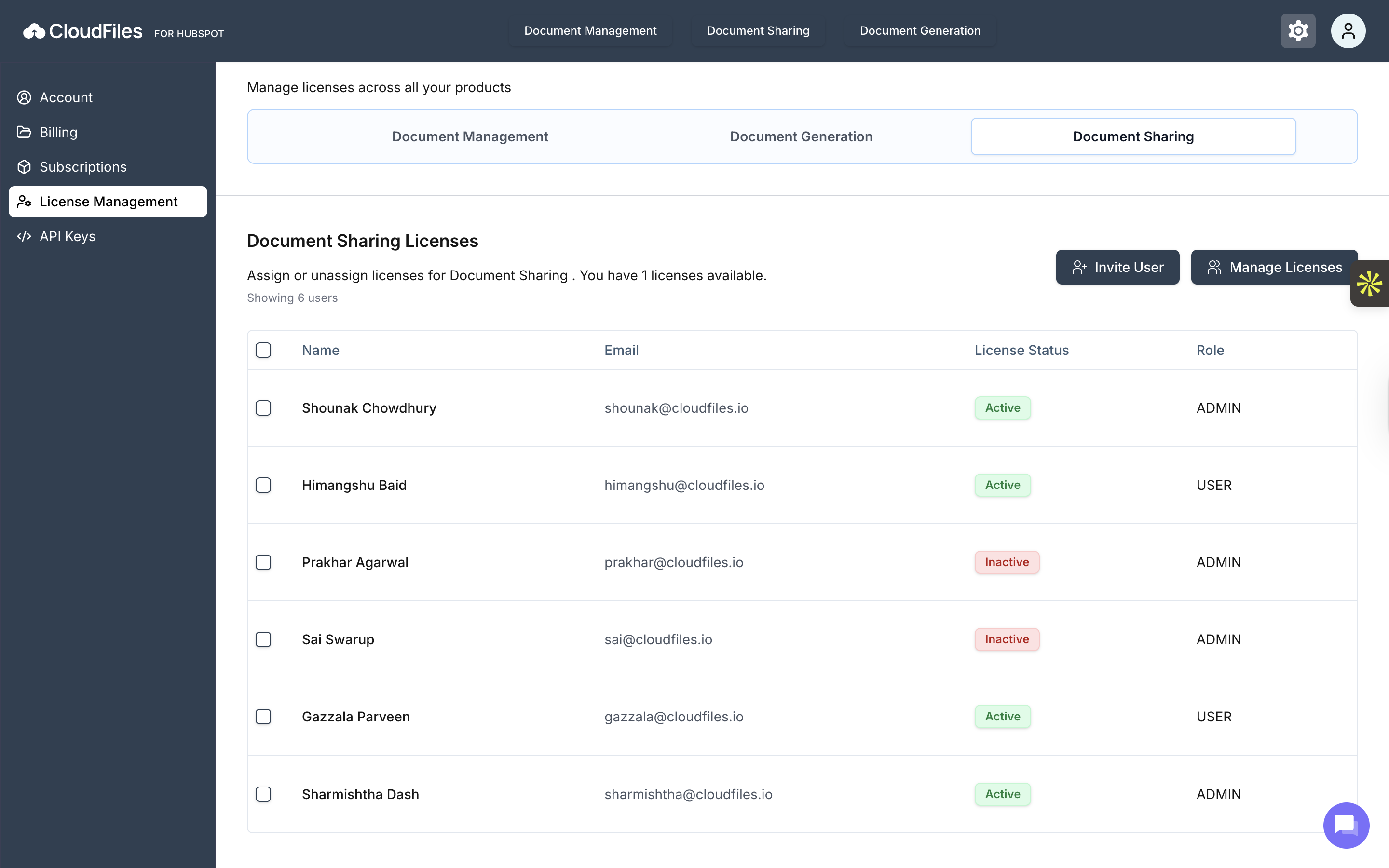
At the top of the section, a summary indicates how many Document Sharing licenses are available. Below this, the user table lists everyone associated with the Document Sharing product.

User List and License Status
The user table displays the following details for each user:
- Name and Email, which identify the user.
- License Status, showing whether the user’s Document Sharing license is Active or Inactive.
- Role defines the user’s level of access. CloudFiles supports three roles:
- Admin – Can manage licenses, invite users, and configure the account.
- User – Can access the products assigned to them.
- Partner – Intended for external implementation partners or agencies. Partner users can access only the CloudFiles account they were invited to.
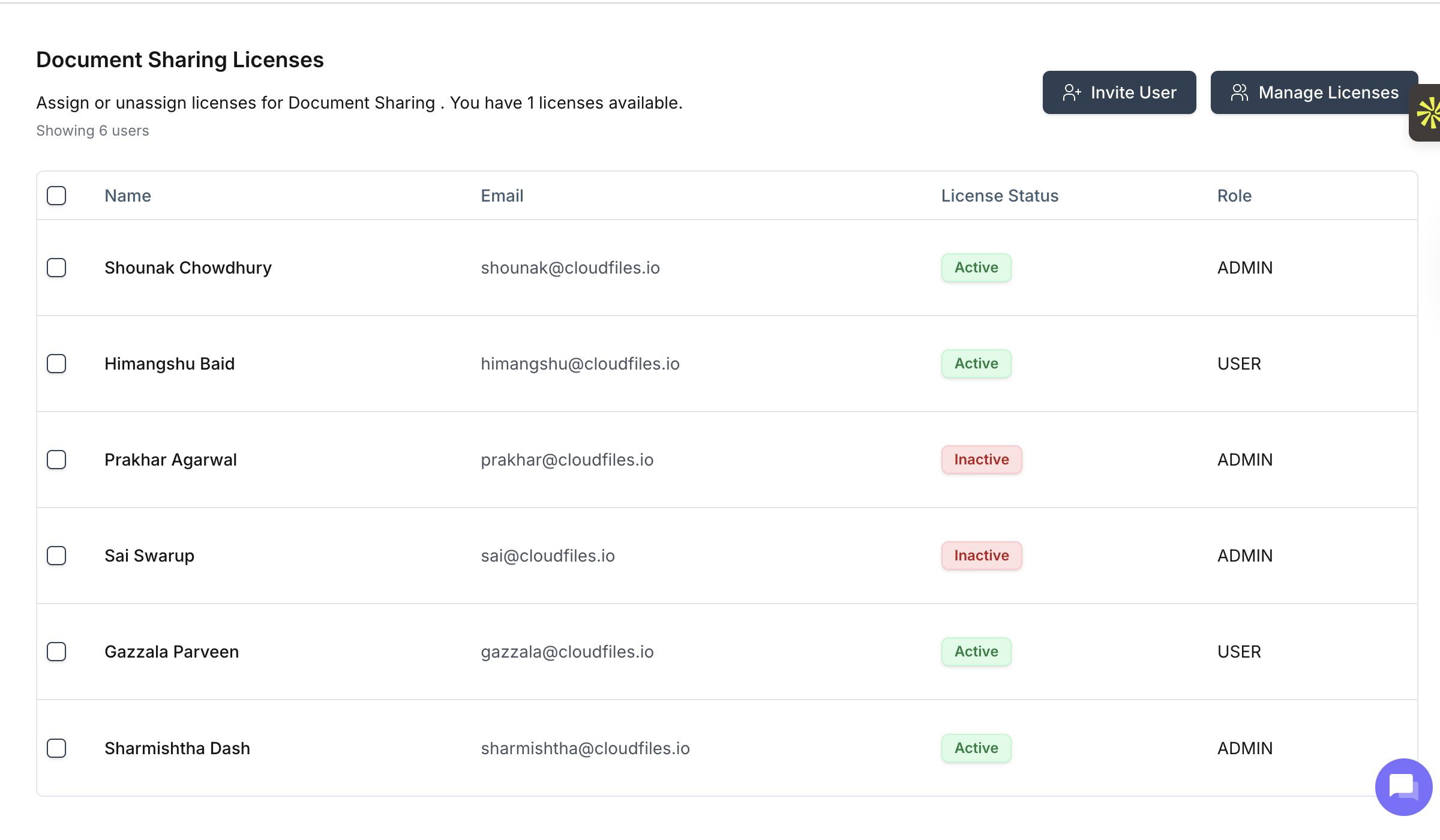
Users with an Active license can access Document Sharing features, while users marked as Inactive do not have access until a license is assigned. Users with the Admin role can manage licenses, invite new users, and add new licenses.
Inviting Users to Document Sharing
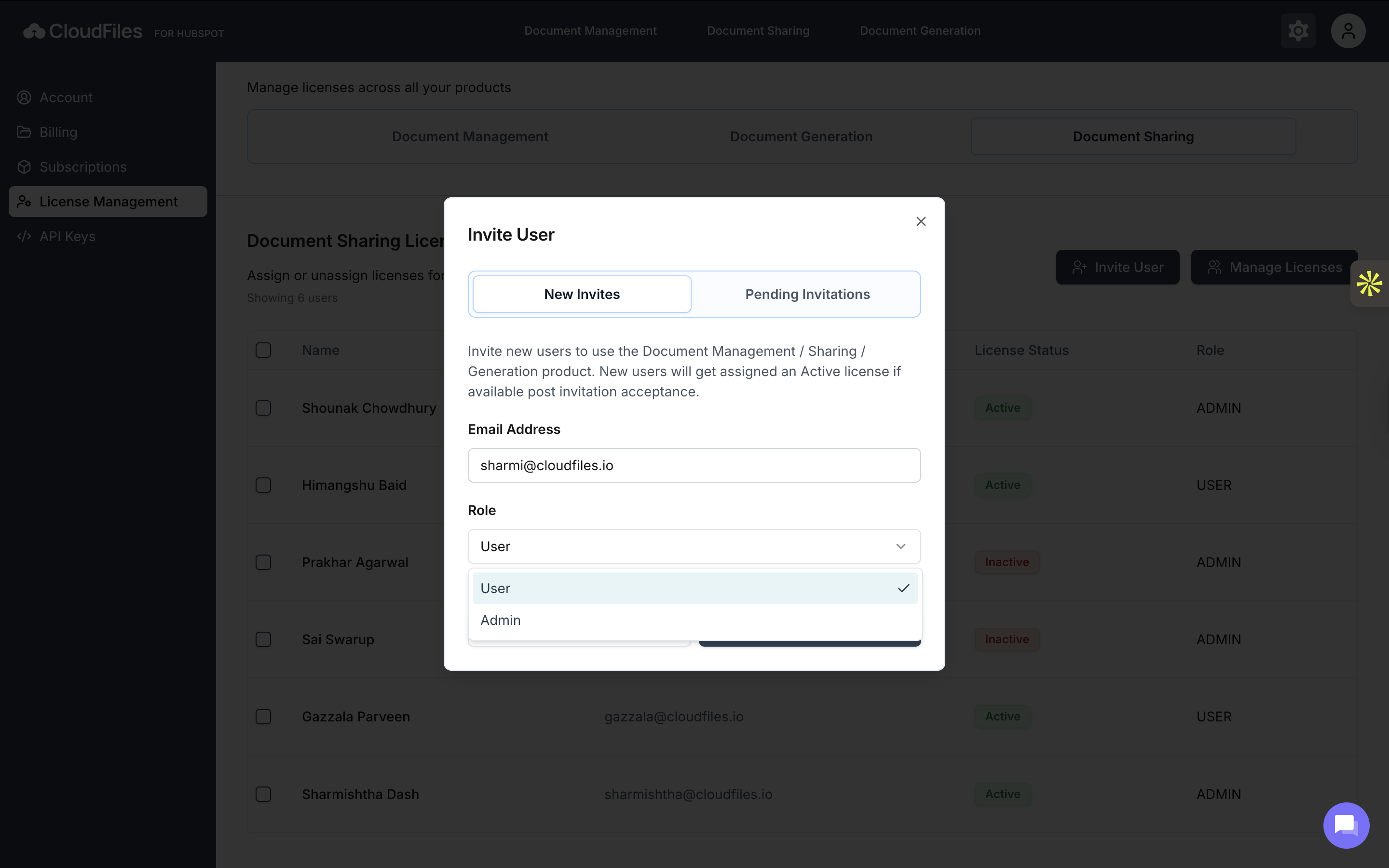
The "Invite User" option allows admins to invite new users to CloudFiles with access to the Document Sharing product.
When inviting a user, the admin specifies the email address and assigns a role. Once the invitation is accepted, an active Document Sharing license is automatically assigned if one is available. Invitations that have not yet been accepted appear under pending invitations, allowing admins to track outstanding invites.
Inviting a Partner
If Partner Seats are enabled for your CloudFiles account, admins can invite external implementation partners or HubSpot agencies with a dedicated Partner role.
Partner users are intended for external collaborators who help configure or manage the CloudFiles account on behalf of your organization.
When inviting a Partner:
- Only external email addresses can be invited.
- A Partner Seat must be available.
Updating Roles and License Status
Admins can directly update a user’s role and license status from the License Management table. Each user entry includes editable fields that allow quick adjustments without leaving the page.
Using the edit (pencil) icon, admins can change a user’s role between Admin and User, depending on the required level of access.
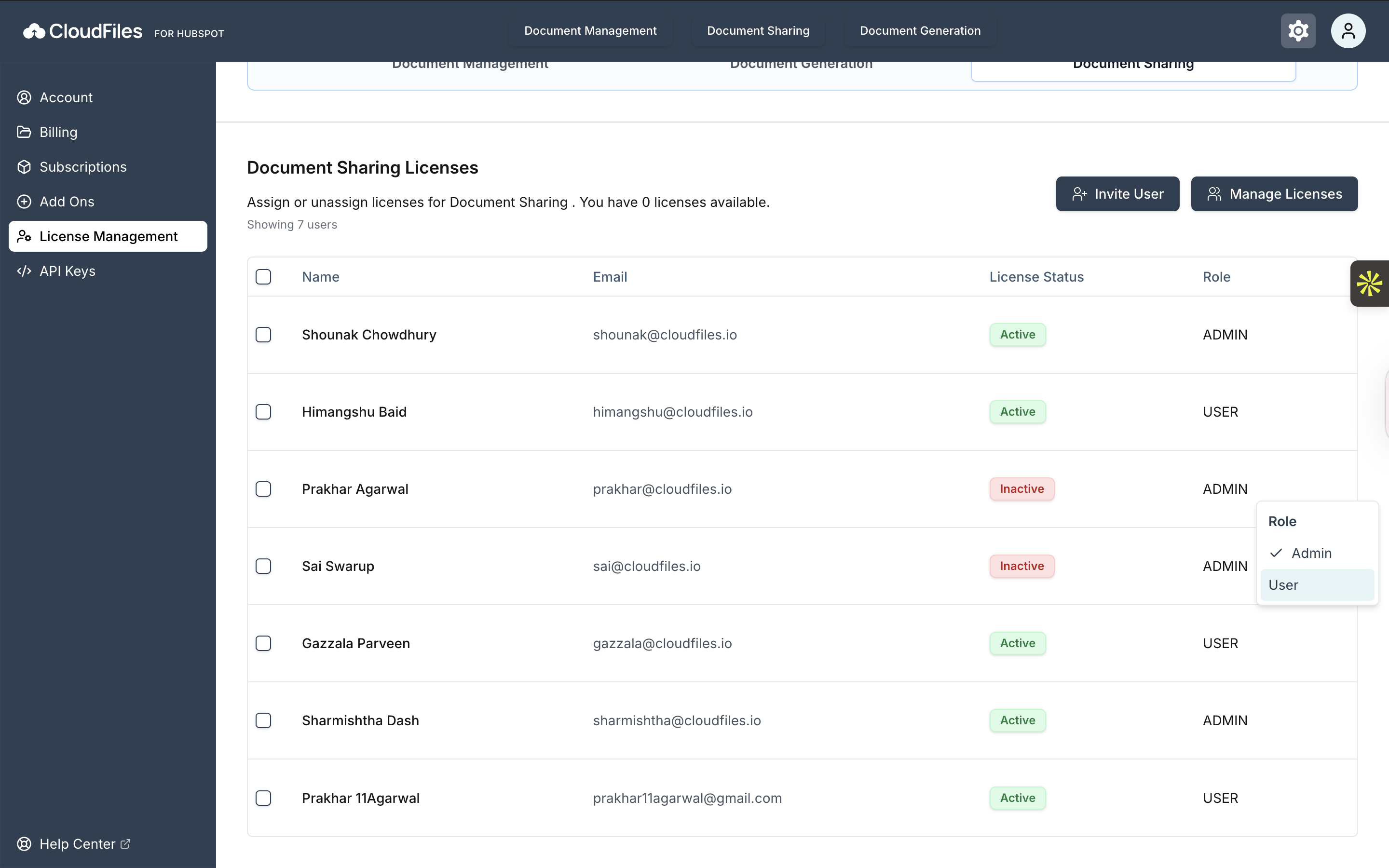
Similarly, the license status can be toggled between Active and Inactive, giving admins control over whether a user currently has access to the Document Sharing product.
Managing Document Sharing Licenses
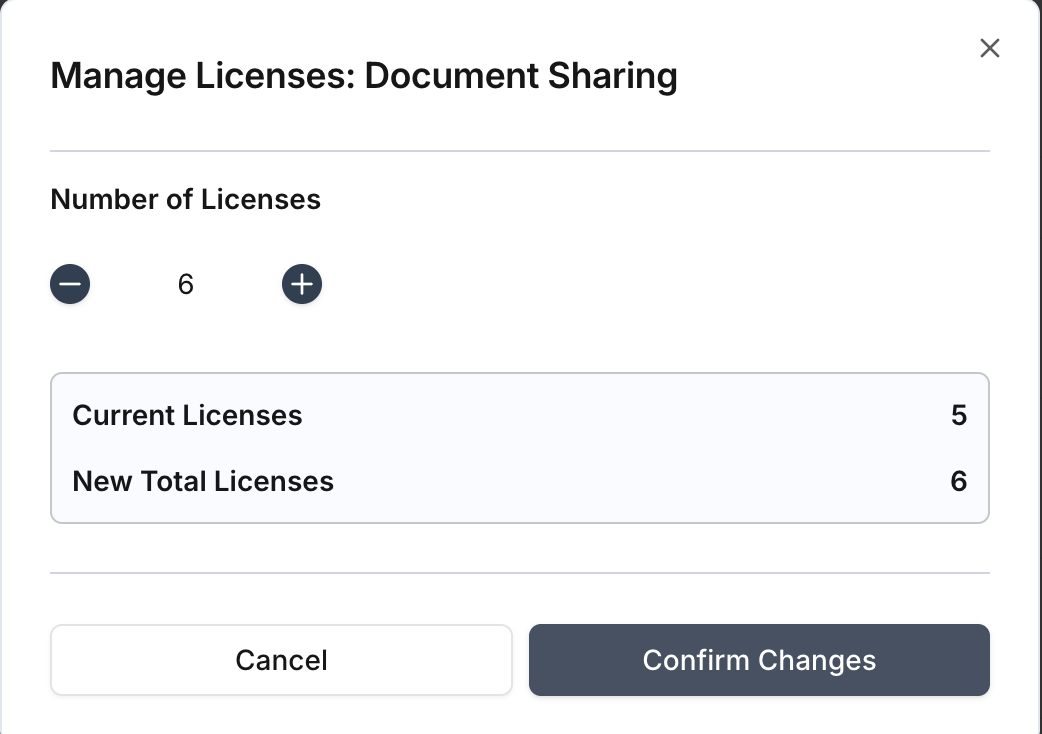
The "Manage Licenses" option allows administrators to control the total number of Document Sharing licenses.
When selected, a modal opens where the license count can be increased or decreased. The modal displays the current number of licenses in use along with the updated total after changes are made. Once confirmed, the updated license count becomes immediately available for assignment.
License Management for Document Sharing gives admins clear visibility and control over who can access sharing features in CloudFiles. By managing licenses, roles, and invitations from a single screen, teams can ensure that document sharing is secure, controlled, and aligned with their subscription.
Deleting a User
Admins can permanently remove a user from the CloudFiles account directly from the License Management screen.
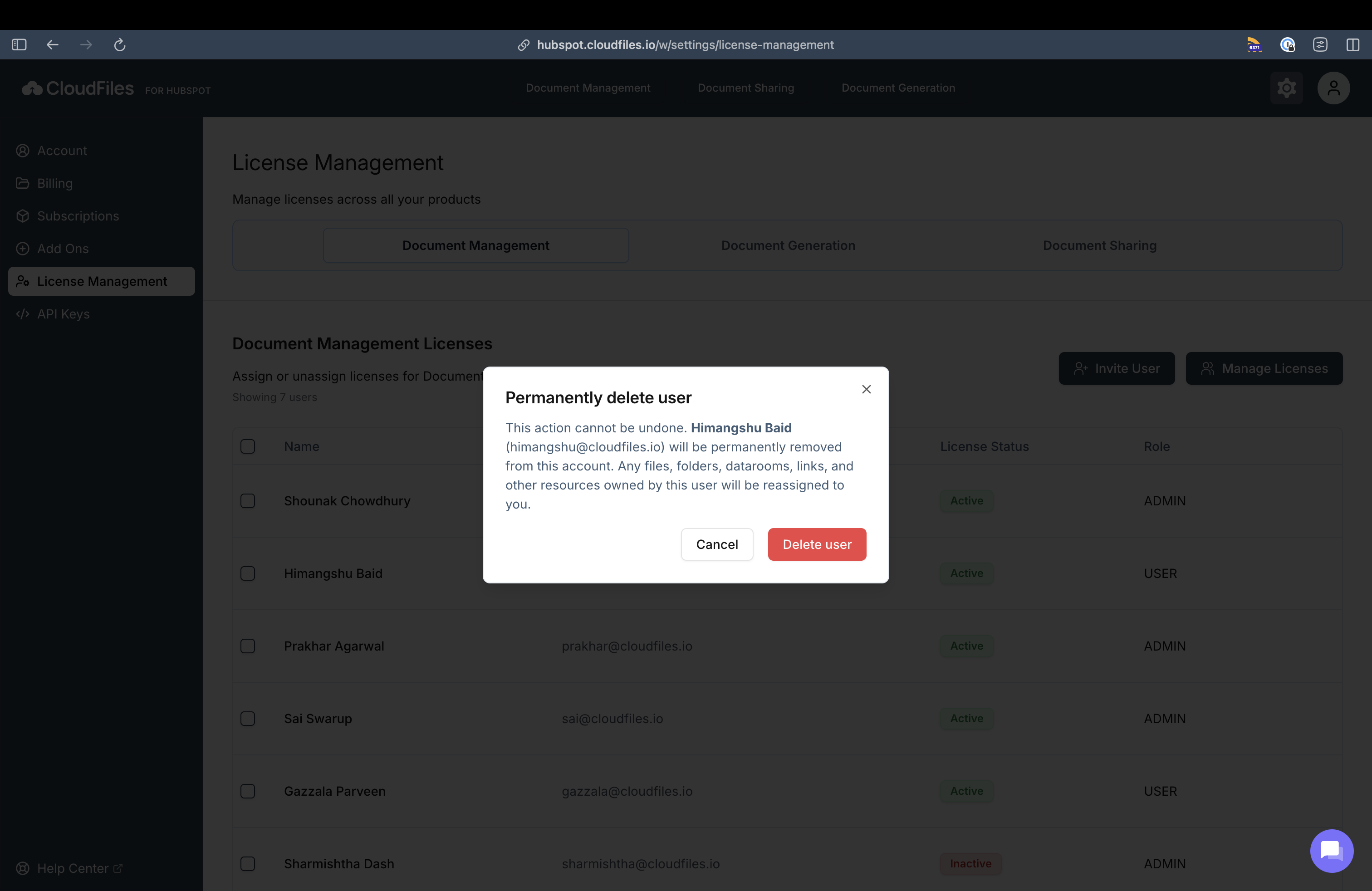
This action cannot be undone. When a user is deleted, they are completely removed from the CloudFiles account and will no longer have access to any CloudFiles products. Any files, folder, Datarooms, shared link or other resources owned by the user are automatically reassigned to the admin initiating the delete action. This ensures that existing resources remain accessible and no data is lost after the user is removed.