Introduction
The Generate Document action by CloudFiles allows you to automatically create documents using predefined templates within HubSpot workflows.
Using this action, documents can be dynamically generated based on HubSpot data within your templates and generate file can be stored directly in your connected cloud storage such as SharePoint, Google Drive, OneDrive or Dropbox
To make sure this action works with your Cloud Storage, you need to understand What is an 'Automation User' and how does it work?
The Generate Document action requires several parameters to define how and where the document should be created.
- Template ID: Specifies which template should be used for document generation
- Destination Library: The desired library where the file must be saved to (e.g. SharePoint, Google Drive etc...)
- Path to Destination Folder: The exact path to destination where the file must be saved to. There may be more than one parameters required to specify this path based on library selection.
- Shared Drive ID / Drive: Required for storage providers like Google Drive & SharePoint
- Convert to PDF: Determines the output format of the generated document
- Return Values: Various values returned by this action after execution.
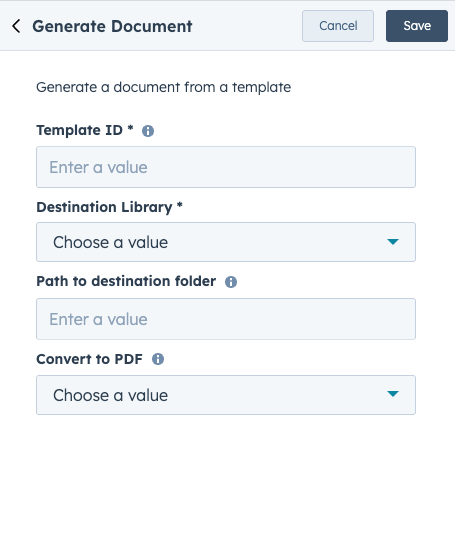
These parameters have been detailed in the sections below.
1 - Template ID
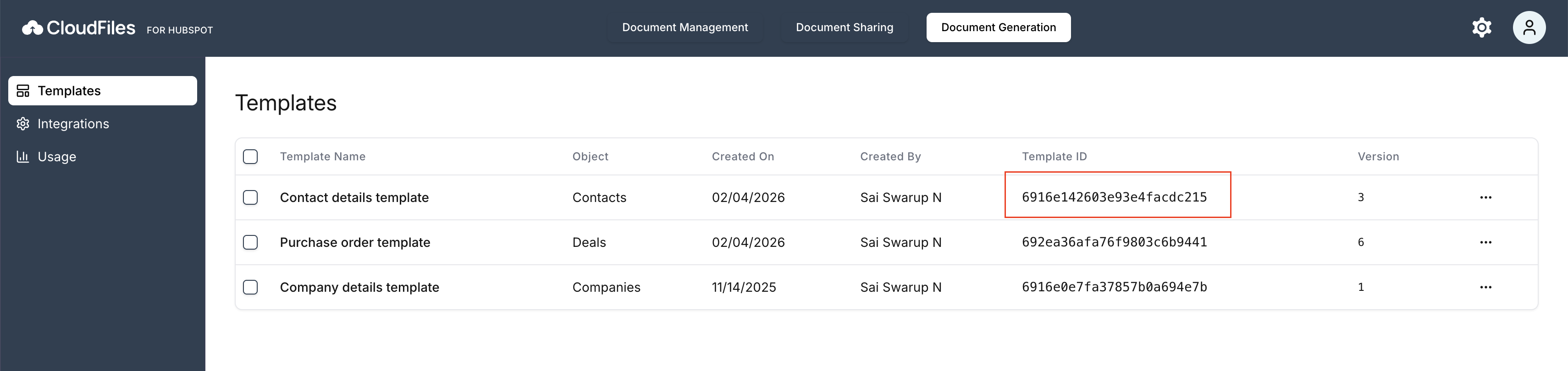
Each template created with CloudFiles has a unique Template ID that identifies it during automation. When the workflow runs, CloudFiles uses this ID to locate the correct template and generate the document based on the data available in the HubSpot record. The Template ID can be found on the Templates page in the CloudFiles web interface.
2 - Destination Library
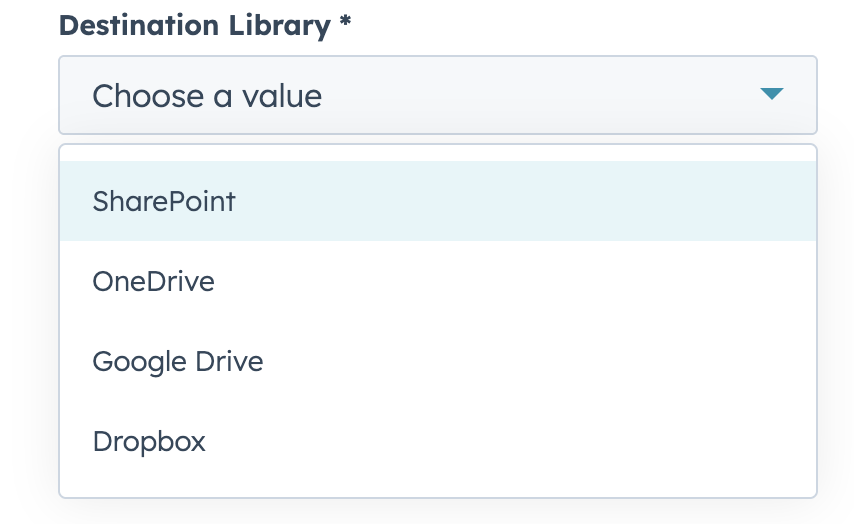
The Destination Library defines the cloud storage location where the generated document will be saved. CloudFiles supports multiple storage providers such as SharePoint, Google Drive, OneDrive and Dropbox. Depending on the selected library, additional parameters such as Drive ID may be required.
3 - Shared Drive ID / Drive
This is important for Google Drive & SharePoint library selection. Both these cloud storage have multiple drives where files can be stored. E.g. Google Drive has My Drive & Shared Drive while SharePoint can have multiple drives inside multiple sites. This parameter helps CloudFiles identify which drive to choose for the generated file.
4 - Path to Destination Folder
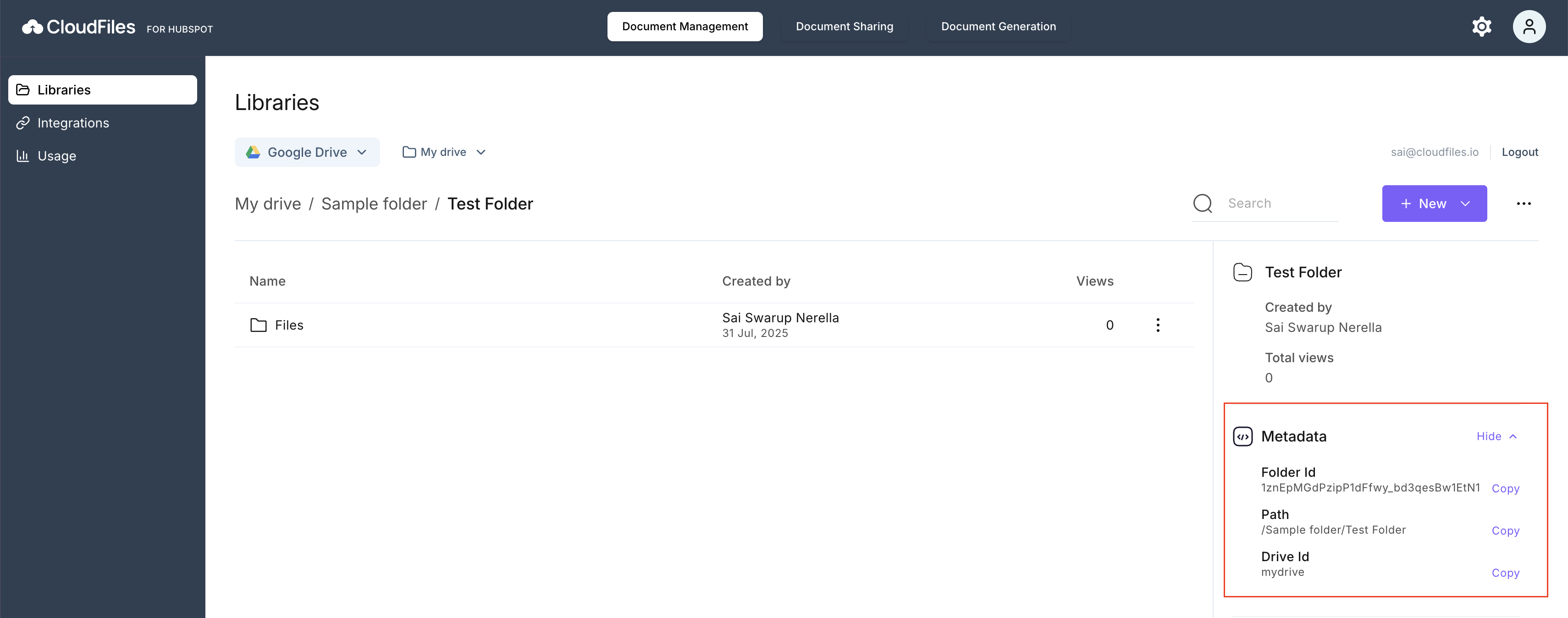
The Path to Destination Folder specifies the exact location within the selected cloud storage where the generated document will be saved. This path should be provided as a ’/’ separated string representing the folder structure. The folder path can be copied from the metadata section in the CloudFiles dashboard and can be personalized using HubSpot record tokens to dynamically organize generated documents based on records info.
To copy Path to Destination Folder and Drive ID from CloudFiles dashboard, Follow the steps below:
- Open CloudFiles dashboard- https://hubspot.cloudfiles.io/ and login if prompted.
- Under the libraries tab, navigate to the folder where you want to save the generated document.
- Copy the parameter from the metadata on the right side of the screen.
5 - Convert to PDF
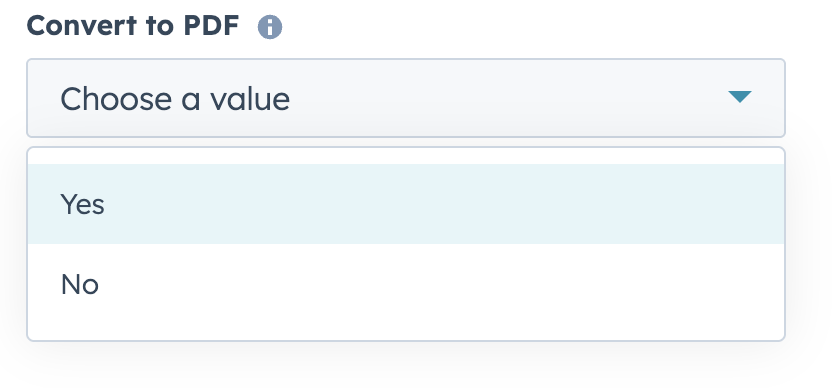
The Convert to PDF parameter determines the format in which the generated document will be saved. When enabled, the generated document will be automatically converted into PDF format. Otherwise, the document will be saved in the same format as the original template.
6 - Return Values
The Generate Document action returns the following values. These can be used in later actions to chain together actions and create complex automations.
- Action Status - This is a success or failure message based on whether the action executed correctly.