Option 1 - Access from app.cloudfiles.io
You can access the CloudFiles dashboard directly from https://app.cloudfiles.io. The process is simple and allows you to use your preferred sign-in method.
Tip: This method is faster for HubSpot admins and marketers as it allows direct navigation to the app dashboard without needing to open HubSpot separately.
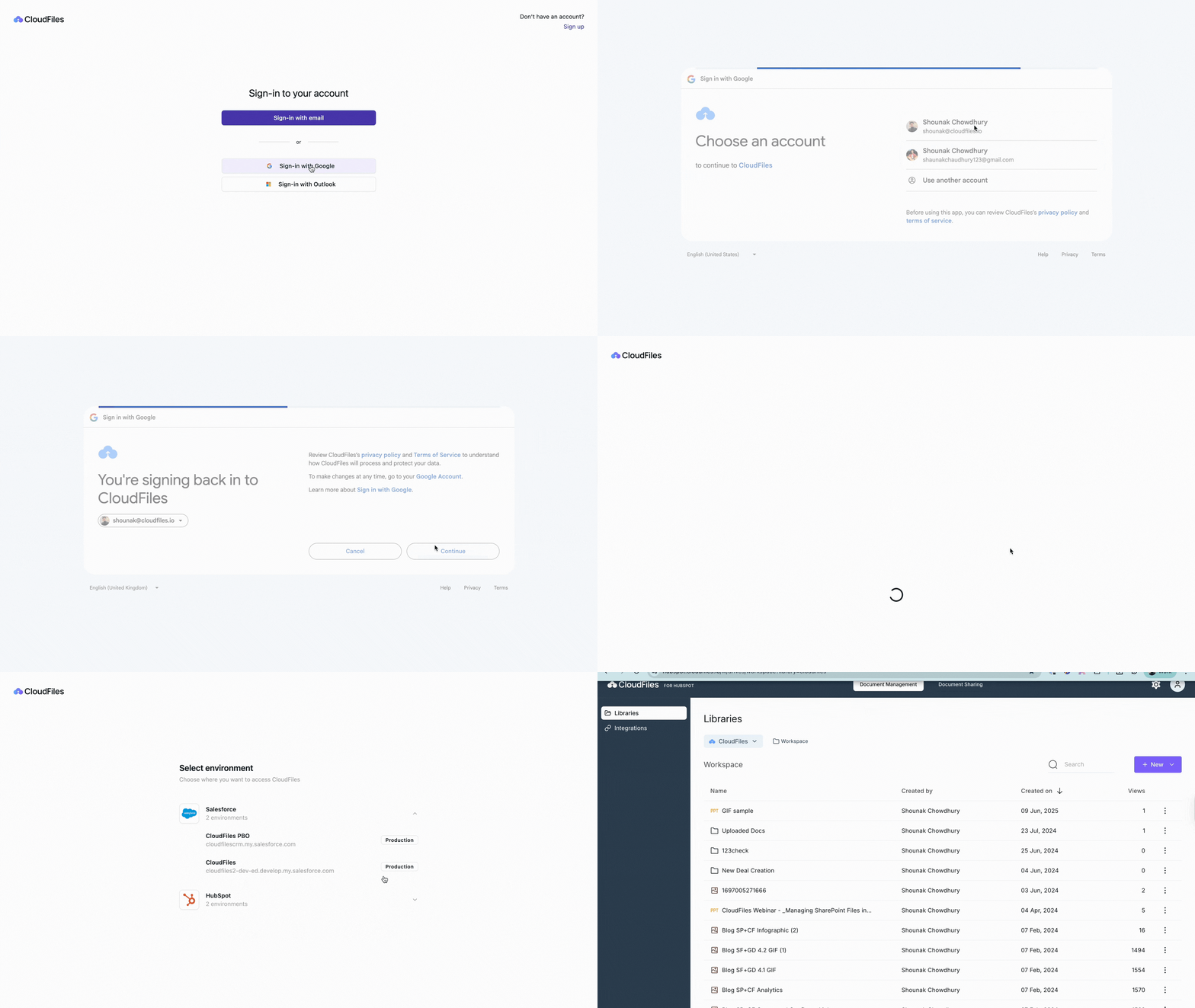
- Go to the Login Page: Open your browser and navigate to app.cloudfiles.io. You’ll be redirected to the CloudFiles sign-in page, where you can log in using email, Google, or Outlook. Choose the method that works best for you.
- Complete the Sign-In Process: Once you choose your sign-in option, follow the prompts on screen.
- Select Your Environment: After logging in, you’ll be asked to select the environment where you want to use CloudFiles. Depending on your setup, you might see options such as Salesforce and HubSpot. Select your HubSpot account to continue.
- Access the Dashboard: Once you’ve chosen your environment, you will be redirected to the CloudFiles dashboard.
- If you sign in with Google or Outlook, you’ll be redirected to the account chooser page. Select the account you want to use and confirm access. For example, in Google sign-in, you’ll see a confirmation screen stating “You’re signing back into CloudFiles”, after which you can click Continue.
- If you sign in with your email, enter your email address and sign in with OTP/password, then proceed as instructed.
Option 2 - Access from HubSpot Sidebar Widget
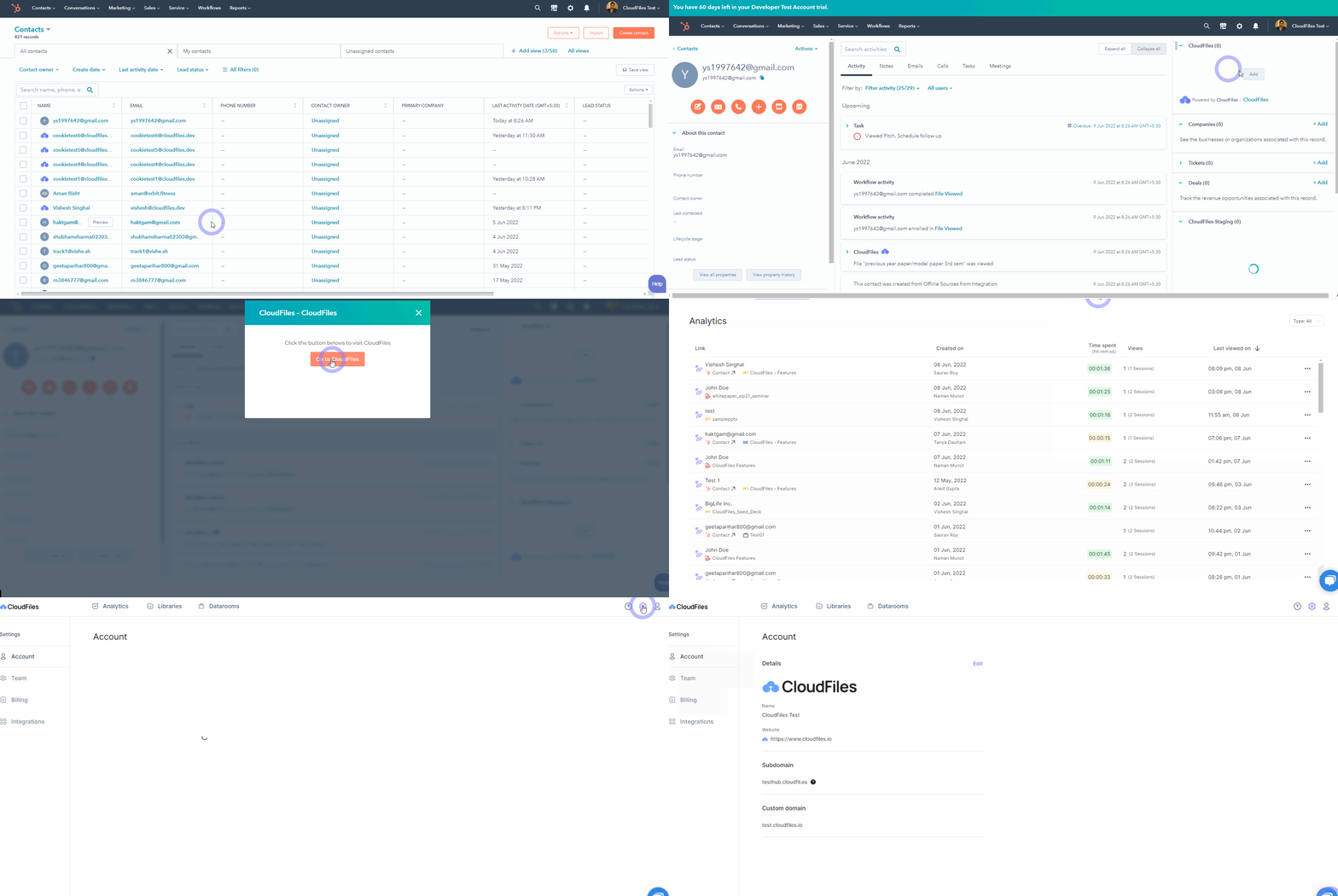
HubSpot users can easily open the CloudFiles dashboard directly from their CRM environment. Follow the simple steps below. The steps have also been shown in the GIF image below -
- Go to your HubSpot account, log in with your admin email.
- Click on any of the contact/company/deal/ticket records
- Locate the CloudFiles widget on the right side.
- Click on the CloudFiles link at the bottom of the widget.
- Click on the "Go To CloudFiles" button in the dialogue. This will open up the app dashboard.
Need help? Book time with our team of experts.