Introduction
The Recipients resource allows you to define the individuals who will receive and sign generated documents via DocuSign. This resource holds information such as the recipient’s name and email address, which are critical for routing the document to the right person for e-signature.
This is a key part of using DocuSign with Word documents. It allows you to assign each signature space to the correct recipient.
A Recipient is a configuration that holds:
- Label – An internal name you assign (e.g., Primary Approver or Client Contact).
- Name Field – A merge field from your record that dynamically inserts the recipient’s name.
- Email Field – A merge field pointing to the recipient’s email address, used to send the signature request via DocuSign.
How to Create a Recipient Resource
To create a new recipient:
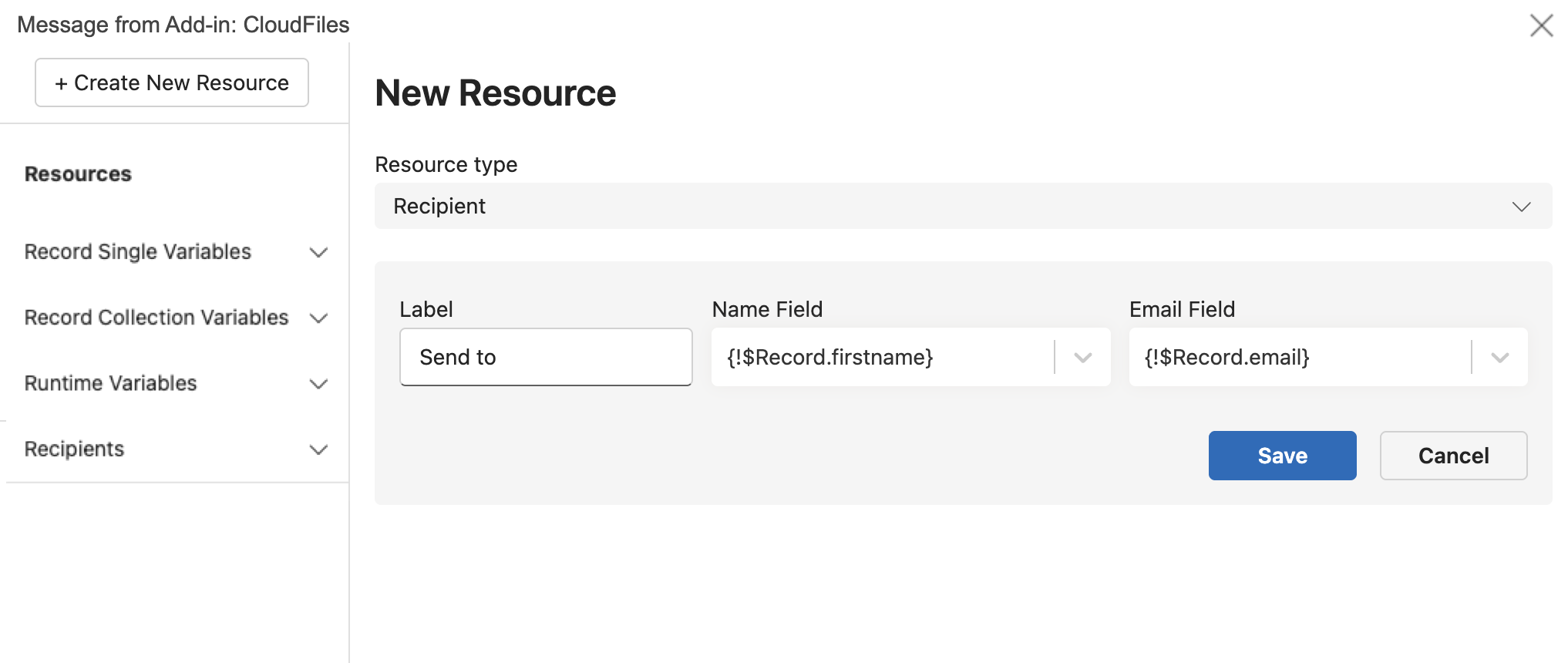
- Navigate to the Template → Resources tab and click + Create New Resource.
- Set the Resource Type to Recipient.
- Enter the following fields:
- Label – Custom name for this recipient.
- Name Field – Select a dynamic field (e.g., {$Record.firstame}).
- Email Field – Select the email field (e.g., {$Record.email}).
- Click Save.
Make sure the email field contains a valid email. Otherwise, DocuSign won’t be able to deliver the signing request.
Once a recipient is configured, you can assign them to a signature field inside your Word template. To insert a signature field and link it to a recipient, you’ll need to use the Insert Form Field action.