This article covers:
- File Management Operations in the App Card — where users can perform detailed file-level actions such as rename, replace, share, and view analytics.
- File Management Operations in the Sidebar Widget — where users can use the Attachment Actions Dropdown for link and analytics management.
File Management Operations in the App Card
The App Card provides a set of file operations that can be performed directly within HubSpot.
Open in the Respective Storage Platform
This operation opens the selected file in its original storage platform. For instance, a Word file from Google Drive opens in Google Docs, a document from SharePoint opens in Microsoft Office Online, and a file from Dropbox opens in Dropbox’s viewer. The file remains in its original format and storage location, ensuring that any edits made are reflected in the connected storage account.
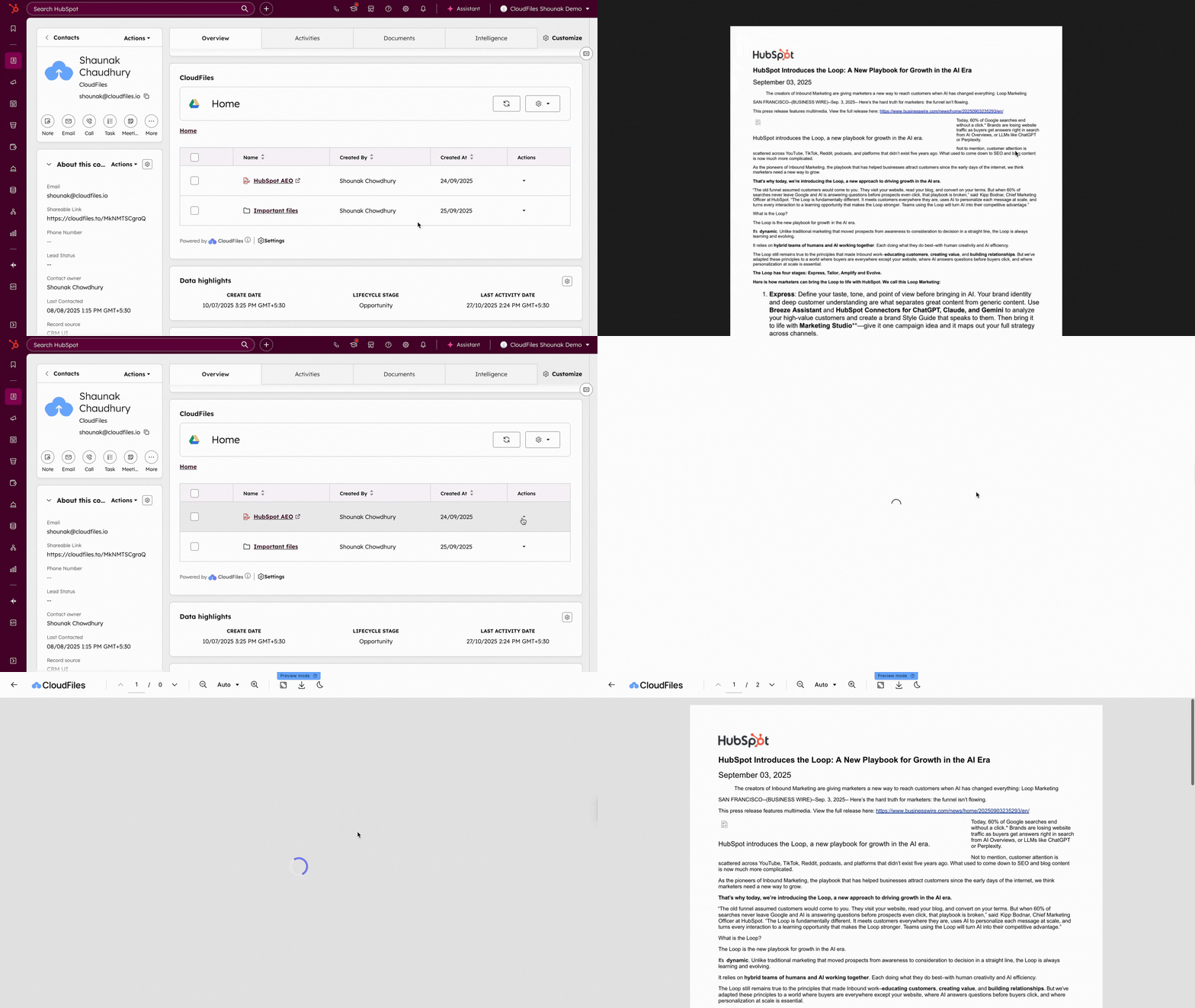
Preview
The Preview option allows users to view the contents of a file within HubSpot within the CloudFiles file viewer without downloading it. Supported formats include PDF, DOCX, PPTX, XLSX, and image files. The file opens in a read-only view, allowing users to review content quickly before performing other actions.
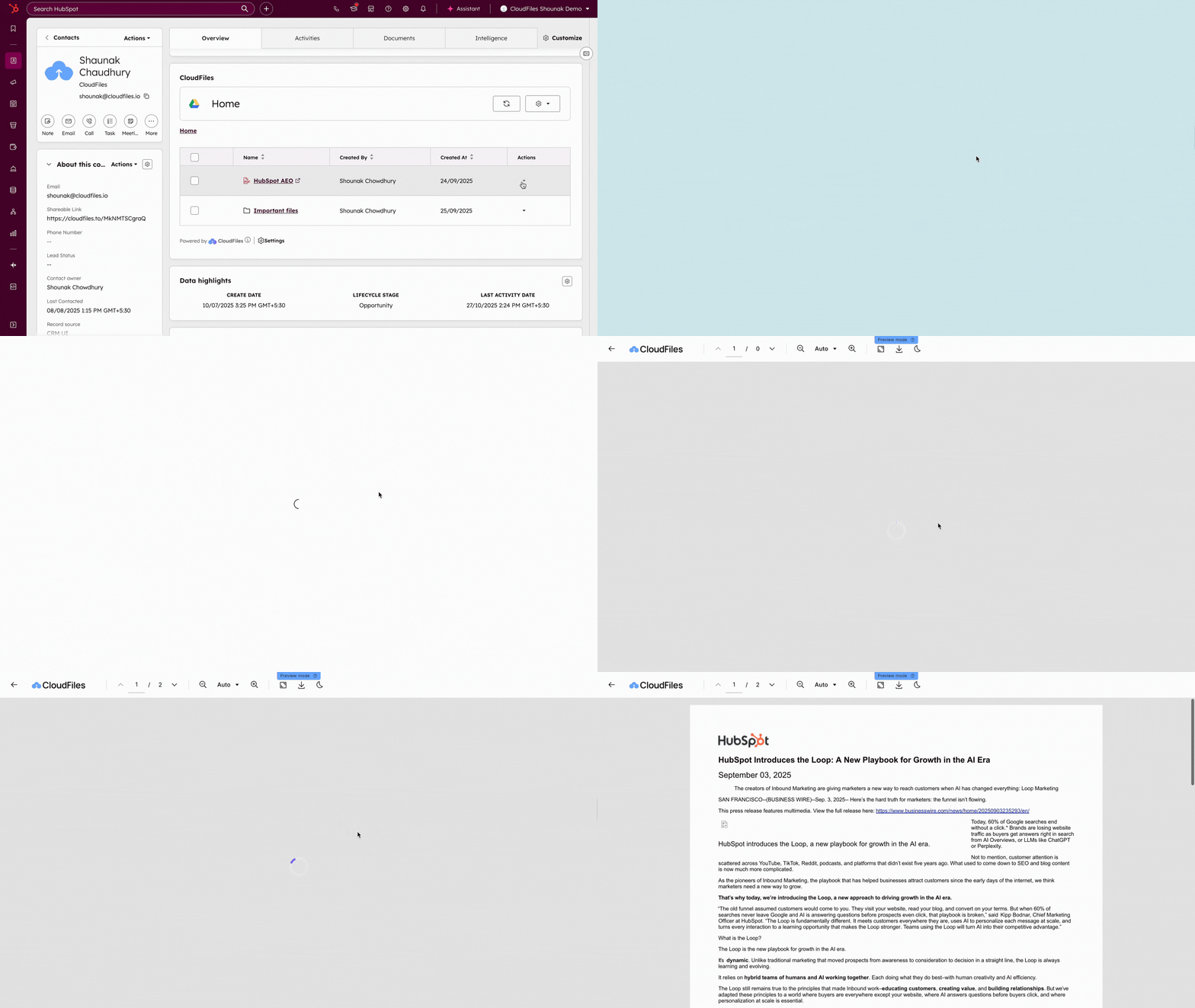
Download
The Download operation saves a local copy of the selected file to the user’s device. The file downloads in its native format, for example, a .docx document downloads as .docx, a .pdf file as .pdf, and an image file, such as .png or .jpg, retains its format. The original file in the external storage remains unchanged.
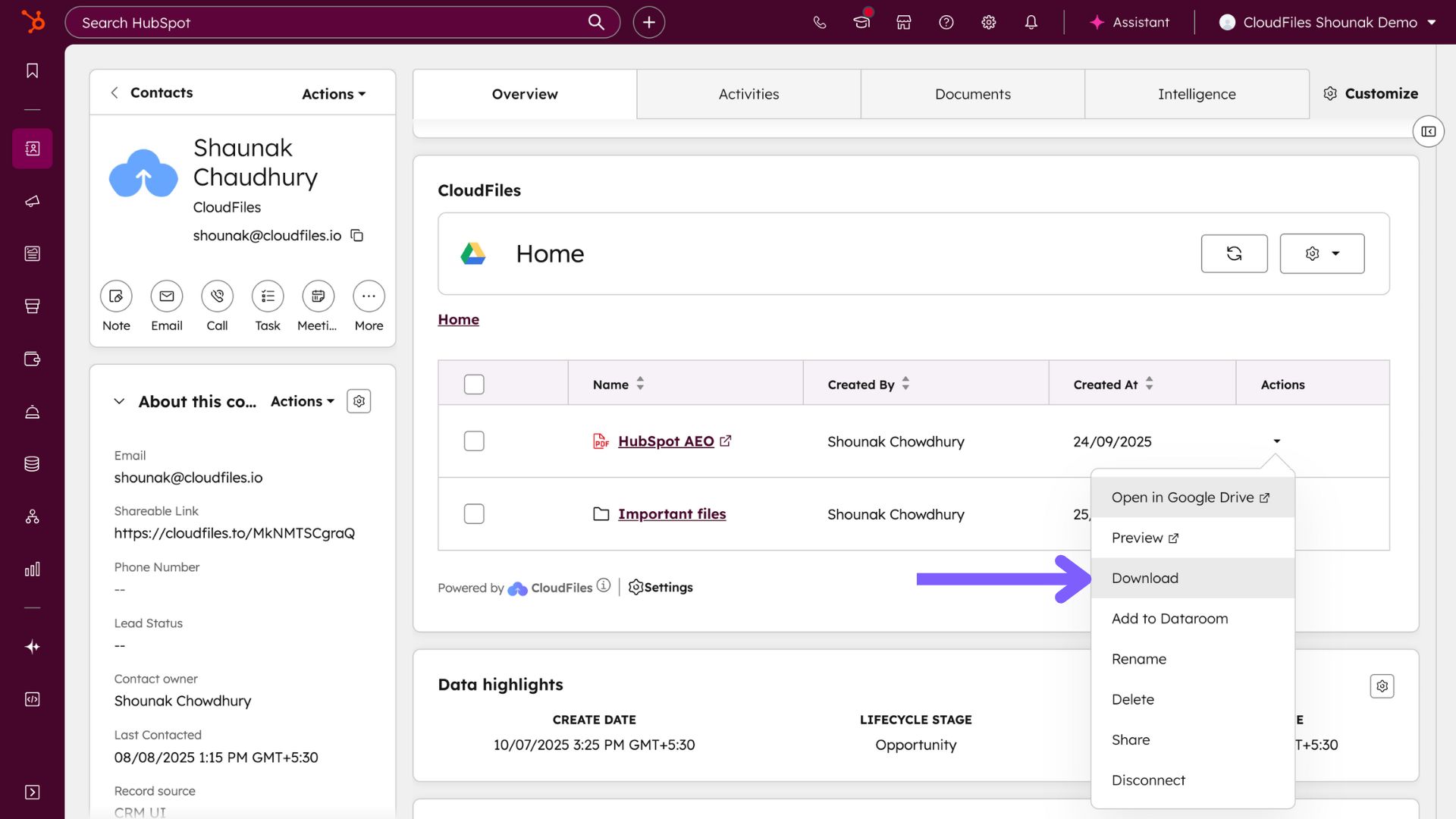
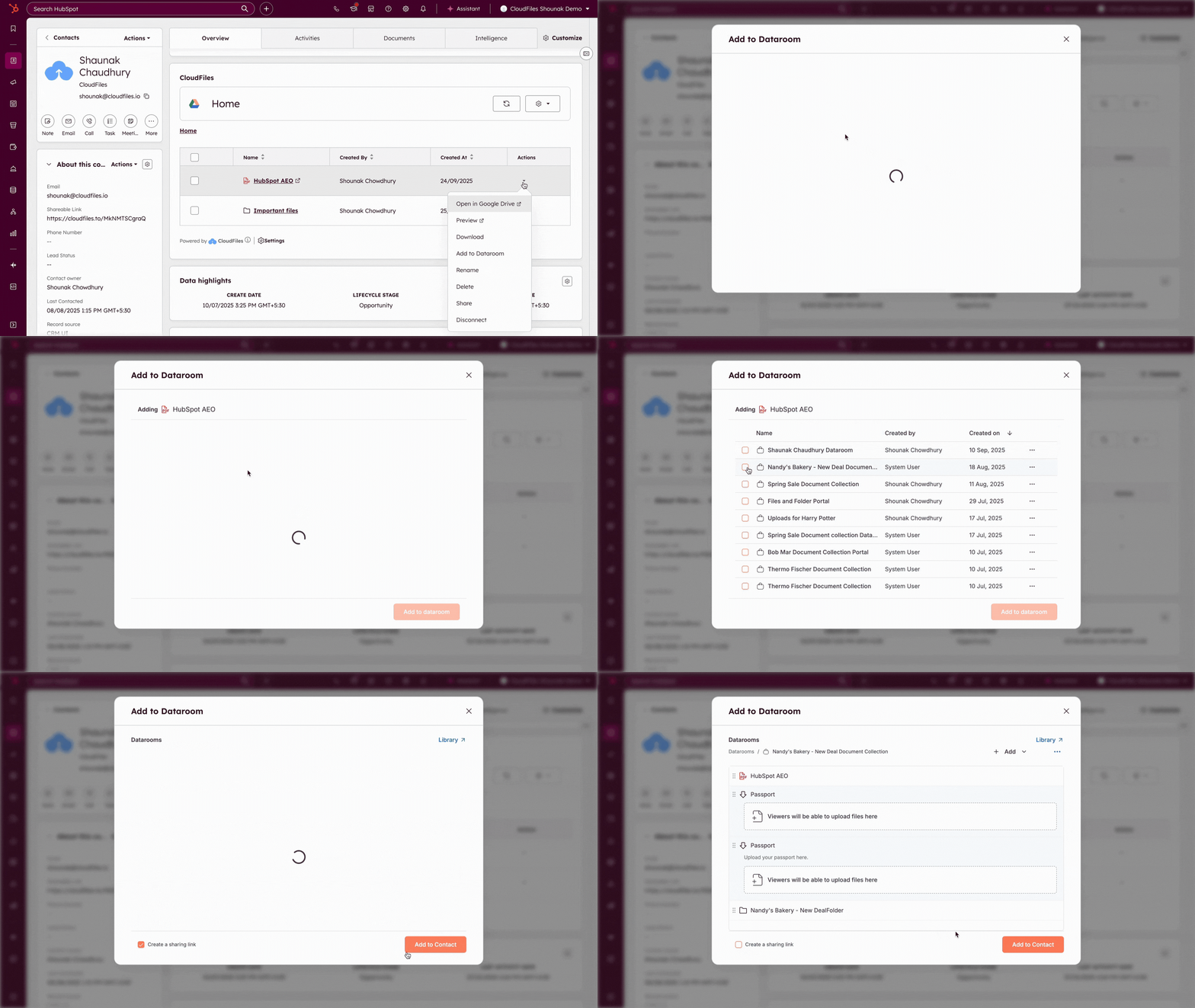
Add to Dataroom
This option allows users to add the selected file to an existing CloudFiles dataroom. A dataroom may include multiple files or folders grouped for structured access or sharing. The file stays in its external storage location but is made available within the selected dataroom for further collaboration or tracking.
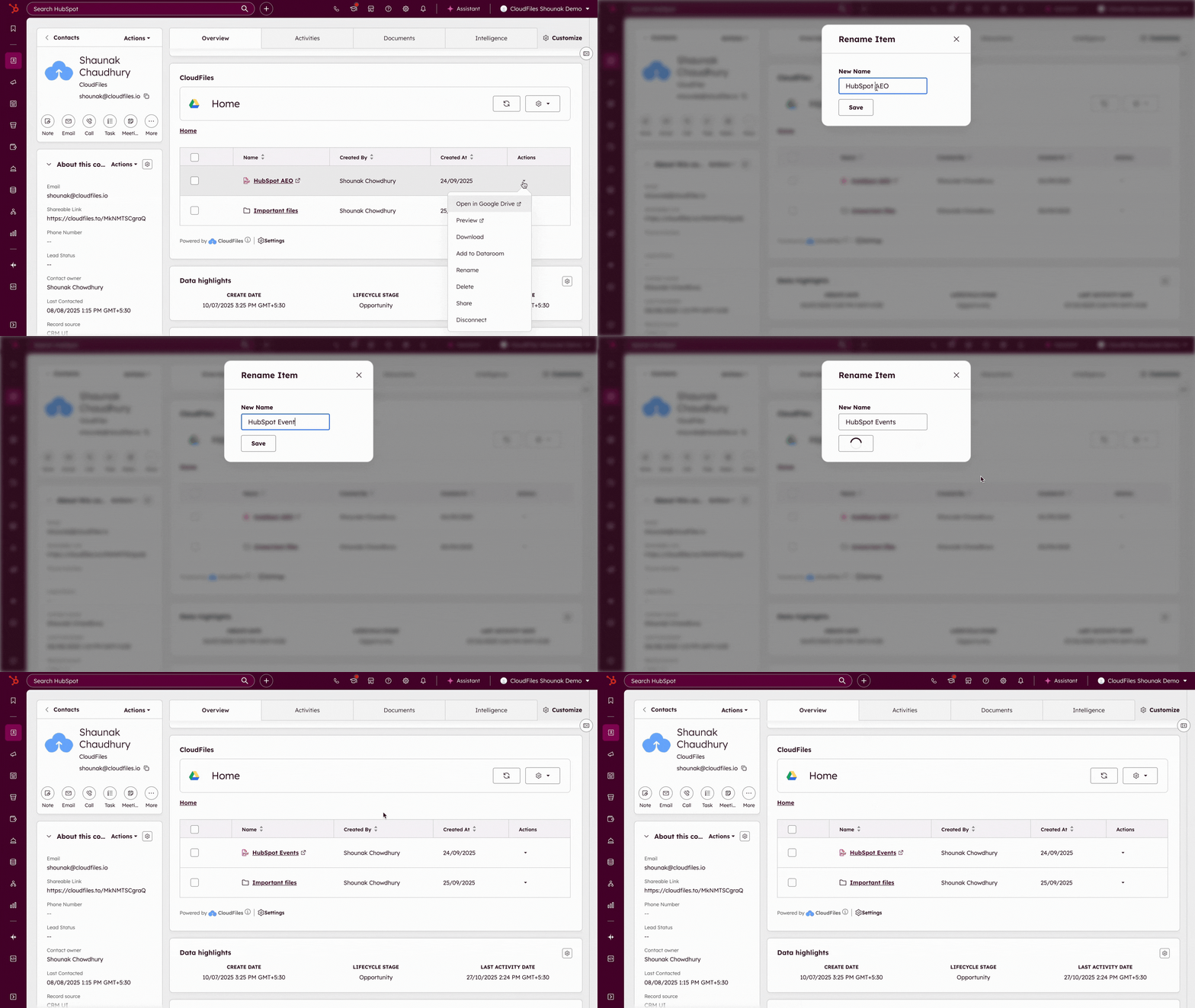
Rename
The Rename operation lets users modify the name of a file directly from the App Card. Once renamed, the new name appears both in HubSpot and in the connected storage platform.
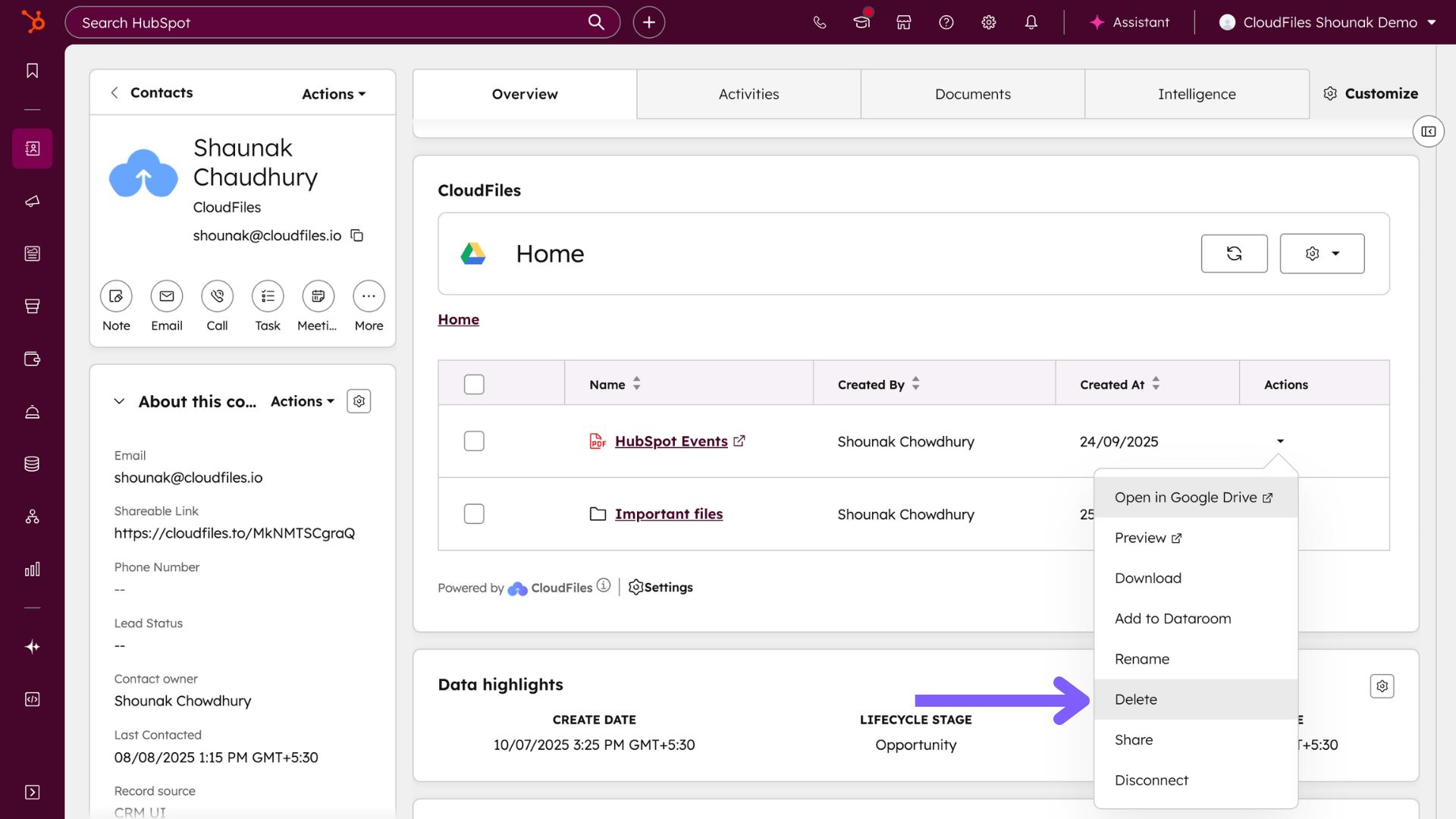
Delete
The Delete option permanently removes the file from the external storage platform. Once deleted, the file is no longer accessible from HubSpot or the original storage account. This operation should be used carefully, as it cannot be reversed.
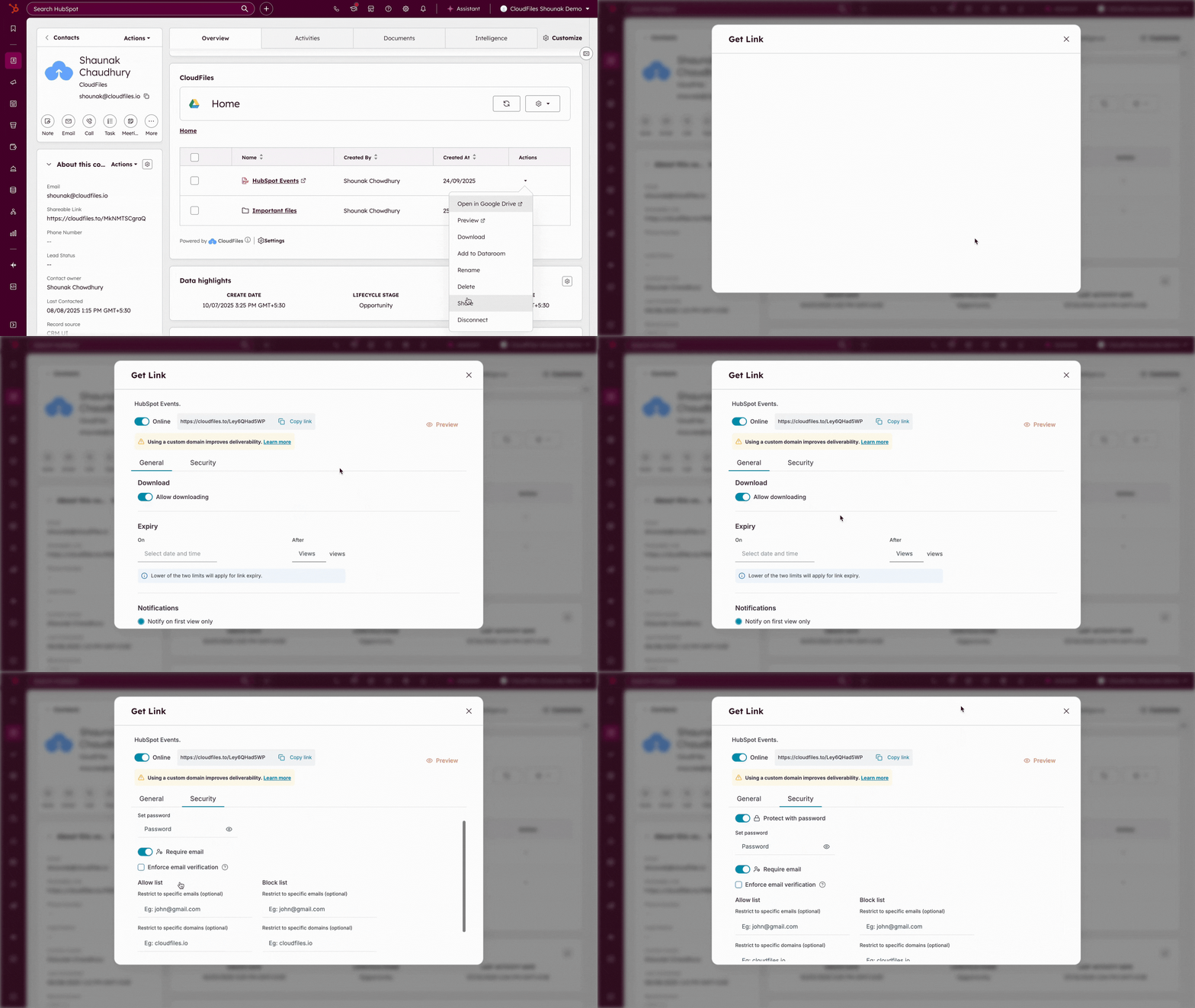
Share
The Share operation creates a CloudFiles sharing link for the selected file. This link enables external sharing and can include access controls such as password protection or expiry settings.
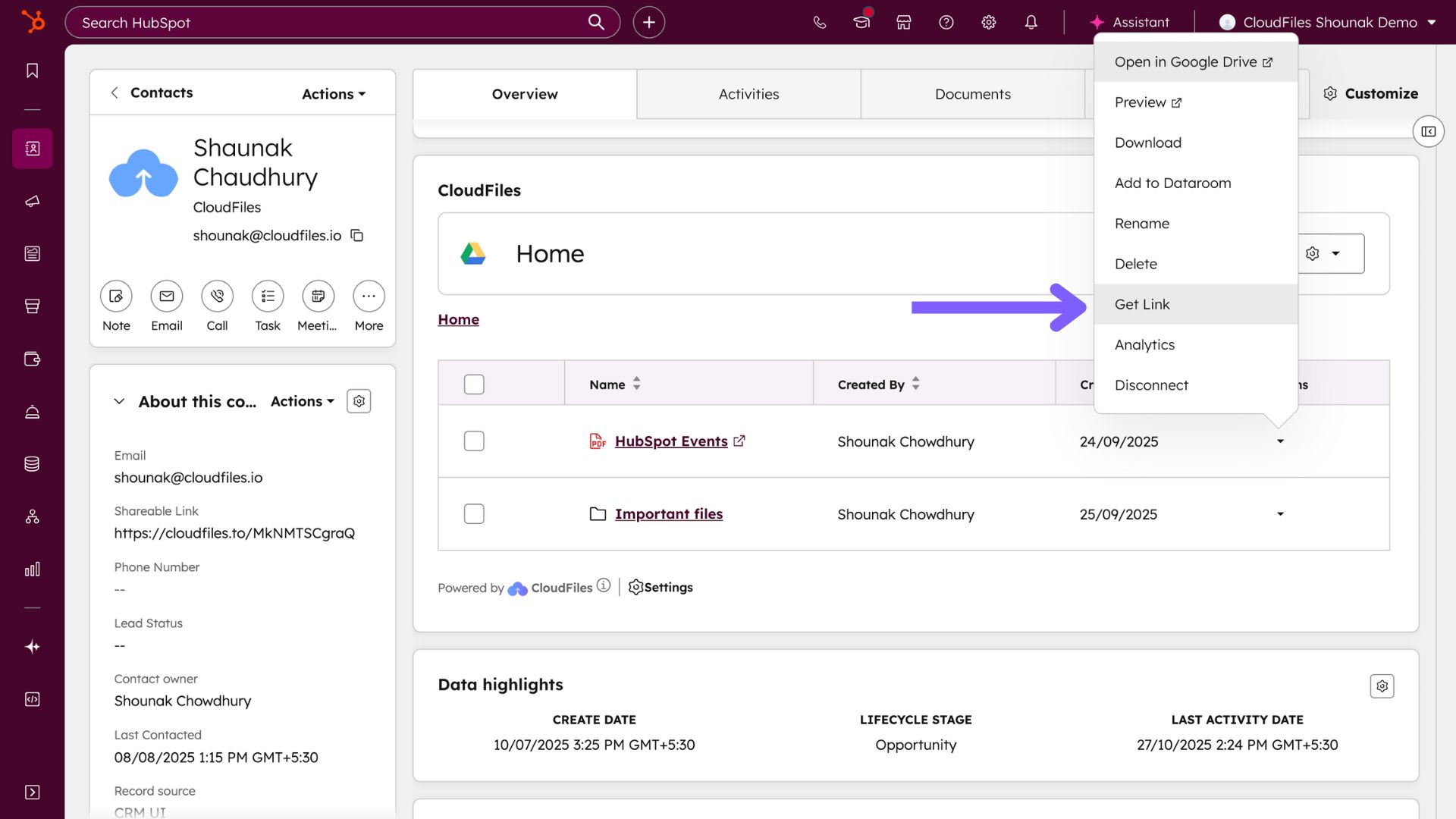
Get Link
The Get Link operation is available when a file already has a live CloudFiles sharing link. It opens the Link Settings dialogue, allowing users to copy the link or modify its configuration such as permissions, expiry, or access restrictions, without creating a new link.
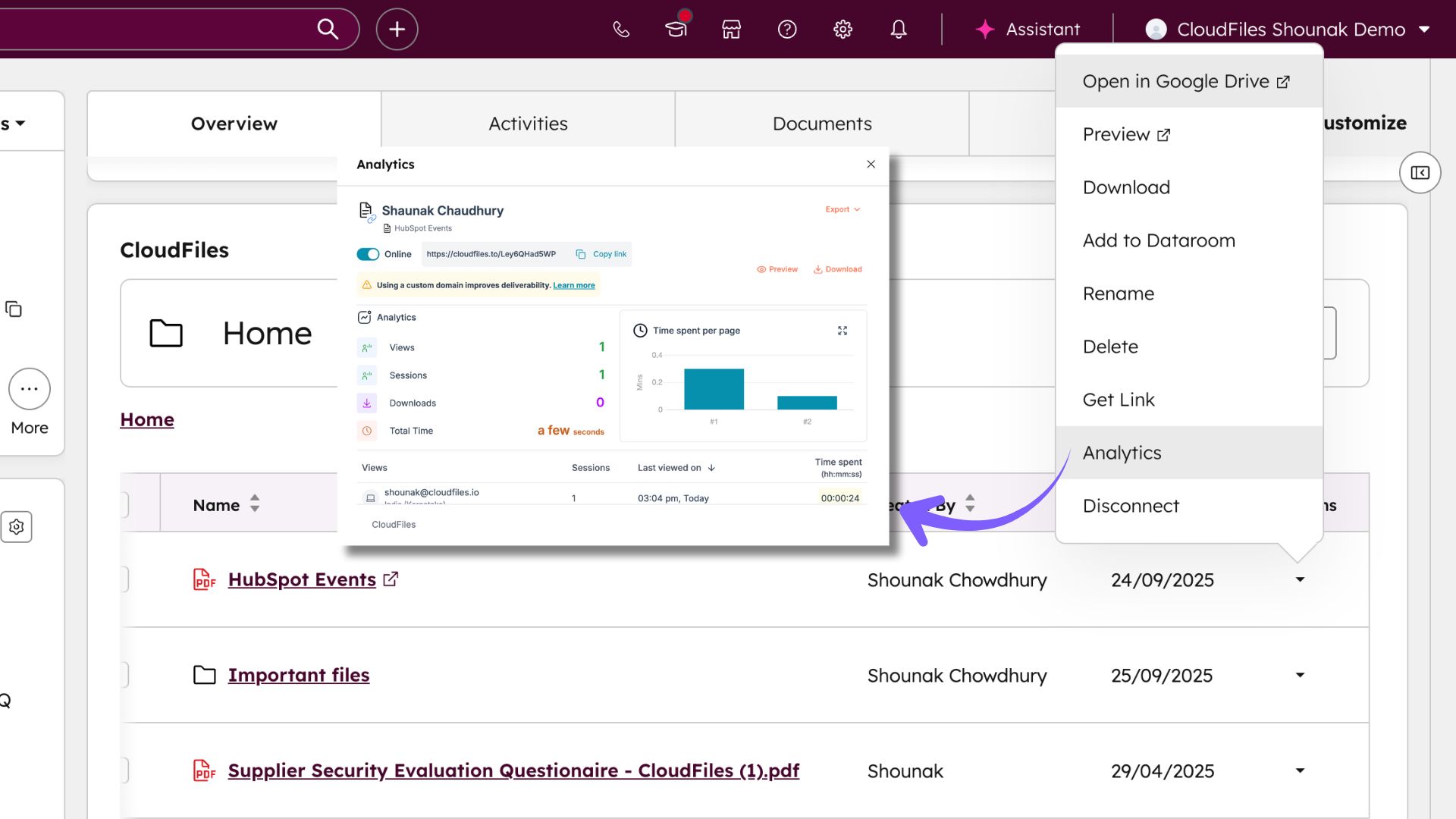
Analytics
Analytics provides access to file-level engagement data. Users can view how many times the file’s sharing link has been accessed, by whom, and from where. It also gives information about the number of downloads, the number of views, and page-wise analytics as well. This helps monitor file activity and usage trends without leaving HubSpot.
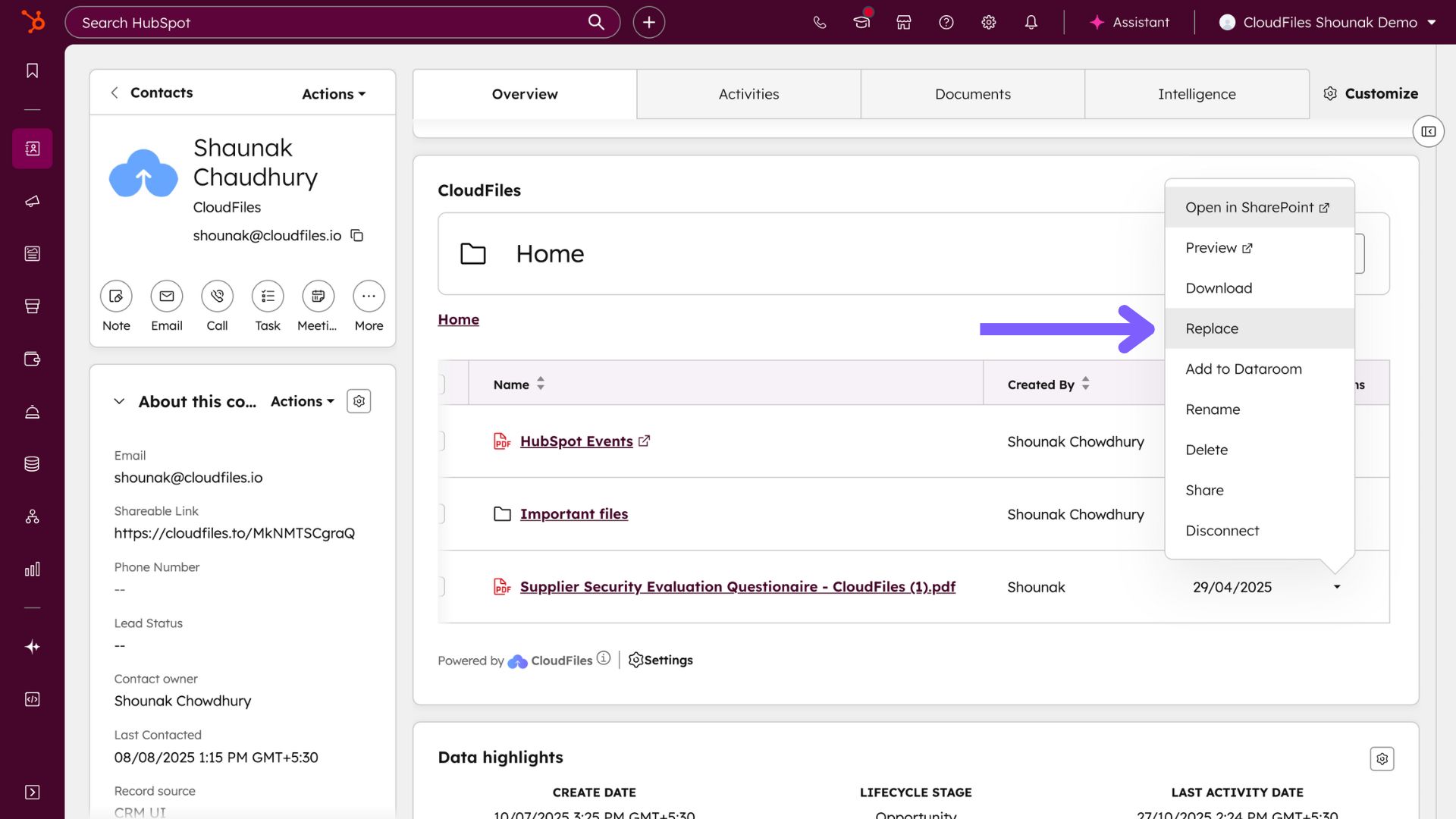
Replace
The Replace operation lets users upload a new version of the file while keeping the same CloudFiles sharing link and metadata. This is useful when an updated version of a document (for example, a revised proposal or presentation) needs to replace the previous one. The operation preserves the file name and link, ensuring that existing recipients always access the most current version.
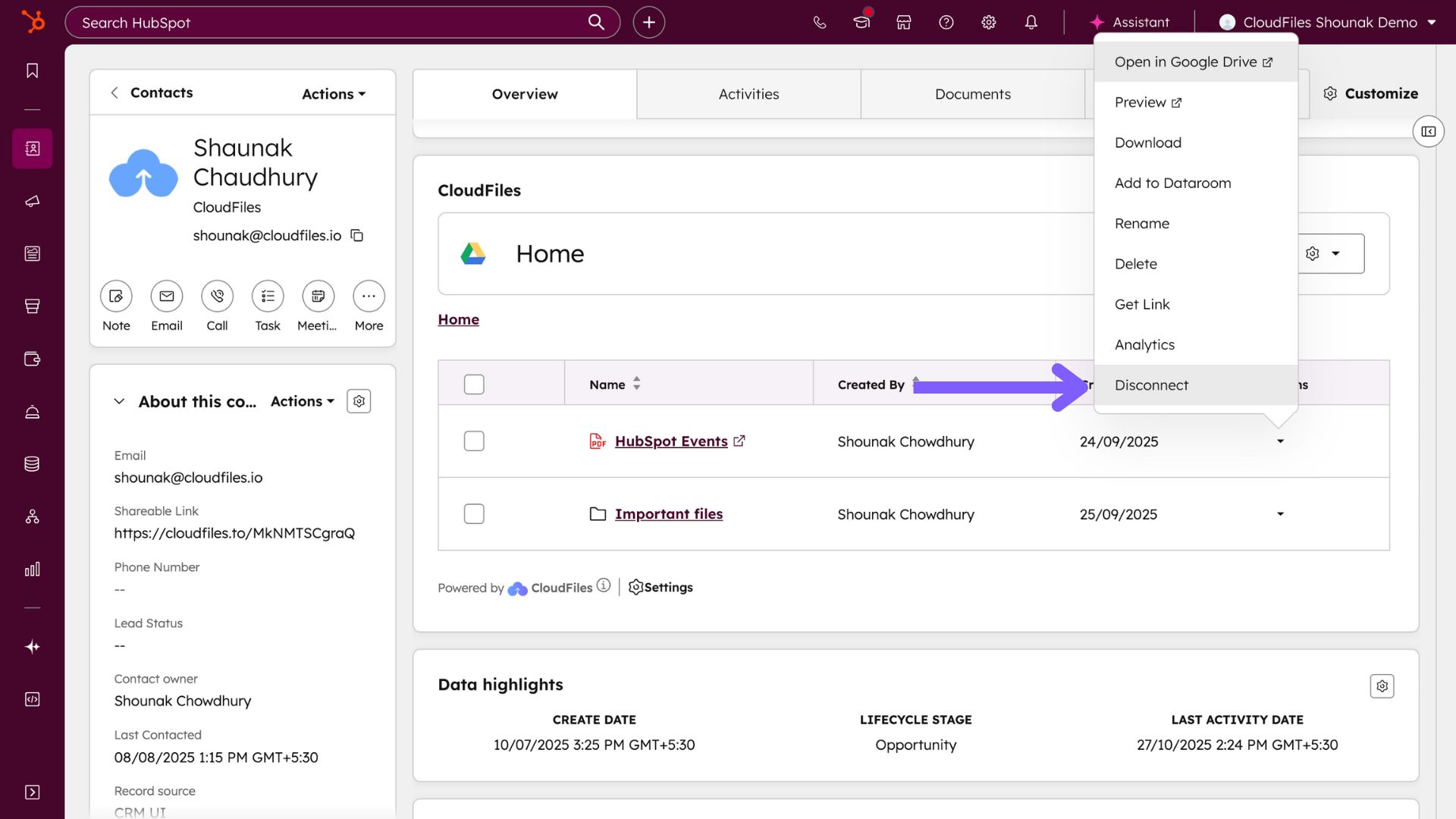
Disconnect
Disconnect removes the file’s link to the HubSpot record while keeping the file safe in its external storage. The disconnection only affects HubSpot visibility, whereas the file itself remains intact and accessible in the connected storage service.
File management in the App Card provides comprehensive control over linked documents, enabling users to perform detailed actions such as renaming, replacing, and analysing file usage directly within HubSpot.
File Management Operations in the Sidebar Widget
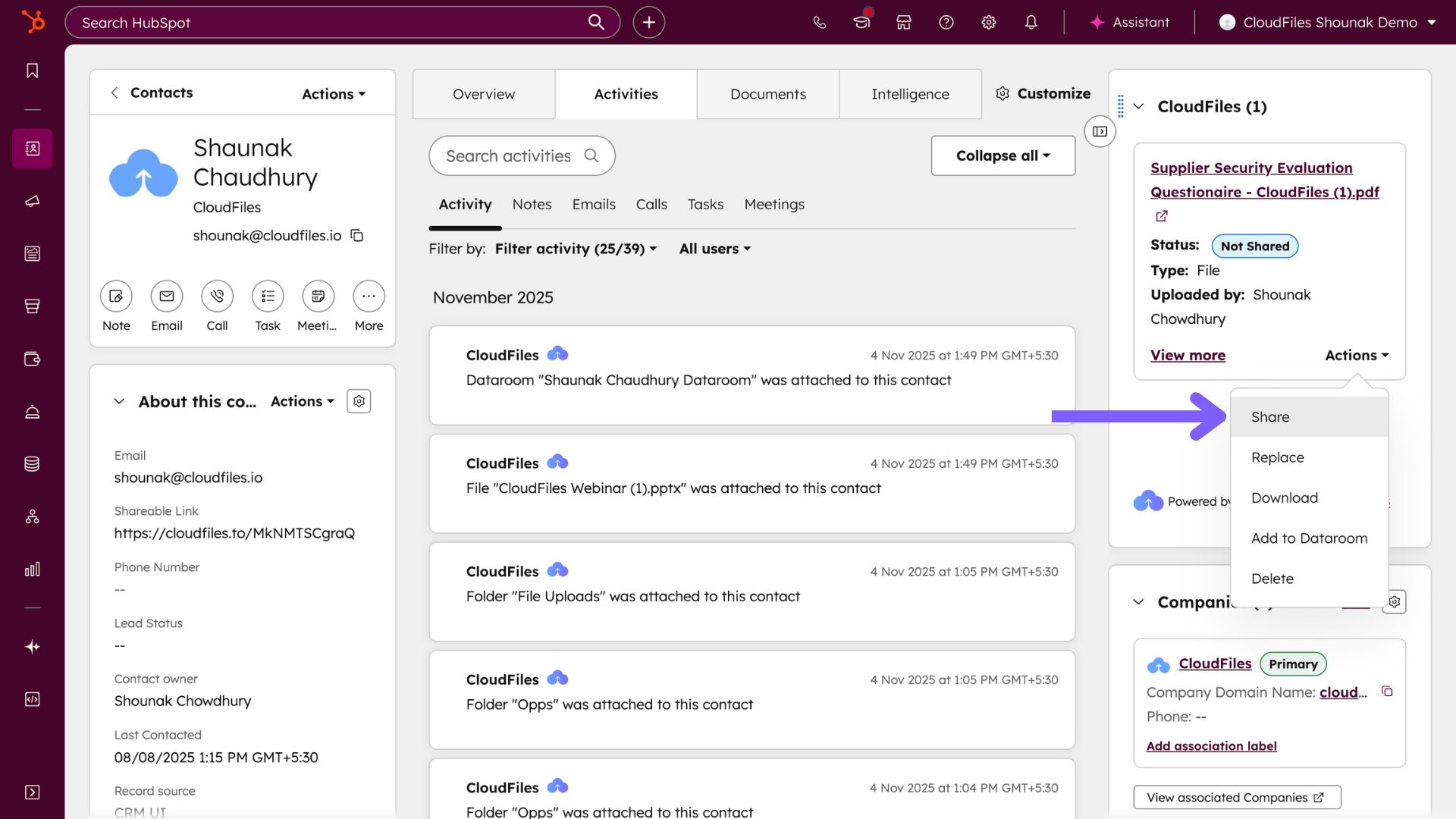
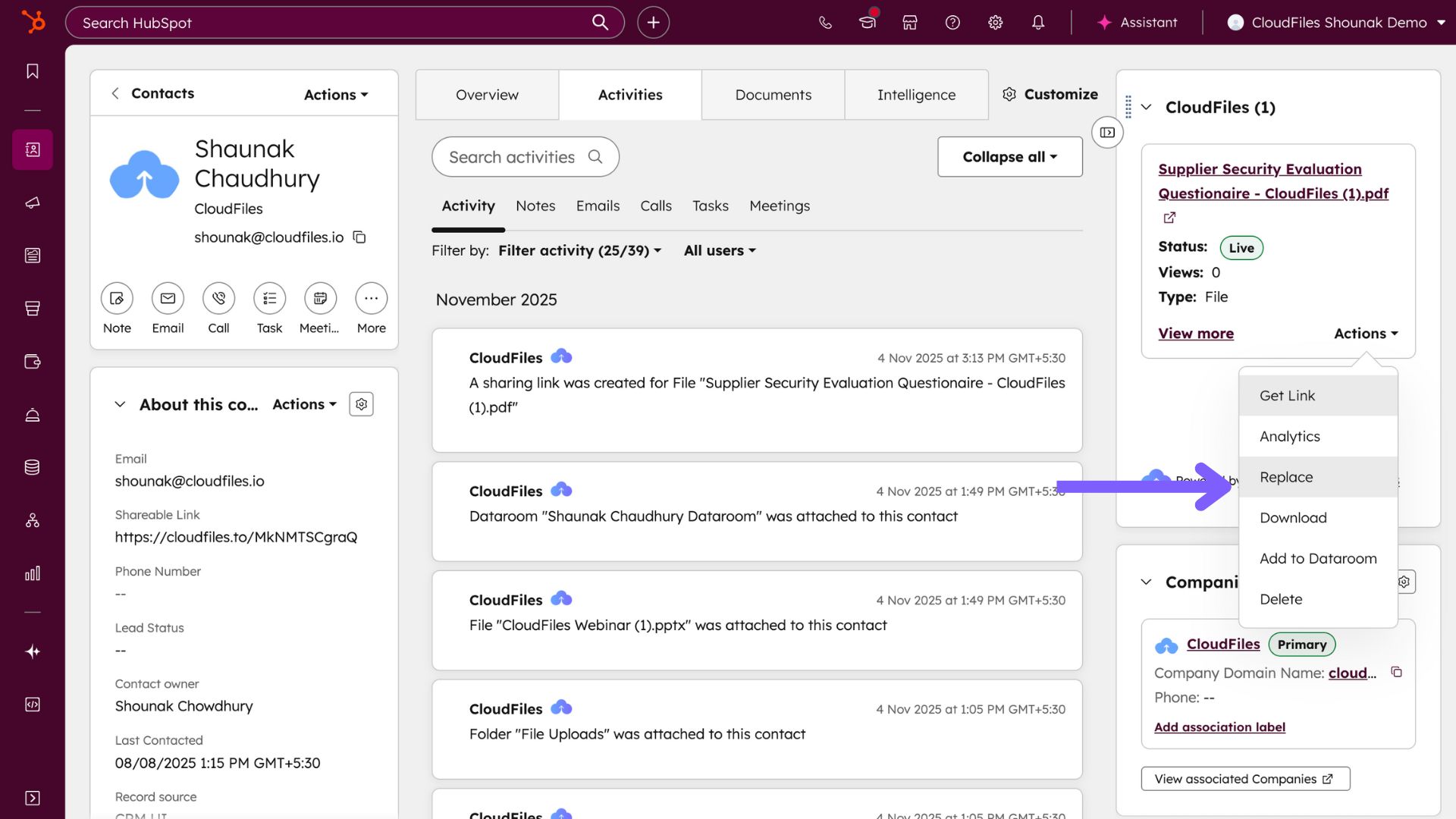
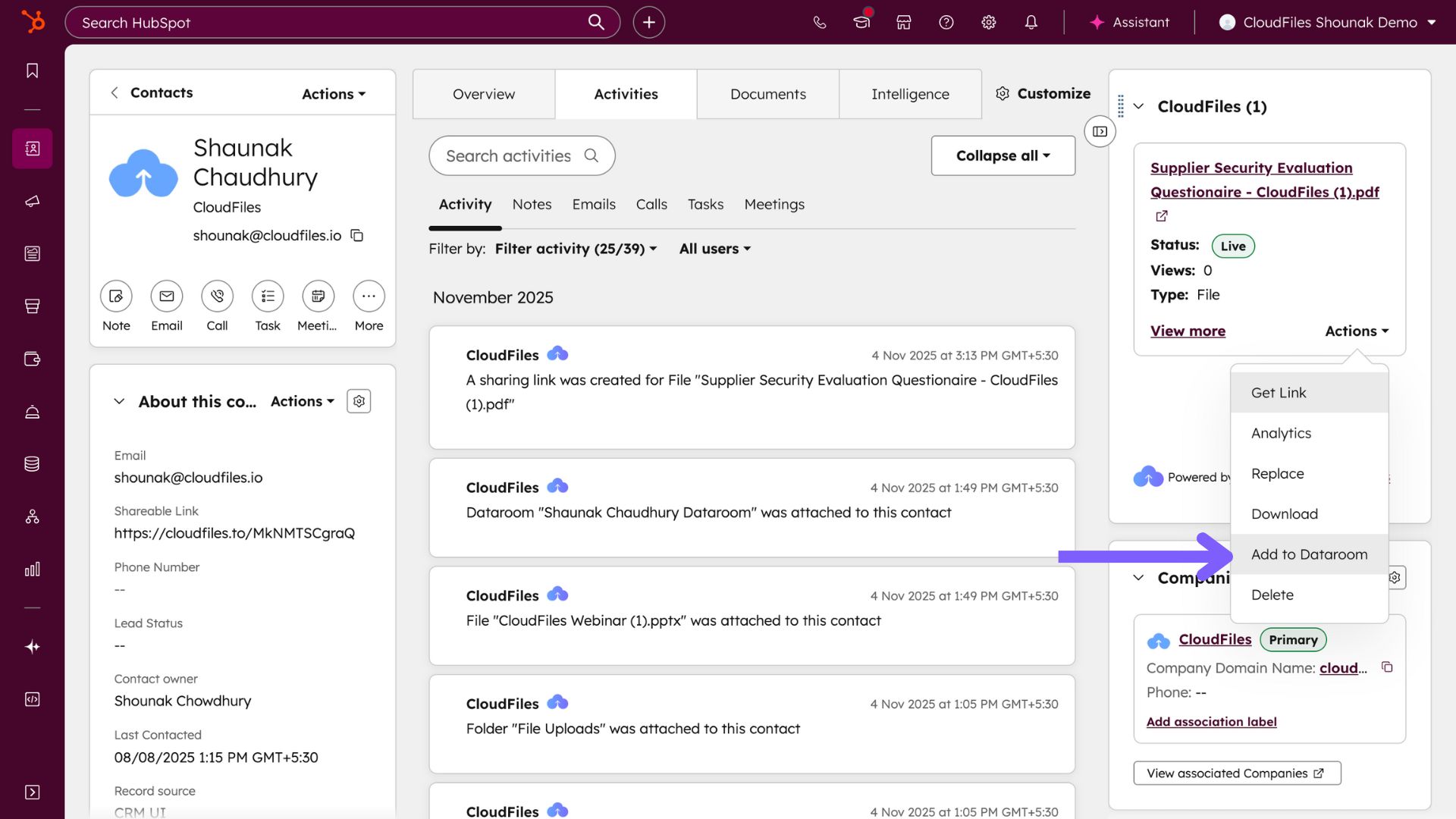
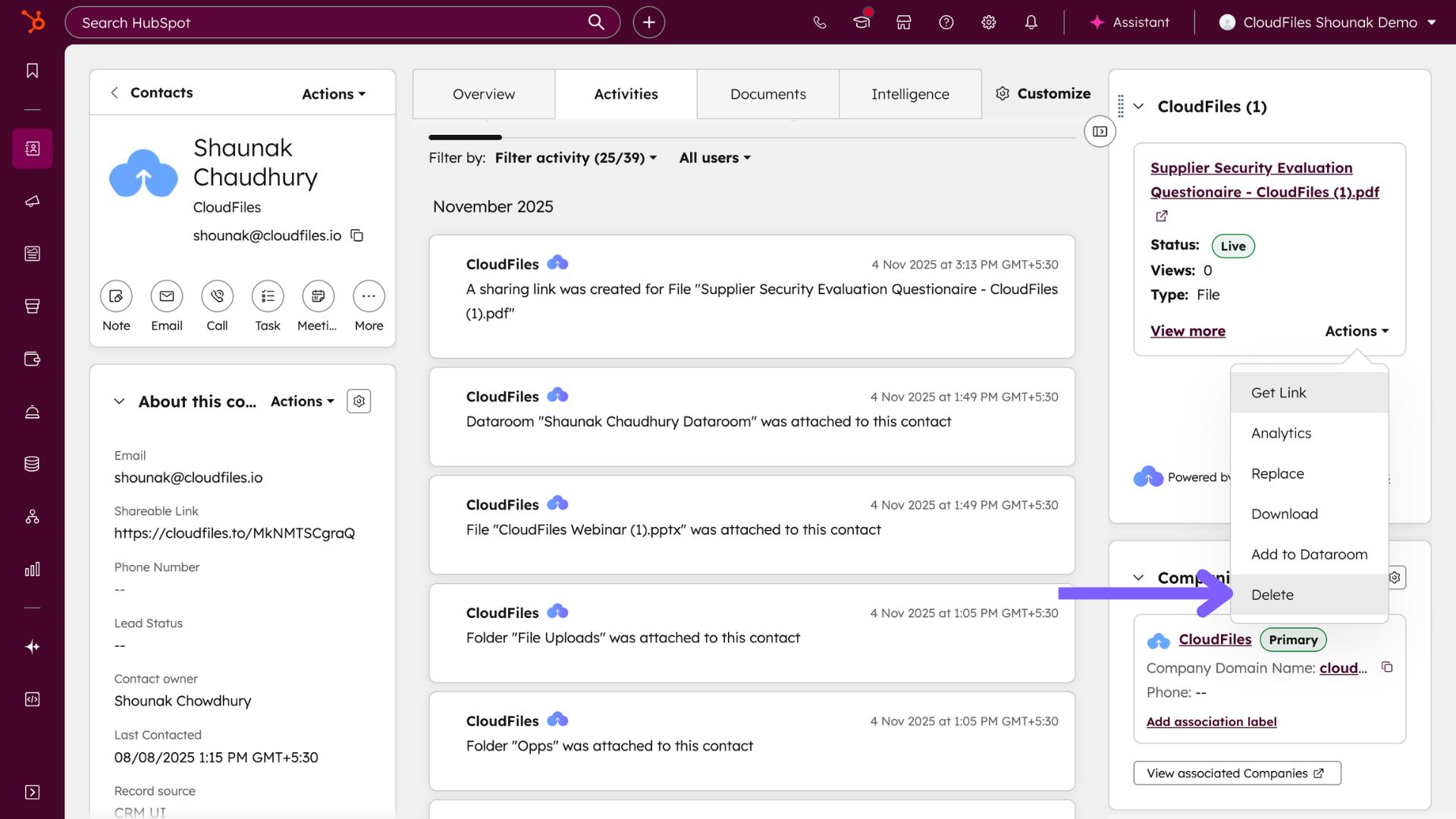
Files associated using the Sidebar Widget can also be managed directly within HubSpot. The available operations are accessed from each file’s resource tile through the Actions Dropdown. The Actions Dropdown contains various file management operations depending on the file’s type and sharing status. It provides file-specific operations, allowing users to perform key management actions without leaving HubSpot.
Share
This operation generates a CloudFiles sharing link for the file if one has not already been created. The sharing status changes from “Not Shared” to “Live” once the link is active. Shared files can be configured with security and access settings as needed.
Get Link:
This operation appears when the file status is “Live.” It opens the link settings dialog, allowing users to copy or modify the existing link configuration.
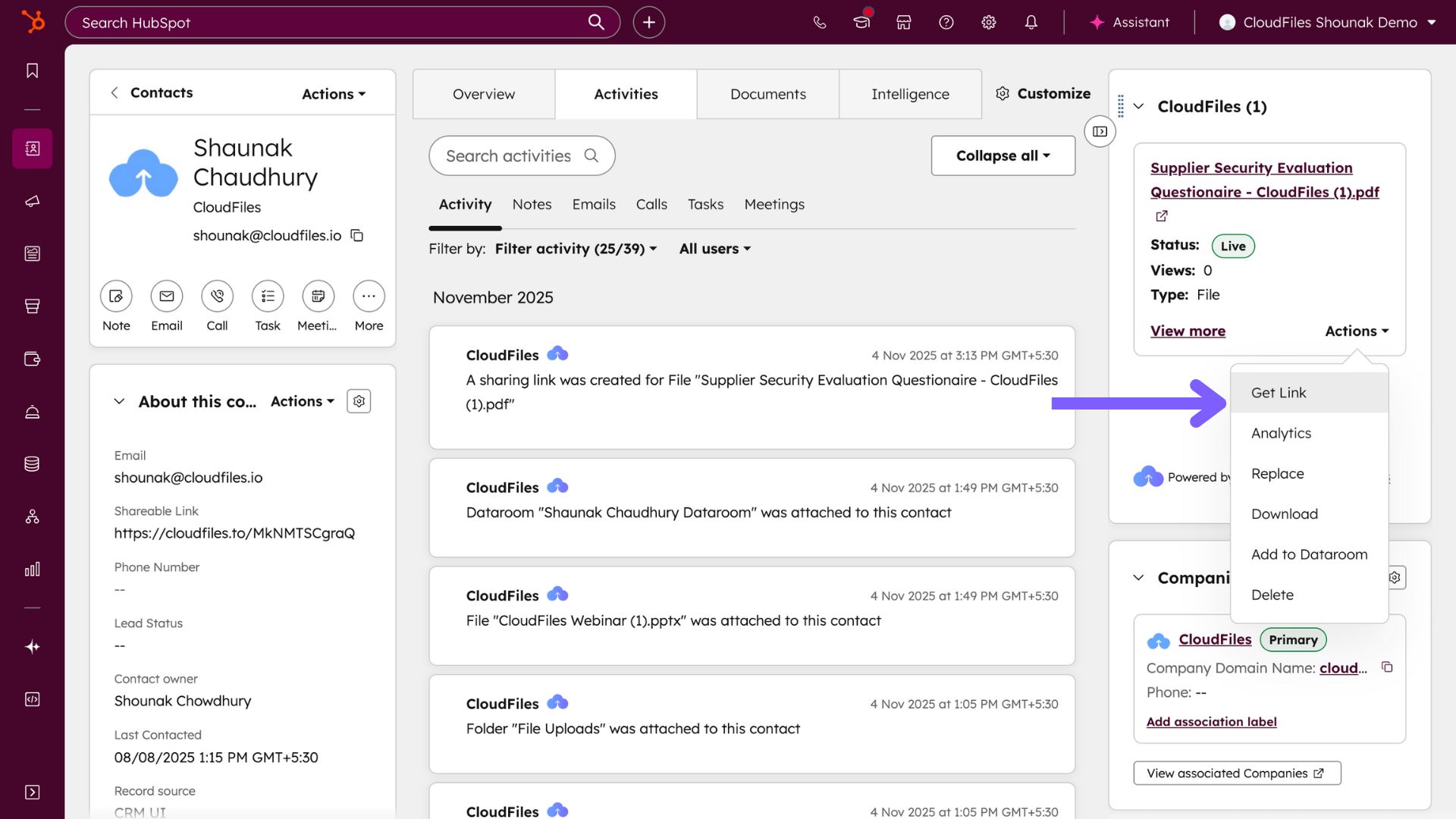
Analytics:
Displays document analytics such as views and engagement metrics collected through CloudFiles. It also provides detailed insights such as the number of downloads, and page-wise analytics. This allows you to track file engagement and usage trends directly within HubSpot. Analytics can be viewed manually or used in automation workflows for reporting and tracking.
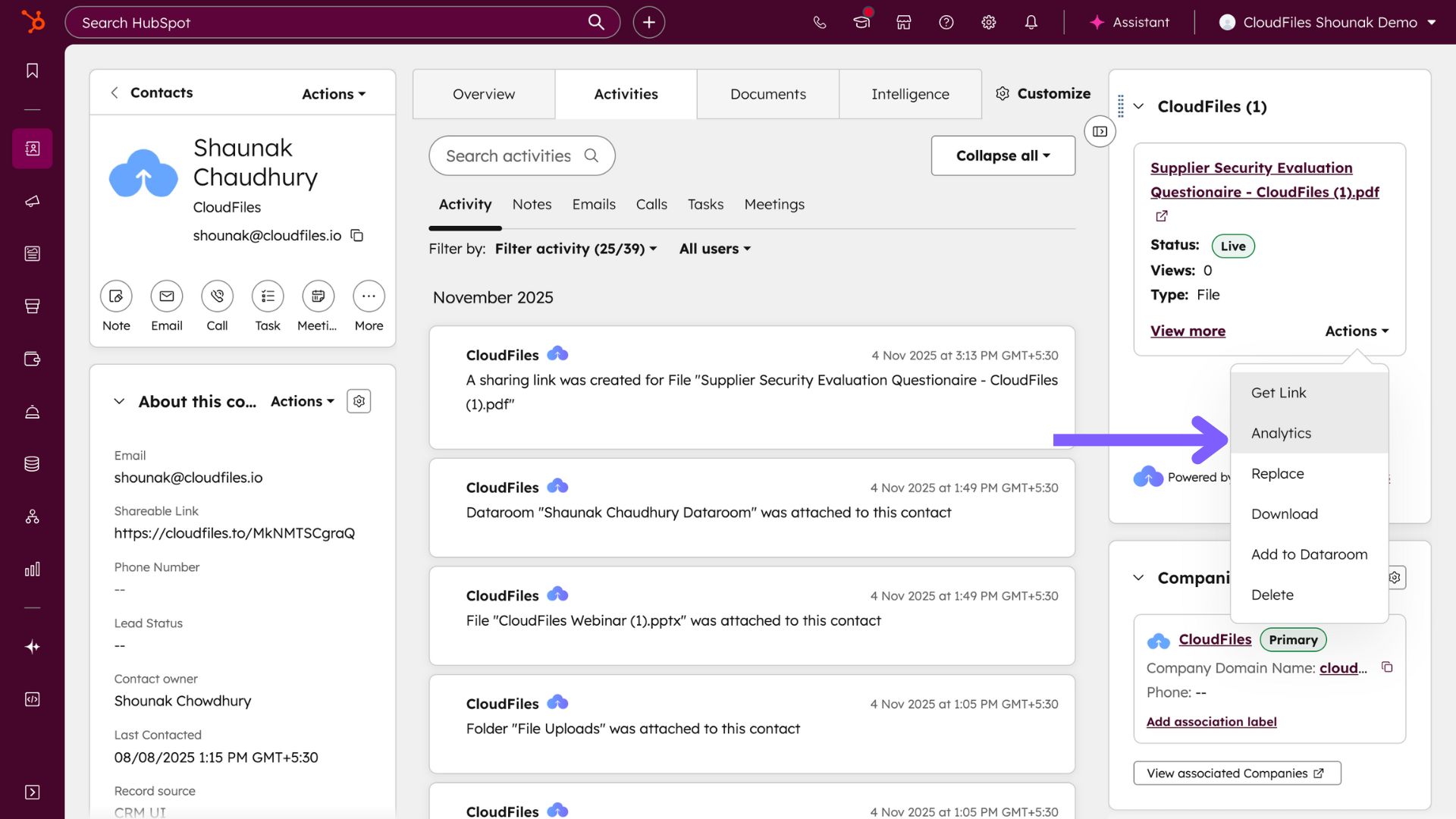
Download
The Download option allows users to save a local copy of the file to their device. The downloaded file retains its original format. For instance, a .pptx file downloads as .pptx, and an image such as .jpg downloads in the same format. The operation does not alter the version stored in the external platform.
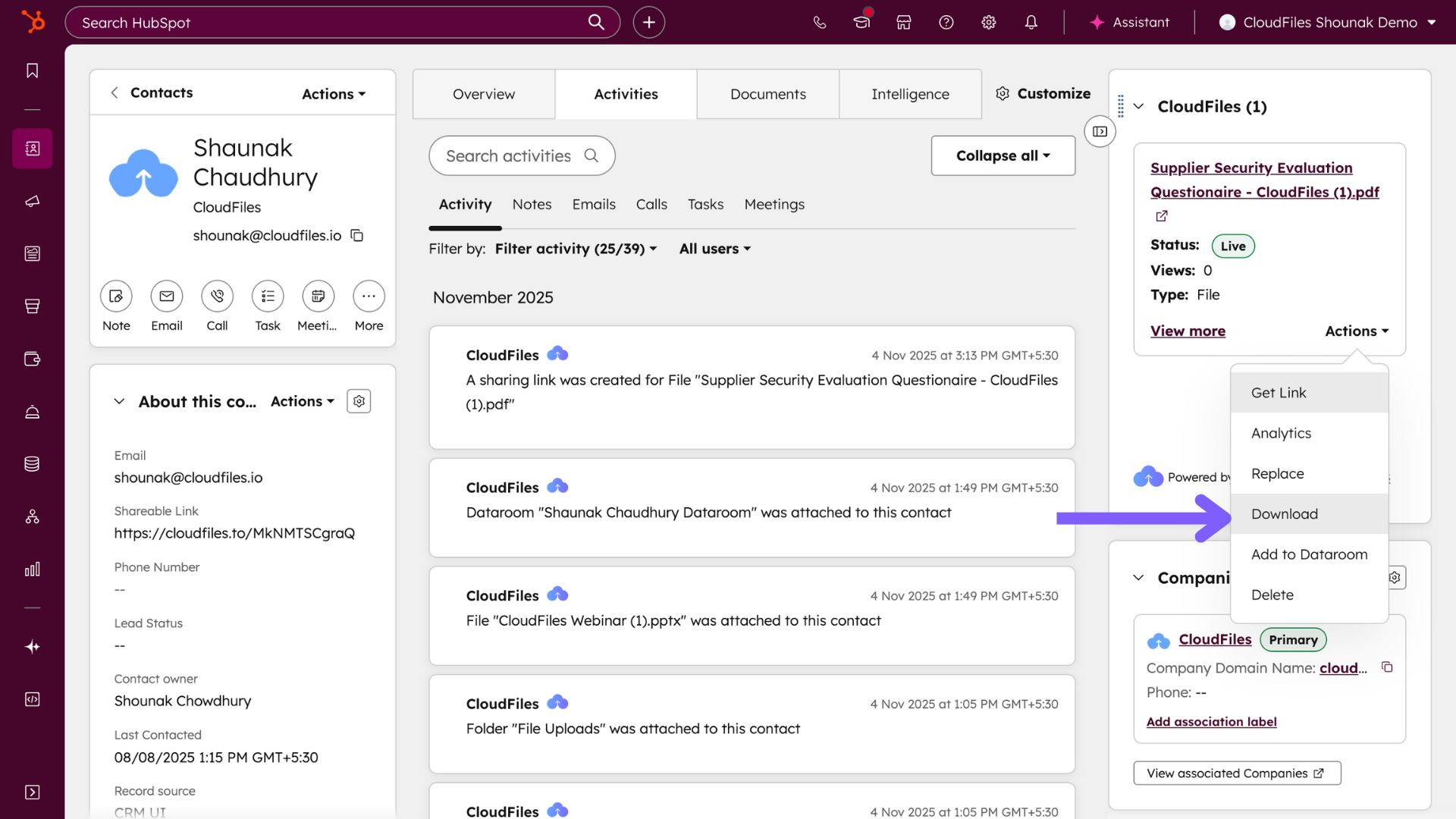
Replace
Allows users to replace a file (for example, a PDF, image, PowerPoint, or document) while keeping the same CloudFiles link active. The new version replaces the old one, ensuring shared recipients continue to access the most recent version without a new link. The file name remains the same.
Sync
This operation updates the file in HubSpot to match the version stored in the external storage when manual syncing is enabled. If automatic syncing is active, this operation does not apply.
Add to Dataroom
This action adds the selected file to a dataroom while keeping it in its original storage location. The file becomes available as part of the dataroom for shared access, while still being individually linked to the HubSpot record.
Delete
The Delete operation removes the file association from the HubSpot record. It does not delete the actual file from its storage platform. However, any CloudFiles sharing link or analytics data tied to the file will be deleted when this operation is performed.
File operations in the Sidebar Widget offer quick and essential management tools through the Attachment Actions Dropdown, helping users handle file sharing, linking, and analytics without leaving HubSpot.