Issue:
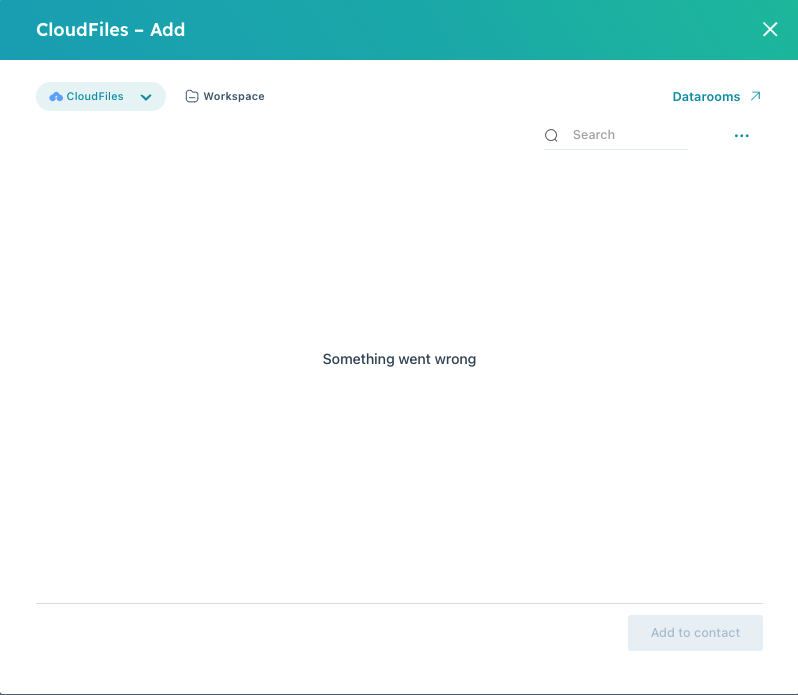
If you see a "Something went wrong" message after clicking the Add button in the CloudFiles widget on any HubSpot record, try the following steps.
Reconnect Your HubSpot and Cloud Storage Integration
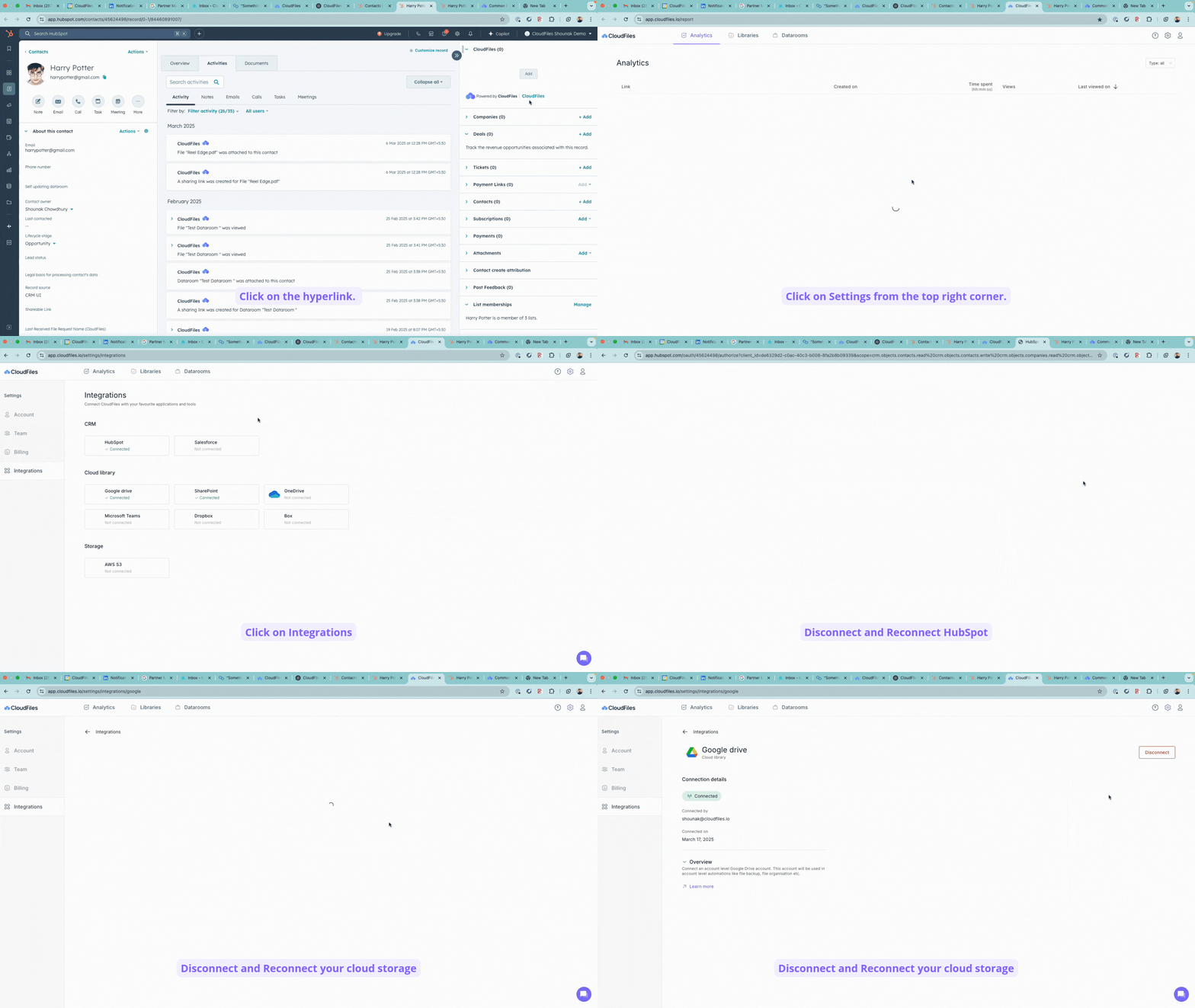
- Go to the CloudFiles Webapp.
- Click on Settings (top right corner).
- Select the Integrations tab on the left-hand side.
- Under CRM, disconnect and reconnect HubSpot.
- Under Cloud Library, select your storage platform.
- Disconnect and reconnect your cloud storage platform.
Follow the steps shown in the GIF below for a better understanding.
Refresh Cloud Library Visibility
If the issue persists, follow these steps:
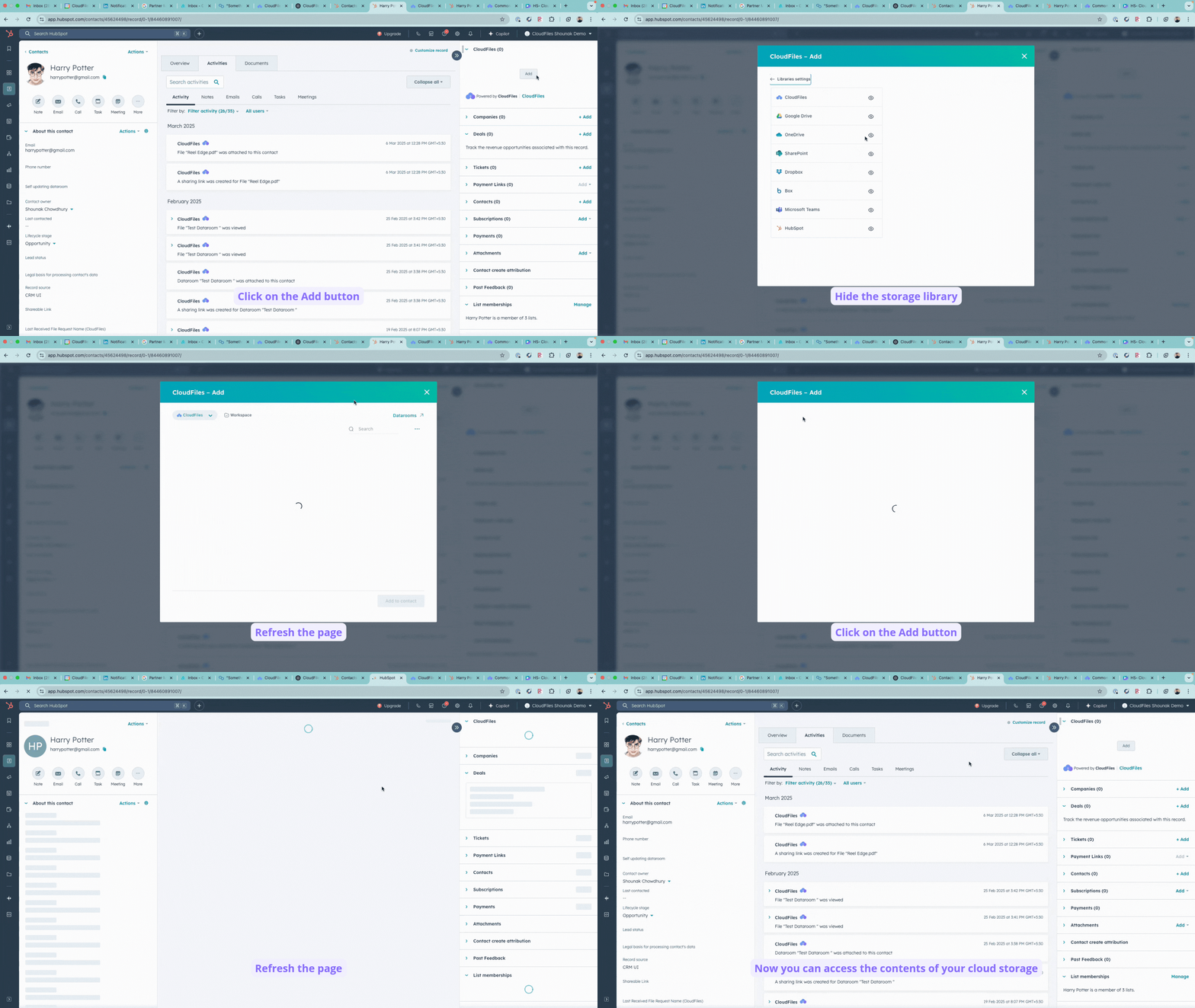
- In the error dialogue box, click the dropdown in the top-right corner that says "CloudFiles" and go to Library Settings.
- In Settings, find your storage platform and click the eye icon next to it.
- Select Hide.
- Close the window and refresh the page.
- Repeat Step 1, then similar to Step 2, click the eye icon again to unhide the storage library.
Follow the steps shown in the GIF below for a better understanding.
This should resolve the issue. If you still face problems, please email us at support@cloudfiles.io.