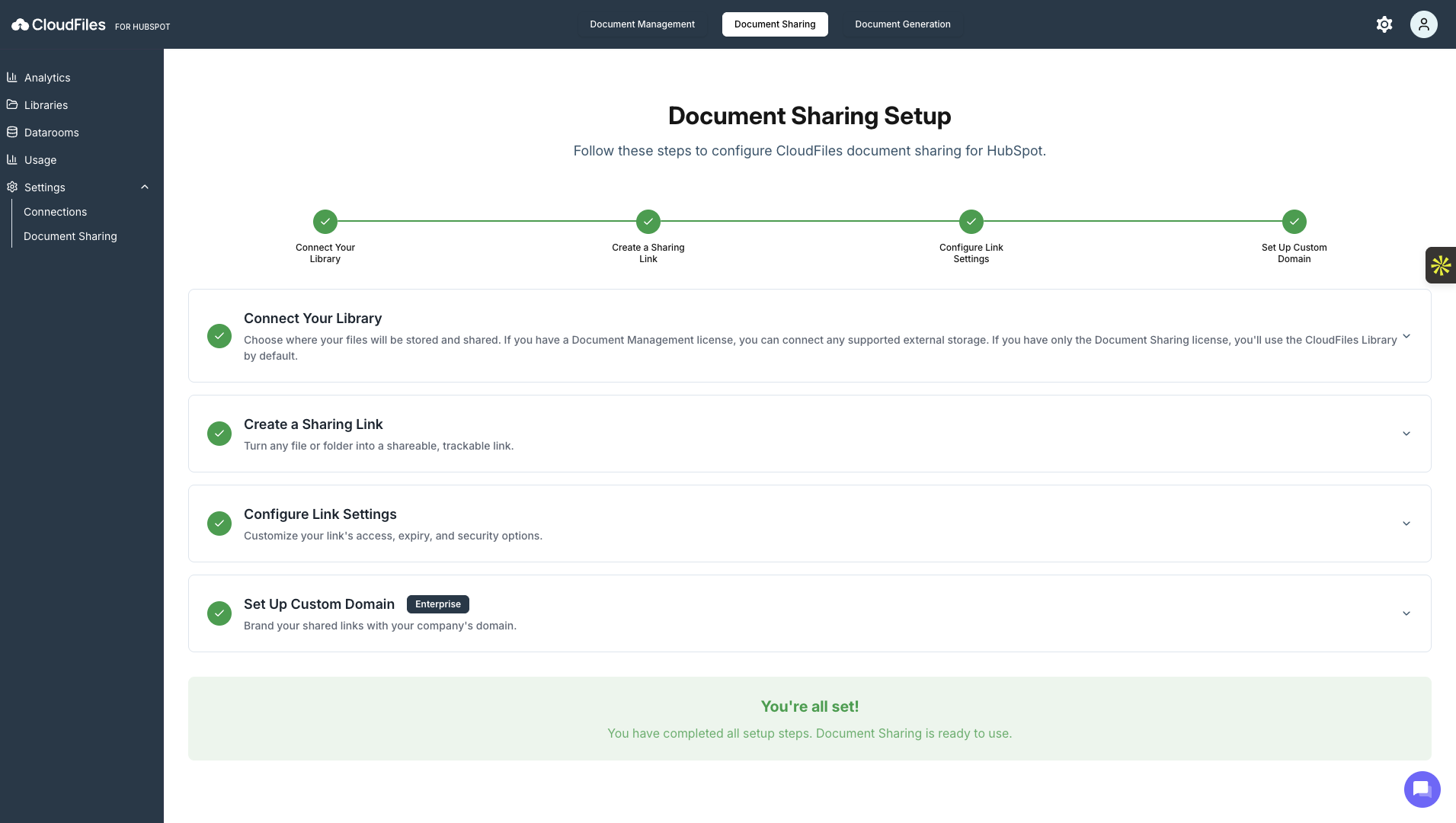
Each step in the wizard includes an embedded video walkthrough, making it easier to understand and complete the setup with visual guidance.
Accessing the Setup Wizard
You can access the Document Sharing setup wizard from the Document Sharing tab in the CloudFiles app from the left-hand side bar. A progress tracker on the left shows how many steps are completed and how many remain, allowing you to continue the setup at your own pace.
The wizard consists of four guided steps:
Step 1: Connect Your Library
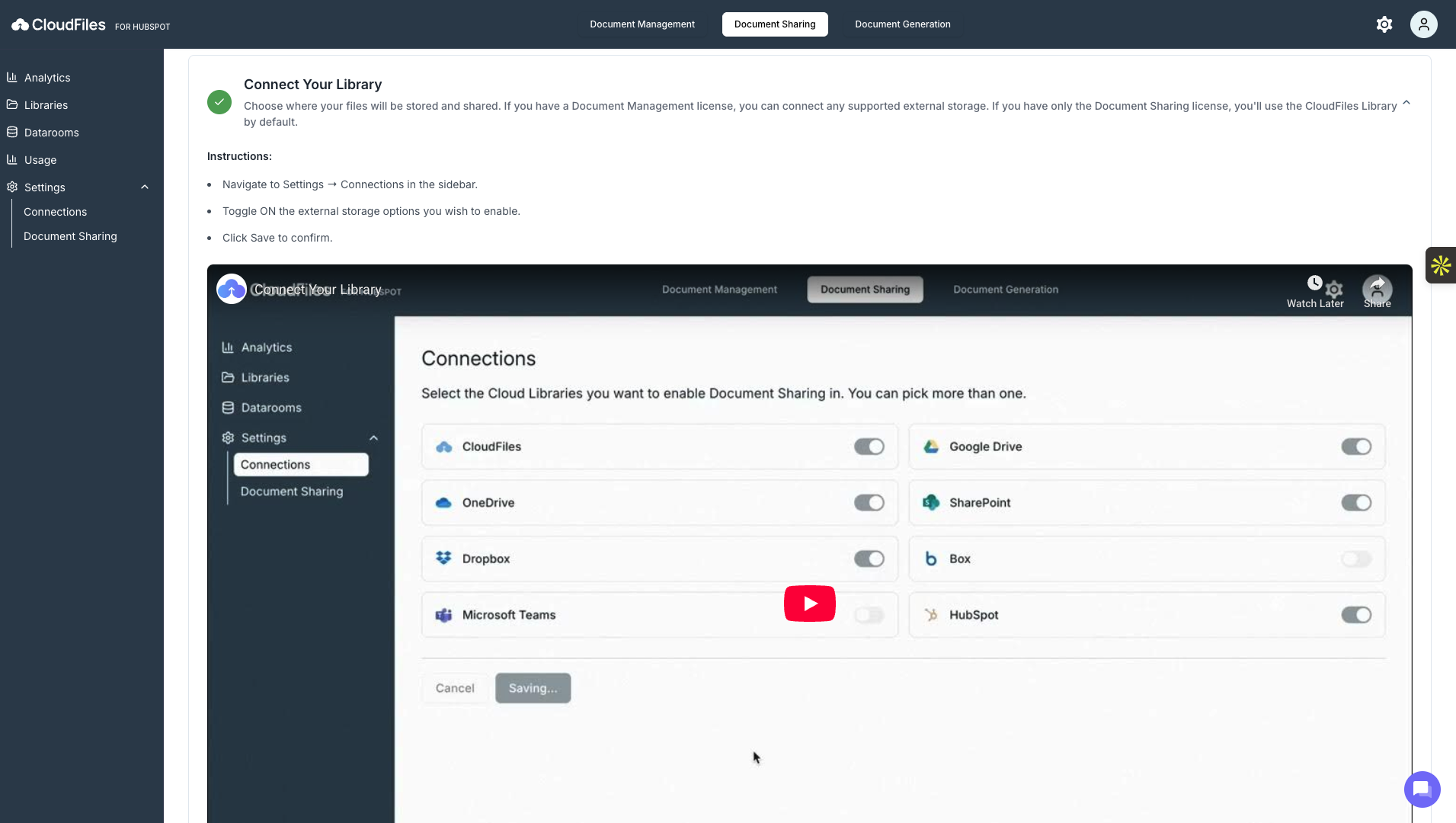
This step determines where your shared files will be stored.
If you already have a Document Management license, you can connect supported external storage platforms such as Google Drive, SharePoint, OneDrive, etc. If you only have a Document Sharing license, CloudFiles uses the built-in CloudFiles library by default. For more information, read Connecting External Storage Accounts.
Once enabled, the selected libraries become available for uploading and sharing files. A short video is available in this step to demonstrate how to enable and save library connections.
Step 2: Create a Sharing Link
After your library is connected, you can create shareable links for files or folders.
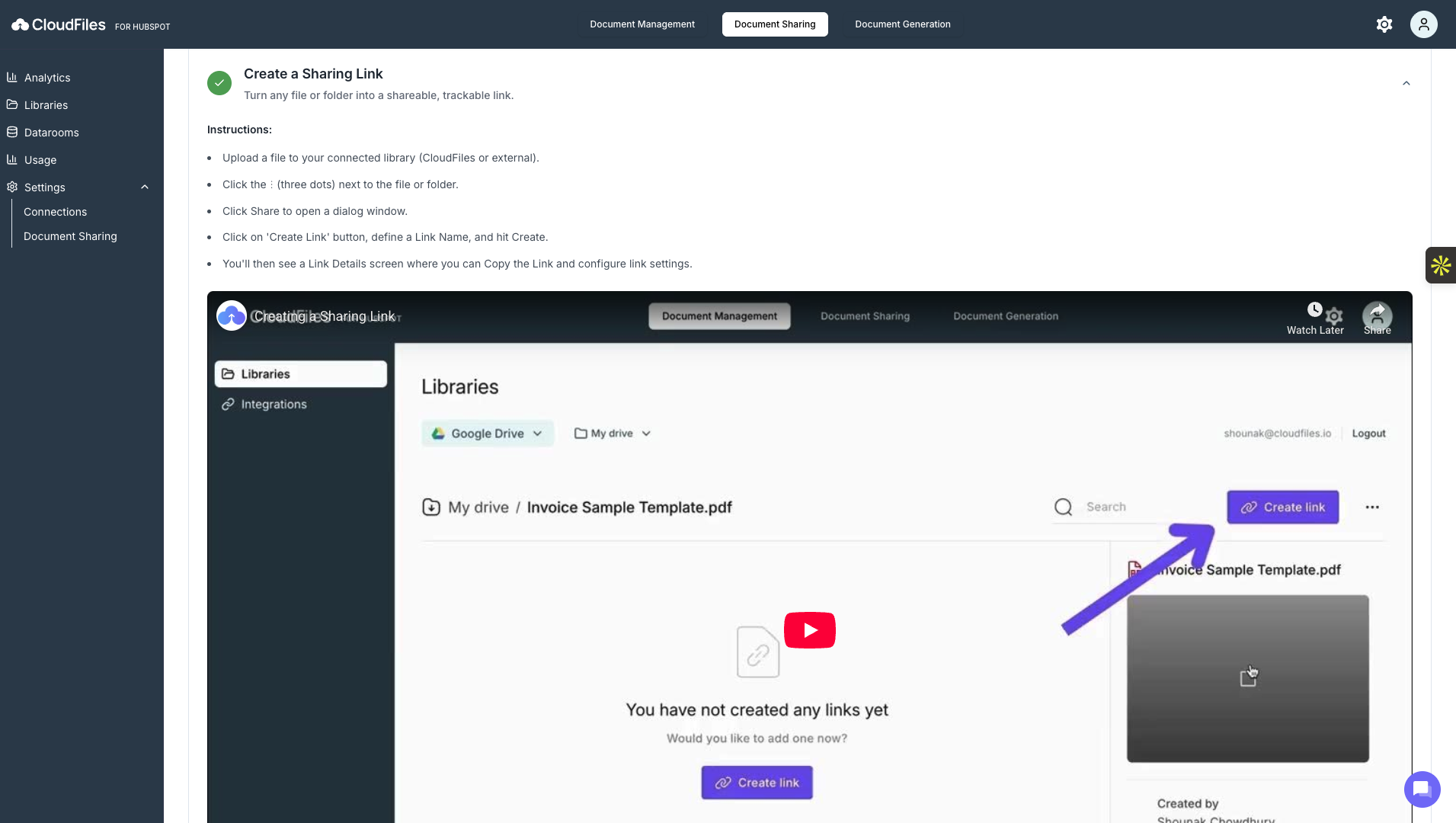
This step walks you through uploading or selecting a file, opening the share option, and generating a trackable sharing link. Once created, the link can be copied and shared externally.
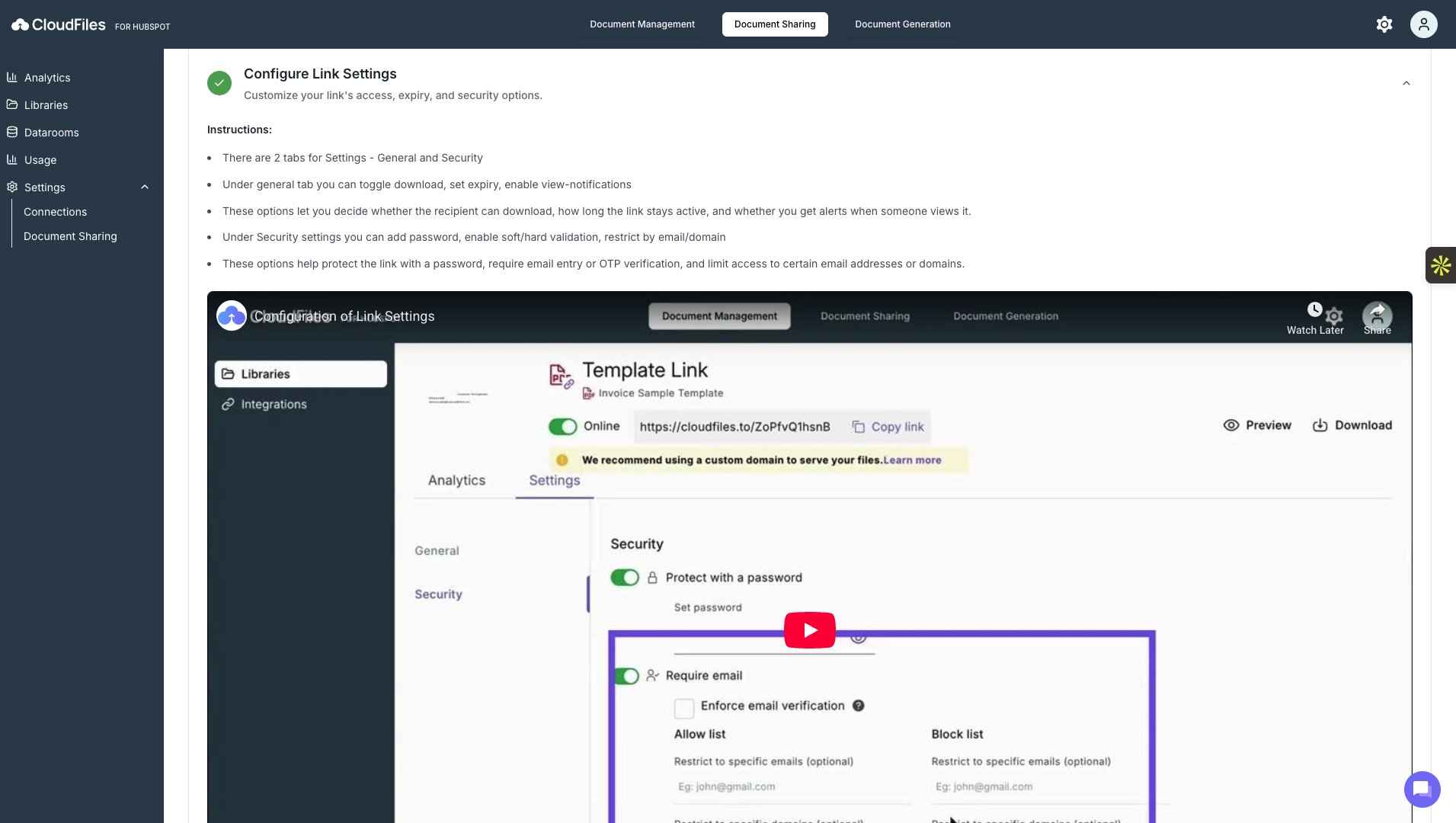
Step 3: Configure Link Settings
This step allows you to customise how your sharing links behave and who can access them. You can control download permissions, set expiration dates, enable view notifications, and apply security settings such as password protection or email verification. These options help ensure your documents are shared securely and only with the intended audience.
Step 4: Set Up a Custom Domain
For teams on the Enterprise plan, CloudFiles allows you to brand shared links with your own domain. In this step, you configure a custom subdomain by updating DNS settings and validating the domain within CloudFiles. Once active, all newly created sharing links will use your branded domain, improving trust and consistency when sharing documents externally.
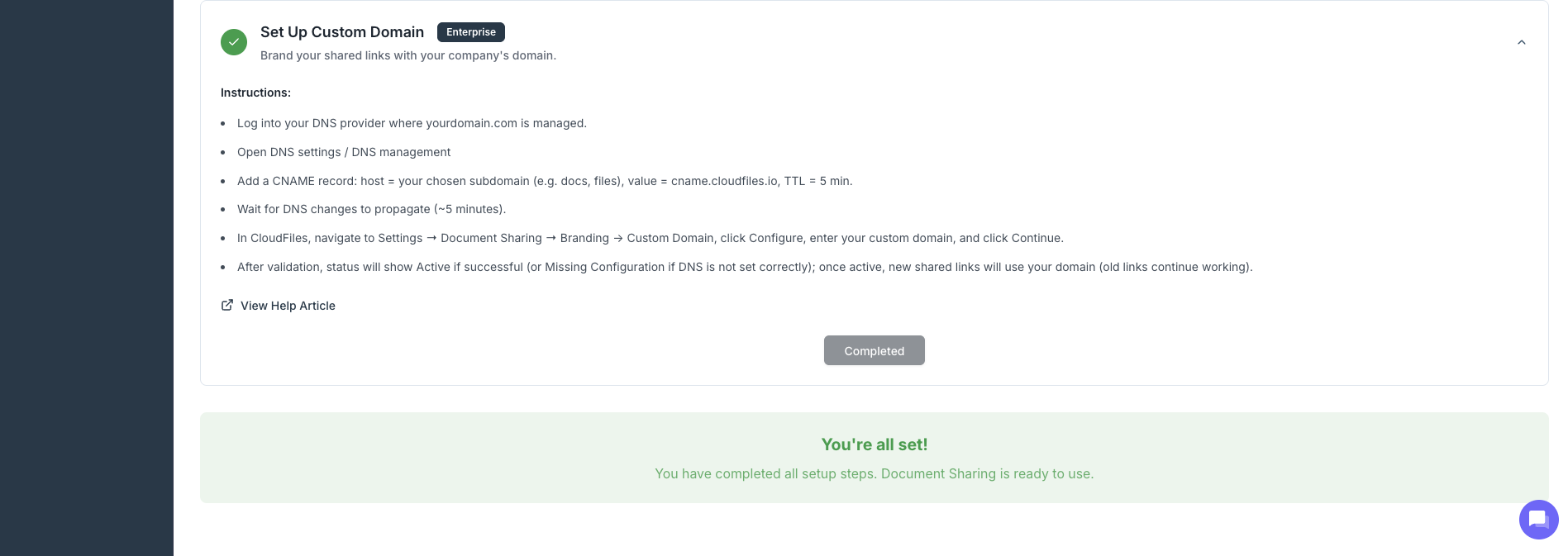
Completion and Progress Tracking
As each step is completed, the wizard marks it accordingly and updates your overall progress. You can revisit any step later if changes are needed, and videos remain available for reference at all times.
The Document Sharing Setup Wizard ensures that CloudFiles is configured for secure, trackable, and branded document sharing directly from HubSpot. By following the guided steps and using the built-in videos for additional clarity, you can quickly enable sharing, control access, and deliver a professional experience to recipients.