This article explains the following:
- Link Creation for Files and Folders – Explains how shareable links are created and configured for individual files and entire folders.
- File Viewer – Describes how recipients access and view shared files and folders through the CloudFiles viewer.
- Custom Branding Overview – Provides an overview of how branding applies to shared links and previews.
Link Creation for Files and Folders
CloudFiles supports link creation for both individual files and entire folders. Once the file or the folder has been associated with the App Card, links are created inside HubSpot from the Actions menu available for each file or folder.
When a link is created, CloudFiles generates a secure URL that opens the selected file or folder in the CloudFiles viewer on sharing. Links must be set to Online before they can be accessed externally.
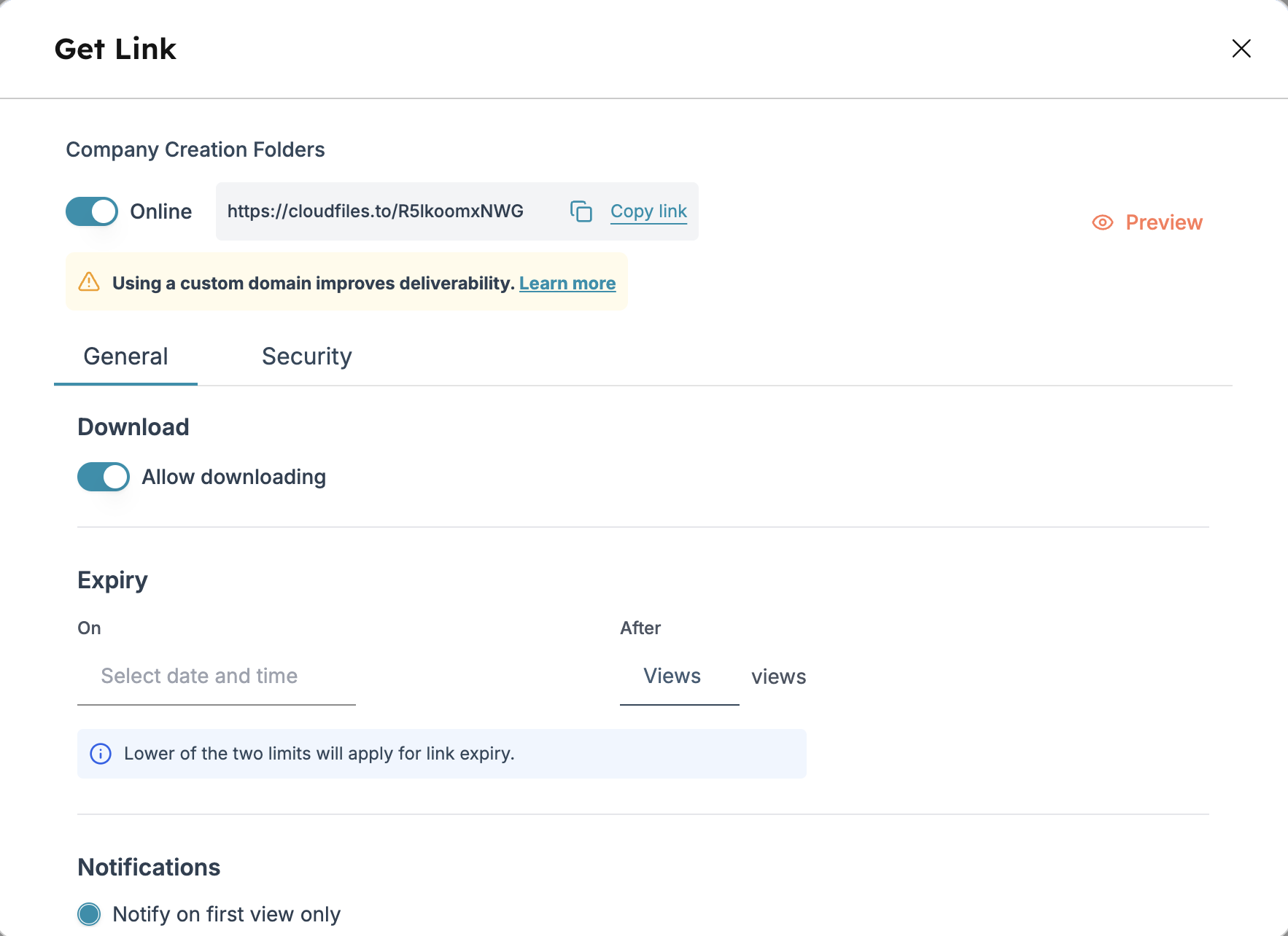
The Link Settings and Security screen allows users to control how the content can be accessed. Users can enable or disable downloads, define when the link should expire, and choose whether expiry is based on a specific date and time or a maximum number of views. Read more about
The same link creation and configuration experience applies to both files and folders.
File Viewer
All shared content opens in the CloudFiles File Viewer. The viewer runs in the browser and does not require recipients to sign in or install additional software.
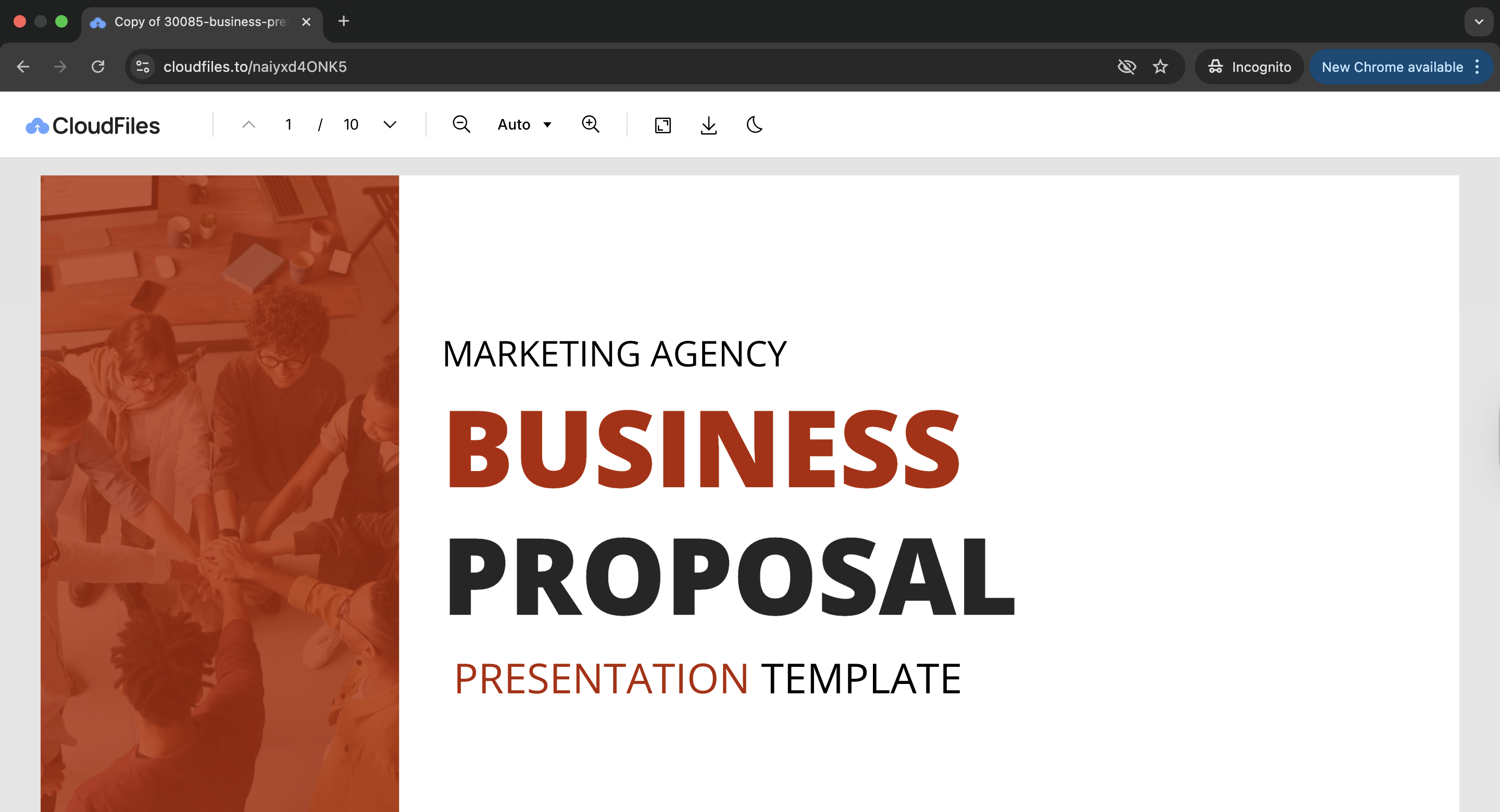
For file links, the viewer displays the selected document and enforces the permissions defined during link creation, including download restrictions and expiry rules.
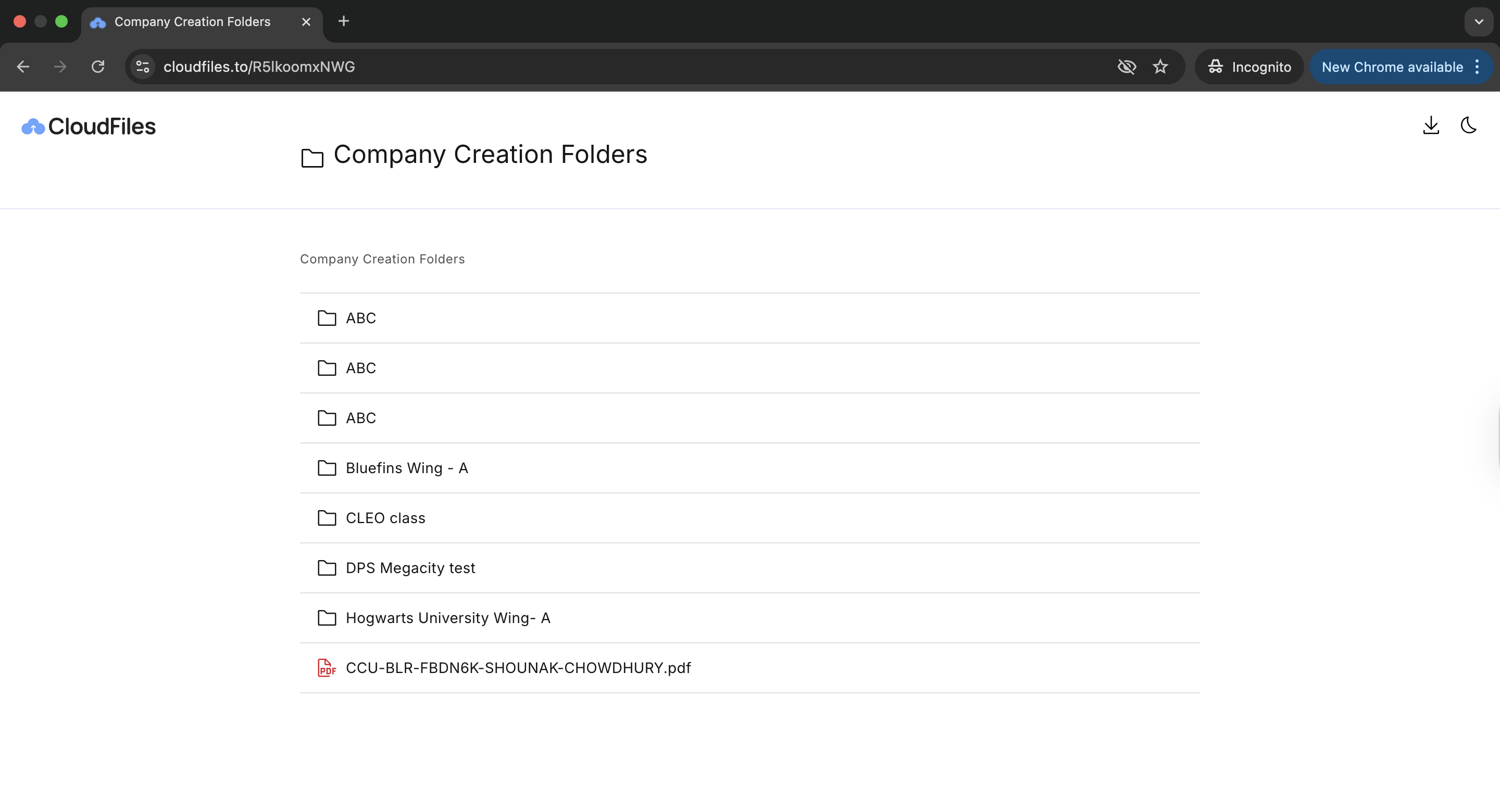
For folder links, the viewer displays the folder structure and lists all files available within that folder. Recipients can preview individual files based on the access rules applied to the folder link.
The viewer reflects the active branding and domain configuration applied to the account at the time the link is accessed.
Custom Branding Overview
CloudFiles allows organisations to apply custom branding to shared links and the File Viewer. This includes using a custom logo, favicon, and domain instead of CloudFiles defaults. Custom branding is available on the Enterprise plan. Branding applies uniformly across all shared files and folders and affects both new and existing links.
Detailed setup instructions are available in the Custom Branding & Domain configuration article.