This article covers:
- Folder Management Operations in the App Card — where users can rename, delete, or disconnect linked folders.
- Folder Management Operations in the Sidebar Widget — where users can perform folder actions through the Attachment Actions Dropdown, including sharing, browsing, and adding to datarooms.
Folder Management Operations in the App Card
When folders are linked to HubSpot through the App Card, users can perform several management actions directly within the interface. These operations apply to folders stored in external platforms such as Google Drive, SharePoint, OneDrive, Dropbox, and Box,etc.
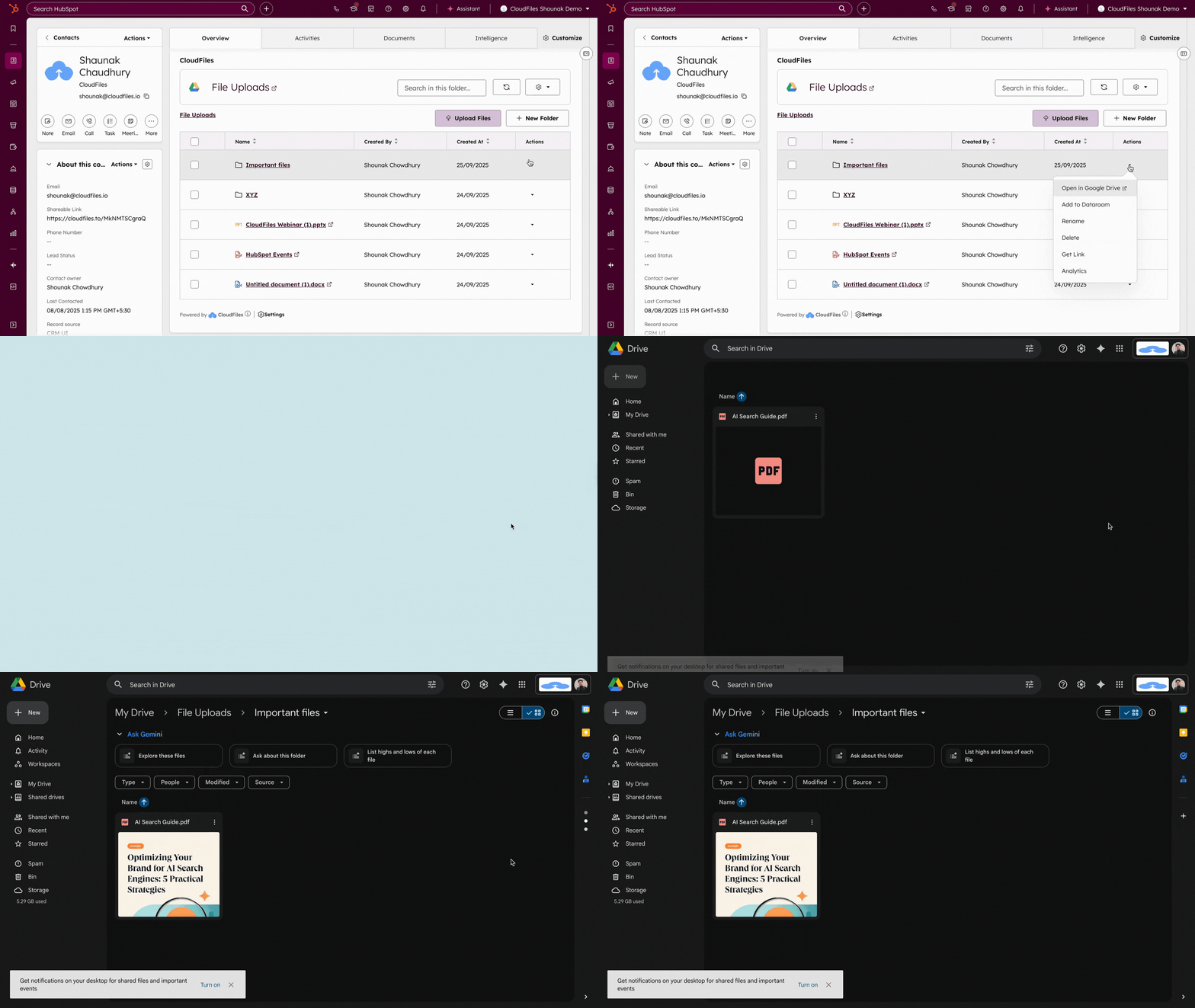
Open in Storage
The Open in Storage option opens the folder directly in its connected storage platform. For example, a folder from Google Drive opens in Google Drive’s interface, while a SharePoint or OneDrive folder opens in the respective Microsoft environment. This provides full access to all files and subfolders contained within the linked directory.
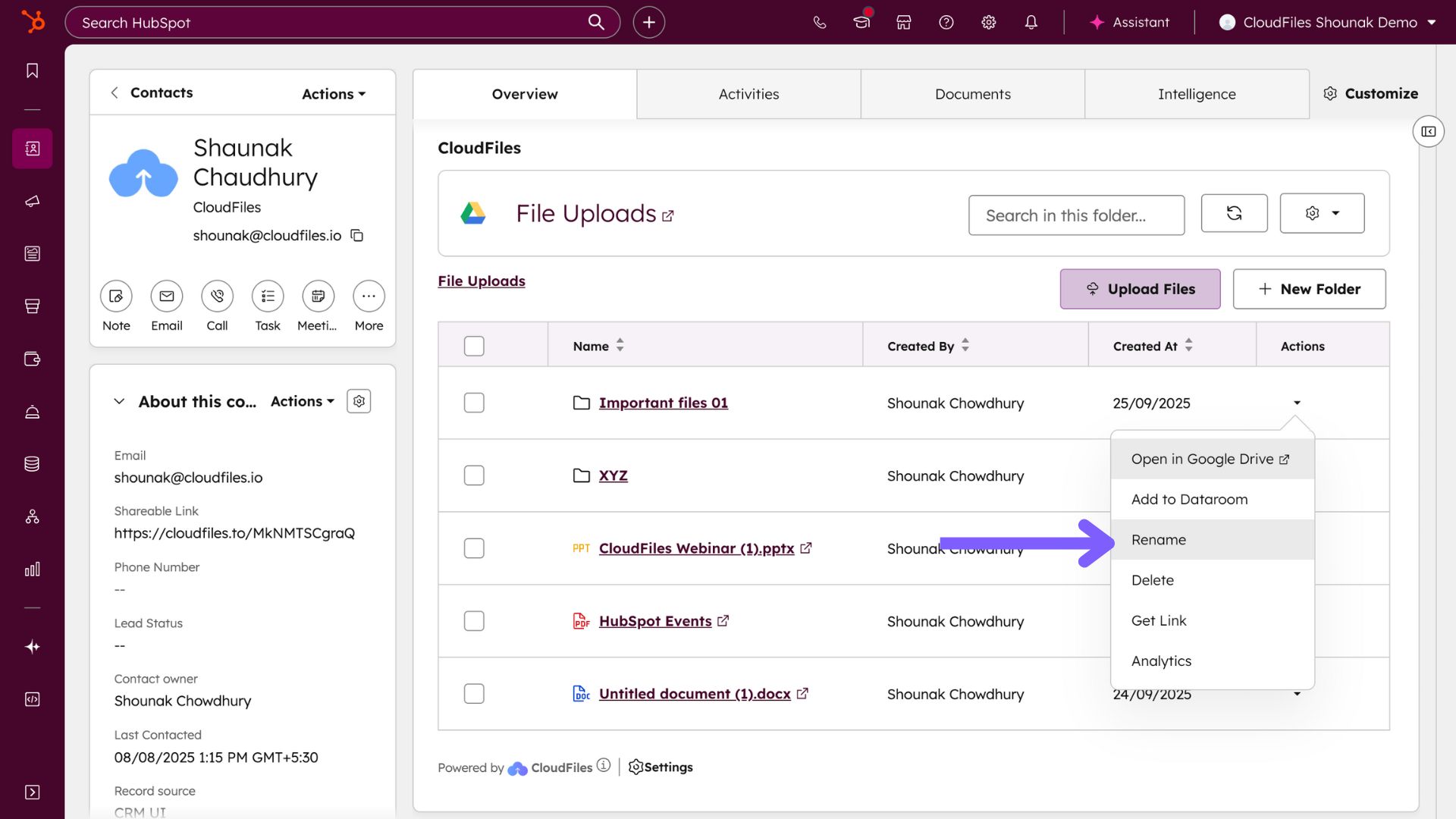
Rename
The Rename operation allows users to update the folder’s name directly from HubSpot. The new name is reflected both within the App Card and in the external storage system. This helps maintain naming consistency across platforms.
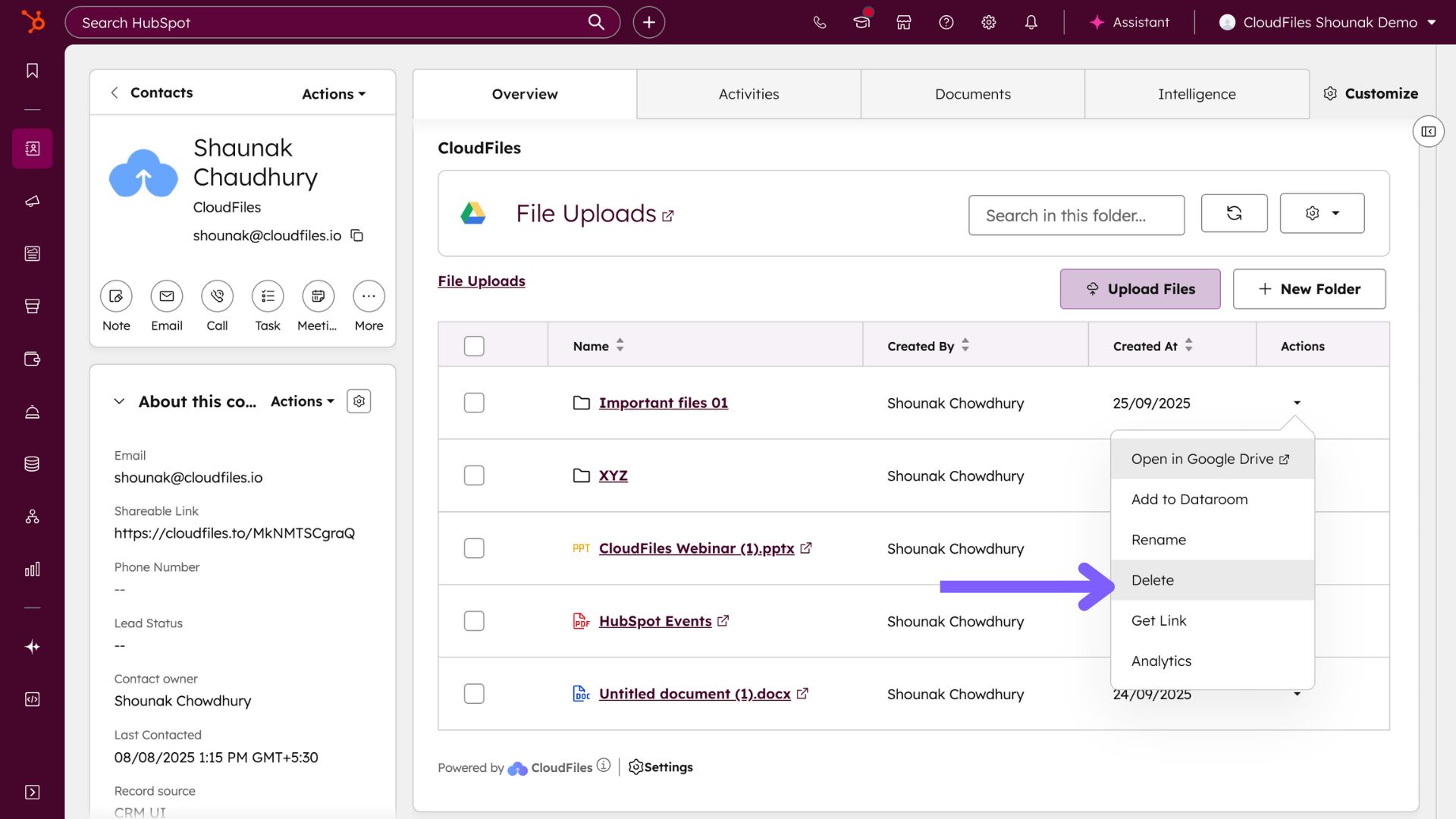
Delete
The Delete operation permanently removes the folder from the connected storage platform. Once deleted, the folder and its contents cannot be recovered through HubSpot. This action should only be used when the folder and its data are no longer required.
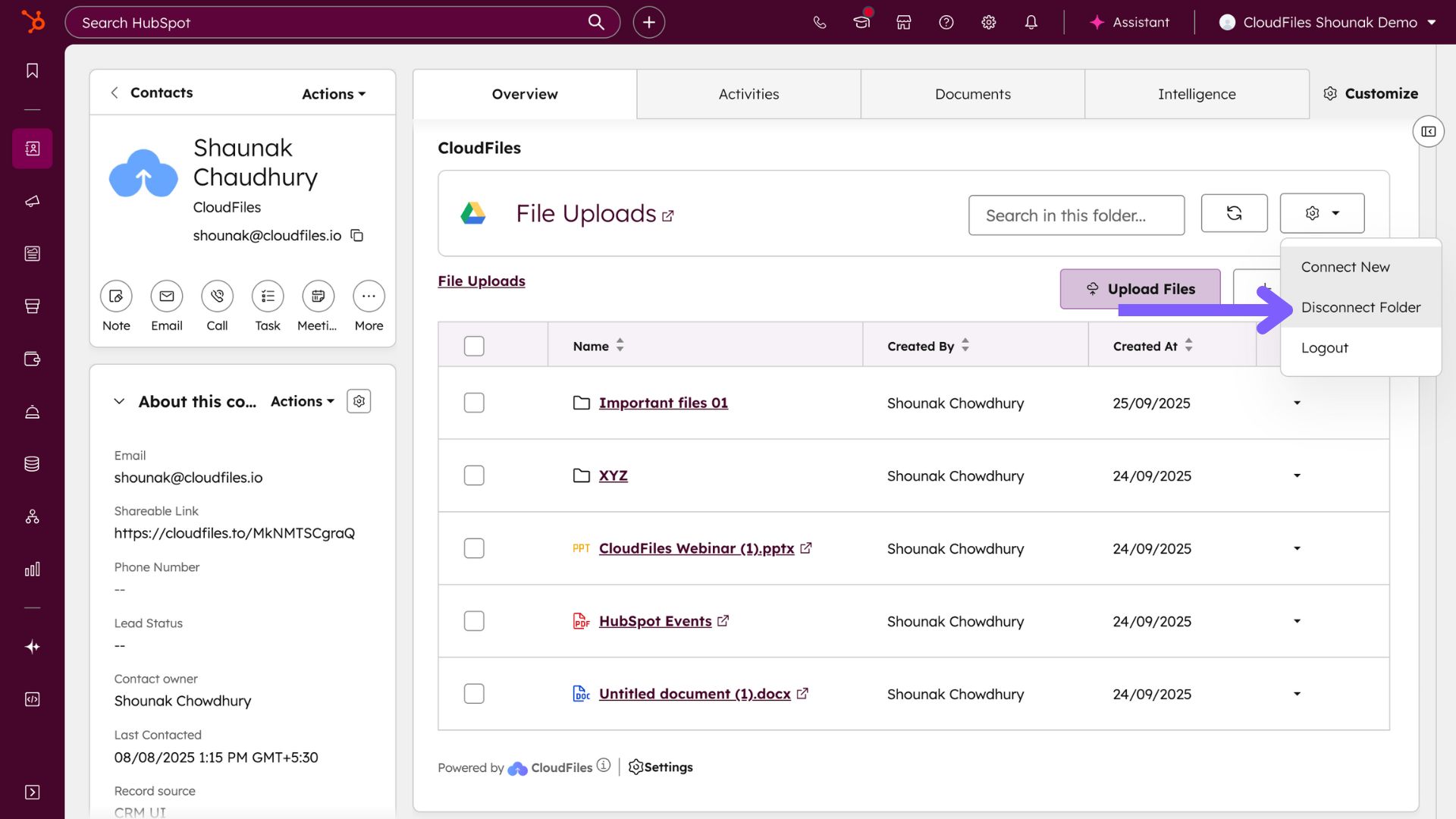
Disconnect
The Disconnect option removes the folder’s association from the HubSpot record while keeping the folder intact in its original storage platform. After disconnection, the folder will no longer appear in the App Card, but it remains available in the external storage system.
Thus, folder management in the App Card provides essential operations for maintaining and organising linked folders.
Folder Management Operations in the Sidebar Widget
Folders associated with the Sidebar Widget can also be managed from within HubSpot. These operations are available through the Attachment Actions Dropdown, which provides folder-specific actions depending on the folder’s sharing status.
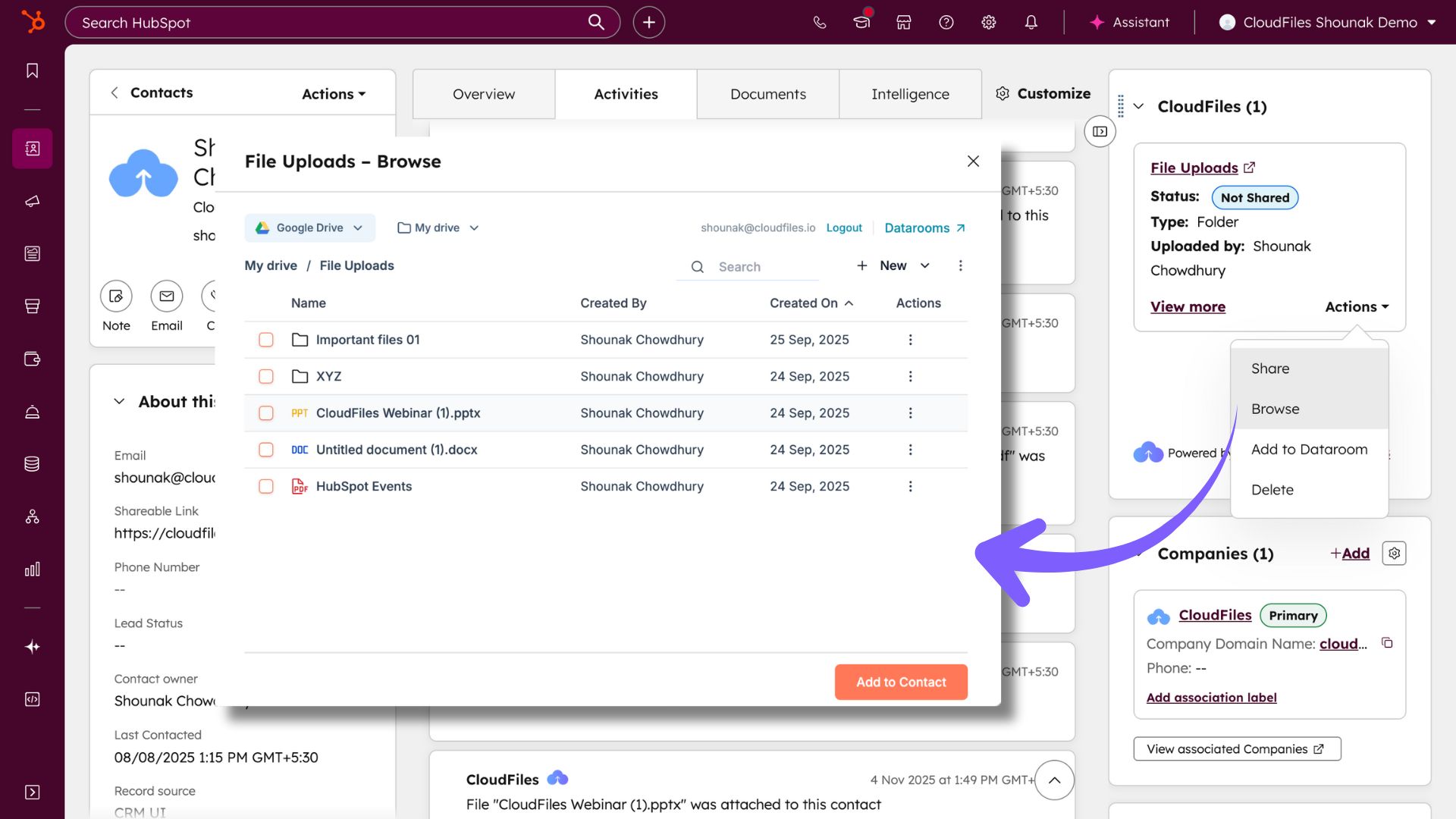
Browse
The Browse operation opens a dialogue box displaying the contents of the linked folder. From here, users can upload files, create subfolders, and perform available file and folder actions as supported by the content library. This feature provides direct access to the folder’s structure without navigating away from HubSpot.
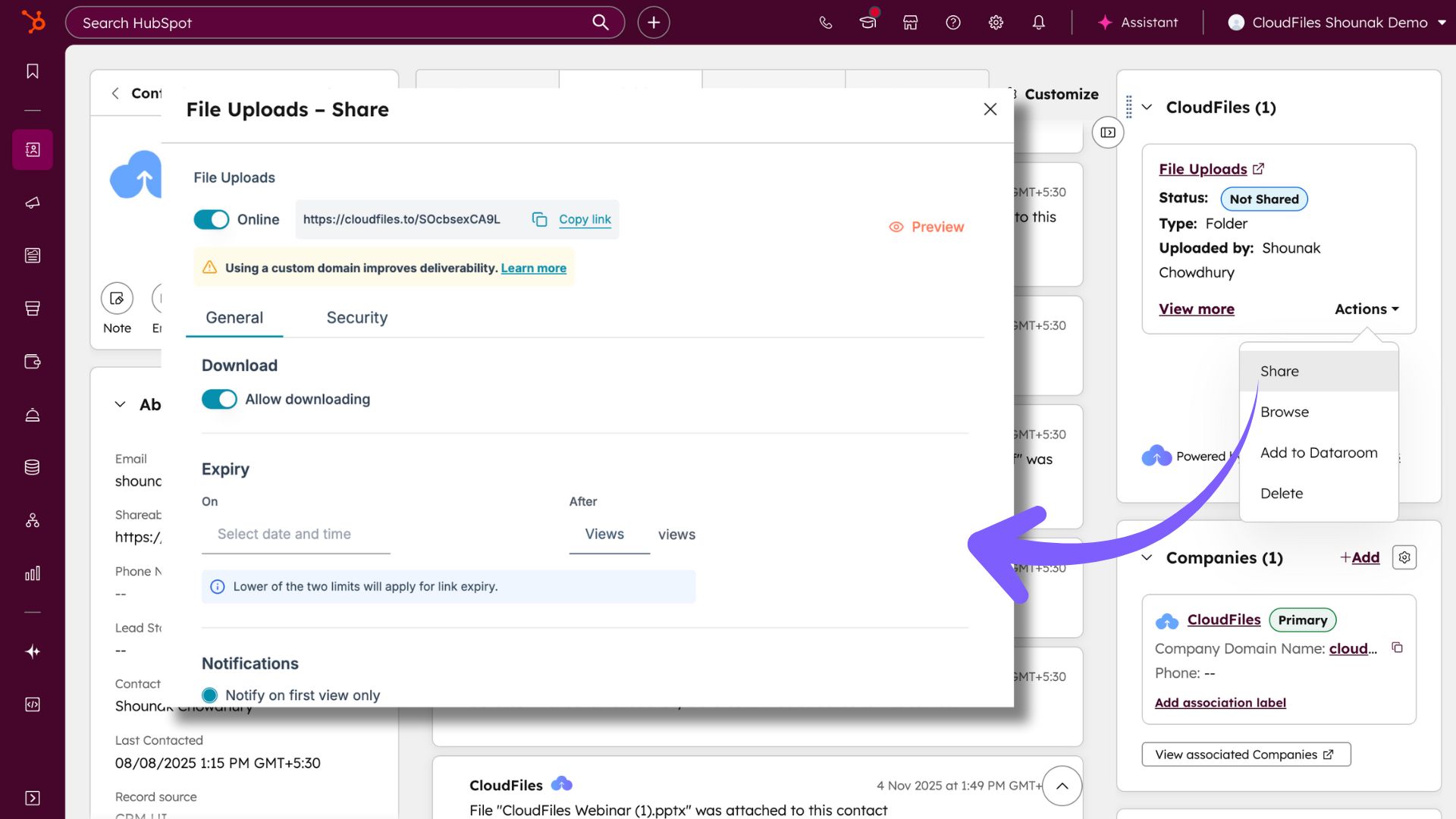
Share
The Share operation appears when the folder has not yet been shared. It creates a CloudFiles sharing link that allows external access to the folder and its contents. Once created, the folder’s status changes to Live, and the link can be configured using the Link Settings dialogue.
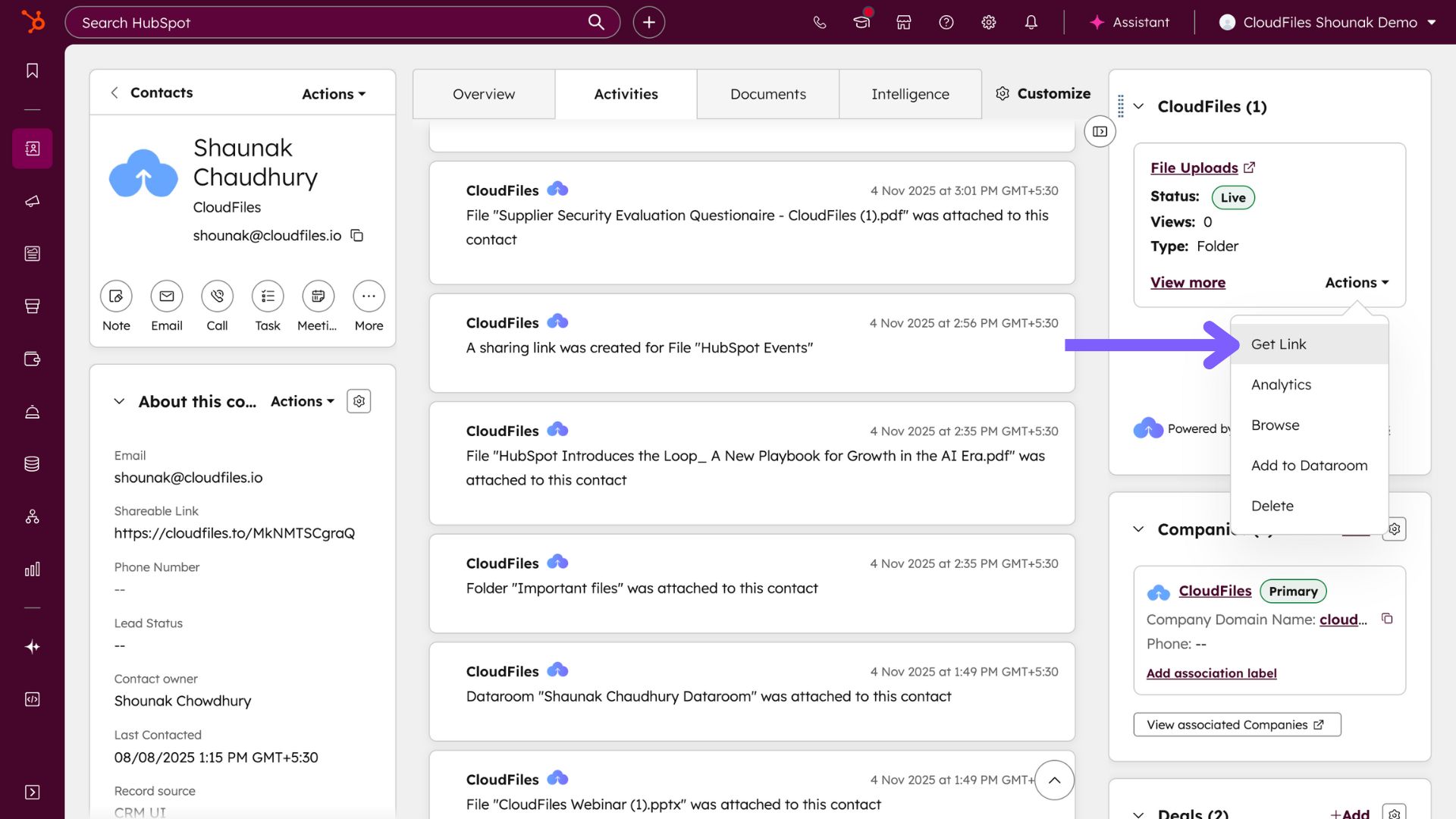
Get Link
The Get Link option is available when a folder already has an active CloudFiles sharing link. It opens the Link Settings dialogue, allowing users to copy the existing link or update its configuration, including permissions and expiry settings.
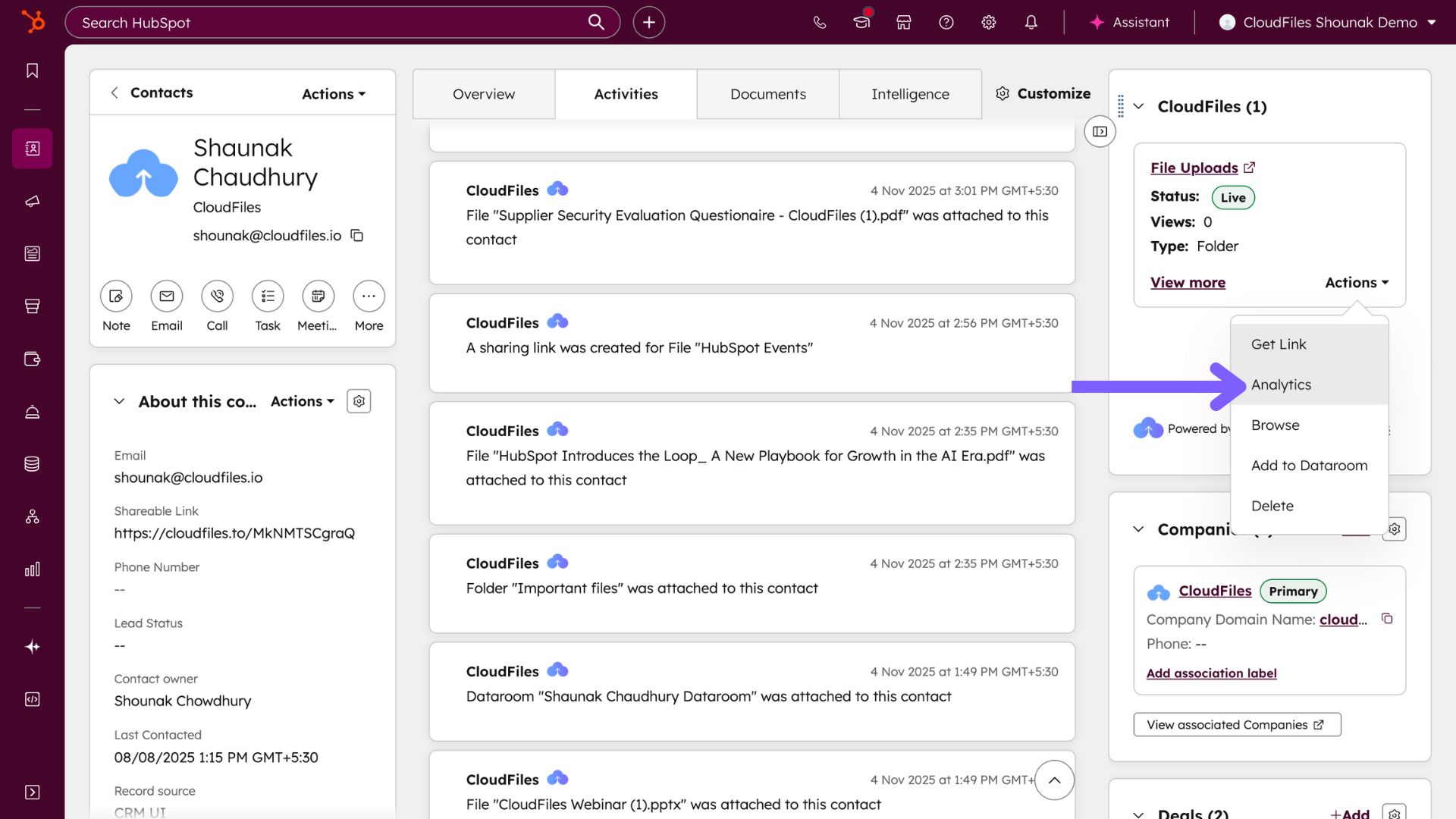
Analytics
The Analytics operation displays engagement data for shared folders. It shows metrics such as the number of views and user activity related to the shared link. This information helps monitor external access to the folder.
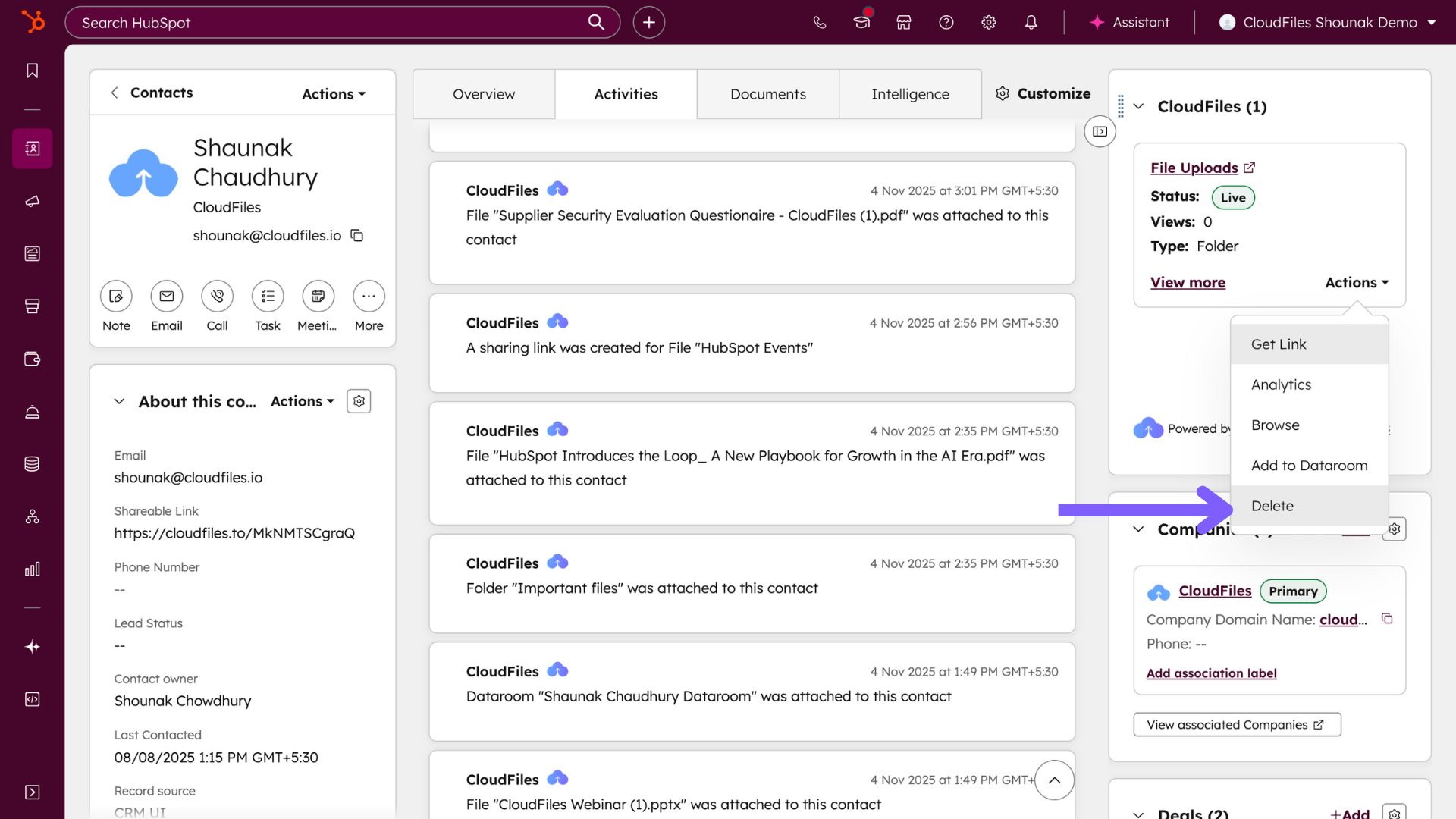
Delete
The Delete operation removes the folder’s association from the HubSpot record and deletes the CloudFiles link and related analytics. The folder itself remains in the connected storage platform and is not deleted.
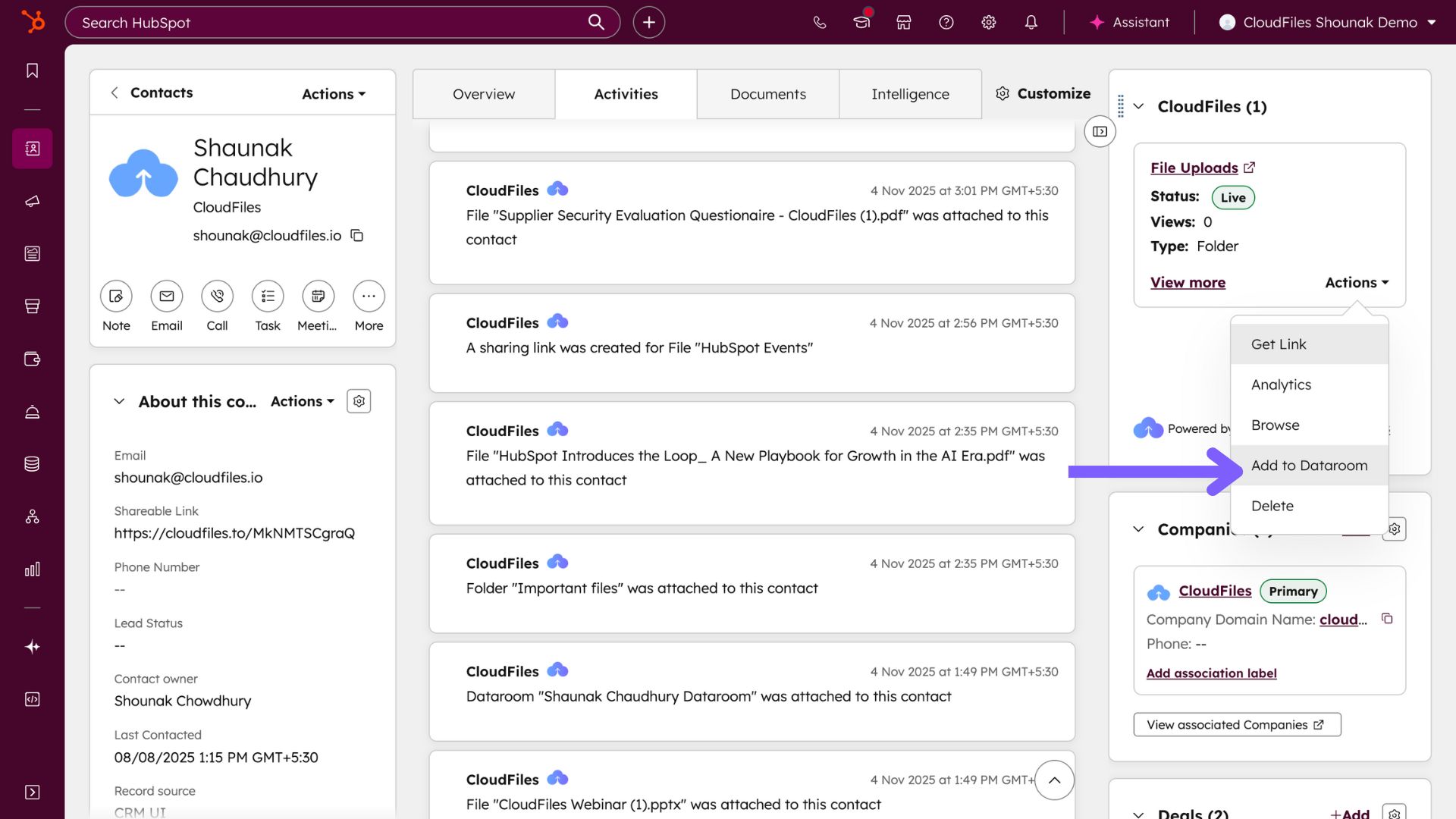
Add to Dataroom
The Add to Dataroom operation allows users to include the selected folder in an existing dataroom. This enables external sharing of the folder as part of a grouped set of resources while keeping it stored in its original platform.
Thus, folder management in the Sidebar Widget provides access to folder-specific operations through the Attachment Actions Dropdown.