Each action is explained in detail with its purpose, configuration, outputs, and practical examples so users can understand how to apply them in real business processes.
Create Folder Action
This action is used to create a new folder within the selected storage system (e.g., Google Drive, SharePoint, Dropbox, OneDrive, Box) directly from HubSpot.
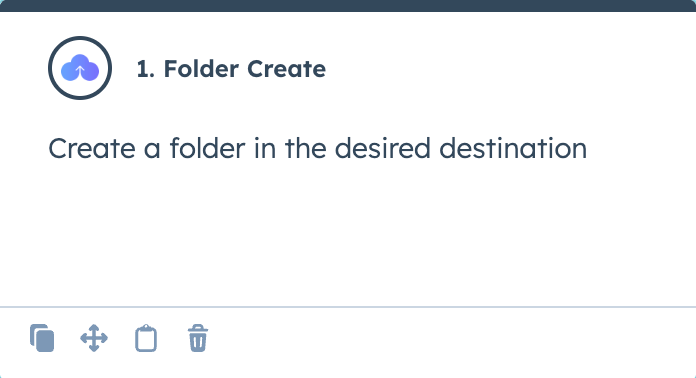
Configuration:
- Specify the library or storage type.
- Provide the destination path or parent folder ID.
- Enter the folder name.
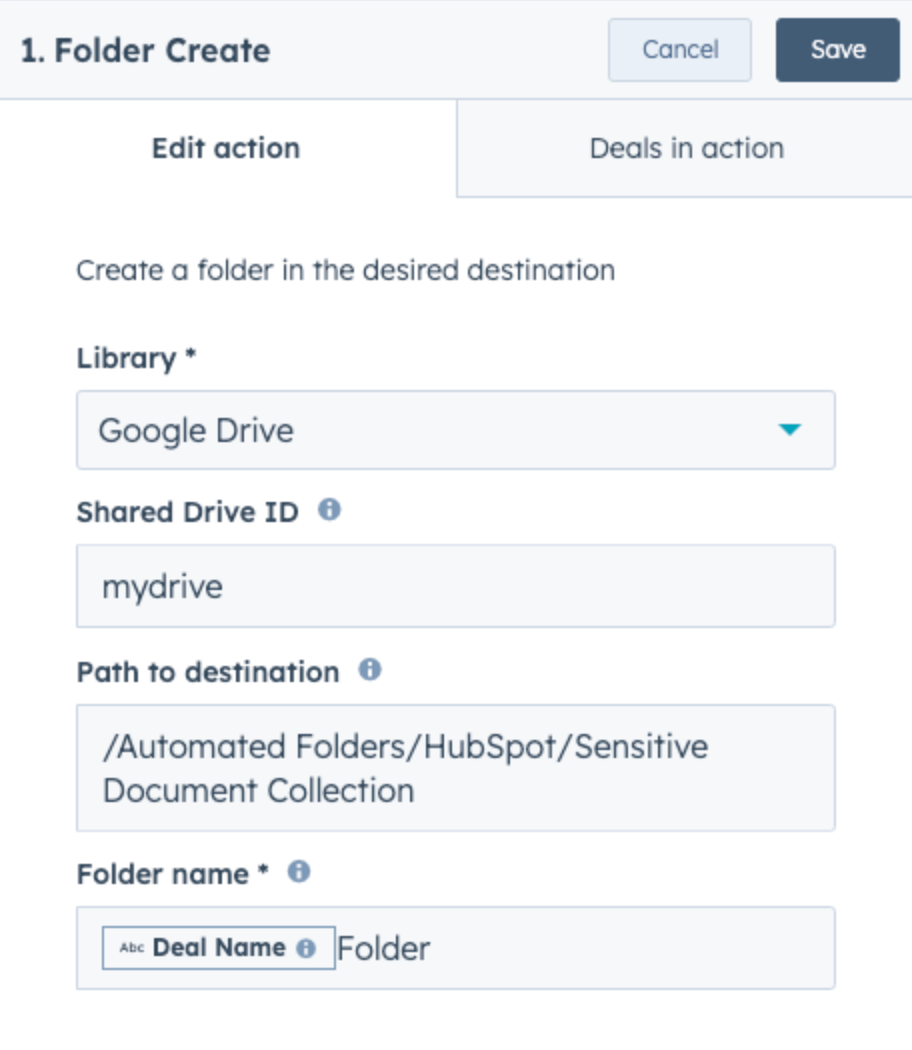
Output:
The action returns a status message, either success or failure, depending on whether it executed correctly.
Example:
A sales team wants to keep all client-related documents organised by deal. Whenever a new deal is created in HubSpot, a folder should be created automatically in Google Drive. The folder is named after the deal title (e.g., “Acme Corp – Enterprise Plan”). This action ensures that every deal record in HubSpot has a corresponding folder in storage without requiring the sales team to create it manually.
To learn more about this action, read the full article on Create Folder Action .
Create Attachment
This action is used to link an existing file or folder from connected storage to a HubSpot record. This action mirrors the manual process of adding documents through the CloudFiles App card.
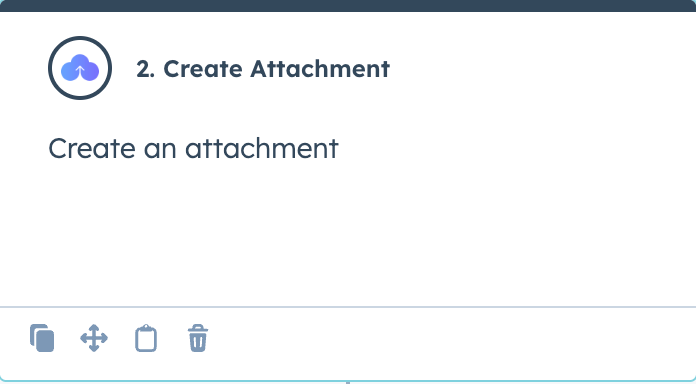
Configuration:
- Specify the library or storage type.
- Provide the destination path to the file/folder.
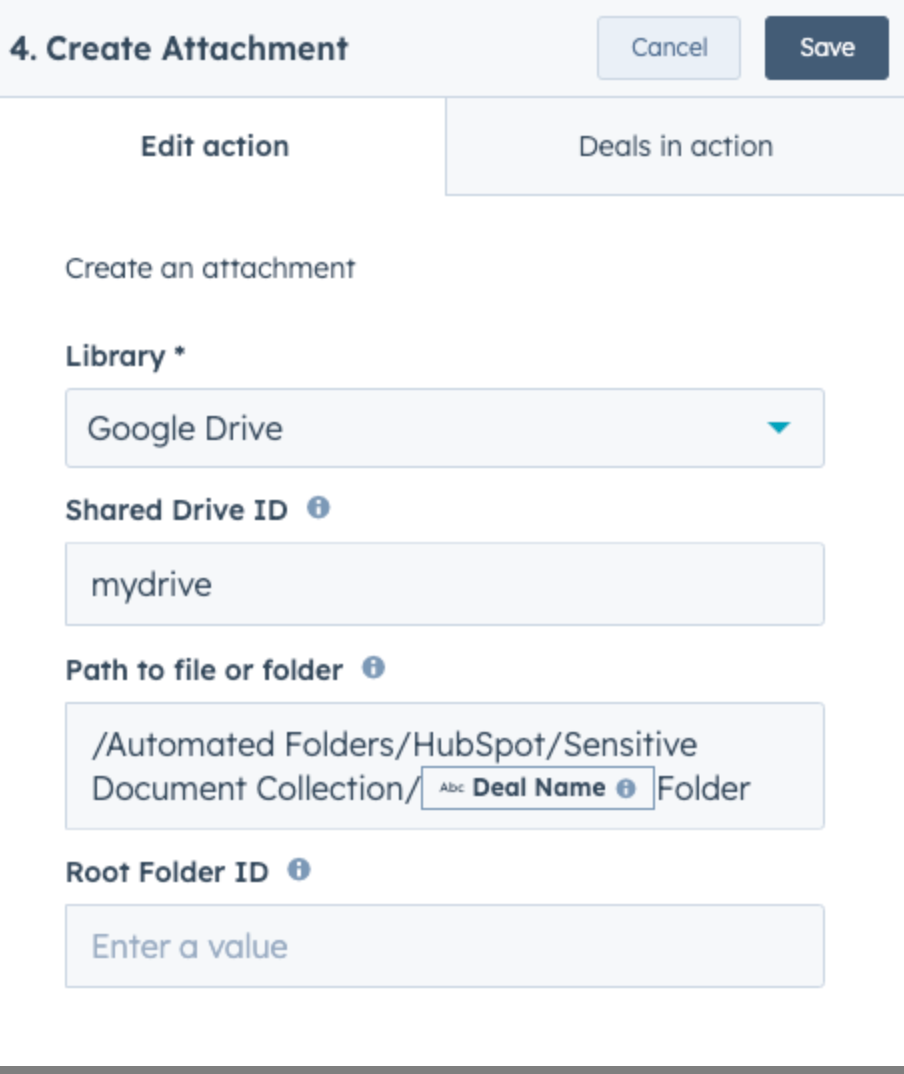
Output:
The action returns a status message, either success or failure, depending on whether it executed correctly. It also returns the ID of the newly created attachment. This can be used as the attachment ID in other actions, such as share attachment.
Example:
A customer success team wants every new customer contact to automatically have a “Welcome Kit” PDF attached. This PDF is stored in a central onboarding folder in OneDrive. When a new contact is added, the workflow uses the Create Attachment action to link the “Welcome Kit.pdf” file to the contact record. The success manager can immediately see the file in HubSpot without searching for it in storage.
To learn more about this action, read the full article on Create Attachment Action
Delete Attachment
This action is used to remove a previously attached file or folder from a HubSpot record without deleting the original resource from storage.
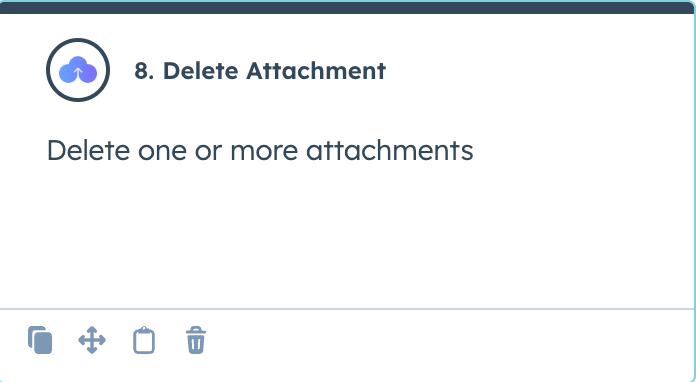
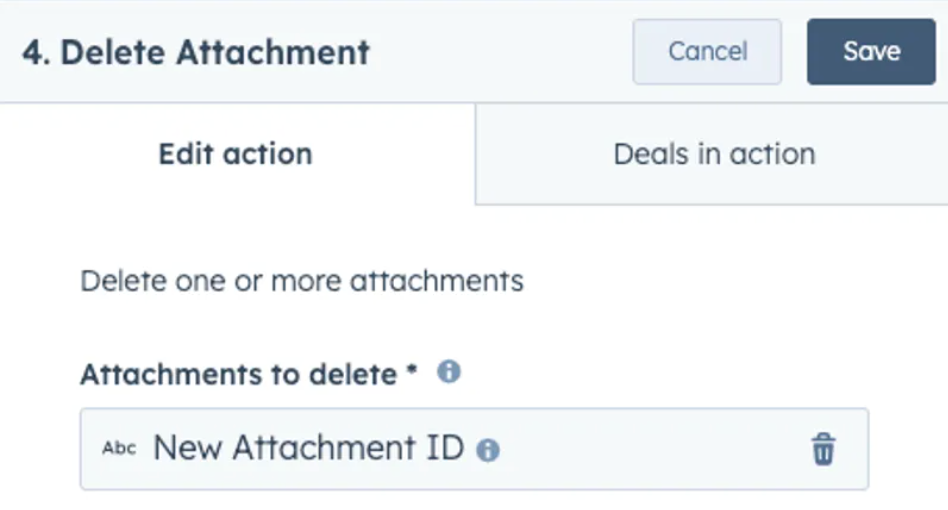
Configuration:
Identify the specific attachment ID that you want to delete.
Output:
The action returns a status message, either success or failure, depending on whether it executed correctly.
Example:
A contracts team attaches proposal files to deal records for review. Once a deal reaches the “Contract Signed” stage, they no longer want the outdated draft proposals visible in HubSpot. The workflow automatically uses the Delete Attachment action to remove all draft proposals from the deal record. The drafts remain stored in the “Archive” folder in Dropbox, but HubSpot shows only the finalised contract.
To learn more about this action, read the full article on Delete Attachment.
Copy Resource
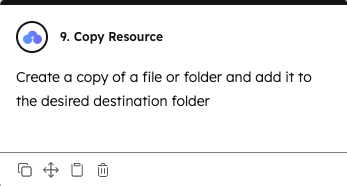
This action is used to create a copy of an existing file and place it in a specified destination within the selected storage system (e.g., Google Drive, SharePoint, Dropbox, OneDrive, Box) directly from HubSpot. The copied file can also be renamed during the process.
Configuration:
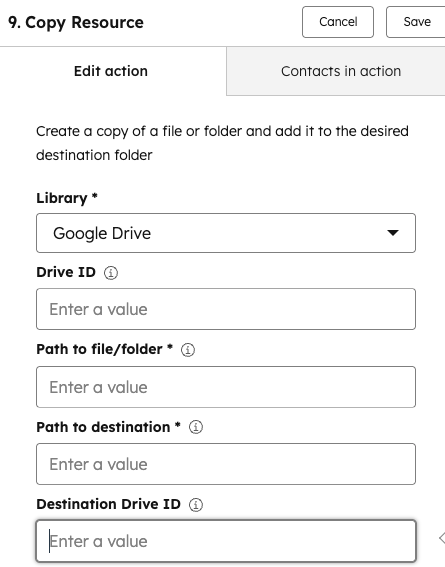
- Specify the library or storage type where the source file exists.
- Provide the full path to the source file, including the file name and extension.
- Provide the destination path, including the file name (this allows you to rename the file while copying).
- If applicable, specify the Drive ID or Shared Drive for the source or destination storage.
Output:
The action returns a status message, either success or failure, depending on whether it executed correctly.
Example:
A sales team uses a standard proposal template stored in Google Drive. When a deal reaches the “Proposal Sent” stage in HubSpot, a copy of the template is automatically created in a deal-specific folder and renamed using the deal name (e.g., “Globex Ltd – Sales Proposal.pdf”). This ensures each deal has its own editable copy of the proposal without overwriting the original template.
To learn more about this action, read the full article on Copy Resource Action .
Delete Resource
This action is used to permanently delete the file or folder from the connected cloud storage.
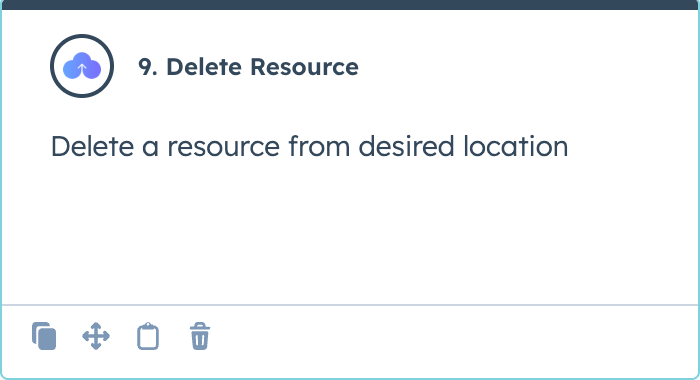
Configuration:
- Specify the library or storage type.
- Provide the destination path to the resource.
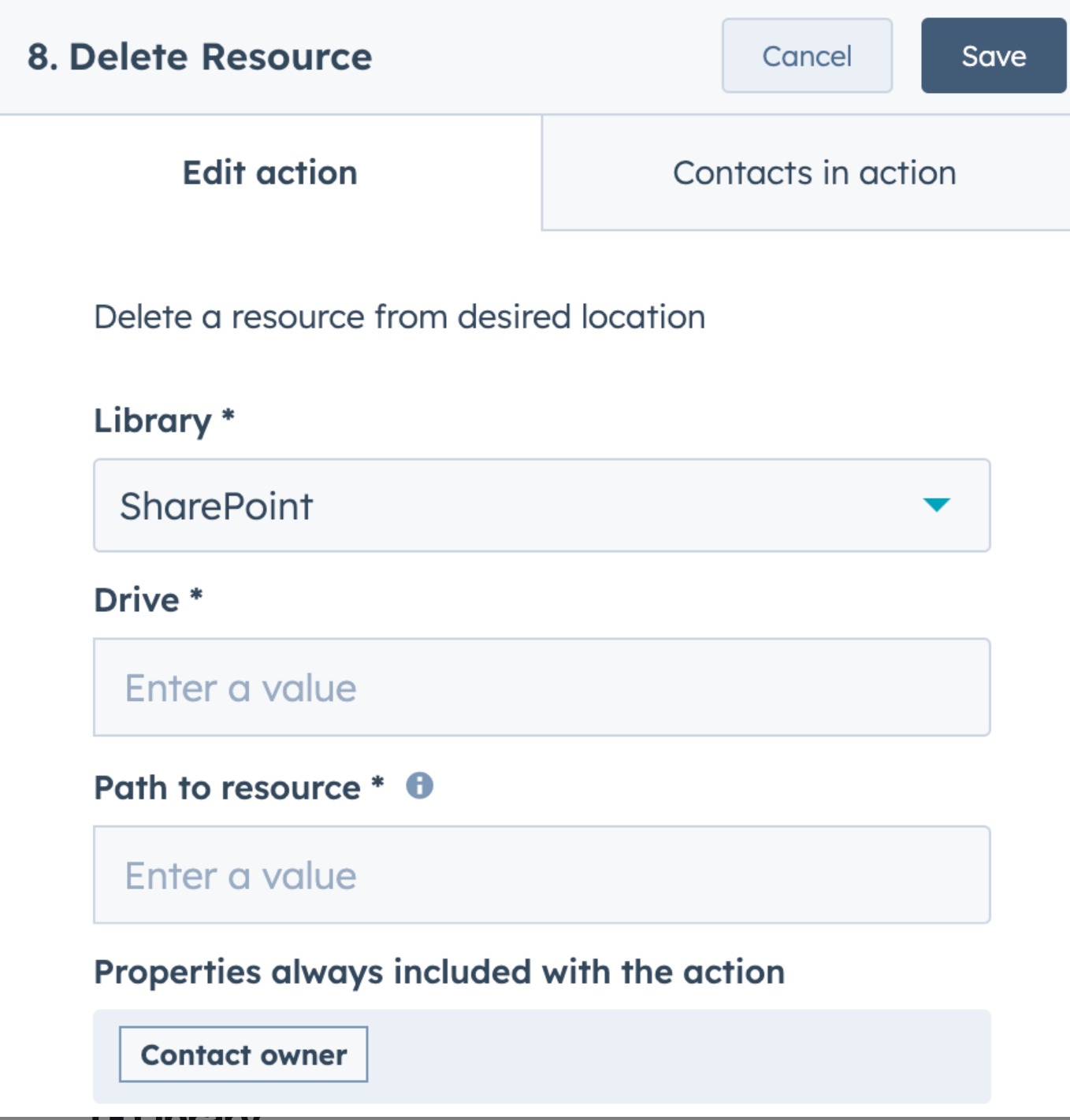
Output:
The action returns a status message, either success or failure, depending on whether it executed correctly.
Example:
A project team stores working notes and temporary data files in a “Work In Progress” folder. When the project reaches completion and all files are finalised, the workflow runs a Delete Resource action to remove temporary files from storage. This keeps the cloud library clean and ensures only final deliverables remain accessible.
To learn more about this action, read the full article on Delete Resource Action .
Move Resource
This action is used to move an existing file or folder from one location in the storage system to another.
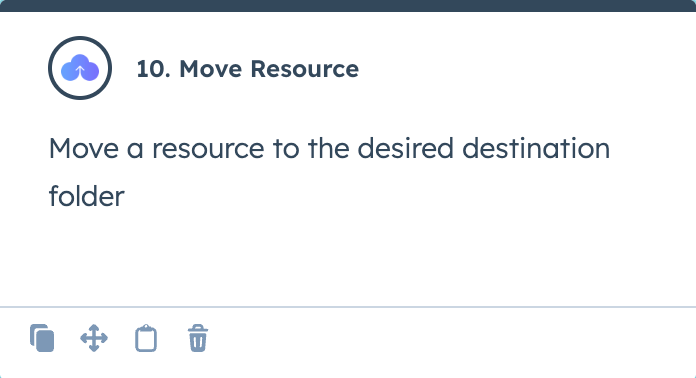
Configuration:
- Specify the library or storage type.
- Provide the path to the resource and the path to the destination.
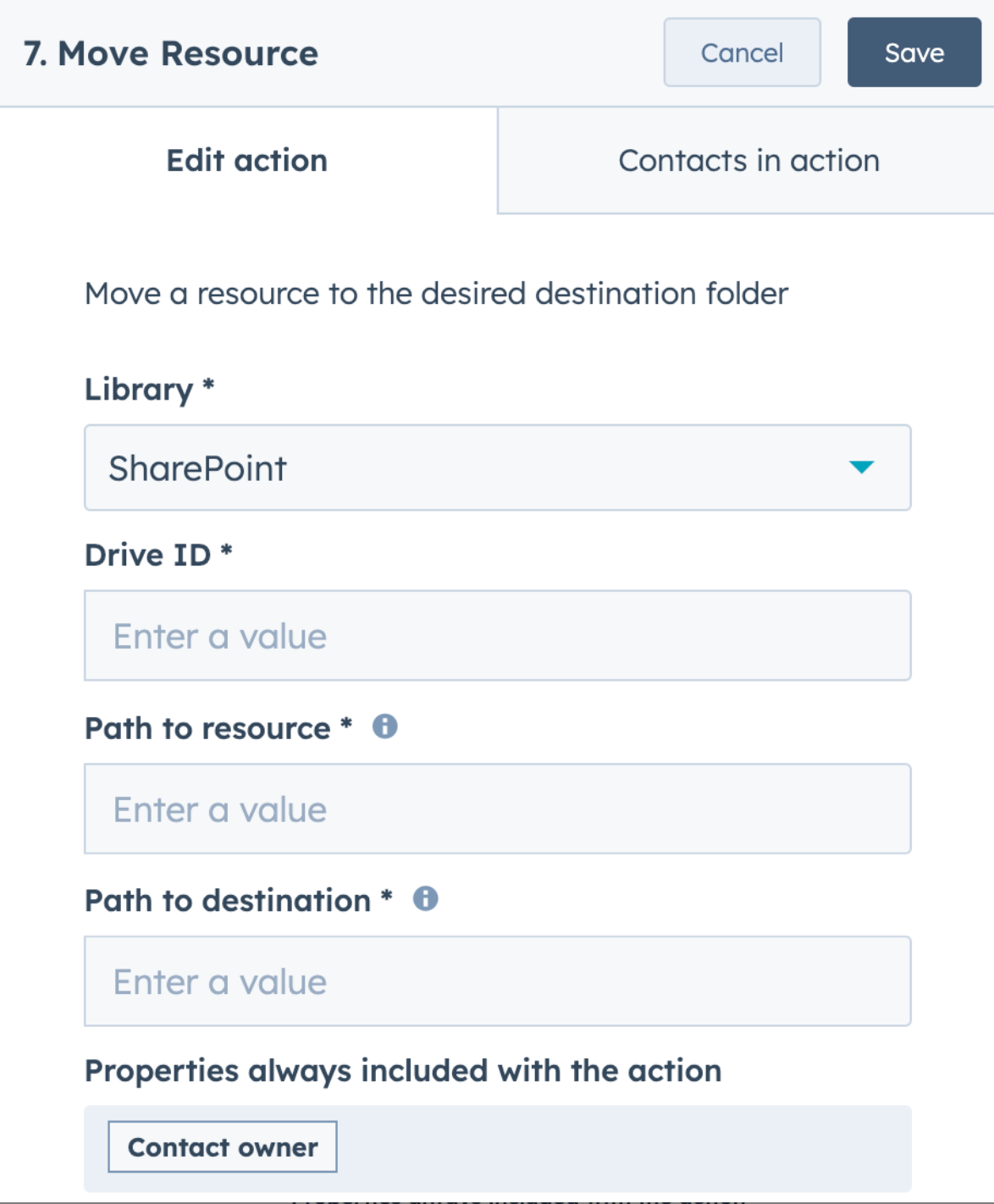
Output:
The action returns a status message, either success or failure, depending on whether it executed correctly.
Example:
A marketing team drafts campaign assets in a shared “Drafts” folder. Once the campaign’s deal in HubSpot is moved to the “Approved” stage, the workflow runs the Move Resource action. The assets are automatically relocated from /Marketing/Drafts to /Marketing/Approved Campaigns. This prevents confusion over which files are finalized and ready for use.
To learn more about this action, read the full article on Move Resource Action .
Update Resource
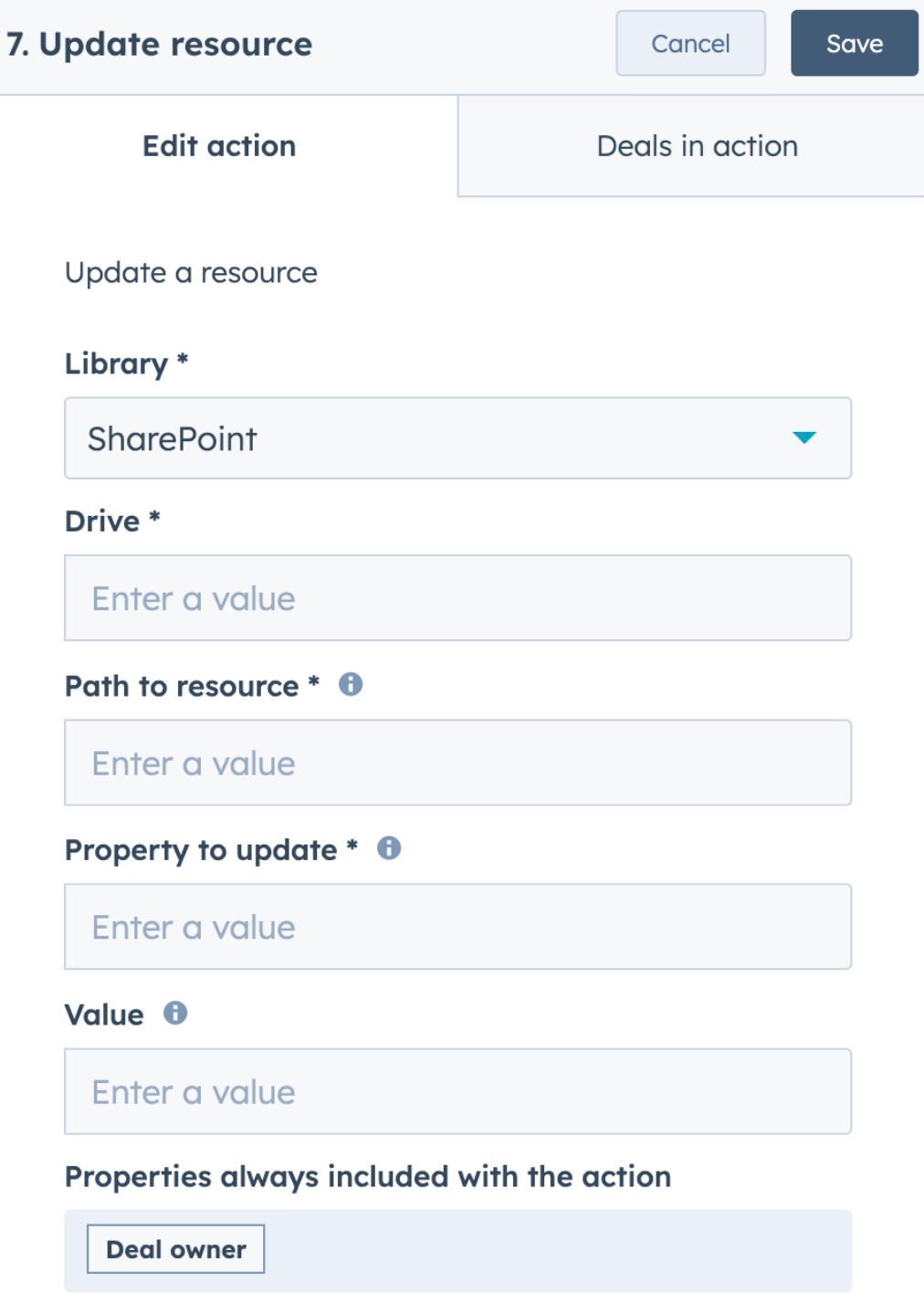
This action is used to update metadata, such as renaming files and folders or adding descriptions.
Configuration:
- Specify the library or storage type.
- Specify the path to the resource and property to update.
Output:
The action returns a status message, either success or failure, depending on whether it executed correctly.
Example:
A sales team uploads multiple versions of a proposal file during negotiations. When a deal is marked as “Closed Won,” the workflow automatically runs Update Resource on the final file, renaming it from “Proposal_v3.pdf” to “Proposal_Final.pdf.” This ensures the storage system always reflects the current status of the deal, and anyone accessing the file knows it is the finalised version.
To learn more about this action, read the full article on Update Resource Action .
Therefore, using these flow actions, teams eliminate repetitive manual steps and ensure that records always reflect the latest files, and maintain a clean, well-structured storage system.