This article explains how to connect external storage accounts, how drives and sites appear in the Content Library, and how file and folder conflicts are handled in the CloudFiles app.
Where to Connect External Storage Accounts?
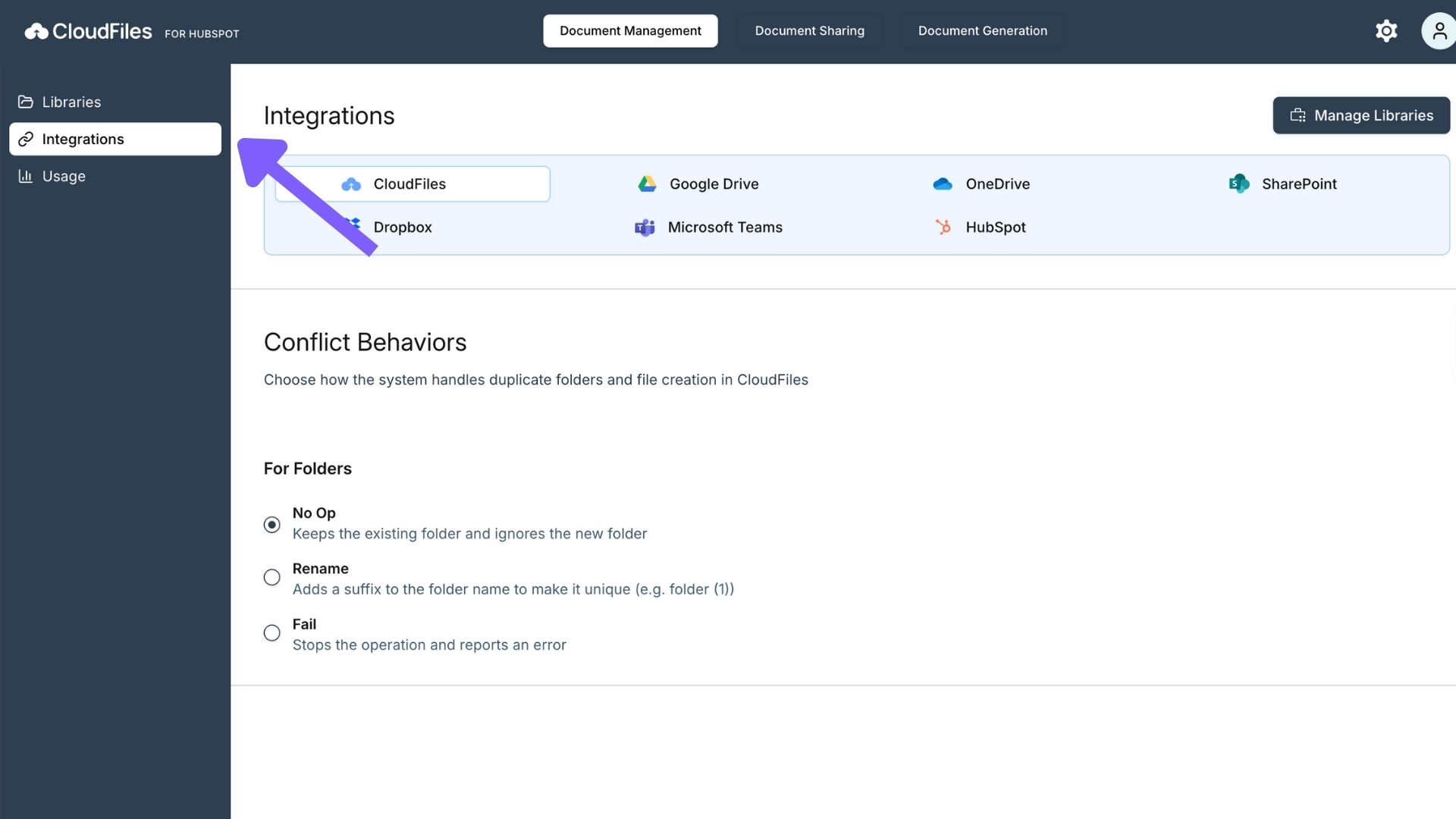
External storage accounts are connected and managed from the Integrations section in the CloudFiles app for HubSpot.
Navigate to: Document Management → Integrations from the left hand side bar.
To know more about integration users and how to connect them, refer to What is an Integration/System user?
This page lists all supported storage providers, including Google Drive, SharePoint, OneDrive, Dropbox, and Microsoft Teams.
From here, you can:
- Select a storage provider to configure.
- Connect or disconnect the Integration User for that provider.
- Configure file and folder conflict behaviors specific to that integration.
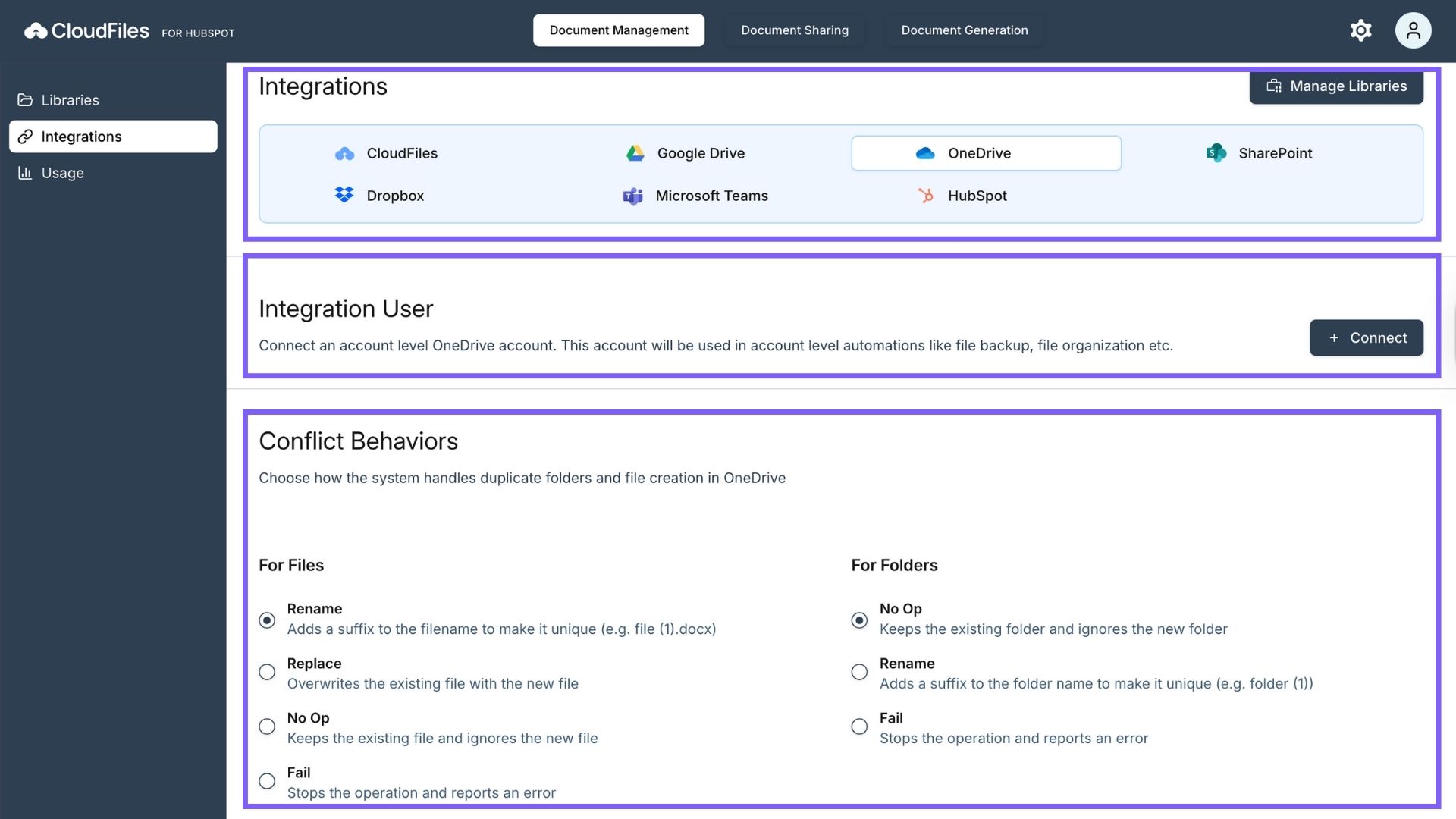
Each storage provider is configured independently, allowing different connection settings and conflict behaviors per platform.
Accessing External Storage from the Content Library
After an integration user is connected, users can browse external storage directly from the Content Library inside HubSpot
Google Drive
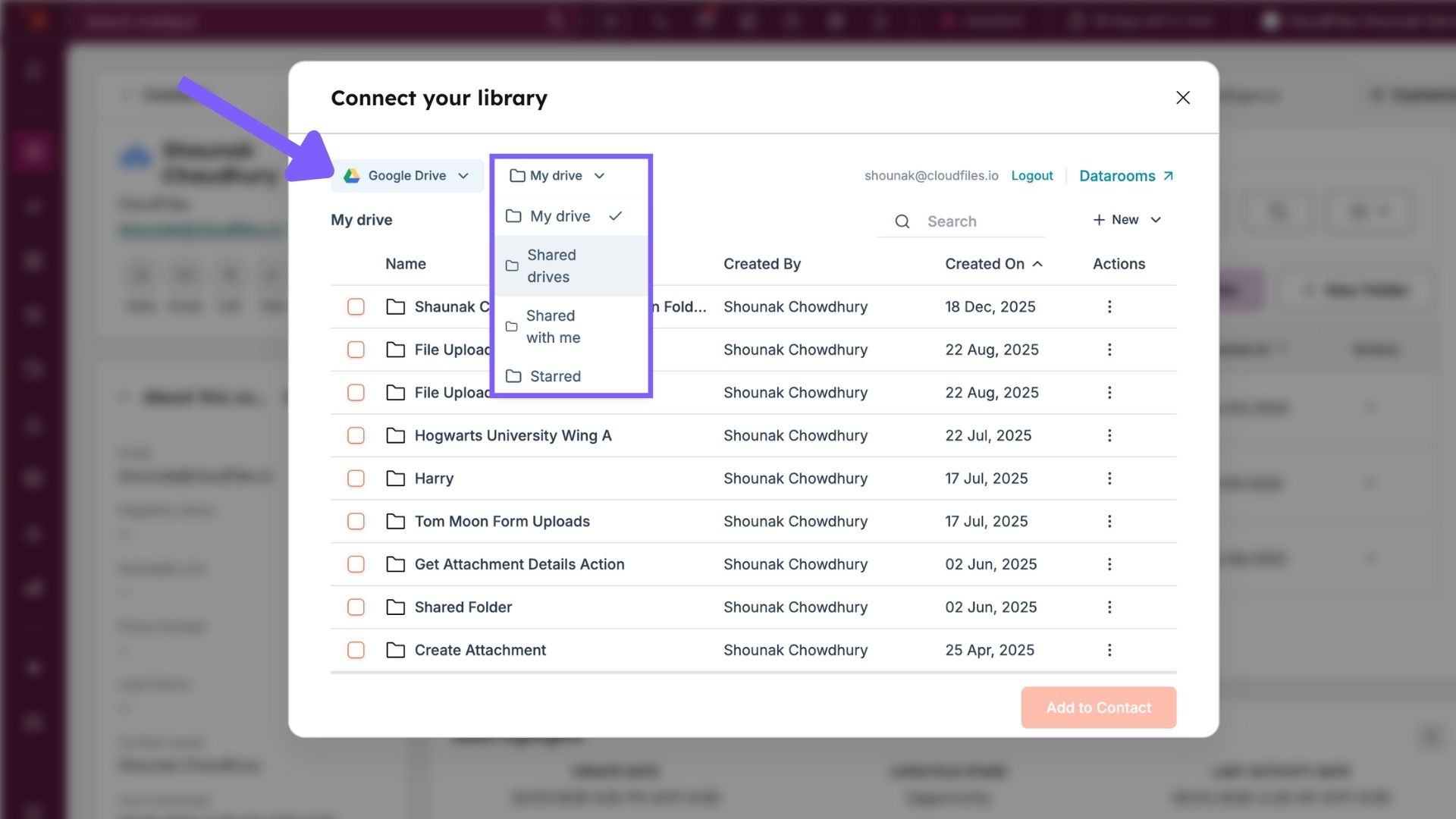
When browsing Google Drive, users can switch between the following locations:
- My Drive: Files and folders owned by the connected user.
- Shared drives: Team drives accessible to the user.
- Shared with me: Files shared by other users.
- Starred: Files and folders marked as starred.
SharePoint
When browsing SharePoint, users can switch between:
- All sites: All SharePoint sites the user has access to.
- Followed sites: SharePoint sites the user follows.
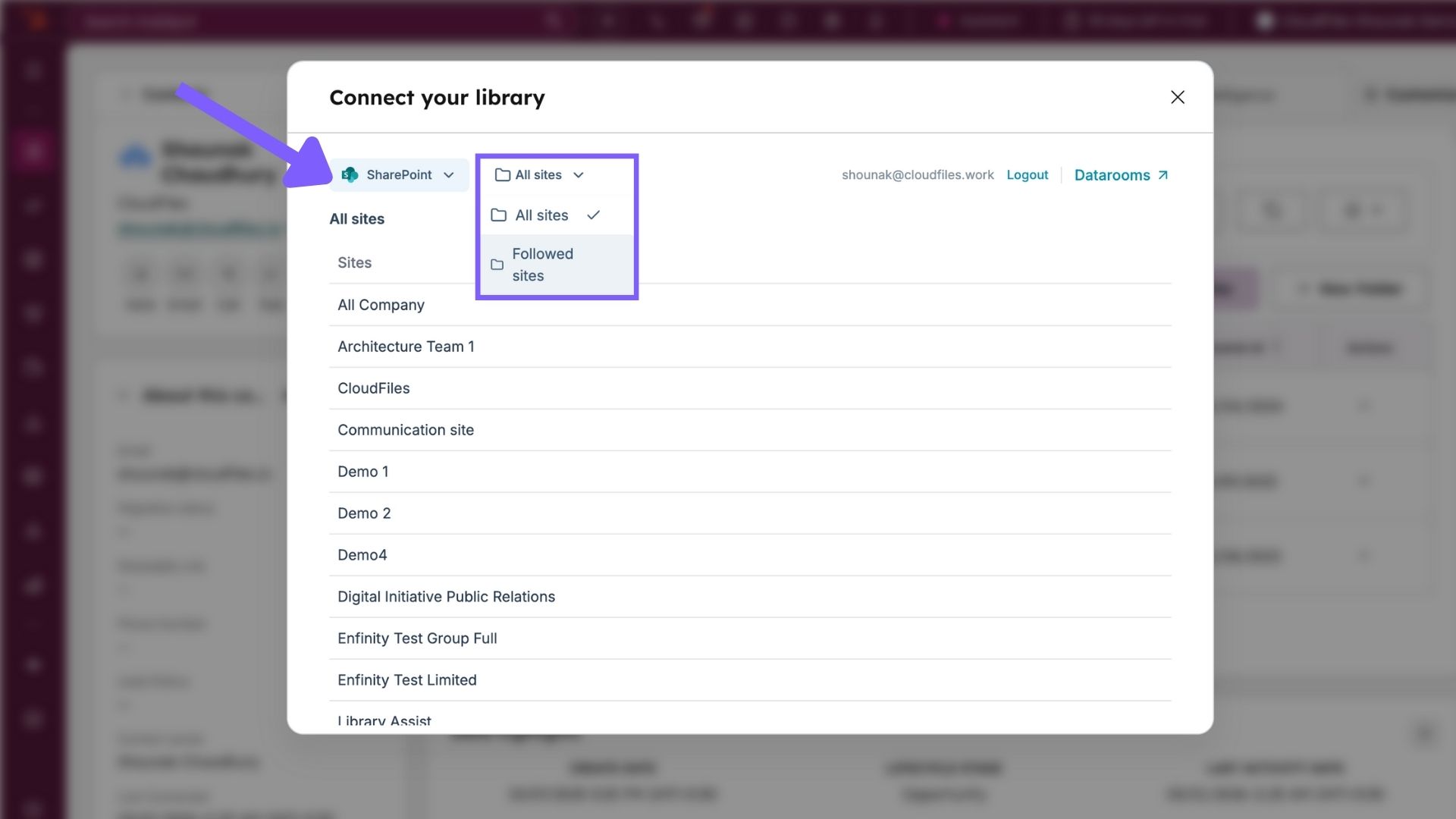
Only SharePoint sites that are registered in CloudFiles are visible to users.
File and Folder Conflict Behaviors
Conflict behaviors control how CloudFiles handles situations where a file or folder with the same name already exists in the connected storage.
These settings are configured per integration using the following navigation path:
- Click Integrations from the left hand side bar.
- Select the required integration.
- Open Conflict Behaviors.
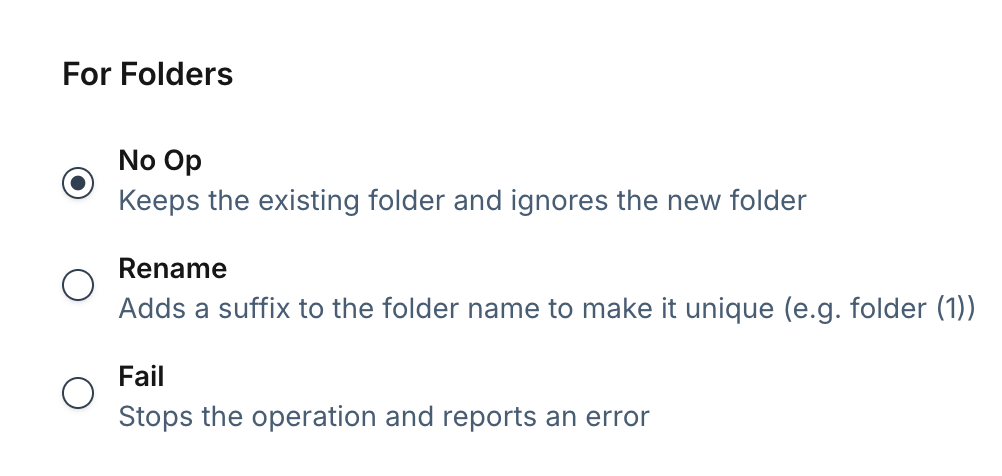
Folder Conflict Behaviors
The Folder conflict behavior defines how CloudFiles responds when a folder with the same name already exists in the connected storage.
These settings apply across all supported storage integrations.
No Op: Keeps the existing folder and ignores the new folder creation request.
Rename: Creates the folder with a modified name by adding a numeric suffix. Example: Folder (1)
Fail: Stops the operation and returns an error.
File Conflict Behaviors
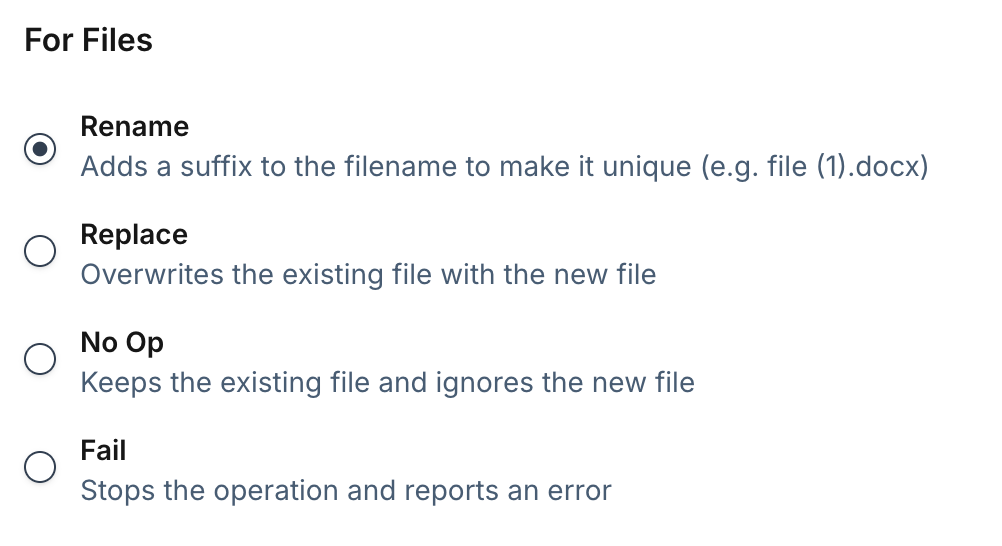
The File conflict behavior defines how CloudFiles responds when a file with the same name already exists in the connected storage. These options are available for OneDrive, SharePoint, Dropbox, and Microsoft Teams.
Rename: Creates the file with a modified name by adding a numeric suffix. Example: file (1).docx
Replace: Overwrites the existing file with the new file.
No Op: Keeps the existing file and ignores the new file creation request.
Fail: Stops the operation and returns an error.
Registering SharePoint Sites
For SharePoint integrations, sites must be registered before they are visible to users in the Content Library.
To register a SharePoint site:
- Go to Document Management → Integrations → SharePoint
- Scroll to the Register Sites section.
- Enter the SharePoint site URL.
- Click Register.

You can register multiple SharePoint sites for the same organization.
Thus, connecting external storage accounts in CloudFiles enables centralized access to files stored across multiple platforms. By configuring Integration Users, selecting the correct drives or sites, and defining file and folder conflict behaviors, organizations can maintain a controlled document management within CloudFiles.