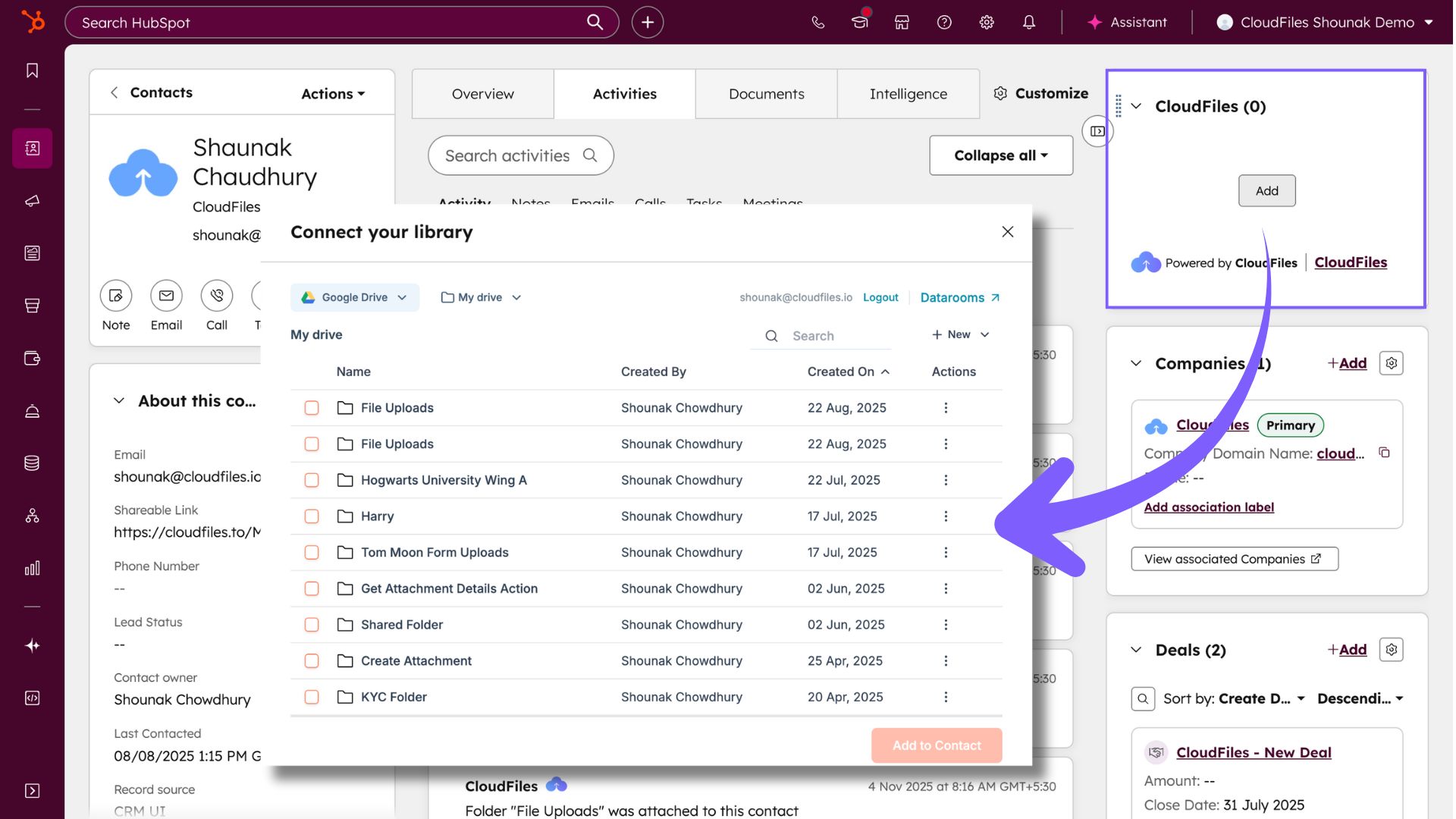
The widget contains two main components -> an Add button and a CloudFiles hyperlink. These options allow users to access and manage external files within HubSpot records.
This article explains the main components and functionality of the Sidebar Widget, including:
- Add Button – how users can open the Content Library to browse and link external files or folders.
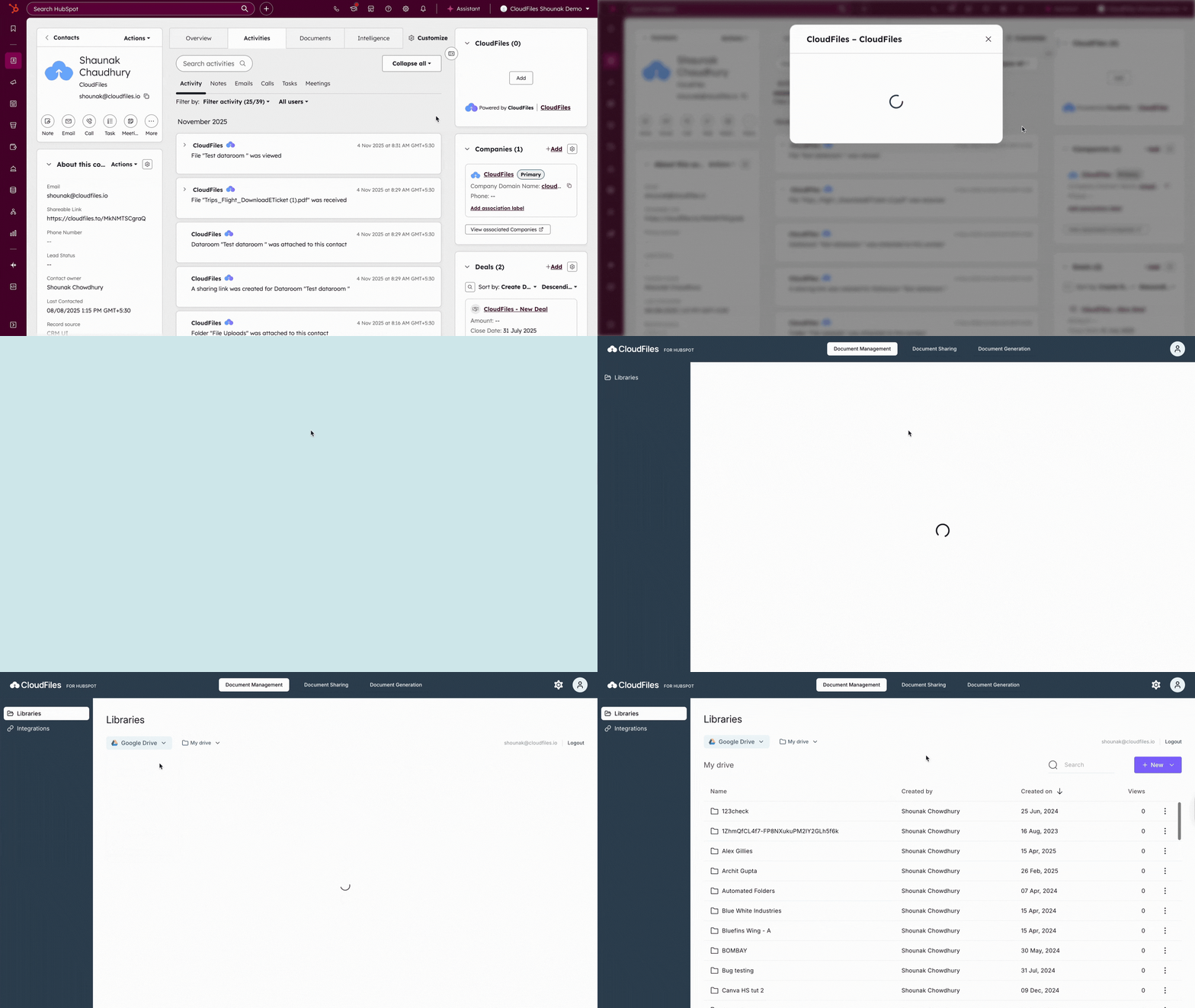
- CloudFiles Hyperlink – how to access the CloudFiles HubSpot App for full file and settings management.
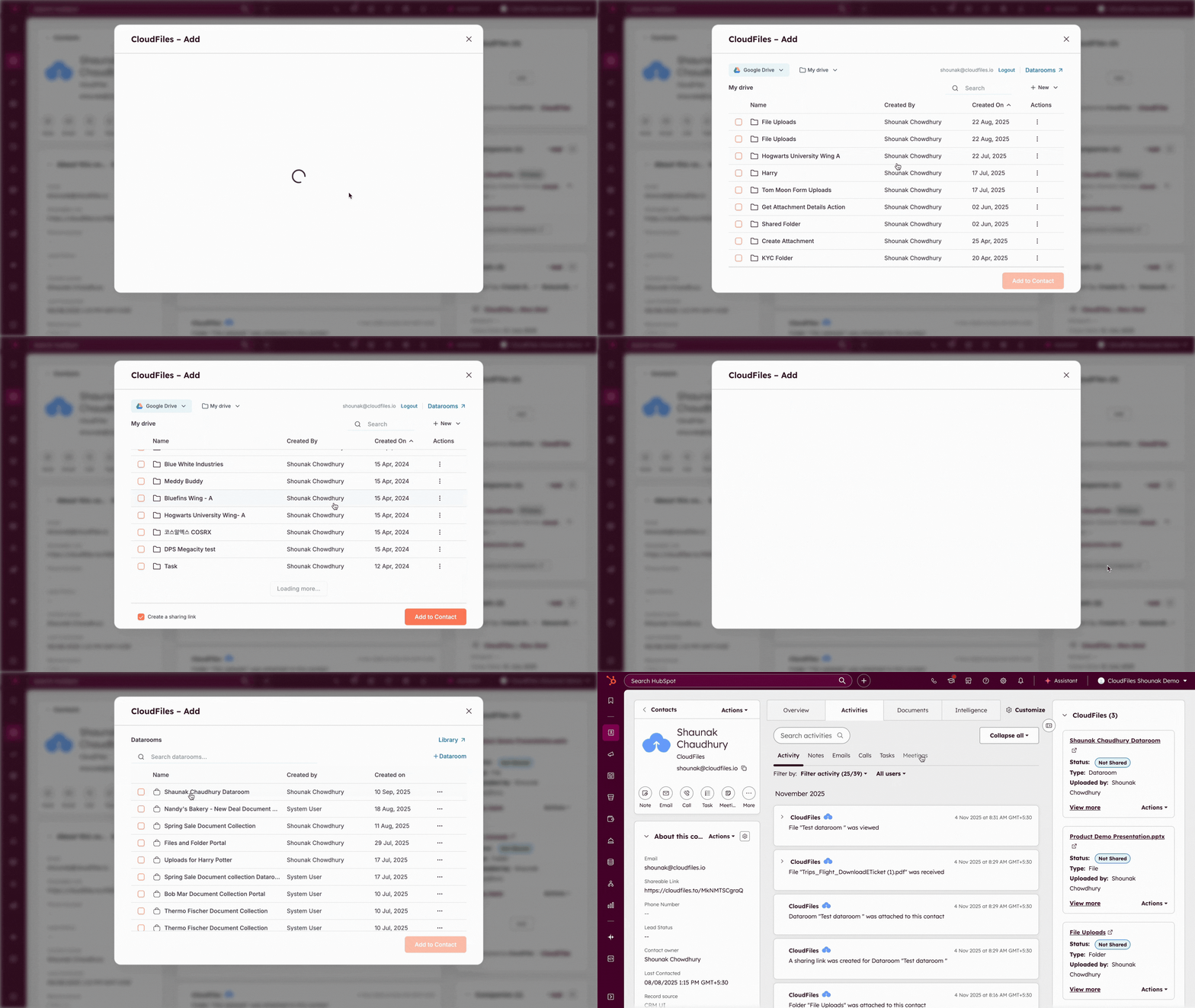
- Associating Files, Folders, and Datarooms – how to link external resources to HubSpot records for ongoing access.
- Resource Tile – an explanation of how linked items appear, including metadata and status details.
- Tile Actions – an overview of available operations that can be performed on linked resources.
Add Button
Selecting the Add button opens the Content Library dialogue. This dialogue allows you to view files and folders from your connected external storage platform. From this interface, you can upload files, create folders, and move files between folders. Thus, the content library provides full access to your storage without leaving the HubSpot record. You can read more about it in this article.
CloudFiles Hyperlink
Selecting the CloudFiles hyperlink opens a small dialogue box in the centre of the screen. The dialogue includes an option to Go to CloudFiles, which redirects to the CloudFiles HubSpot App.
In the app, you can access all files and folders stored in your connected storage and manage related settings. For more details on admin operations, refer to the article on admin settings here.
Associating Files, Folders, and Datarooms
Through the sidebar widget, you can associate files, folders, or datarooms from the content library with a HubSpot record. This enables users to keep relevant documents directly accessible from within the record. Datarooms can also be created from the content library and linked in the same way. For detailed information on Associations , refer to the related article here.
Resource Tile
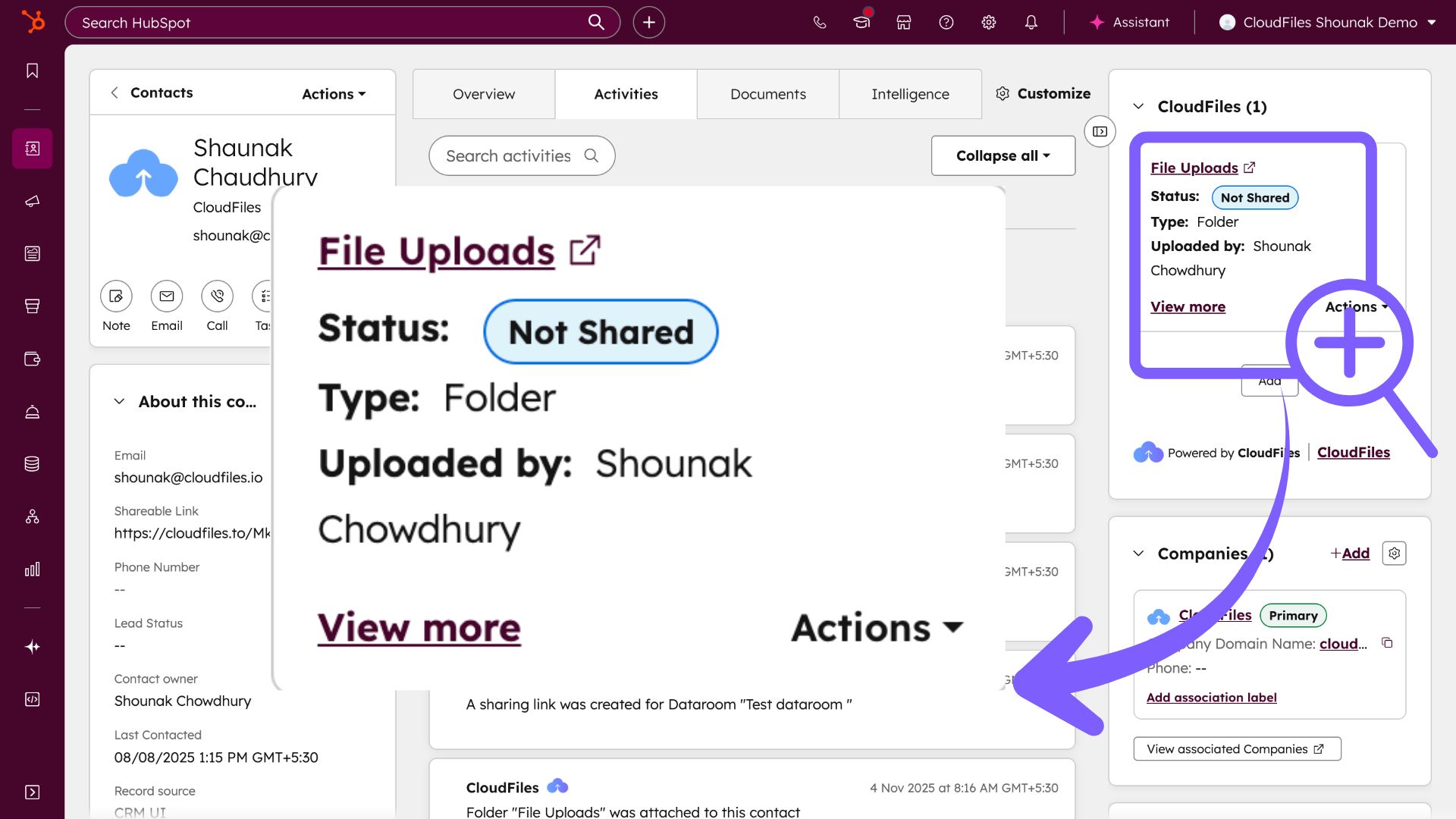
Once a file, folder, or dataroom is associated, it appears on the widget as a resource tile. Each tile displays key information about the associated item and provides available actions. The information shown on the tile depends on the type and status of the resource.
Tile Metadata
The resource tile displays metadata such as the resource name, type, sharing status, number of views, and upload details.
Name
The name of the resource acts as a hyperlink to the connected resource. If the resource is a file stored in SharePoint, selecting the name opens it in the Microsoft editor. If it is a folder stored in Google Drive, the link opens that folder in Google Drive. For datarooms, the link opens the corresponding item in the CloudFiles web app.
Status
The status field shows whether the associated resource has an active CloudFiles sharing link. The possible statuses are Not Shared, Live, and Offline. Each status indicates the accessibility of the shared resource.
| Status | Description |
|---|---|
| Not Shared | A sharing link has not been created for the attached resource. A sharing link can be created manually using the Share option or through a workflow action. |
| Live | The attached resource has a CloudFiles sharing link that is currently active and available for external access. Live links can be taken offline from the link settings. |
| Offline | A sharing link exists but has been deactivated. The resource will not be accessible until the link is made live again. |
Type
The type field indicates whether the associated item is a file, folder, or dataroom. The available options and details may differ depending on this classification.
Views
The views field appears only when the attachment has a Live or Offline status and shows the number of times the shared link has been viewed.
Upload Information
The upload information field lists details such as the upload date, time, and uploader name. This information helps identify when and by whom the file or folder was added to the sidebar widget.
Tile Actions
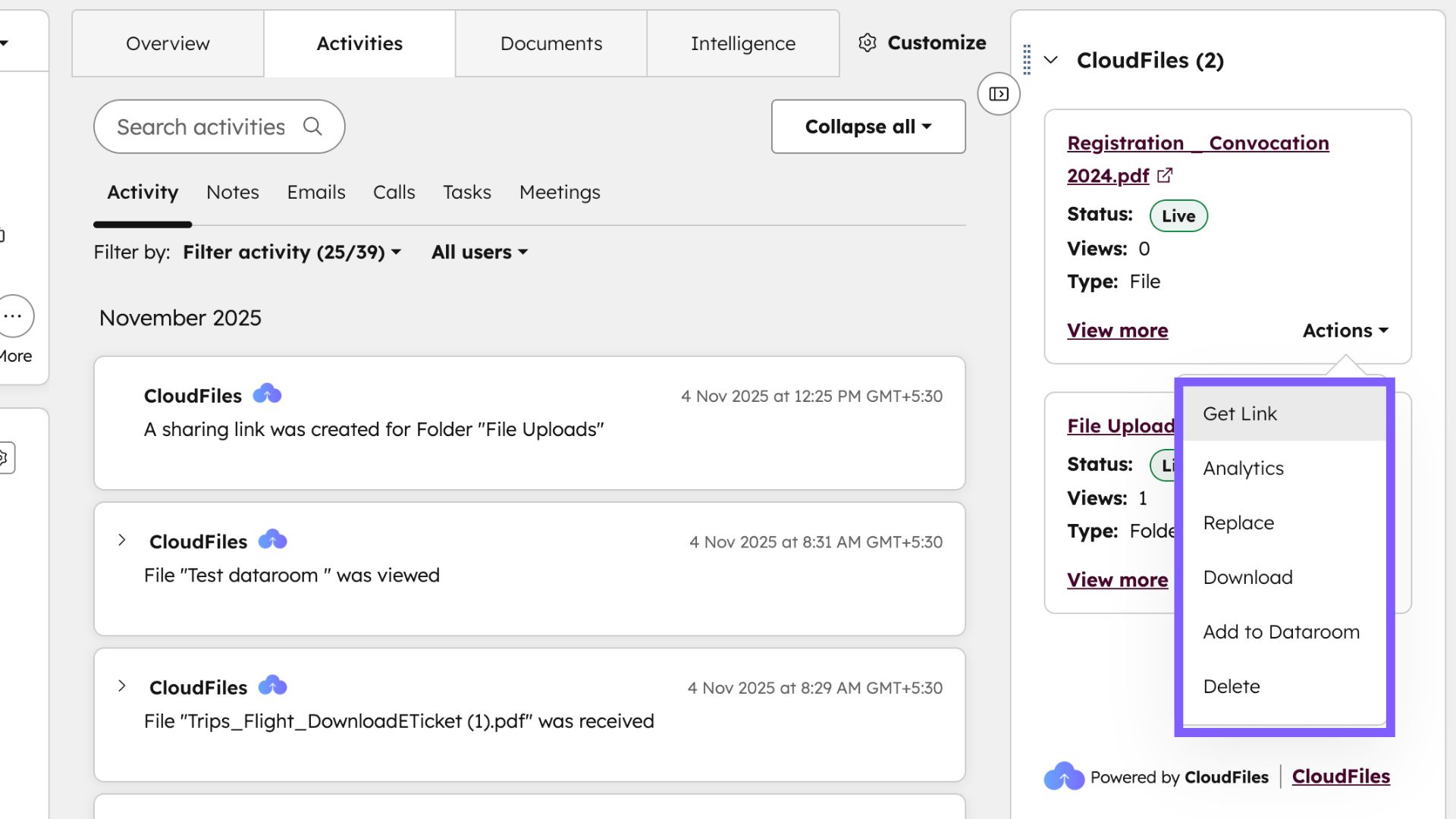
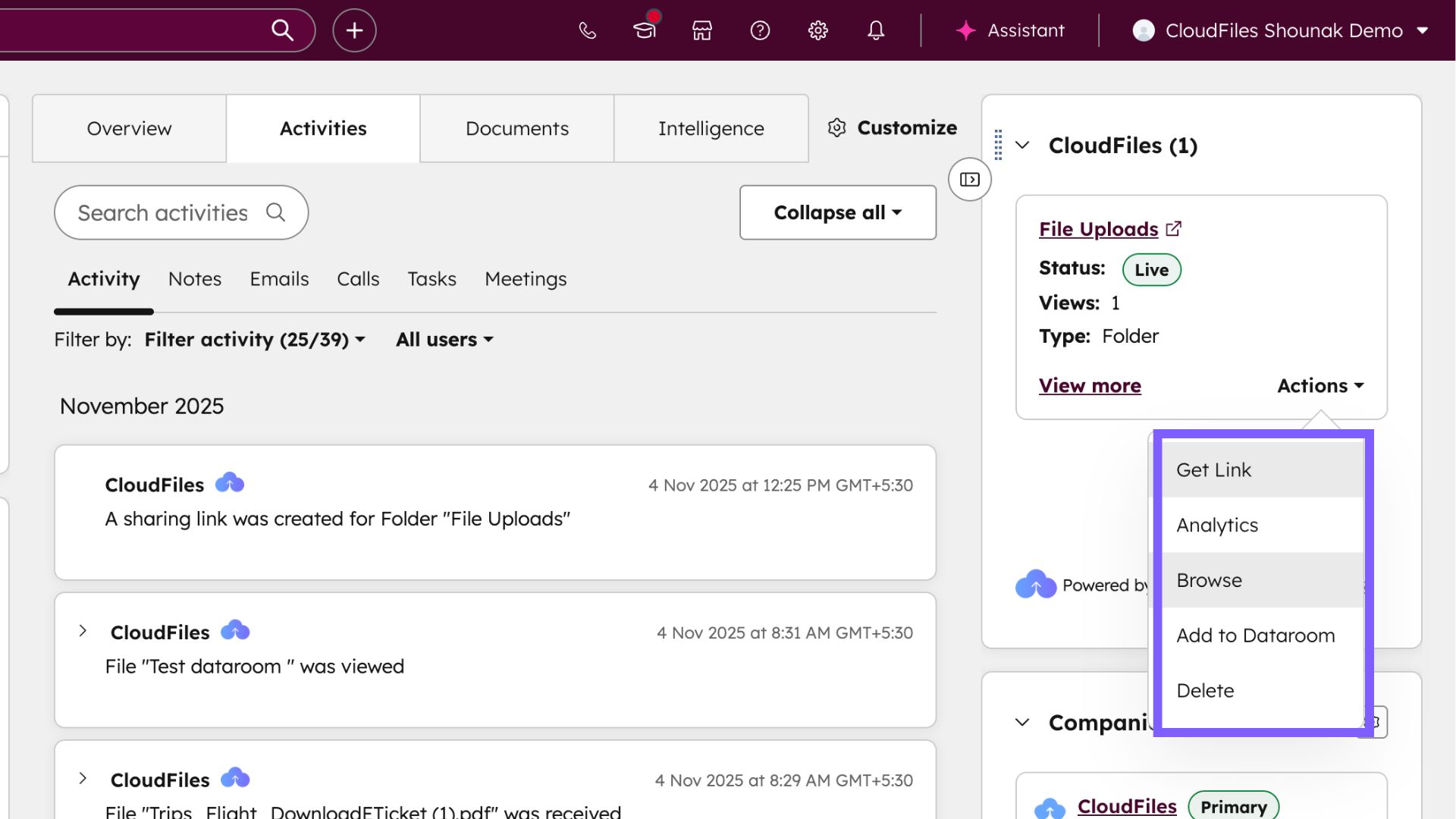
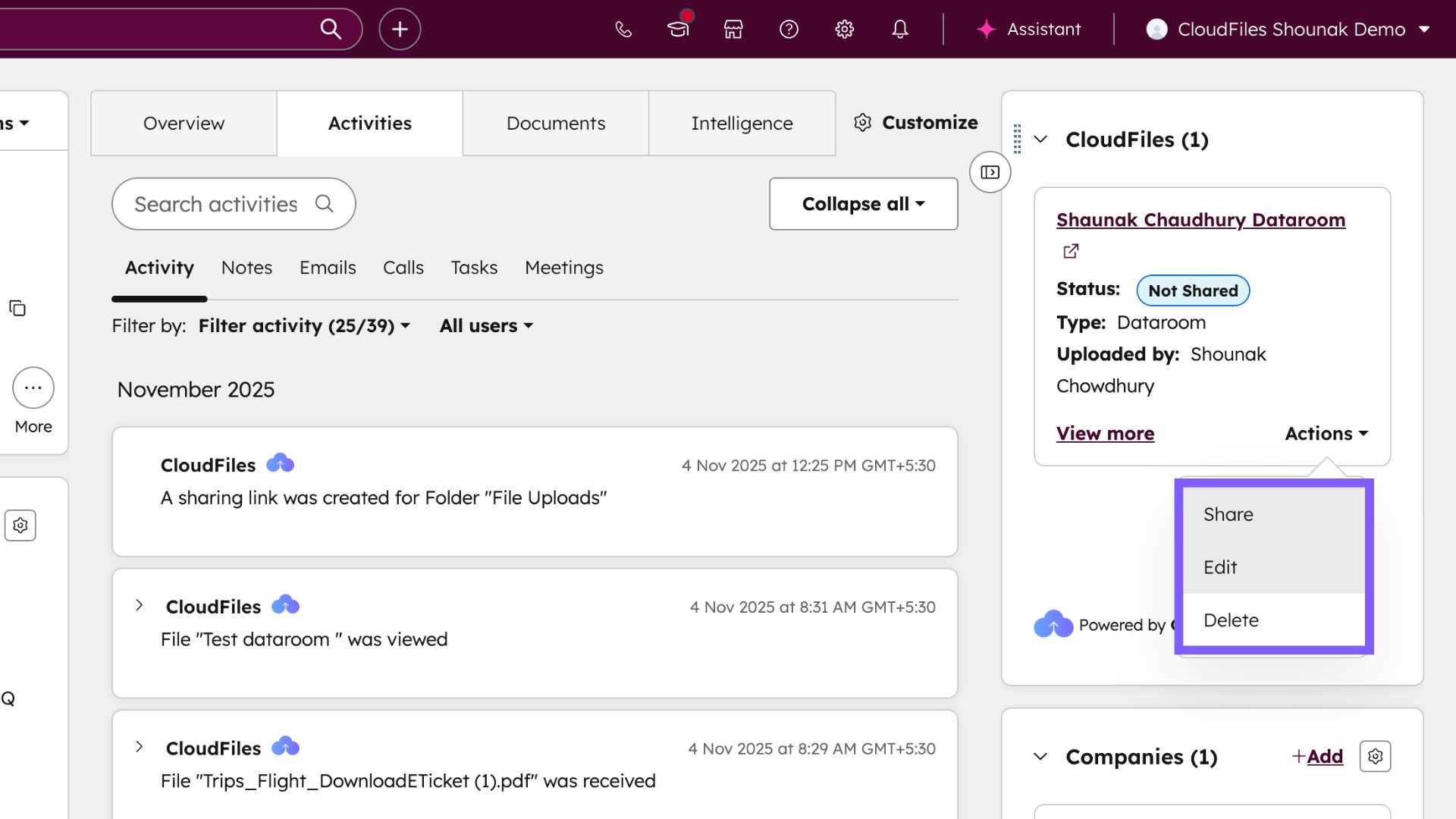
Each resource tile includes an Actions dropdown that lists the available operations for that attachment. The options in this menu change depending on whether the associated item is a file, folder, or dataroom.
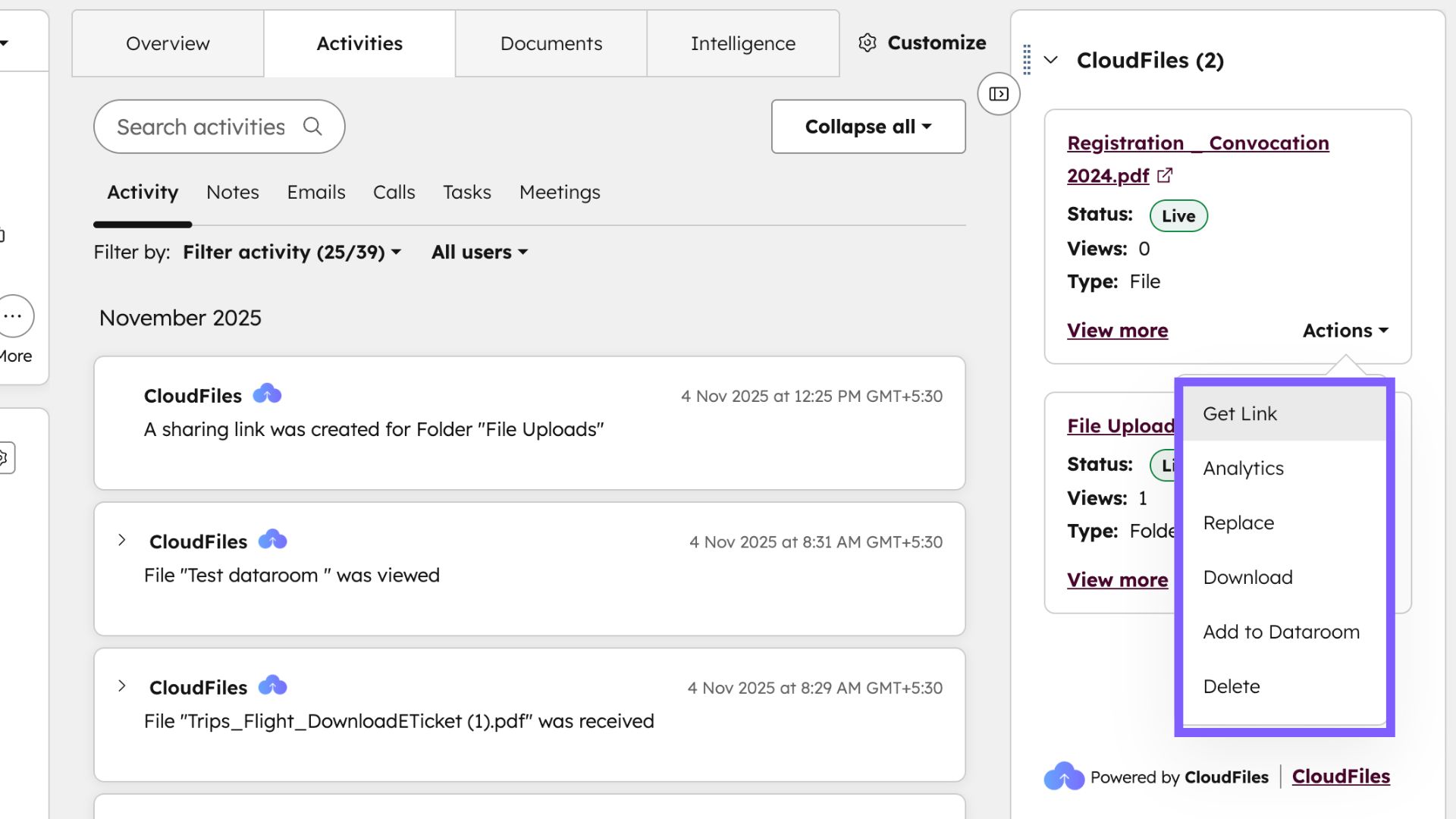
Common operations such as Share, Get Link, Analytics, and Delete are available across all attachment types. These allow you to create or manage CloudFiles sharing links, view engagement analytics, or remove the attachment from the record.
- For file attachments, additional actions such as Replace, Download, and Add to Dataroom are available. These options make it possible to update a file while keeping existing share links active, manually sync externally stored files, download them locally, or include them in a dataroom.
- Folder attachments include operations like Browse and Add to Dataroom, which let you view folder contents and organize them for external sharing.
- For dataroom attachments, the Edit option allows modification of dataroom content, including adding or rearranging files and folders, updating descriptions, and adjusting layout or grouping.
For complete details on each action and its behavior across different attachment types, refer to the File Operations and Folder Operations .
Thus, the CloudFiles sidebar widget enables quick access, management, and association of external files, folders, and datarooms within HubSpot records.