Introduction
CloudFiles provides a real-time sync feature through what is called the Mirror Storage. This feature allows users to browse and interact with files from external cloud storage services inside HubSpot while always showing the latest version of those files.
Real-time sync ensures that any change made in the source storage is immediately reflected in the CloudFiles content library without needing to re-upload or manually update anything.
What Is Mirror Storage?
Mirror Storage allows users to mirror the structure and contents of an external cloud storage account (like Google Drive or SharePoint) into the CloudFiles content library. Instead of importing static copies, this method keeps the files live and updated by referencing the originals directly.
When a file is mirrored:
- A direct reference to the original file is shown inside the content library.
- The file name, content, metadata, and folder structure all reflect the current state of the original cloud file.
- Any changes made in the external drive (e.g. rename, delete, update) are automatically synced into CloudFiles content library and visible inside cHubSpot.
Sync Modes
Mirrored files can work in two modes:
- Synchronous (Real-Time) Sync: Every change in the external file is reflected in real time inside CloudFiles.
- Manual Sync: Updates must be fetched manually if you choose not to use automatic syncing. This gives you more control over performance or version management.
Both sync modes are supported across:
- HubSpot
- CloudFiles Webapp
Supported Cloud Storage Platforms
CloudFiles Mirror Storage supports the following platforms:
- Google Drive
- Microsoft SharePoint
- OneDrive
- Dropbox
- Box
- AWS S3 (including CloudFiles' own managed S3 storage)
- Azure Blob Storage
- Cloudflare R2 (for large-scale storage requirements)
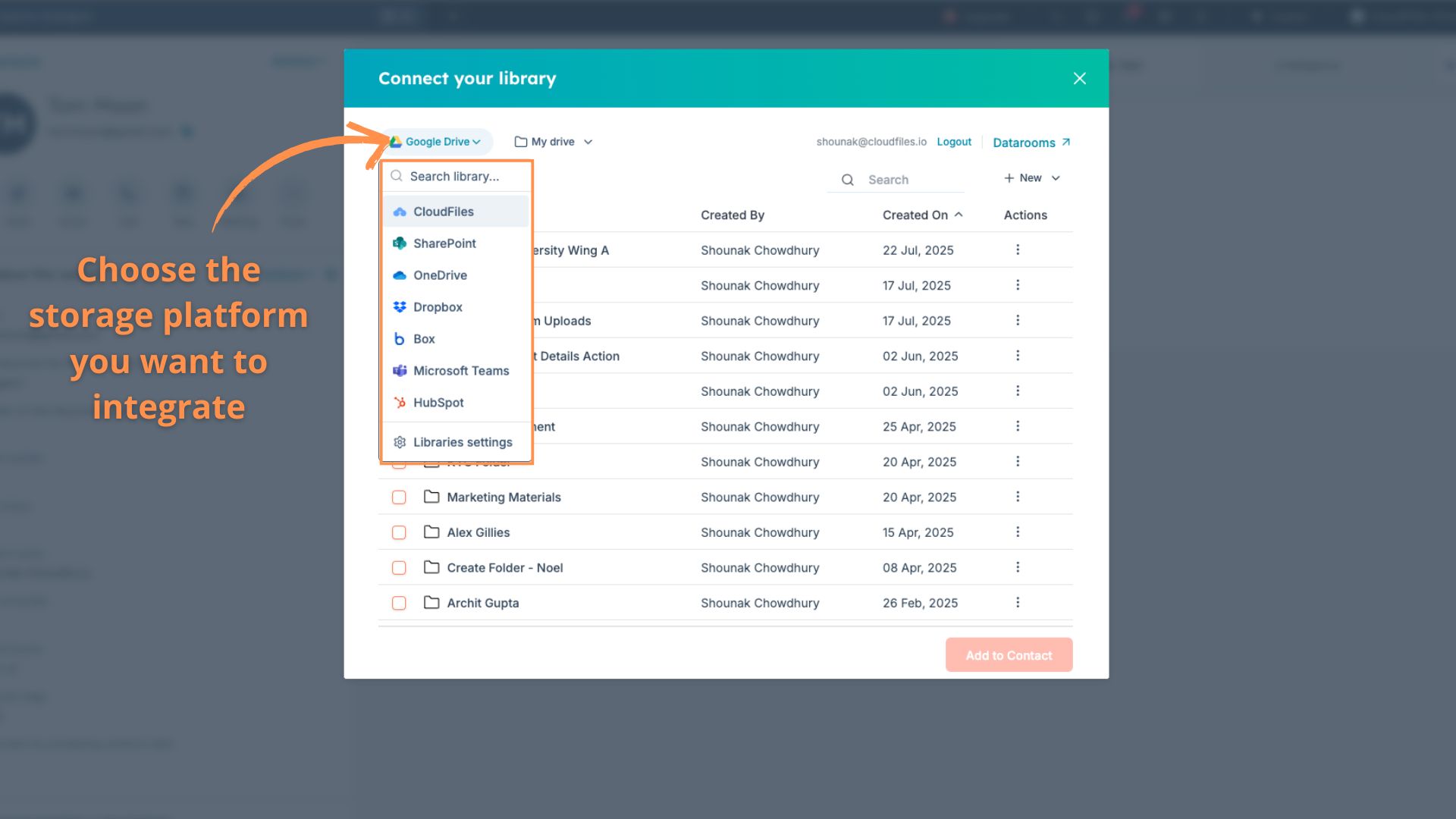
Users can mirror entire folders or libraries from these platforms directly into CloudFiles.
How to Set Up a Mirrored Library?
The setup process is the same for all supported cloud platforms. Below is an example using Google Drive:
- Sign in to your CloudFiles account.
- Go to the Libraries tab.
- Click the gear icon (⚙️) and make sure Google Drive is visible in your storage options.
- Select Google Drive and click Connect.
- Complete the authorization and grant required permissions.
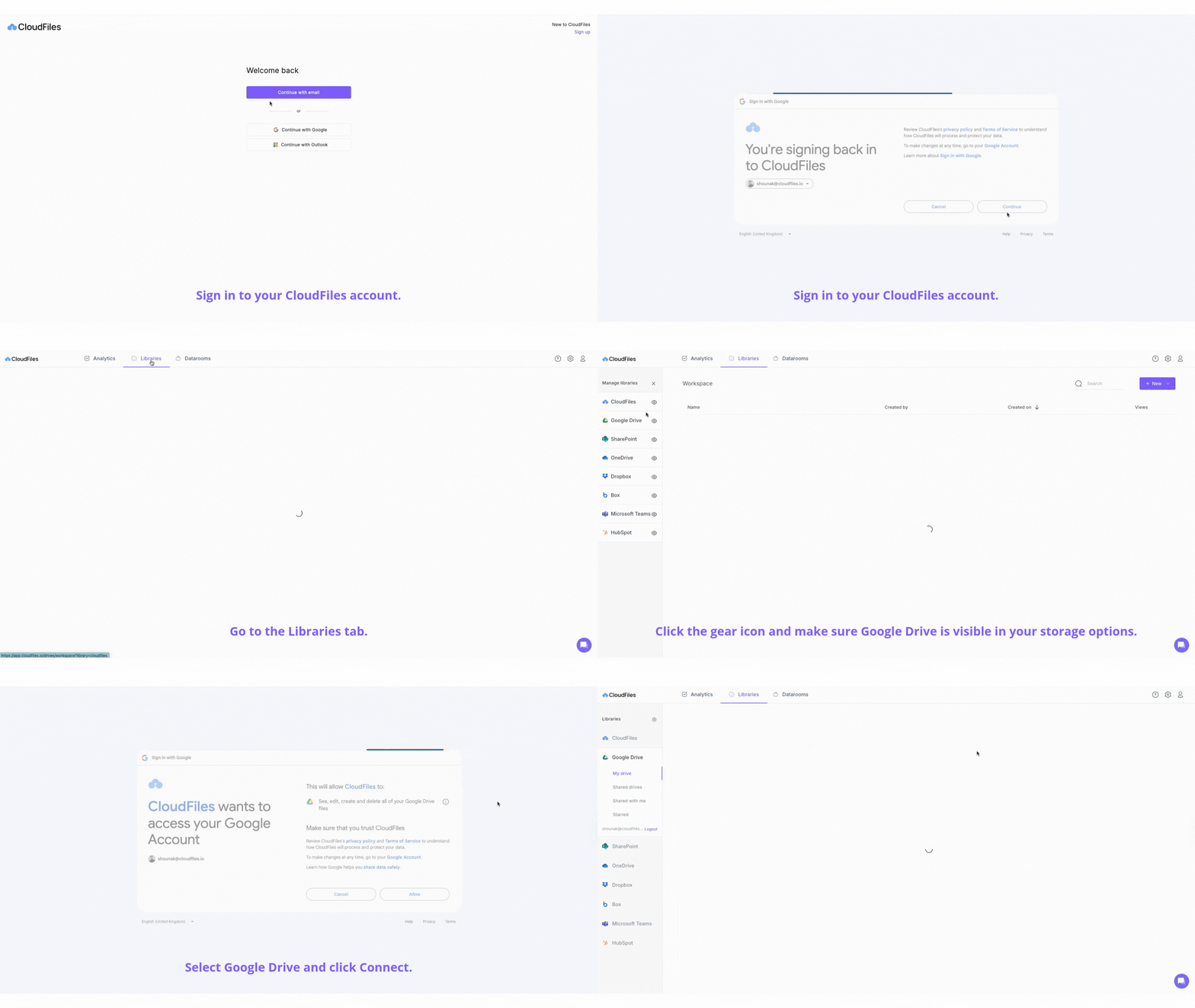
After connecting, CloudFiles will mirror your Google Drive contents inside the library interface.
You can now:
- Browse folders and files just like you would in Google Drive.
- See updates immediately when files are changed externally.
- Perform actions like previewing, linking to HubSpot records, or adding to a dataroom.
Benefits of Real‑Time Sync with Mirror Storage
- Always updated: Files are synced live, avoiding outdated links or attachments.
- No duplication: Files are not imported or copied but only linked and reflected.
- Secure access: CloudFiles respects the file permissions from your external storage.
- Consistent interface: Browse mirrored content across HubSpot using the same interface and logic.
- Supports automations: Synced files can be used in workflows and analytics, and even shared externally using secure CloudFiles links.
Summary
Real-time sync using Mirror Storage makes CloudFiles a powerful bridge between HubSpot and your cloud storage platforms. Instead of copying files, it mirrors them in their current state, keeping all content up to date across systems. Whether you’re linking files to CRM records, sharing them through datarooms, or simply browsing, real-time sync ensures that you always work with the most accurate version of your documents.