This article covers the following sections:
- Accessing the Library – how to open the Content Library from the Sidebar Widget, App Card, or CloudFiles Dashboard.
- Connecting Storages – steps to connect storage platforms, supported integrations, and user-based access permissions.
- Entire Storage Access – explanation of drive structures, sites, and permission-based visibility within the connected platforms.
Accessing the Library
The Content Library can be accessed in three main ways: through the Sidebar Widget, the App Card, or the CloudFiles Dashboard.
From the Sidebar Widget
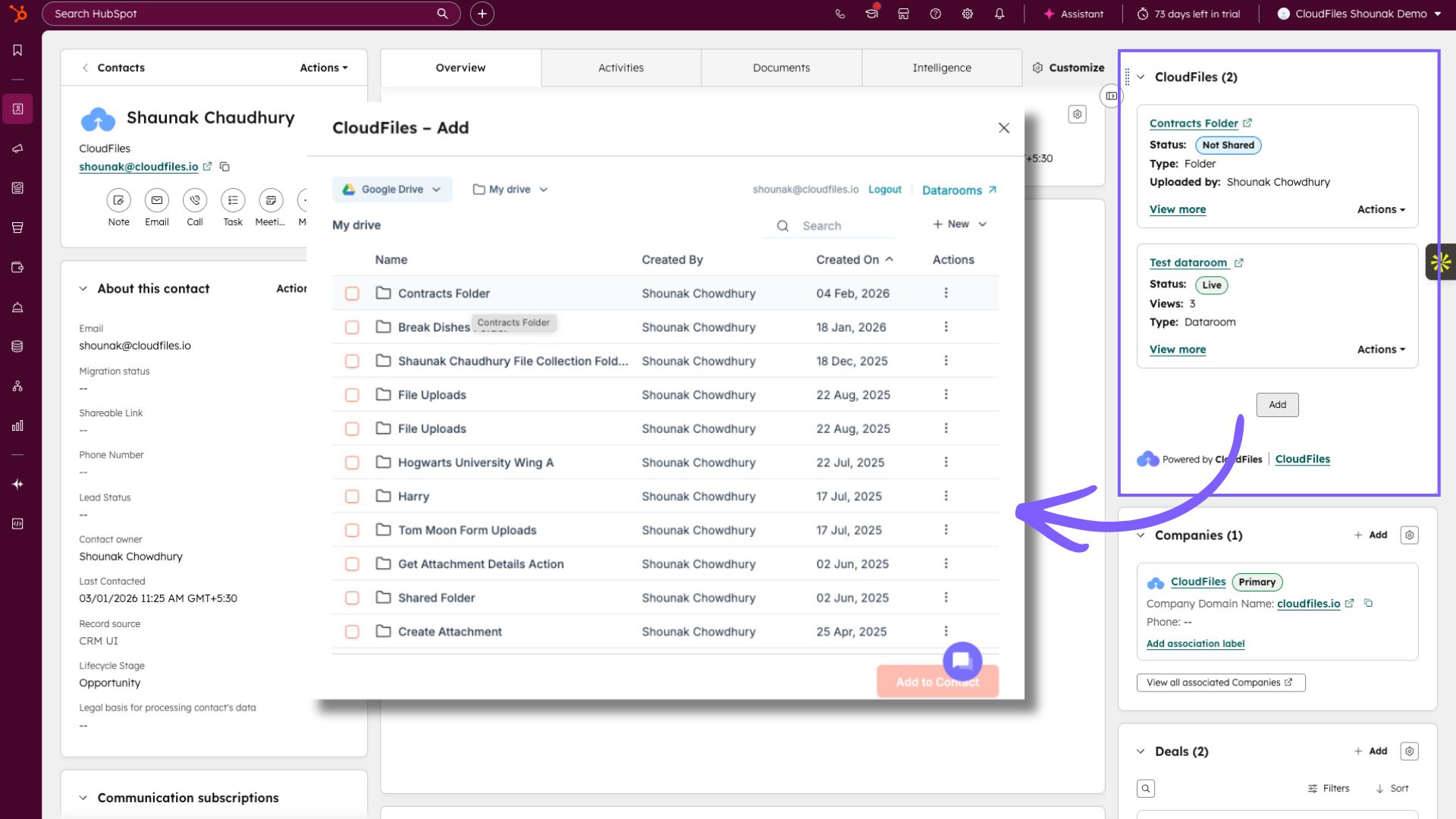
When using the CloudFiles Sidebar Widget inside HubSpot, click on the Add button. This opens the Content Library dialog, displaying files and folders from your connected storage platform. From here, you can browse available resources, upload new files, or associate specific files or folders with the HubSpot record.
From the App Card
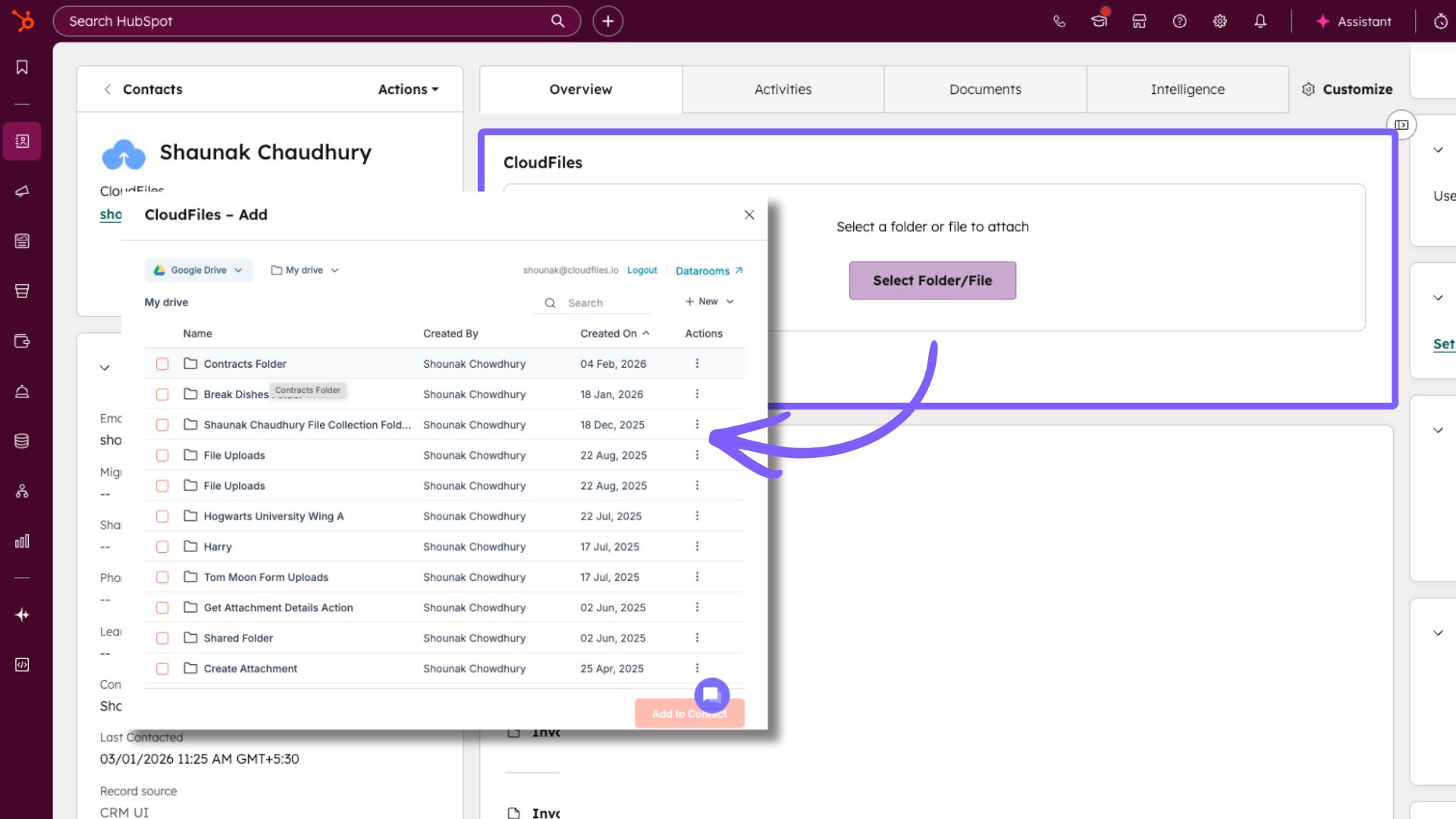
Inside the CloudFiles App Card, the Select File/Folder button provides access to the same Content Library. Clicking this button opens the dialogue where you can navigate through your connected storage, view existing files, and link them to the HubSpot record. The interface also allows you to upload content or move items between folders directly.
From the CloudFiles Dashboard
The Content Library can also be accessed via the CloudFiles Dashboard. You can open the dashboard in two ways:
- By clicking the CloudFiles hyperlink available in the Sidebar Widget.
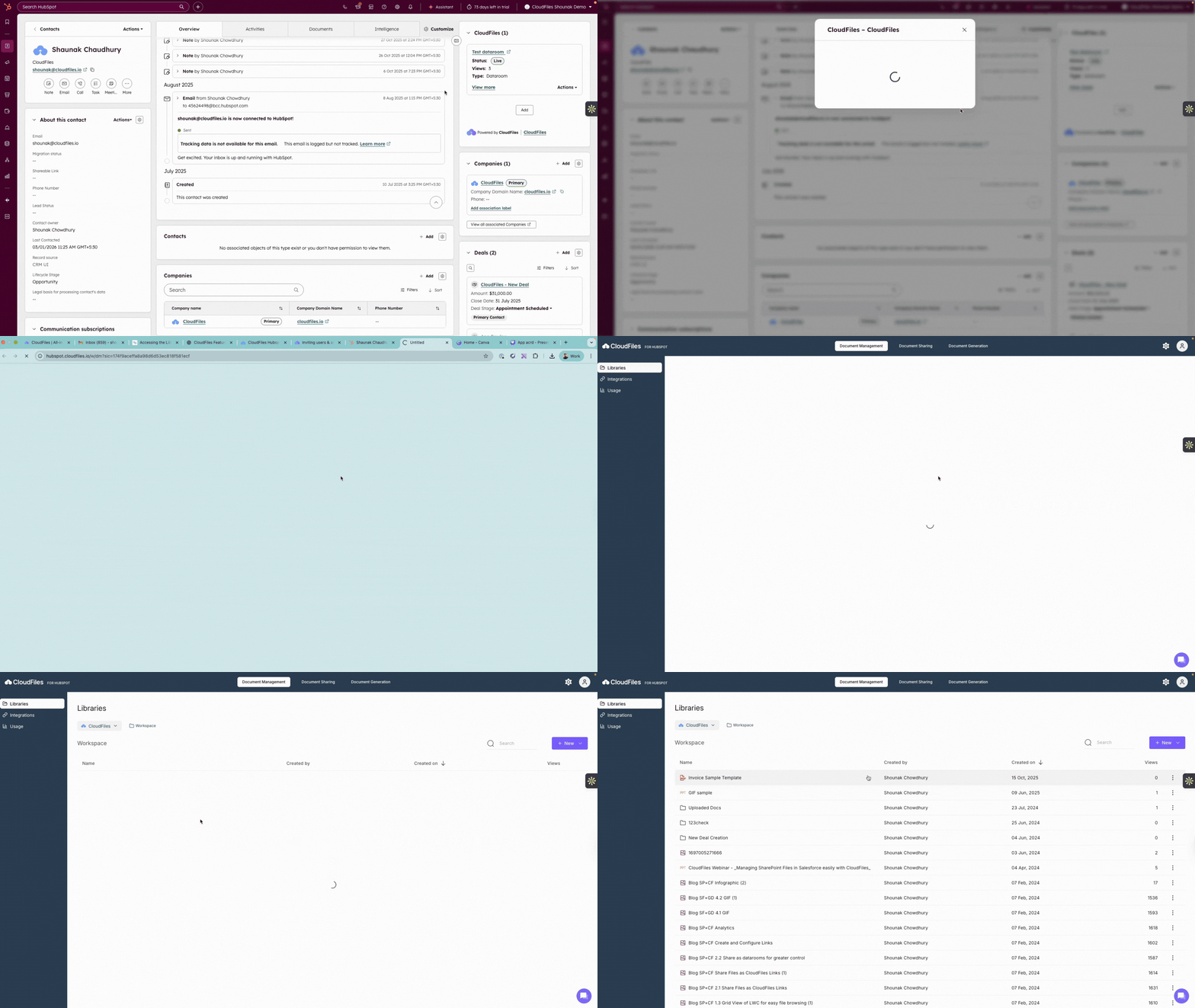
- By logging in directly at https://hubspot.cloudfiles.io/.
Once logged in, navigate to the Document Management tab to access the full Content Library. This view provides access to all connected storage platforms enabled under your integration settings. Users can view, upload, rename, and move files or folders directly from the dashboard.
Connecting Storages
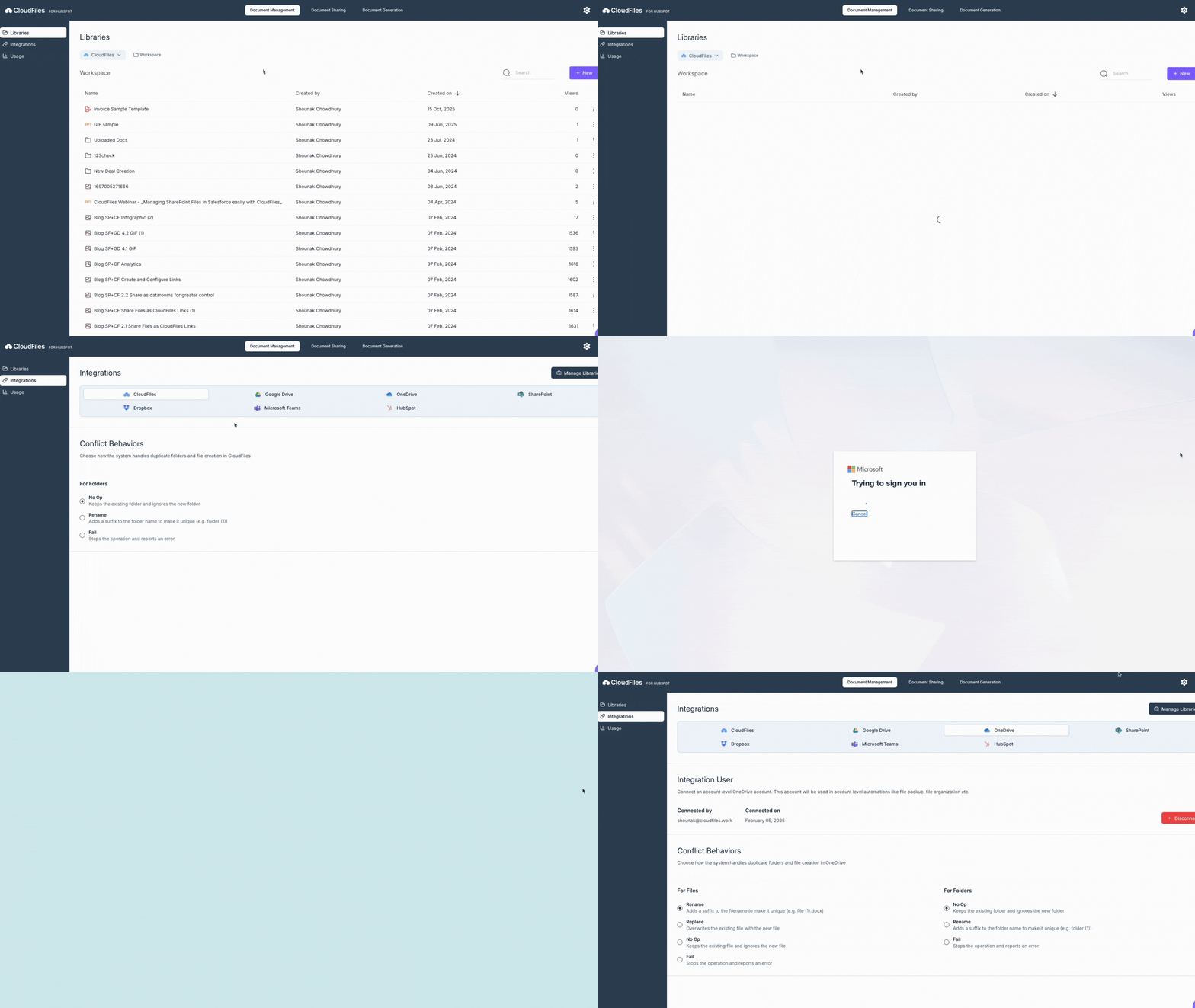
Before accessing files in the Content Library, users must connect their desired storage platforms through the Integration Settings section in the CloudFiles Dashboard.
To connect a storage platform:
- Go to the CloudFiles Dashboard and open the Document Management tab.
- Navigate to Integration Settings.
- Connect the required storage platform by signing in with valid credentials.
Mirror Storage
Mirror Storage provides a two-way sync between your external cloud storage and CloudFiles. Once connected, CloudFiles displays live copies of your external files, so updates made in either system appear in both. It currently supports HubSpot File Storage, SharePoint, OneDrive, Google Drive, Dropbox, and Box.
You can also connect AWS S3 or Azure Blob Storage for the same mirrored experience, and Cloudflare R2 is supported for very large file storage. Once a platform is connected, all the files and folders from that storage become accessible in HubSpot through the Content Library, either in the App Card or Sidebar Widget.
User-Based Permissions
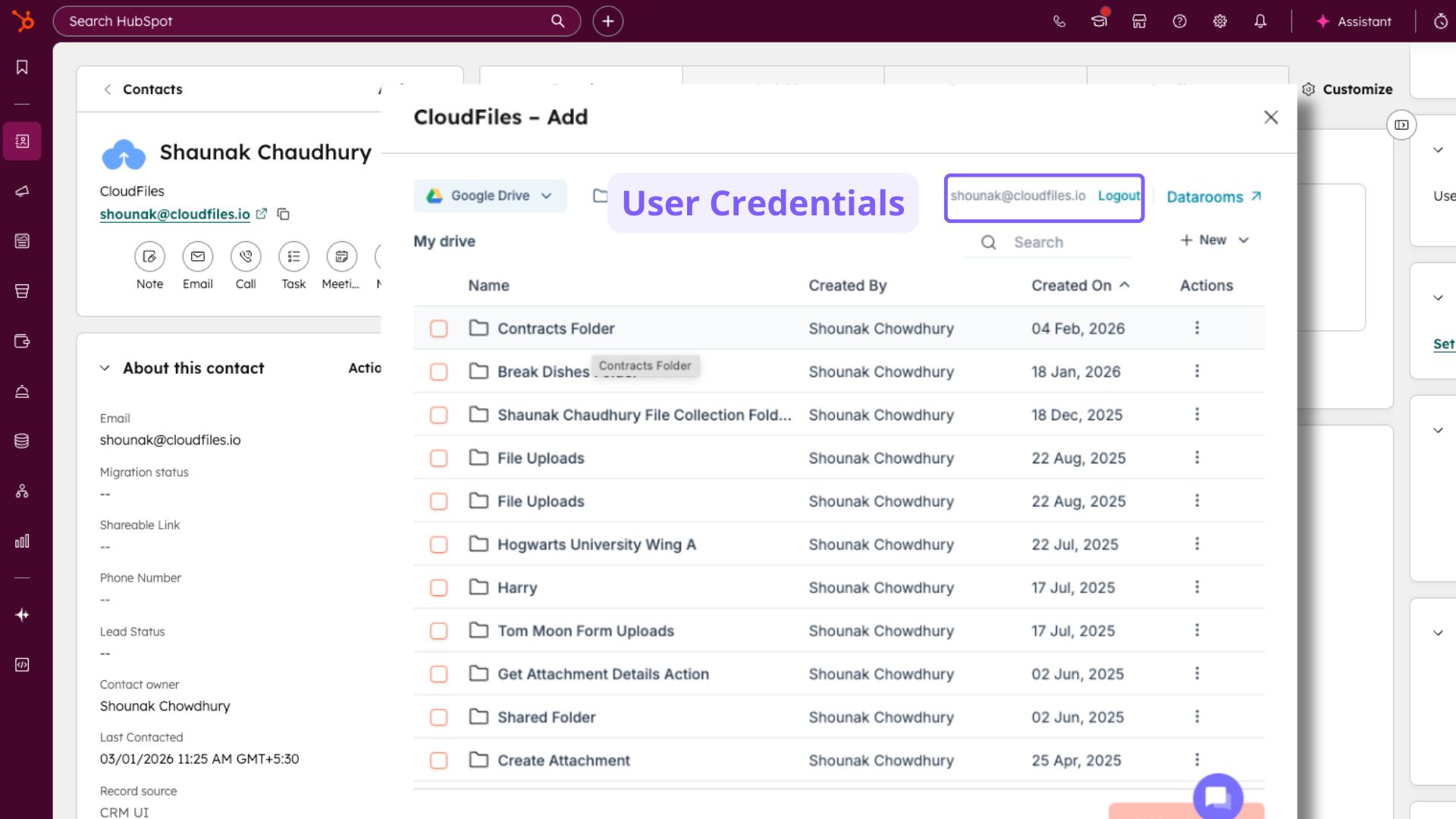
When accessing the Content Library in HubSpot, you will see the user credentials displayed at the top-right corner of the dialogue. This indicates which user account is currently being used to access the storage. The visibility of folders and files depends on the permissions granted to that specific user account. This user-based permission ensures that CloudFiles displays only the files and folders that the authenticated user has access to in the external storage system.
Entire Storage Access
The Content Library provides access to the entire directory structure of connected storage platforms, while still enforcing permission-based visibility.
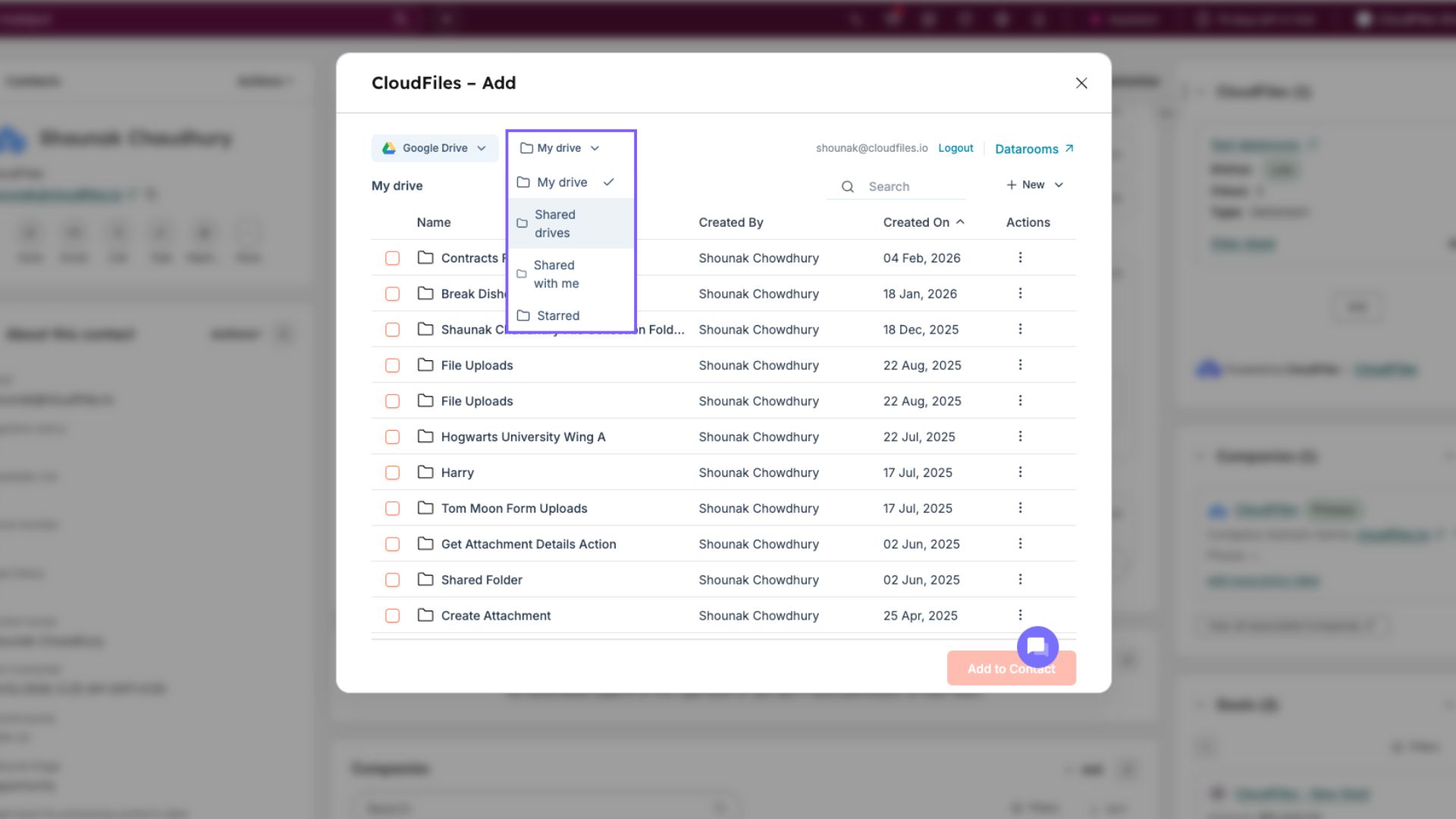
- For Google Drive, users can access My Drive and Shared Drives based on their access rights.
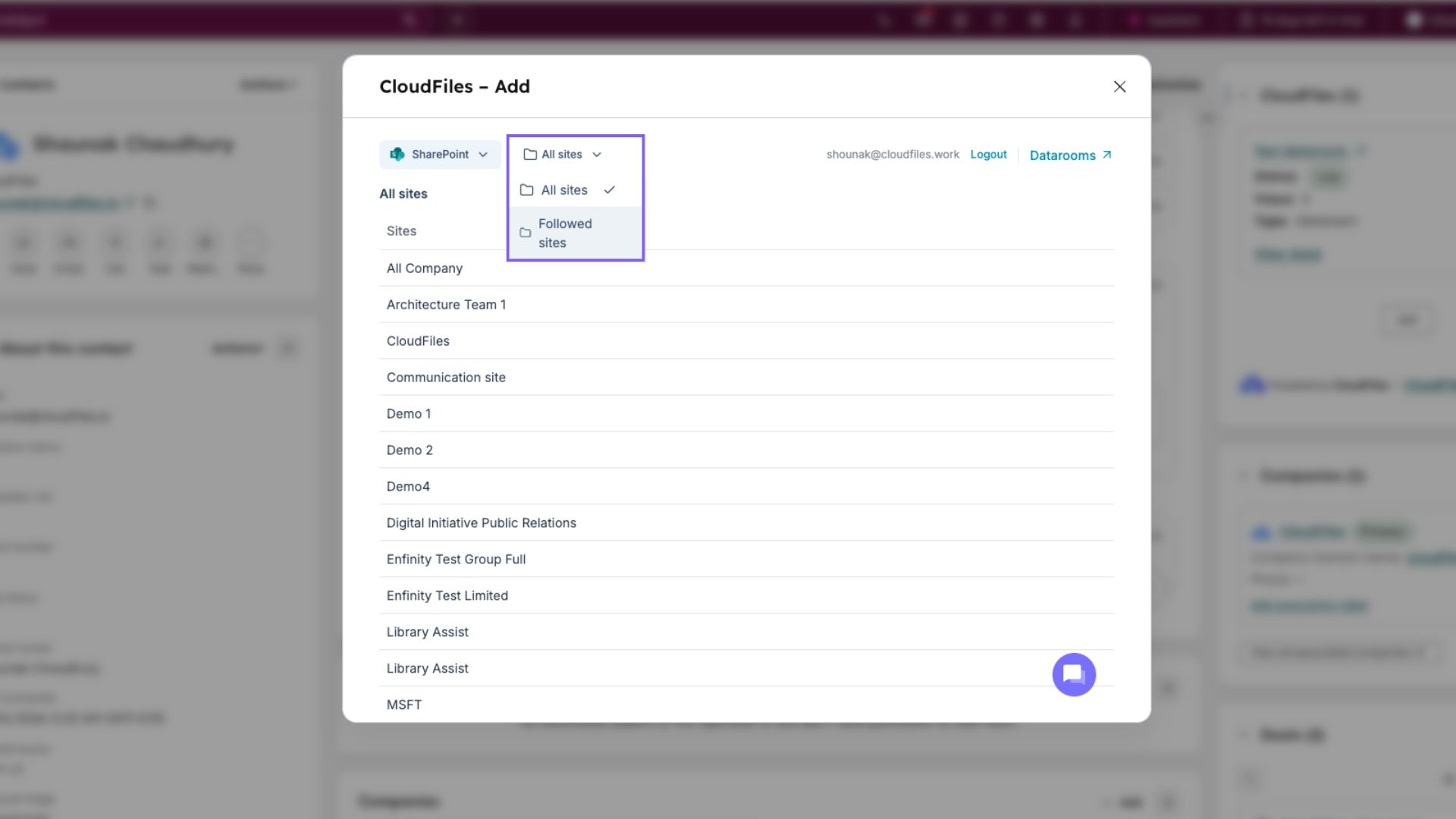
- For SharePoint, users can view files and folders under Sites and Followed Sites, depending on permissions within the Microsoft 365 environment.
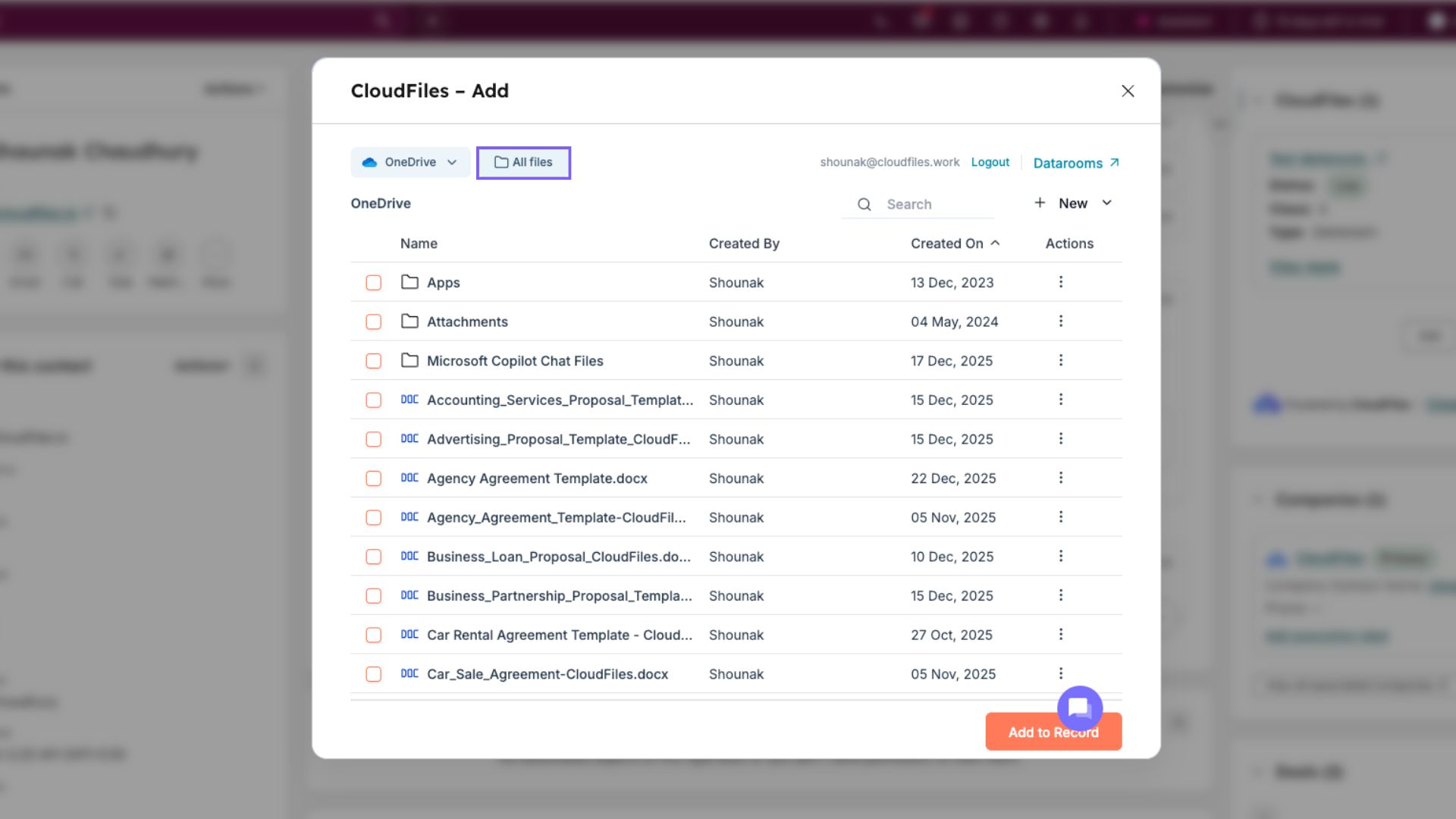
- For OneDrive, users can view their personal drive and any shared folders they have access to.
- For other platforms such as Dropbox, Box, and AWS S3, users can browse through all available directories and folders accessible under their authenticated account.
Only resources that the user has permission to view or modify in the external storage platform will appear in the Content Library. Any restricted or inaccessible directories will not be displayed, ensuring that permissions from the connected platform are fully respected.
To learn more about supported integrations and how permission sets work, refer to the Storage Integrations and Permission Sets article.