Overview
CloudFiles supports a webhook that allows you to trigger file-uploaded event in Salesforce whenever a file is uploaded to a connected SharePoint library. This is useful when you want Salesforce automations to trigger instantly to new documents which are uploaded directly to SharePoint (and not via the CloudFiles LWC on a record page).
Setting up the Power Automate Flow
The flow will consist of 3 main steps and looks like the following -
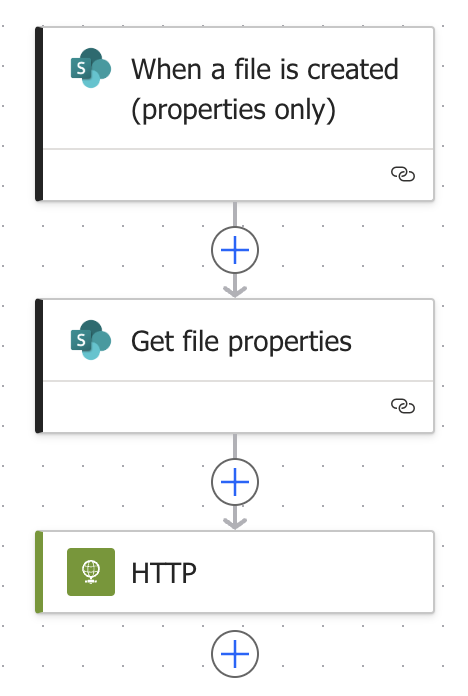
Step 1 - Trigger on File Creation
Start with the “When a file is created (properties only)” SharePoint trigger. Configure this to watch the specific site and document library where new files will be uploaded. This step ensures the flow starts running the moment a file is added to that location.
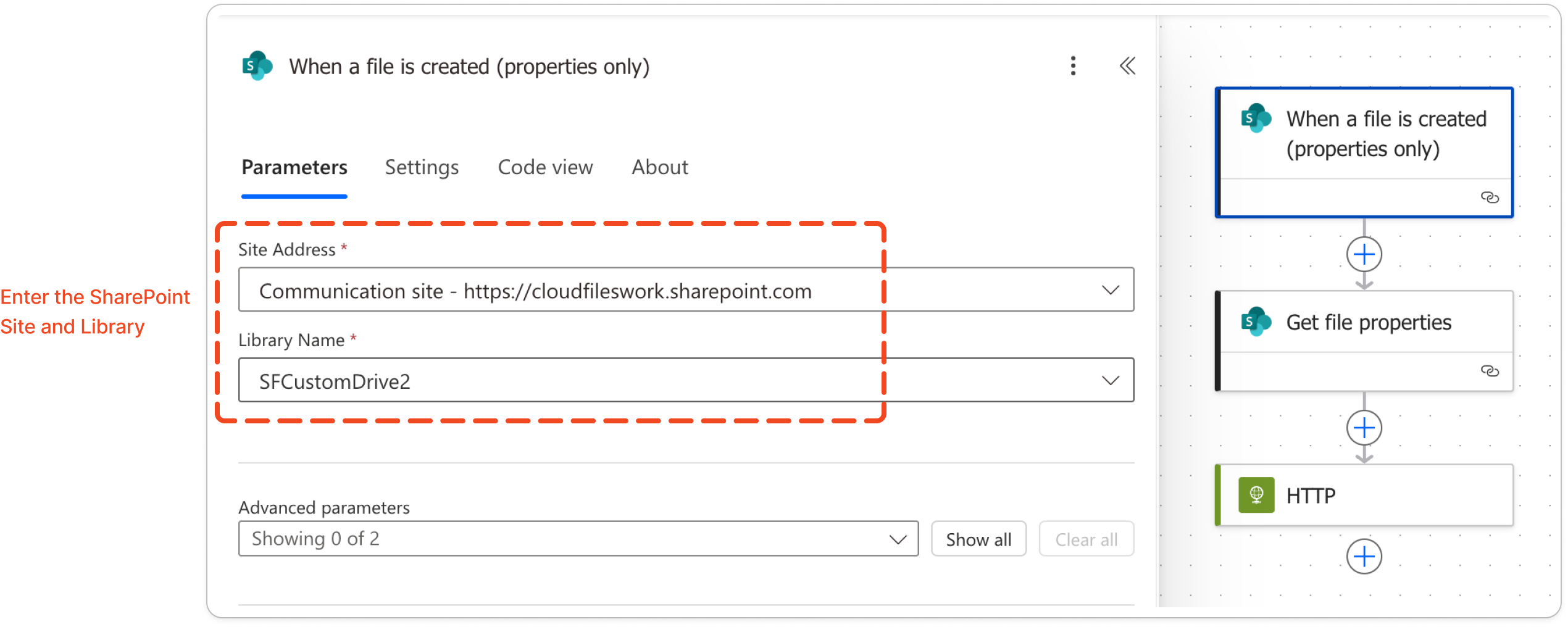
Step 2 – Retrieve File Properties
Next, add the “Get file properties” SharePoint action. In the Site Address and Library Name, select the same site and document library you are monitoring in the previous step.
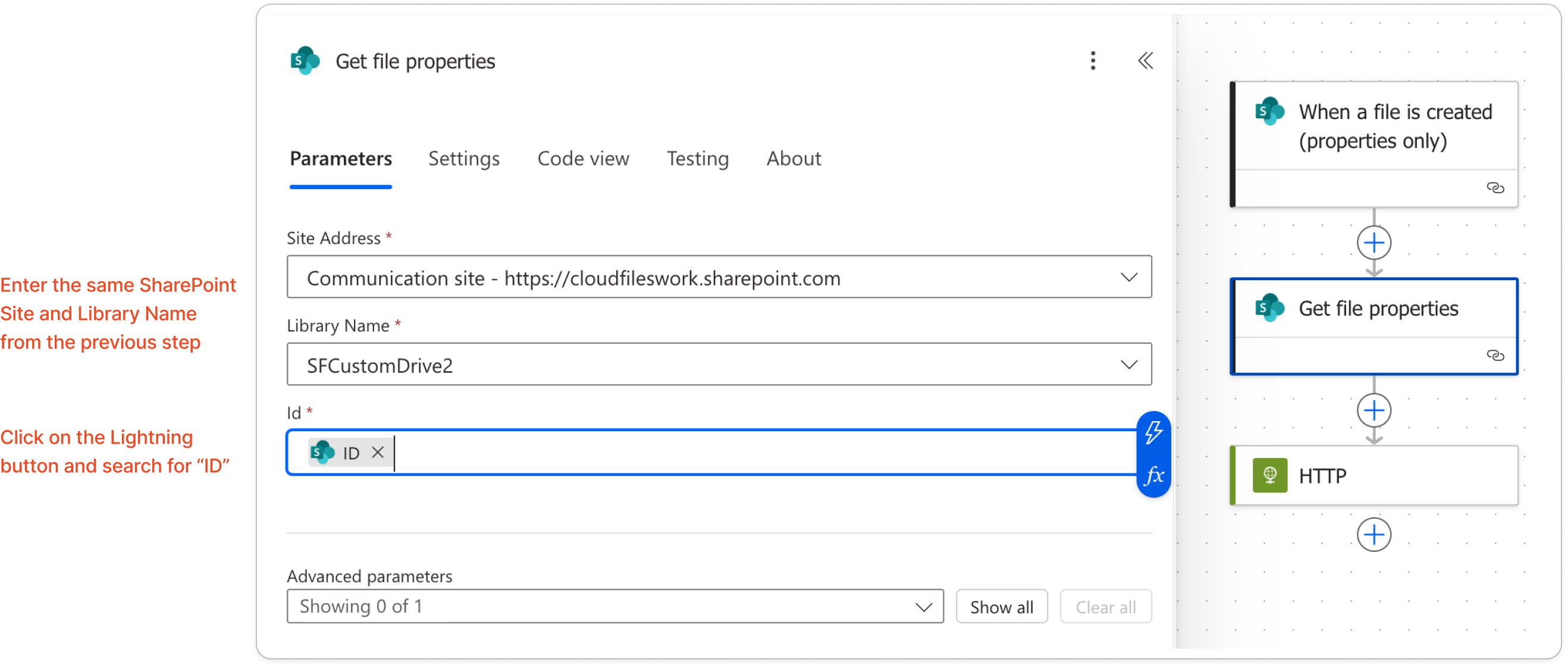
In the Id field, pass the ID value from the trigger step. This action fetches the metadata you will need later. You can use the lightning icon that appears on the Id* field to fetch data from the previous step and search for "ID".

Step 3 – Send File Details to the CloudFiles Webhook
Add an HTTP action and configure it to send the collected file details to the CloudFiles webhook endpoint. Set the Method to POST, and in the URI field, paste the production webhook URL for SharePoint (https://api.cloudfiles.io/webhooks/library-event?library=sharepoint)
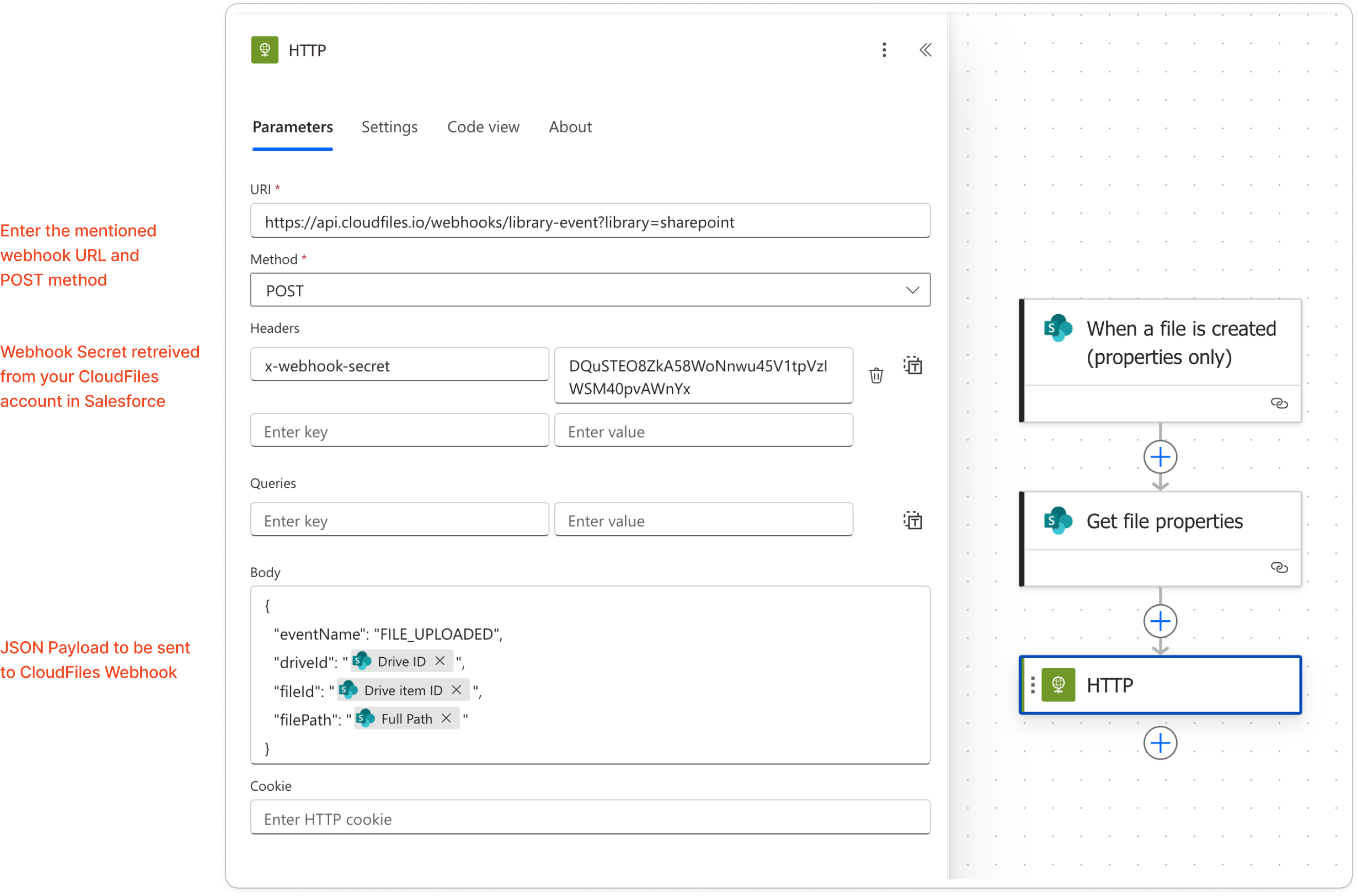
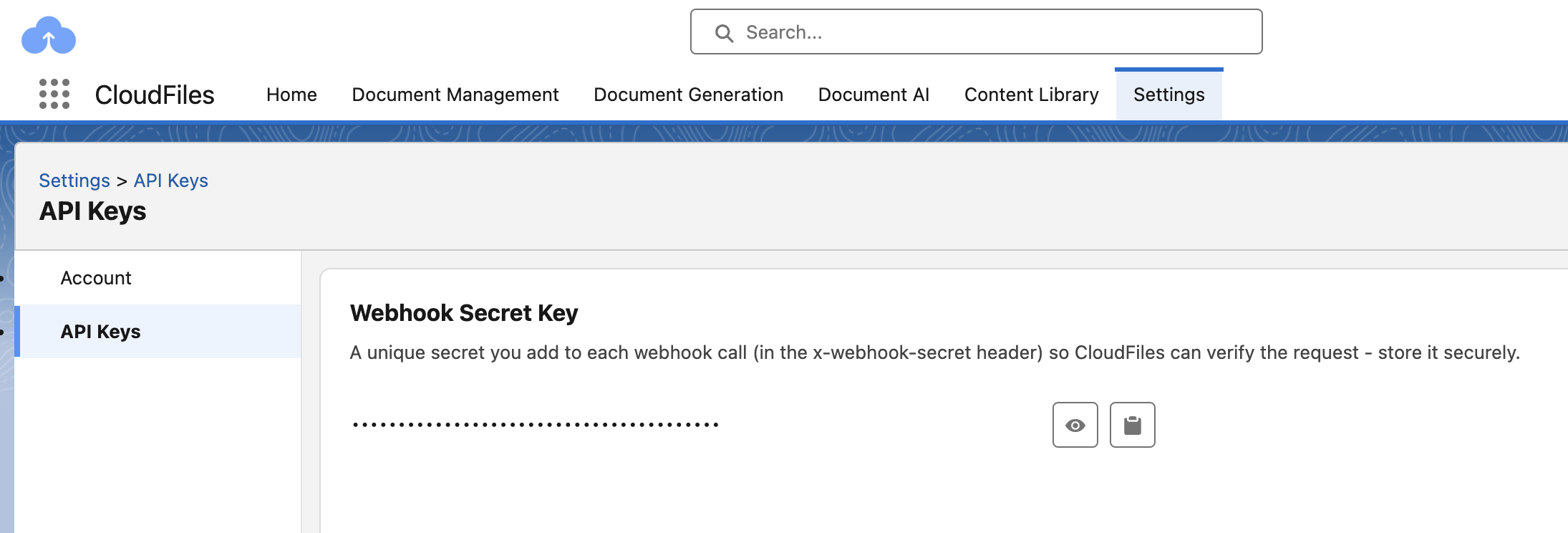
In the Headers, include a x-webhook-secret key with the secret value you retrieved from Salesforce. You can go to CloudFiles app -> Settings -> API Keys and copy the "Webhook Secret Key" to retrieve this key.
In the Body, send a JSON payload containing:
- The event name ("FILE_UPLOADED")
- The Drive ID from the “Get file properties” output
- The Drive Item ID from the same output
- The Full Path of the file
You can use the lightning icon to fetch the parameters directly or alternatively use the following JSON function -
{ "eventName": "FILE_UPLOADED", "driveId": "@{triggerBody()?['{DriveId}']}", "fileId": "@{triggerBody()?['{DriveItemId}']}", "filePath": "@{triggerBody()?['{FullPath}']}" }
This ensures CloudFiles knows exactly which file in SharePoint triggered the event and can process it accordingly inside Salesforce.
Testing the Flow
After saving and enabling the flow, upload a file to the configured SharePoint library. In Power Automate, check the run history to confirm that all steps completed successfully.
Then, verify in Salesforce that the file-uploaded event was triggered. You can check the list of most recent file-uploaded CloudFiles Events recorded in salesforce with the help of the following SOQL query -
SELECT Fields(All) from cldfs__CloudFilesEvent__c where cldfs__Type__c = 'file-uploaded' order by CreatedDate DESC LIMIT 200
If the event isn’t recorded, double-check the posted file details (Drive ID, Item ID, Full Path) and ensure the user connected in Power Automate has access to the file. Once you confirm that the event is getting successfully recorded in Salesforce, you can intercept that event and build automations on top of it.