Introduction
This article explains how to set up the Internal Record Widget inside a Salesforce Screen Flow to support custom business requirements. It walks through the steps required to add and configure the widget in a flow so internal users can access and manage files related to Salesforce records.
To learn more about the Internal Record Widget, see Internal Record Widget.
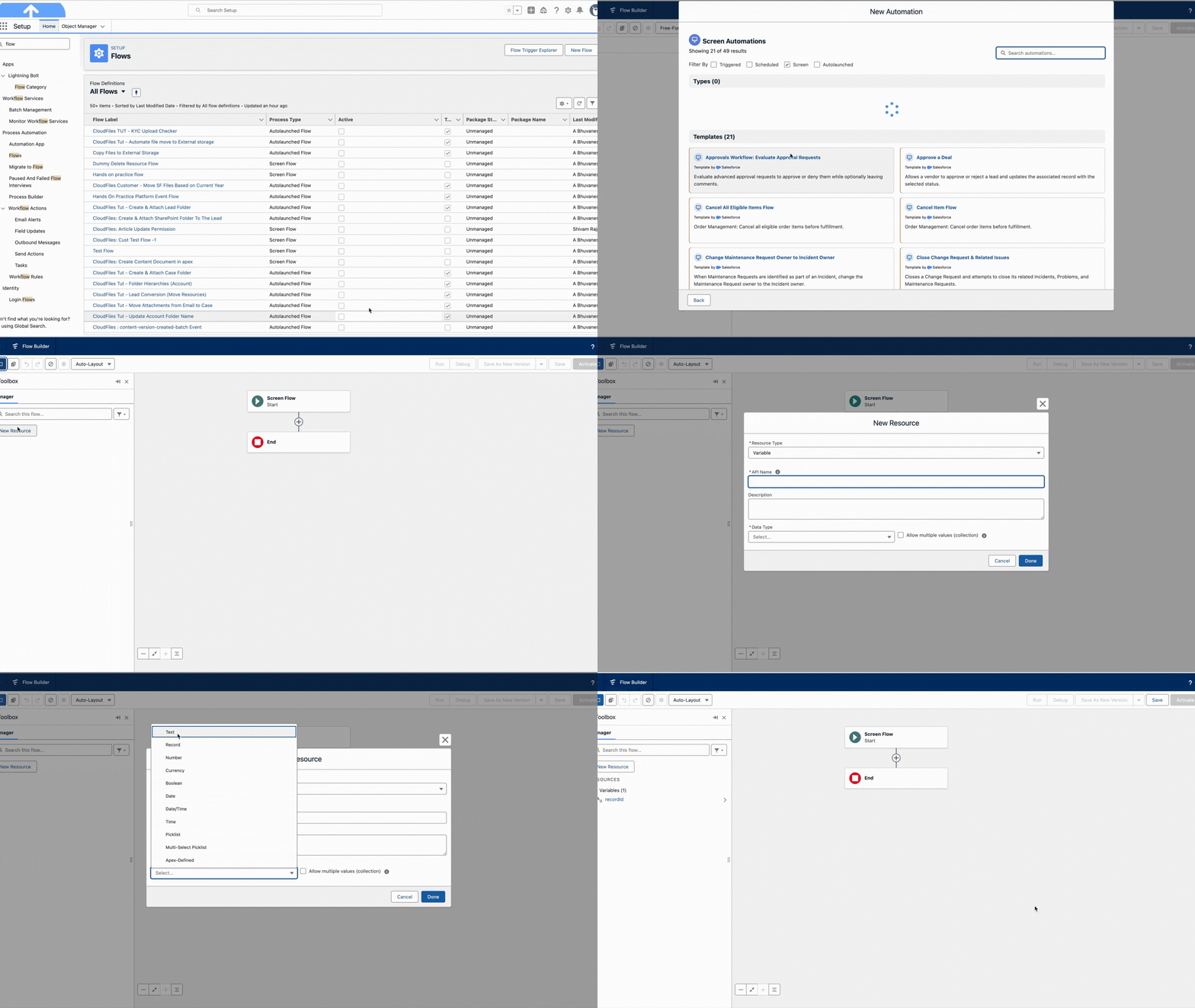
1. Create a Screen Flow
Create a Screen Flow and implement your business requirements before displaying the CloudFiles Widget on a screen.
Next, create a variable named recordId with the following configuration:
- Set Data Type to Text.
- Set Available for input to True so the flow can dynamically receive the record ID.
- Set Allow multiple values (Collection) to False.
2. Add Widget to Screen Flow
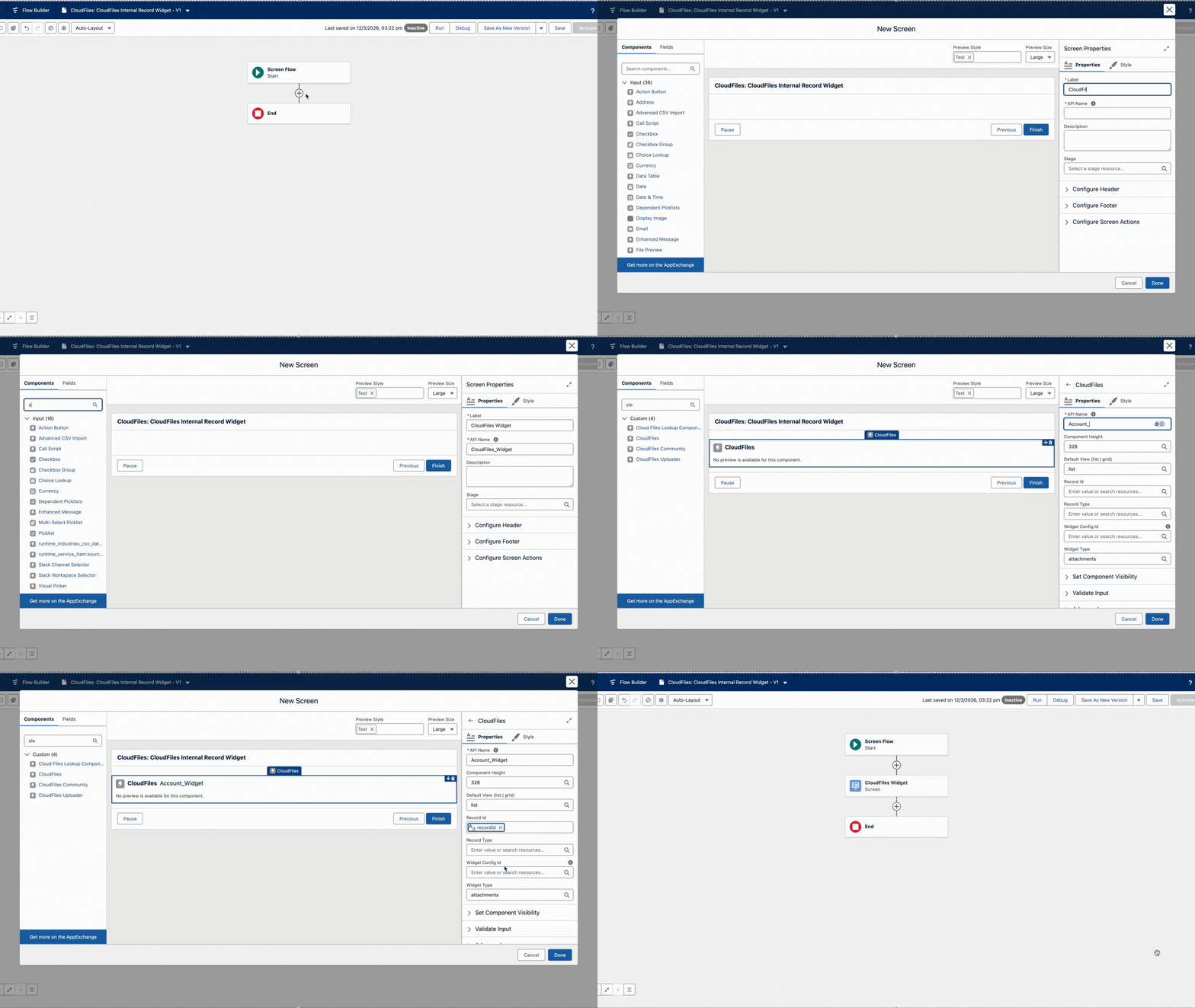
Add a Screen element to the flow. Inside the screen, search for CloudFiles, then drag and drop the CloudFiles Widget onto the screen.
Configure the widget by passing the following values:
- Record Type – Enter the API name of the object. (e.g Account)
- Record Id – Pass the {!recordId} variable created earlier.
- Widget Type - Enter attachments text as input
This allows the widget to load files and folders linked to the current Salesforce record.
3. Save and Activate the Flow
Once the flow configuration is complete, save the flow and activate it.
Make sure all required inputs are properly configured so the widget can receive the correct record context when the flow is launched.
4. Place the Flow on a Record Page
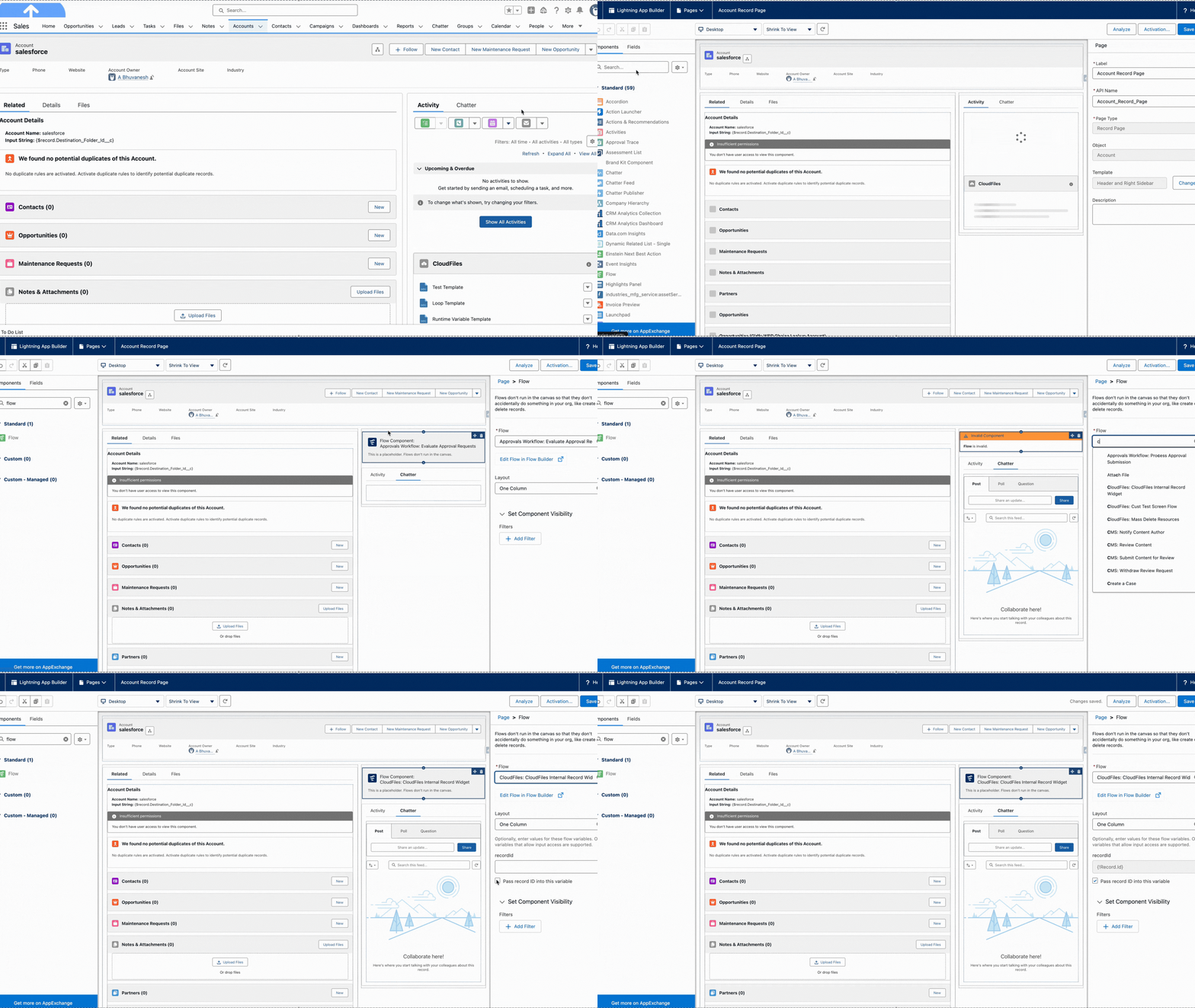
Go to the record page of the relevant object, click the Gear icon, and then select Edit Page.
From the components panel, search for Flow, then drag and drop it into the desired location on the page.
Next, select the flow that you created with the widget so it is displayed on the record page.
Once you have finished, save and activate the record page. You will then be able to see the Screen Flow with the CloudFiles Widget on it.
Result
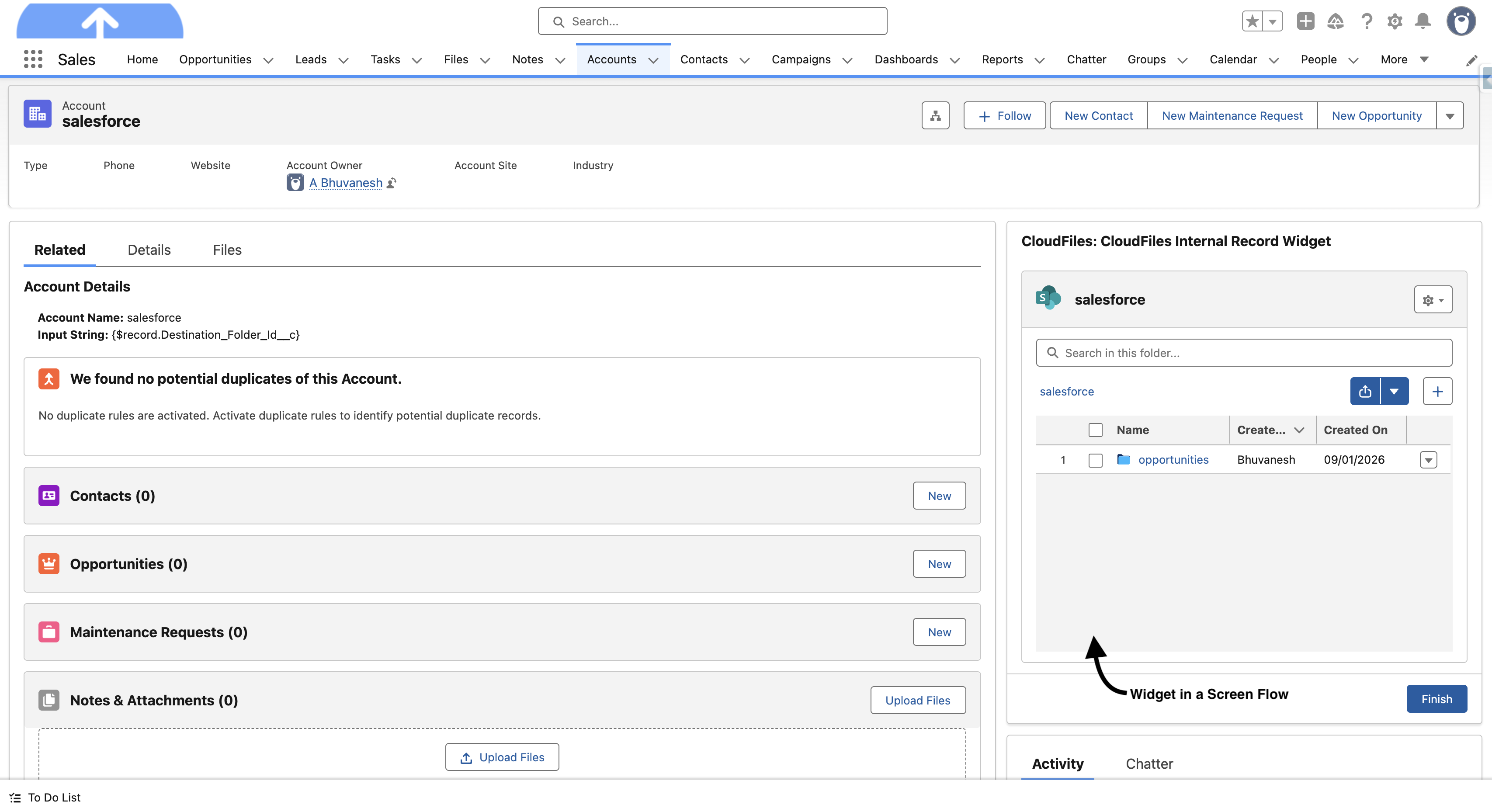
This is how the widget appears inside the Screen Flow. Users can perform all the same operations available in the Internal Widget.