Workflows handles that whole loop in one place. It reads a document, compares what it finds against your Salesforce records, decides what to do, and writes the result back — with no code and no jumping between tools. You build the process once as an ordered sequence of steps on a visual canvas, each step feeding the next. The result is one process that turns a document into the right records, the way your team would do it by hand.
Start Every Run the Same Way
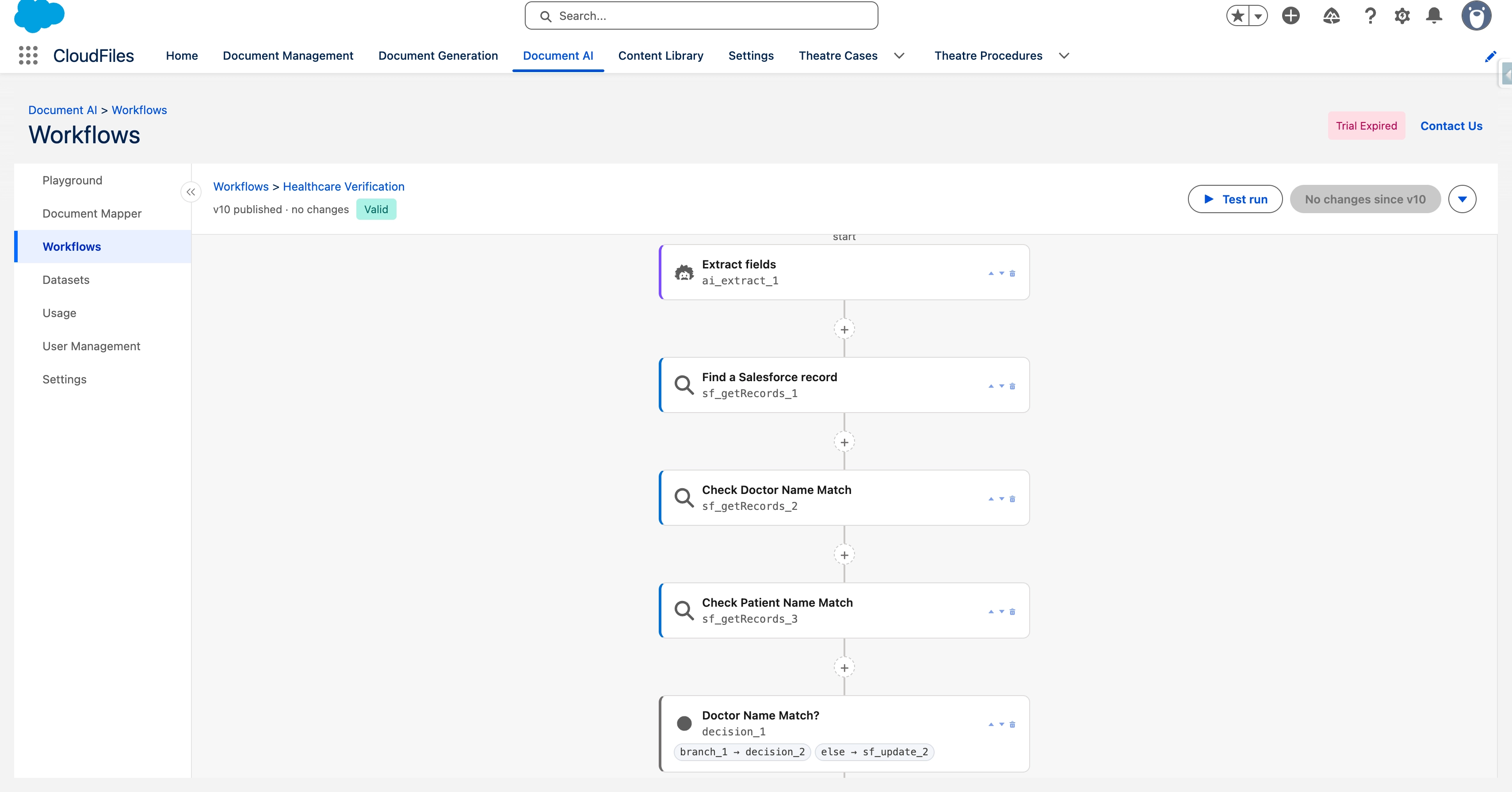
Every workflow begins from a launch form, where you set up the two things a run reads from:
- Documents to read, either a single file or a group of related files to work through together.
- Values the logic depends on, such as a date, an amount, or a checkbox. These are also the fields a Salesforce Flow fills in when it launches the workflow, so what you define here is exactly what the Flow supplies.
The same screen is where you set the workflow's review policy, which decides whether a run pauses for a person before it writes to Salesforce.
Read Any Document with AI
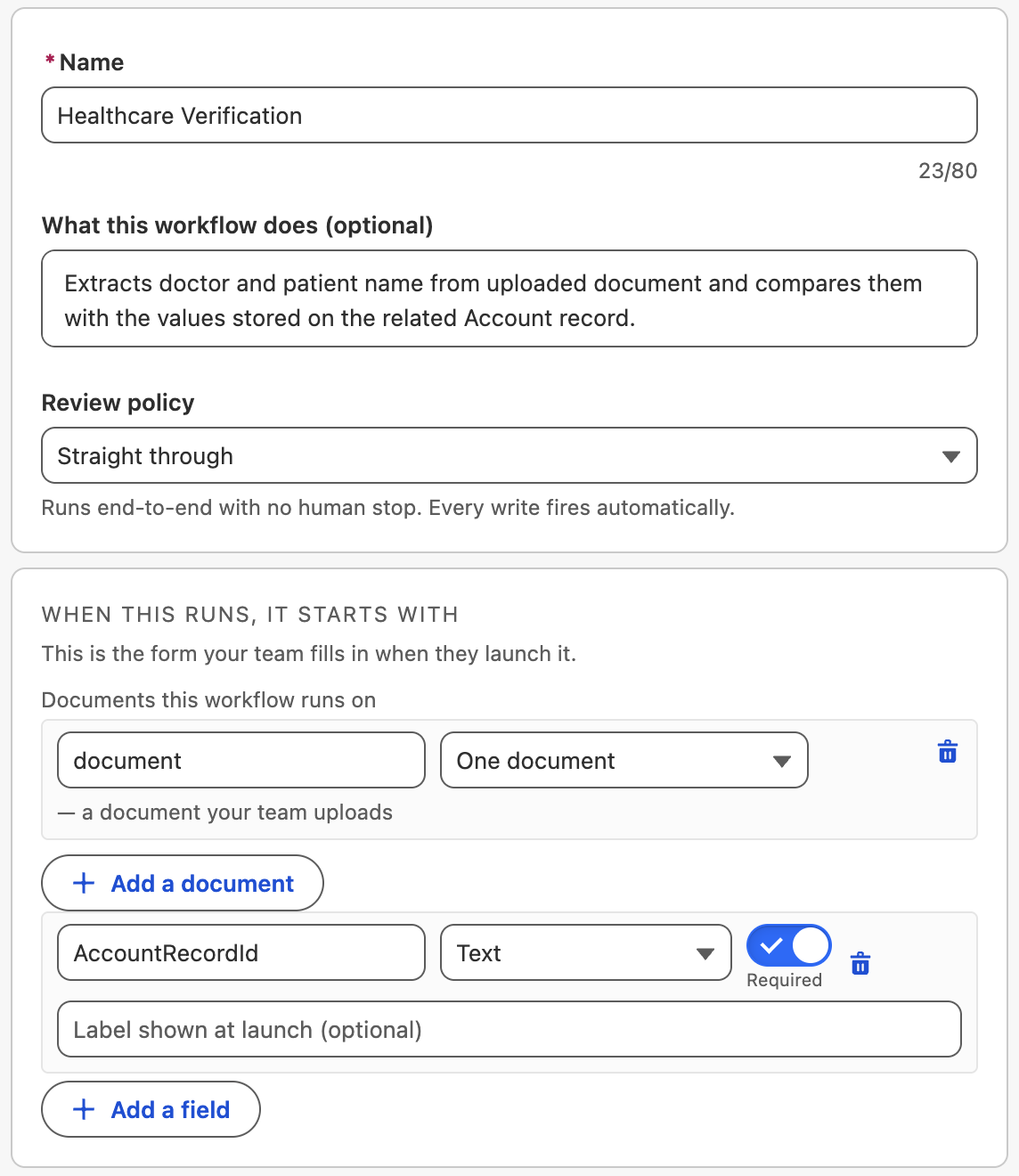
Once a run starts, the AI reads the document for you, and how it reads depends on what you need. Extract fields pulls a structured set of values you define — a total, a date, a vendor name, or a whole table of line items — and each one comes back with a confidence score, so you always know how sure the AI was. Ask the document puts a plain-language question to the page when you just need a single fact, and Classify sorts a document into labels you choose, so the run can tell an invoice apart from a receipt and treat each one differently. Whatever the AI reads becomes a value the rest of the workflow can build on.
Find and Compare Against Salesforce
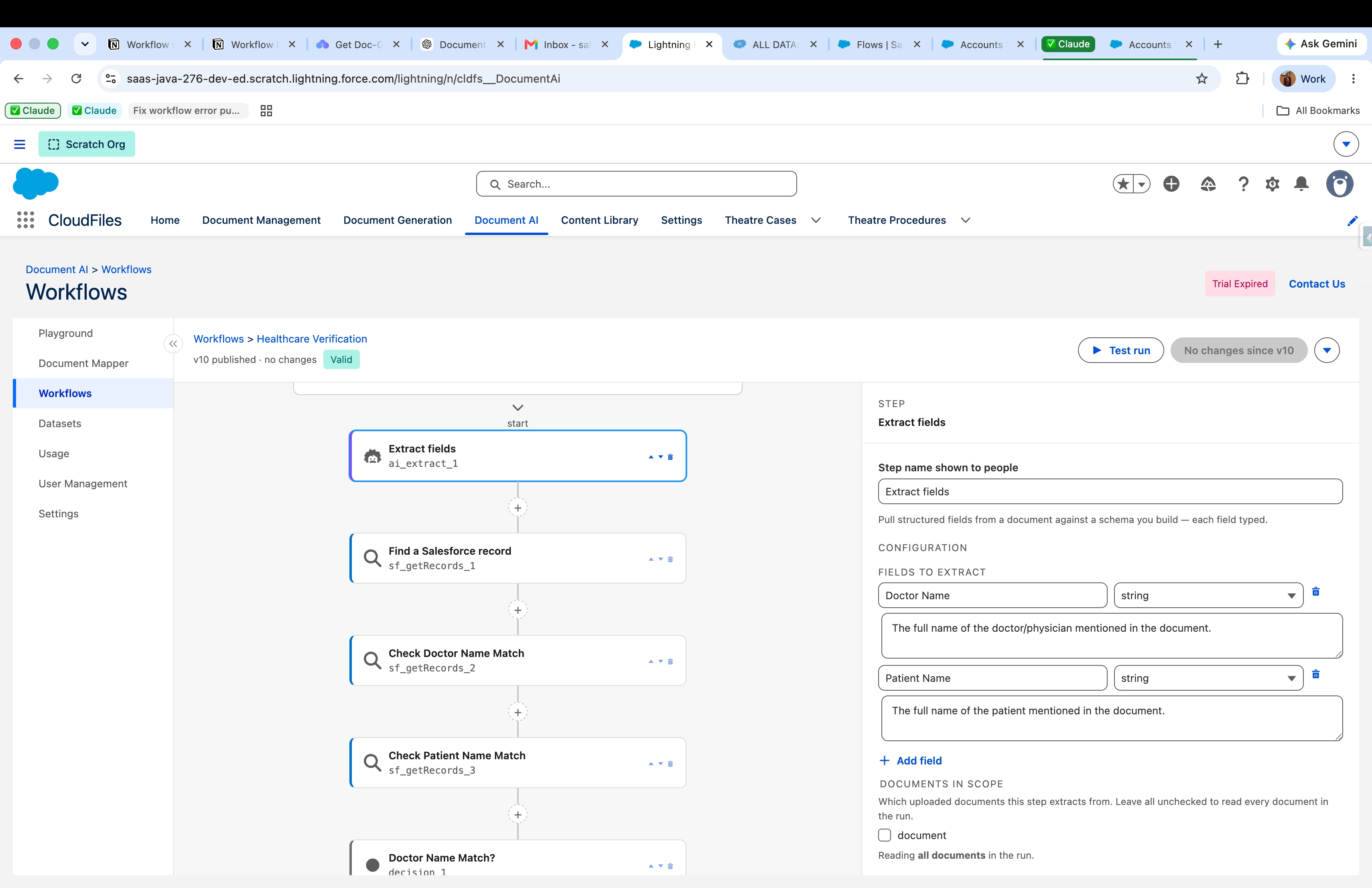
A value off a document only means something once you can check it against what you already have, so a workflow finds the matching Salesforce record before it acts, and it can match no matter how the data is worded. An exact match works when the document carries a clean identifier. A fuzzy match tolerates the small differences that trip up exact matching — pairing "Acme Corp." on the page with "Acme Corporation" in Salesforce. An AI-picked match lets the model choose the best record when several could fit. Once the record is found, its fields sit alongside the extracted ones, so a later step can weigh the two directly — comparing an amount against the current total, or a name against what's on file. And if nothing matches, that's a real outcome you can act on, not a silent failure.
Branch, Loop, and Decide
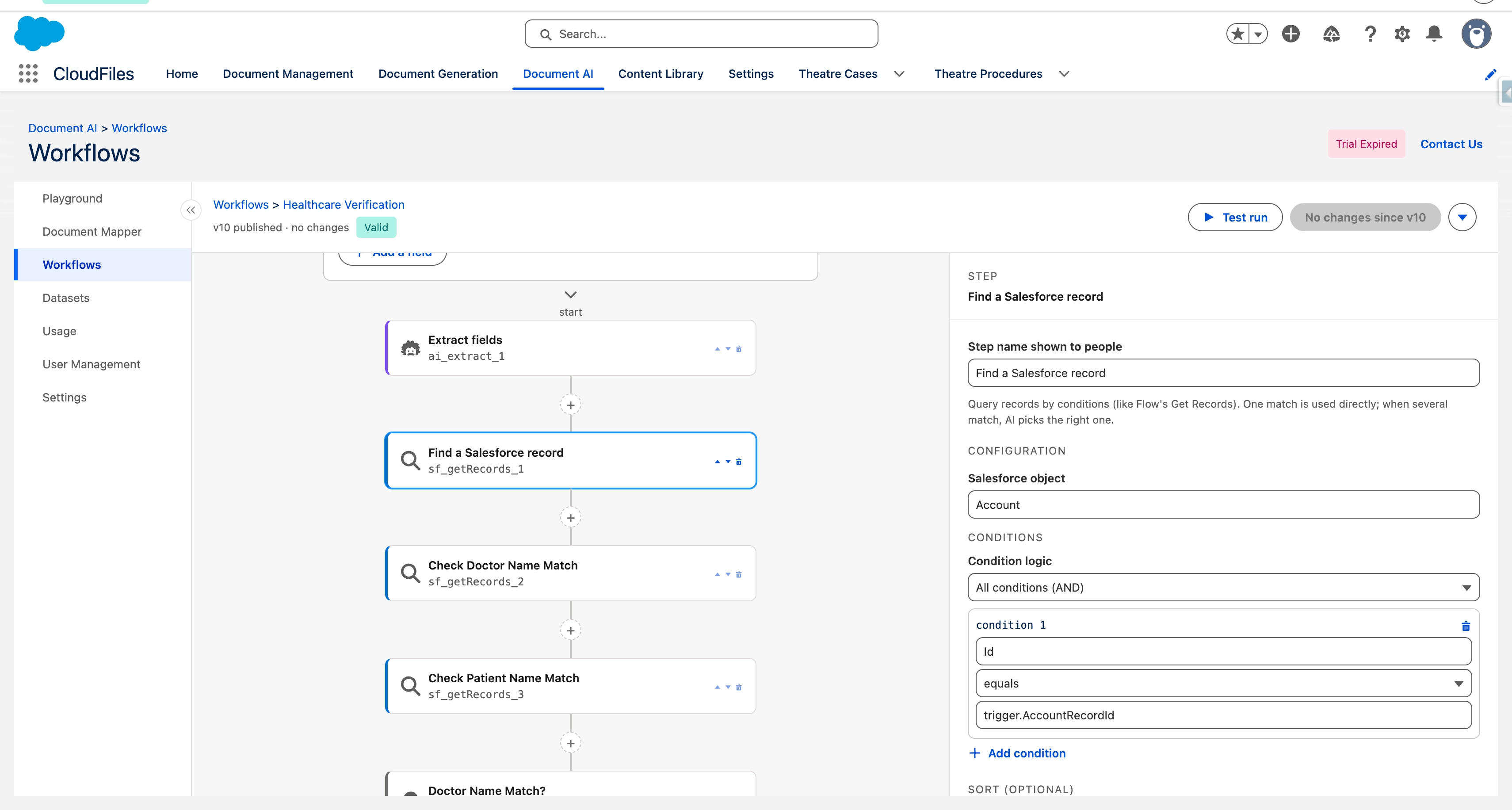
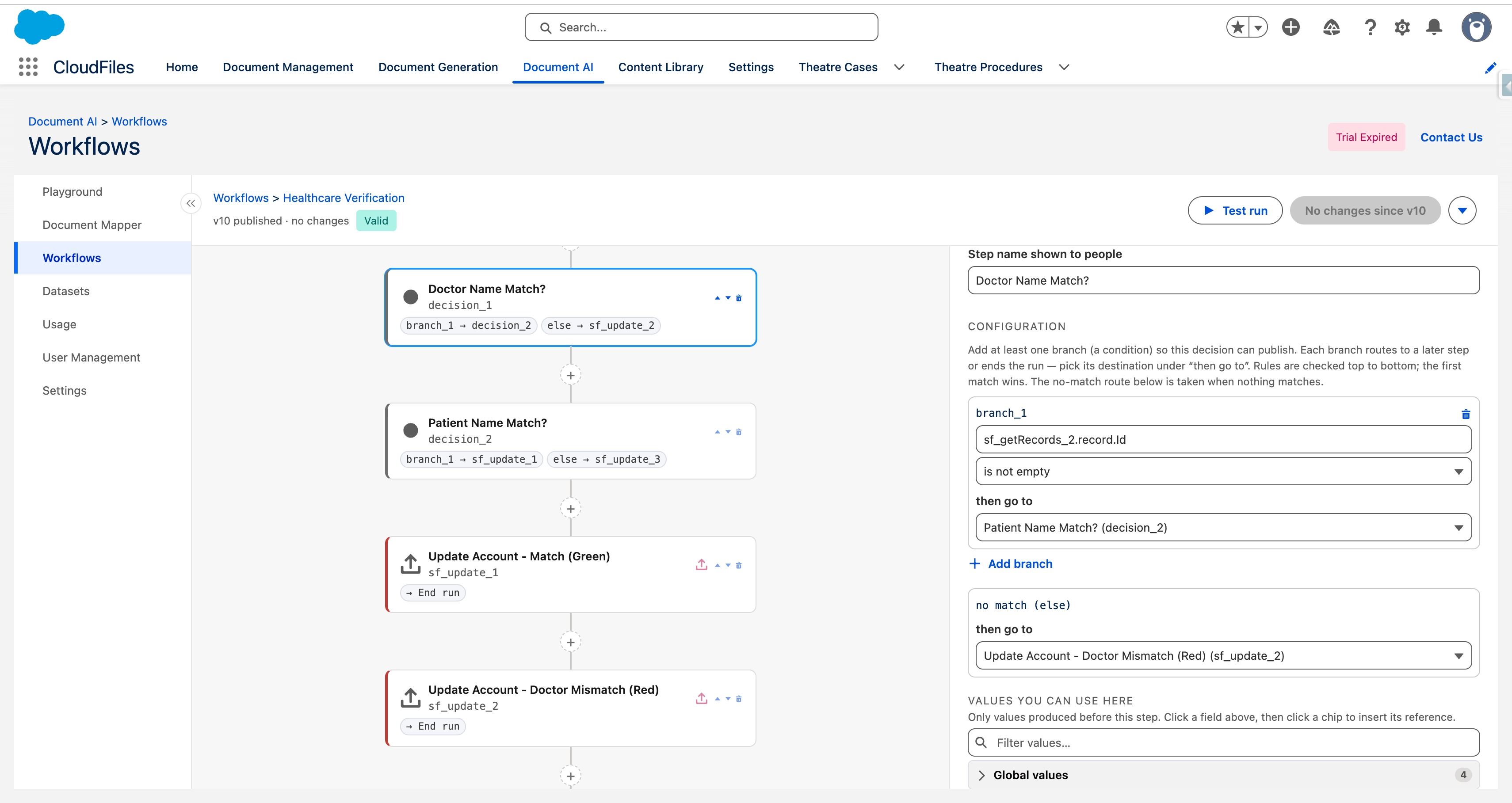
This is the part a fixed field map can't do. A Decision reads what the run has found so far and sends it down the right path — it can update the record when there's a clean match, create a new one when there isn't, or flag it for a person when something looks off. You write the rules once and the run follows them, top to bottom, taking the first that fits. A loop repeats a set of steps for every item in a list, so a document with a dozen line items becomes a dozen linked records in a single pass. Put decisions and loops together and one workflow can handle whatever shape a document arrives in.
Write Records Back
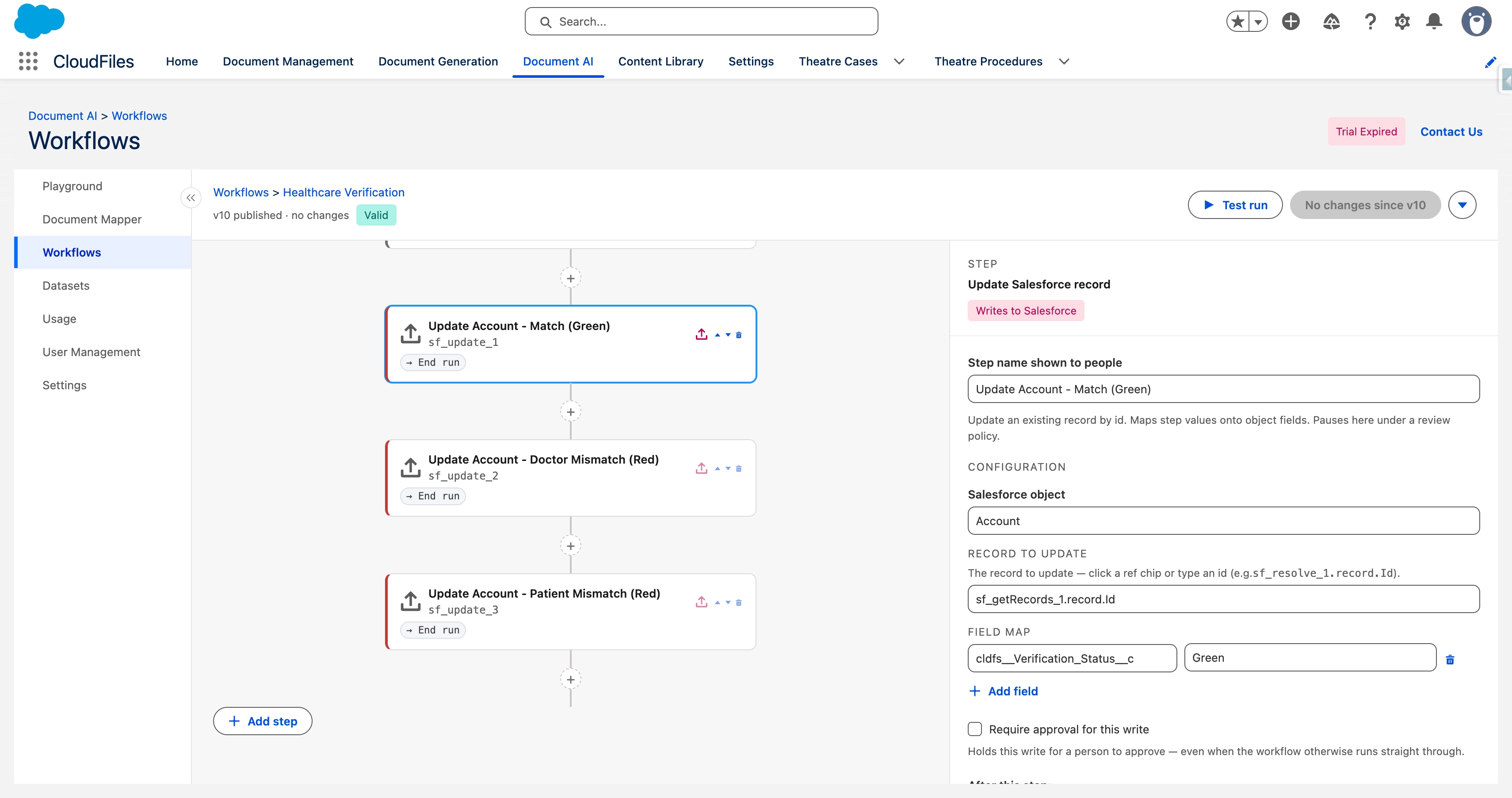
With the decision made, the run writes. It can create new records, update existing ones, delete, create many at once, or run an autolaunched Flow of your own and pick up what it hands back — and because the decision chose the path, the same workflow can update on one route and create on another. Writes are built to be safe in two ways: a blank value never wipes a field that already has data, and a single run can make several linked writes in order, such as a parent record, its child rows, and a related update, turning one document into a fully connected set of records at once.
Keep a Human in the Loop
You decide how much oversight each run gets. Let it run straight through with no stops for a process you trust, hold once before the first write so someone can check what the AI read, or pause on every write for records you can't afford to get wrong. When a run pauses, the reviewer sees exactly what's about to be written and either approves it or rejects the run — what they approve is exactly what lands, never edited on the way through. Every pause, approval, and rejection is recorded, so each run keeps a full trail of who signed off on what.
Test, Publish, and Evolve Safely
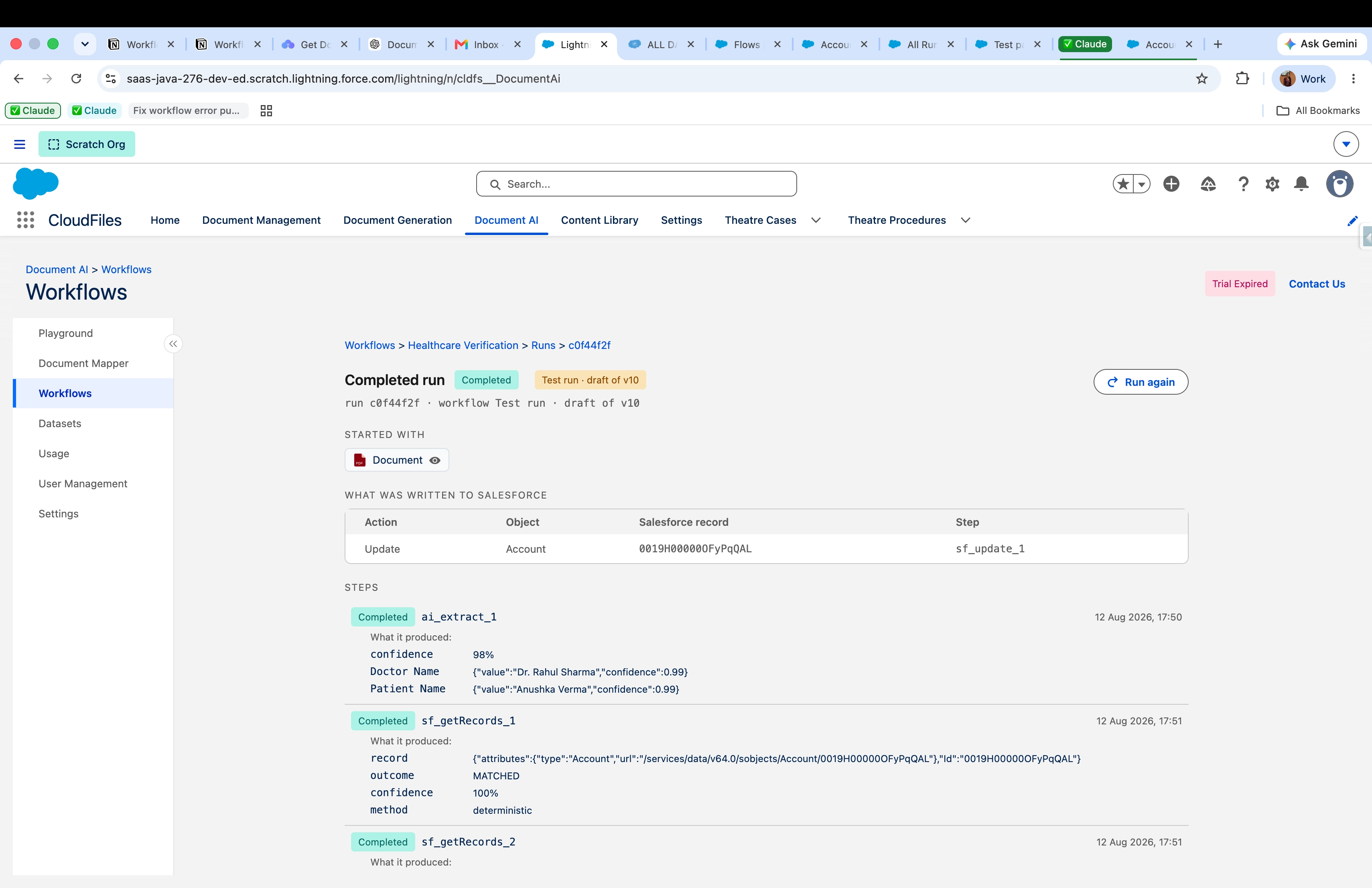
A workflow saves itself as a draft while you build it, so there's no Save button to remember. Before you publish, a test run lets you try it on a real document and step through exactly what each block read and did, so a wrong extraction or a missed match is caught while it's still cheap to fix. When it's ready you publish a version, and that version is locked — a run already in progress finishes on the version it started on, and nothing changes under it. Improving a workflow later is as simple as publishing again, because every Flow that uses it picks up the new version automatically.
Plug Into Your Salesforce Automation
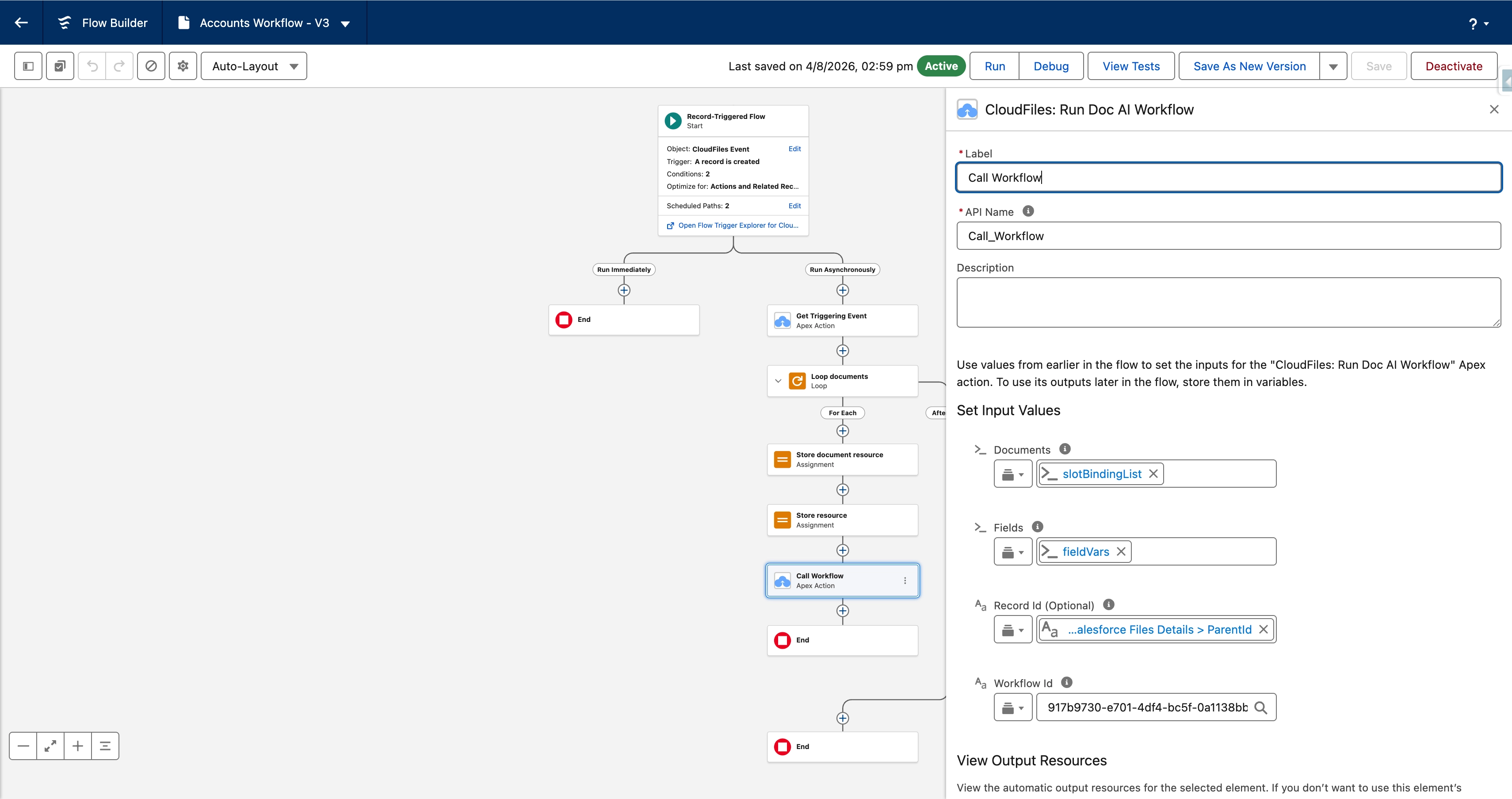
Workflows are built and tested inside the CloudFiles app, but they really pay off once they run on their own. A ready-made Flow action, CloudFiles: Run Doc AI Workflow, lets any Salesforce Flow launch a workflow with the documents, field values, and record it needs. It always runs the latest published version, so improving a workflow never means touching the Flows that use it, and it reports back cleanly — your Flow learns whether the run launched (a Success flag), gets an ID to track it by (the Run Id and Run Record Id), and reads a clear reason if it didn't (an Error), so the automation around it always knows what happened. The traffic runs both ways: a Run a Salesforce Flow step inside a workflow calls an active autolaunched Flow in your org, so logic you already built in Flow Builder stays where it is and the workflow hands off to it mid-run. Learn more in the Run Doc AI Workflow flow action article.
Every run launched this way is tracked on its own CloudFiles DocAI Run record inside Salesforce. The record shows the run's status, links back to its full history, and is where a reviewer opens a pending write to approve or reject it — so you can see and act on every run without leaving Salesforce.
Built for Any Team
Workflows fits any process where documents drive records. Finance teams turn invoices into linked headers and line items, operations teams route mixed document types down the right path automatically, and healthcare or compliance teams check a document against the record on file and flag any mismatch. Wherever a document needs to become more than one connected record — checked, matched, and written the way your team would do it by hand — Workflows handles it end to end.
Head to Document AI → Workflows → New workflow and build your first process. Try it out today!