Sandboxes
A Salesforce sandbox connected to CloudFiles has its own CloudFiles account, separate from your production account. Its templates, connections, users and MCP credentials are its own, so a connection to production never reaches the sandbox, and a connection to the sandbox never reaches production.
Agentforce in a sandbox
Create an MCP credential in the sandbox's CloudFiles app and register it in the sandbox's Agentforce Registry. Each org needs its own registration, made with a credential from that org's CloudFiles account.
AI apps and sandboxes
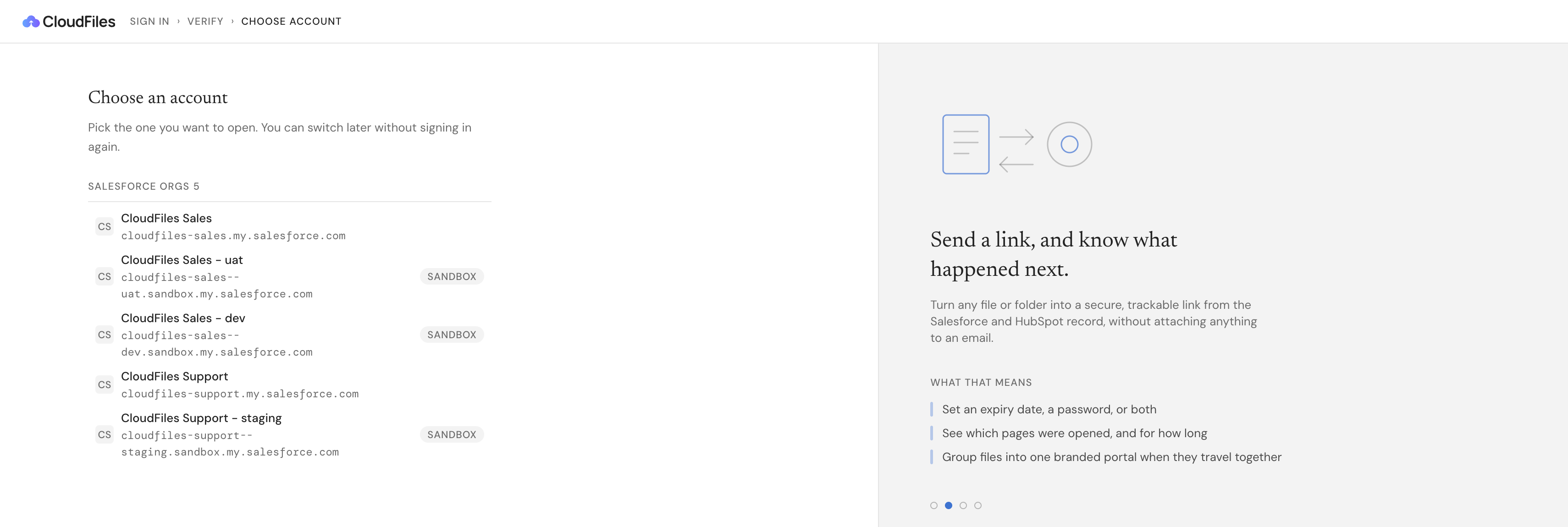
AI apps use the same server URL for production and sandbox accounts in a region. When you sign in with an email address that belongs to more than one CloudFiles account, CloudFiles lists those accounts. Choose the sandbox account to connect it. The Account line on the Connect with CloudFiles page confirms which account you are connecting. To switch an app between production and sandbox, disconnect CloudFiles in the app and connect again, choosing the other account. To use both, add CloudFiles to the app a second time with the same server URL, and choose the other account when you sign in.
Regions
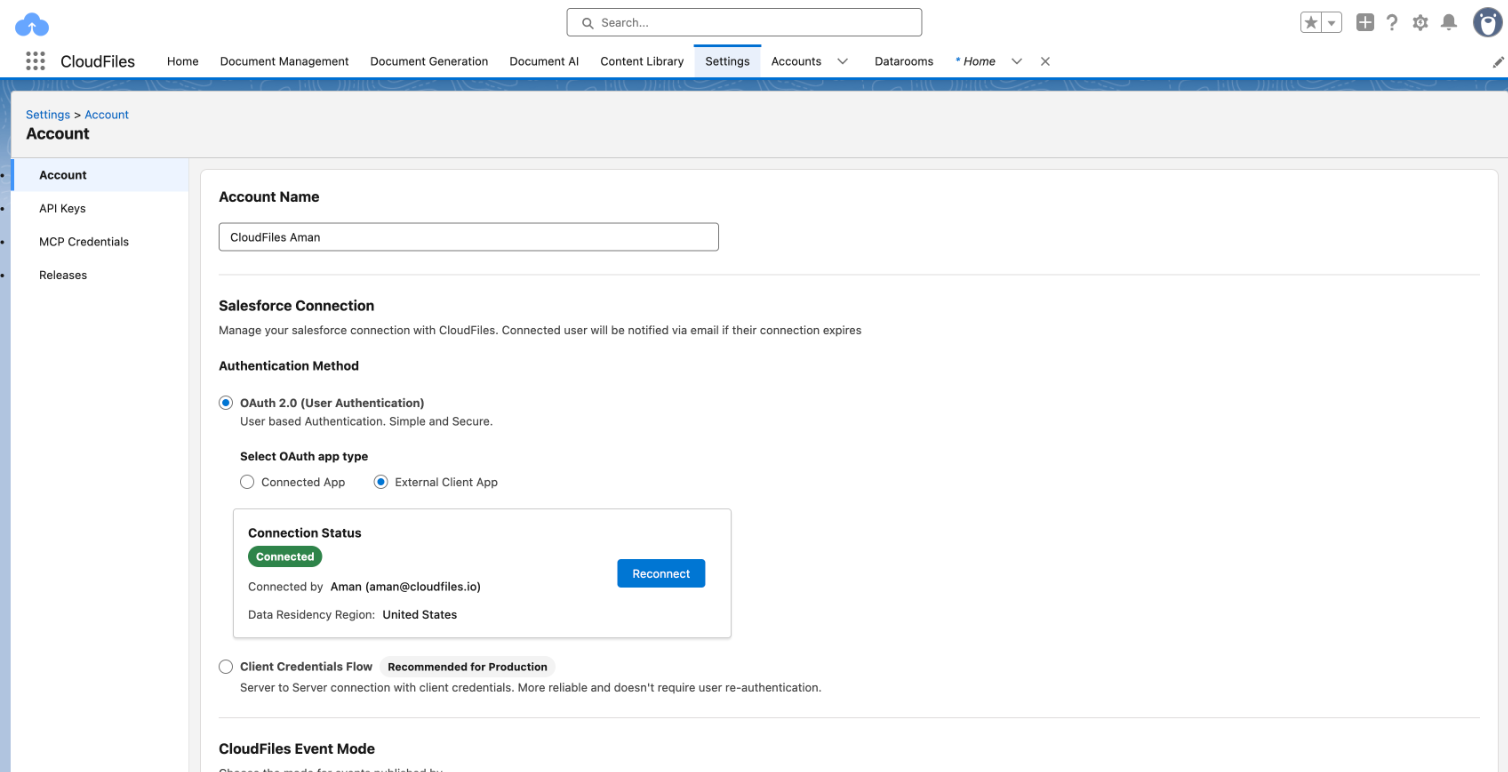
CloudFiles keeps each account's data in its data residency region, and each region has its own MCP server. A connection must use the server for its account's region. To find the region, open the CloudFiles app in Salesforce, select Settings and then Account, and check Data Residency Region in the Connection Status card.
| Data residency region | Server URL |
|---|---|
| US | https://mcp.cloudfiles.io/mcp |
| EU | https://mcp.eu.cloudfiles.io/mcp |
| UK | https://mcp.uk.cloudfiles.io/mcp |
| AU | https://mcp.au.cloudfiles.io/mcp |
An MCP credential always shows the server URL for your account's region, so a service connected with one uses the right server automatically. For AI apps, enter the server URL for your region as described in Connect Claude, ChatGPT and Other MCP Apps.