Introduction
The CloudFiles: Merge Documents (Async) flow action merges files into one PDF from a Salesforce flow, in the background. The flow does not wait for the merge. It carries on straight away, and each merge's result arrives later as a CloudFiles Event.
Use it to put a set of files together into one PDF, for example an application packet or the supporting documents of a claim. The files can be Salesforce Files or files in connected external storage, and the merged PDF can be saved to either. It works in every kind of flow, including record-triggered, scheduled and autolaunched flows.
Sync or Async
CloudFiles has two merge actions. Pick the one that fits the size of the files and what the flow does next.
| Merge Documents (Sync) | Merge Documents (Async) | |
|---|---|---|
| Result | Returned to the flow, ready for the next element. | Sent as a Document Merged event. The action returns nothing to the flow. |
| Size of one merge | Up to 100 MB. Works best for small files, around 5 to 10 MB in all. | Up to about 400 MB and 50,000 pages. |
| Best for | A screen flow or a step that needs the merged file right away. | Large files, and record-triggered or scheduled flows that merge for many records. |
For the synchronous action, see Merge Documents (Sync).
What this action does
For each merge, the action sends the files in Resources to CloudFiles, which converts Word, PowerPoint and image files to PDF and joins everything into one PDF, in the order the files are listed. The PDF is saved to Destination, or to Salesforce Files when Destination is empty. CloudFiles then publishes a Document Merged event for a merge that worked, or an Error Event for one that failed.
- It runs in the background. The action hands the merges to a background job and makes no callout while the flow runs, so a record-triggered flow can use it in the path that runs immediately. No Run Asynchronously path is needed.
- It handles many records at once. When a record-triggered or scheduled flow runs for many records together, Salesforce passes all their merges to the action in one go, and CloudFiles works on them side by side.
- It runs as the CloudFiles integration user. The libraries it reads from and saves to must be connected for the org, not only for the person whose action started the flow.
Merging needs a CloudFiles Document Generation license. Without one, every merge fails with an Error Event that says so.
Input Parameters
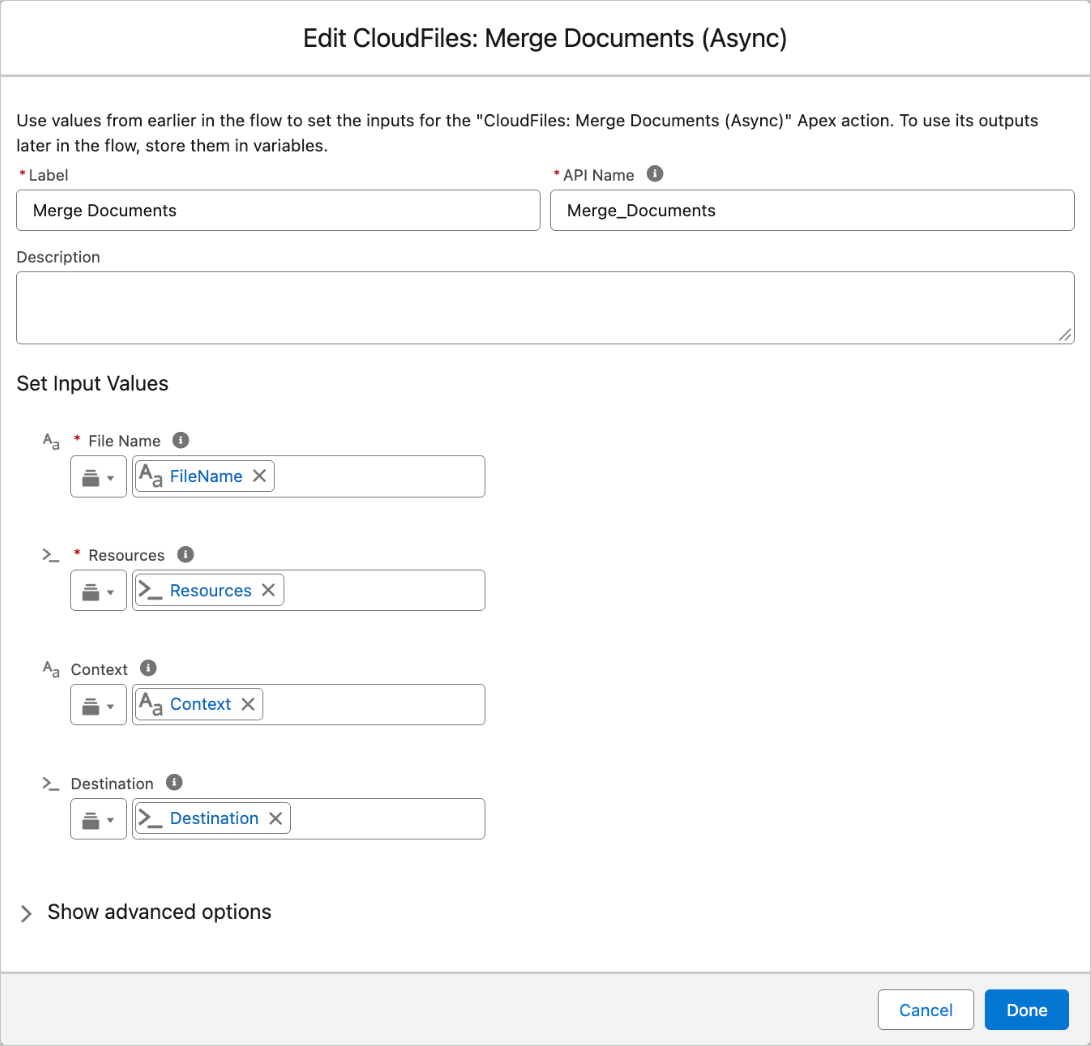
In Flow Builder, add an Action element, search for “CloudFiles: Merge Documents (Async)” in the CloudFiles category, and select it. Then configure the inputs below.
| Parameter | Type | Description |
|---|---|---|
| Resources | cldfs__Resource collection | The files to merge, in the order they should appear. 1 to 50 files. |
| File Name | Text | The name of the merged PDF. |
| Destination (Optional) | cldfs__Resource | Where to save the merged PDF. Empty saves it to Salesforce Files. |
| Context (Optional) | Text | Any text, passed back in the Document Merged event and in the Error Event for a failure. |
Resources
A collection of Apex-defined variables of class cldfs__Resource, one per file, in the order the files should appear in the merged PDF. Parameter names are case sensitive.
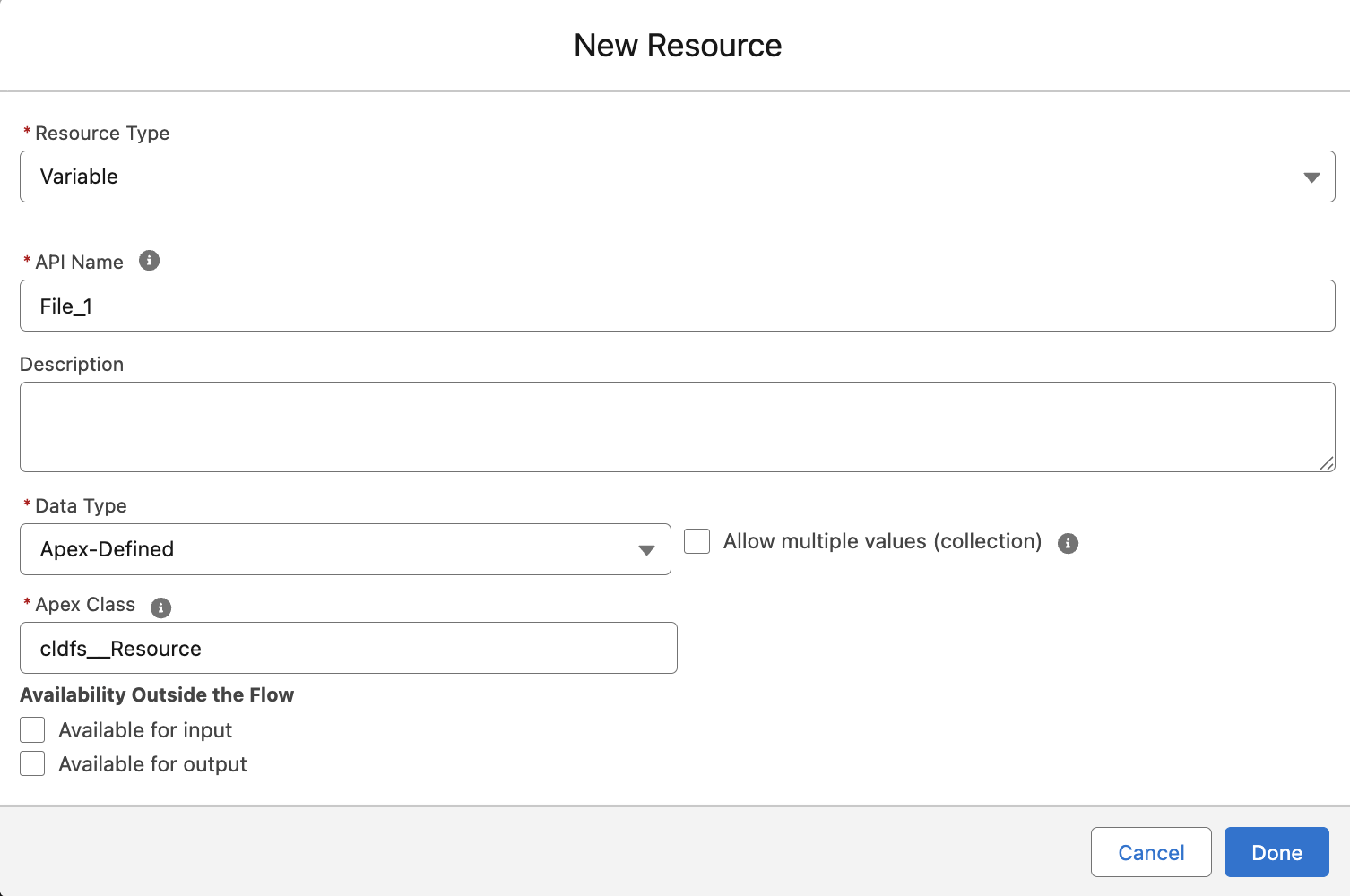
1. Create a variable for each file. In the Toolbox, click New Resource and choose Resource Type Variable, Data Type Apex-Defined and Apex Class cldfs__Resource. Create one variable per file, for example File_1 and File_2.
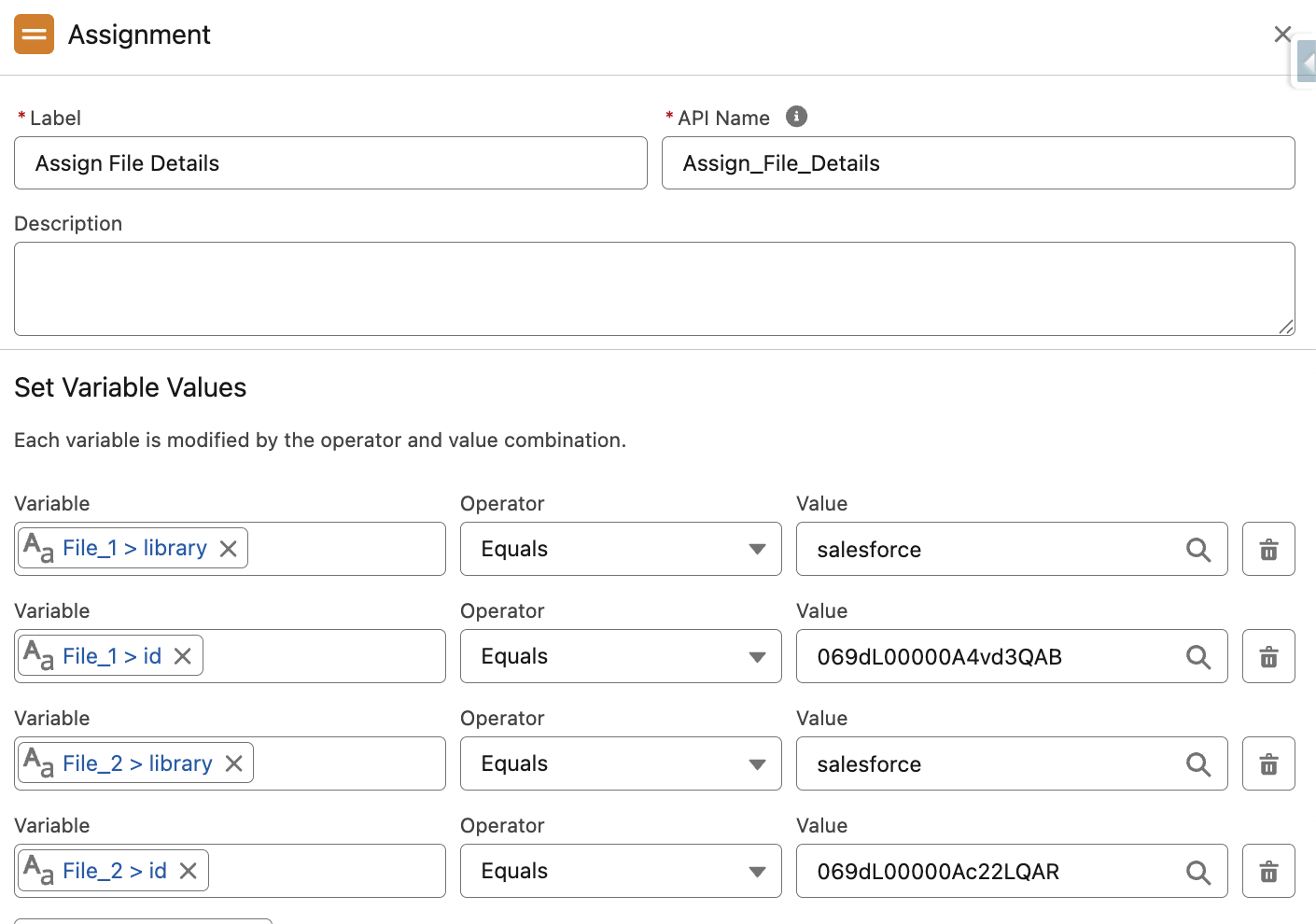
2. Set each file's values. In an Assignment element, set library and id for each file variable. The values to use are listed after these steps.
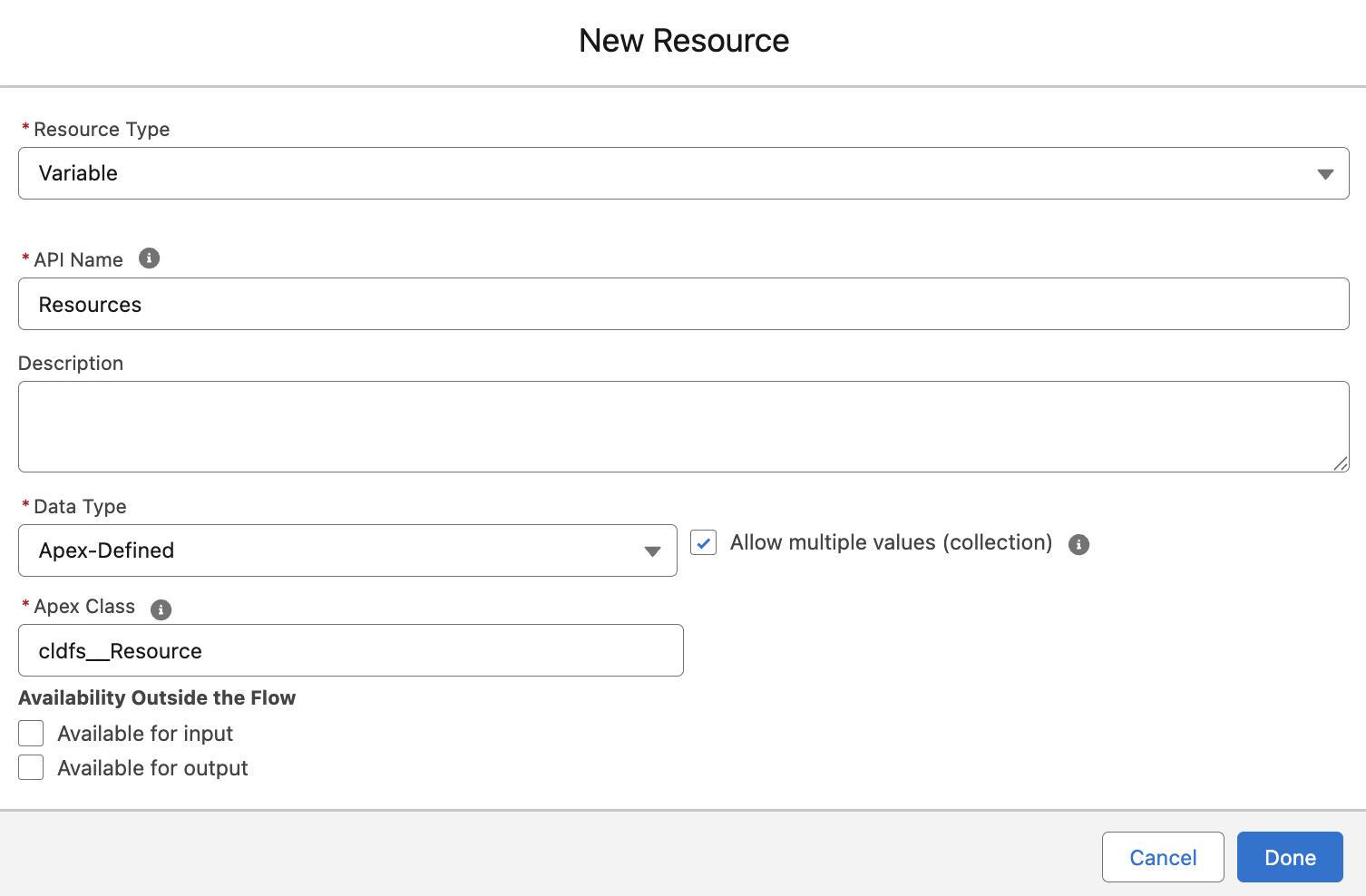
3. Create the collection. Create another cldfs__Resource variable the same way, for example Resources, with Allow multiple values (collection) selected.
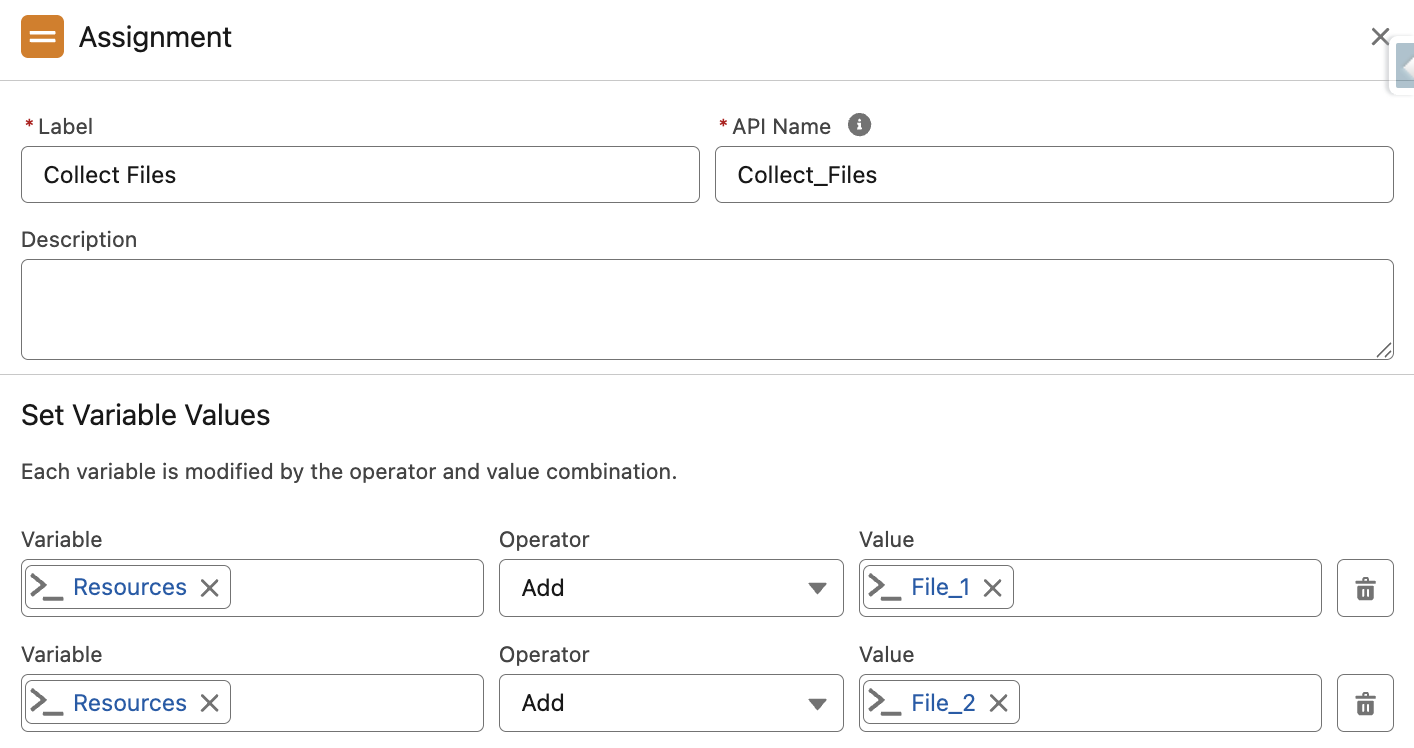
4. Add the files to the collection. In an Assignment element, add each file variable to the collection with the Add operator. Files are merged in the order they are added. Then pass the collection to Resources in the action.
To merge a Salesforce File:
- library -
salesforce - id - The ContentDocumentId of the file.
To merge a file in external storage:
- library - The storage type, for example
sharepointorgoogle. - driveId - The id of the drive the file is in.
- id - The id of the file.
To merge every file attached to a record, use a Get Records on ContentDocumentLink filtered on LinkedEntityId Equals the record Id, then Loop over the results and add a Resource for each ContentDocumentId. The sort order you choose in Get Records becomes the page order of the merged PDF.
File Name
The name of the merged PDF, up to 255 characters. Type a fixed name or build one from flow resources, for example Application Packet - {!$Record.Name}. The merged file is always a PDF, and .pdf is added to the name when it is missing.
Destination (Optional)
Where the merged PDF is saved, as a cldfs__Resource.
- Empty - The PDF is saved to Salesforce Files. The Document Merged event carries its ContentVersionId.
- A Salesforce record - Set library to
salesforceand id to the Id of the record. The PDF is saved as a Salesforce File attached to that record. - A folder in external storage - Set library, driveId and the folder's id.
If the Destination box does not list your cldfs__Resource variable, type its name in braces, for example {!Destination}, and Flow Builder accepts it.
Context (Optional)
Any text you want back in the Document Merged event, and in the Error Event when a merge fails. Because this action returns nothing to the flow, Context is how the flow that handles the events tells which merge each event belongs to. The Id of the record that started the flow is a good choice.
Output Parameters
The action returns nothing to the flow. Each merge's result arrives as a CloudFiles Event, which you handle in a second flow that reads it with Get Event Details. Intercepting CloudFiles Events shows how to set that flow up.
When the merge works
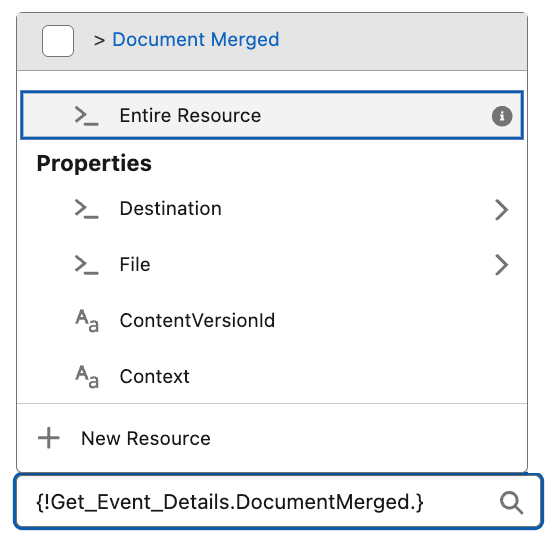
CloudFiles publishes a Document Merged event, of type document-merged. Use it as the type filter in the Decision element. Get Event Details returns these values under Document Merged:
- File (cldfs__Resource) - The merged PDF: its id, name, library and driveId. Only when the merge had a Destination.
- Destination (cldfs__Resource) - The record or folder the PDF was saved to. Only when the merge had a Destination.
- ContentVersionId (Text) - The merged PDF in Salesforce Files. Only when Destination was empty.
- Context (Text) - The Context you passed to the action.
When the merge fails
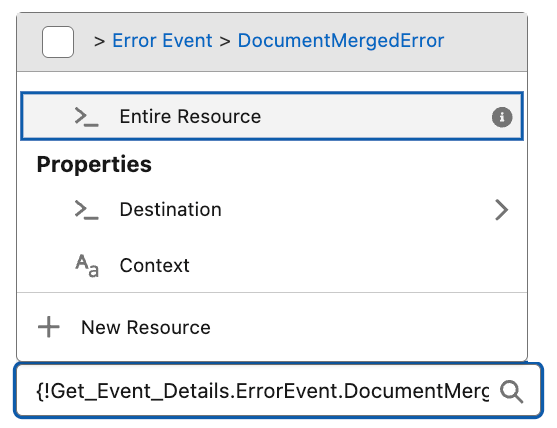
CloudFiles publishes an Error Event with ErrorEventType set to document-merged. ErrorReason says what went wrong, and DocumentMergedError carries the Destination and your Context.
A merge with a problem in its inputs, such as a file without an id or library, more than 50 files, or an empty File Name, is not sent to CloudFiles. It fails with an Error Event whose reason starts with “The merge was not sent”. The other merges in the same run still go ahead, and the flow is not stopped.
Limits
- Files in one merge: up to 50.
- Size of one merge: up to about 400 MB and 50,000 pages.
- File types: PDF, Word, PowerPoint and image files. Everything that is not a PDF is converted to PDF before the merge.
Do not call the action once per record inside a Loop over many records. Salesforce limits how many background jobs one transaction can start, and past that limit the flow fails with “Merge Documents (Async) was called too many times in one transaction. Call it once for many records rather than in a loop.” To merge for many records, use a record-triggered or scheduled flow, where Salesforce passes every record's merge to the action in one call.