Nothing in this group decides anything on its own judgment: the conditions, field maps and Flows you configure do that. The one exception is the optional Let AI pick the best match mode inside Search Salesforce records.
All five write steps show a Writes to Salesforce badge in the inspector and a red upload icon on the canvas card, and all five pause according to the workflow's Review policy. Each also offers a per-step hold, worded for what it does (Require approval for this write, for this delete, or before running this Flow), which holds that one step for a person even when the workflow otherwise runs straight through. A step carrying it shows a Requires approval badge on its card. That setting can only add a hold; it never removes one the policy already requires.
Find a Salesforce record
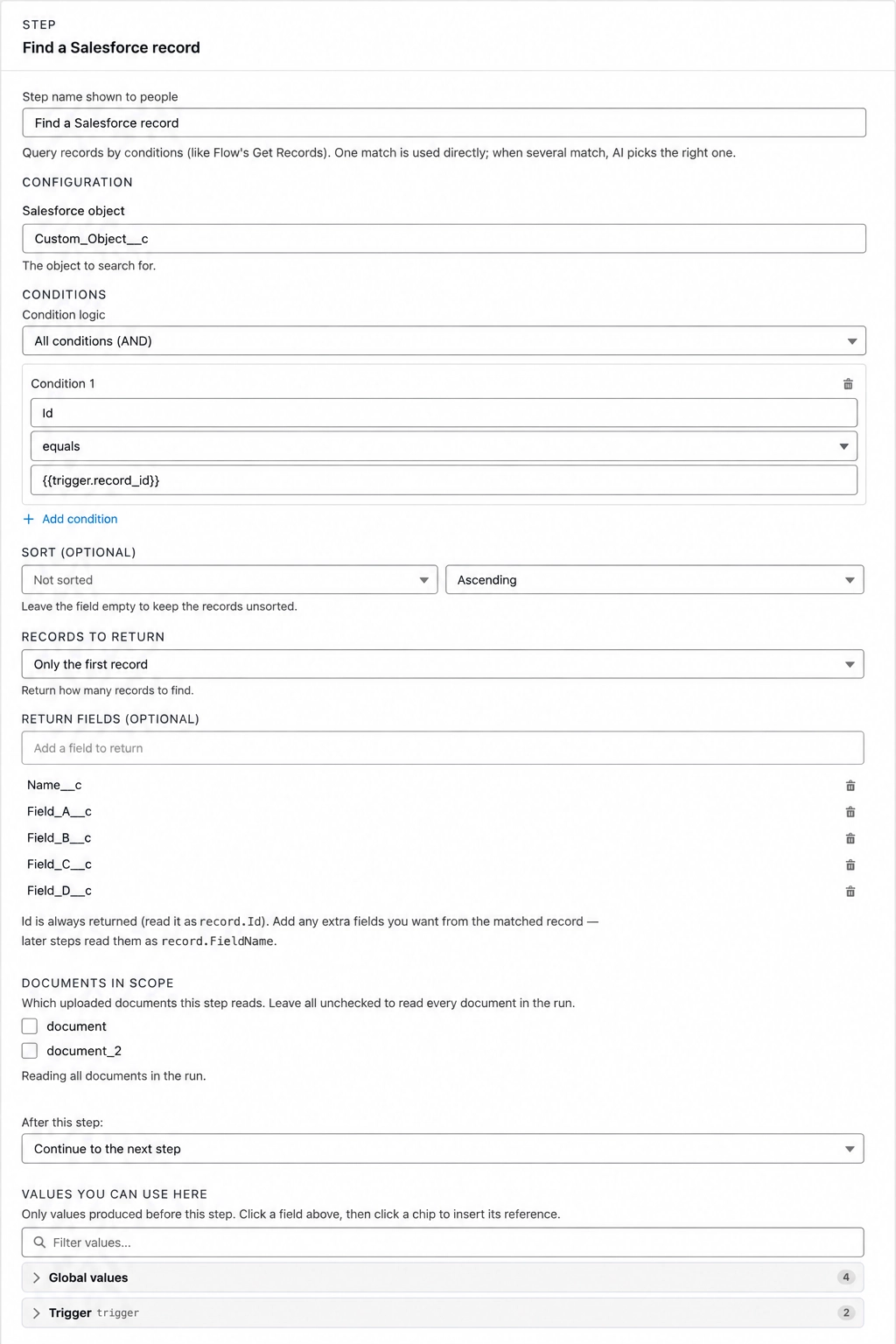
Query records by conditions (like Flow's Get Records).
The exact-match lookup, and the one to reach for first. Fully deterministic: no AI is involved, so the same inputs always find the same record, in the same order, every time.
When to use it: the document carries a clean identifier that exists on your records: an account number, an external ID, an exact name. It's also the right step when the run already knows exactly which record it's about, because a Flow passed the Id in on the launch form.
- Choose a Salesforce object (any object you can read).
- Choose Condition logic: All conditions (AND), Any condition (OR), or Custom logic (reveals a Custom logic box for something like
1 AND (2 OR 3)). - Click Add condition to add a row: a Field, an operator, and a Value or a ref. The value box hides for the two null operators. You need at least one condition, or you'll see Add at least one condition. To look up the record the run was launched against, set the field to
Id, the operator to equals, and the value to the launch-form field carrying that Id, inserted from the reference picker astrigger.<field_name>. - Optionally set a Sort field and Ascending / Descending direction. Leaving the field empty keeps results unsorted; this matters when you're returning only the first record.
- Under Records to return, choose Only the first record (default) or Multiple records, which reveals Max records (1–50, default 10).
- Under Return fields, add every field from the matched record that later steps need to read. Type a field's API name into Add a field to return and it appears in the list beneath, each entry with its own delete icon so you can drop one later. Id is always returned whether you list it or not. Anything you don't list here is simply not available downstream.
Operators: equals, not equals, greater than, greater or equal, less than, less or equal, contains, starts with, ends with, is null, is not null. (A Decision step's branch conditions cover similar ground under different names; see the operator table in Logic.)
Produces: the matched record (or a list, in Multiple mode), a match count, and an outcome to branch on. Inline warnings catch missing setup: Choose a Salesforce object. · Condition 2 needs a field. · Condition 2 needs a value.
Choosing your return fields
Return fields is not an optimization: it's the list of things this workflow is able to check. Every value the run will later compare the document against, write into a note, or branch on has to be requested here first. The inspector spells out the contract underneath the list: Id is always returned and is read as record.Id, and any extra fields you add from the matched record are read by later steps as record.FieldName.
So work backwards from the checks you intend to run: list the checks, then request one field per check. A review that verifies four things about a record requests exactly those four fields on the lookup: the name the document should carry, the amount it should agree with, the date it should fall within, and the status that decides whether it qualifies at all. Anything the run only needs in order to write the outcome (the record's Id) is already there.
Two things follow from this:
- A field you forgot to request doesn't produce an error at build time; it just never shows up as a chip in the Values you can use here panel, and the step that needed it has nothing to compare against. If a comparison step looks like it has no reference available for the field you want, the lookup above it is where to fix it.
- Requesting a field you never use costs nothing but noise in the picker. Prune the list rather than requesting every field on the object.
Reading the matched record later
Every value the lookup produced becomes a chip in the picker, grouped under that step's display name and its monospace reference name: Find a Salesforce record sf_getRecords_1. The group's count badge tells you how many values it holds: the requested fields, plus Id, plus the match count and the outcome. A lookup returning five fields shows a count of eight.
The reference shape is <step_ref>.record.<FieldName>:
sf_getRecords_1.record.Id: the matched record's Id, which is what you bind under Record to update on a later write step.sf_getRecords_1.record.<FieldName>: any field you requested, ready to drop into a question, a condition, or a field map.
In Multiple records mode you get a list rather than a single record, so read it with a For each loop and reference the loop item's fields instead.
A workflow can hold as many lookups as it needs, and a later lookup can query on a field an earlier one returned. Put a second Find a Salesforce record step below the first, then bind its condition value to sf_getRecords_1.record.<FieldName> from the picker. That's how you walk from the record the document arrived on to its parent, or to a related record holding the rest of the values you want to check. Each lookup gets its own chip group (sf_getRecords_1, sf_getRecords_2, …), so there's never any ambiguity about which record a reference came from.
Once the fields are available, the comparison itself happens in an Ask the document step; see Comparing a document against a Salesforce record in Read documents (AI).
The step takes the first row by your sort order when several conditions match, which is why leaving Sort empty makes "the first record" arbitrary. If you need "the right one out of several, judged on context," use Search Salesforce records with Let AI pick the best match instead.
Search Salesforce records
Fuzzy prefix search over a Salesforce object.
The tolerant lookup. Runs a prefix-based search across an object's name fields (or all searchable text fields), forgiving the small differences that break exact matching: "Acme Corp." on a document against "Acme Corporation" in Salesforce.
When to use it: the document carries a name or label that won't match your records character for character.
- Choose a Salesforce object (any searchable object).
- Under Search term, bind the value to search for (placeholder A value or a ref like ask_the_document_1.answer), normally something an earlier AI step read off the document.
- Under Return fields, add any fields beyond Id you want on each matching record.
- Choose a Search scope: Name fields (default) or All fields.
- Leave Let AI pick the best match off to get the full list of matches back and decide in a later step, or turn it on to have the AI resolve a single record (see below).
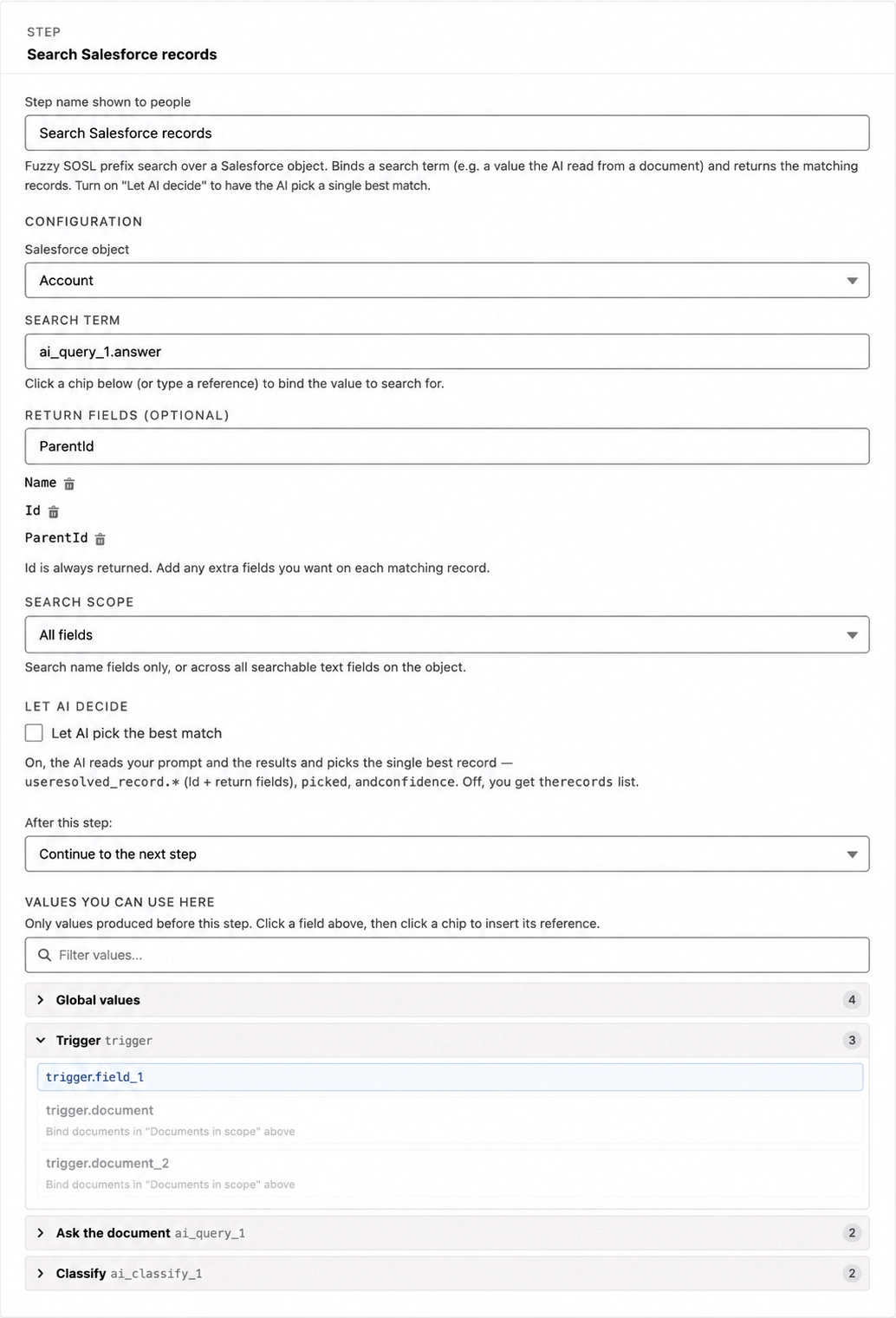
How it matches, mechanically: the search term is split on spaces, tokens shorter than two characters are dropped, and each remaining token is matched as a prefix against the search scope.
Produces: a match count and the list of records, at most 20 per object. The list carries the list tag in the picker, so it can feed a For each loop.
Always branch on match count instead of assuming a search hit. A search step "succeeding" with zero results looks identical to one that never had anything to find.
Let AI pick the best match
The same fuzzy search, with one checkbox turned on and an instruction added. This is the only place in the group where AI decides which record matched.
When to use it: several candidates could plausibly match, and picking the right one depends on judgment a fixed rule can't express.
- Turn on Let AI pick the best match.
- Fill in How should the AI choose? (placeholder e.g. the account whose name best matches
{{extractInvoice.vendor}}). Be specific: this is the only guidance the AI has to break a tie. - Under Documents in scope, choose which documents the AI may read while deciding.
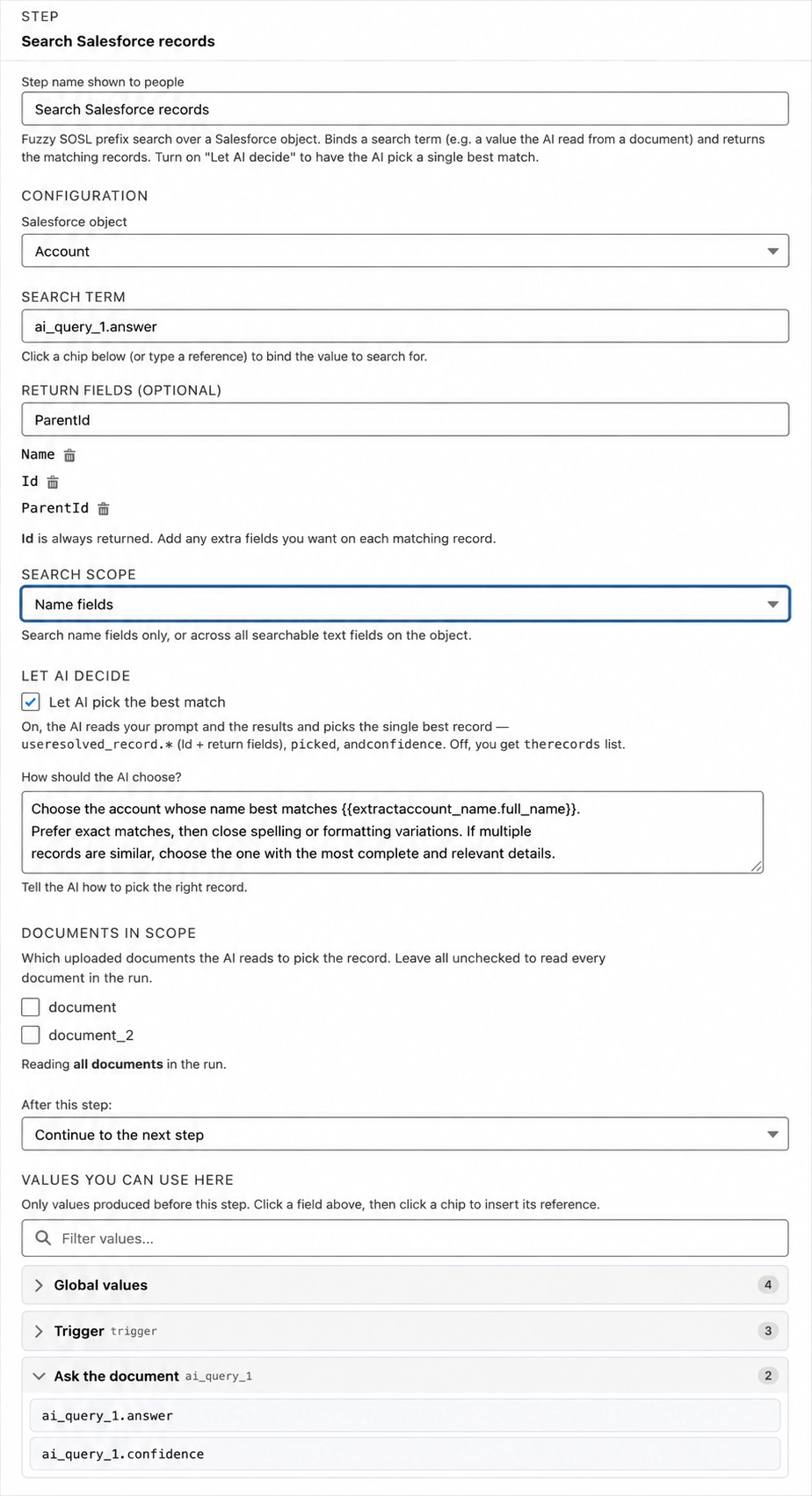
Produces: everything the fuzzy match produces, plus the resolved record, whether it picked one, and its confidence. The AI is allowed to abstain: if it can't confidently choose, it picks nothing and reports that it did not pick, rather than guessing. Branch on picked before assuming there's a record to write to.
Which lookup to reach for depends on what the document carries, and on whether you can give the AI an instruction specific enough to break a tie. The table below compares the four routes.
| What the document contains | What you know at run time | Use |
|---|---|---|
| A unique identifier that exists on your records | Nothing else needed | Find a Salesforce record |
| A company or person name only, close but not identical to your records | Nothing else needed; a single top match is good enough to use directly | Search Salesforce records |
| A name that could plausibly match more than one record | An instruction specific enough for the AI to break the tie by | Search Salesforce records + Let AI pick the best match |
| A name that could plausibly match more than one record | Nothing else needed, but you'd rather branch on the result yourself than let AI pick | Search Salesforce records, then a Decision on the returned list |
Both matching steps succeed even when nothing matches: a lookup finding zero records is a valid outcome, not an error, and neither step throws. Always follow a matching step with a Decision step on its match count or outcome, rather than assuming a downstream write step has something valid to act on. A typical pattern:
- Match count equals
1(or AI picked equalstrue) → continue to update the matched record. - Match count equals
0(or the outcome shows no match) → continue to create a new record instead. - Match count is greater than
1and you're not using AI picking → route to a step that flags the run for a person, rather than guessing which one is right.
Create Salesforce record
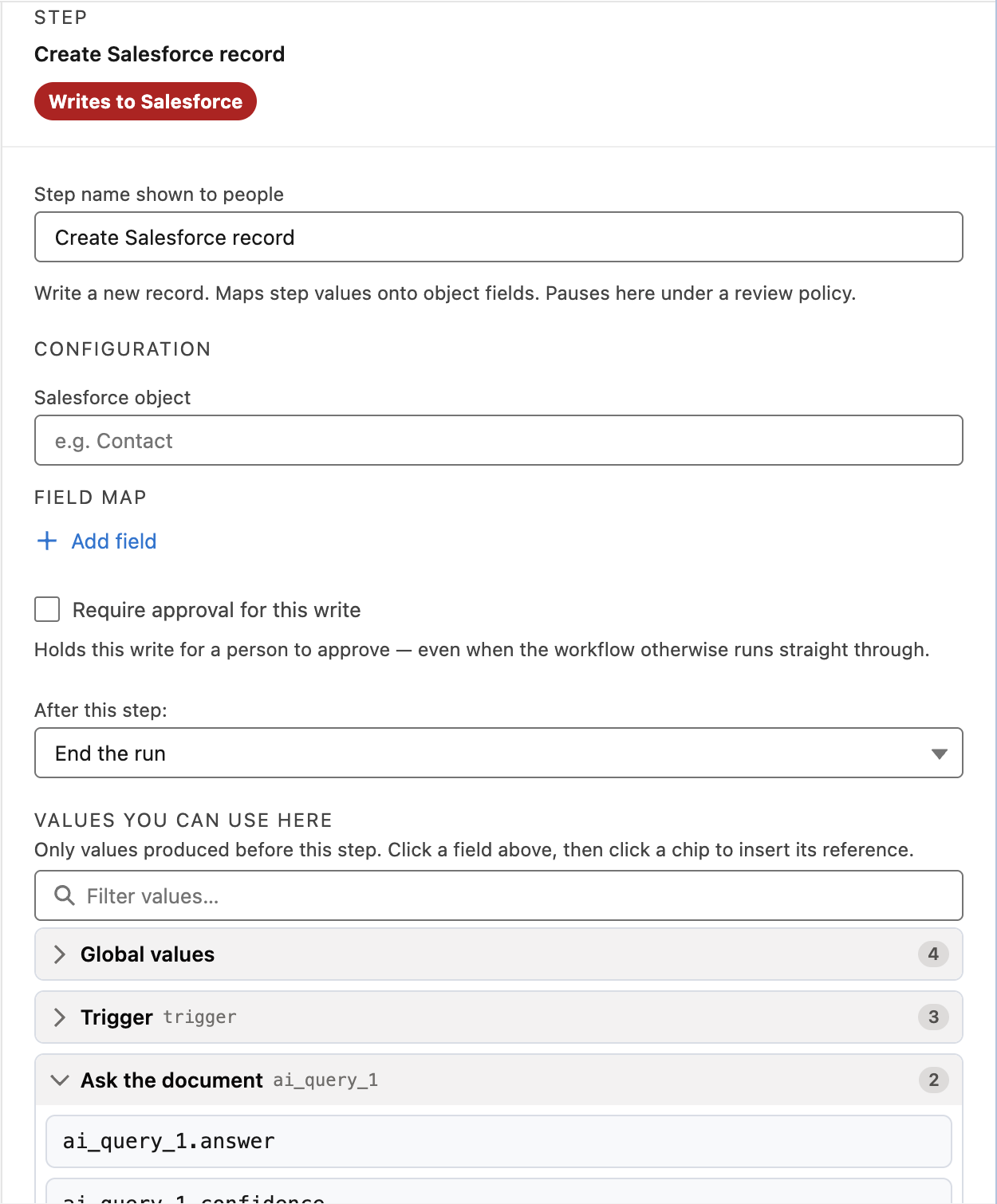
Write a new record. Maps step values onto object fields.
- Choose a Salesforce object (placeholder e.g. Contact). Only objects you can create are listed.
- Build the Field map. It starts empty, with nothing but a + Add field link: click it to add a row, then pick a Field and supply a Value or ref for it. You need at least one row that resolves to a value, or the step fails with "no field values resolved."
- Optionally turn on Require approval for this write; its helper text says the write is held for a person to approve even when the workflow otherwise runs straight through.
Produces: the new record's Id and a created flag.
Update Salesforce record
Update an existing record by id. Maps step values onto object fields.
- Choose a Salesforce object; only updatable objects are listed.
- Under Record to update, bind the target by clicking a ref chip or typing an Id. This is usually the Id from an earlier lookup step (
sf_getRecords_1.record.Id), or the record the workflow launched from. Required: Choose the record to update. - Build the Field map, same as Create. Only fields that resolve to a value are sent, so a blank never clears anything.
- Optionally turn on Require approval for this write.
Produces: the record's Id and an updated flag.
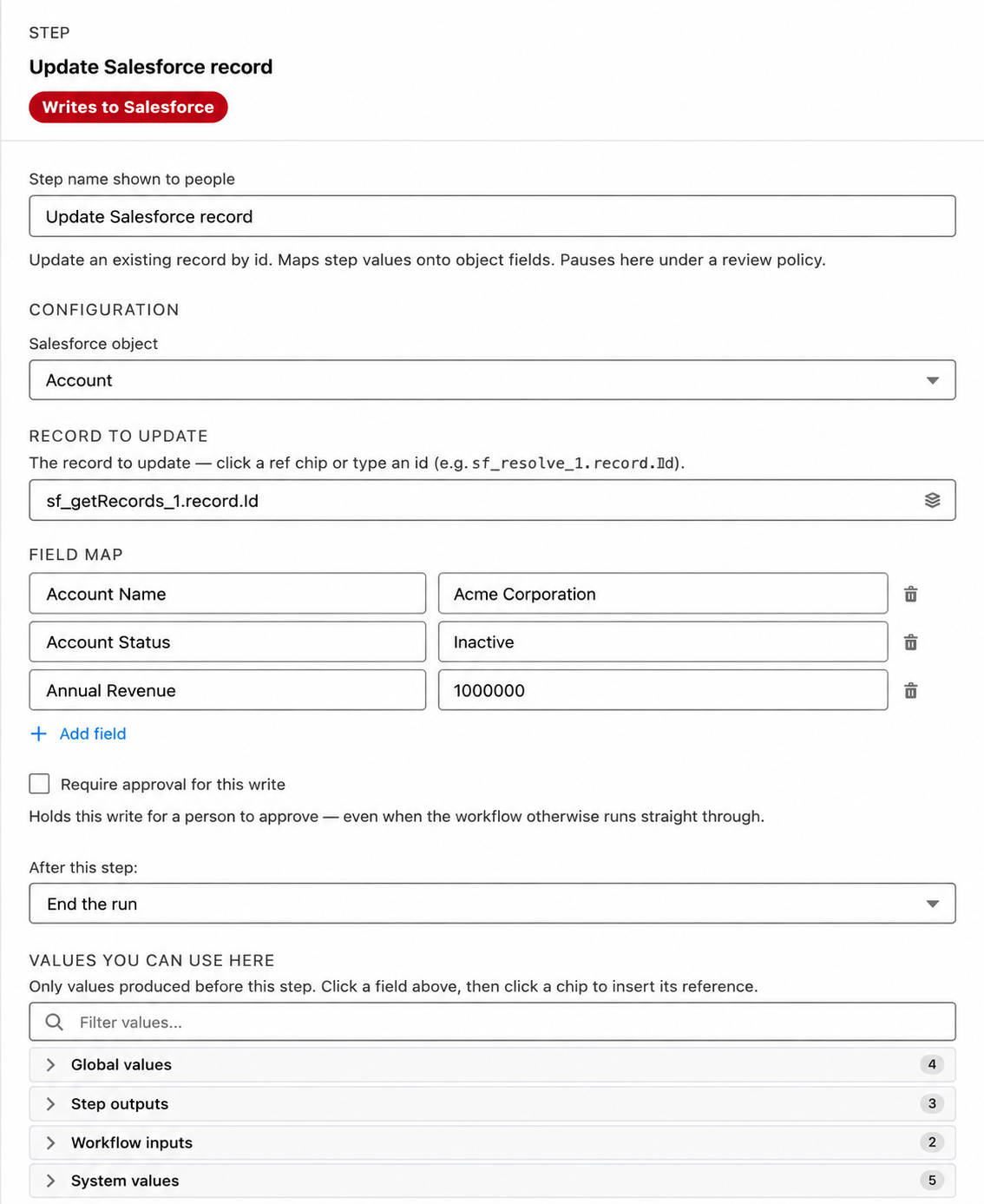
A field map row's value can be a fixed string as easily as a reference, which is what lets each outcome of a Decision have its own write step. An outcome step's map is often just two rows: the status field set to a literal status, and a notes field set to the literal reason. Because the reason is baked into that step rather than computed, a person reading the record later sees exactly which branch the run took.
Delete Salesforce record
Delete an existing record by id. Irreversible in Salesforce beyond the recycle bin.
- Choose a Salesforce object (placeholder e.g. Contact). Only deletable objects are listed.
- Under Record to delete, bind the target record: the inspector tells you to click a ref chip or type an id, and notes that the record goes to the Salesforce recycle bin. Leave it empty and the red Choose the record to delete. appears immediately.
- Optionally turn on Require approval for this delete; the helper text explains that the delete is held for a person to approve even when the workflow otherwise runs straight through.
There's no field map: a delete only needs a target.
Produces: the record's Id and a deleted flag.
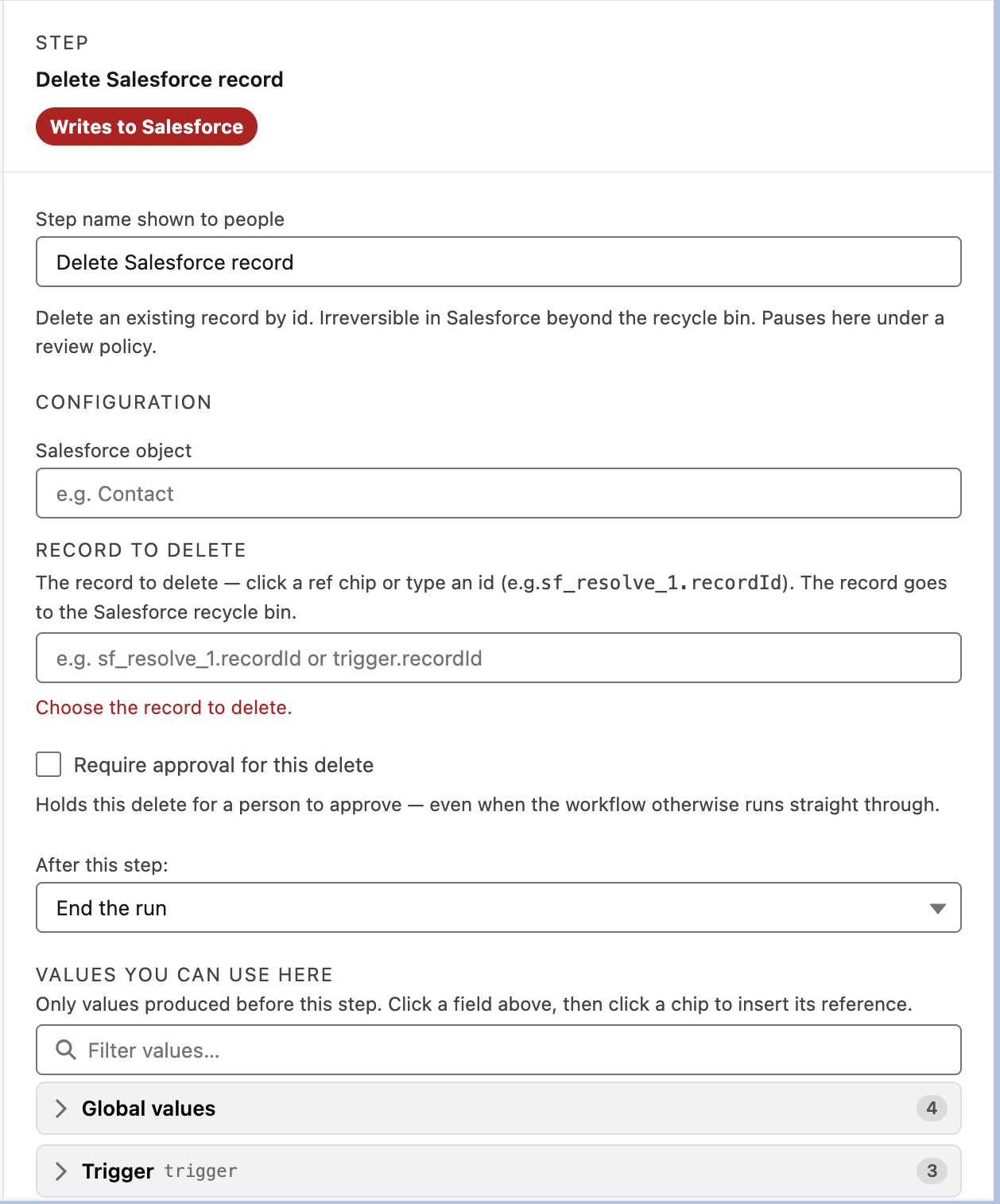
The deleted record lands in the Salesforce recycle bin, so it's recoverable there for as long as your org retains it, but nothing in the workflow can put it back, and once the bin is emptied it's gone. Treat a delete as irreversible when you're deciding whether to force an approval on it.
Two safety checks run automatically: the bound Id has to actually look like a Salesforce record Id (15 or 18 characters), and it has to belong to the object you chose; pointing an Account delete at a Contact Id refuses and deletes nothing. Deleting an already-gone record is treated as a success, since the goal state ("gone") was already true.
Create Salesforce records (bulk)
One record per item in a list, in a single bulk write. One approval gates the whole batch.
- Choose a Salesforce object (placeholder e.g. OrderItem).
- Under Records source, bind the list you want one record created from each item of; the inspector asks you to click a 'list' chip below, or type a reference. This must reference an actual list, normally a list of items field from an Extract step, whose reference takes the form
ai_extract_1.line_items.value(the field name plus.value), which is also the field's placeholder text. The builder shows the item shape when it knows it, for example "Each item has: description, quantity, unit_price." - Build the Field map: each row's source is either a value from the current item (
item.unit_price, inserted via the Item fields chips) or a fixed value or reference applied to every record, for example setting a parent Id on every row. - Optionally set Max records: labelled Max records (optional), placeholder and default 1000, hard ceiling 2000.
- Optionally turn on Require approval for this write. Note the helper differs from the single-record steps: it says the whole batch is held for a person to approve, and one approval releases all the records.
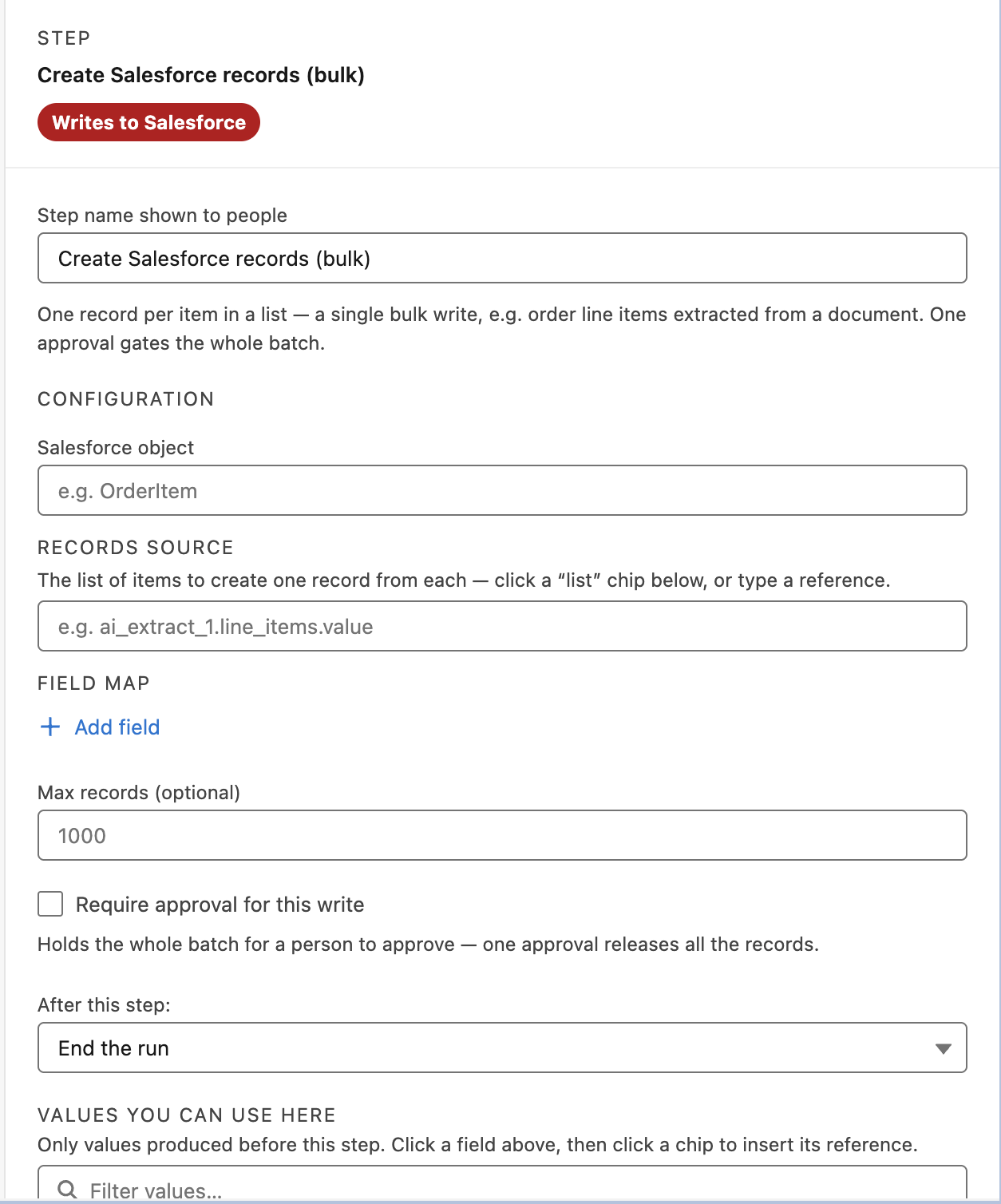
Warnings catch bad wiring: "The records source must be a reference to a list (not a typed value)." · a warning that "quantity" is a number rather than a list, so the records source must be a list of items · "'Amount' reads item.total, but 'total' isn't a field of the extracted items."
Produces: a list of created record Ids (with a gap where a record failed), a success count, a failure count, and per-row failure reasons.
If 48 of 50 line items save and 2 are rejected by Salesforce, the step completes and reports 48 successes and 2 failures with the reason for each. It only fails outright if the list is empty, over the cap, or every single record was rejected. Add a Decision on the failure count if a partial result should change what happens next.
Both can write one record per item. Prefer Create Salesforce records (bulk) when the only thing you do per item is write it: it's a single write, and a single approval. Use a For each loop when each item needs its own reading, checking, or branching before anything is written.
Run a Salesforce Flow
Invoke an autolaunched Flow in this org. Binds a value into each of the Flow's input variables and hands its output variables to later steps.
When to use it: the logic already exists in a Flow, or the work is something no single step can do. Read the document, find the record, decide, then let your own Flow take the outcome from there.
- Choose a Flow. The picker searches your org and lists only active autolaunched Flows with no trigger, ordered by label, up to 200.
- Fill in Values into the Flow: one row per input variable the Flow declares. Click a reference chip below, or type a value. Each row is headed by the variable's name with its declared type beside it, and reads list where the variable is a collection.
- Tick Required on any row the Flow cannot run without. Salesforce treats every Flow input as optional, so without this the Flow runs with that variable empty and the step reports success, which makes a reference that quietly came back with nothing look exactly like a clean run. Ticking Required fails the step instead when nothing resolves into that row.
- Check Values out of the Flow: the references later steps will use, one per output variable the Flow reports, in the form
sf_flow_1.outputValues.<VariableName>, plussf_flow_1.isSuccess. The list fills itself when you pick the Flow; there is nothing to configure here. - Optionally turn on Require approval before running this Flow.
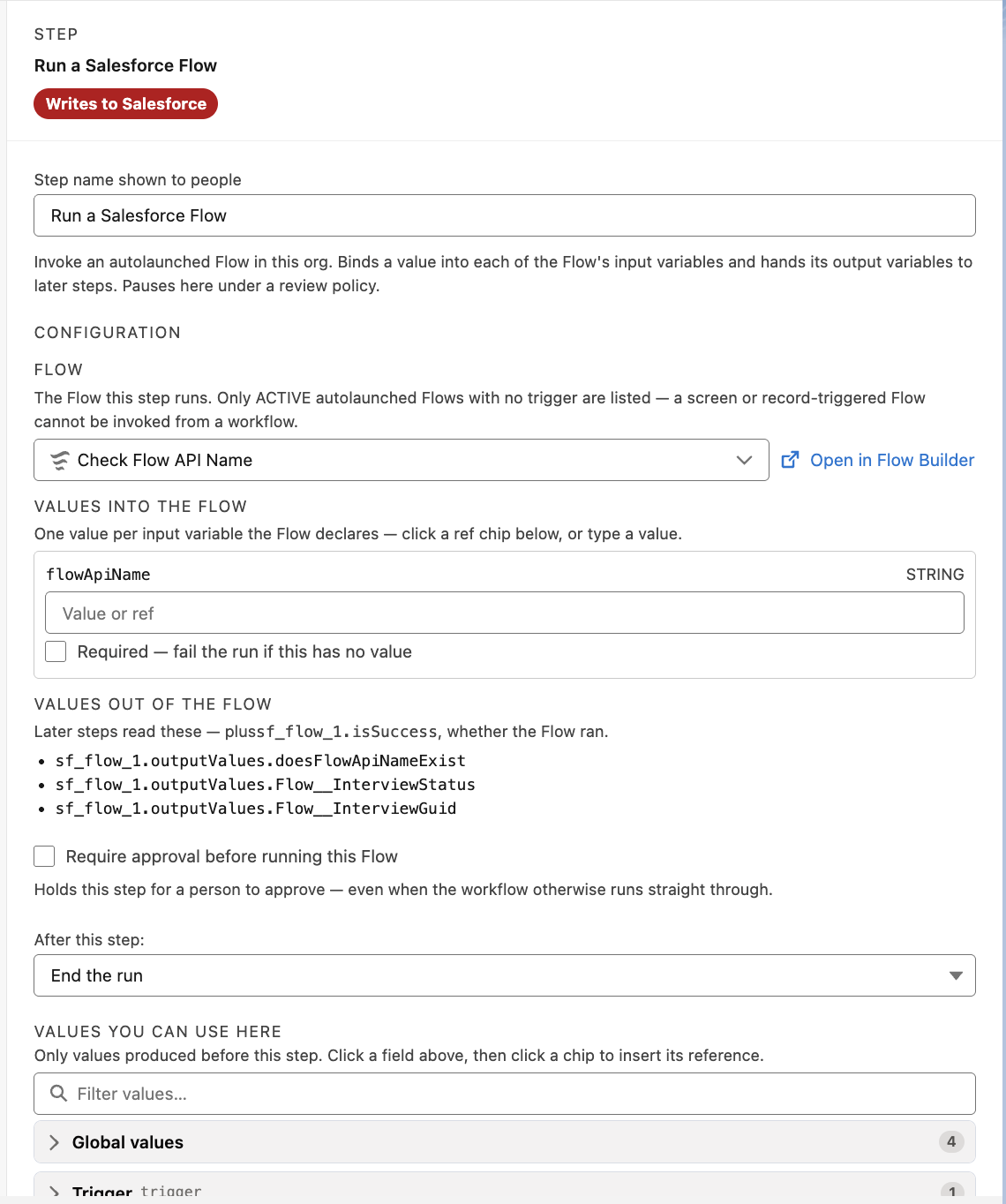
Produces: outputValues, holding the Flow's output variables, and isSuccess. A later step reads one variable as sf_flow_1.outputValues.opportunityId. Salesforce reports two of its own on every autolaunched Flow, Flow__InterviewStatus and Flow__InterviewGuid, so expect those in the list beside your own. Only the variables listed under Values out of the Flow are carried across; anything else the Flow returns is dropped, and a variable the Flow left unset is not an error, it simply resolves to nothing.
Under a review policy, the pending card names the Flow and lists the exact values it will be given, so whoever approves sees what the Flow receives even though the workflow cannot show what the Flow will do with them.
Salesforce allows this for active autolaunched Flows with no trigger, and nothing else. A Screen Flow needs a person in front of it, and a Record-Triggered Flow is fired by Salesforce itself. If the Flow you want is missing from the picker, check in Flow Builder that it is active and that its type is Autolaunched Flow with no trigger.
A Flow that reaches a Wait element stops half-way and hands back only the variables it set before the wait. Salesforce reports that as a success. The step does not: the rest of the Flow runs later, out of band, with nothing tying it back to this run, so recording it as done would claim an outcome that never happened. Keep Wait elements out of the Flows you call from a workflow.
A Percent variable takes no value at all. Salesforce rejects the whole invocation for any value sent to one, and says only that an error occurred while running the Flow. The row still appears so you can see the variable, with the reason in place of the value box. Leave it unset, which runs cleanly, or change it to a Number in Flow Builder.
A collection variable is tagged as a list in its row and accepts only a list. Bind a list reference from an earlier step, normally a list field from an Extract fields step. Typing a single value there is flagged in the builder, and Salesforce refuses it.
Values are converted to the type the Flow declared before they are sent, so a number that arrived as text reaches a Number variable as a number. One that cannot be converted fails the step and names both the Flow variable and the row it came from, which is more than Salesforce's own refusal would tell you.
Related
- Workflows: creating the workflow, the launch form, references, validating and publishing.
- Read documents (AI): the steps that produce the values these lookups match against.
- Logic: the Decision and For each steps that route and repeat around these lookups and writes.