Config API Names
Every configuration in a changeset needs a Config API Name, for example invoice-intake. The name links a configuration across orgs:
- If the target org has a mapper or workflow with the same Config API Name, the migrated configuration is added to it as a new version, and it keeps its name.
- If the target org has no match, a new mapper or workflow is created with that Config API Name.
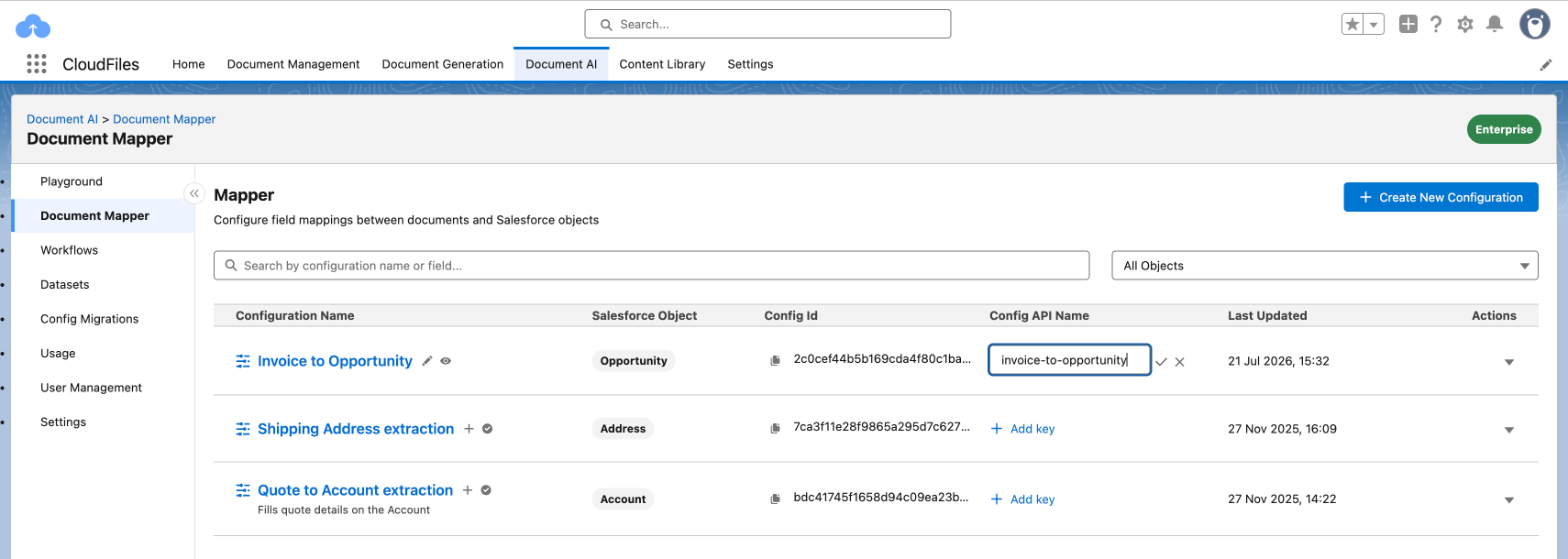
Set a mapper’s Config API Name in the Config API Name column on the Document Mapper page. You can also set one for a mapper or a workflow while you create a changeset. A Config API Name can contain lowercase letters, numbers, dots, underscores and hyphens. It must be unique among the org’s mappers, or among its workflows.
Create a Changeset
- In the source org, open Document AI → Config Migrations. The Outgoing tab lists the changesets sent from this org.
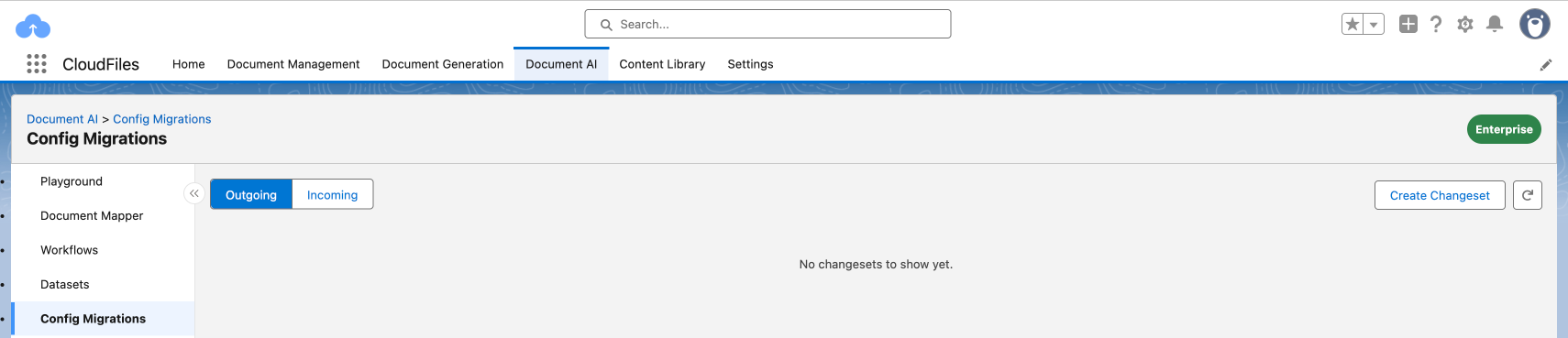
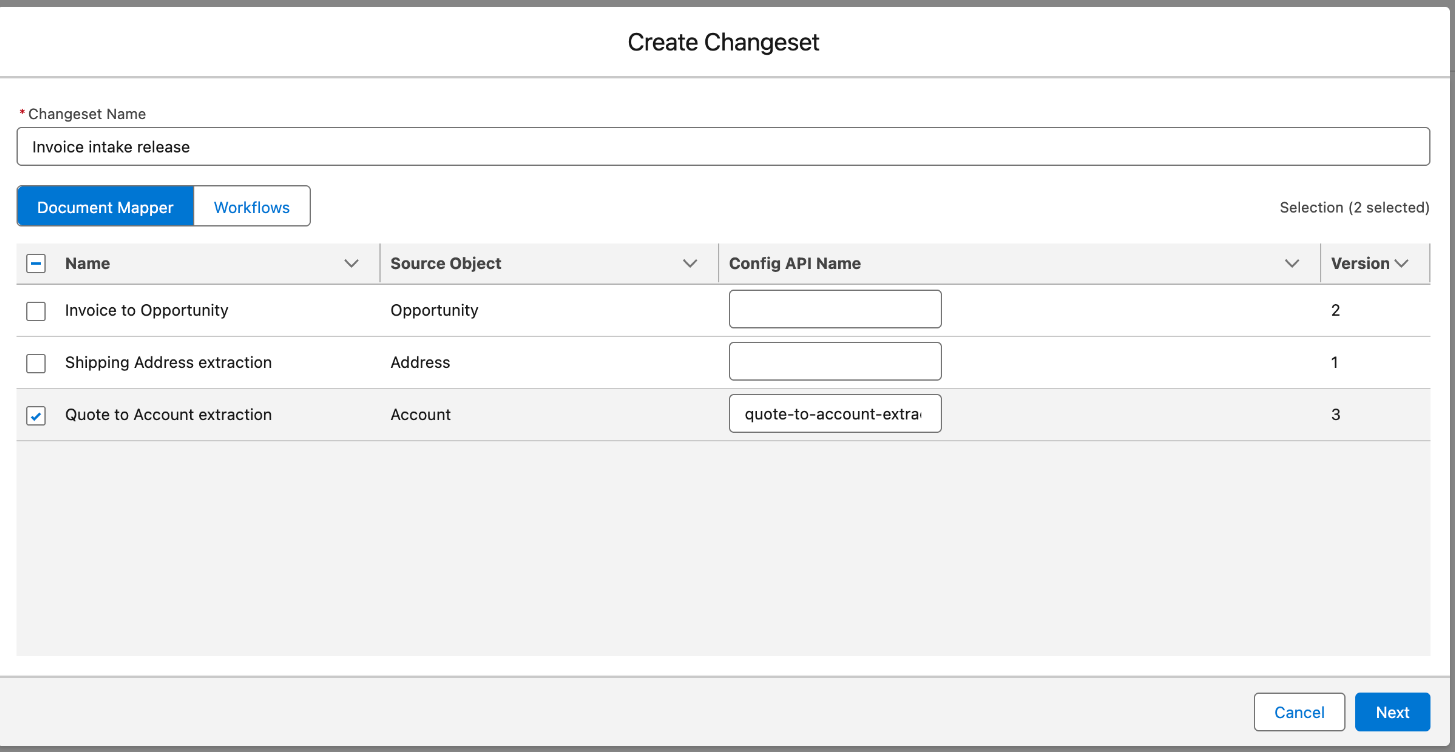
- Select Create Changeset and enter a Changeset Name of at least 10 characters.
- Select up to 25 configurations from the Document Mapper and Workflows lists. Only published workflows are listed. If a selected configuration has no Config API Name, one is suggested from its name, and you can edit it.
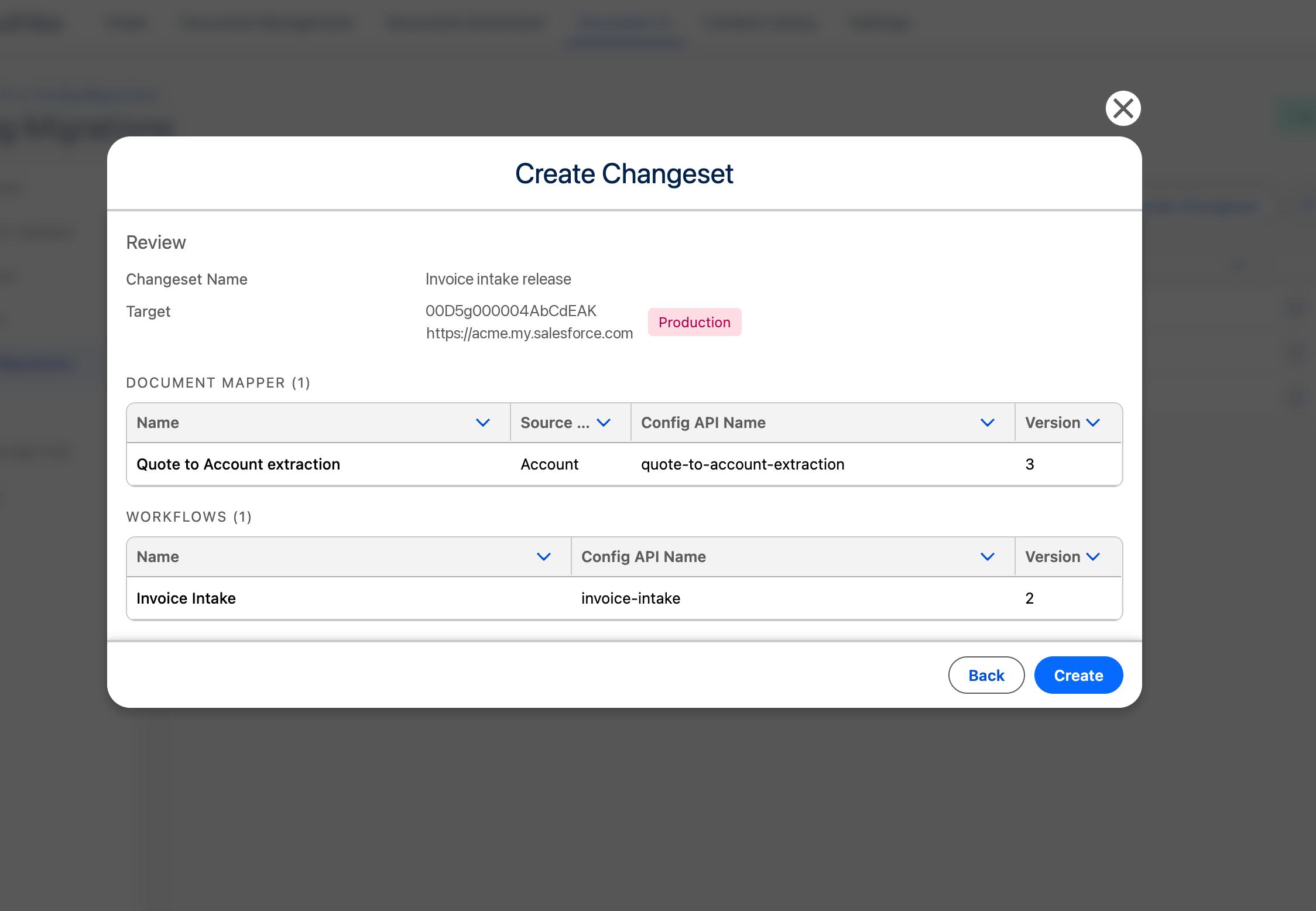
- Select Next, choose the org to migrate into, and select Next again. The production org is marked Production.
- Review the changeset and select Create.
A configuration that is already in an unfinished changeset to the same org can’t be added to another one until that changeset finishes.
Validation
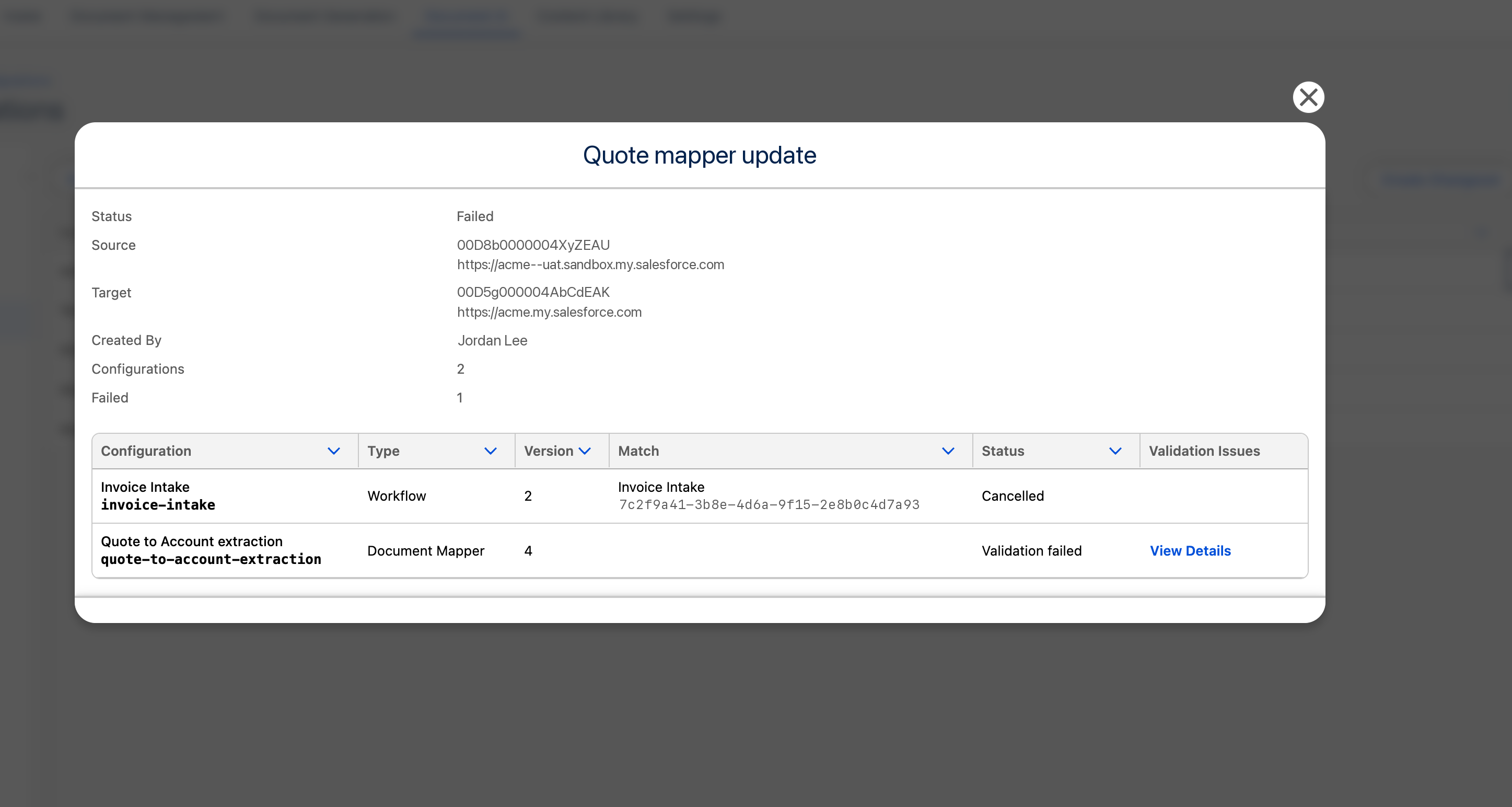
The changeset is validated in the target org, where it appears on the Incoming tab. CloudFiles checks that the target org has every object, field, relationship and flow each configuration uses. If any configuration fails, the whole changeset fails and nothing is copied.
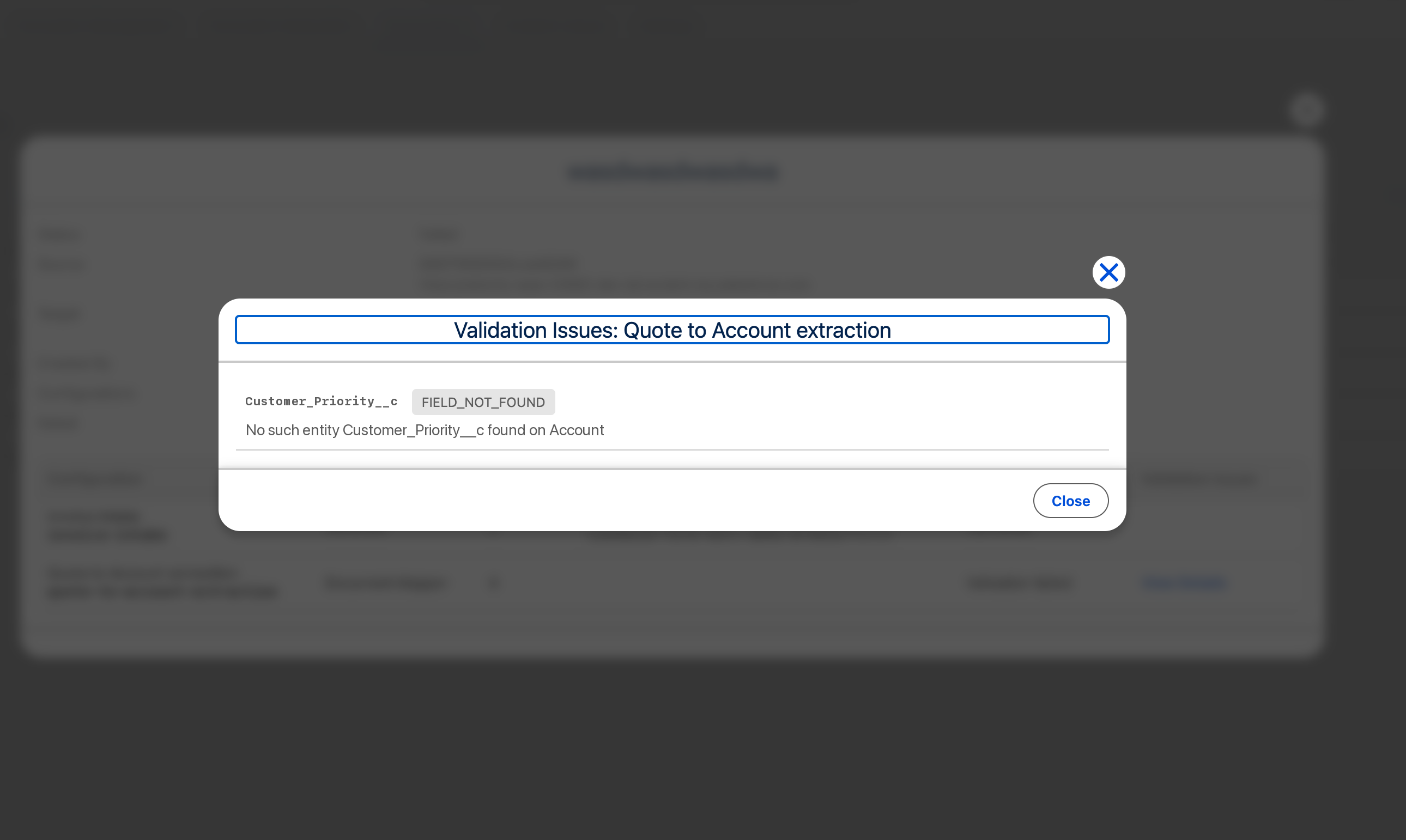
In the target org, open the changeset’s details from the Incoming tab and select View Details in the Validation Issues column to see what is missing. For example, FIELD_NOT_FOUND means a field the target org doesn’t have, and FLOW_NOT_FOUND means a flow that is missing, inactive or not autolaunched there. Fix the target org or the configuration, then create a new changeset.
Deploy or Reject a Changeset
To check a changeset’s status, open Document AI → Config Migrations in the target org, select Incoming, and open the changeset’s Details from its row menu. The Match column shows the mapper or workflow in this org that each configuration will update, and an empty Match means a new one will be created.
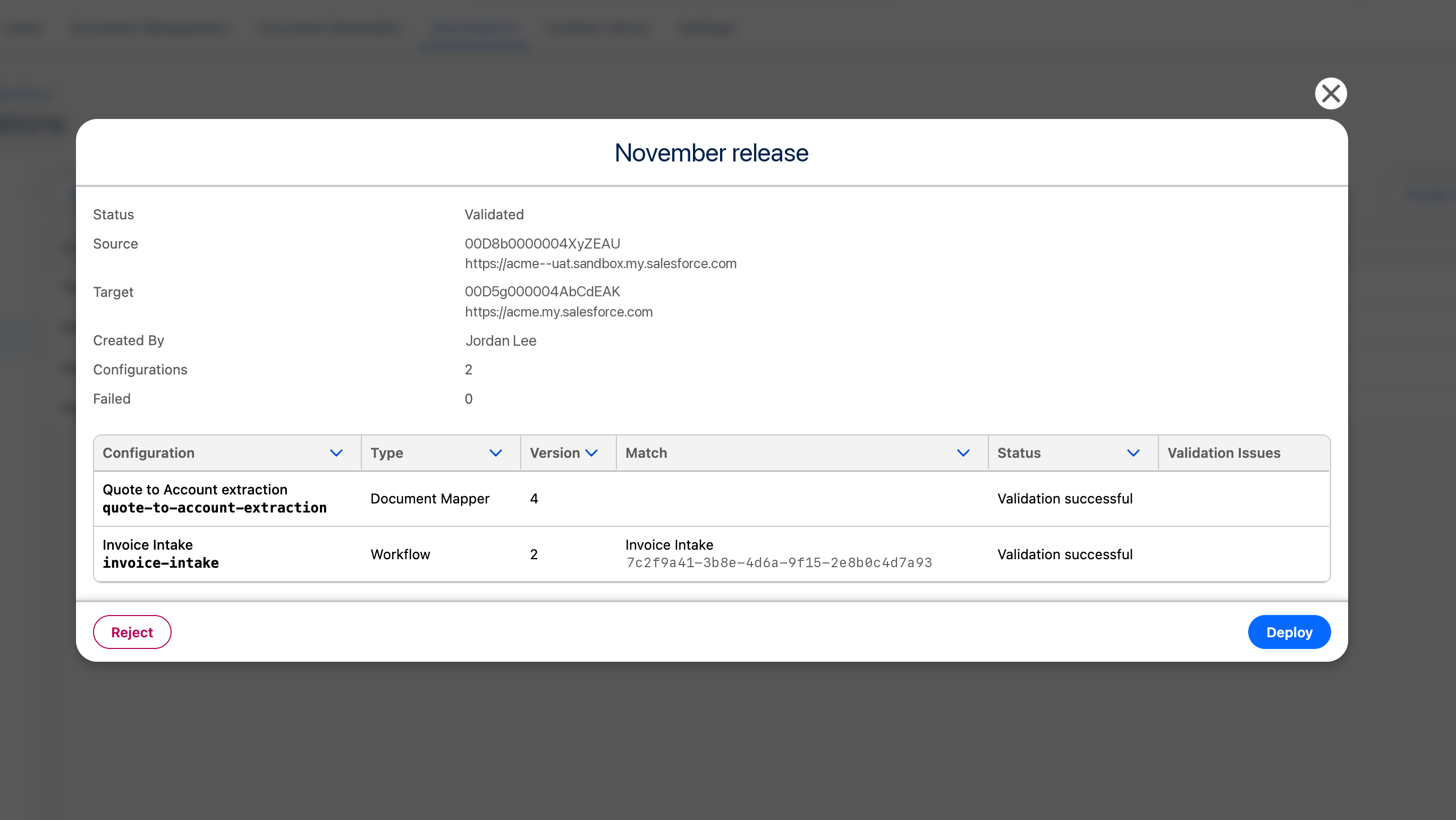
When the status is Validated, select Deploy to copy the configurations, or Reject to cancel the changeset. When the copy finishes, the changeset shows Completed and each configuration shows Success. Each deployed mapper and workflow becomes the latest version in the target org, and deployed workflows are published. Sample files uploaded to a mapper are not copied.