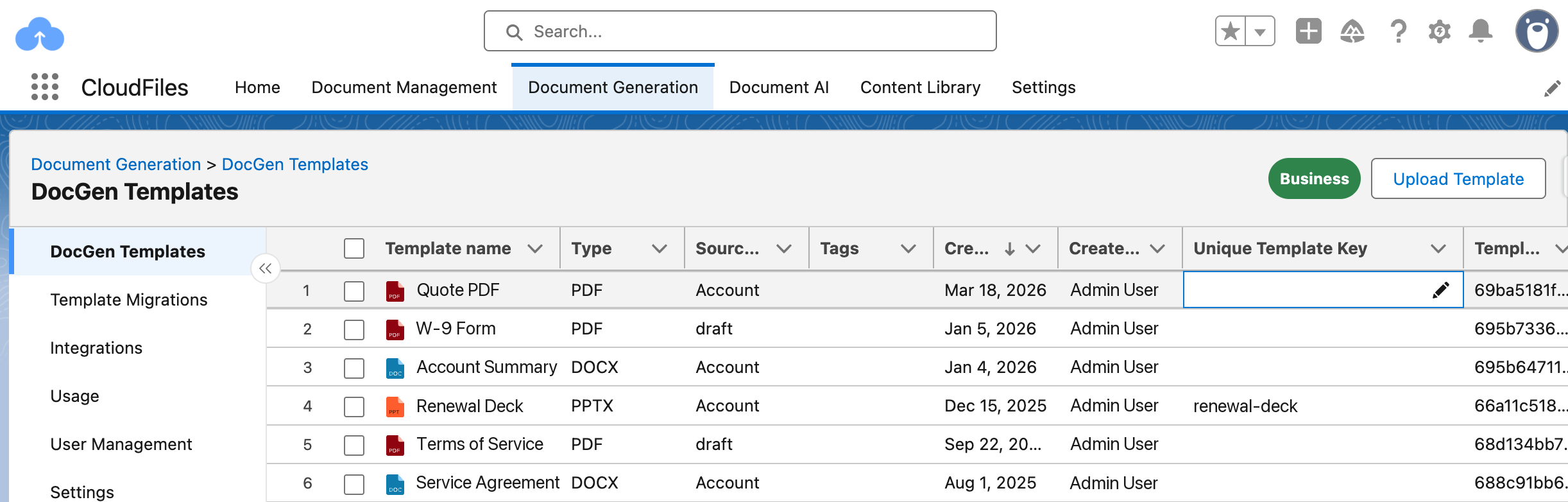
Unique Template Keys
Every template in a changeset needs a Unique Template Key. The key links a template across orgs:
- If the target org has a template with the same key, the migrated file is added to it as a new version, and that template keeps its name.
- If the target org has no template with the key, a new template is created with it.
Flows that name their templates by key keep working after a migration. Set a key in the Unique Template Key column on the DocGen Templates page, or while you create a changeset. A key can contain lowercase letters, numbers, dots, underscores and hyphens, and it must be unique within the org.
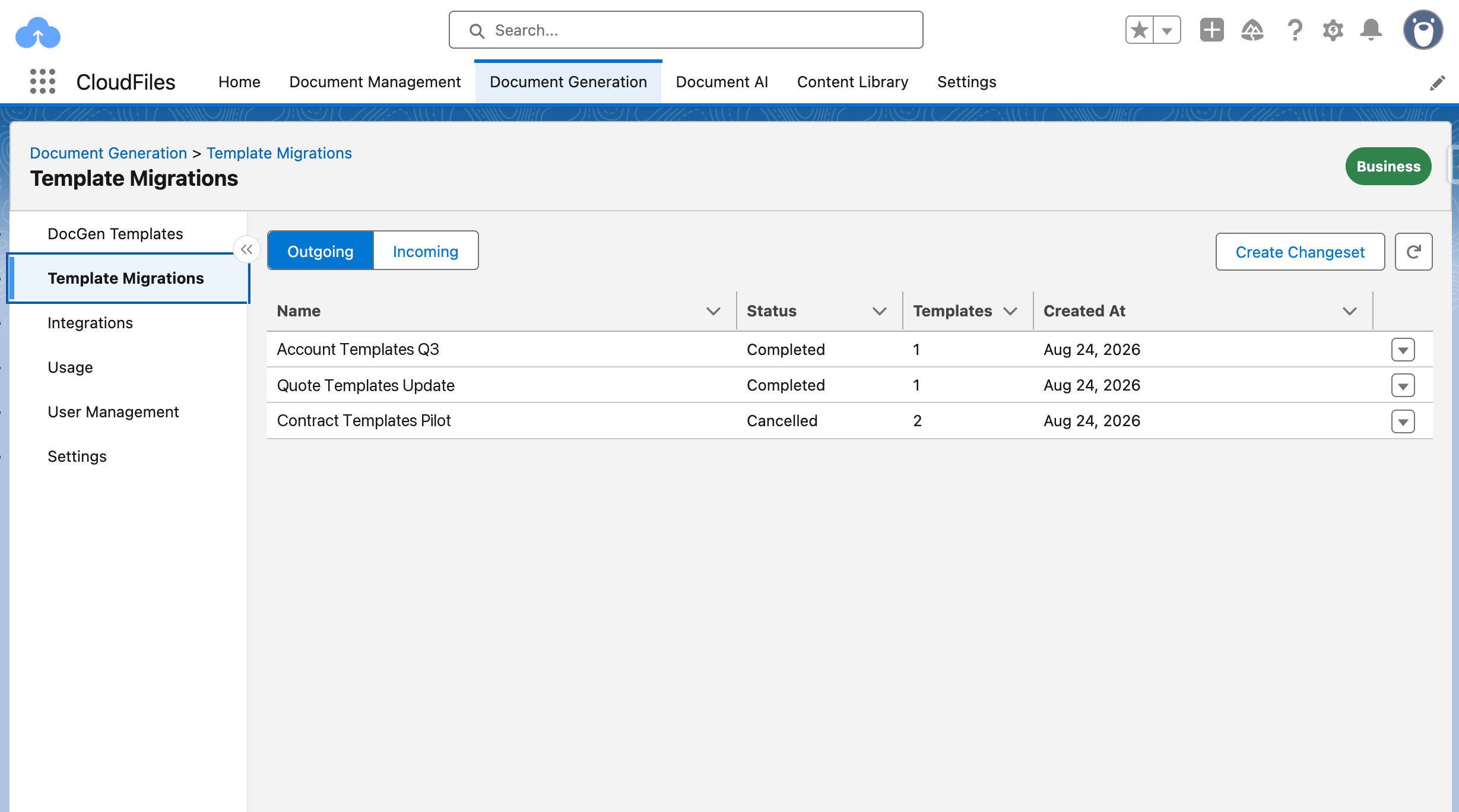
Create a Changeset
- In the source org, open Document Generation → Template Migrations. The Outgoing tab lists the changesets sent from this org.
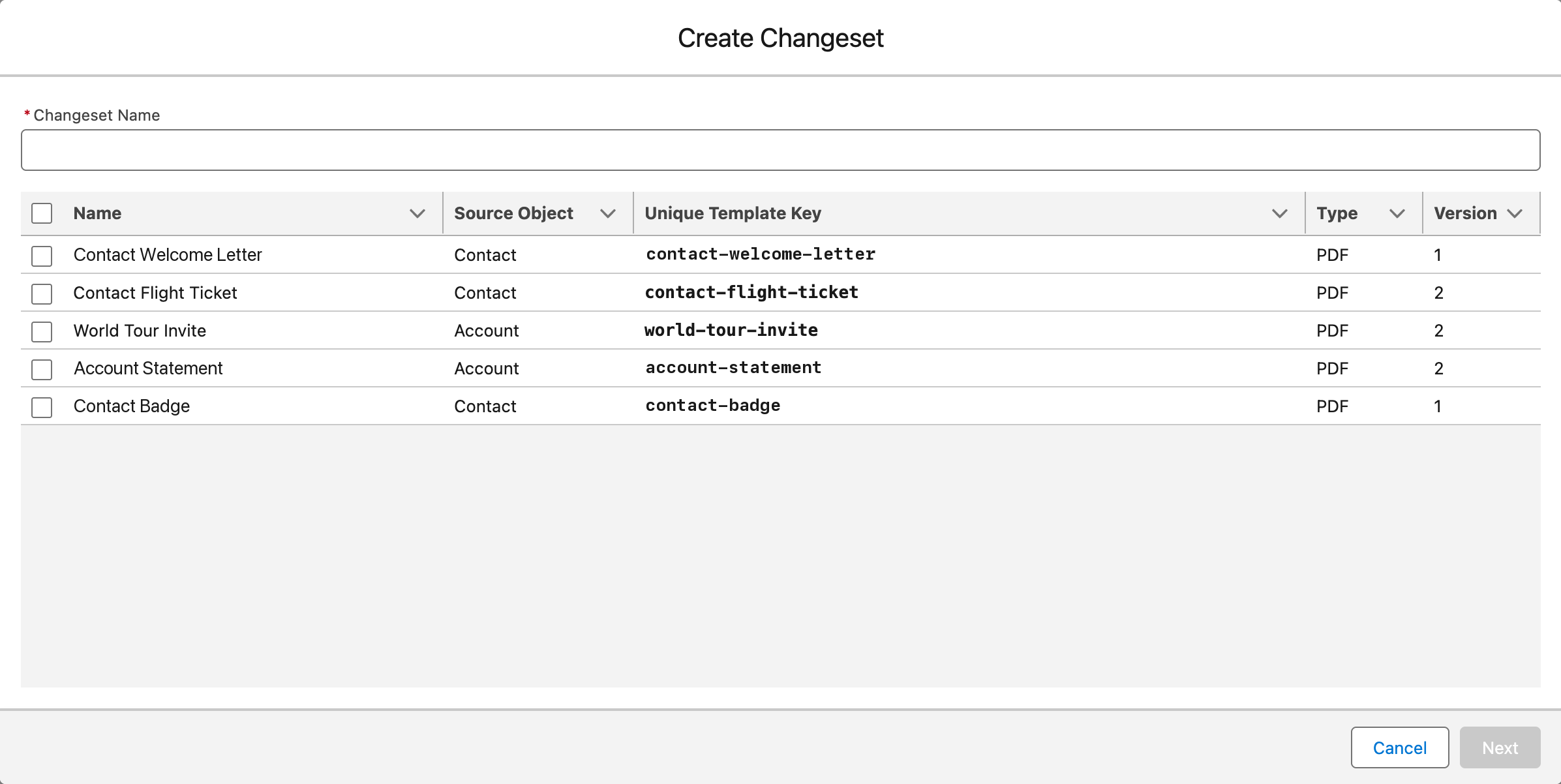
- Select Create Changeset and enter a Changeset Name of at least 10 characters.
- Select up to 25 templates. Draft templates are not listed. If a selected template has no key, a key is suggested from its name, and you can edit it.
- Select Next, choose the org to migrate into, and select Create. The production org is marked Production.
The changeset is validated automatically. In the source org, its details show the status and how many templates succeeded or failed.
Validation
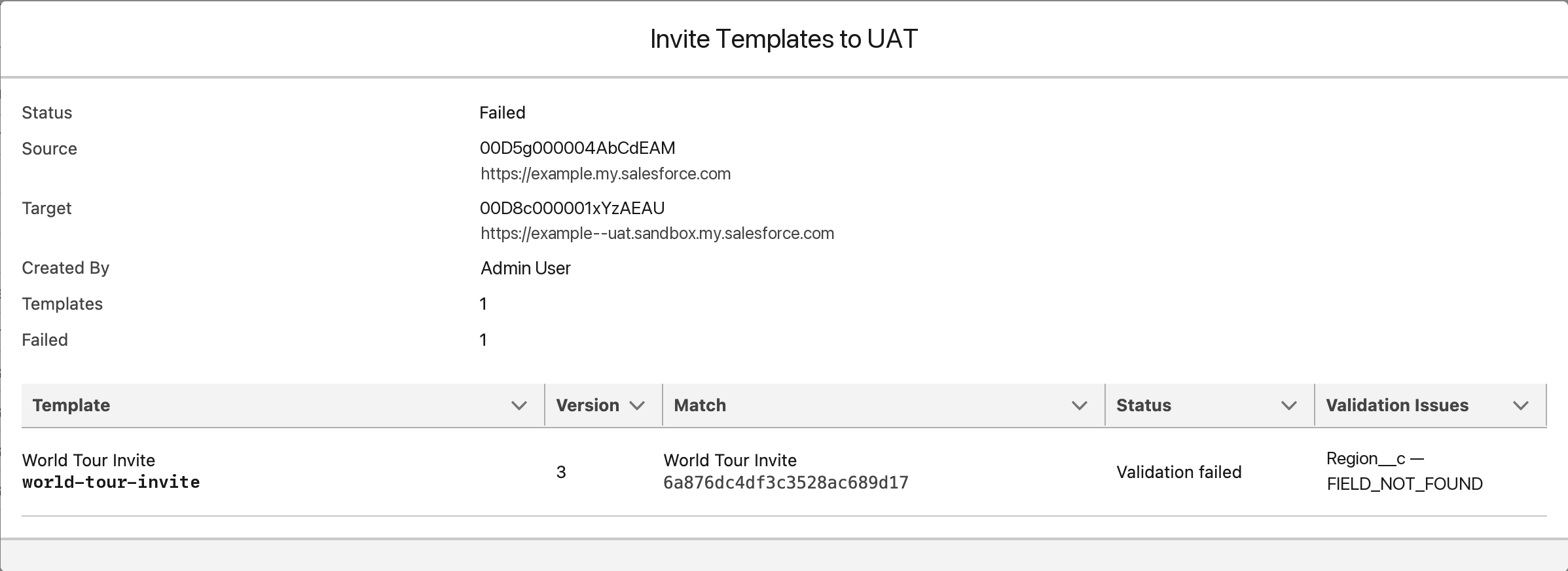
CloudFiles checks that the target org has every object, field and relationship each template uses. If any template fails, the whole changeset fails and nothing is copied. In the target org, the changeset’s details list what is missing under Validation Issues, for example FIELD_NOT_FOUND. Fix the target org or the template, then create a new changeset.
Deploy or Reject a Changeset
CloudFiles does not send a notification when a changeset arrives, so check the Incoming tab.
- In the target org, open Document Generation → Template Migrations and select Incoming.
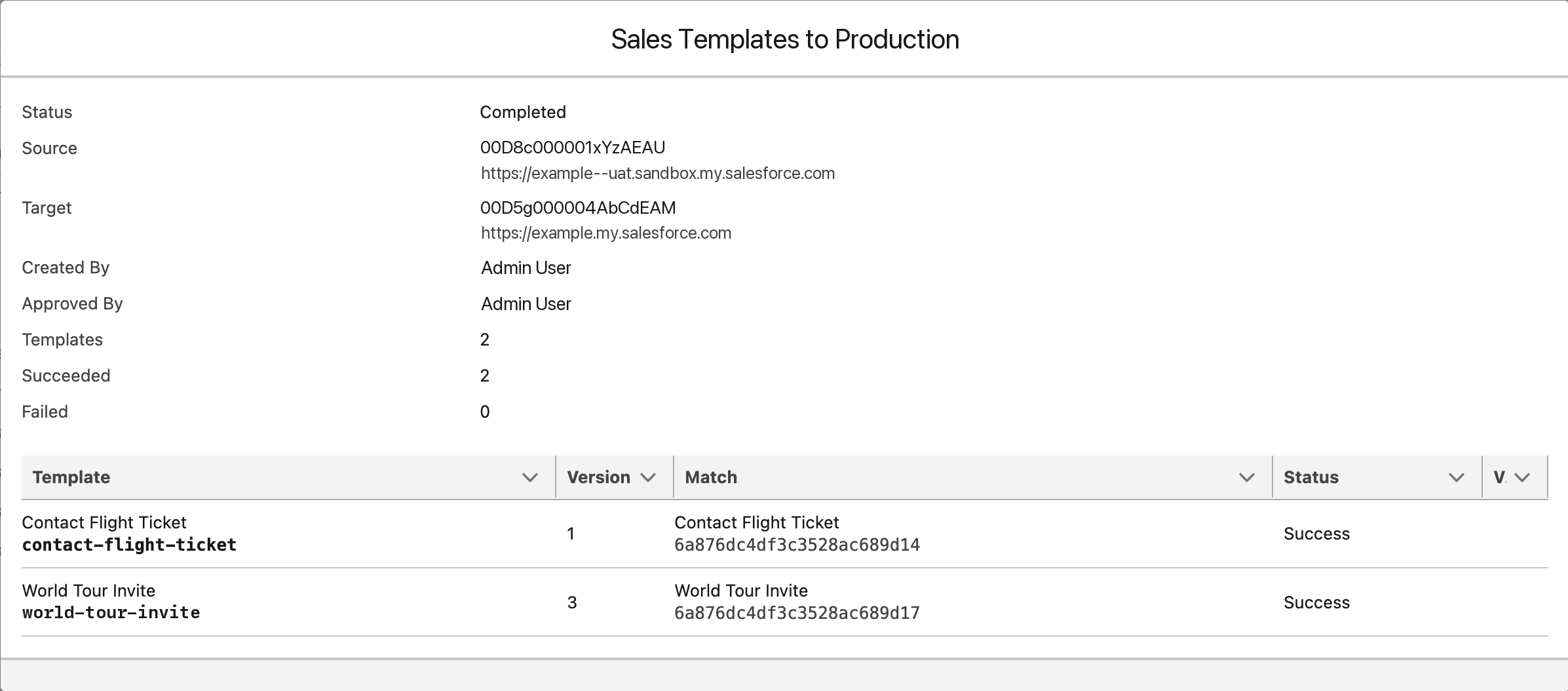
- Open a changeset’s row menu and select Details. The Match column shows the template in this org that each migrated template will update. An empty Match means a new template will be created.
- When the status is Validated, select Deploy to copy the templates, or Reject to cancel the changeset.
When the copy finishes, the changeset shows Completed and each template shows Success. Tags are not copied with a template.