What is the Issue?
CloudFiles users attempting to upload files through Salesforce Experience Cloud to SharePoint might encounter upload failures with various error messages, including:
- "Upload failed error"
- Generic "Something went wrong" upload error messages without specific details
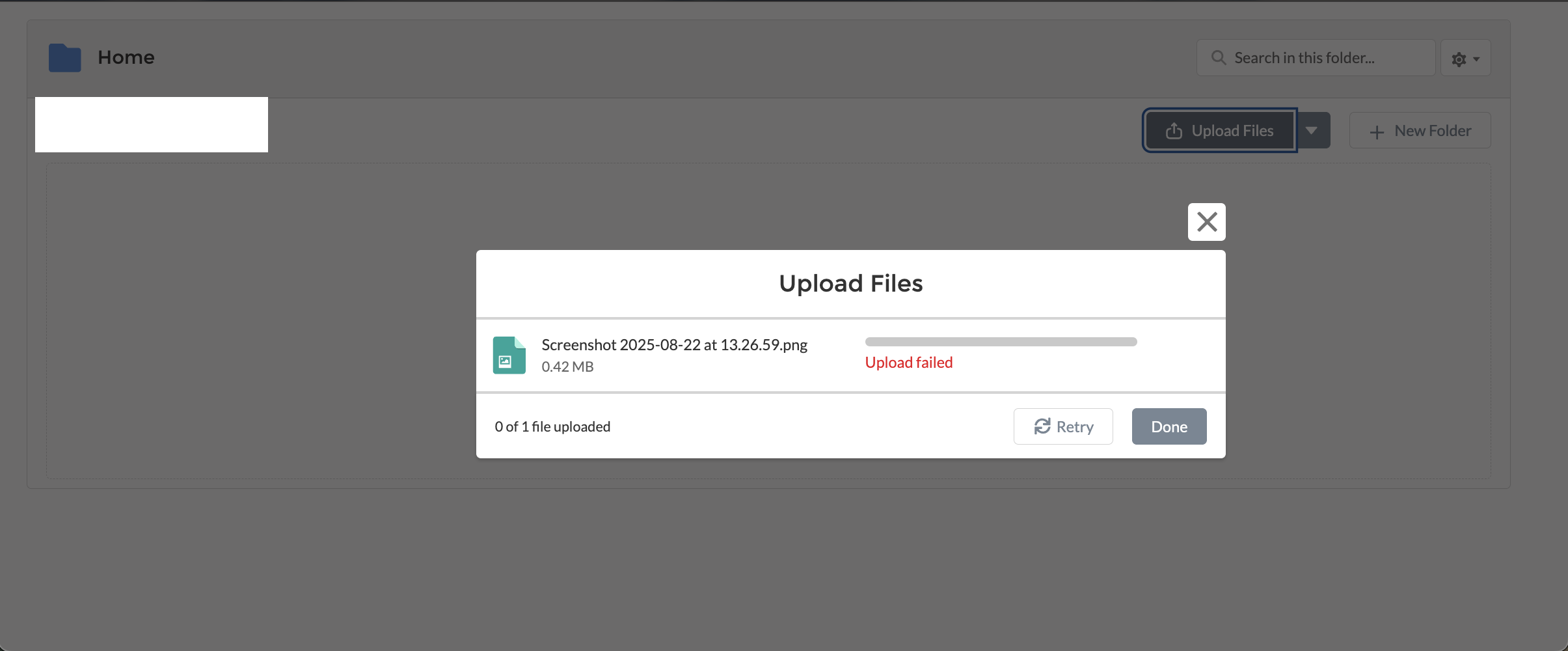
These errors usually mean CloudFiles could not write the file to the SharePoint location. Experience Cloud users don't sign in to SharePoint and don't need a Microsoft or SharePoint account of their own: CloudFiles uploads on their behalf through its account-level SharePoint connection, the integration user or service principal set up on the Libraries page. See Experience Cloud for how this access works.
Why does this happen?
The upload failure errors in Experience Cloud can occur when CloudFiles cannot successfully upload files to SharePoint due to several reasons:
- The SharePoint connection CloudFiles uses can't write to the target library or folder
- Incorrect or broken CloudFiles library connection configuration
- The Experience Cloud user isn't allowed to upload in CloudFiles
This error doesn't indicate a bug in CloudFiles but rather a permissions or configuration issue between the CloudFiles SharePoint connection and the target SharePoint location, or in the Experience Cloud user's CloudFiles access.
How to fix this issue?
To resolve Experience Cloud upload failures and restore functionality:
1. Verify the SharePoint connection's access:
- Check which method connects SharePoint on the Libraries page: an integration user or a service principal (see SharePoint Connection Methods)
- For an integration user, sign in to SharePoint as that account and try uploading a file to the target library directly, outside CloudFiles
- If that upload fails, the integration user is missing SharePoint permissions
2. Grant proper SharePoint permissions:
- Ask your SharePoint administrator to grant the integration user "Contribute" or "Edit" permissions on the target document library
- For a service principal, make sure the CloudFiles application has write access to the target site
- Experience Cloud users don't need SharePoint permissions of their own, so there is nothing to grant them in SharePoint
3. Verify CloudFiles configuration:
- Navigate to CloudFiles App → Document Management → Libraries
- Confirm the SharePoint site is connected
- On the Experience Cloud page of the Document Management tab, confirm "Enable sharing with Experience Cloud Users" is turned on
- Confirm the Experience Cloud user has the CloudFiles External Users permission set, and that File Upload is turned on in the widget configuration (see the Experience Cloud Widget Guide)
Once permissions are updated, have the Experience Cloud user retry the file upload through CloudFiles. The upload should now complete successfully without errors.