Steps to Insert a Condition:
- Navigate to the Document Generation tab in the CloudFiles app and open the PDF template in Edit mode using the menu (⋮) next to the template.
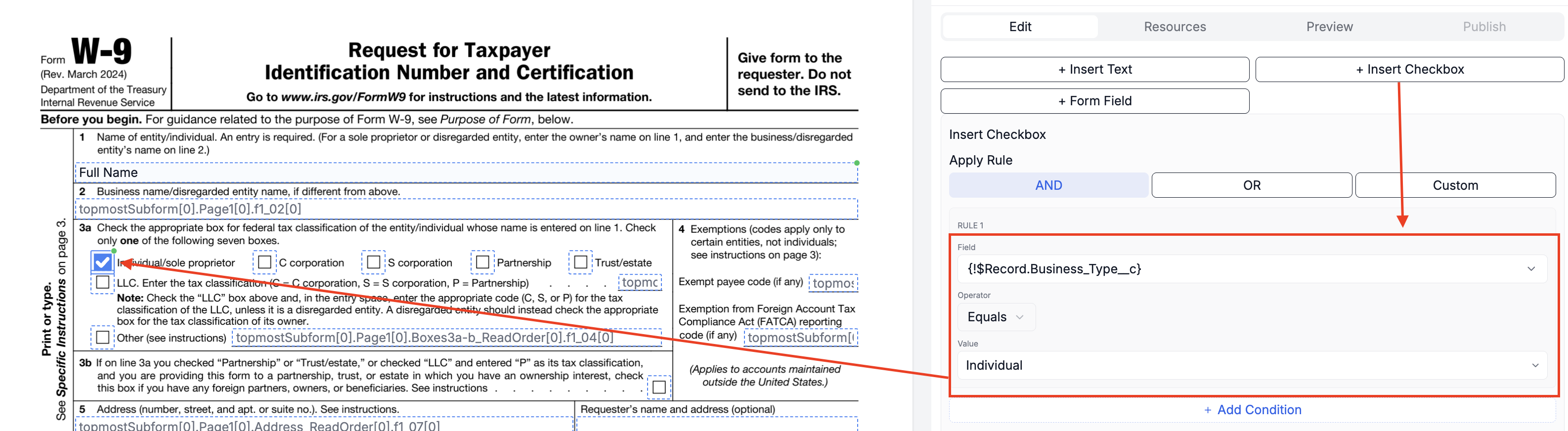
- Click the + Insert Checkbox button in the right panel.
- Click on a checkbox in the PDF that needs to be marked based on a condition, or select it from the field list in the bottom panel.
- In the Insert Checkbox section that appears on the right, set the condition using a field from the Salesforce object. Example: Business_Type__c = C corporation
- Click Apply. If the condition is true when the document is generated, the checkbox will be ticked.
Use Case
You are configuring a W-9 form for Contact records. Based on the value in a custom field like Business_Type__c, you want to automatically select the correct classification box, such as "C corporation," "LLC," or "Individual/sole proprietor."
Steps:
- After inserting text fields with Insert Text, scroll to Line 3a of the W-9 form.
- Click + Insert Checkbox, then click on the checkbox next to "C corporation".
- Set the condition: Business_Type__c = C corporation
- Do the same for the remaining options:
- Individual/sole proprietor → Business_Type__c = Individual
- S corporation → Business_Type__c = S corporation
- Partnership → Business_Type__c = Partnership
- LLC → Business_Type__c = LLC
- Trust/estate → Business_Type__c = Trust
- Once each checkbox is configured, click Publish.