- Remove the broad, tenant-wide permission(s) from the CloudFiles application in your Microsoft Entra admin center.
- Grant CloudFiles access to just the sites you choose, using a short PowerShell script your IT/M365 admin runs once per site.
After both steps, CloudFiles will only be able to reach the sites you've explicitly granted it — nothing else. This is a one-time setup per site; you'll repeat the grant step (a single command) whenever you want to add another site later.
Who should do this: someone with SharePoint Administrator or Global Administrator privileges in your Microsoft 365 tenant. Both parts below say exactly which role is needed and where.
This article only applies if your org connects to SharePoint using a Service Principal. If you're not sure which method you use, see SharePoint Connection Methods: Integration User vs Service Principal.
Part 1: Remove the broad permission(s) from CloudFiles
CloudFiles' application registration currently holds a few different Microsoft Graph permissions. Only one of them — Sites.Selected — is designed for the "just the sites I pick" model. The others below grant broad, tenant-wide access and are the ones you'd remove to actually restrict CloudFiles:
| Permission | API | Type | Effect if left in place |
|---|---|---|---|
Sites.Selected | Microsoft Graph | Application | Keep this one — it's what makes the per-site grants in Part 2 possible. |
Sites.Manage.All | Microsoft Graph | Application | Tenant-wide: create/edit/delete lists and items in every site collection. |
Files.ReadWrite.All | Microsoft Graph | Application | Tenant-wide: read, create, update, and delete all files in all site collections, independent of Sites.Selected — its scope is always the full tenant. |
Both of the broad permissions above grant tenant-wide access on their own. If you remove Sites.Manage.All but leave Files.ReadWrite.All in place, CloudFiles will still be able to reach every site in your tenant — the restriction only takes effect once both are removed and only Sites.Selected remains. Removing Files.ReadWrite.All removes CloudFiles' broad file access entirely, so confirm with CloudFiles support first if you're unsure whether any of your other CloudFiles usage depends on it.
Leave every Delegated-type permission alone (e.g. User.Read, Team.Create, Sites.ReadWrite.All (Delegated)) — those support features that run in the context of a signed-in user and aren't part of this restriction.
Steps (Microsoft Entra admin center)
- Sign in to the Microsoft Entra admin center with an account that holds at least the Cloud Application Administrator role (Application Administrator also works).
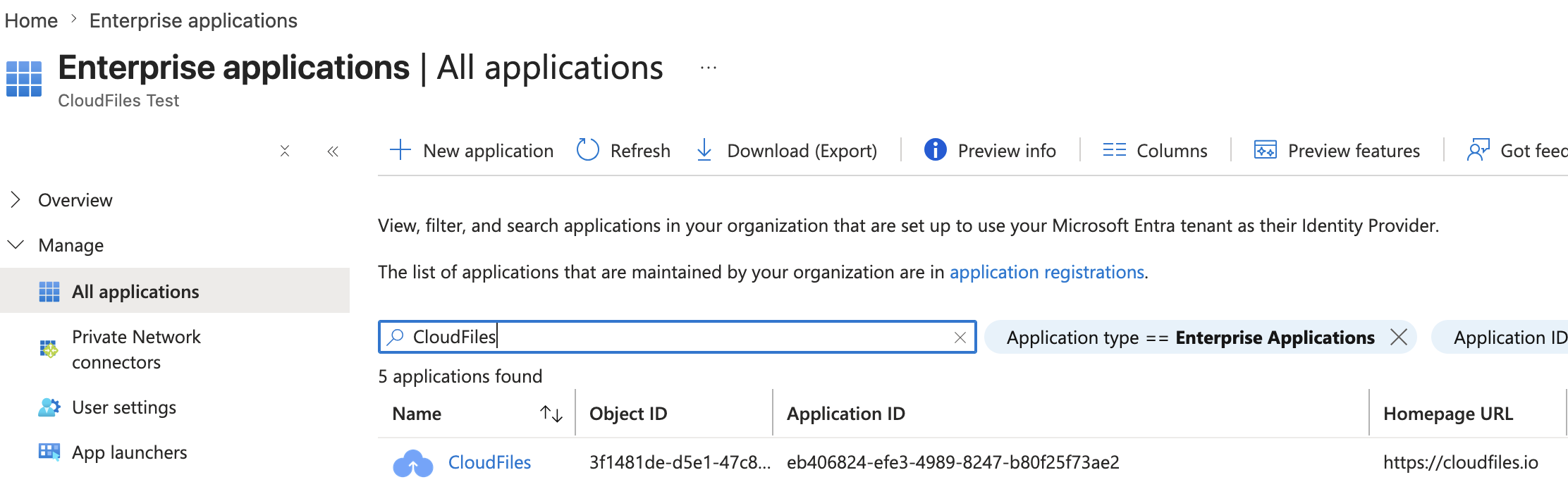
- Go to Home → Enterprise applications → All applications, and select CloudFiles.
- In the CloudFiles application's left-hand menu, select Security → Permissions, then the Admin consent tab. This page lists every permission granted for your entire organization — you can review, revoke, and restore permissions here.
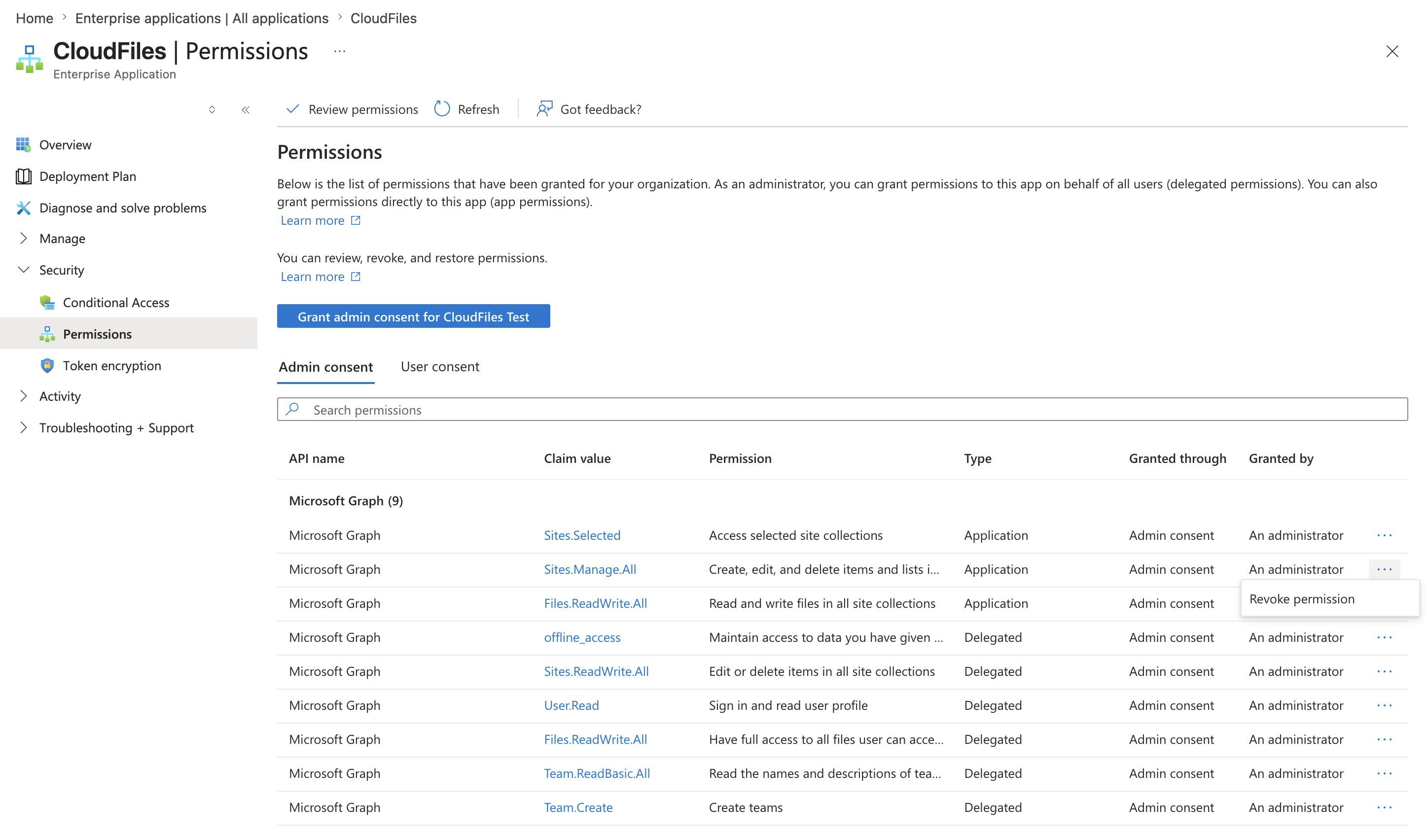
- Find the row for the permission you want to remove (e.g.
Sites.Manage.All, Type = Application). Select the···menu at the end of that row, then Revoke permission. - Confirm the revocation when prompted.

- Repeat steps 4–5 for each additional broad permission you're removing (e.g.
Files.ReadWrite.All) — do not revokeSites.Selected.
One thing to keep in mind: revoking here stops CloudFiles from using that permission going forward, but it doesn't prevent a user from re-consenting to it later if CloudFiles' own sign-in flow ever requests it again — that's a separate, tenant-level consent-policy setting if you want to lock it down further.
Part 2: Grant CloudFiles access to specific sites (PowerShell)
Once the broad permissions are gone, CloudFiles has Sites.Selected and effectively zero site access — consenting an app to a *.Selected permission grants it no access at all until a specific site grant is made. You give it access back, one site at a time, with a short PowerShell command.
Optional: install and set up PowerShell
If you already have PowerShell 7+ and the PnP.PowerShell module, skip to "Connect," below.
- Install PowerShell 7.4 or later, if you don't already have it (PnP.PowerShell requires it; Windows PowerShell 5.1 isn't supported). See Microsoft's Installing PowerShell on Windows, Linux, and macOS guide.
- Install the PnP.PowerShell module (this is the module this guide uses throughout):
Install-Module PnP.PowerShell
Full official install instructions: PnP PowerShell — Installation.
- Register a one-time sign-in app for PnP PowerShell. As of September 2024, Microsoft retired the shared app PnP PowerShell used to use for interactive sign-in, so you now register your own (a one-off, once-per-tenant setup — not related to CloudFiles' own app registration):
Register-PnPEntraIDAppForInteractiveLogin `
  -ApplicationName "PnP Management Shell" `
  -Tenant "<yourtenant>.onmicrosoft.com" `
  -GraphDelegatePermissions "Sites.FullControl.All"
This opens a browser sign-in window and needs to be run once by someone who can consent to app permissions (Application Administrator or Global Administrator). It prints a Client ID — save it; you'll pass it to Connect-PnPOnline as -ClientId in the step below.
Connect
Connect to the site you're about to grant access to, signed in interactively as a user who holds the SharePoint Administrator or Global Administrator role — this is a hard requirement of the underlying grant operation.
Connect-PnPOnline `
  -Url "https://<yourtenant>.sharepoint.com/sites/<SiteName>" `
  -ClientId "<CLIENT_ID_FROM_REGISTRATION_STEP>" `
  -Interactive
Grant CloudFiles access to the site
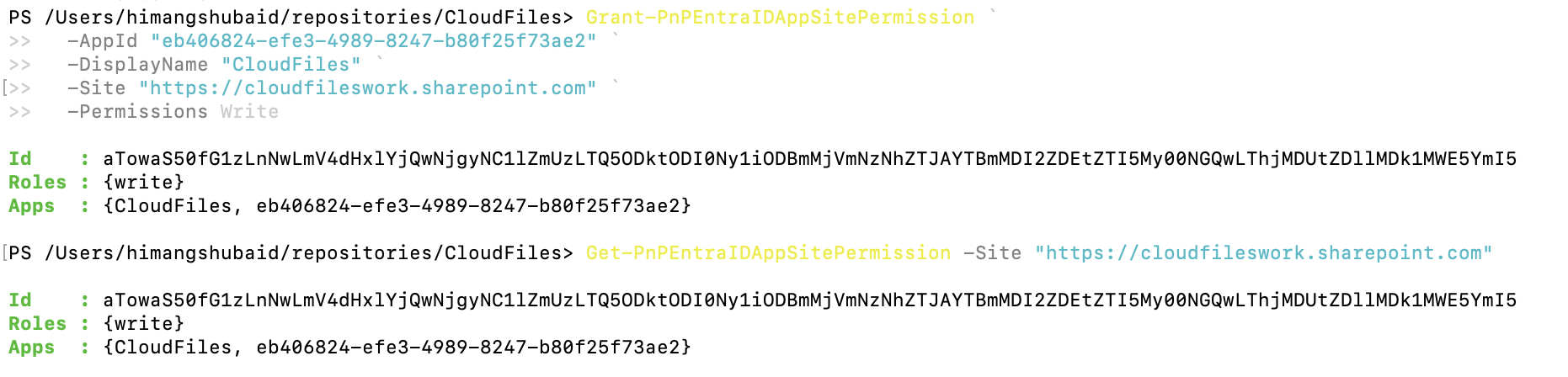
Grant-PnPEntraIDAppSitePermission `
  -AppId "eb406824-efe3-4989-8247-b80f25f73ae2" `
  -DisplayName "CloudFiles" `
  -Site "https://<yourtenant>.sharepoint.com/sites/<SiteName>" `
  -Permissions Write
-AppId— CloudFiles' Application (client) ID,eb406824-efe3-4989-8247-b80f25f73ae2. You can confirm this matches your own tenant's copy of the app under Enterprise applications → CloudFiles → Overview → Application ID — it should read the same value.-DisplayName— a label only; "CloudFiles" keeps the grant list readable.-Site— the full URL of the site you're granting access to.-Permissions— one ofRead,Write,Manage, orFullControl, least to most access. For most CloudFiles use (reading and writing documents)Writeis the right choice; useFullControlonly if CloudFiles needs to manage the site itself, and confirm with CloudFiles support if unsure.
Worked example — granting CloudFiles write access to a site called "Marketing":
Grant-PnPEntraIDAppSitePermission `
  -AppId "eb406824-efe3-4989-8247-b80f25f73ae2" `
  -DisplayName "CloudFiles" `
  -Site "https://contoso.sharepoint.com/sites/Marketing" `
  -Permissions Write
To grant access to another site, repeat this command with a different -Site value — there's no bulk "all future sites" option; each site needs its own explicit grant.
Verify the grant took effect
Get-PnPEntraIDAppSitePermission -Site "https://contoso.sharepoint.com/sites/Marketing"This lists every app granted access to that site, including CloudFiles, its permission level, and a Permission ID — note that ID if you might need to revoke this specific grant later.
Verify in the CloudFiles Salesforce app (register the site)
As a final end-to-end check, register the granted site in the CloudFiles Salesforce app — this exercises CloudFiles' actual access to the site:
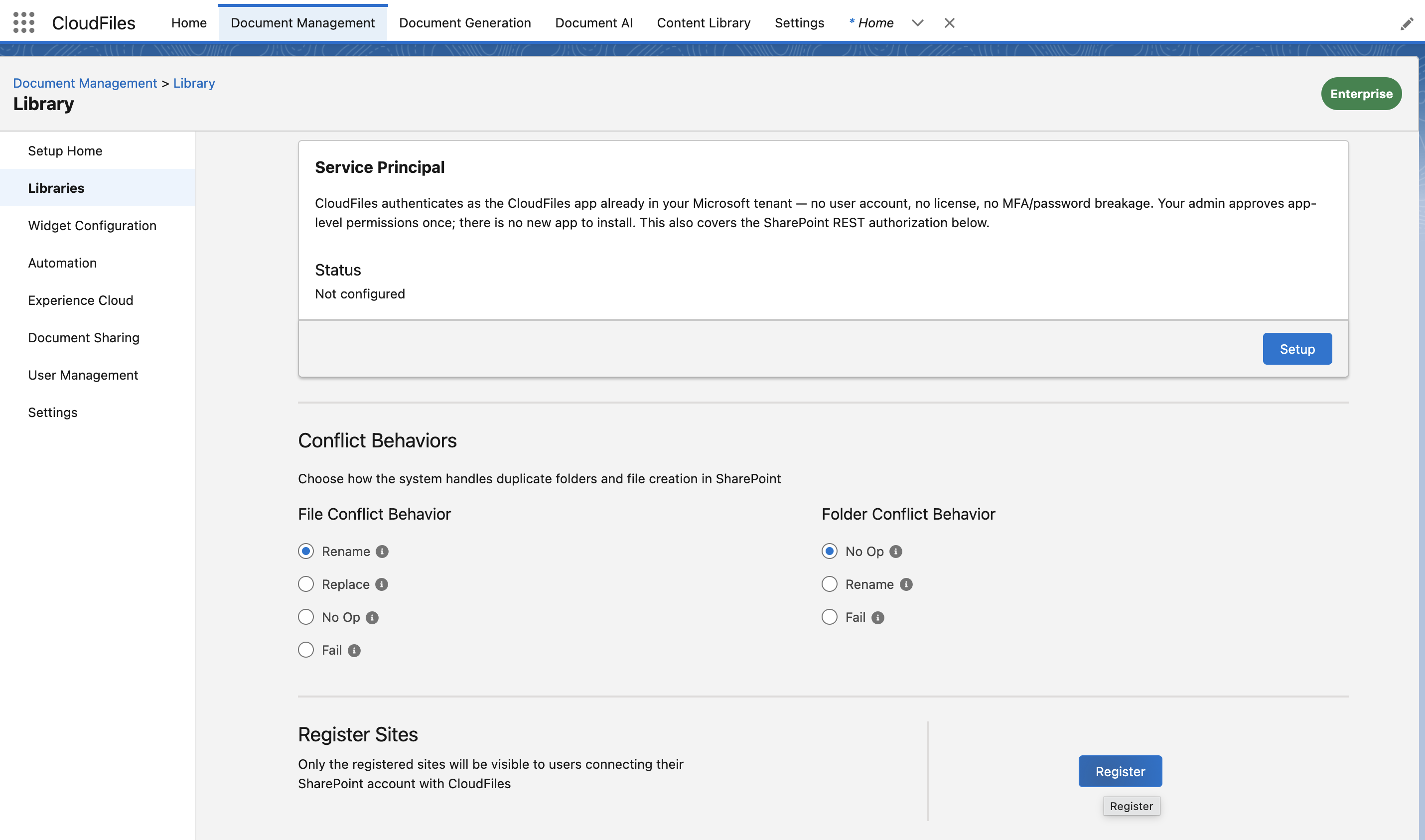
- In Salesforce, open the CloudFiles app and go to Document Management → Library, then select Libraries in the left-hand menu.
- Scroll to the Register Sites section ("Only the registered sites will be visible to users connecting their SharePoint account with CloudFiles").
- Click Register and add the site you granted in the previous step.
If the site registers successfully and appears in the registered list, CloudFiles' access to that site is working end to end — users connecting their SharePoint account will now see it.
Revoking a site grant
To remove CloudFiles' access to a specific site later, run:
Revoke-PnPEntraIDAppSitePermission `
  -Site "https://contoso.sharepoint.com/sites/Marketing" `
  -PermissionId "<PERMISSION_ID_FROM_GET_STEP>"
Get the Permission ID from the verification command above. This only removes access to that one site — it doesn't touch CloudFiles' Sites.Selected consent from Part 1, or any other site's grant.