To learn more about the CloudFiles Uploader, see CloudFiles Uploader Widget.
Prerequisite
Create a Screen Flow and implement your business requirements before adding the CloudFiles Uploader component to a screen.
1. Add Widget to Screen Flow
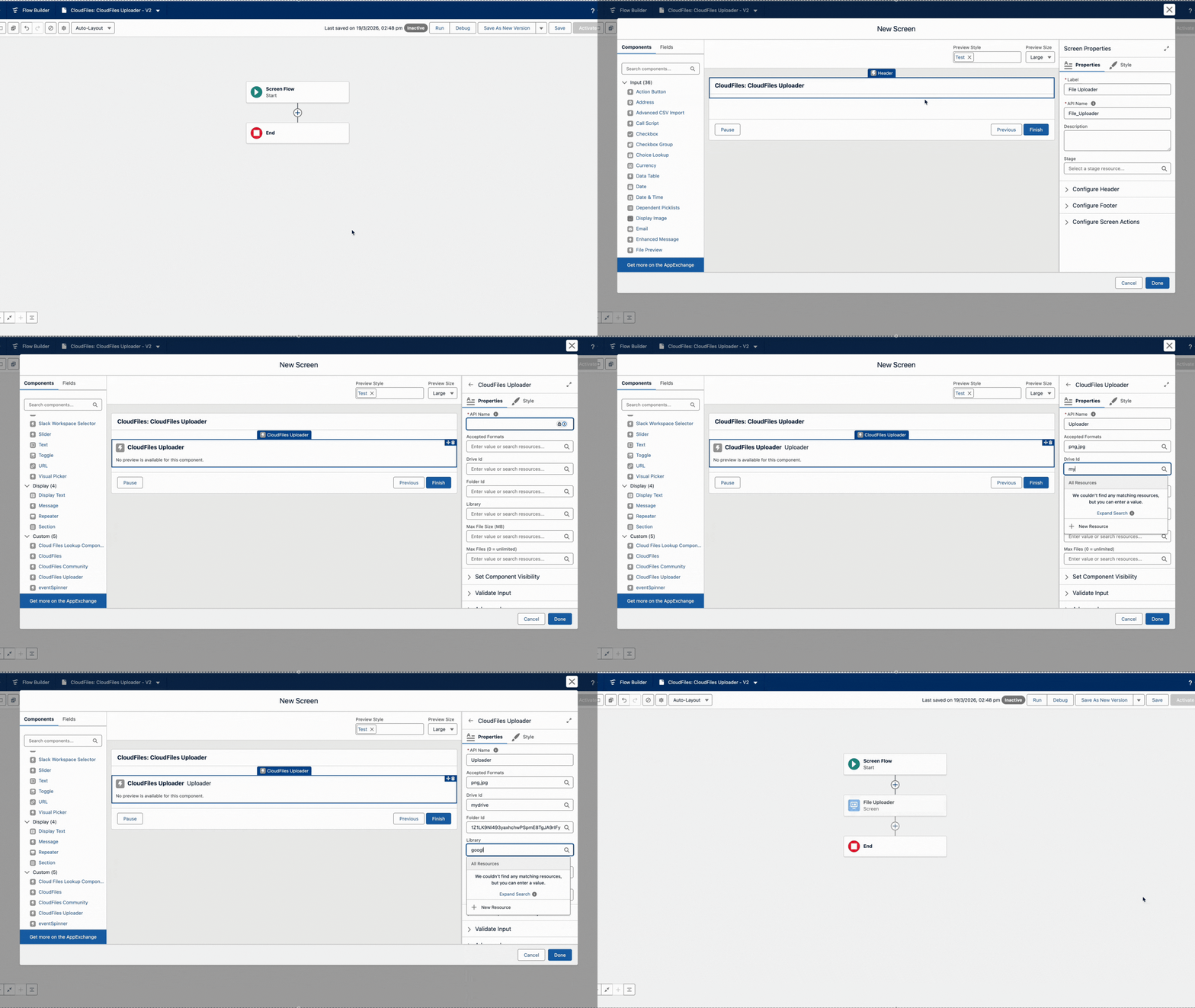
Add a Screen element to the flow. Inside the screen, search for CloudFiles Uploader, then drag and drop the component onto the screen.
Configure the component with the following values:
- Accepted Formats – Enter the file formats that users are allowed to upload, for example jpg, pdf, png. This is an optional parameter.
- Drive Id – Enter the ID of the drive where the destination is located.
- Folder Id – Enter the ID of the folder in the external storage where you want to upload the files.
- Library – Enter the name of your external library.
- Max File Size (MB) - Enter the maximum file size, in MB, that users are allowed to upload.
- Max Files (0 = unlimited) - Enter the maximum number of files users can upload. Use 0 to allow unlimited uploads.
This configuration allows the component to upload files to the specified location in your external storage.
2. Save and Activate the Flow
Once the flow configuration is complete, save the flow and activate it.
Make sure all required inputs are configured correctly so the component can upload files to the intended external storage location.
3. Place the Flow on a Record Page
Go to the record page of the relevant object, or the relevant Lightning page where you want to embed the Screen Flow, click the Gear icon, and then select Edit Page. From the components panel, search for Flow, then drag and drop it into the desired location on the page. Next, select the flow that you created so it is displayed on the page. Once you have finished, save and activate the page. The Screen Flow with the CloudFiles Uploader is then available on the record page or Lightning page.
Result
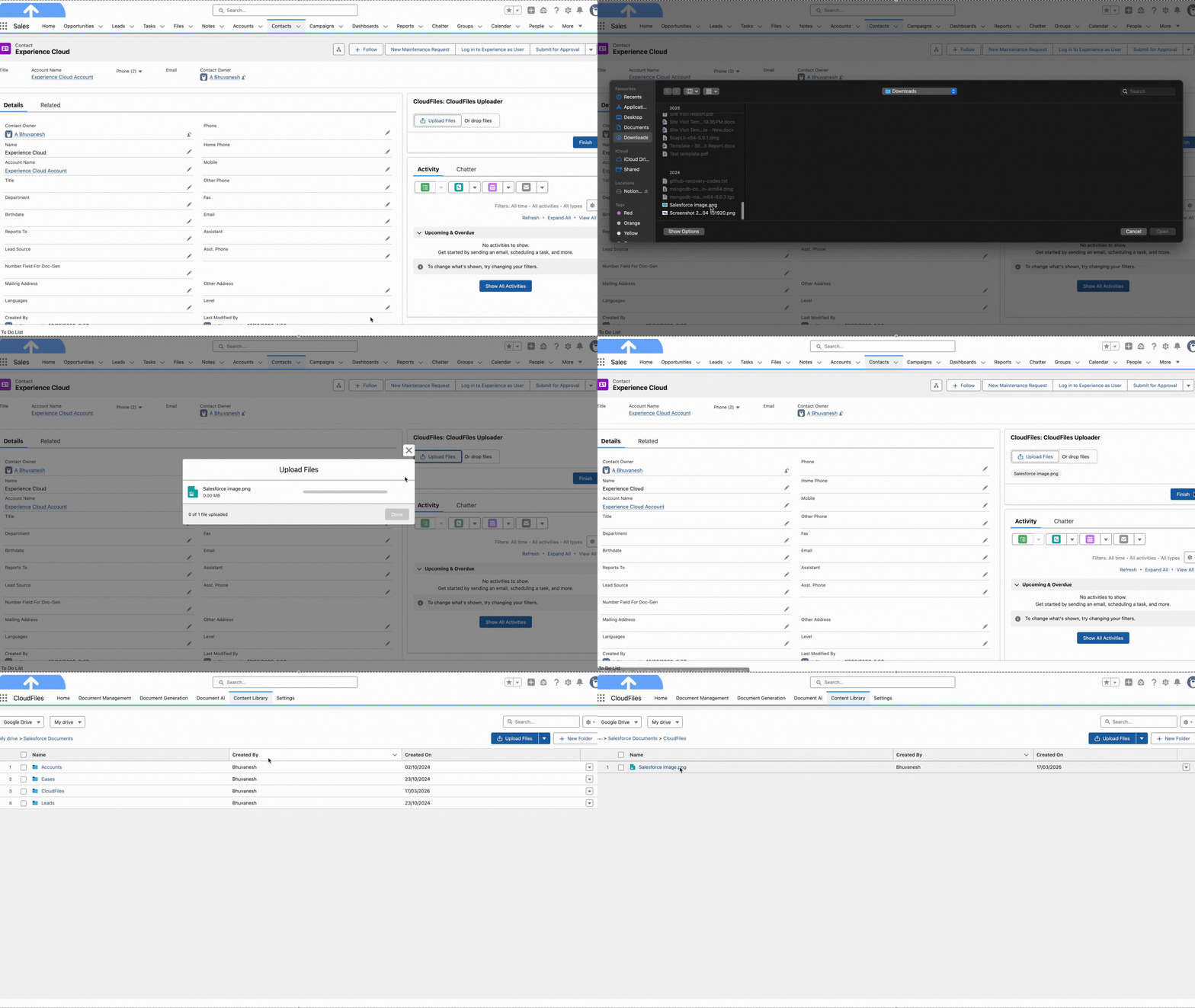
This is how the CloudFiles Uploader appears inside the Screen Flow. Users can upload files directly to the configured external storage location from the flow.