Introduction
The CloudFiles: Lock Document flow action password-protects a PDF from a Salesforce flow and saves the protected copy. The original file is left as it was.
Use it to protect a document before it goes out, for example a contract or a statement that is about to be emailed or shared with a client. The PDF can be a Salesforce File or a file in connected external storage.
What this action does
The action reads the PDF in Source, protects it with AES-256 encryption using the passwords and permissions you set, and saves the result as a new file. It runs synchronously, so its outputs are available to the next element in the flow.
- Editor Password is required. Whoever opens the PDF with it can do anything with the file. Without it, nobody can edit the PDF, comment on it or rearrange its pages.
- View Password is optional. When set, it is needed to open the PDF at all.
- Allow Printing and Allow Form Filling decide what people without the Editor Password can still do.
If the source PDF is already protected, the copy gets only the protection you set here. The source PDF's old passwords and restrictions do not carry over.
This action makes an external callout, so a record-triggered flow cannot run it in a path that runs immediately. Add a Run Asynchronously path to the flow and place the action there.
Input Parameters
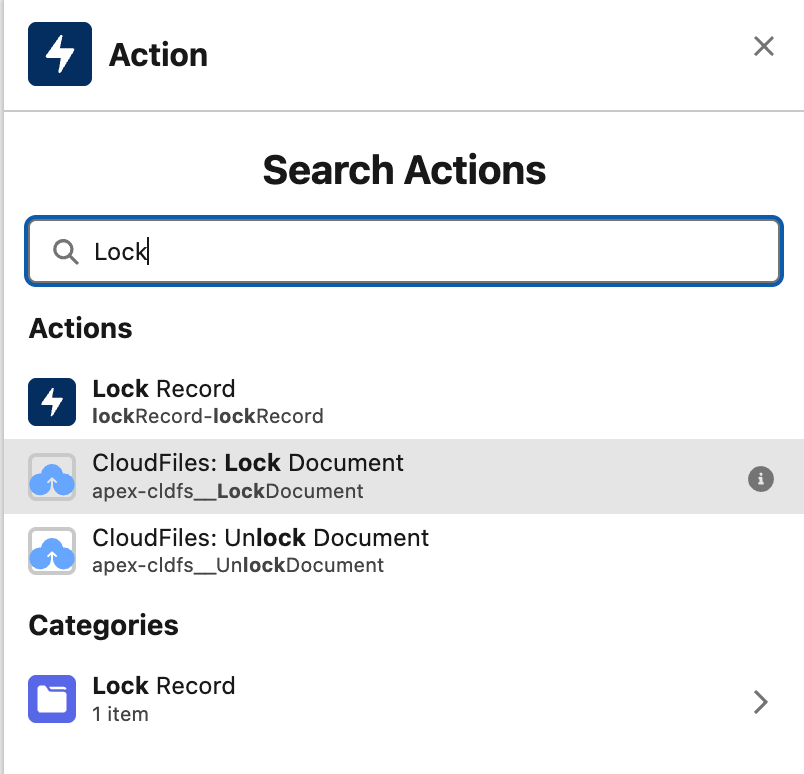
In Flow Builder, add an Action element, search for “CloudFiles: Lock Document” in the CloudFiles category, and select it. Then configure the inputs below.
| Parameter | Type | Description |
|---|---|---|
| Source | cldfs__Resource | The PDF to lock. |
| Editor Password | Text | The password that lifts every restriction. |
| View Password (Optional) | Text | The password needed to open the PDF. |
| Current Password (Optional) | Text | The password that opens the Source, when it already has one. |
| Allow Printing (Optional) | Boolean | Lets people without the Editor Password print the PDF. |
| Allow Form Filling (Optional) | Boolean | Lets people without the Editor Password fill in its form fields. |
| Destination (Optional) | cldfs__Resource | Where to save the locked copy. Empty saves it next to the Source. |
| File Name (Optional) | Text | The name of the locked copy. Empty keeps the Source's name. |
| Context (Optional) | Text | Any text, passed back in the Document Locked event and in the Error Event for a failure. |
Source
The PDF to lock, as an Apex-defined variable of class cldfs__Resource. Create the variable in the Toolbox (New Resource, Resource Type Variable, Data Type Apex-Defined, Apex Class cldfs__Resource), set its values in an Assignment element, and pass it to Source. Parameter names are case sensitive.
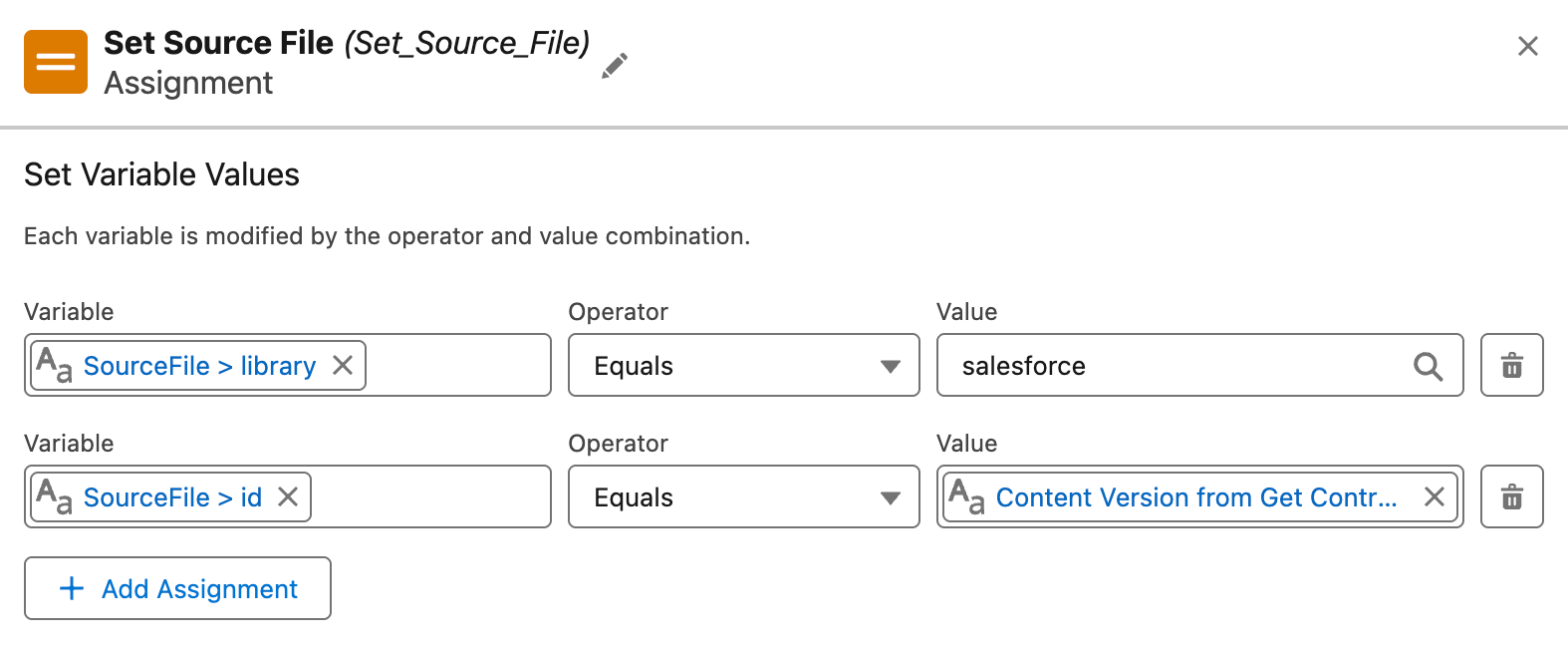
To lock a Salesforce File:
- library -
salesforce - id - The ContentDocumentId of the file.
To lock a file in external storage:
- library - The storage type, for example
sharepointorgoogle. - driveId - The id of the drive the file is in.
- id - The id of the file.
Editor Password
The password that lifts every restriction. Whoever opens the PDF with it can print it, fill it in and change it. This input is needed: when it is empty, the action returns INVALID_INPUT.
Passwords are used exactly as given, spaces included.
View Password (Optional)
The password needed to open the PDF. Leave it empty to let anyone open the PDF. The restrictions still apply either way.
Current Password (Optional)
Only for a Source that already needs a password to open: enter that password so the action can read the file. For a Source that opens without a password, this input is ignored.
If the Source needs a password and Current Password is empty, the action returns PASSWORD_REQUIRED. If the password is wrong, it returns WRONG_PASSWORD.
Allow Printing and Allow Form Filling (Optional)
What people who open the PDF without the Editor Password can still do. Set each to True to allow it. Empty means not allowed. Editing the content, adding comments and rearranging pages always need the Editor Password.
Destination (Optional)
Where the locked copy is saved, as a cldfs__Resource.
- Empty - The copy is saved next to the Source. A Salesforce File's copy is linked to the same records as the original. A file in external storage is saved in the same folder.
- A folder or a record - The copy is saved there. For Salesforce, set library to
salesforceand id to the Id of the record the copy should be attached to. For external storage, set library, driveId and the folder's id. - A file - Set type to
fileas well, and that file is overwritten with the locked copy. A Salesforce File gets a new version and keeps its links. Leave File Name empty in this case, or the action returnsINVALID_INPUT.
To lock the original file itself rather than save a copy, pass the Source again as the Destination with type set to file.
A Salesforce File that is not linked to any record cannot be locked with an empty Destination, because nobody else could see the copy. The action returns INVALID_INPUT. Set a Destination for these files.
File Name (Optional)
The name of the locked copy. Leave it empty to keep the Source's name. A name without an extension gets .pdf added.
If the folder already holds a file with that name, the copy is either saved under a new name, with Renamed On Conflict set to True, or not saved, with Error Code set to NAME_CONFLICT. Which one happens depends on the storage and its file conflict setting in CloudFiles. Salesforce Files can hold two files with the same name, so there the copy is saved alongside the existing file.
Context (Optional)
Any text you want back in the Document Locked event, and in the Error Event when a PDF fails, for example the Id of the record that started the flow. A flow that listens for CloudFiles Events can use it to tell which run the event came from. Read it with Get Event Details.
Output Parameters
The action returns these values to the flow:
- File (cldfs__Resource) - The saved copy: its id (the ContentDocumentId for a Salesforce File), name, library and driveId.
- File URL (Text) - A link to the saved copy. For a Salesforce File it opens the file's page in Lightning.
- Was Protected (Boolean) - Whether the Source was already protected.
- Renamed On Conflict (Boolean) -
Truewhen the copy was saved under a different name because the name was taken. - Error Code (Text) - Empty when the copy was saved. Otherwise one of the codes below.
- Error Message (Text) - What went wrong, starting with the error code.
A failed file does not stop the flow. Add a Decision after the action that checks Error Code: when it is empty the copy was saved, and when it is not, File and File URL are empty.
| Error Code | When it happens |
|---|---|
| INVALID_INPUT | Source or Editor Password is empty, the Source is a folder, File Name is set with a file Destination, or a Salesforce File with an empty Destination is not linked to any record. |
| PASSWORD_REQUIRED | The Source needs a password to open and Current Password is empty. |
| WRONG_PASSWORD | Current Password does not open the Source. |
| NOT_A_PDF | The Source is not a valid PDF. |
| UNSUPPORTED_ENCRYPTION | The Source is protected in a way that cannot be read, such as with a certificate instead of a password. |
| FILE_TOO_LARGE | The Source is larger than 450 MB. |
| FILE_NOT_FOUND | The Source or the Destination does not exist. |
| ACCESS_DENIED | The integration user cannot reach the file, the folder or the storage connection. |
| NAME_CONFLICT | A file with the same name already exists in the folder and the copy could not be renamed. |
| STORAGE_WRITE_FAILED | The locked copy could not be saved. Safe to retry. |
| INTERNAL_ERROR | Something unexpected went wrong. Safe to retry. |
Each saved copy also raises a Document Locked event carrying File, Was Protected and your Context. A failure raises an Error Event with ErrorEventType document-locked, carrying the Error Code. Both can be read with Get Event Details.
CloudFiles never writes the passwords to its logs, error messages or events. A password typed directly into the action is saved in the flow, though, so anyone who can open the flow can read it.
See it in action
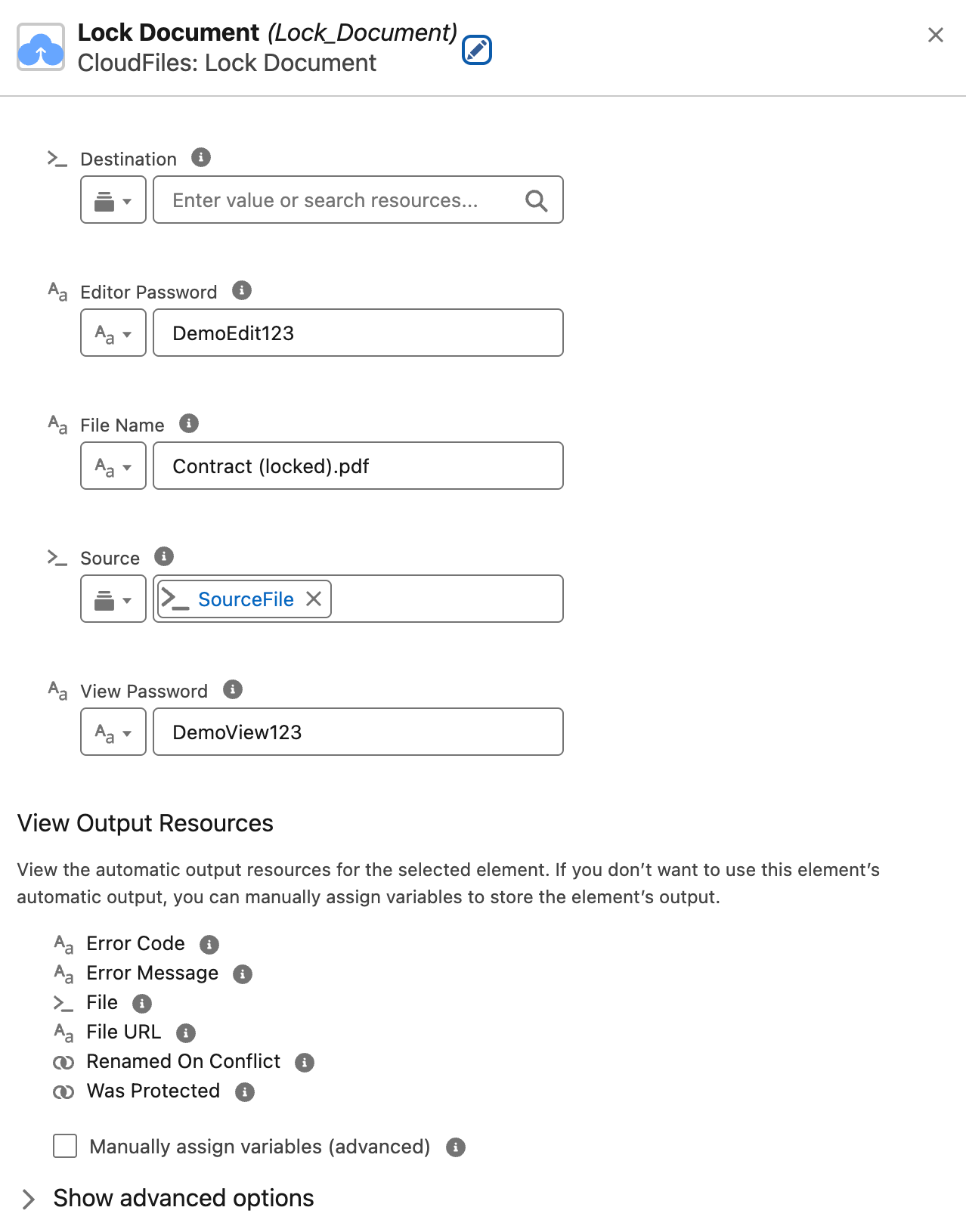
Here is a flow that locks a contract attached to an Account, so it can only be opened with a View Password and can be printed but not changed.
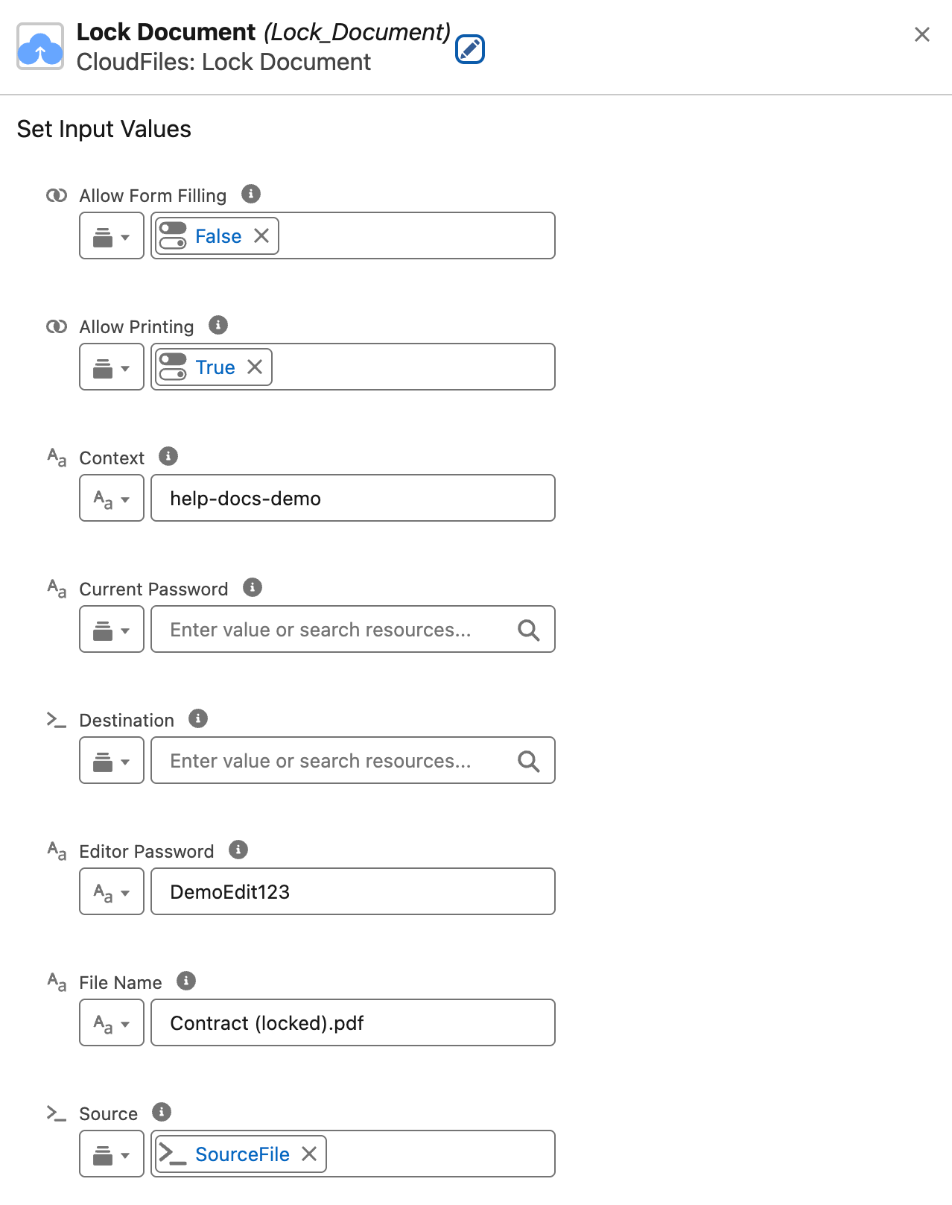
ContentDocumentLink, filtered on LinkedEntityId Equals the Account Id, returns the contract's ContentDocumentId.cldfs__Resource variable's library to salesforce and its id to the ContentDocumentId.True and File Name set to Contract (locked).pdf. Destination is left empty, so the copy is attached to the same Account.The locked copy appears on the Account next to the original.
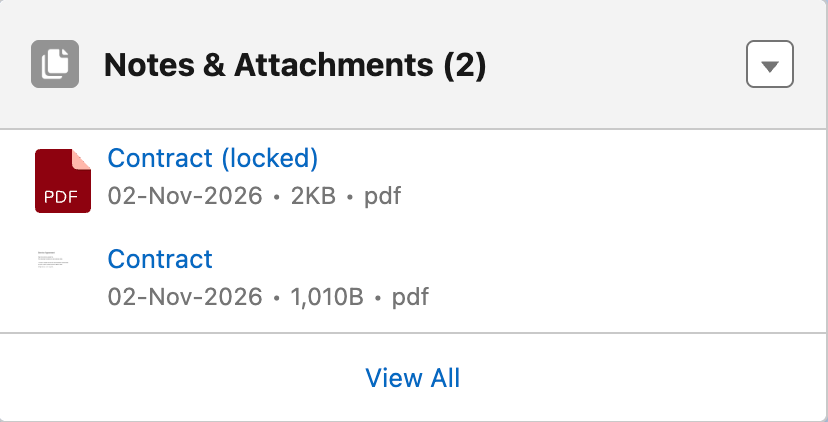
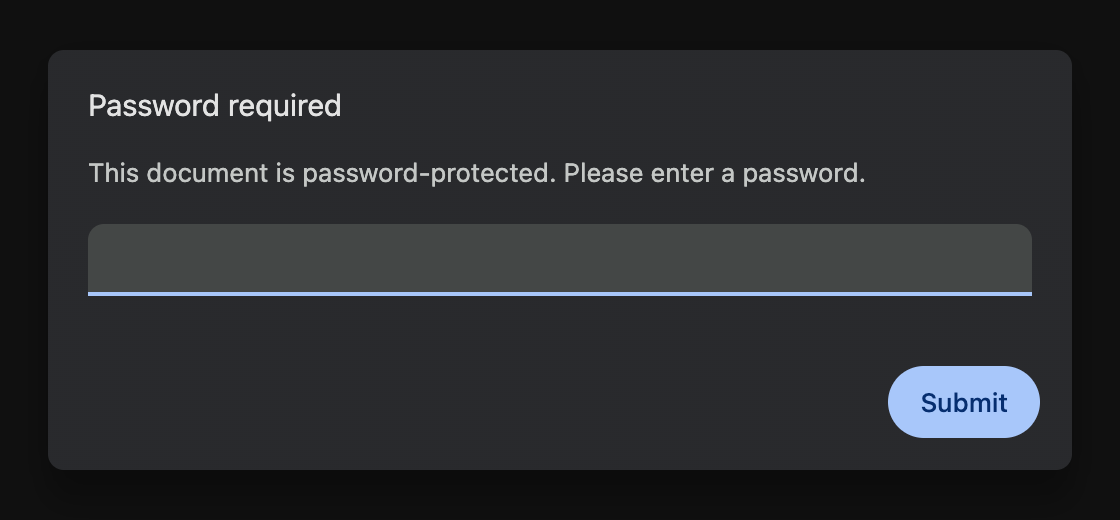
Opening the locked copy asks for the View Password.