Introduction
In this test drive, you will explore how CloudFiles's Document Mapper feature integrated with Salesforce List View Buttons can automatically process business documents — such as Purchase Orders, Invoices, Quotes, or any other structured document — and intelligently extract key information and create relevant records.
The setup will:
- Automatically identify the type of document (PO, Invoice, Quote, etc.)
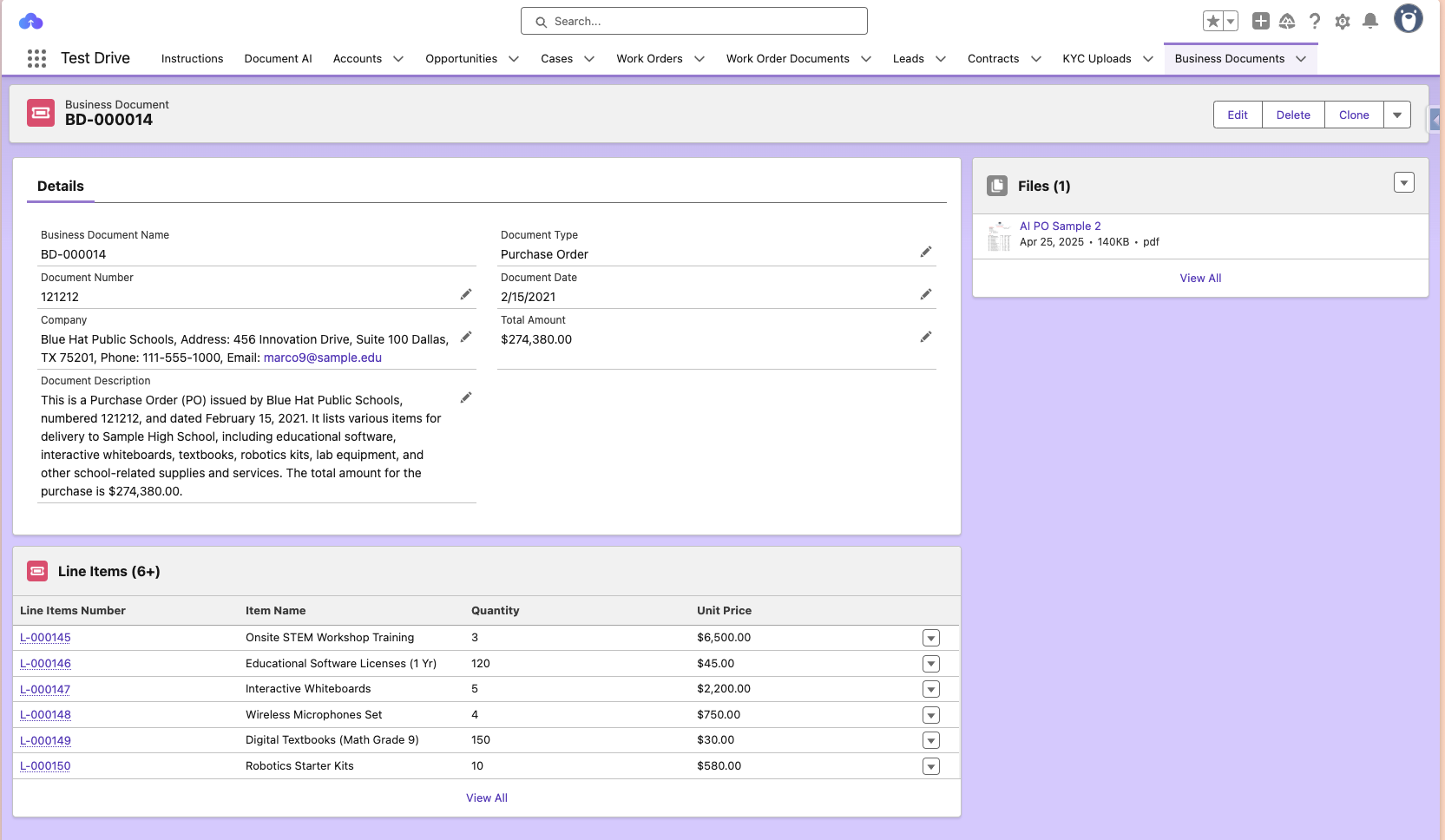
- Extract important fields like Document Number, Document Date, Total Amount, Company Name, and Document Description
- If the document contains Line Items, it will parse them and map child Line Item records linked to the parent Business Document record
- Present an AI-assisted preview screen where users can review and edit extracted fields before saving
- Save the mapped data into Salesforce once confirmed by the user
This entire experience is powered by CloudFiles Document Mapper — a no-code, AI-driven engine for Salesforce that brings automation, flexibility, and accuracy to document-based data entry.
Instructions
The test drive runs in a Salesforce org that already has CloudFiles installed, so there is nothing to set up before you start.
Follow the steps below to test the setup:
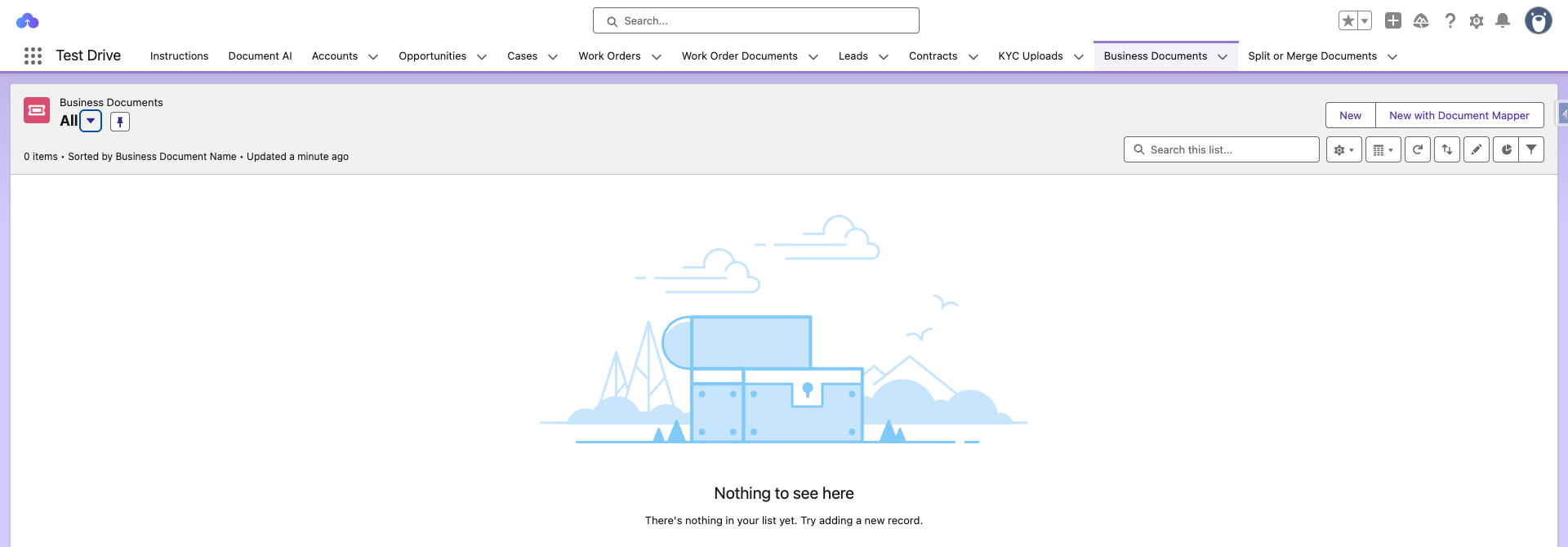
- Go to the Business Documents tab and click on New with Document Mapper. This opens the Document Mapper interface.
- Upload a document (Purchase Order, Invoice, Quote, or other) in any format (PDF, DOCX, or image).
- Wait a few seconds while CloudFiles AI processes the document and maps the Salesforce Fields.
- Check AI Output in the preview window
- CloudFiles AI will classify the document and update the Document Type field to one of: Purchase Order, Invoice, Quote, or Other.
- Other fields such as Document Number, Document Date, Total Amount, Company and Document Decsription will also be mapped.
- If the document includes line items (e.g., from a PO or Invoice), check the Related Tab to view Line Item records with Item Name, Quantity, Unit Price, and Line Amount mappings.
- Make any additional edits manually (if needed) and click Save Records.
A Business Document record will be created — along with related Line Item records if applicable.
Implementation
This demo is powered by CloudFiles Document Mapper a configuration-driven, no‑code setup to extract data from uploaded documents and map it to Salesforce.
- AI extracts fields and records based on your Document Mapper configuration
- A preview screen lets users review and edit extracted values
- On save, Salesforce records (parent and related) are created or updated instantly
Simple. Configurable. AI-powered data entry for Salesforce.
For more information, please refer to Document Mapper.
Beyond This Test Drive
This demo showcases a straightforward use case — but CloudFiles' Document Mapper can be used across complex business workflows and departments.
Here are a few advanced applications:
Contract Intelligence & Summarization
Summarize contracts and extract key obligations, renewal dates, or termination clauses.
Example: When a new vendor contract is uploaded, Salesforce fields are auto-updated with renewal reminders and risk tags, and routed for approval.
Complex Table & Form Parsing
Handle semi-structured forms such as insurance claims, compliance reports, or regulatory filings.
Example: Multi-page compliance reports are parsed, and each section is stored as structured data linked to the appropriate Salesforce object.
Document Type Routing & Workflow Triggers
Use document type and extracted fields to direct files into the correct process.
Example: Invoices are routed to Finance, contracts to Legal, and POs to Procurement — all automatically, based on classification and metadata.
Validate Document Calculations
Go beyond extraction by checking math and consistency inside uploaded documents.
Example: AI verifies that Invoice Total = Σ(Line Item Amounts + Taxes). If there’s a mismatch, Salesforce can automatically flag the document fields for review.
Cross-Check Against Salesforce Data
Compare extracted fields with existing Salesforce records to detect discrepancies.
Example: A vendor’s submitted PO is validated against the Opportunity or Quote in Salesforce — if item prices, totals, or dates don’t align, a discrepancy alert is generated.
Read Related Documents Together
Combine several related files into one document set so that a single run fills one record from all of them.
Example: An applicant’s form, proof of ID and supporting statement are uploaded as one set, and Document Mapper creates one application record with fields drawn from all three.
For more advanced configurations, tutorials, and ideas, visit the Document AI Tutorials.
Let CloudFiles Document AI + Salesforce work together to make your document processing workflows intelligent, fast, and scalable.