User Permissions
The CloudFiles Document AI | OCR, Text Extraction, Classification installed package includes custom permissions to control access to various features. Additionally, we provide default permission sets based on commonly used permission combinations.
CloudFiles Custom Permissions
CloudFiles offers granular permissions to manage access and functionality. Below is a list of these permissions:
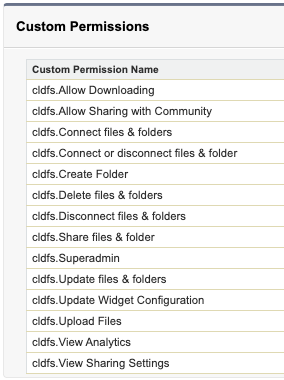
Superadmin - This permission grants users full access to manage all aspects of CloudFiles Document AI. Only users with this permission can access the AI Playground feature.
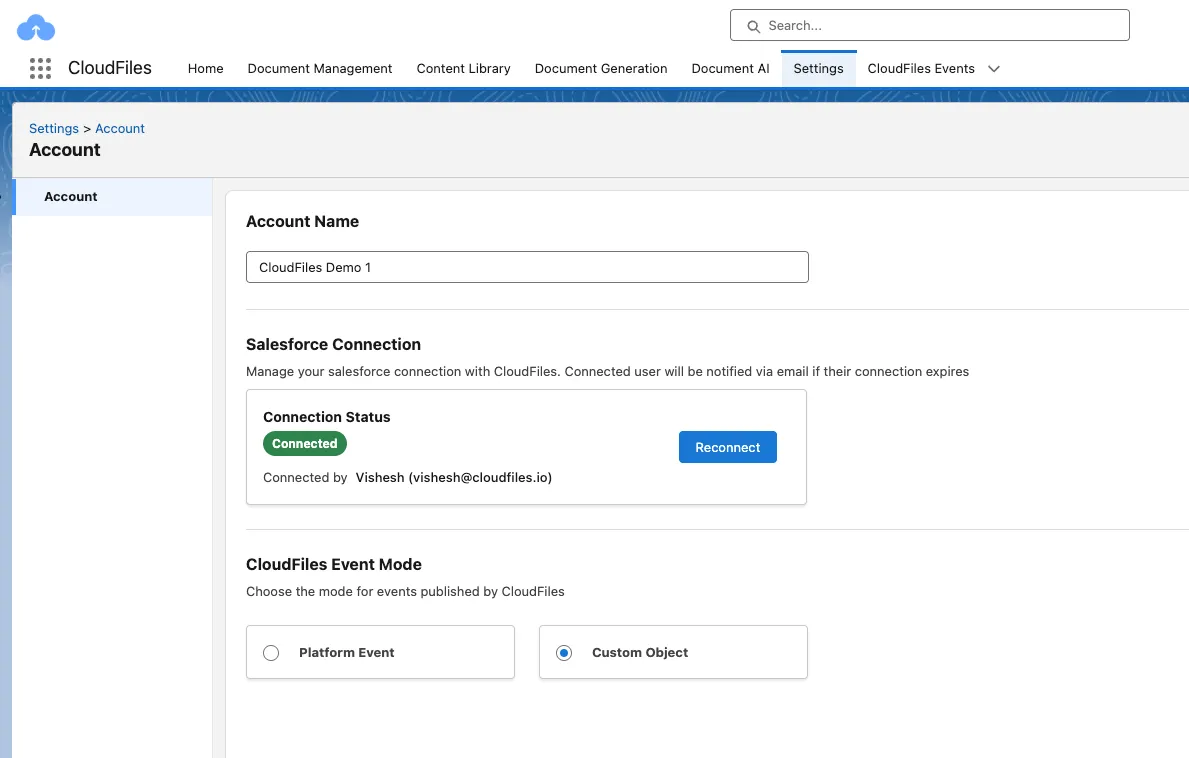
License Management
Once the necessary permissions are assigned to Salesforce users, any interaction with the CloudFiles Lightning App will create a corresponding CloudFiles User.
Viewing CloudFiles Users
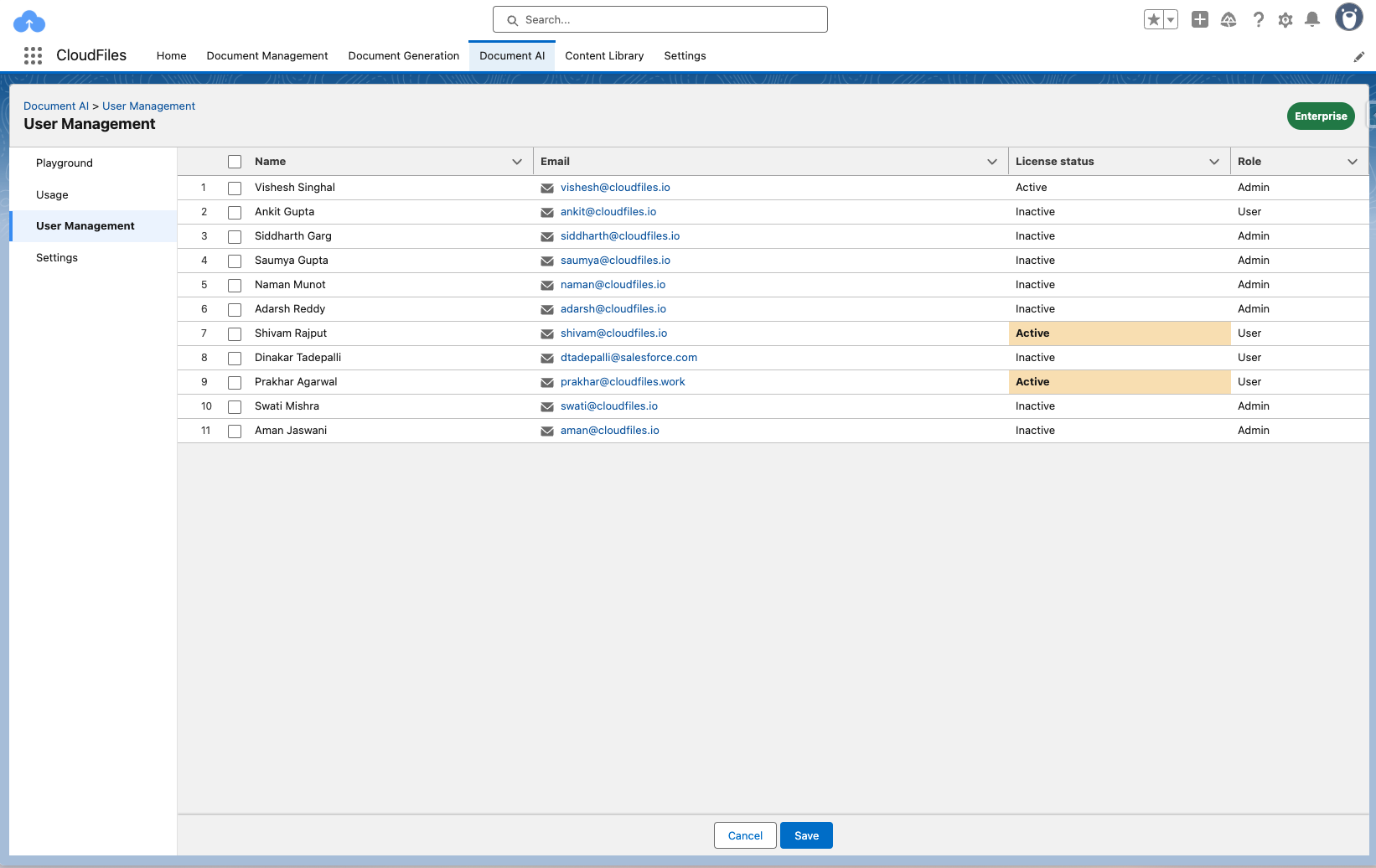
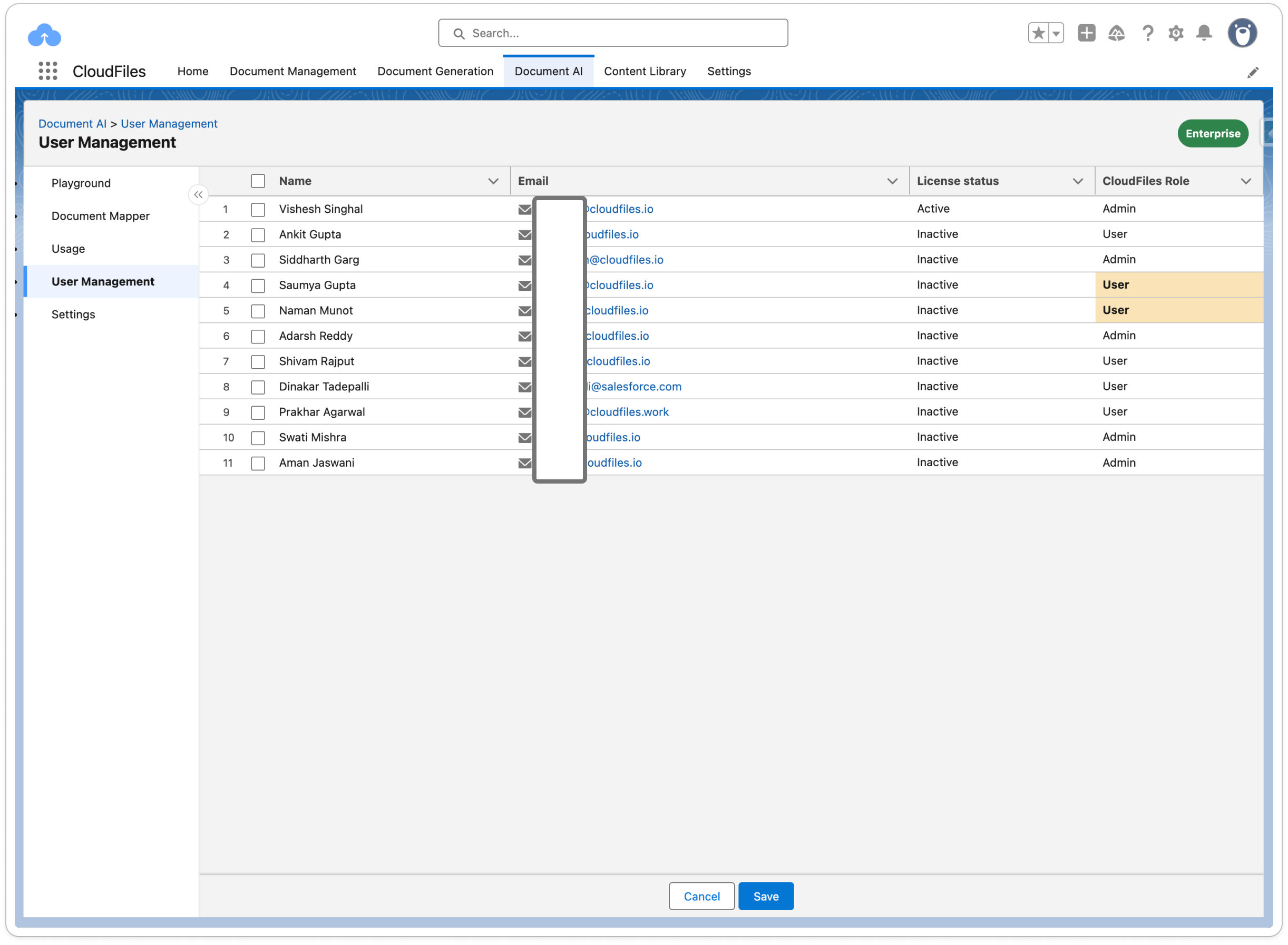
You can view and manage CloudFiles users in the User Management page under the Document AI tab of the CloudFiles App.
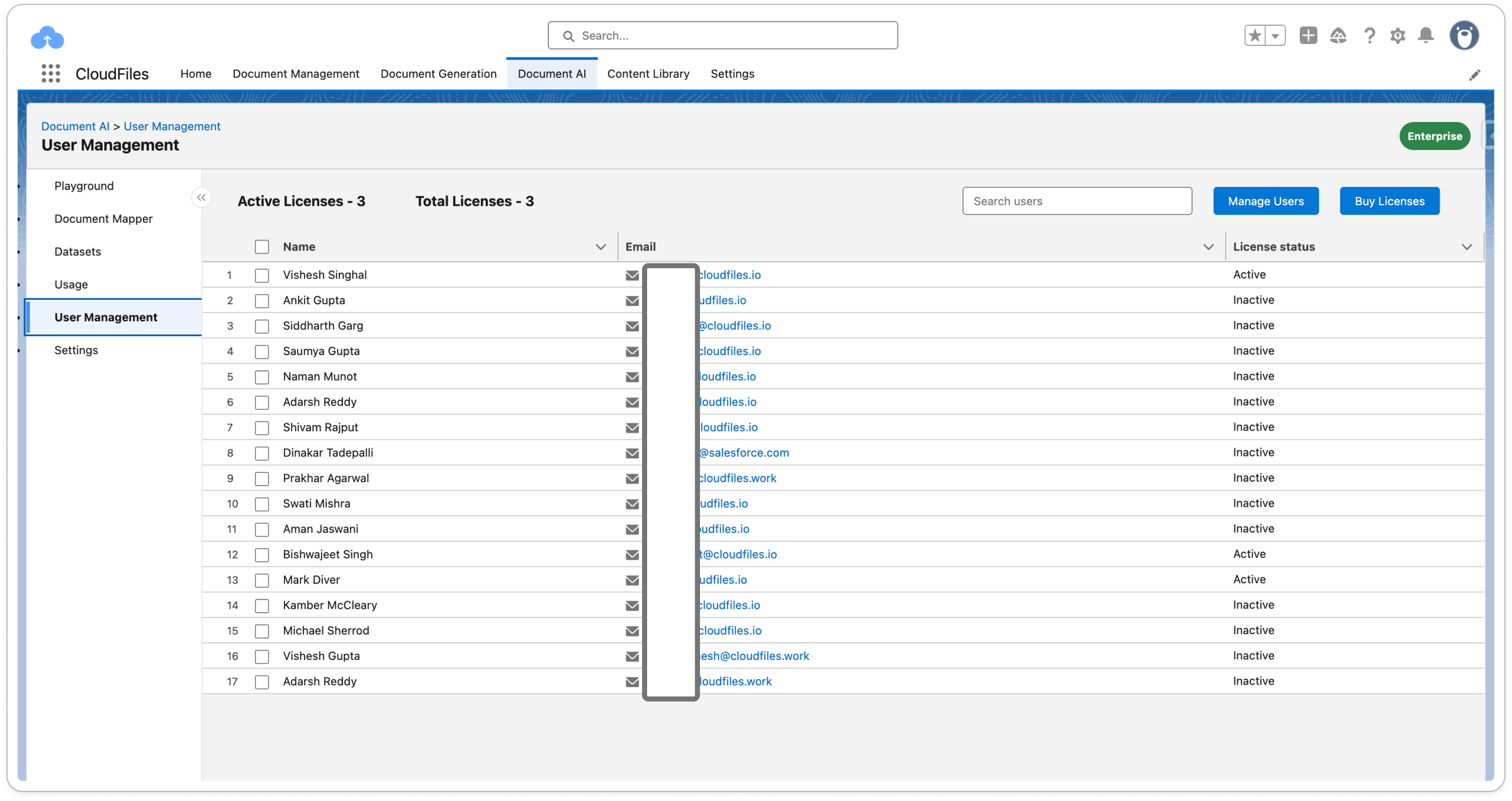
A Salesforce user must have an "Active" CloudFiles User status to access CloudFiles functionalities like the AI Playground.
To activate or deactivate a user:
- Click the pencil (edit) icon next to the License Status column.
- Select Active or Inactive from the dropdown.
- Click Save to apply the changes.
Managing Users
Clicking Manage Users on the User Management page opens a detailed view of all Salesforce users in your org. This view includes additional columns: Profile and Role, and supports filtering by both columns to help you find and manage users more efficiently.
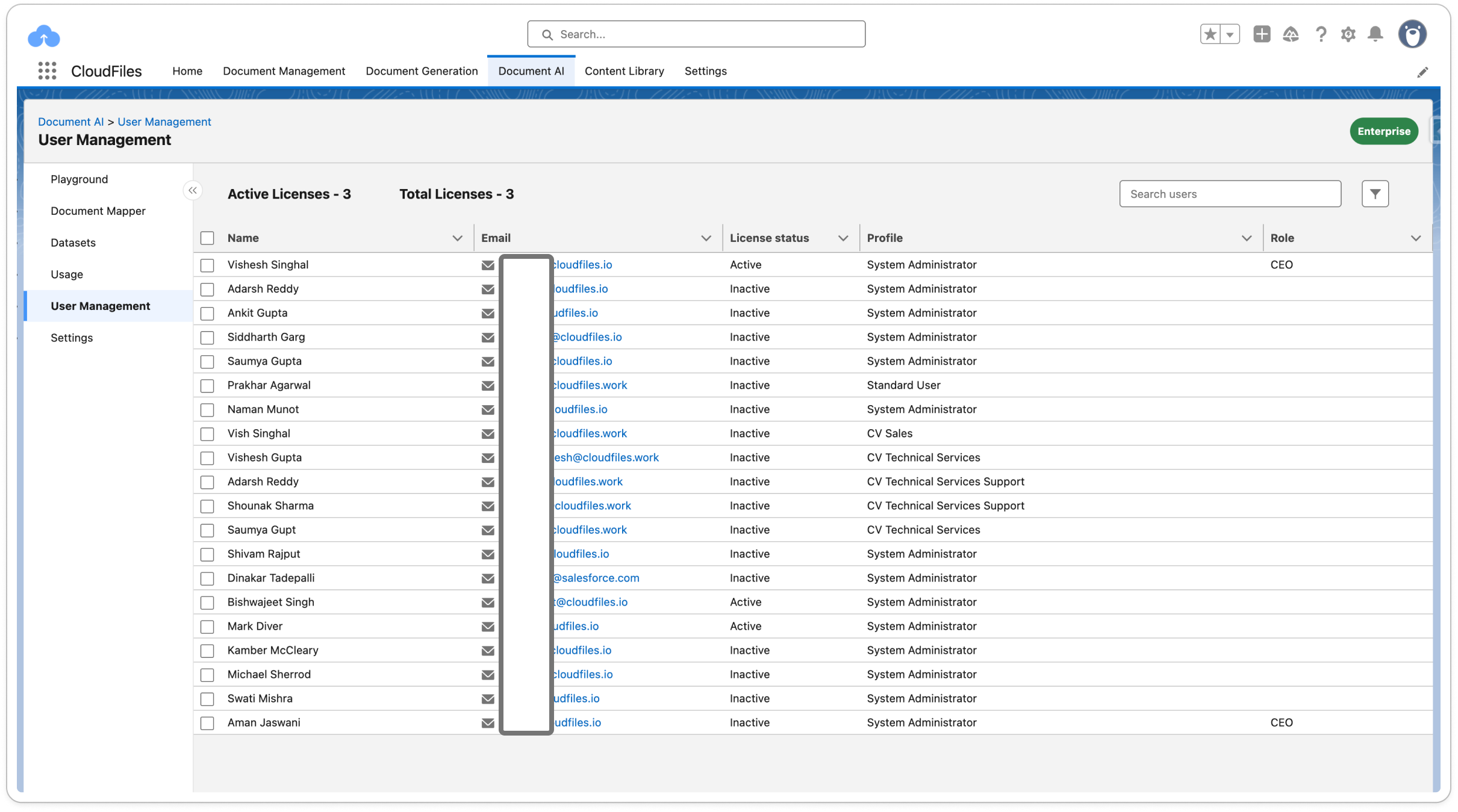
To activate or deactivate a user, locate them in the list and toggle their license status accordingly.
License Limitations
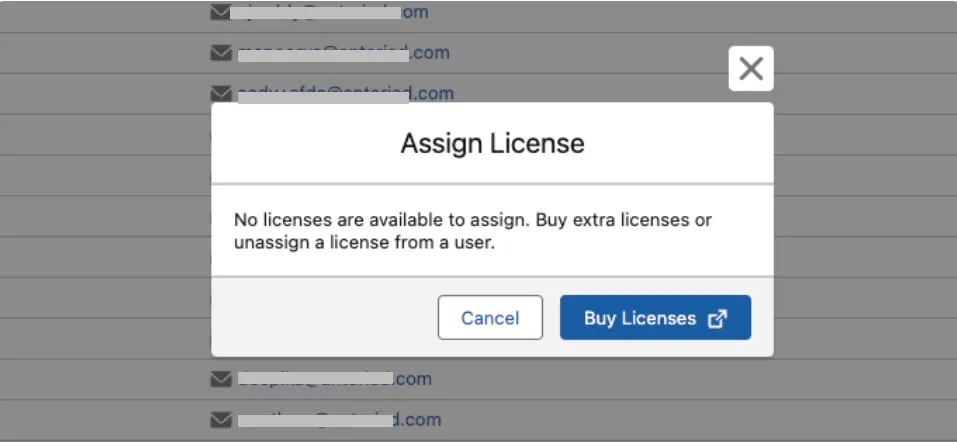
The number of active CloudFiles users cannot exceed the total licenses allocated to your Salesforce org. If you try to activate more users than your license count allows, you will be prompted to purchase additional licenses.
Buying Licenses
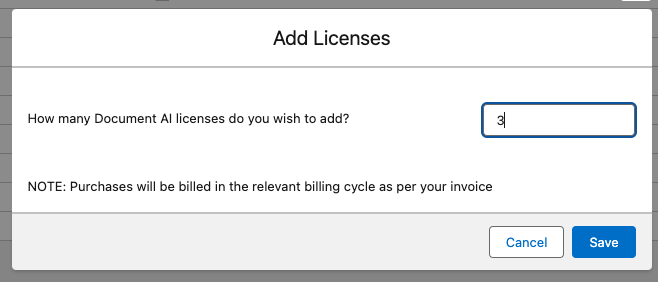
You can add CloudFiles product licenses directly from the User Management page by clicking the Buy Licenses button in the top right. Any new licenses are immediately available for use and will be reflected in your billing as per your invoice. This lets you scale usage instantly without waiting for manual provisioning.