Use the Configuration in Salesforce Flow
Document Mapper configurations can also be executed from Salesforce Flow using the Document Mapper
Open the Salesforce Flow and add the Document Mapper Flow Action.
Provide the Document Mapper Configuration Id and configure the required file inputs. Save and activate the Flow.
When the Flow runs, Document Mapper processes the document using the selected configuration and returns the extracted values to the Flow. These values can then be used in subsequent Flow elements for automation, record creation, approvals, notifications, or integrations.
Before configuring buttons, determine the Visualforce domain used by Document Mapper.
- Navigate to Setup → Visualforce Pages.
- Open documentMapperAction.
- Click Preview.
- Copy the domain from the URL.
The domain will be in the following format:
https://yourdomain.vf.force.com
Setup List View Button To Create Record
To allow users to trigger Document Mapper directly from a Salesforce list view, create a custom List View Button on the object where the action should be available.
- In Salesforce, go to Setup → Object Manager
- Select the target object (for example, the Business Document object)
- Open Buttons, Links, and Actions and create a new button
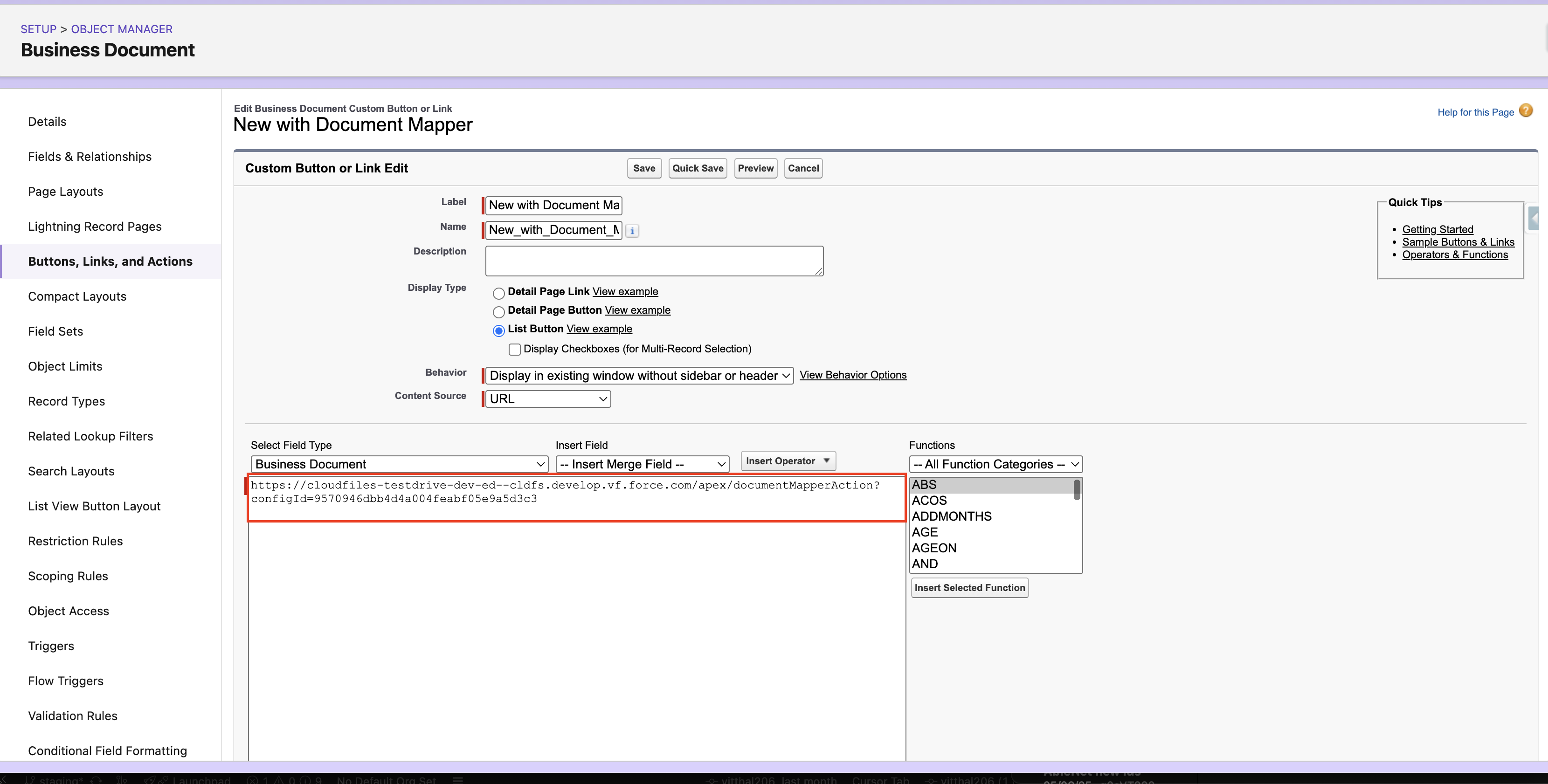
- Configure it as a List Button
- Set Content Source to URL
- Choose to display it in the existing window (optionally without the sidebar or header, based on your org preference)
- Set the button URL using the following template by replacing
with your domain (obtained using the Visualforce Pages method above) and {your_config_id} with the Document Mapper configuration ID:
https://<yourdomain>.vf.force.com/apex/documentMapperAction?configId={your_config_id}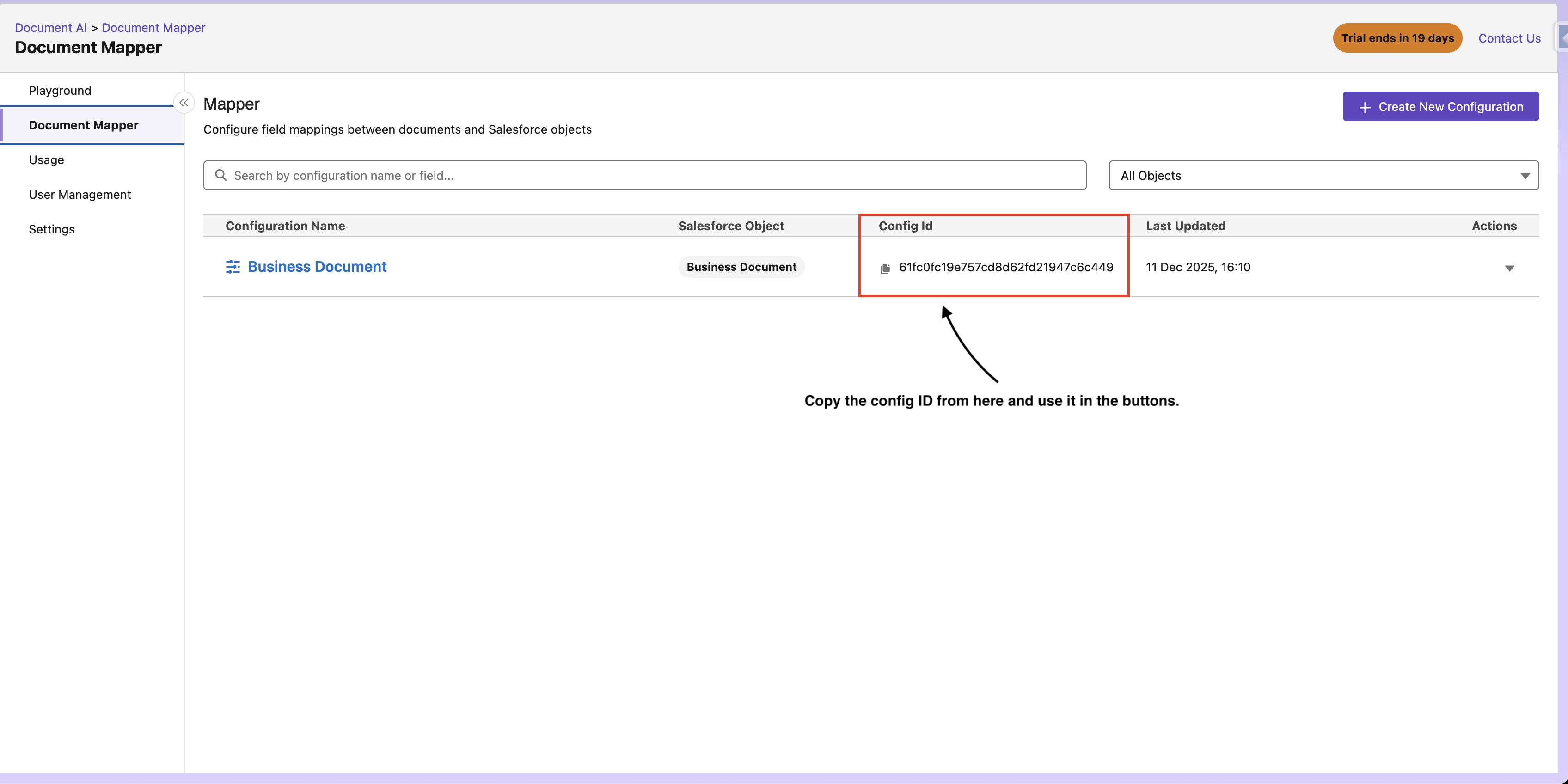
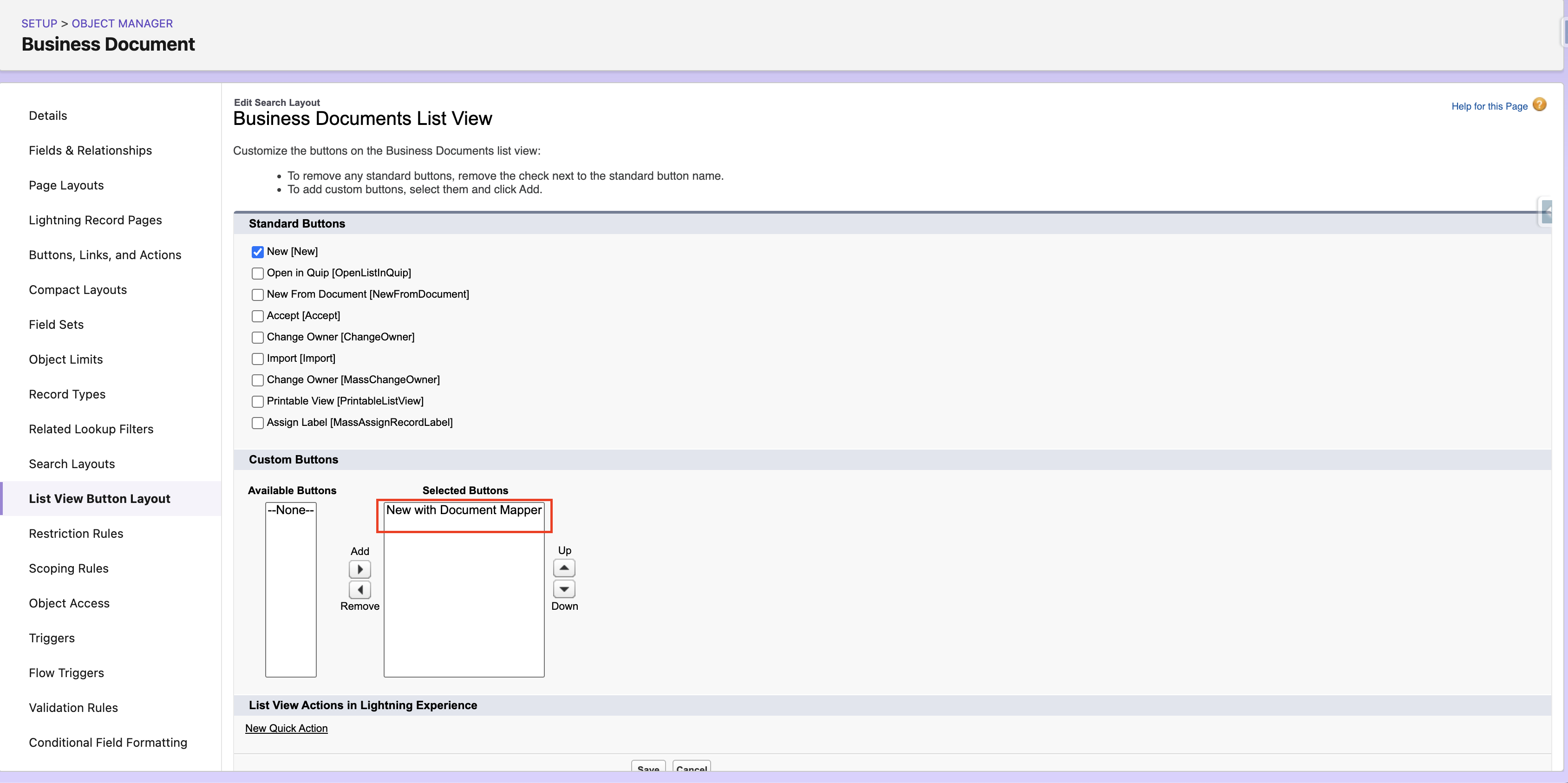
After saving the button, add it to the list view by editing the Search Layouts section for that object and moving the new button into the list of visible buttons. Once this setup is complete, users will be able to select records from a list view, click the new button, upload their document, and run the Document Mapper process seamlessly—without having to open or understand the backend configuration.
Setup Record Detail Page Button To Update Record
To allow users to launch Document Mapper from an individual record, create a Detail Page Button on the target object and add it to the page layout.
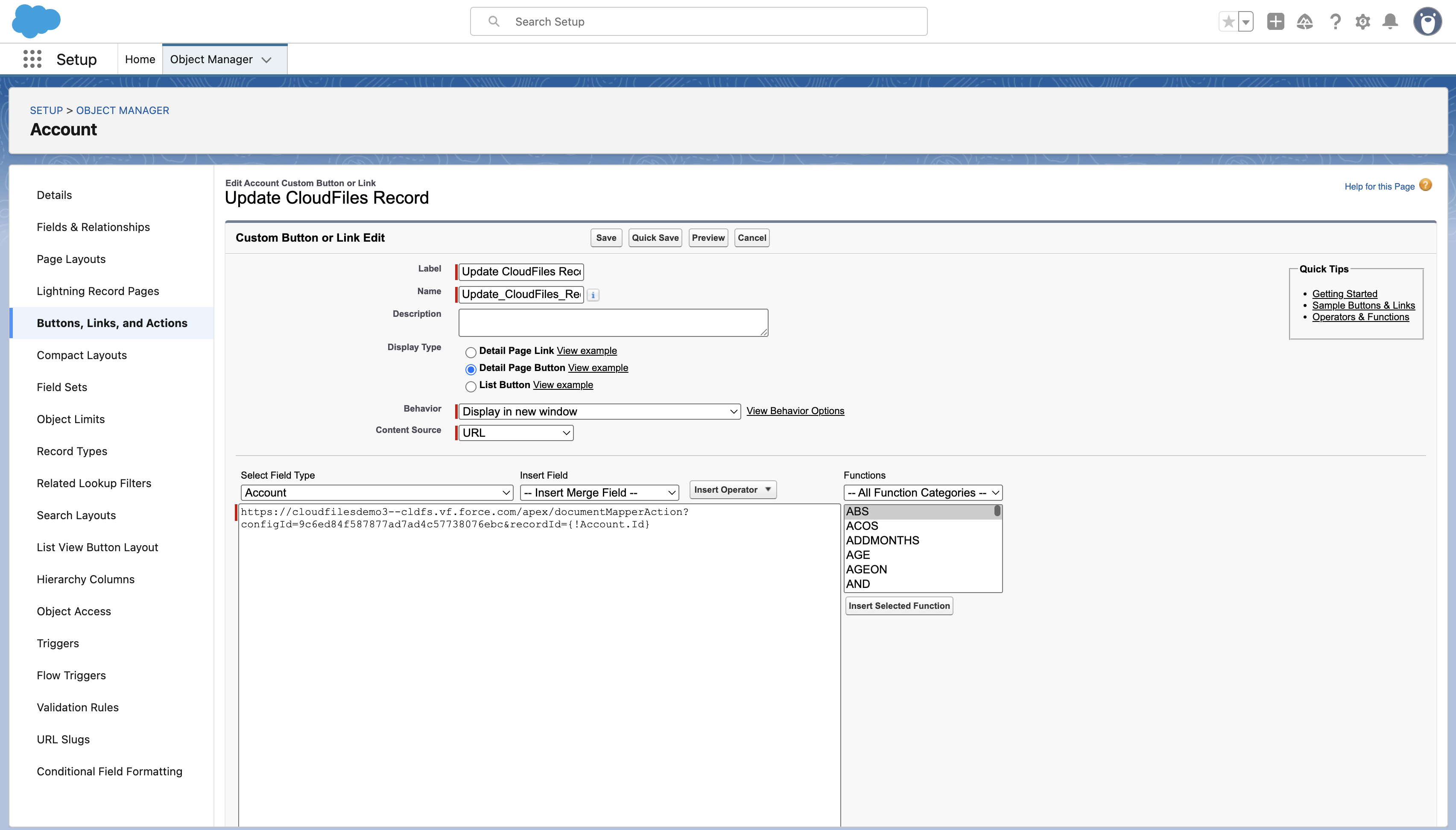
- Navigate to Buttons, Links, and Actions → New Button or Link on the required object.
- Set Display Type to Detail Page Button and Content Source to URL.
- Paste the Document Mapper URL in the button URL field using the format below (replace {your_config_id} with your configuration ID): https://
.vf.force.com/apex/documentMapperAction?configId={your_config_id}&recordId={!Object.Id} - Click Save.
- Go to Page Layout, and add the button under Salesforce Lightning Experience Actions so it appears on the record detail page.