This action allows you to insert any field (standard or custom) retrieved from the Master Object, Record Variable, or Runtime Variable. To insert data from the following:
- Master Object: The source record selected at the start, containing all its fields.
- Record Variable: Holds a record and its field values, created by selecting an object type and setting conditions.
- Runtime Variable: Stores a value for reuse or modification, using field or constant values with an optional default.
Follow the steps below to insert a field:
- Select Insert Field from the Select Action drop-down menu.
- Choose the desired field from the drop-down menu.
- Master Object fields are listed under "Record" (Global Variables).
- Record Variables appear under "Variable".
- Runtime Variables and constants are listed under "Global Constants".
- Click Insert to place the field at the cursor's location in the work area. You can also copy and paste inserted fields as needed.
Formatting Options:
Text: You can choose to capitalize (first letter in uppercase), use lowercase, or uppercase for the text.
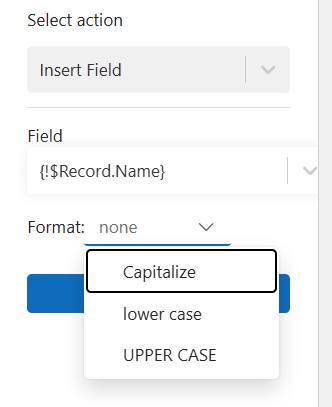
Font: All inserted fields can be formatted like regular text in Word, including changes to font, size, and style.
Date Formatting: You can format dates as Short (08/23/2024), Medium (Aug 23 2024), Long (August 23, 2024), or Full (Friday, August 23, 2024).
Number Formatting: Number, currency, and percent fields accept a format pattern that controls decimal places, separators, and any currency symbol. Enter the pattern in the Format box.
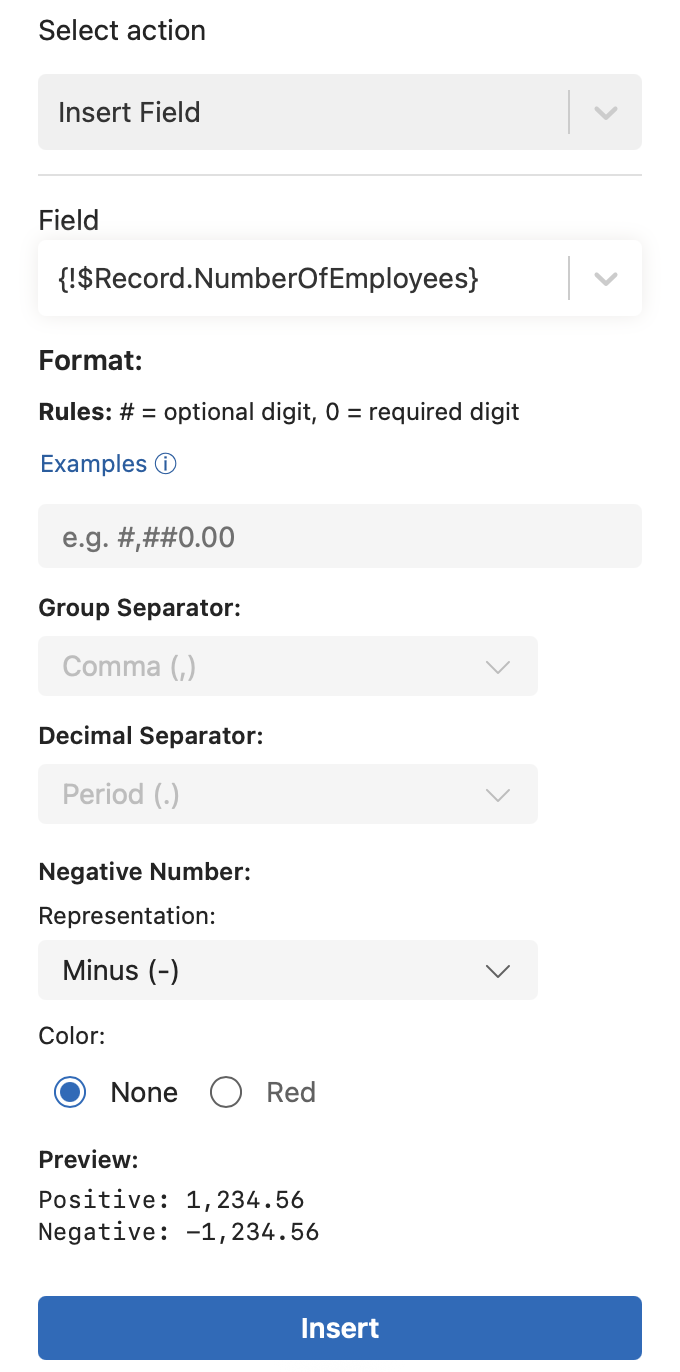
A pattern describes a shape, not an example value. Only four characters control the number:
| Character | What it does |
|---|---|
0 | Always shows a digit. Inserts a zero if the value has none. |
# | Shows a digit only if the value has one. |
, | Thousands separator. |
. | Decimal separator. |
Anything else you type, such as $, £, or GBP, is printed as-is around the number.
How decimals behave
Characters after the . set the maximum number of decimal places, and the value is rounded half-up to fit. 0 and # then decide whether each digit is shown.
.00always shows two decimals.9,503.1prints as9,503.10..##shows up to two decimals and drops trailing zeros.9,503.10prints as9,503.1, and10,000.00prints as10,000.
The same logic applies before the decimal point. With ###,###.##, a value of 0.89 prints as .89 because the leading zero is dropped. Ending the whole number part with 0, as in #,##0.00, always keeps at least one digit.
Recommended patterns
| Use case | Pattern | Value | Output |
|---|---|---|---|
| Currency | £#,##0.00 | 9503.11 | £9,503.11 |
| Currency | £#,##0.00 | 10000 | £10,000.00 |
| Whole numbers | #,##0 | 1234.6 | 1,235 |
Percent, field stores 0.1234 | 0.00% | 0.1234 | 12.34% |
Percent, field stores 12.5 | 0.00\% | 12.5 | 12.50% |
Use 0 for every digit you want guaranteed. For currency, £#,##0.00 is almost always the correct pattern.
A % placed after the digits multiplies the value by 100 before printing. Salesforce percent fields already store 12.5 rather than 0.125, so write the sign as \% to print it without multiplying.
Other separator styles
Always write the pattern with , for grouping and . for decimals. To print a different convention such as 1.234.567,89, set the Group Separator and Decimal Separator dropdowns below the Format box. These change the printed characters only. The pattern itself stays in standard notation.
Negative numbers
The Negative Number options below the separators control how negative values are printed.
| Option | Choice | Output for -1,234.56 |
|---|---|---|
| Representation | Minus (-) | -1,234.56 |
| Representation | Bracket ( ) | (1,234.56) |
| Color | None | Printed in the same color as the surrounding text |
| Color | Red | Printed in red |
These options apply to every negative value, whether or not you enter a format pattern. Positive values are not affected. The Preview shows a sample positive and negative value with your settings applied, so you can check the result before inserting.